How to plug your Content Hub data into your Observability platform and gain insights

Context

If you are already leveraging enterprise observability in your enterprise, this blog post is about how you can plug your Content Hub data to gain actionable insights. If you are not, then this blog post can help you start your journey towards embracing enterprise observability, plug your Content Hub data to gain insights.

In today’s complex IT landscape, enterprise observability goes beyond traditional monitoring by aggregating data from diverse sources to provide deep, actionable insights. Your Sitecore Content Hub platform is an upstream data source that you can plug in. You can push your Content Hub data such Assets, Projects, raw events and reporting logs—turning raw data into meaningful, proactive decision-making insights about your content supply chain. You can understand, for example, how your assets are being utilized, download footprints among more actionable insights.

Reference Architecture

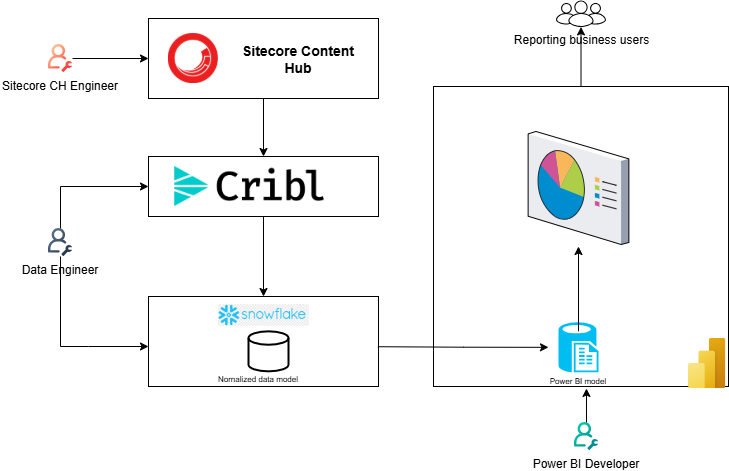
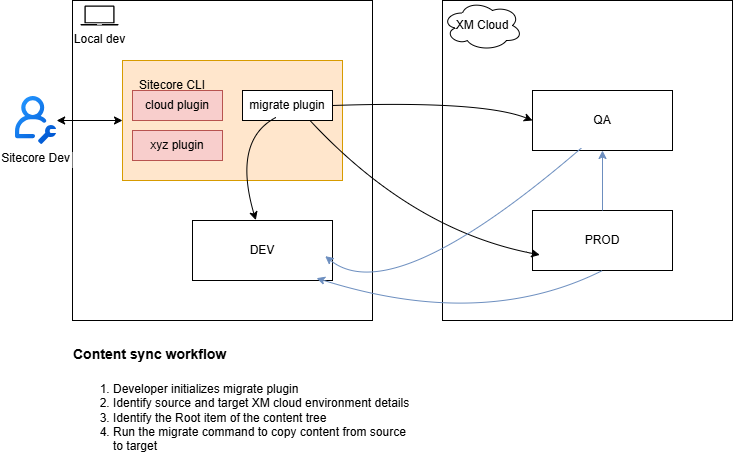
I have shared a reference architecture at the top of this blog, which you can adopt for your use cases. Broadly you will need the following architectural components so you can push data from Content Hub into your observability platform and its visualization.

1. ETL Tooling

You will need tooling that will connect to your Content Hub instance to extract the data. Typically this tooling will provide capabilities to allow you to also transform and load the data to your target data lake. This process is known as Extract-Transform-and-Load(ETL).

Tooling such as Cribl and others are perfect for this. These tools and techniques perform an ETL (extraction, transformation, and loading) type functions on the raw data and shape it into a format suitable for analysis.

I will recommend working with Data Engineers with specialist skills in ETL to help with this process.

2. Data lake tooling

A data lake is commonly referred to as a data warehouse architecture, provides the capability to read and write data in a cloud object storage. This is the central repository where data from your various sources gets aggregated at scale.

Data will be extracted from Content Hub, transformed and loaded into a Snowflake database for example. This is where it all comes together. The data lake tooling will allow you to create a logical data model to help with analysis of your data. I will recommend working with Data Engineers with specialist skills in ETL and Data lake to help with this process.

3. Reporting UX tooling

You will need to turn your data into visuals. This architecture component is a user-friendly report-creation tool such as Microsoft Power BI

How to extract data from Content Hub

Content Hub provides a REST API for querying data held within your instance. All objects in Sitecore Content Hub are modeled as resources that represent the state of objects at the time of a request. Standard HTTP requests and responses are used to query and manipulate object states and standard HTTP headers are used to augment the request and response

All data is sent and received as JSON.

Authenticating and securing REST APIs

Access to the REST API is restricted to authenticated users. You can authenticate requests using these three options:

Tips and tricks: Query vs Scroll REST APIs

Querying API provides the most flexibility in terms of filtering data for specific entities using specific indexed metadata fields. This is a GET request type, and you access is such as shown below

GET http://<HOSTNAME>/api/entities/query/

For example, you can query all M.Asset entities by using the Definition.Name property as shown below

GET http://<hostname>/api/entities/query?query=Definition.Name=='M.Asset'

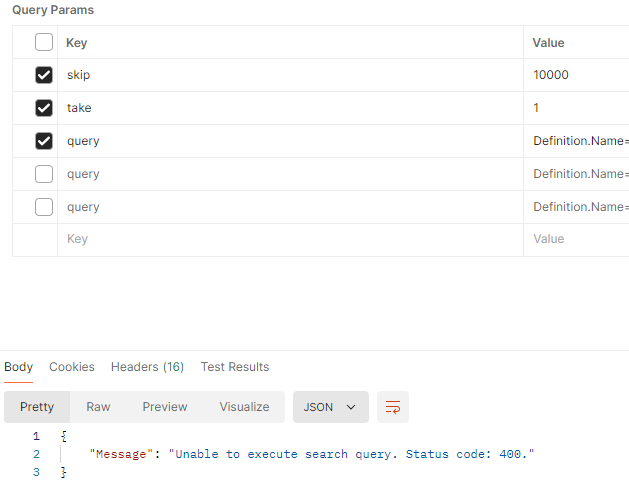
Due to deep paging restrictions, you can only retrieve up to 10,000 results. Any attempt to get more results results in an error message “Unable to execute search query. Status code:400” as shown below

Scroll API can be used to retrieve a large number of results (without the limitation seen in Querying API). Scroll only supports the GET method. The only difference with the Querying API is the paging arguments. This is also a GET request type, as shown below

GET http://<HOSTNAME>/api/entities/scroll/

This is the API I will recommend to be leveraged in scenarios when extracting all results from a single query from Content Hub into your Observability platform.

If you have concerns around data volumes and performance concerns for your Content Hub instance, reach out to your Sitecore Customer Technical Support for further guidance

Next steps

In this blog post, I have at a reference architecture that you can adopt to plug your Content Hub data into your Observability platform. I explained the various components of the architecture including some of the tooling you can leverage for your ETL and data warehousing and visualizations. I finished with strategies you can leverage to extract Content Hub data leveraging the Querying and Scroll APIs.

I hope my approach helps you address similar scenarios in your use-cases. Please let me know if you have any comments above and would like me to provide further or additional details.

Sitecore MVP 2025 announced

Julius Angwenyi Recognized as a Sitecore Most Valuable Professional

Honored for commitment to sharing expertise with the global Sitecore community

London, United Kingdom, January 30, 2025 – 360Agileweb.dev, today announced that Julius has been named a Sitecore Most Valuable Professional (MVP) Technology by Sitecore®, a global leader in digital experience software. Julius was one of only 241 MVPs worldwide selected this year.

The program recognizes professionals who actively share their knowledge and expertise with online and offline Sitecore communities to help them use Sitecore solutions and AI to create and deliver innovative digital experience solutions that drive business results.

MVPs represent and elite group in the Sitecore community of 16,000 certified developers and over 30,000 active community participants. MVPs are recognized for the quality, quantity, and impact of the contributions they made over the past year. A panel of Sitecore developers and executives honor the MVPs for the quality, quantity and impact of the contributions they made in 2024.  

“I am indeed honored to receive the MVP award and for the 4th time this year 2025. I would like to take this opportunity to congratulate my fellow MVPs on this achievement. I will also like to extend my sincere thanks to Sitecore community for recognizing my expertise and contributions. Cheers for the good work!”

“For nearly two decades, Sitecore has been honored to recognize the work of the experts who have distinguished themselves through continuous innovation and commitment to helping others build exceptional digital experiences,” said Roger Connolly, Chief Product Officer at Sitecore. “The MVPs are integral to the global Sitecore community and are looked to for their proven ability to build world-class solutions and dedication to sharing their knowledge.”

For more information, visit https://mvp.sitecore.com.

My Sitecore contributions in 2024

It is that time of the year once again, and the Sitecore MVP 2025 applications are open.

Below is a summary of my contributions for 2024:

Content contributions

This year I mostly created content within Content Hub, Sitecore Experience Edge and Sitecore Personalize space. This is where I felt there were gaps based on industrial client work I have done this year. I believe I have produced content that meets expectations in terms of quality, quantity, and visibility and more importantly, adds value to our community. This has been through blog posts, code sharing via GitHub, YouTube content, Product Feedback via Gartner Peer Reviews among other social channels:

Gartner Peer Reviews:

Sitecore Hackathon 2024:

Code and architectural artifacts:

In person events

I’m a regular attendee and an active member of Sitecore User Group London. Include a chance to attend the in person event post Symposium hosted by Sitecore in their London Paddington office.

Engagement

I have continued online and offline conversations and driven Sitecore community engagement throughout 2024 in order to amplify the content I have created.

Next steps

For 2025, I look forward keeping up producing more valuable content in terms of quality, quantity, and visibility to our Sitecore community. I will be putting myself forward for public speaking events throughout the calendar year. I intent to continue identifying any gaps and filling them, providing product feedback, improvements, and references

Stay tuned and best of luck with those submitting the Sitecore MVP 2025 applications.

Content Hub tips & tricks: Extending MRM project permissions to improve your ways of working

Background and context

Content Hub’s Marketing Resource Management (MRM) module provides a robust project management tool within the context of creation and development digital assets as part of the wider DAM solution. For example, you can capture project summaries and briefs, model your assets creative development process using stages, tasks or even jobs. Basically, you can use this tool to map to your ways of working, sharing responsibilities as you will do in a typical project. Only that MRM provides three default roles of Managers, Contributors and Readers which does what they say on the tin. But does this meet your needs?

In this blog post, I will share tips and tricks on how you can go a step further and enhance the default project roles so that you can have a more fine-grained control of permissions to meet the needs of your team members in your projects.

What you get with default Managers, Contributors and Readers project roles

In brief, project roles work like user groups. In a similar way that user group membership determines what you can access and the actions you can take so do project roles. The role you are assigned determines what you can access and the actions you can take for specific project.

  • Managers have overall visibility of the project, can create projects, edit project information, and manage all defined stages, tasks or jobs within the project
  • Contributors can make contributions to the project, such as add assets and fragments to projects.
  • Readers have read only access to assets and fragments in the project

Clearly these three broad definitions above will not always map exactly to your business use cases. For example, you may need your Readers to do more, such as download or preview some assets.

Stay tuned for details on how to get a detailed view of granular permissions available for each of these roles and tips you can use to enhance or extend them.

Can I modify or extend the default permissions for the project roles?

The good news is that these default project roles are not system-owned. These are simply role templates that you can extend yourself so that the permissions closely meet your business needs.

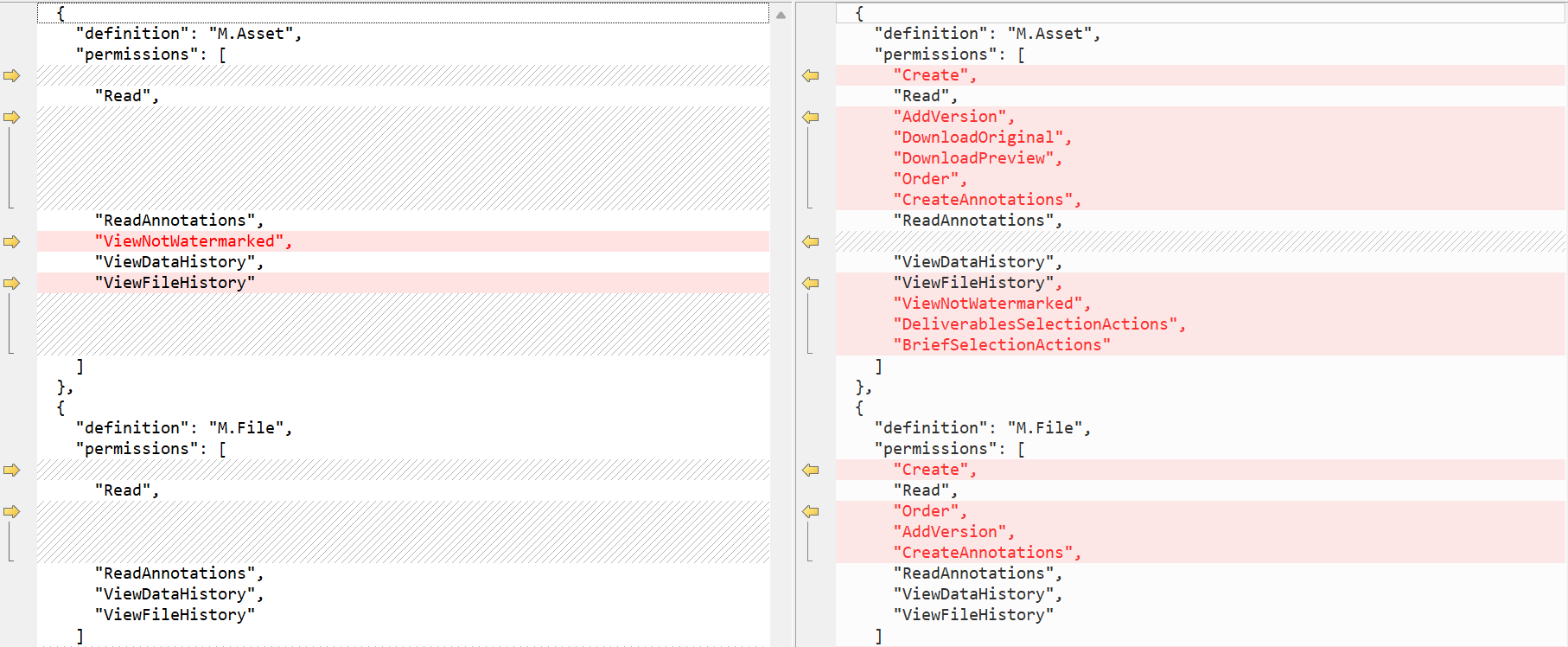
Below is a sample comparison of the default Readers (left-hand-side) and Contributors (right-hand-side)

For example, a Contributor role allows all permissions to M.Asset within Readers role plus the following additional permissions:

  • Create
  • AddVersion
  • DownloadOriginal
  • DownloadPreview 
  • Order
  • CreateAnnotations, among others

Likewise, there are different permissions for M.File for both roles, as shown above.

For the detailed list of all the available permissions and what they mean please visit the official documentation page.

Tip 1: Getting full list of all role templates

You can access the full list of all role templates in your Content Hub instance by accessing the URL below (assuming you have super user access). BASE_URL is your Content Hub instance base URL.

BASE_URL/en-us/admin/entitymgmt/entity/1471

also

BASE_URL/en-us//admin/entitymgmt/entities/50

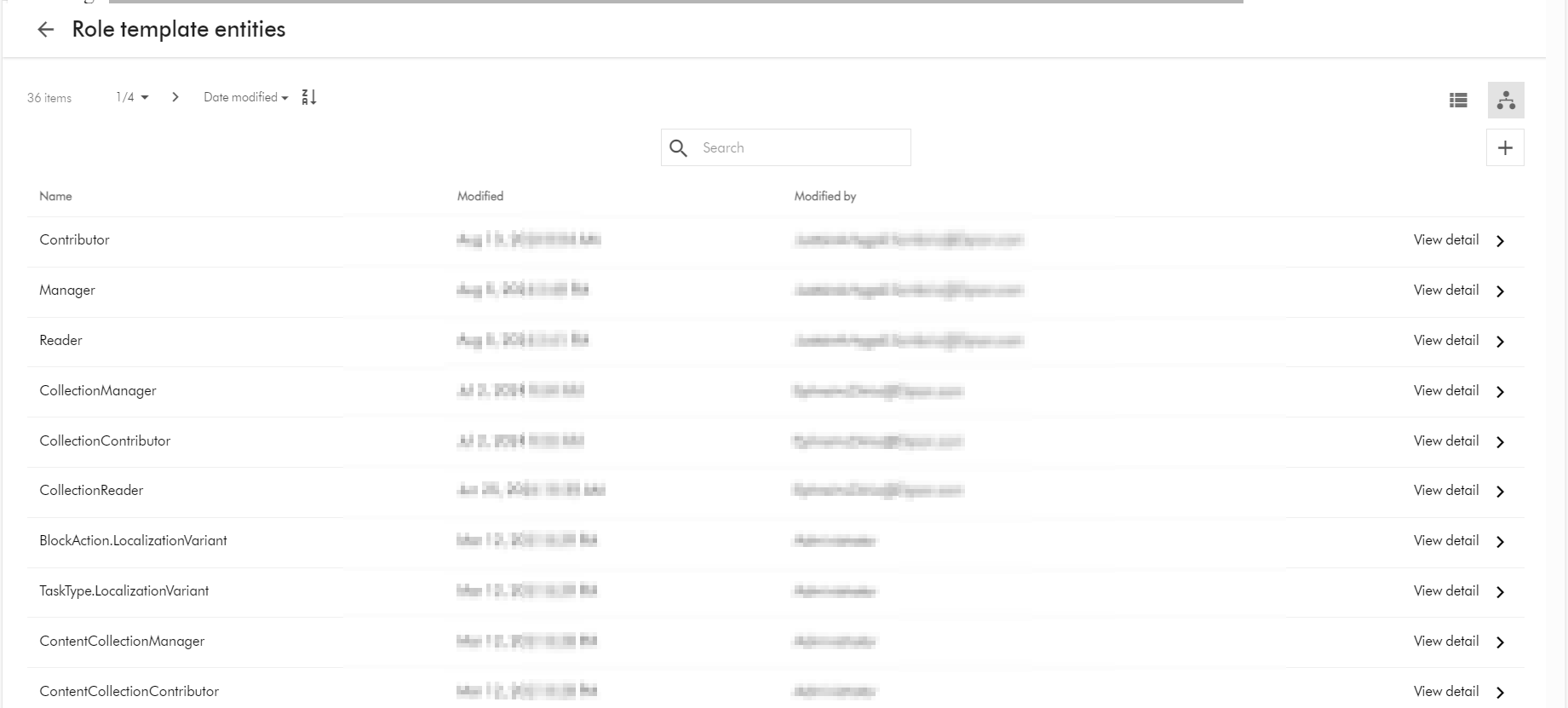
And below is a sample list:

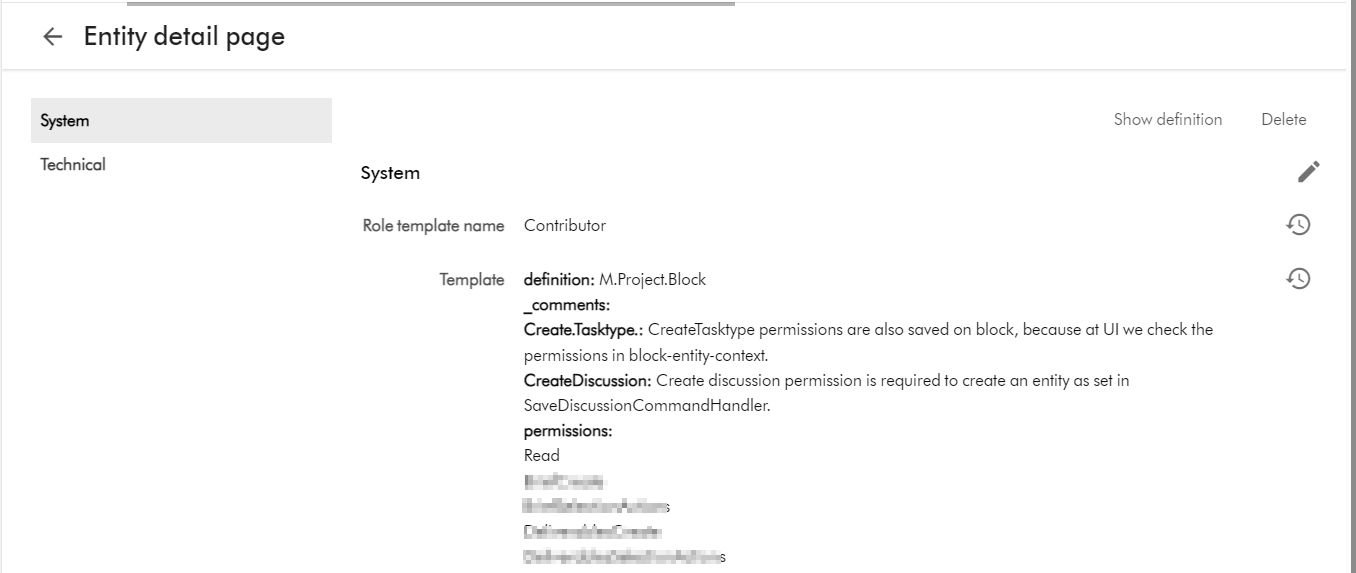
And below is the Details page for the Contributor role template, which you get by clicking on View detail link above.

Tip 2: Viewing and editing role template using entity management page

Warning: You have to take caution when making changes to the role templates. Ensure you are only making changes after consulting with business owners and assessed and agreed on required permission changes to be made.

  1. Follow Tip 1 above to find and select a role template, say Contributor
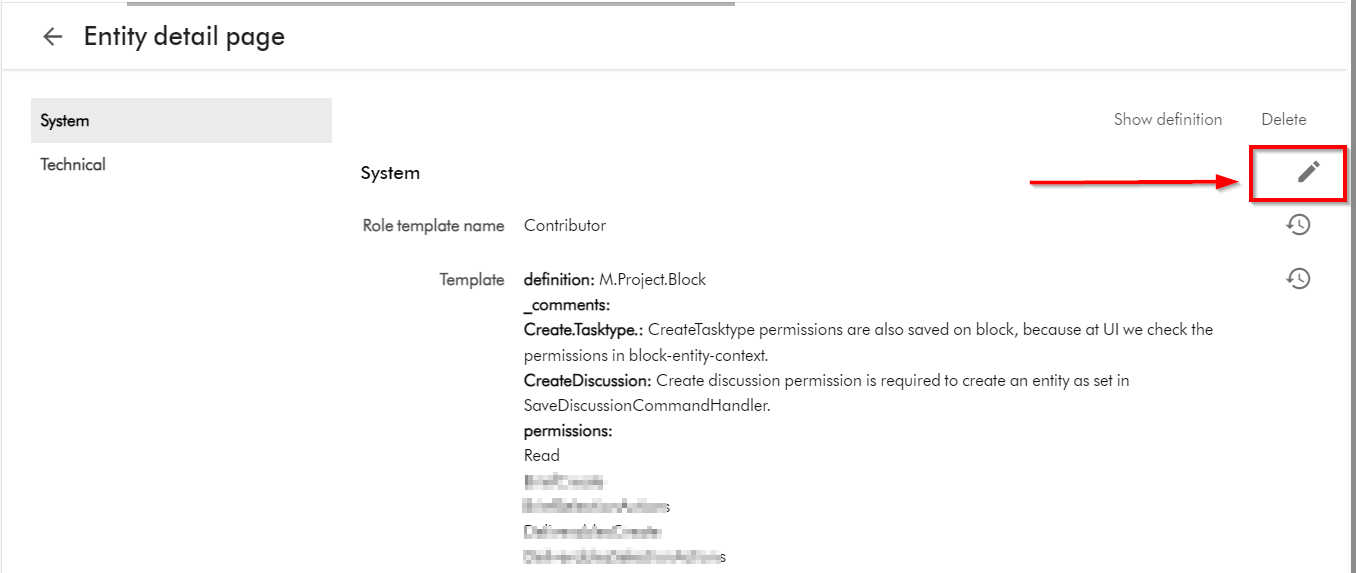
  2. Click on the Pencil or edit button shown below
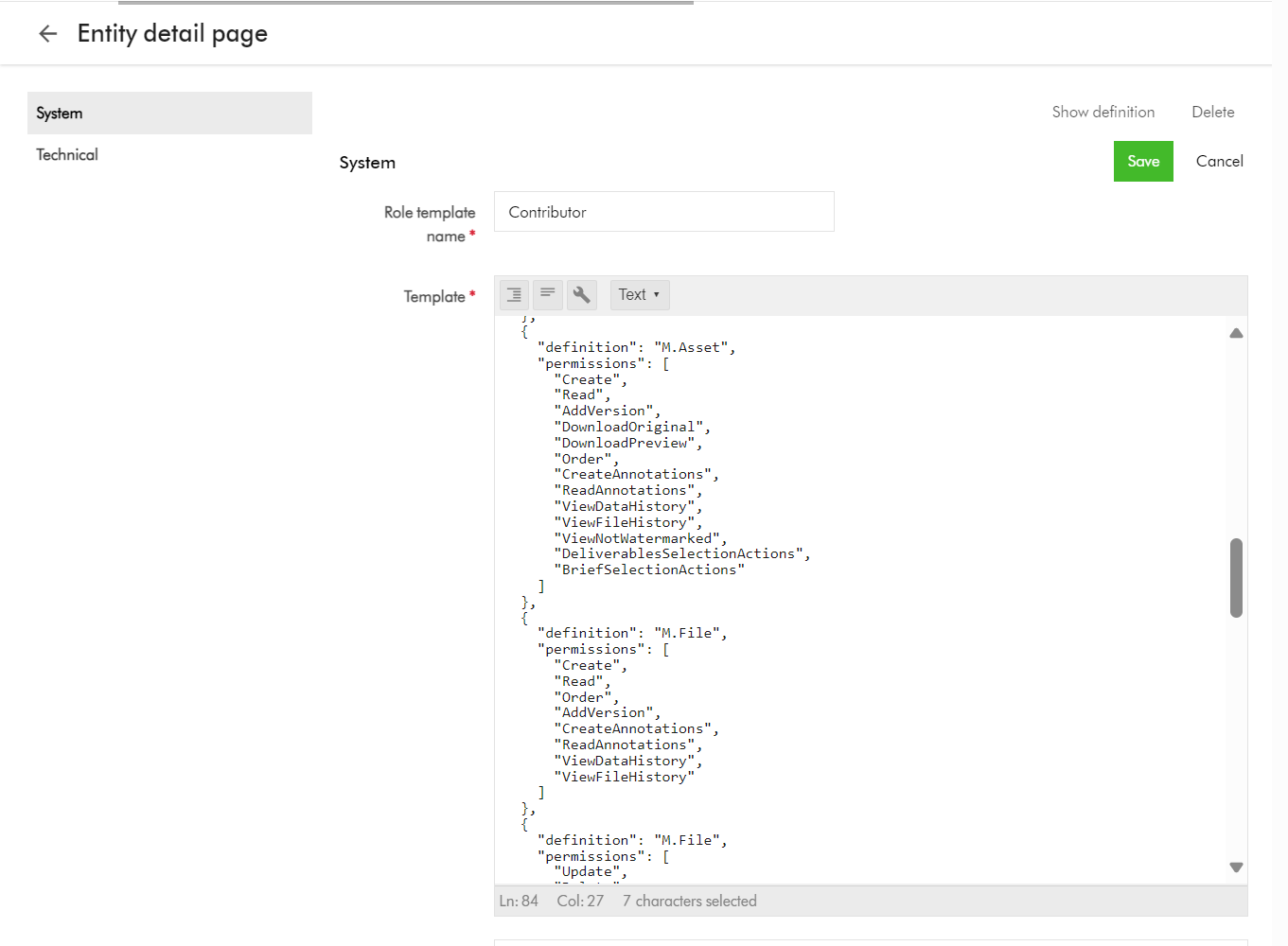
  3. This will open the edit page, shown below
  4. You can copy the text and keep note of it before making any changes. You can repeat this step for all the default project role templates, so you can compare what is different between them, to further help you assess what you need to fine tune for your use cases.
  5. Make the required updates, ensure you are using the valid list of permission shared above
  6. Click Save to apply your changes
  7. Repeat step for all your role templates that need the updates.

Tip 3: Exporting role templates into Excel

Role templates are entities in your Content Hub instance, as such you can export them into Excel.

A typical use case is to export any changes made in a lower environment (say DEV) and apply them into another environment (say QA), by leveraging Excel import into target environment.

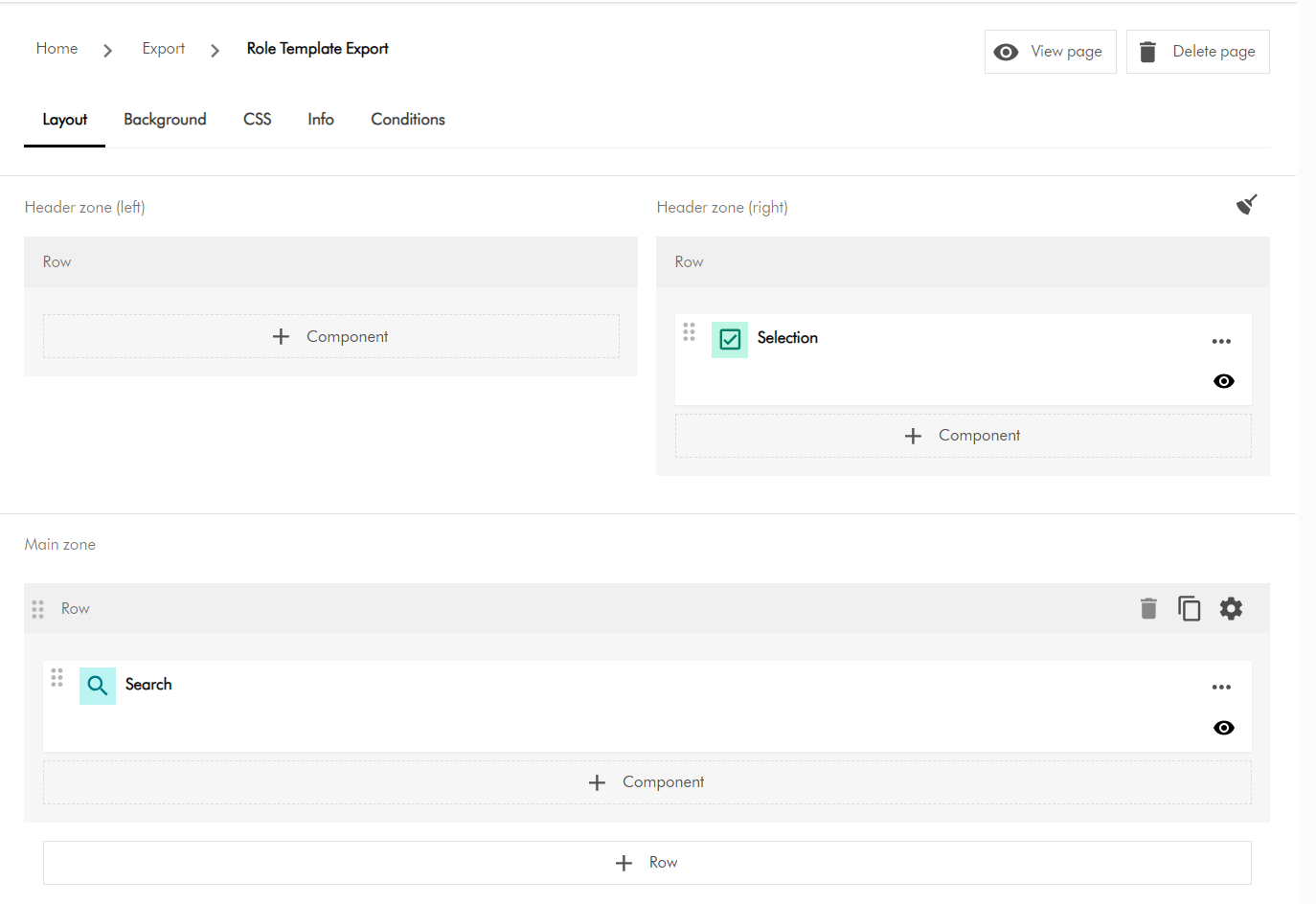
  1. You need to create a new subpage to used for the export purposes. From Manage -> Pages. Then identify which section you will be creating the new page. Then select “Add subpage” option. Refer to detailed steps available on the docs for further guidance.
  2. On your newly created subpage, add a Search component and a Selection component as shown below
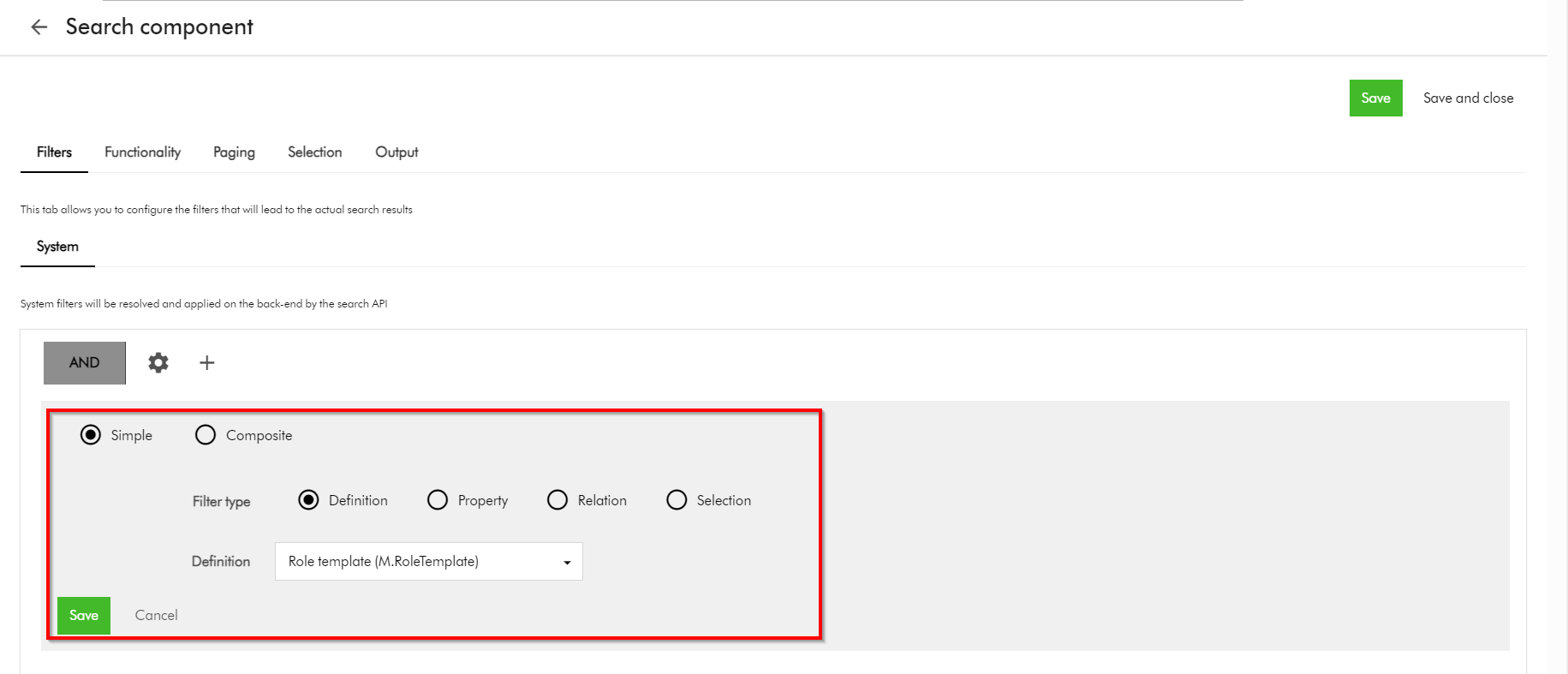
  3. Configure the Search component so we can search and display Role templates. You can use the Filters tab as shown below, and choose the M.RoleTemplate definition. You can refer to detailed steps available on the docs for further guidance.
  4. Ensure your Selection component is linked with the Search component.
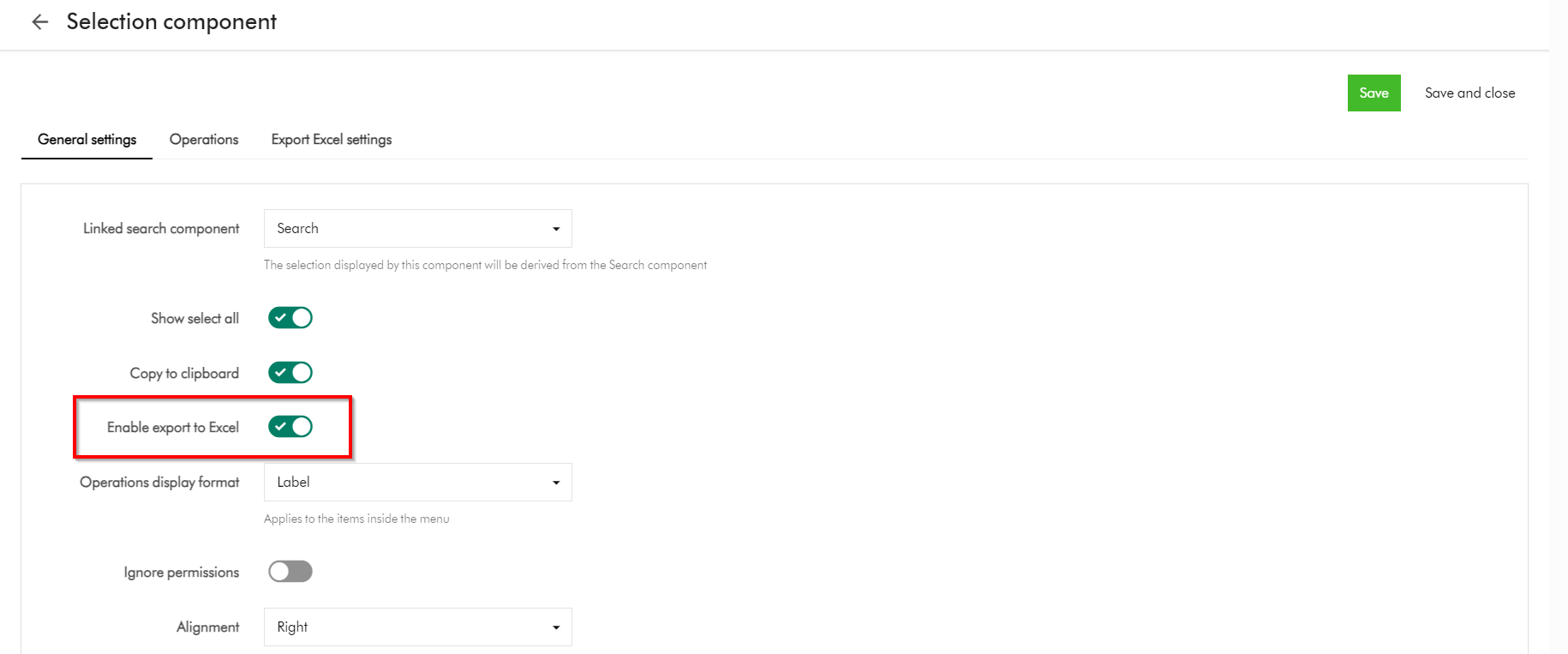
  5. Then Enable export to Excel option on the Selection component as shown below
  6. This is it, your subpage is ready.
  7. On you subpage, select all the role templates that you need to export, and select Export to excel

Next steps

In this blog post, we have looked at Content Hub’s Marketing Resource Management (MRM) module. We looked at the default project roles of Managers, Contributors and Readers and what they offer. I shared some tips and tricks on how you can extend the permissions for these roles to closely meet the needs of your project management use cases. I hope you find this useful for your similar use cases.

Stay tuned and please give us any feedback or comments.
Content Hub tips & tricks: How to securely share your DAM assets with external users by leveraging collections – part 2

Background

On the previous post, I looked at how to securely share your DAM assets externally by leveraging collections. Among other things, we covered four options you can use to secure the asset collections. One of the options involved defining a permissions policies on M.Asset (model for your assets) based on M.Collection (model for your asset collections). However, this option seems to come with some nuances and will not work by default. I will carry on the conversation to demonstrate how to make this option to work.

Why doesn’t the policy definition work?

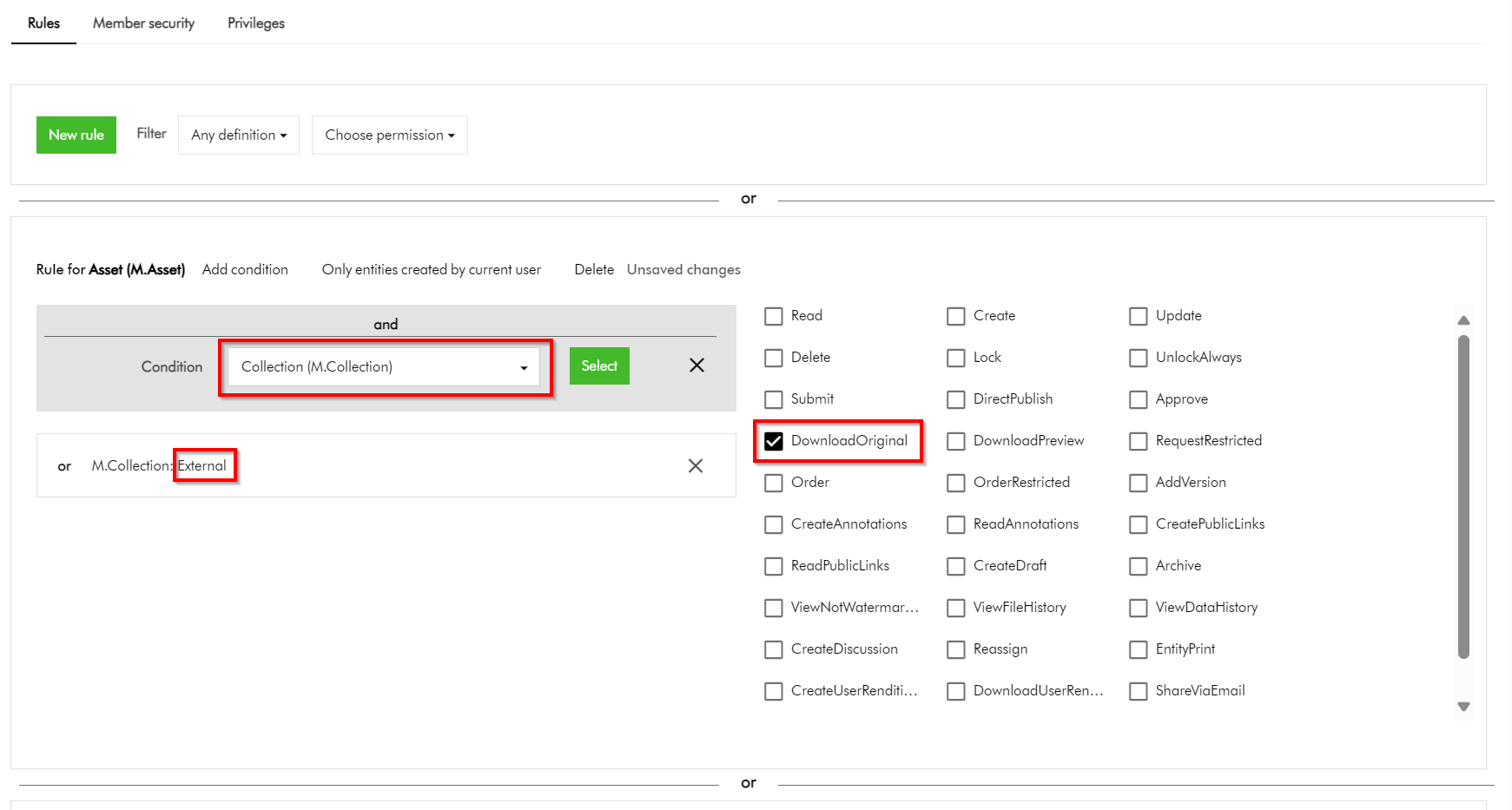
In simple terms, the above policy states that we would like to allow all assets belonging to our collection named “External” to be downloadable. Simple. But it doesn’t work.

But why?

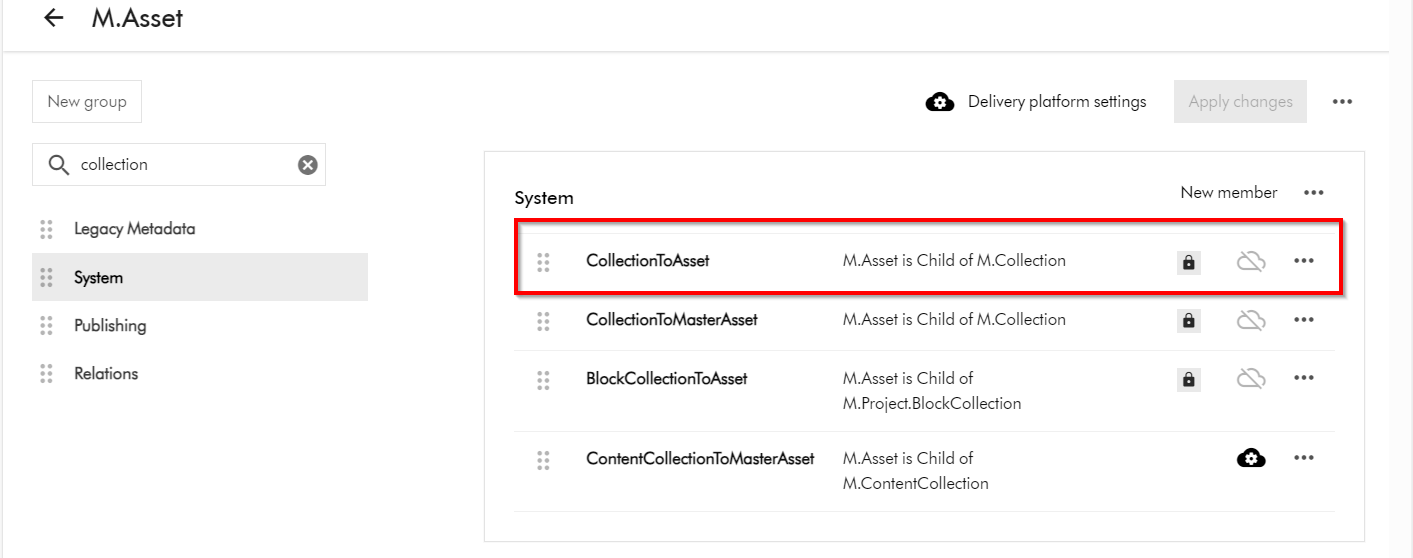
This is because the “Inherits security” setting for the CollectionToAsset relation is turned off by default. In other words, this means security related metadata (from the parents towards the children) can not be inherited while this setting is turned off.

M.Asset is a child of M.Collection (as shown below in the schema details for M.Asset definition). To access M.Asset schema page, click on Manage -> Schema -> then search for M.Asset

How do I turn on “Inherits security” for the CollectionToAsset relation?

Short answer is you can’t modify this by yourself. You will need support from Sitecore Technical Support to make this change for you. Please note CollectionToAsset is a system relation and is locked down to Super users as well.

You can raise Sitecore Support Cases using the Support portal and request the team to enable the “Inherits security” on CollectionToAsset on your environments. This should be actioned swiftly after which your policy definitions can start to work as expected.

Next steps

In this blog post, we have looked at how to make user group permissions policies on M.Asset based on M.Collection work. We looked at nuances that make this not to work by default and how to resolve and get it working. I hope you find this useful for your similar use cases.

Stay tuned and please give us any feedback or comments.
Content Hub tips & tricks: How to securely share your DAM assets with external users by leveraging collections – part 1

Background

One of the great values you get with your investments in Sitecore Content Hub platform is the collaboration capabilities with your external partners and users in your content supply chains. Siecore Content Hub provides out-of-the box the Asset Collections capability, which enables you to group your assets. Which seamlessly allows collaboration on that asset collection through comments, for example.

However, there is a catch.

When you create an asset collection and want a fine grained control on whether these assets should be downloadable, this doesn’t always seem to work as expected.

For example, you have a collection named “External” with only “Asset test 1” and “Asset test 2” included. And you need these two assets to be downloadable. However, when this collection is shared, there are scenarios when other additional assets will seem to appear within External collection, instead of just “Asset test 1” and “Asset test 2” as expected.

In this blog post, I will be sharing some top tips and tricks on how you can be in control of this process, ensuring you only share assets that need to be shared, securely.

How do I create an asset collection

The existing official docs provide step-by-step guidance on how to create asset collections. I will repeat the main steps below, for the sake of to keeping the flow in this blog post.

To create an asset collection:

  1. On the menu bar, click Collections.
  2. In the top-right corner of the Collections page, click + Collection.
  3. In the Collection dialog, populate the details of the collection you are creating
  4. Click Save.

How do I add assets to my asset collection

Again, the existing official docs provide robust step-by-step guide on how to add asset to a collection. Please note that it is best practice to add existing assets to your collection – which are at the correct stage of your content lifecycle. Avoid uploading new assets directly at this stage.

How do I share my asset collection

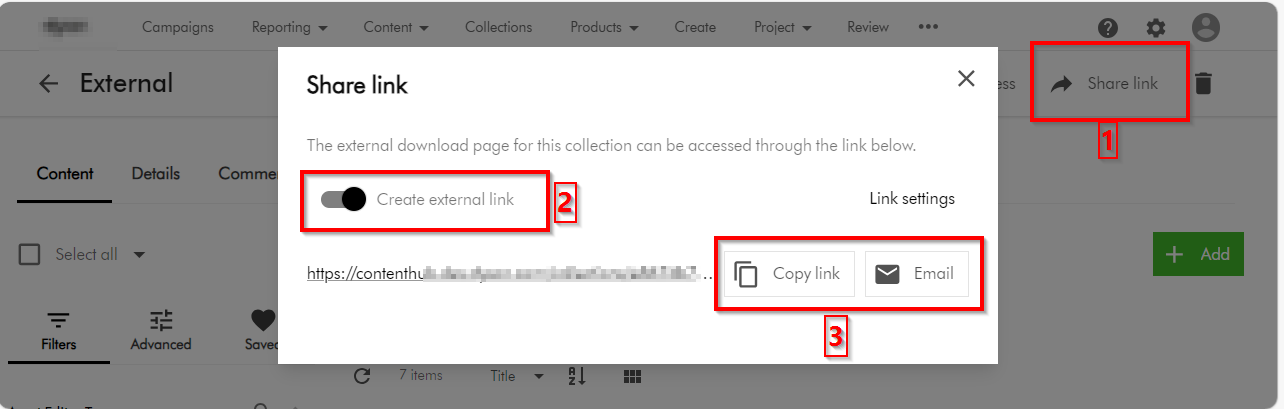
You can share the collection by following the following three main steps:

  1. On the collection details page, click Share link share link icon.
  2. In the Share link dialog, turn on the Create external link switch. This will then generate for you a link
  3. To share the link via email, use the Click Email email icon button, which should prompt for emailing details. You can alternatively use the Copy link button to copy the URL and share it as well

Tips and tricks on securing you asset collections

Now that we have covered the basics on how to create an asset collection and share it, I will focus on top tips and tricks of ensuring we are sharing the collection using best practices and for the correct external collaborators.

Top tip 1 – Leverage user groups to manage external collaborators

User groups underpins the permissions model within Content Hub. Members of a user group are granted permissions and privileges according to the user group policies assigned to that group. By managing permissions and privileges using groups, you can streamline how they are assigned.

  • Read-only external collaborators – Define a separate user group for your external collaborators who need a read-only access. These are not expected to make any contributions, but may be to give them a status update of your assets.
  • Contributor external collaborators – Define a separate user group for your external collaborators who you would like to give you comments and feedback on shared assets.
  • Download external collaborators – Define a separate user group for your external collaborators who you would like download your shared assets. The use case is when you would like them them to use download the shared assets for allowed activities such are offline brands channels.
  • Add external collaborators to a user group – Always add external collaborators as users in your Content Hub instance, then assign them one of the above user groupings. Sitecore Content Hub allows users belonging to an external domains to be added using Users Manager (and they can sign in with their username and passwords) Depending on your security policies and governance, it is possible to also leverage Single sign on with External domains. If you need guidance, reach out to your Security and Identity team or Sitecore Technical support.

Top tip 2 – Leverage user group policies to lock down UX and pages

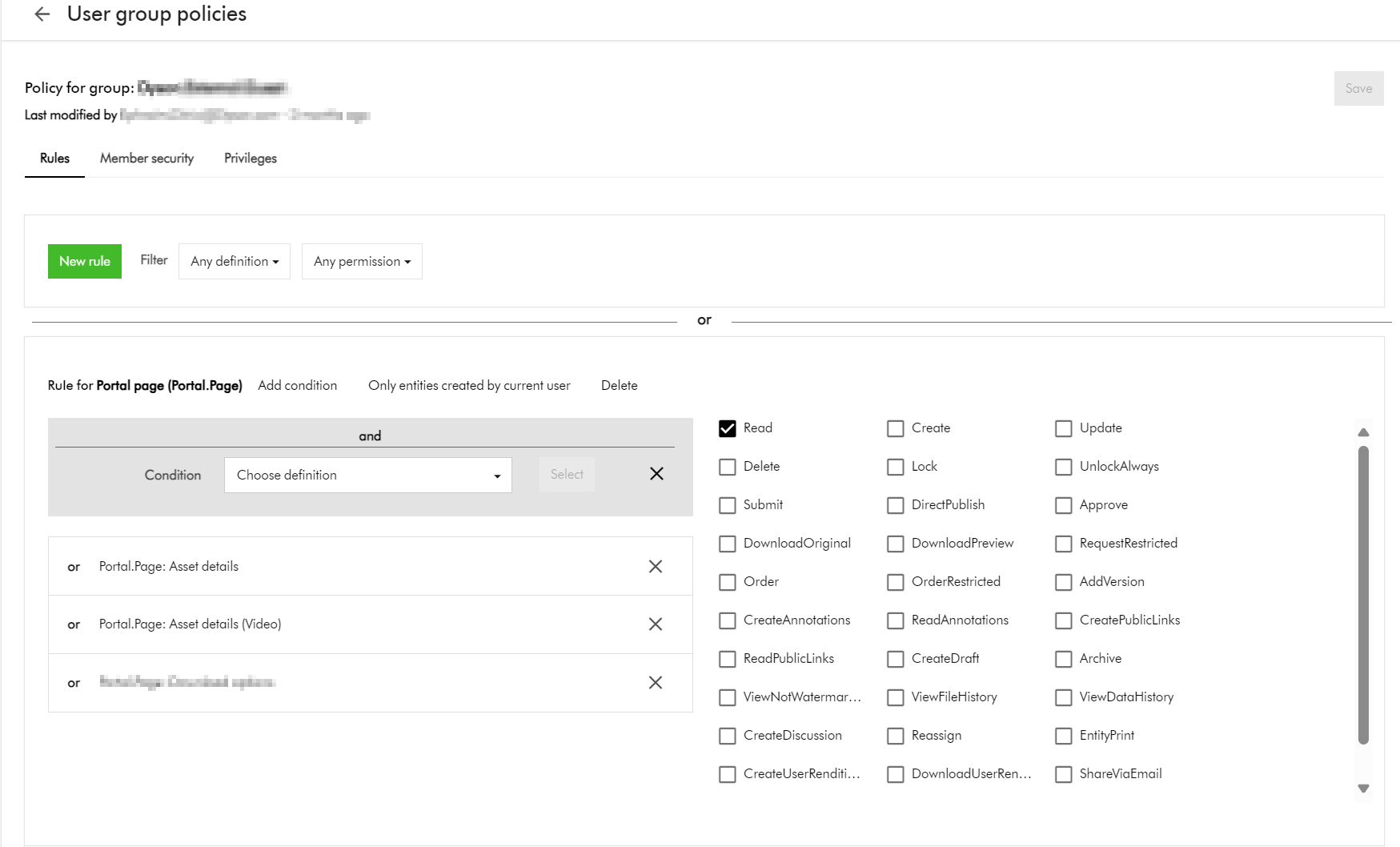
You need to make a decision which pages your external collaborators can view. For example, should they access your Asset details page, which will potentially give them access to additional meta data?

If you have followed Top tip 1 above, all you need to do is define user group policies for each relevant user groups.

Below is an example of how you can give access to allow viewing Asset details page(s) such as Asset details or Video asset details page as shown below.

Top tip 3 – Additional policies – downloadable assets based on a taxonomy value

You recall the scenario I described at the start of the blog. You have a collection named “External” with only “Asset test 1” and “Asset test 2” included. How will you go about ensuring only these two assets are downloadable?

  1. Define taxonomy, use this to tag and identify external assets:
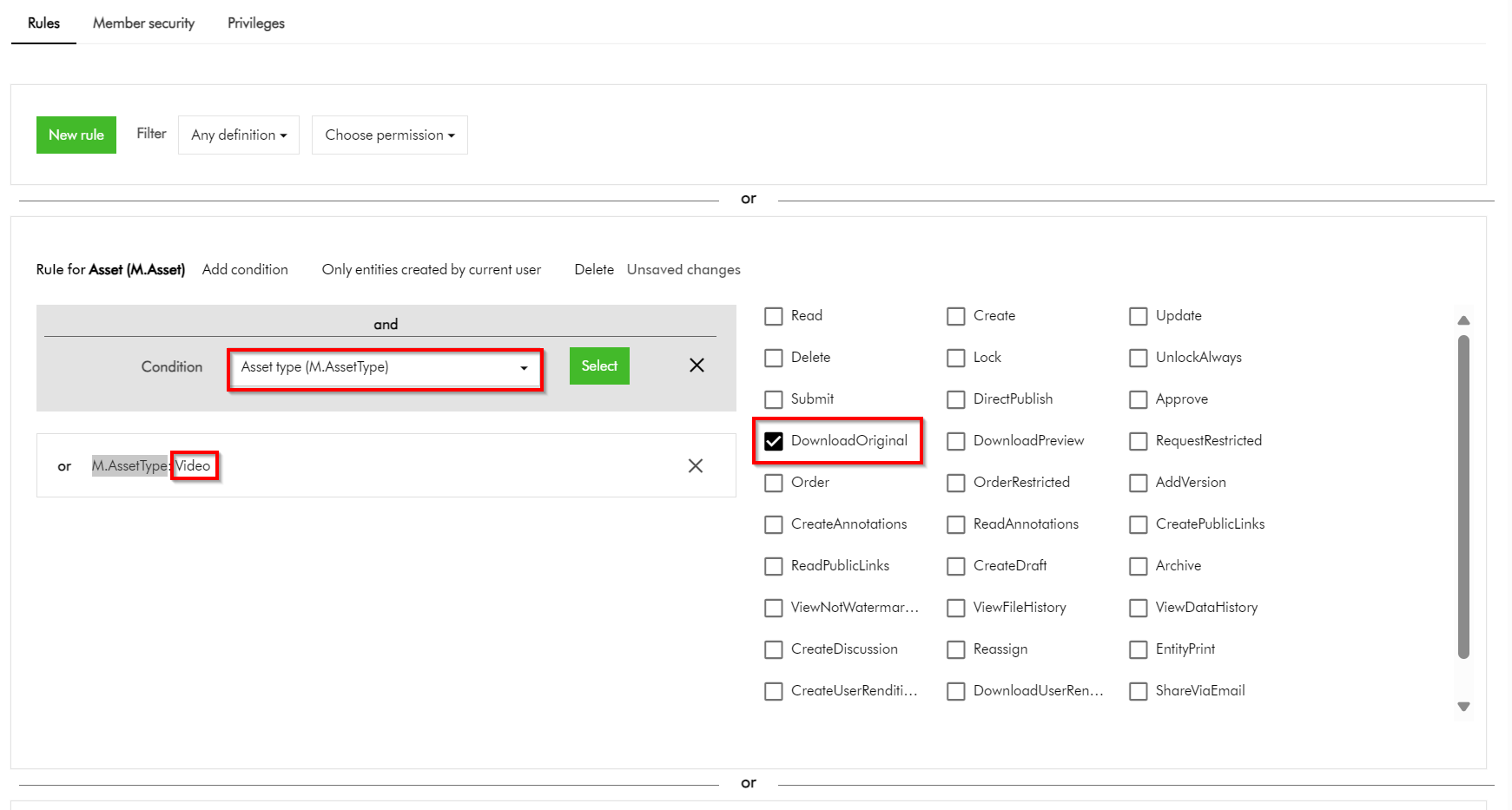
    • This option requires you to define some form of Taxonomy, say, ExternalAsset which entities Yes or No. For all externally shareable assets, you will need to tag them with value of Yes. You can then leverage this Taxonomy within your User Group policies definitions to narrow down which assets can be downloadable. As an example, this policy below shows how I can narrow which asset is downloadable based on M.AssetType value of Video
  2. This clearly works. However, with this option you will need to ensure all assets are tagged accordingly before sharing them externally. This could add more work to your content workflows.

Top tip 4 – Additional policies – downloadable assets based on current asset collection

You could be asking, why can’t I apply the additional policy for downloadable assets based on the current asset collection? Good question.

If you try this approach, your User group policy will look like this instead.

This is perfectly fine. You could have thought this will work, right?

This option does not work. It seems you can not define a policy on M.Asset (model for your assets) based on M.Collection (model for your asset collections) by default.

While grappling with this issue, I reached out to Sitecore Technical support for guidance. Good news is we have a technical solution for this specific problem. Stay tuned on my next blog post when I will cover how you can make a group policy definition policy on M.Asset based on M.Collection such as in the screenshot above work.

Next steps

In this blog post, we have looked at Content Hub asset collections a great feature for collaboration capabilities with your external users during your digital assets lifecycle. We have looked at some of the top tips you can leverage to secure your collections when sharing them with your external collaborators. I hope you find this useful for your similar use cases.

On the follow up blog post, I will look into details how to resolve the specific problem identified above. Please give us any feedback or comments.

Content Hub DevOps: Managing your action script code lifecycle in CI/CD pipelines

Context and background

When working with automated CI/CD pipelines with you Sitecore Content Hub, you need to be aware of the development lifecycle for your Action Scripts. This is to ensure your source code repo for your scripts doesn’t get ‘bloated with orphaned‘ script code files. In this blog post, I will cover how to manage the development lifecycle of your Action Scripts to mitigate against this problem.

What happens when you serialize action scripts into source control

I have previously blogged on Content Hub DevOps, especially on leveraging Content Hub CLI to extract a baseline of your Content Hub components. For example ch-cli system export --type Scripts --wait --order-id command allows you to export Actions, Scripts and Triggers package. When you unzip or extract the files within this package, you will notice there is a scripts folder. This will have two types of files: .json files and .csx files (assuming your actions scripts are written in C#.NET)

Script .json file type

For each action script packaged from your Sitecore Content Hub instance, it will have two files. One of them is the script .json file.
Below is a sample action script json file:

This file contains all the relevant meta-data about the action script. In particular, you will notice that it is referencing a second file using the ScriptToActiveScriptContent relations property. Using our sample above, this json file is referencing this code file “ZOGG4GbbQpyGlTYM7r1GfA

Script .csx code file

The code file based on C#.NET, is similar to the sample shown below.

What happens when you modify the code in your scripts

Each time you make changes to your Action Script source code and successfully build it, Content Hub will generate a new code file version behind the scenes. This will be automatically linked to its corresponding script .json file.

To visualise this, you will notice that when you serialise your Action Script again from your Content Hub instance, a new code file will be generated.

If you now compare the previous code file with the new one, it will become obvious which changes Content Hub has made to the .json file. Below is a sample comparison.

What should you do with the ‘old’ code file

We have now established what is going on whenever the source code in your action script is changed and successfully rebuilt. Each time, a new file will be generated. The old file will remain in your source code repository, unused and effectively ‘orphaned’.

My recommendation is to design your DevOps process that will always clean-up or delete all files from your scripts folder in your source code, before pulling the latest serialised files from your Content Hub instance.

You can do this in an automated way leveraging the Content Hub CLI commands. Alternatively, you can do it old school way leveraging PowerShell commands to delete all files from scripts folder before serializing new ones again. Whichever mechanism you leverage, ensure old and used code files do not bloat your source code repo.

Next steps

In this blog post, I have discussed what happens when you make code changes to your action scripts. I explained why you will have ‘old’ or ‘orphaned’ code files within your script folder that will bloat your source code repo. I also covered steps you can take to mitigate this problem.

I hope my approach helps you address similar scenarios in your use-cases. Please let me know if you have any comments above and would like me to provide further or additional details.

Streamlining Content Hub DevOps: Deploying Environment Variables and API Settings to QA and PROD

Context and background

I recently worked on an exciting Content Hub project which required automation of deployments from DEV environments to QA/TEST and PROD. One of the challenges I faced was how to handle environment specific variables and settings. One particular use case is the API call Action type, which has references to some API call endpoint and using an Api Key. Typically, such an API call will point to a non-production endpoint in your QA/TEST Content Hub and a production facing endpoint for the PROD Content Hub

Sounds familiar, should be easy right?

I thought so. I thought I put this question to my favourite search engine to see what is out there. The truth is Content Hub DevOps is nothing new really. There is plenty of documentation on how to go about it, including this blog post from the community From the Sitecore official docs, you can also find details about how to leverage Content Hub CLI to enable your DevOps workflows.

However, I couldn’t come across an end-to-end guide that solves my current problem. Nicky’s blog post “How to: Environment Variables in Content Hub Deployments” was pretty good actually and I have to say I found the approach quite compelling and detailed. However, I didn’t adopt Nicky’s approach as I would like to use automated end-to-end DevOps pipelines. Unfortunately, Nicky’s approach doesn’t.

My approach

Below is a high level process I have used.

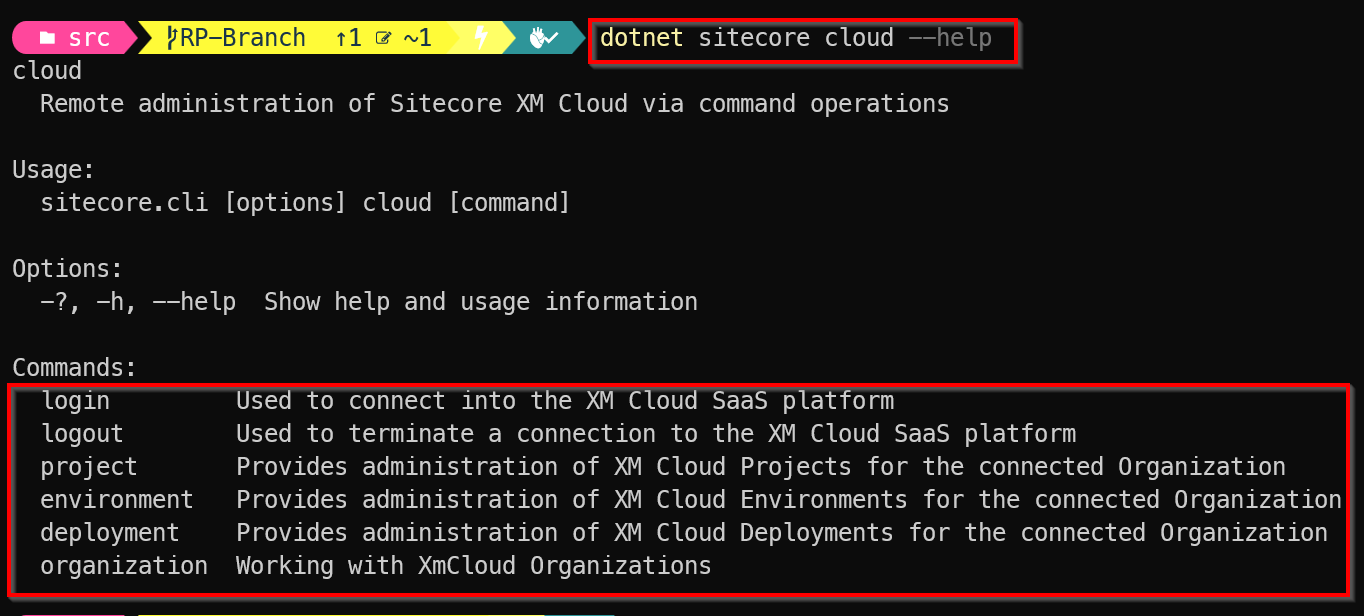
  • Leveraging Content Hub CLI to extract a baseline of your Content Hub components. For example ch-cli system export --type Scripts --wait --order-id command allows you to export Actions, Scripts and Triggers package, which you can extract all yours Actions, Scripts and Triggers as JSON files. These can then be source controlled, allowing you to track future updates on a file-by-file basis. For a full list of components that you can export, you can pass --help param as shown below.
  • Without DevOps, you will typically package and deploy your Actions, Scripts and Triggers, say from DEV Content Hub into QA Content Hub instance. You will then have to manually update any of your API call Actions with the QA specific endpoint URL.
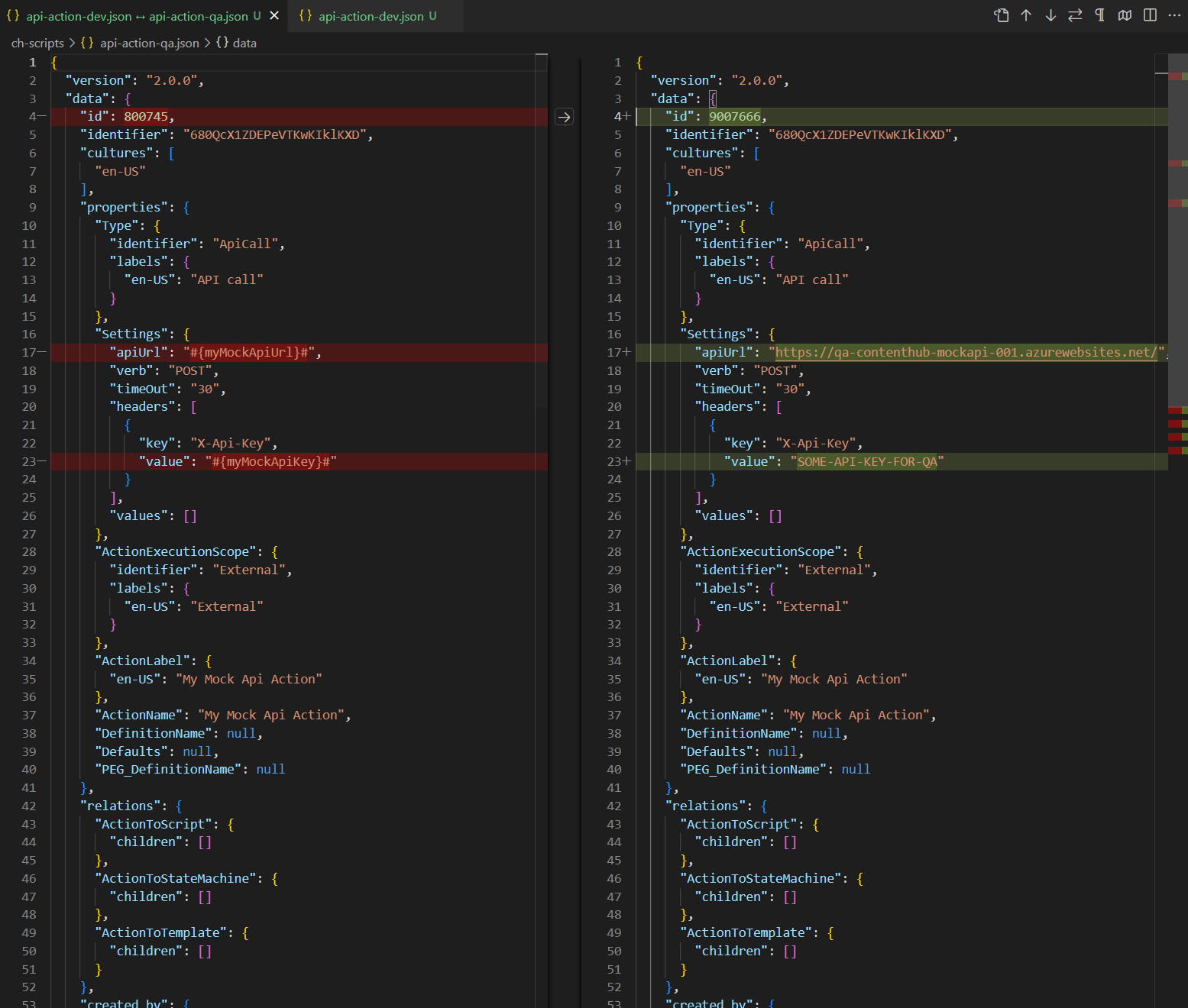
  • With Content Hub CLI, I am able to source control and compare my Content Hub DEV and QA files as shown below. Left-hand side is my DEV mock API action, right-hand side is my QA. Please keep note the identifier is the same (680QcX1ZDEPeVTKwKIklKXD) to ensure the same file can be deployed across to Content Hub QA and PROD
  • This is quite powerful, since I can take this to another level and define Environment specific variables for my mock API action, as shown below. I have identified I will need #{myMockApiUrl}# and {myMockApiKey} variables.
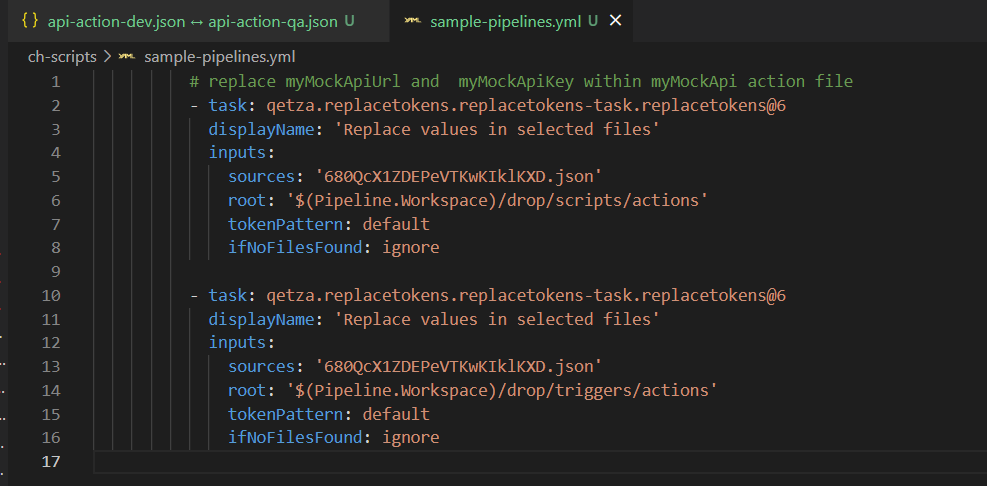
    • Notice I am leveraging the ReplaceTokens Azure pipelines task. Left-hand side is my DEV mock API action, this time I have parameterised the variables. Right-hand side is my QA to help illustrate the differences. During the QA deployment, my CI/CD pipelines will transform the source controlled file on the left-hand side into QA file on the right.
  • This is it, I have solved my problem. I have identified which component(s) have environment specific variables and parameters. I can now leverage DevOps CI/CD pipelines to package all my components, generate a deploy package specific for Content Hub QA environment.
  • Deploying a package using Content Hub CLI uses this command: ch-cli system import --source "path to your deploy package.zip" --job-id --wait
  • Wearing my DevOps hat, I am able to write a complete end-to-end CI/CD pipelines to automate the deployments.

Using Azure DevOps CI/CD pipelines

It is very straight forward to define and implement an end-to-end Azure DevOps CI/CD pipelines once we have defined our process and development workflows.

Azure variables template definition

One capability you can leverage is the Azure variables template definitions to allow you to define Content Hub QA and PROD variables, such as below. Please notice #{myMockApiUrl}# and {myMockApiKey} variables in this template file. They now have Content Hub QA specific values. We will need a similar file to hold Content Hub PROD variables.

Referencing Azure variables template file in main pipeline

The Azure variable template file for QA (qa-variable-template.yml, in my case) can then be linked to the main Azure CI/CD pipeline yaml file, such as shown below:

Replacing tokens in main pipelines

Replacing tokens sample is shown below. Please notice the API call Action Identifier 680QcX1ZDEPeVTKwKIklKXD that was referenced in my previous screenshots above

Next steps

In this blog post, I have introduced the problem and use-case when you need to manage and deploy Content Hub environment specific variables. I have used an API call Action type to illustrate this use case. I have also covered how to leverage Content Hub CLI to serialise Content Hub components and demonstrated an example of using Actions, Scripts and Triggers components. I finished with my own approach and how I did an implementation of an end-to-end automated DevOps process. I hope my approach helps you address similar scenarios in your use-cases. Please let me know if you have any comments above and would like me to provide further or additional details.

Content Hub tips & tricks – Selection component shows wrong name in linked Search component

Problem and context

Consider the scenario as per the screenshot above. You are configuring a second Search component on your Assets search page. You make a genuine mistake and name your second Search component identical with your existing one, as shown. In this case, you would like to link your second Search component with your existing Selection component as shown.

Selection component shows ‘duplicates’

I know that I have made a genuine mistake of using the same ‘search‘ name for my second Search component. My selection component will display the following.

This is obviously confusing and we don’t know which is which. Now I will try rectify my mistake, and rename my second Search component.

Renaming Search component

Do rename my second Search component, I click on the Settings button shown below

Which opens the Settings pop up, from where I will specify a new Title as shown below and Save it.

Below is the outcome showing my second Search component renamed.

Selection component still shows ‘previous’ name

After this change, I was expecting my Selection component to show ‘searchRenamed’. However, I still have the same problem as shown below.

Sitecore Technical support have logged a product bug

I reached out to Sitecore Technical support and shared my use case above. Below is the response I received.

Hi Julius,

Based on the provided information we would like to define the scope of the current case:

Issue definition: in the drop down list the PageComponent.Name property is used instead of PageComponent.Title in the Linked search component (in the Selection component).
Investigation target: we will work diligently to help find the root cause and a resolution to the defined issue.

Additional notes:

[Redacted]

The issue reported has been registered as an issue in the Content Hub product.

The reference of the bug report is the following: MONE-44866, which can be further reviewed and followed-up via the support portal in the “My Product Issue” page

Update:

Glad to report that Content Hub product team have resolved this issue in September 6, 2024 release

Tips and tricks

Currently, the Selection component’s Linked search component drop down list uses the PageComponent.Name instead of PageComponent.Title. While Sitecore have acknowledged this as product bug, you can easily work around this issue.

  1. If you are going to create more than one Search Component, ensure you name the appropriately with distinct and easily identifiable titles. This is because the title will be used as the component name in the backend, which will ultimately be displayed on the list when linked to Selection component.
  2. If you initially assign your second Search Component the same name as the first one, then renaming the second component will NOT resolve the issue as I have explained in this blog post. Either delete the second Search component and create a new one with a unique Title.
  3. Or, use the Entity Management page to rename the Name of the second Search component to make it unique, as shown below. You will need to know the Entity Id of your second Search component.
  4. Entity Management page can be accessed using the URL below
https://<your-instance-url>/en-us/admin/entitymgmt/entity/<ENTITy_ID>

Next steps

In this blog post, we have looked at a scenario where having more than one Search components with the same name causes ‘duplication’ issue with your Selection component Linked Search component list. I have shared some tips and tricks to help you work around this issue.

Stay tuned and leave please us any feedback or comments.

Content Hub – defining self-referencing relations, creating, linking and displaying entities – part 2

Introduction

In the previous blog post, I introduced you to self-referencing relations in Content Hub, plus possible use-cases for them. In this blog post, I will focus on how to create and populate self-referencing entities and display them within Content Hub.

Displaying linked assets on the Asset Details page

As discussed in the previous blog post, a typical use case for self-referencing relations is to link a set of assets to a parent or master asset.

Below is a mockup of the parent or master asset details page to illustrate this use-case.

This is a typical asset details page that you get out-of-the-box with your Content Hub instance. I have done one customization to this page, to allow me to display our Linked assets panel as highlighted above.

As you can notice:

  • I am displaying panel heading ‘Linked assets’.
  • I have ‘+ Add existing items’ CTA button. This is the button when clicked, allows me to search for existing assets that I would like to link to the current parent or master asset.
  • I have a refresh button. This allows me to refresh the linked assets list without re-loading my entire page
  • A have list of linked three (3) assets shown in a tabular form, including the asset meta data of ID, Title and Article Type To Asset

We will now look at how I have built this linked assets panel.

Modifying Asset Details page

To customize the existing Asset details page, we need to view the Page designer component. From the ‘Manage’ dashboard, select ‘Pages’ component, which will open the ‘Pages’ window.

Search for ‘Asset details’ page, as shown below. As you can see, I have added a new section to the existing page layout. This section has the ‘Linked assets’ panel.

  • Linked assets – this is the panel component which contains the display components for linking the assets. Below is the settings popup for this panel.
  • SearchEligibleAssets – this is the Search component that I have configured to search and filter existing assets that will be linked to the parent or master asset. Below is the configuration settings for this search component.
  • Notice we are searching and only linking existing assets that have not been deleted.
  • The ‘SearchEligibleAssets’ component should be set to be ‘Nested’ component as we are using it from within our ‘Linked assets’ componet.

Linked assets panel component

Let us look at the components within our ‘Linked assets’ panel.

  • CreationLinkAssets – this is our Creation component, that will create new links based on the selected assets to our parent or master asset. Below is screenshot showing how we using it to link assets to the parent or master asset.
      • We need to link our ‘SeachEligibleAssets‘ Search component to the Creation component, as shown below
      • The assets to be linked are using our ‘AssetToLinkedAsset‘ relation, setting the Parent as shown above.
  • SearchLinkedAssets – is is our Search component that will display all existing and already linked assets to our parent or master asset. Below is configuration to achieve this
    • Ensure M.Asset is selected in ‘System’ filter
    • Then within the ‘Fixed’ filter, filter out using our ‘AssetToLinkedAsset’ relation as shown below
    • As specify we are displaying all assets which have the current asset (Page Entity) as their Parent using the self-referencing ‘AssetToLinkedAsset’ relation.
  • This is it. All done.

Next steps

In this blog post, we have done a deep-dive into how to create and populate self-referencing entities and link them up to create parent-child hierarchy and to display them within Content Hub.

Stay tuned and leave please us any feedback or comments.