
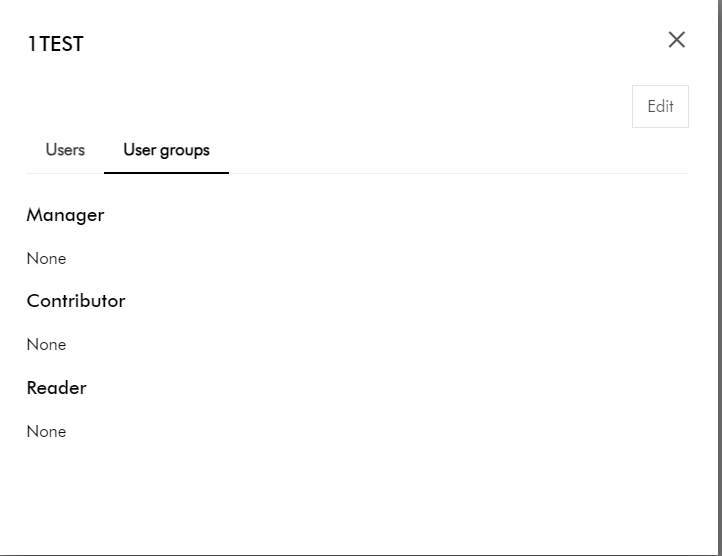
Background and context
Content Hub’s Marketing Resource Management (MRM) module provides a robust project management tool within the context of creation and development digital assets as part of the wider DAM solution. For example, you can capture project summaries and briefs, model your assets creative development process using stages, tasks or even jobs. Basically, you can use this tool to map to your ways of working, sharing responsibilities as you will do in a typical project. Only that MRM provides three default roles of Managers, Contributors and Readers which does what they say on the tin. But does this meet your needs?
In this blog post, I will share tips and tricks on how you can go a step further and enhance the default project roles so that you can have a more fine-grained control of permissions to meet the needs of your team members in your projects.
What you get with default Managers, Contributors and Readers project roles
In brief, project roles work like user groups. In a similar way that user group membership determines what you can access and the actions you can take so do project roles. The role you are assigned determines what you can access and the actions you can take for specific project.
- Managers have overall visibility of the project, can create projects, edit project information, and manage all defined stages, tasks or jobs within the project
- Contributors can make contributions to the project, such as add assets and fragments to projects.
- Readers have read only access to assets and fragments in the project
Clearly these three broad definitions above will not always map exactly to your business use cases. For example, you may need your Readers to do more, such as download or preview some assets.
Stay tuned for details on how to get a detailed view of granular permissions available for each of these roles and tips you can use to enhance or extend them.
Can I modify or extend the default permissions for the project roles?
The good news is that these default project roles are not system-owned. These are simply role templates that you can extend yourself so that the permissions closely meet your business needs.
Below is a sample comparison of the default Readers (left-hand-side) and Contributors (right-hand-side)
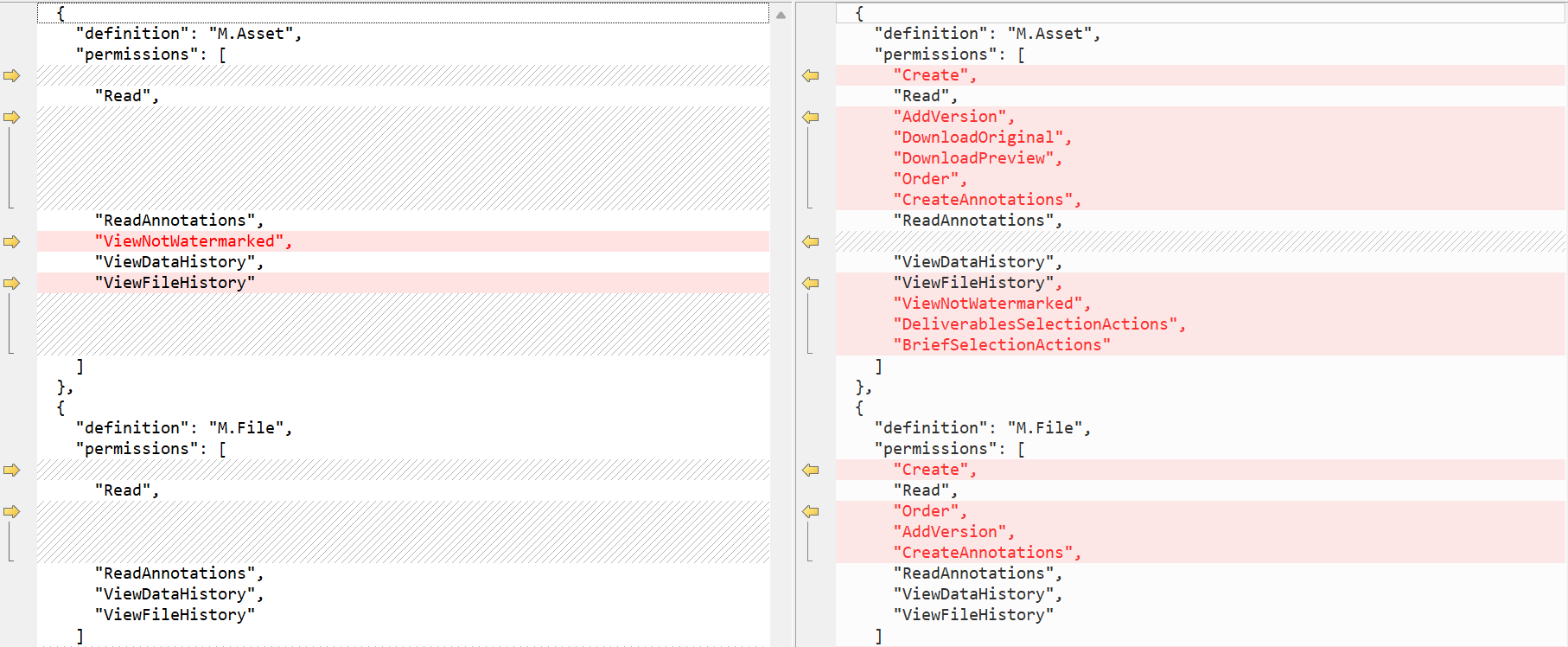
For example, a Contributor role allows all permissions to M.Asset within Readers role plus the following additional permissions:
- Create
- AddVersion
- DownloadOriginal
- DownloadPreview
- Order
- CreateAnnotations, among others
Likewise, there are different permissions for M.File for both roles, as shown above.
For the detailed list of all the available permissions and what they mean please visit the official documentation page.
Tip 1: Getting full list of all role templates
You can access the full list of all role templates in your Content Hub instance by accessing the URL below (assuming you have super user access). BASE_URL is your Content Hub instance base URL.
BASE_URL/en-us/admin/entitymgmt/entity/1471
also
BASE_URL/en-us//admin/entitymgmt/entities/50
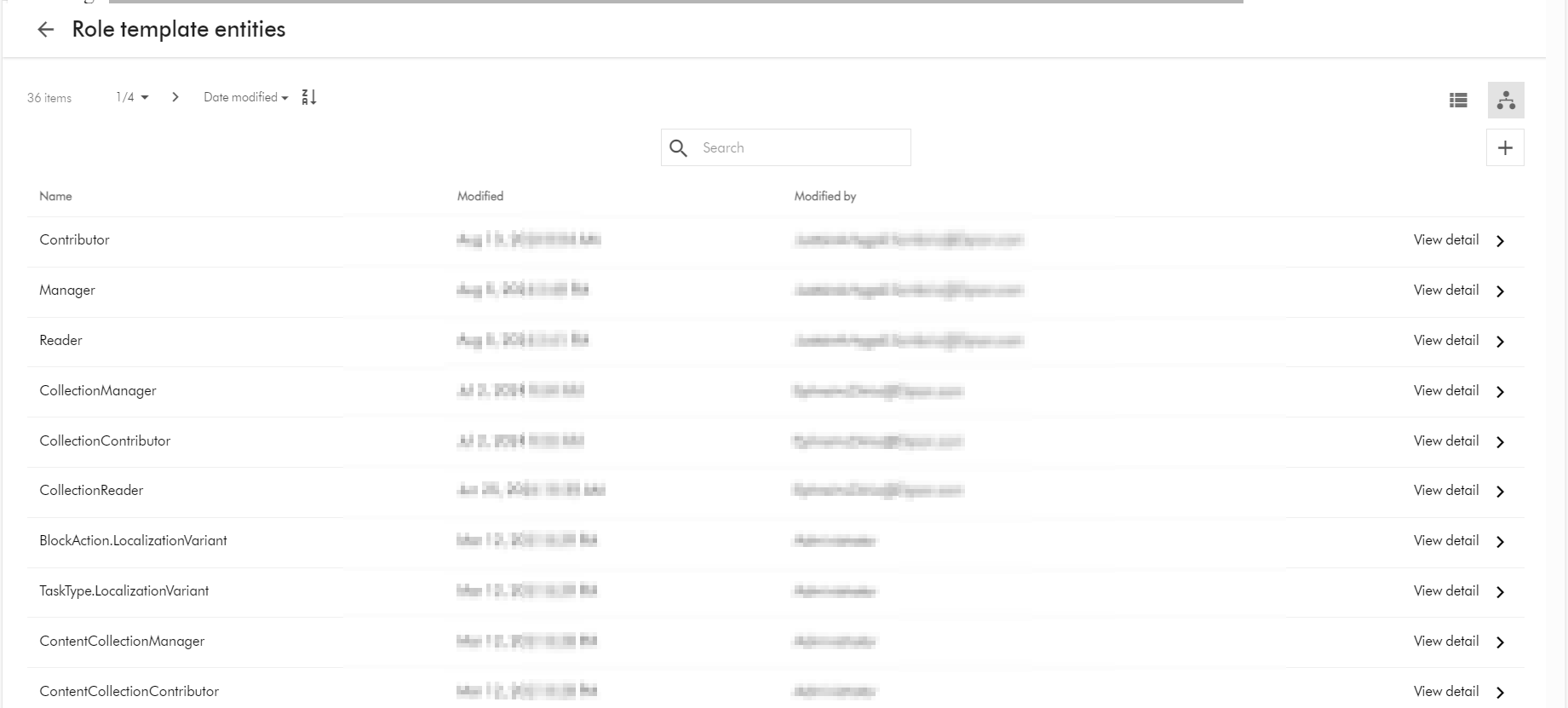
And below is a sample list:
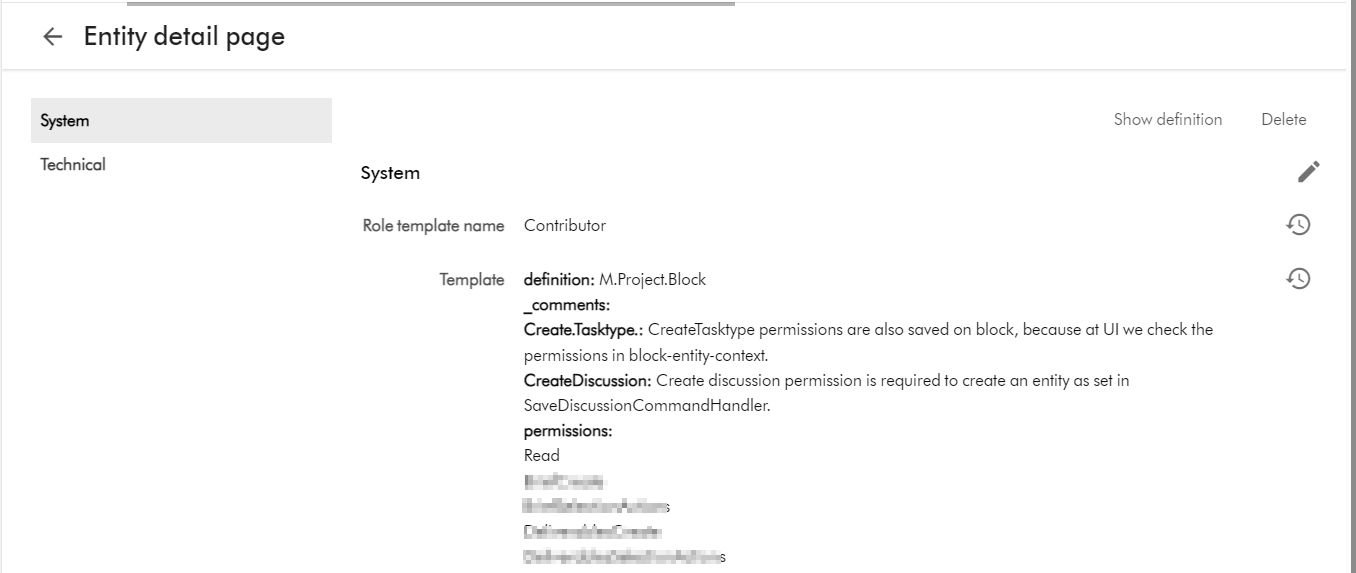
And below is the Details page for the Contributor role template, which you get by clicking on View detail link above.
Tip 2: Viewing and editing role template using entity management page
Warning: You have to take caution when making changes to the role templates. Ensure you are only making changes after consulting with business owners and assessed and agreed on required permission changes to be made.
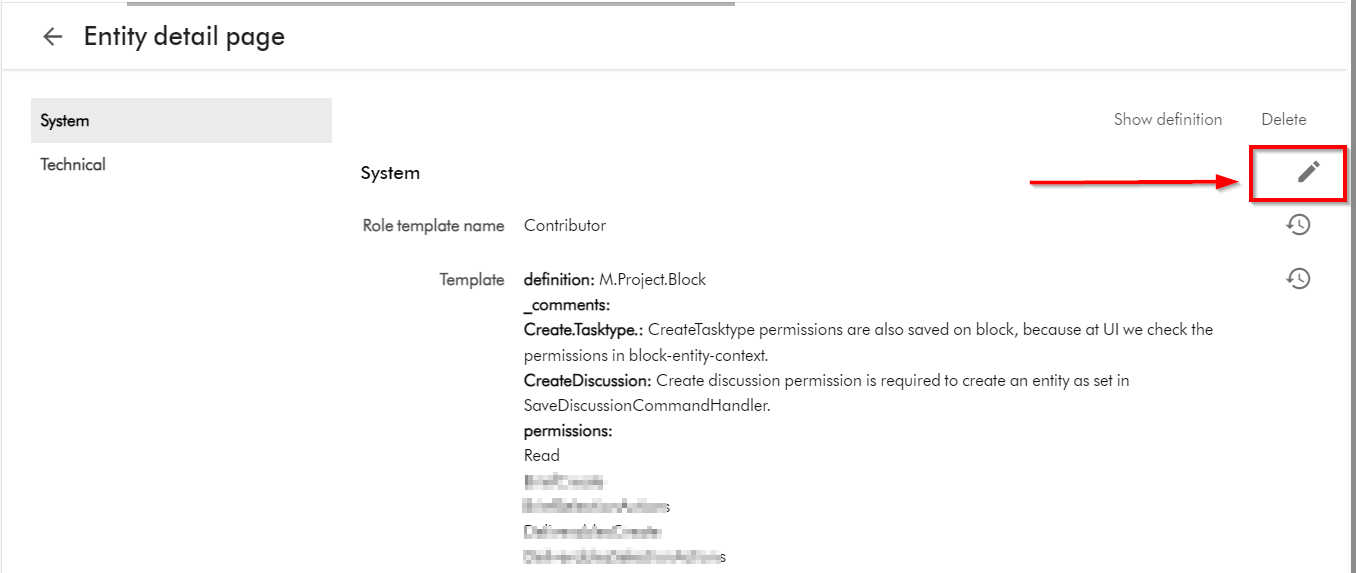
- Follow Tip 1 above to find and select a role template, say Contributor
- Click on the Pencil or edit button shown below
-
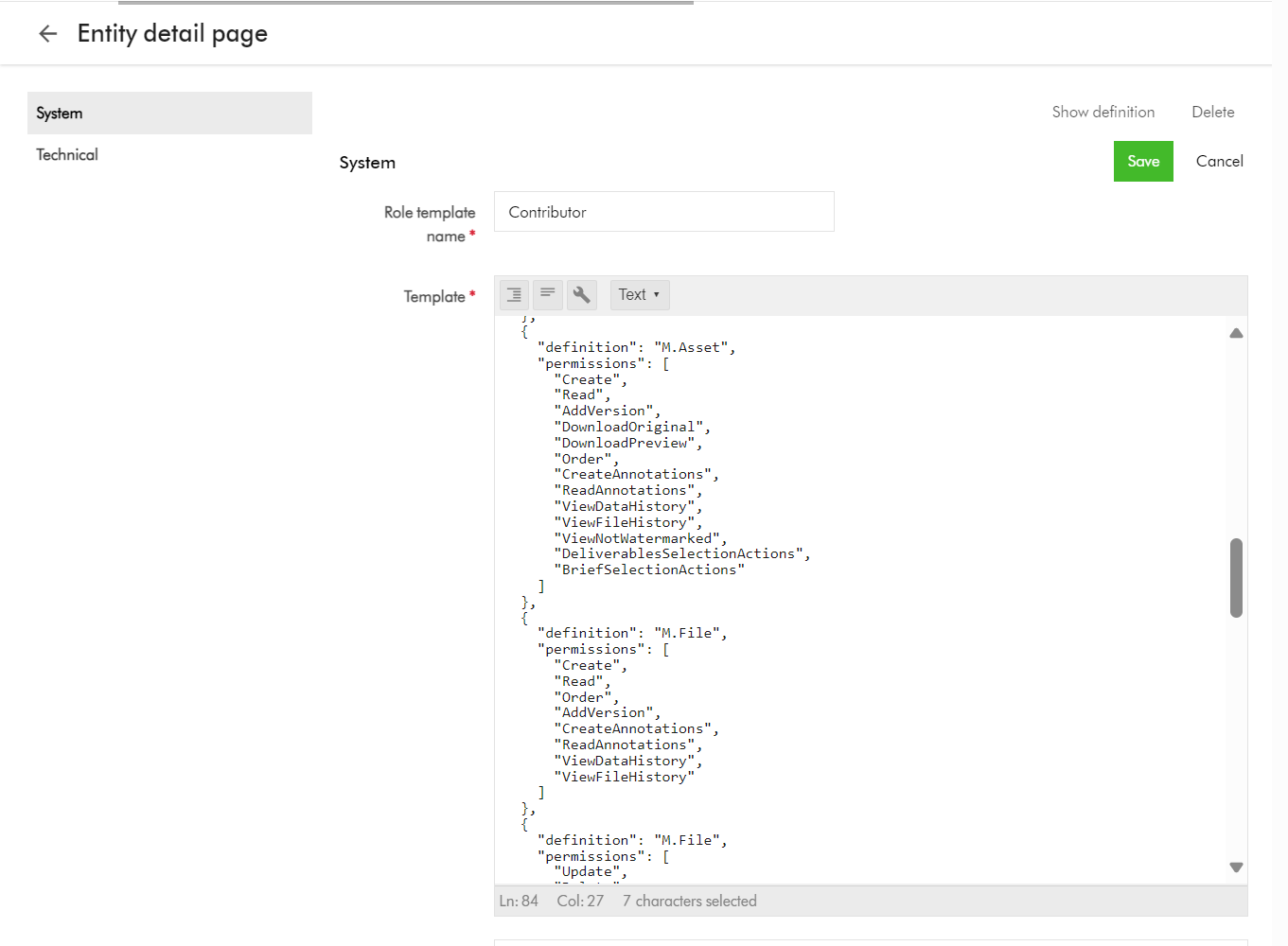
- This will open the edit page, shown below
- You can copy the text and keep note of it before making any changes. You can repeat this step for all the default project role templates, so you can compare what is different between them, to further help you assess what you need to fine tune for your use cases.
- Make the required updates, ensure you are using the valid list of permission shared above
- Click Save to apply your changes
- Repeat step for all your role templates that need the updates.
Tip 3: Exporting role templates into Excel
Role templates are entities in your Content Hub instance, as such you can export them into Excel.
A typical use case is to export any changes made in a lower environment (say DEV) and apply them into another environment (say QA), by leveraging Excel import into target environment.
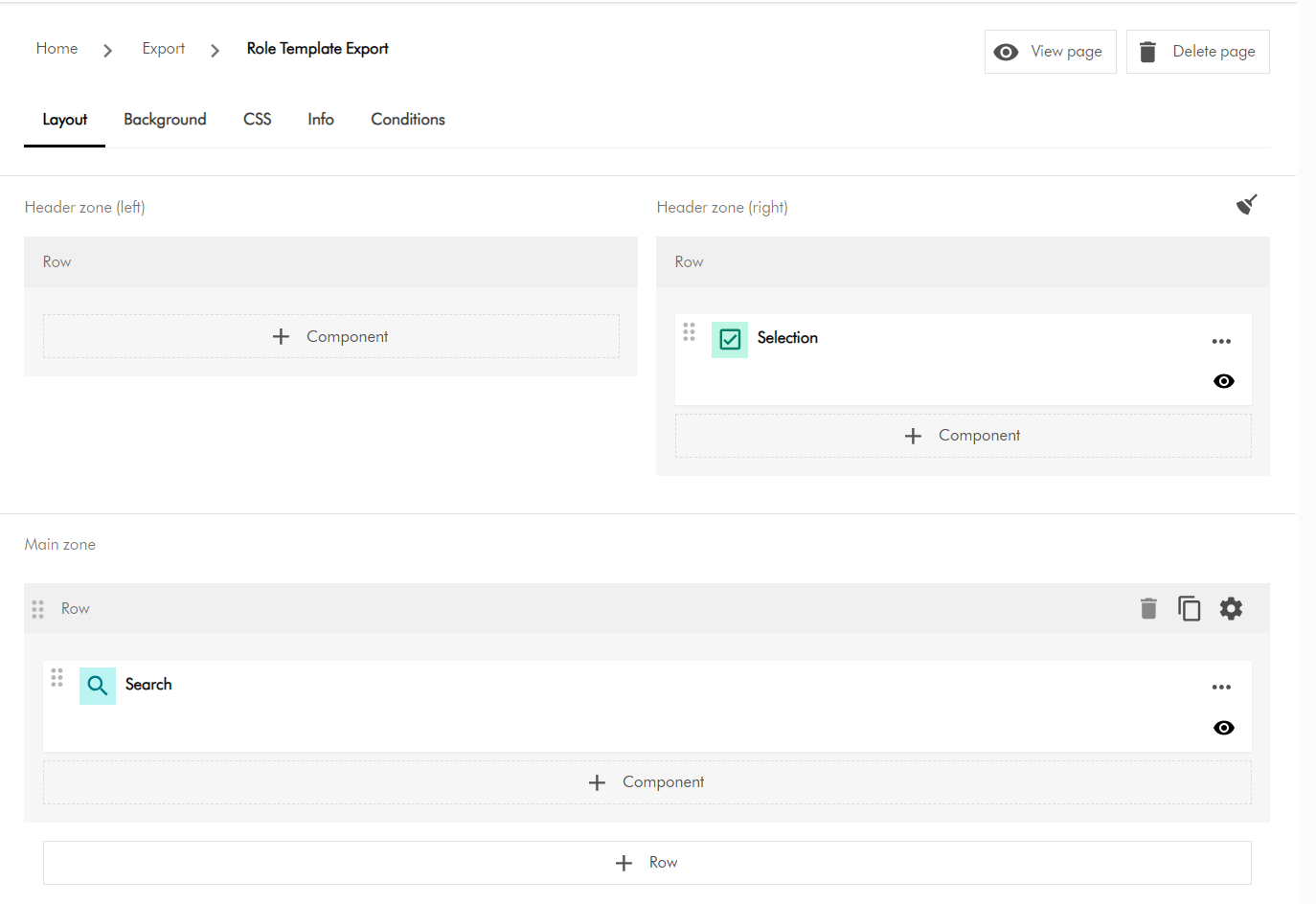
- You need to create a new subpage to used for the export purposes. From Manage -> Pages. Then identify which section you will be creating the new page. Then select “Add subpage” option. Refer to detailed steps available on the docs for further guidance.
- On your newly created subpage, add a Search component and a Selection component as shown below
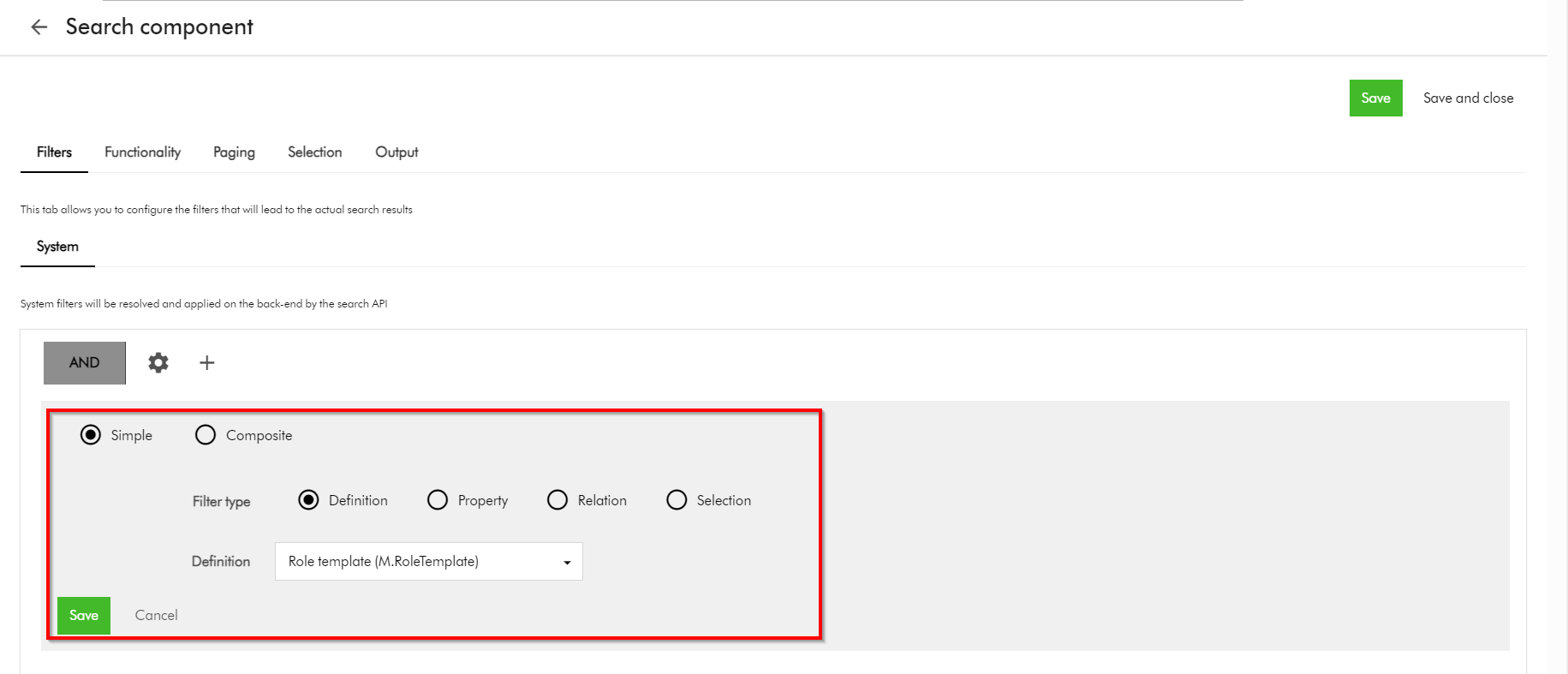
- Configure the Search component so we can search and display Role templates. You can use the Filters tab as shown below, and choose the M.RoleTemplate definition. You can refer to detailed steps available on the docs for further guidance.
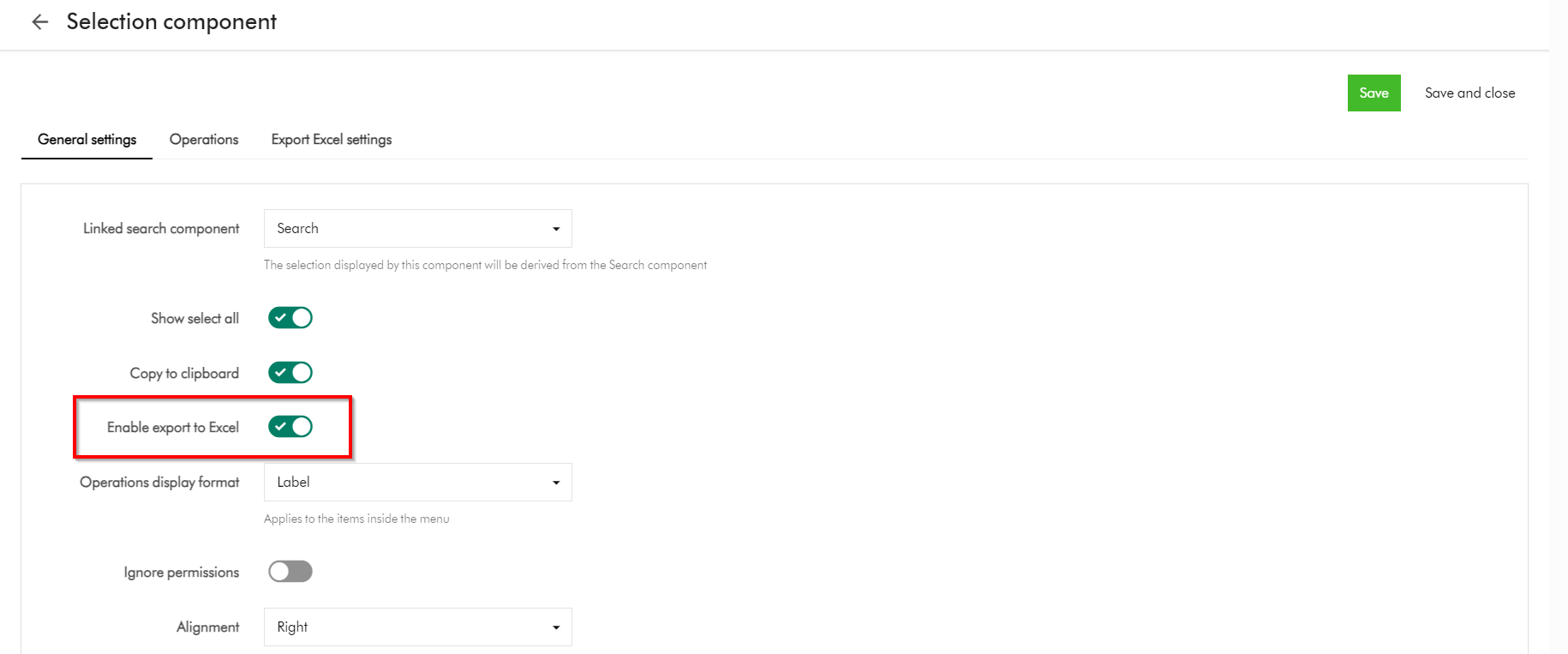
- Ensure your Selection component is linked with the Search component.
- Then Enable export to Excel option on the Selection component as shown below
- This is it, your subpage is ready.
- On you subpage, select all the role templates that you need to export, and select Export to excel
Next steps
In this blog post, we have looked at Content Hub’s Marketing Resource Management (MRM) module. We looked at the default project roles of Managers, Contributors and Readers and what they offer. I shared some tips and tricks on how you can extend the permissions for these roles to closely meet the needs of your project management use cases. I hope you find this useful for your similar use cases.
Stay tuned and please give us any feedback or comments.

One thought on “Content Hub tips & tricks: Extending MRM project permissions to improve your ways of working”