
Context
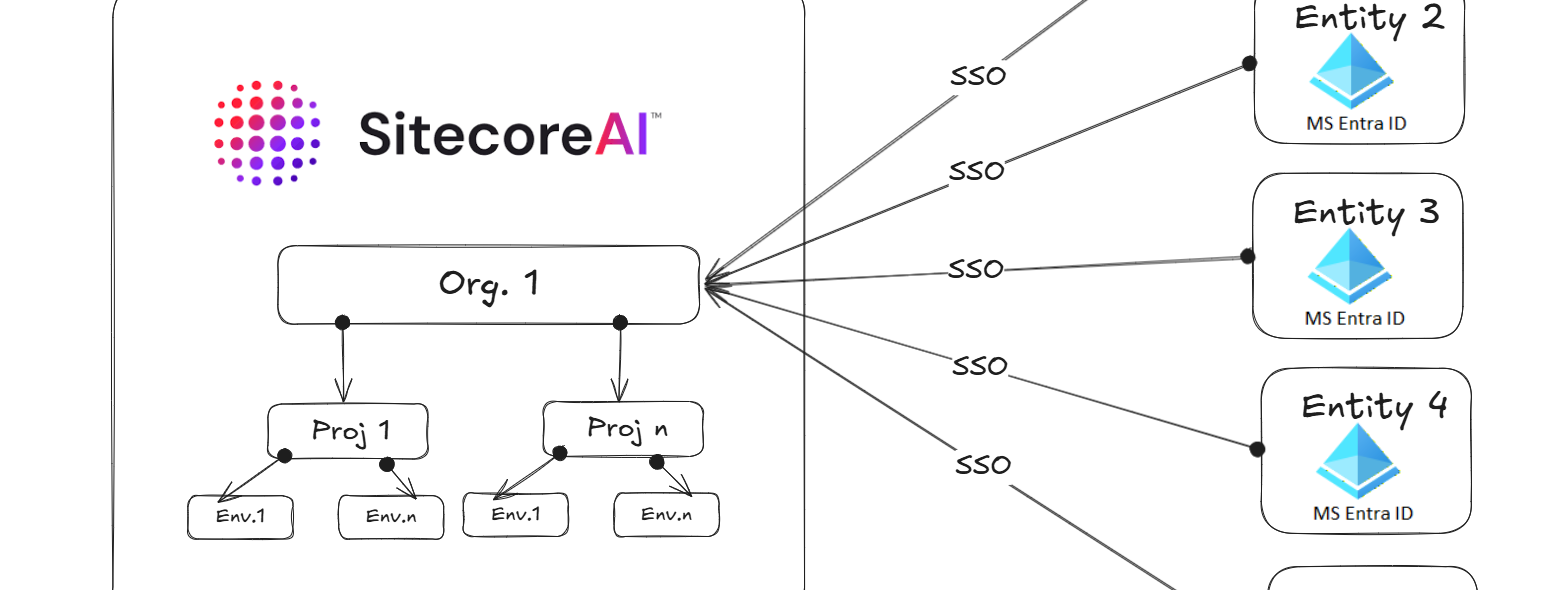
In this blog post, we are going to explore options for Sitecore Single Sign-On(SSO) integration strategies for multiple Microsoft Entra ID tenants to a SitecoreAI tenant for a large enterprise company or government scenarios.
A large enterprise company or government will typically consist of one or more independent business units, such as company or brand or a government department. This usually means they have independent Identity and Access Management,they use for their business users.
Sitecore has the concept of an organization which represents a business unit, such as a company or brand. This capability enables Sitecore to isolate your related team members and Sitecore products to which you are subscribed. An organization can have one or more Sitecore products, with multiple instances of each product.
How is Sitecore organization structured?
In Sitecore, an enterprise company or a solution partner might have access to multiple organizations, while a smaller company might have one organization. Each organization uses a set of rules to determine who can access each product and what work they can do.
Organization management is handled in the Cloud Portal. Use the portal to create users and manage their access and permissions for all your organization’s products.
Below is a sample screenshot of the Cloud Portal. In this example, Joby has access to the listed Sitecore products and Apps shown below. We will cover details on how to login into Cloud portal using SSO in a later section.
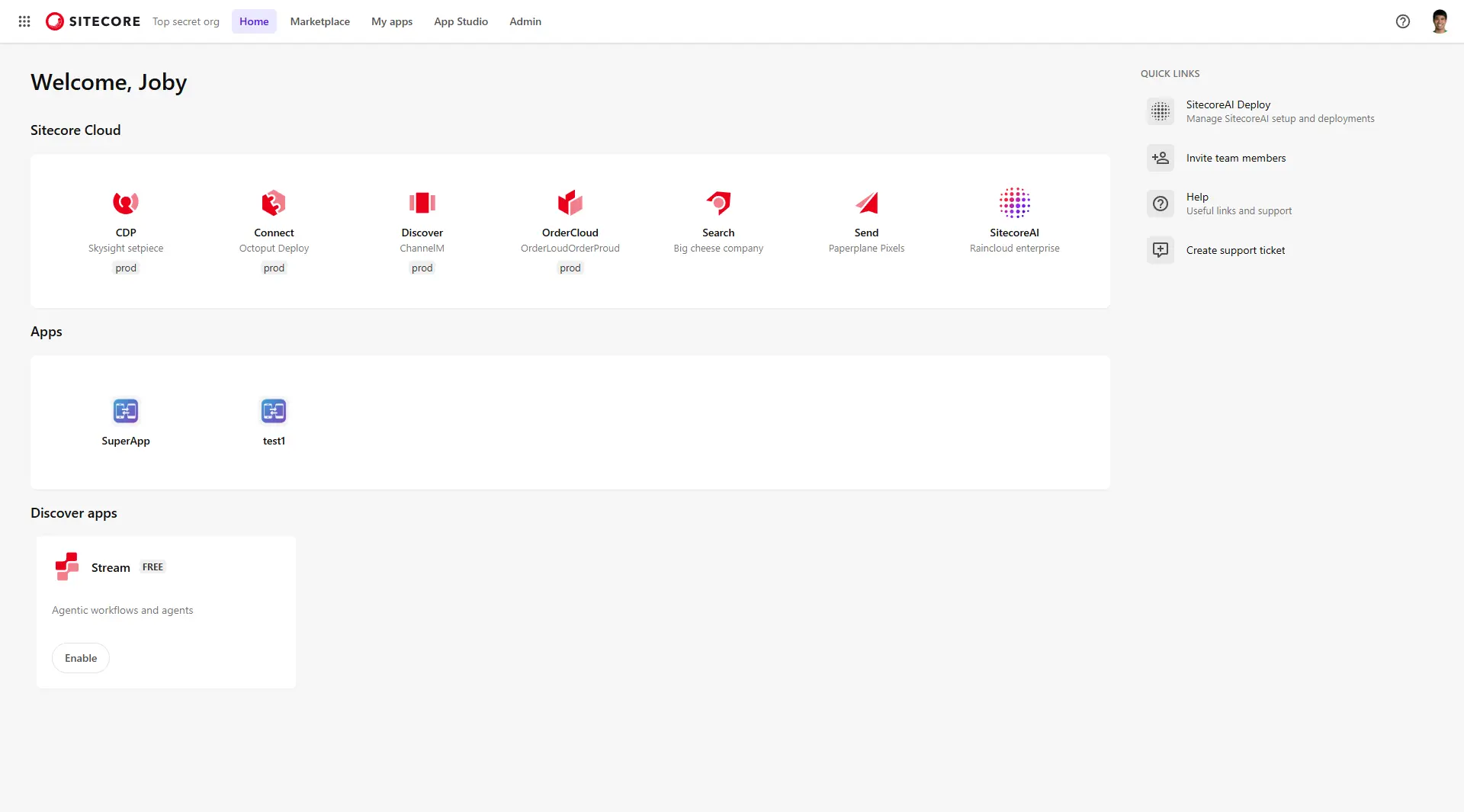
If Joby belongs to multiple organizations, they can Switch to another organisation using the organisation switcher as shown below.

Sitecore organizations and SitecoreAI
We now have a good understanding of how the organizations are organised and how we leverage them to manage who has access to which products and apps within your subscription.
Below is a visual representation that I have used to try and bring into life Sitecore organizations, SitecoreAI projects and environments
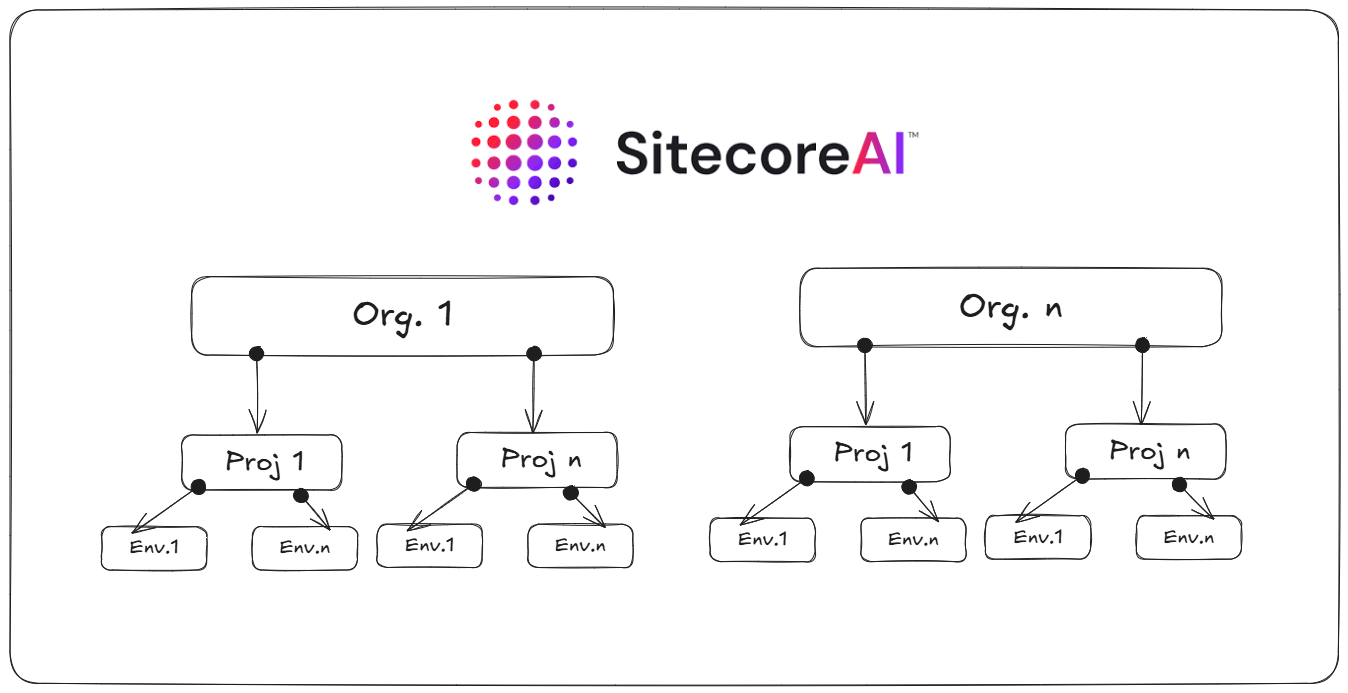
In SitecoreAI, a project is a logical grouping of environments. Each project can include several environments, such as a development, testing, and production environment. The number of projects you can create depends on your subscription.
Signing into Sitecore Cloud Portal
You can sing into the Sitecore Cloud Portal using the default Sitecore authentication or SSO. With SSO, members can log in to the Sitecore Cloud Portal and access SitecoreAI (and other Apps) using their existing identity providers.
Sitecore Cloud Portal supports identity providers that use the OpenID Connect (OIDC) protocol or Security Assertion Markup Language (SAML) protocol. We are going to consider Microsoft Entra ID scenarios, although the same concepts will be applicable to supported identity providers as well.
Sitecore Cloud Portal enforces max of five(5) SSO connections per organization
An organization can have up to five(5) SSO connections, with each connection supporting up to 50 domains.
This presents a challenge for a large enterprise company or government which has more than 5 independent brands or entities.
Scenario 1 – SSO Integration architecture with up to 5 connections
This use case will apply to small sized company with up to 5 independent brands or entities.
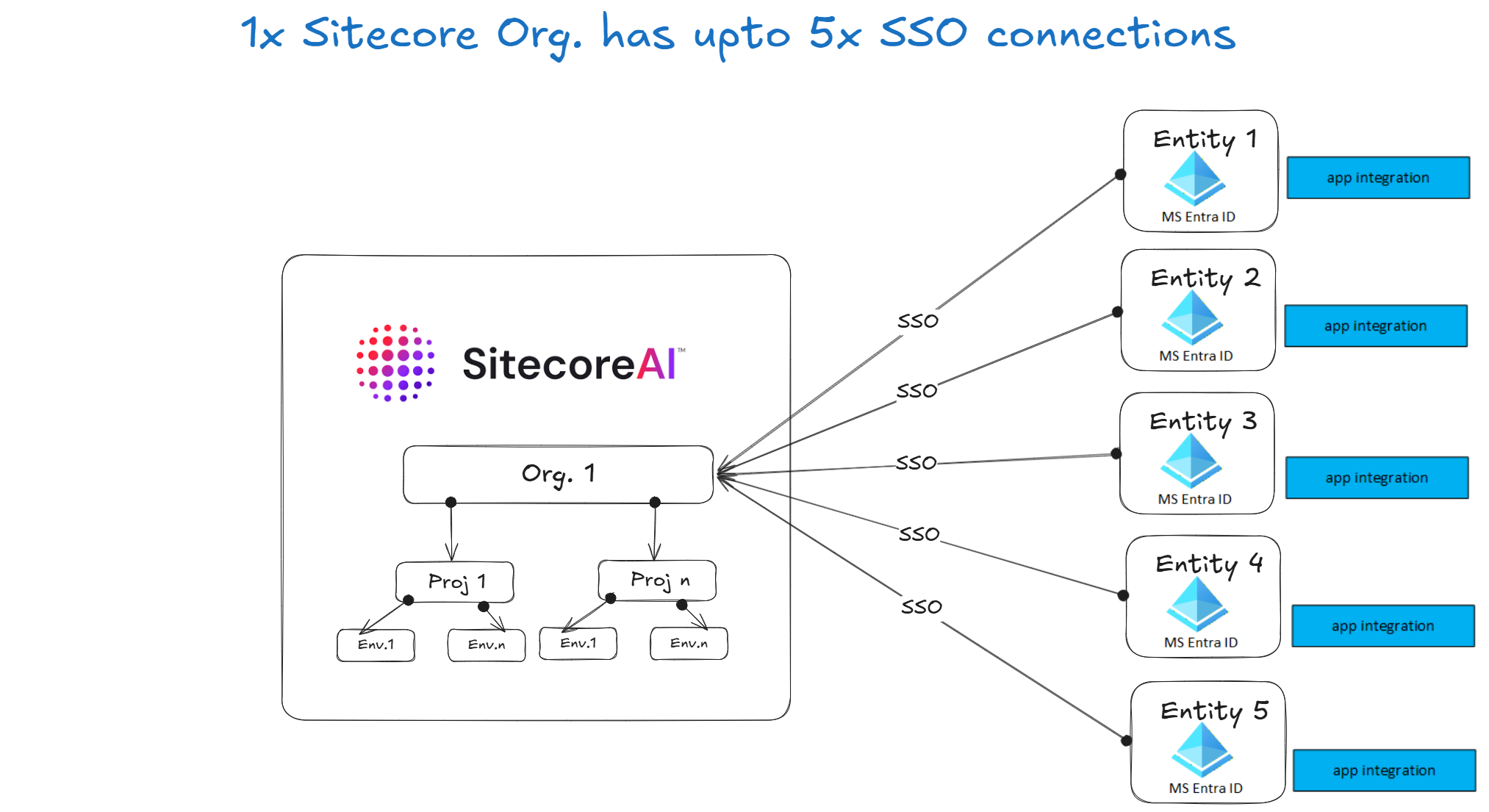
Below is a reference architecture that illustrates the setup for SSO connection with SitecoreAI.
How scenario 1 works
Each independent brand or entity maintains its own Microsoft Entra ID tenant and registers its own application.
Sitecore is configured with multiple OpenID Connect identity providers, one for each tenant.
Microsoft Entra ID Configuration steps
- For each Microsoft Entra ID tenant, create an App Registration
- Configure redirect URI to the Sitecore identity endpoint
- Enable ID tokens
- Securely capture these details to be configured within Sitcore Cloud Poral:
- Tenant ID
- Client ID
- Client Secret
Sitecore Cloud Portal configuration steps
Add a separate OIDC identity provider configuration for each Microsoft Entra ID tenant.
Example parameters typically include:
- Authority URL (tenant-specific login endpoint)
- Client ID
- Client Secret
- Response type (ID token)
- Scope (openid, profile, email)
Scenario 2 – SSO Integration architecture with 5 or more connections
This use case will apply to medium-to-large sized company or government with more than 5 independent brands or entities.
Below is a reference architecture that illustrates the setup for SSO connection with SitecoreAI.
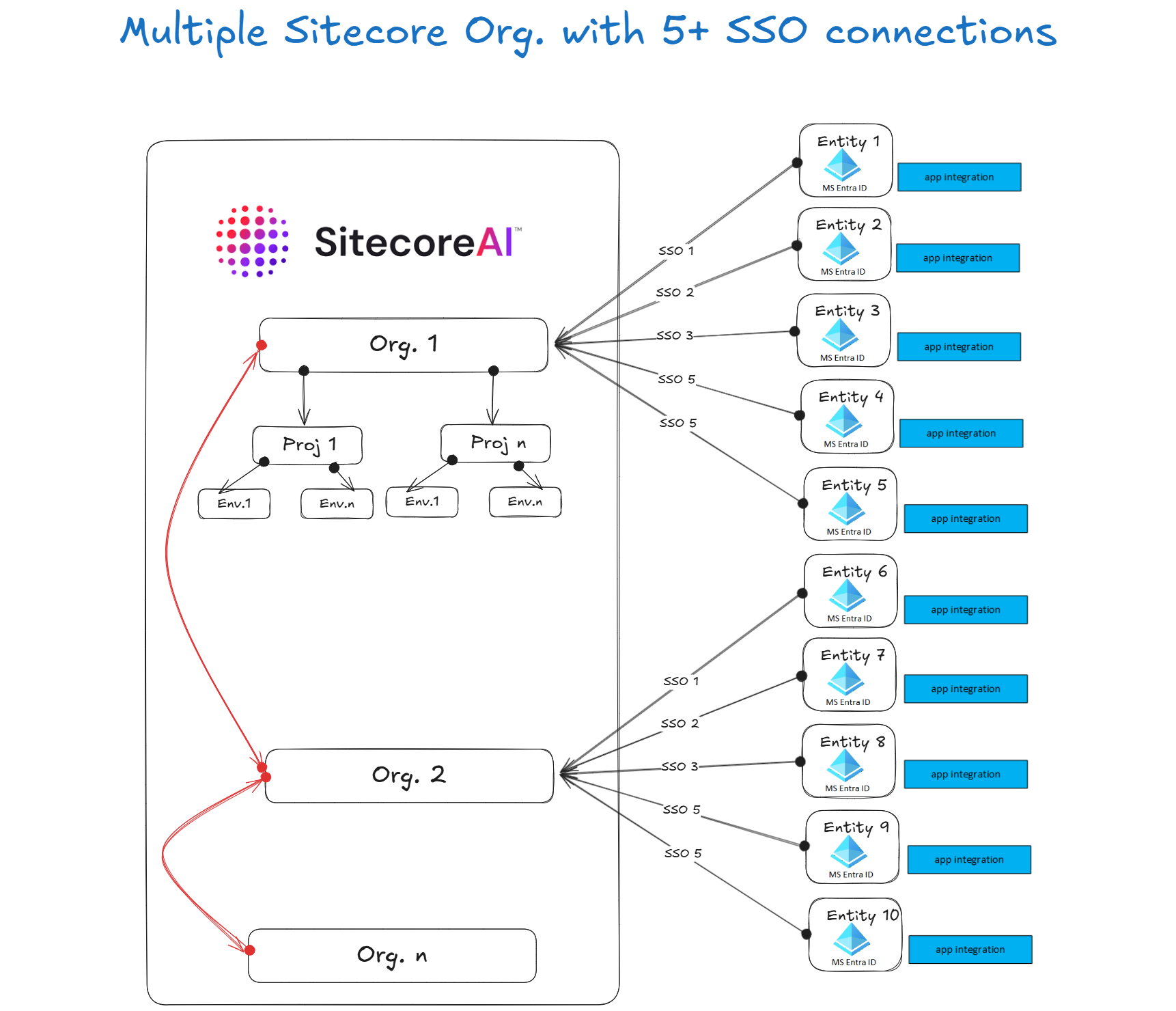
How scenario 2 works – use of “dummy” organizations
In scenario 2, it will work similar way to scenario 1, with an additional constraint that we now have more than 5 Microsoft Entra ID tenants to connect with Sitecore.
This will require creation of additional Sitecore organizations to match the number of Microsoft Entra ID tenants to be connected to Sitecore. The reference architecture above, for example, has two (2) organizations created to map to the ten (10) entities.
In this case, Sitecore will activate the SitecoreAI product only within the main organisation (Org 1) and this will host your SitecoreAI instance. The rest of the additional organisations will be configured as “dummy” organisations.
The concept of “dummy” organisation is a powerful one. Since we can provide users access to multiple organizations, it allows the “dummy” organisations to be used for SSO integration, and users in those “dummy” organizations can then switch to Org1 to access SitecoreAI instance.
Scenario 3 – SSO Integration architecture with Centralized (Federated) Microsoft Entra ID
This use case will apply to large-to-very large sized company or government with very many independent brands or entities.
Below is a reference architecture that illustrates the setup for SSO connection with SitecoreAI.
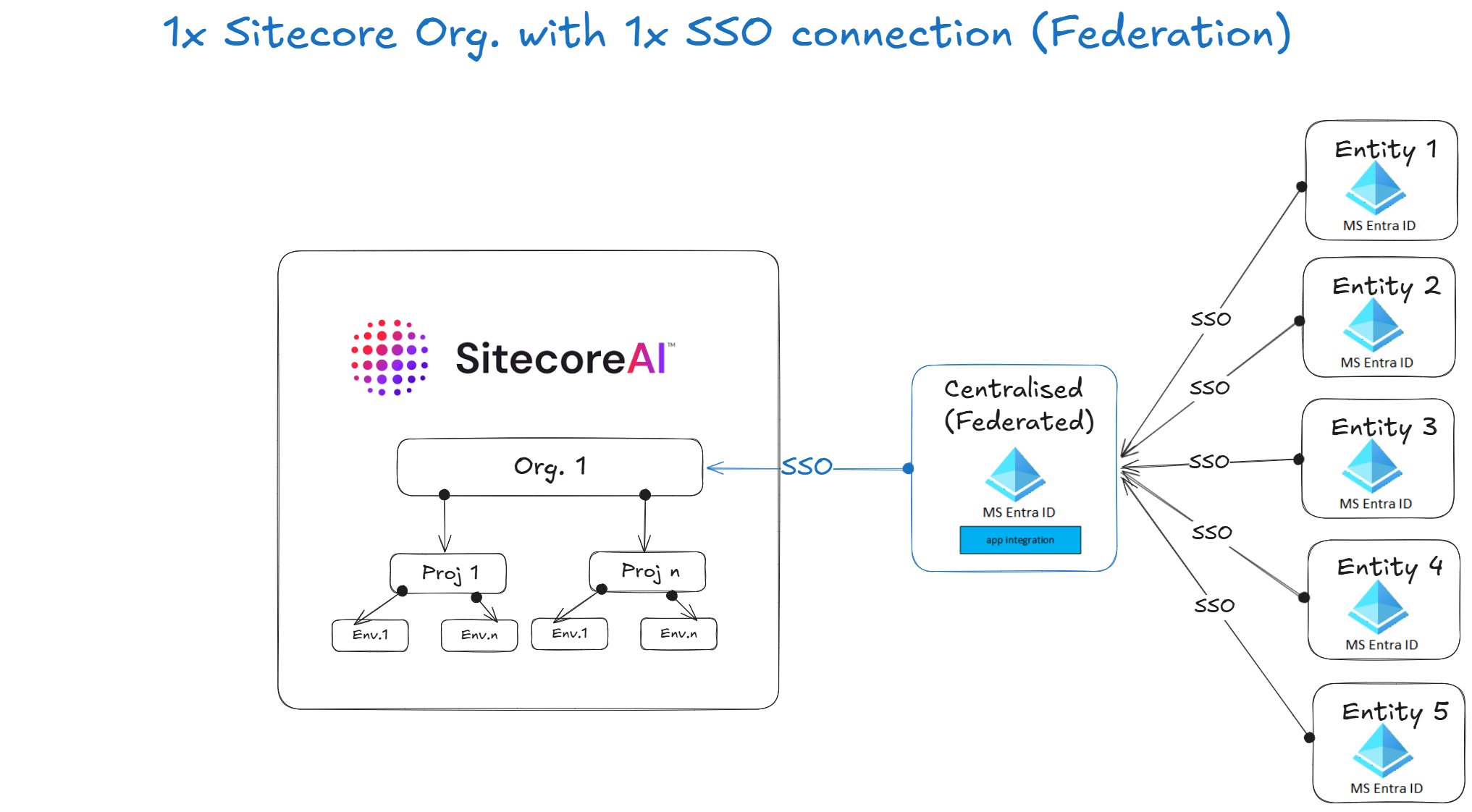
How scenario 3 works – use of “Identity Broker” design pattern
An identity broker sits between multiple Microsoft Entra ID tenants and Sitecore, as shown above.
Sitecore integrates with a single centralized identity provider, and the broker handles federation with multiple Microsoft Entra ID tenants.
This reference architecture assumes Microsoft Entra ID federation. Common broker platforms include identity management services capable of federating multiple identity providers.
Microsoft Entra ID Configuration steps
Each Microsoft Entra ID tenant federates with the Cnetralized identity broker (which is another Microsoft Entra ID)
- In the Centralized Microsoft Entra ID tenant, Create an App Registration
- Configure multiple Microsoft Entra ID tenant connections
- Configure claim normalization rules for each of the multiple Microsoft Entra ID tenants
- Configure tenant routing logic
- Enable ID tokens
- Securely capture these details to be configured within Sitecore Cloud Portal:
- Tenant ID
- Client ID
- Client Secret
Sitecore Cloud Portal configuration steps
Configured with one identity provider connection to the identity broker
Example parameters typically include:
- Authority URL (tenant-specific login endpoint)
- Client ID
- Client Secret
- Response type (ID token)
- Scope (openid, profile, email)
Architect’s rubric – which SSO option should you consider?
As architects we often rely on rubrics when we need to make architectural decisions. This means using a set of guidelines or criteria that best helps you assess the business domain problem and come up with the right solution. Below is an example rubric to help with your assessments and criteria which option to leverage with Microsoft Entra ID SSO integration.
| Criteria | Multiple Standalone Microsoft Entra IDs (Scenario 1 &2) | Centralised Microsoft Entra ID (Scenario 3) |
|---|---|---|
| Security | 1. Full separation of Microsoft Entra ID tenant systems | 1. Relies on trust between Centralized Microsoft Entra ID and federated tenants |
| Complexity | 1. Simpler architecture 2. Sitecore side of integration grows with each Entity count | 1.Increased Architectural complexity with introduction of Identity broker 2. Sitecore side of integration remain simple irrespective of Entity count |
| Management and Support | 1. Sitecore side of integration has operational overheads when on boarding new entities 2. Identity and claims management managed independently by entities 3. No additional Microsoft Entra ID to manage | 1. Sitecore side of integration remains simpler when on boarding new entities 2. Centralized identity and claims management 3. Additional Identity broker platform to manage |
| Scalability | 1. No very easy to scale to many brands or entities | 1. Easier to scale to many brands or entities |
Next steps
In this blog post, we looked at prominent integration architectures for multiple Microsoft Entra ID tenants authenticating to a single Sitecore SaaS platform. We explored Multiple Microsoft Entra ID Providers approach with each organisation independently uses its own Microsoft Entra ID tenant and App registration. We also looked at an Identity Broker approach which intermediates between multiple Entra tenants and Sitecore. We finished with a sample architecture rubric that can be leveraged.
Multiple Microsoft Entra ID tenants can successfully authenticate to a single Sitecore platform while remaining independent identity providers.The appropriate architecture depends primarily on the number of brands or entities, operational overhead tolerance, and identity governance requirements.
Stay tuned for future posts, feel free to leave us comments and feedback as well.
