Context
One of the challenges with search is that not all content lives neatly inside your CMS — and not everything can be crawled. With the introduction of Push Sources in SitecoreAI Search, there is now another option. Instead of relying on a crawler to discover and index content, we can submit documents directly to SitecoreAI Search using the Ingestion Service API.
Key Highlights & Use Cases
- External Data Integration: Index content from third-party enterprise platforms, including external product catalogs, knowledge bases, and custom applications.
- Real-Time Index Synchronization: Keep SitecoreAI search indexes cleanly synchronized with external source-of-truth databases.
- Indexing Beyond Crawling: Render non-crawlable content, gated assets, or internal payloads searchable within SitecoreAI.
- API-Driven Workflows: Build automated ingestion pipelines directly integrated into your existing CI/CD or data orchestration flows.
In this blog post, I will walk you through a step-by-step guide on how to set up push sources in SitecoreAI, submit payloads using the Ingestion Service API, and seamlessly connect your external content.
A product catalog example
For this walkthrough, I’m going to use a simplfied external product catalog. Let’s imagine we have a PIM containing:
Product IDProduct NameDescriptionCategoryPriceProduct URL
The PIM remains the source of truth.
SitecoreAI Search is simply consuming a searchable representation of that information, as shown in the following JSON exampple:
{ "id": "product-1001", "title": "Scrunch Running Shoes", "description": "Scrunched running shoes for everyday training", "category": "Footwear", "price": "79.99", "productUrl": "https://example.com/products/product-1001"}
Our Push Source schema, therefore, will have these fields defined as follows.
Push Source schema
| Field | Description |
|---|---|
| id | Product ID |
| title | Product name |
| description | Product description |
| category | Product category |
| price | Product price |
| productUrl | Product URL |
Example Integration Reference Architecture
Below is sample integration reference architecture. This setup empowers developers and architects to take full, granular control over search index synchronization
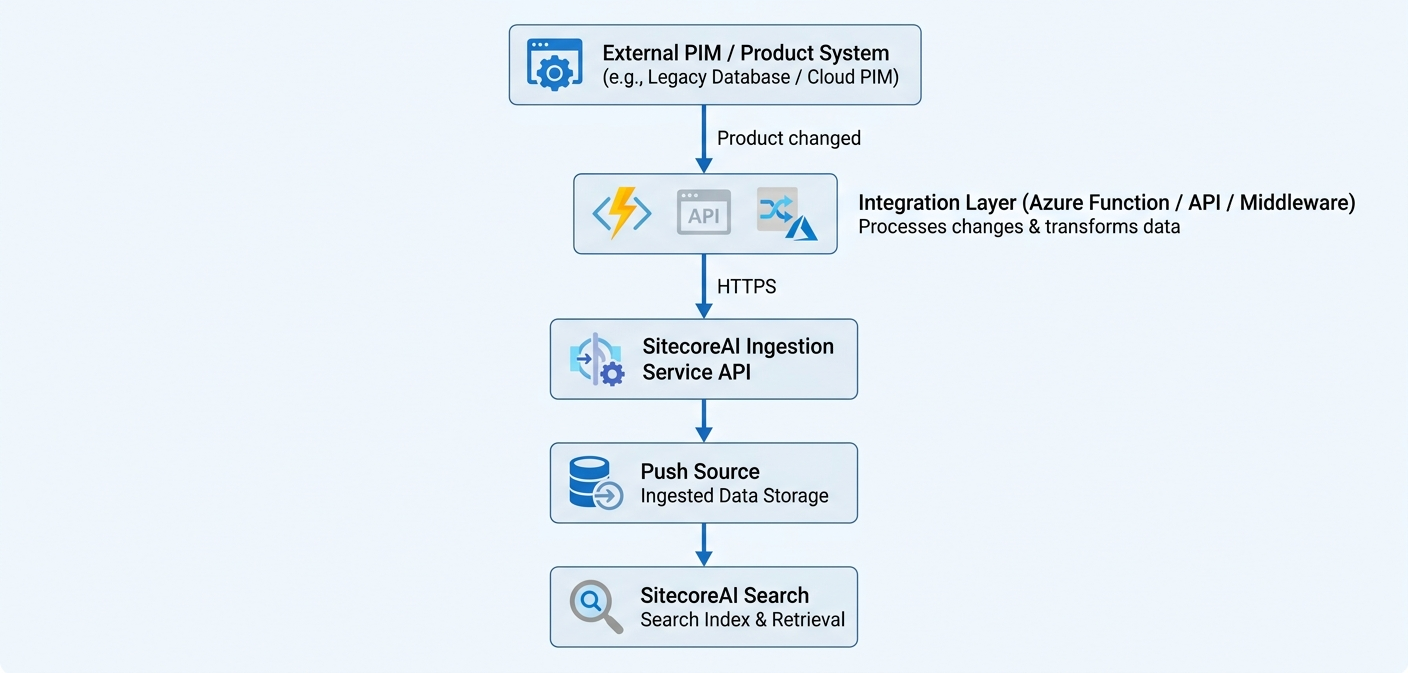
- External PIM / Product System represents your source of truth
- Integration Layer: Your custom-built middleware—whether an Azure Function, bespoke API, or other service—actively listens for change events from the external system
- Ingestion Service API: Once transformed, your integration layer makes an authenticated HTTPS call to the SitecoreAI Ingestion Service API
- SitecoreAI Push Source: Real-Time, API-Driven Synchronization, Fine-Grained Content Control
- SitecoreAI Search: the ultimate user-facing search experience
Step 1 – Creating the Push Source in SitecoreAI
In SitecoreAI, navigate to the Search Sources area and create a new source:
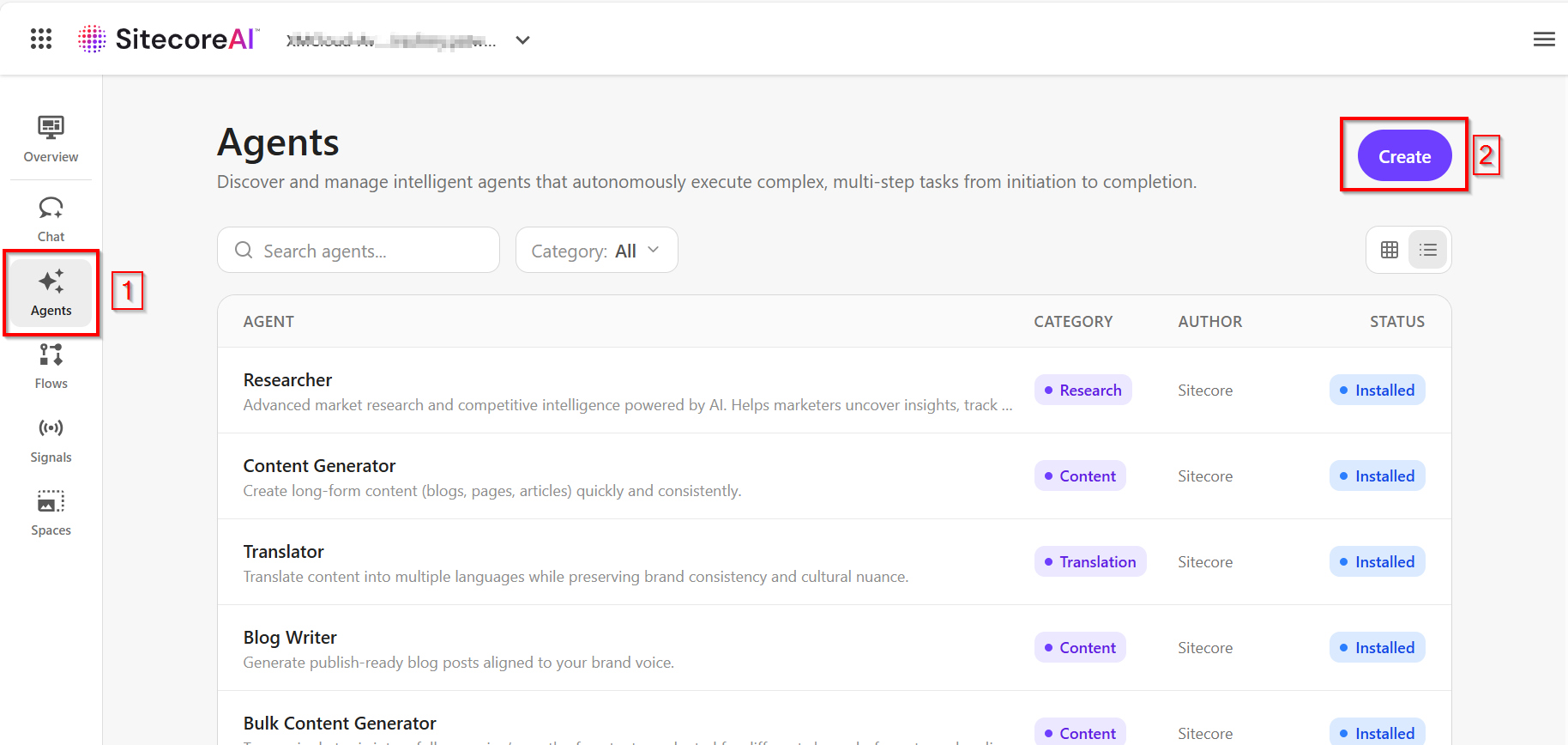
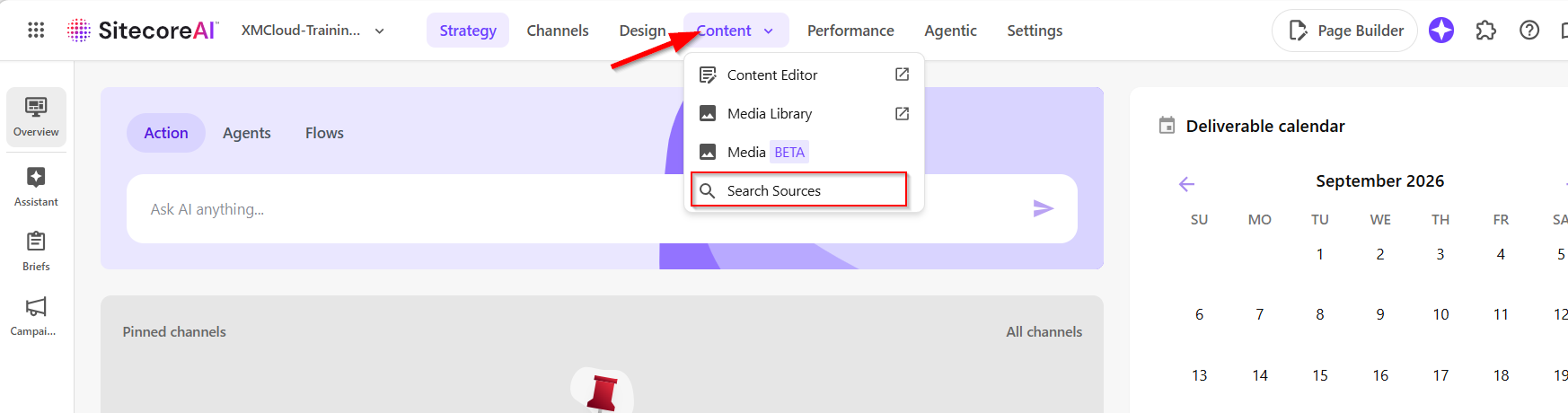
- On the menu bar, click Content > Search sources.
- On the Search Sources page, click Create Source.
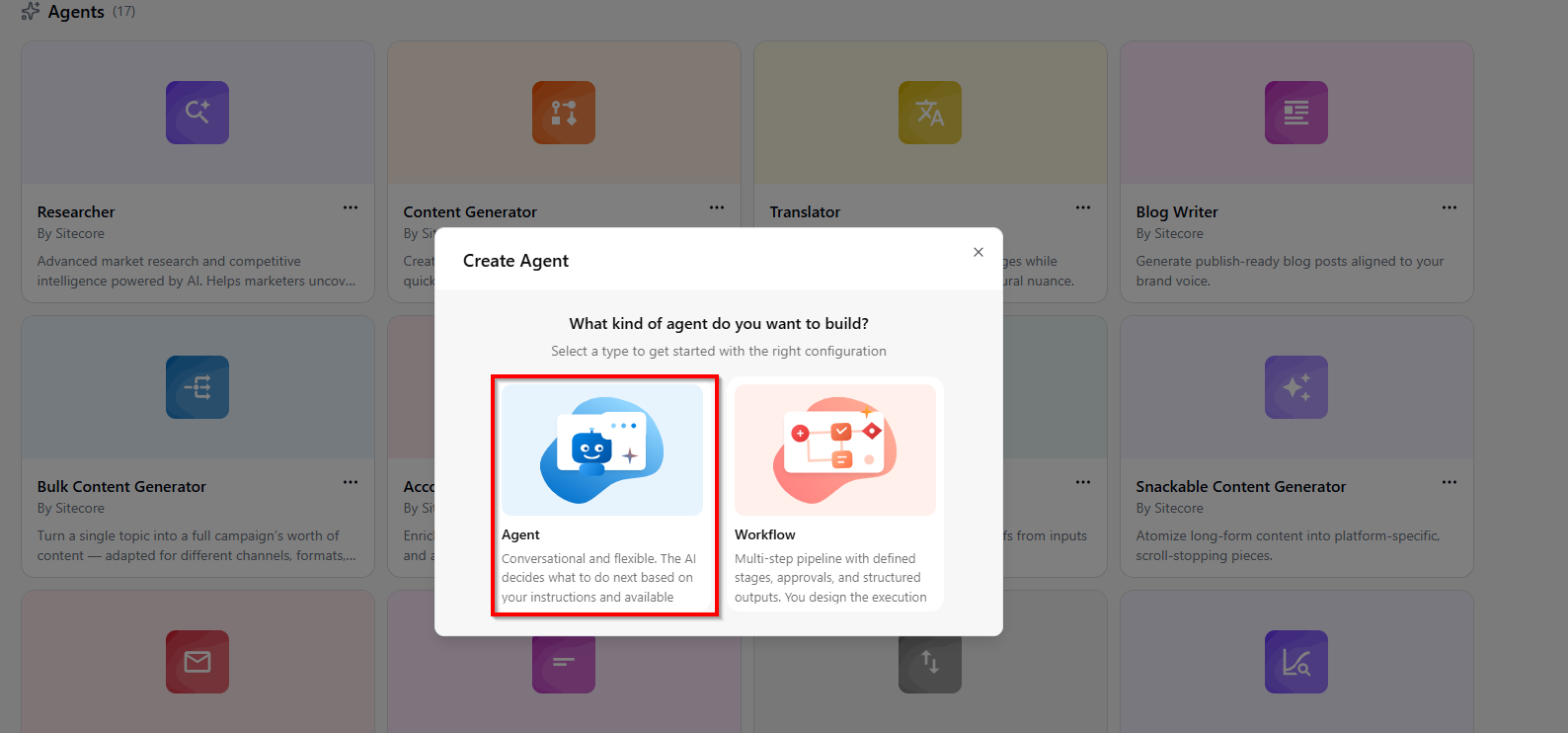
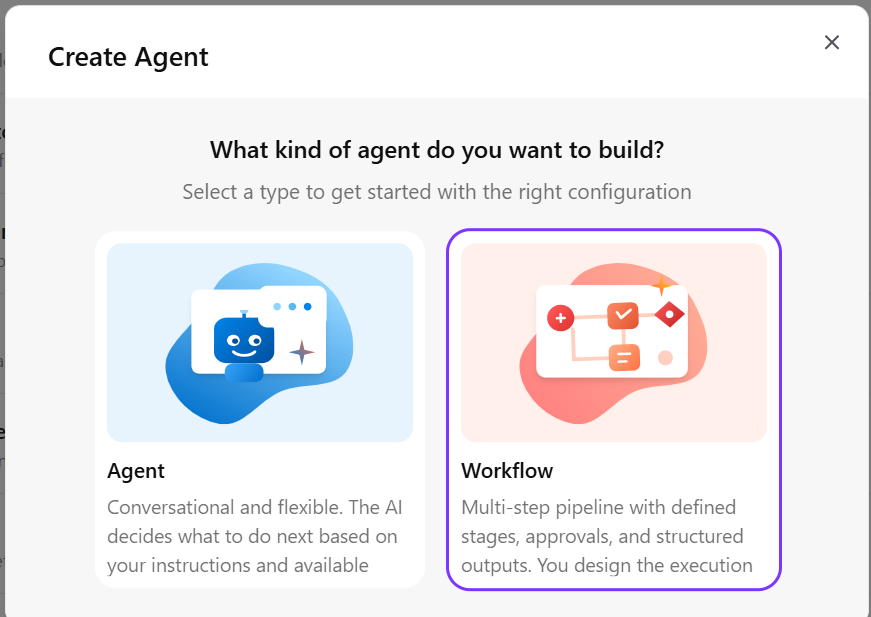
- In the Create new search source dialog, click Push Source.
- In the Create new search source dialog, in the Source Name field, enter a name for your source.
- Optionally, enter a description of your source.
- Click Next step.
- Click the Locales drop-down list to choose the languages that this source will support, and then click Next Step.
- Configure the fields in your source and their behavior, and then click Next Step.
- Enable the advanced settings you want to use in this source and then click Save.
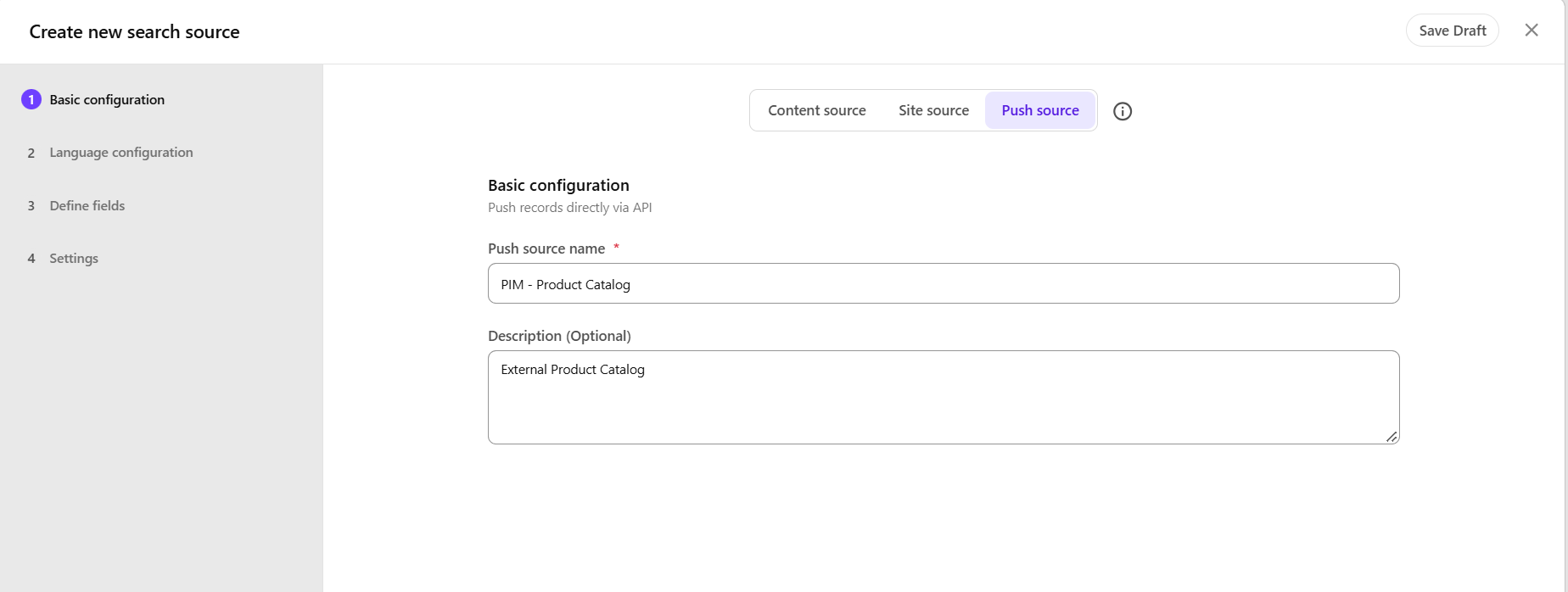
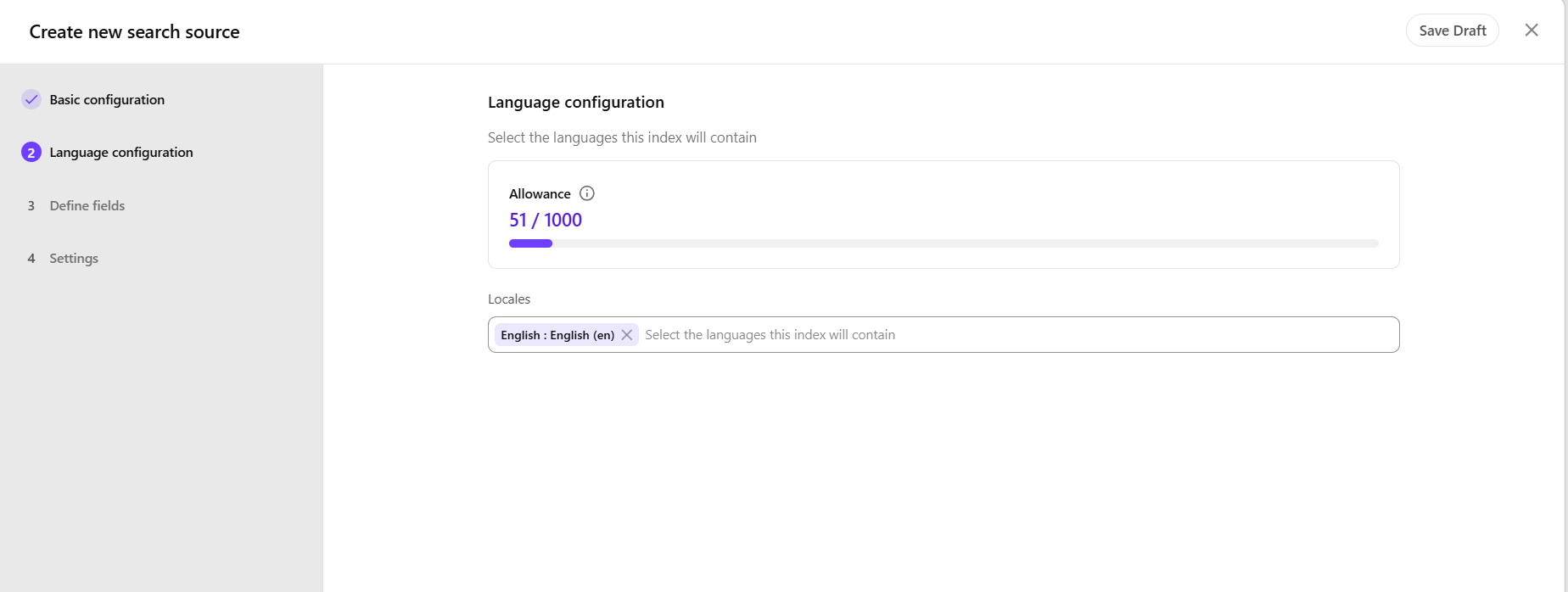
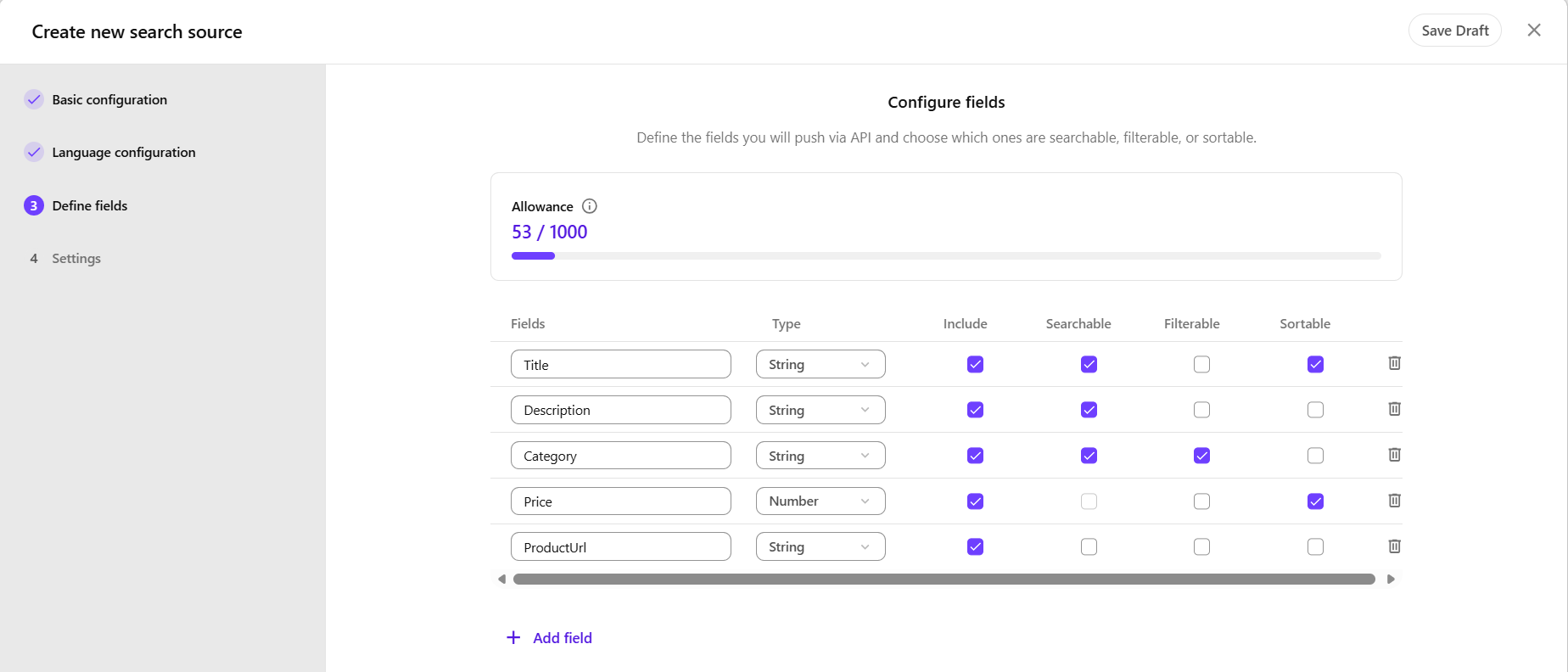
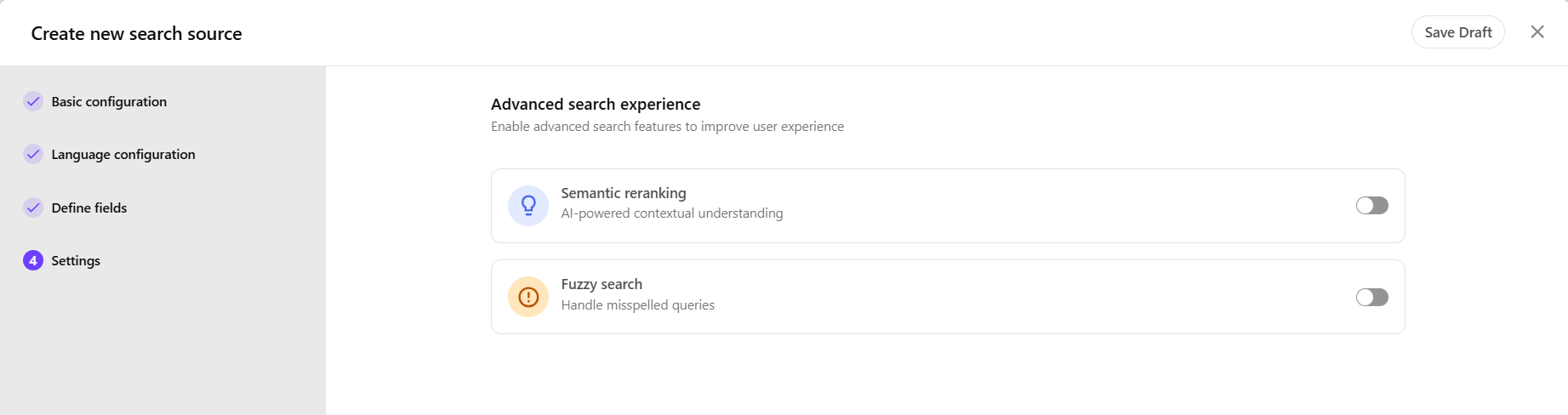
After the source is created, applications can ingest content by submitting authenticated requests to the Push API
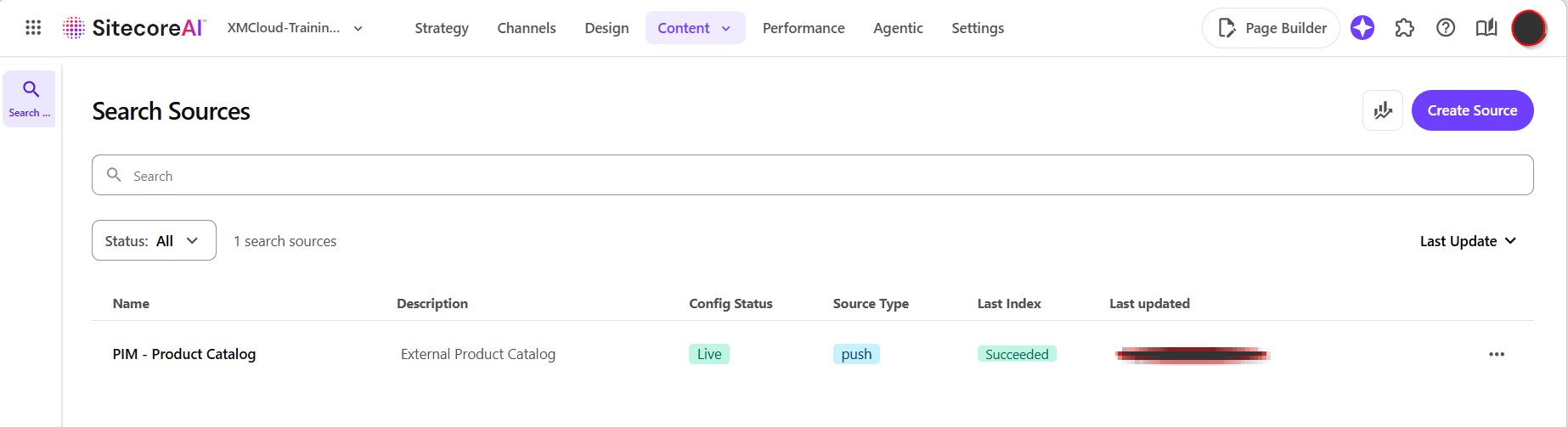
Step 2 – Verify the Push Source created
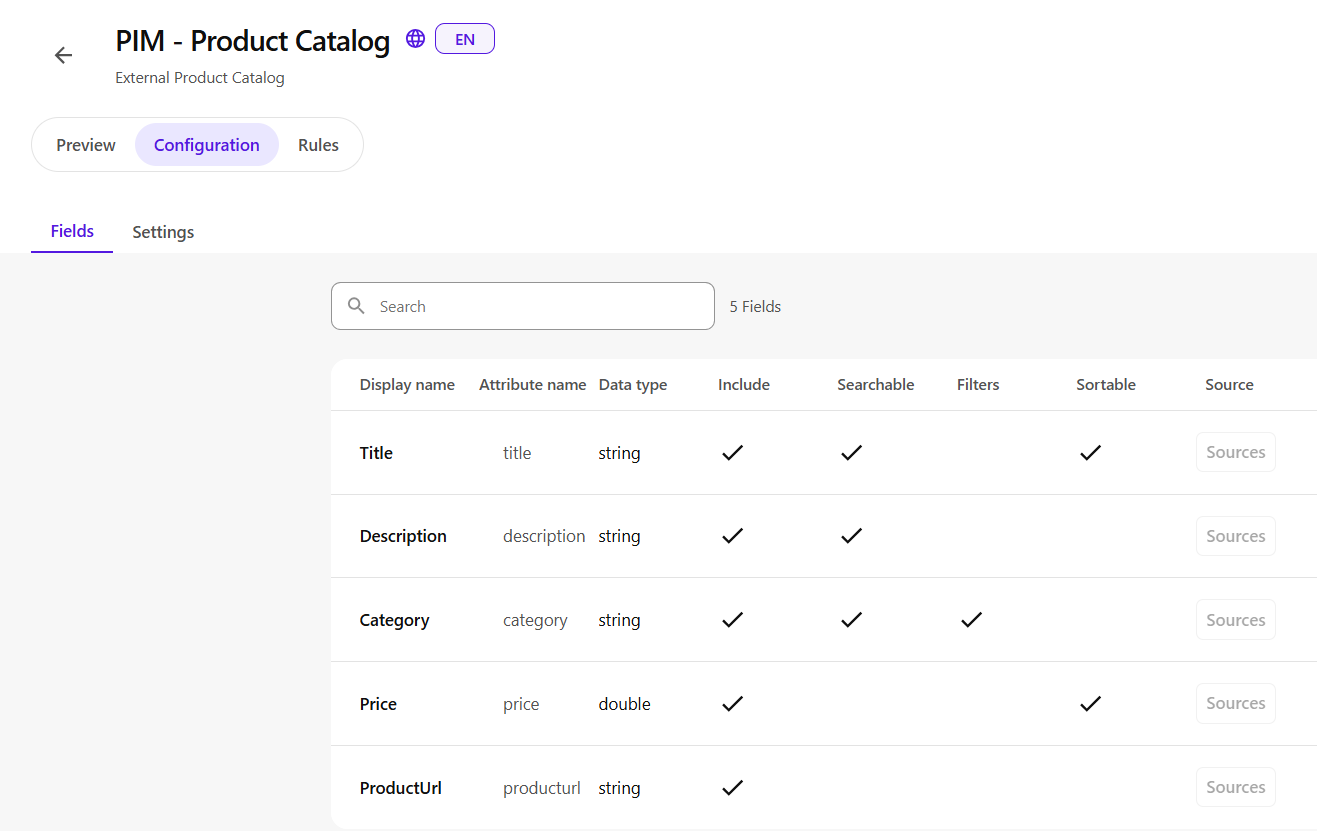
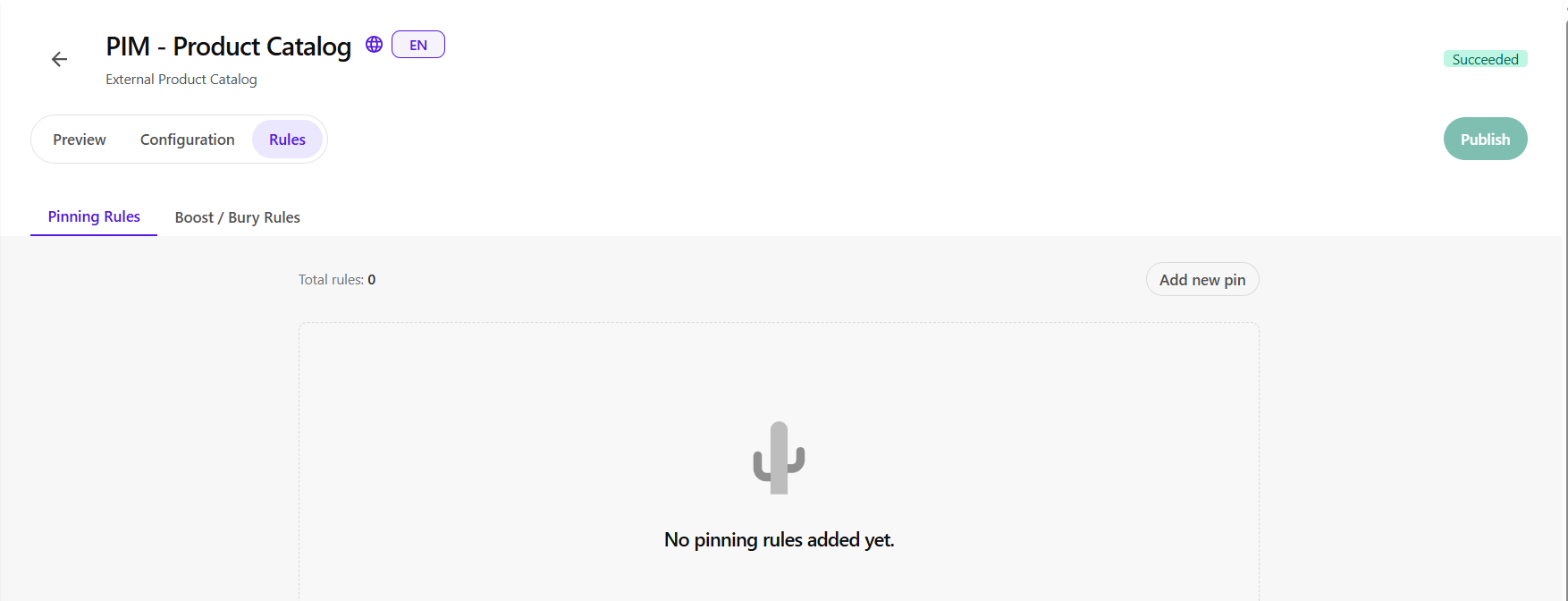
Clicking on a source allows you to view and edit that source’s configurations, including fields and rules.
To view the details associated with a source:
- On the menu bar, click Content > Search sources.
- Click a source.
- Click any of the following tabs:
- Fields – displays the list of fields indexed by the source, and their configurations.
- Pinning Rules – displays a list of pinning rules active on the source. Click Add a pin to create a pin rule.
- Boost/Bury Rules – displays a list of boost and bury rules active on the source. Click Add new rule to create a new boost or bury rule.
- Settings – displays the source settings, such as the source name, ID, and advanced settings.
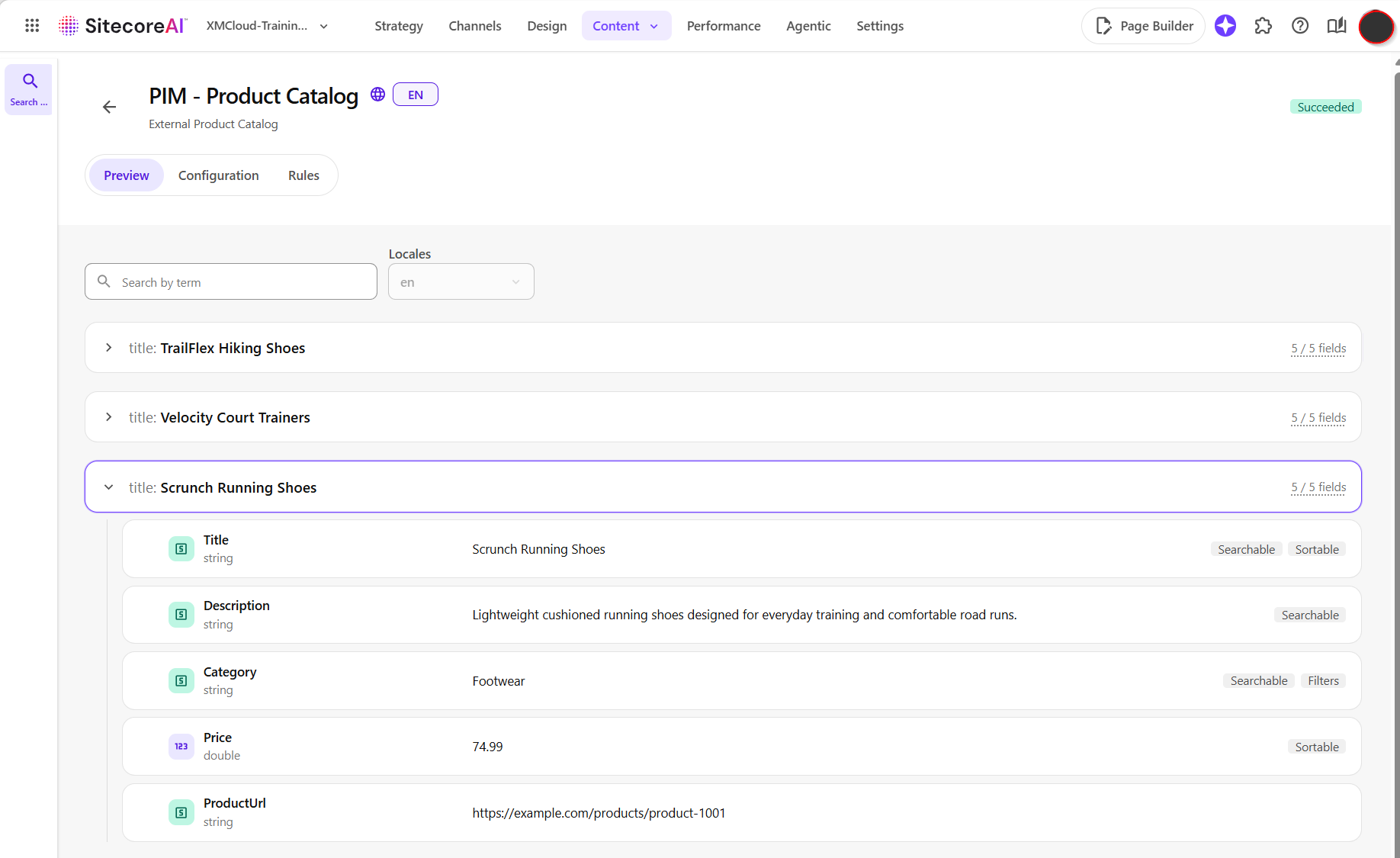
- Preview – displays a preview of the content indexed in this source, and the number of fields that have been indexed for each item.
- Fields – displays the list of fields indexed by the source, and their configurations.
Step 3 – Generate API Credential
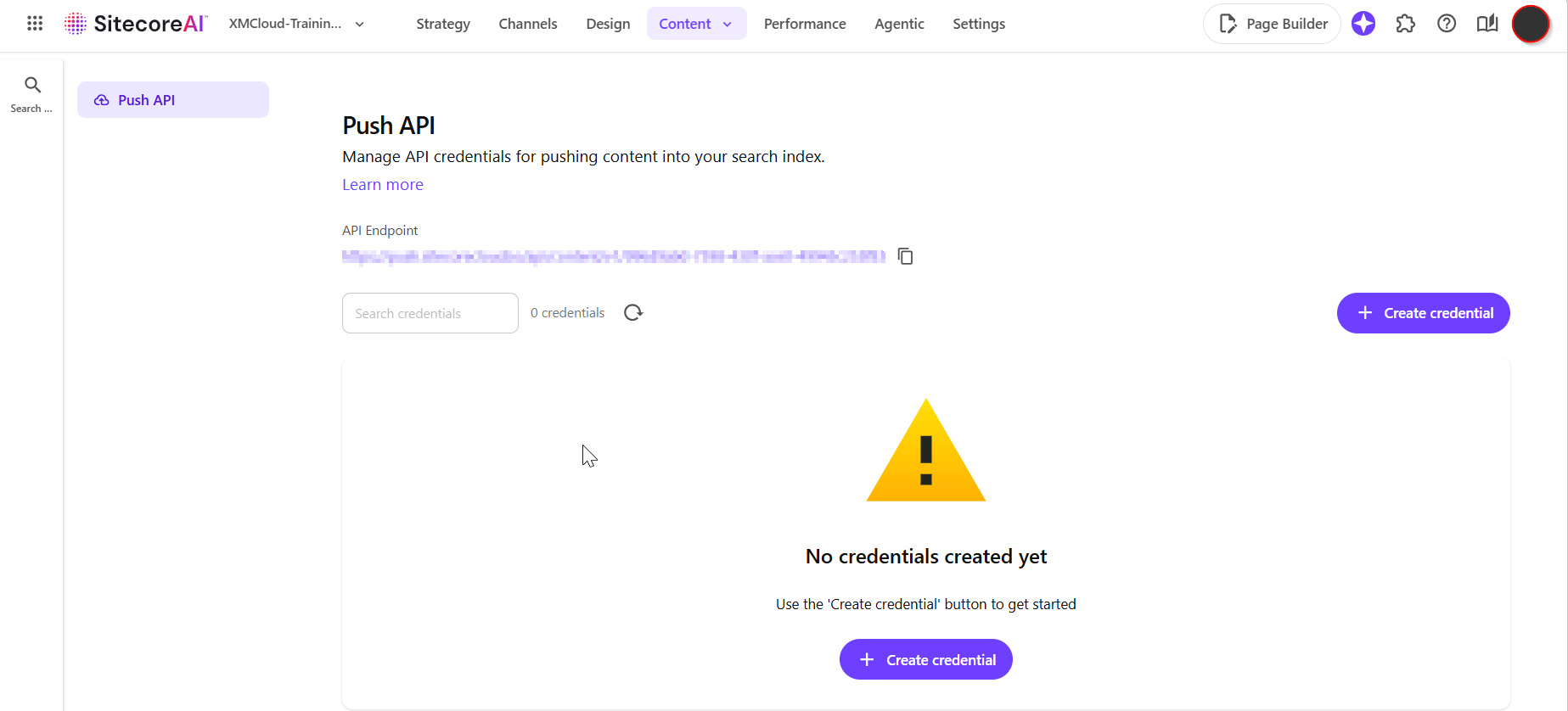
All Ingestion Service API requests require a static API key in the Authorization header:
Authorization: ApiKey <your-api-key>
To create an API key:
- In SitecoreAI, click Content > Search Sources > Settings.
- Click Create credential.
- Enter a name for the credential and an optional description.
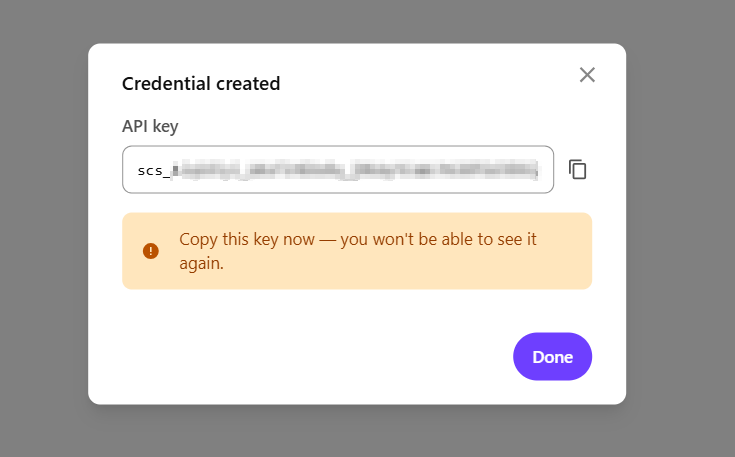
- Click Create, then copy the API key. The key is displayed only one time and cannot be retrieved after you close the dialog.
Step 4 – Understanding the API Endpoint
The Ingestion Service API endpoint follows this pattern:
POST {base_url}/v1/index/{config_id}/push
This endpoint submits document operations to create, update, or remove documents from a search source.
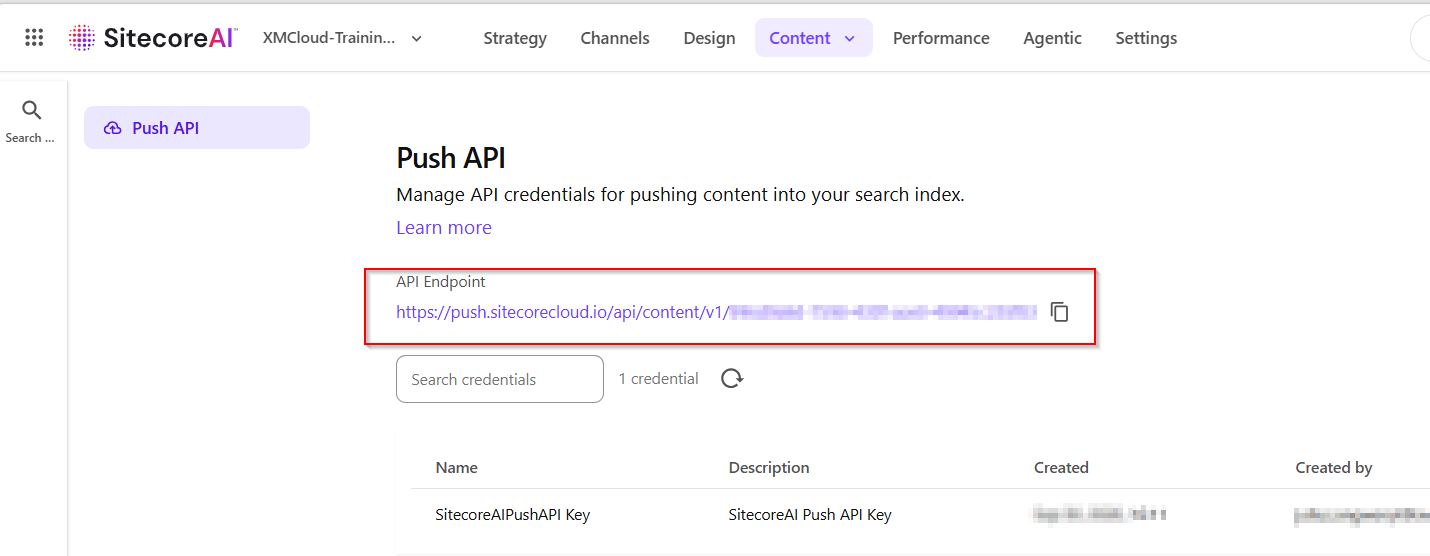
There are two values here that you’ll need from your SitecoreAI configuration:
base_url - API Endpoint value for the source, as shown is screenshot belowconfig_id - The identifier of the search source configuration.
Below is a sampe Authenticated API request
POST https://.../v1/index/abc123/pushAuthorization: ApiKey xxxxxxxxxContent-Type: application/json{...Request Body ....}
Step 5 – Build Sample First Payload
Now let’s create our first document.
Here’s our product:
{
“id”: “product-1001”,
“title”: “Scrunch Running Shoes”,
“description”: “Lightweight cushioned running shoes designed for everyday training and comfortable road runs.”,
“category”: “Footwear”,
“price”: “74.99”,
“producturl”: “https://example.com/products/product-1001“
}
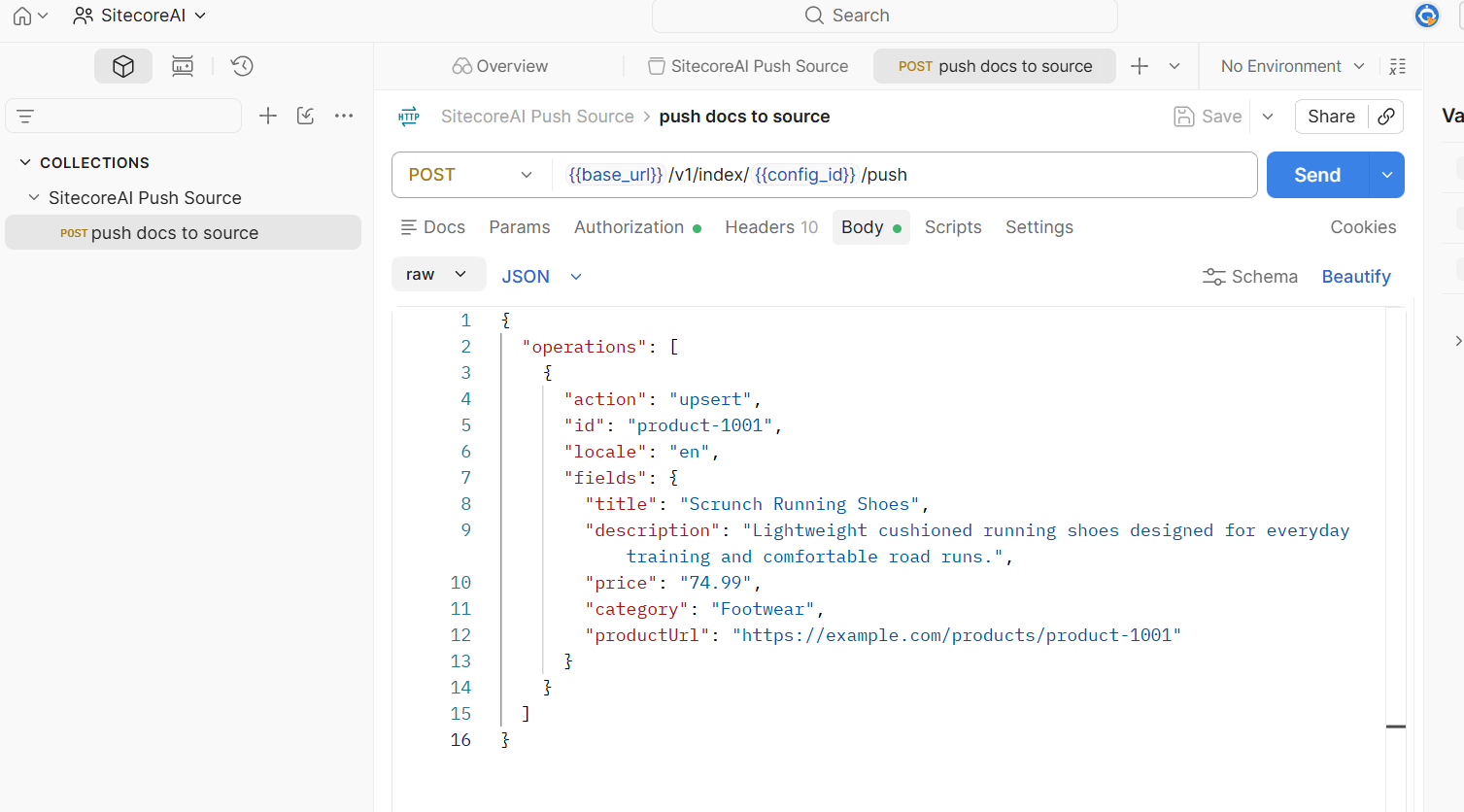
We then wrap the document in an ingestion operation.
Conceptually:
Request | +-- operations | +-- document
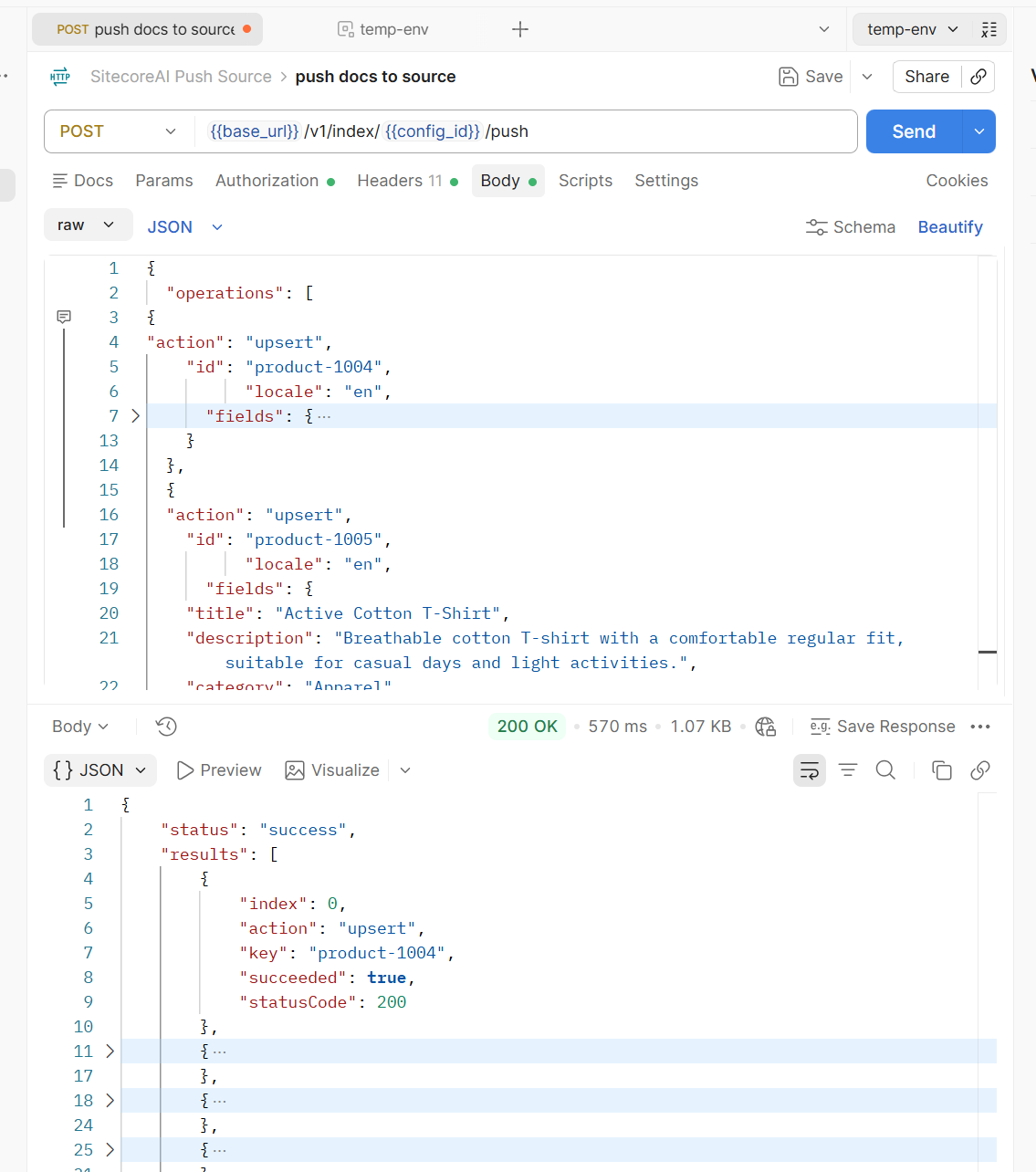
Testing with Postman – showing sample first payload
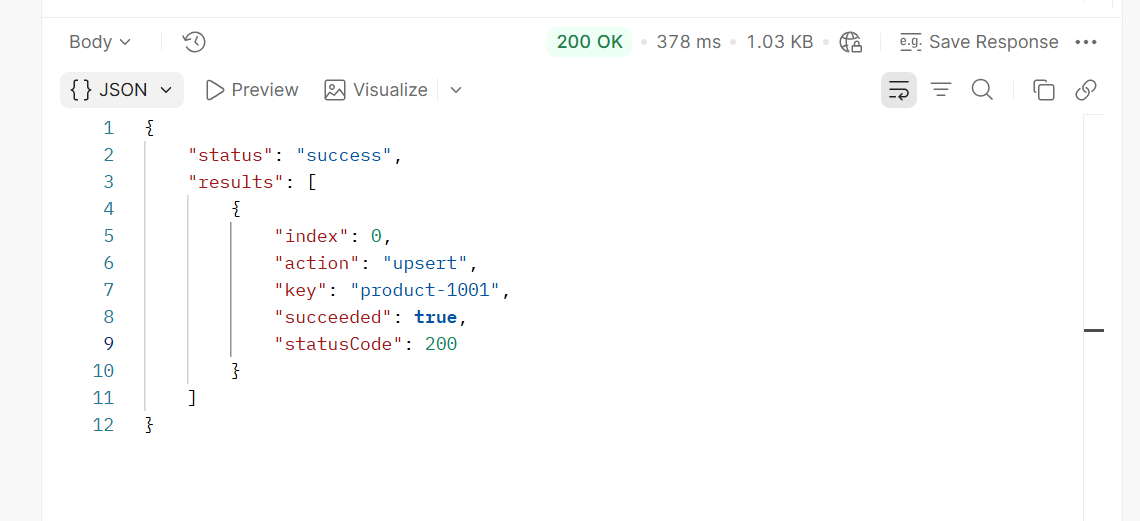
A successful response is shown below:
Our push source with a few sample products
Multiple documents can be pushed in a singple POST request by adding items in the payload
Simply include more items in the operations array object
Step 6 – Handling updates and deletes
An update from the PIM system will be propagated into SitecoreAI, conceptually:
- The PIM raises an event.
- Our integration receives it.
- We transform the product.
- Then send the updated representation to SitecoreAI.
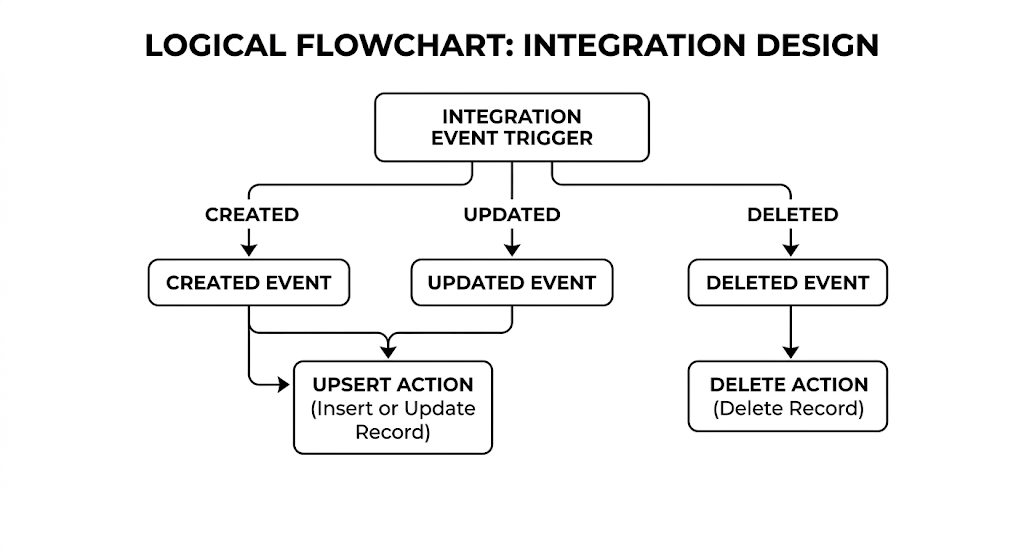
When a product is removed from PIM, we will also need to delete it in SitecoreAI. So the integration should also understand:
- CREATE
- UPDATE
- DELETE
Step 7 – Troubleshooting
When the API doesn’t work, I recommend working through the problem systematically.
a) 401 / authentication errors
Check the following:
API keyAuthorization headerEnvironmentSource credentials
Make sure the header is:
Authorization: ApiKey ...
rather than assuming a bearer token is required.
b) Configuration error
Check the following:
config_idSource existsSource is publishedCorrect SitecoreAI environment
c) Schema / Data type errors
If SitecoreAI complains about a field, compare your payload with the source schema. Ensure the correct data types for field types.
Below is an example error message with pascal cased productUrl instead of all lowercase producturl
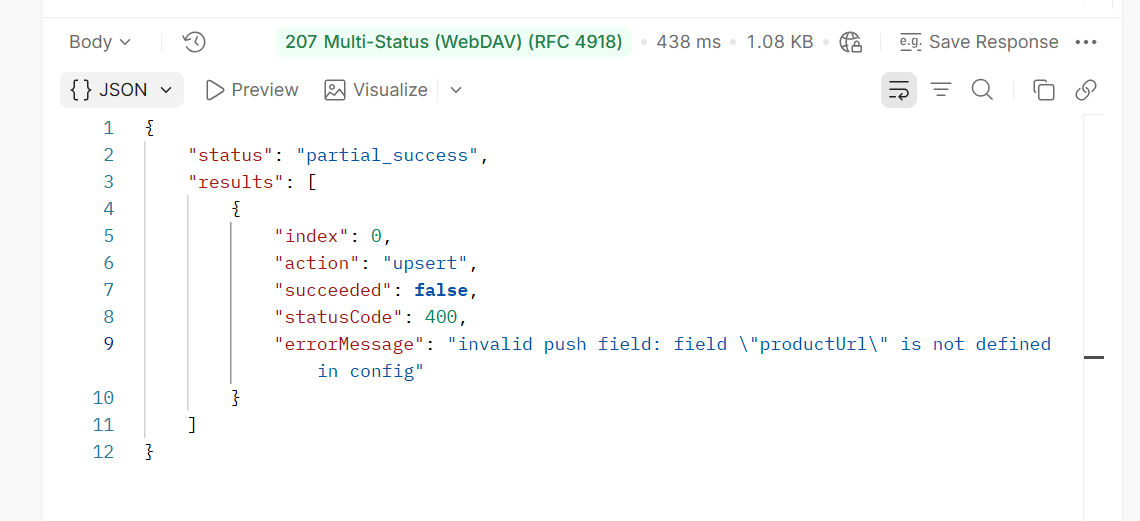
Don’t assume that because a value looks like a number or date in your source system, the API expects exactly the same representation.
d) Ingestion Service API endpoint errors
When provisioning the Push API credentials initially, the Ingestion Service API may temporarly be shown as https://push.sitecorecloud.io which will not work. It may take awhile to https://edge-platform.sitecorecloud.io
If you encounter further issues with the endpoint, reach out to Sitecore Support team for further investigations.
Final Thoughts
Push Sources are an interesting addition to SitecoreAI Search because they solve a very practical problem:
What do you do when the content you want to search doesn’t naturally live in Sitecore — or can’t be crawled?
Instead of trying to force everything through a crawler, we can explicitly push the content we want into the search index. For developers and architects, that opens up several possibilities:
- External PIM integration
- Product catalog search
- Knowledge-base integration
- Custom application data
- Event-driven search updates
- Non-crawlable content
And perhaps more importantly, it gives us control over the integration. We decide what gets indexed. We decide when it gets updated. And we decide how the external data is transformed before it reaches SitecoreAI Search.
For me, that’s where Push Sources become particularly interesting — not simply as another SitecoreAI feature, but as another integration pattern for building modern, composable search experiences.
Next steps
In this blog post, we looked at a step-by-step guide for setting up SitecoreAI Search Push Sources. We also looked at how to authenticate with the Ingestion Service API, prepare the payload, push external content into the search index, and troubleshoot some of the common issues you may encounter.
Push Sources provide a useful way to bring externally managed or non-crawlable content into SitecoreAI Search. They can also be a great fit for event-driven integrations where search content needs to be kept in sync with an external system.
Be sure to check out the SitecoreAI documentation and the Ingestion Service API documentation for further guidance and details on working with Push Sources.
Stay tuned for future posts, and feel free to leave us your comments and feedback as well.
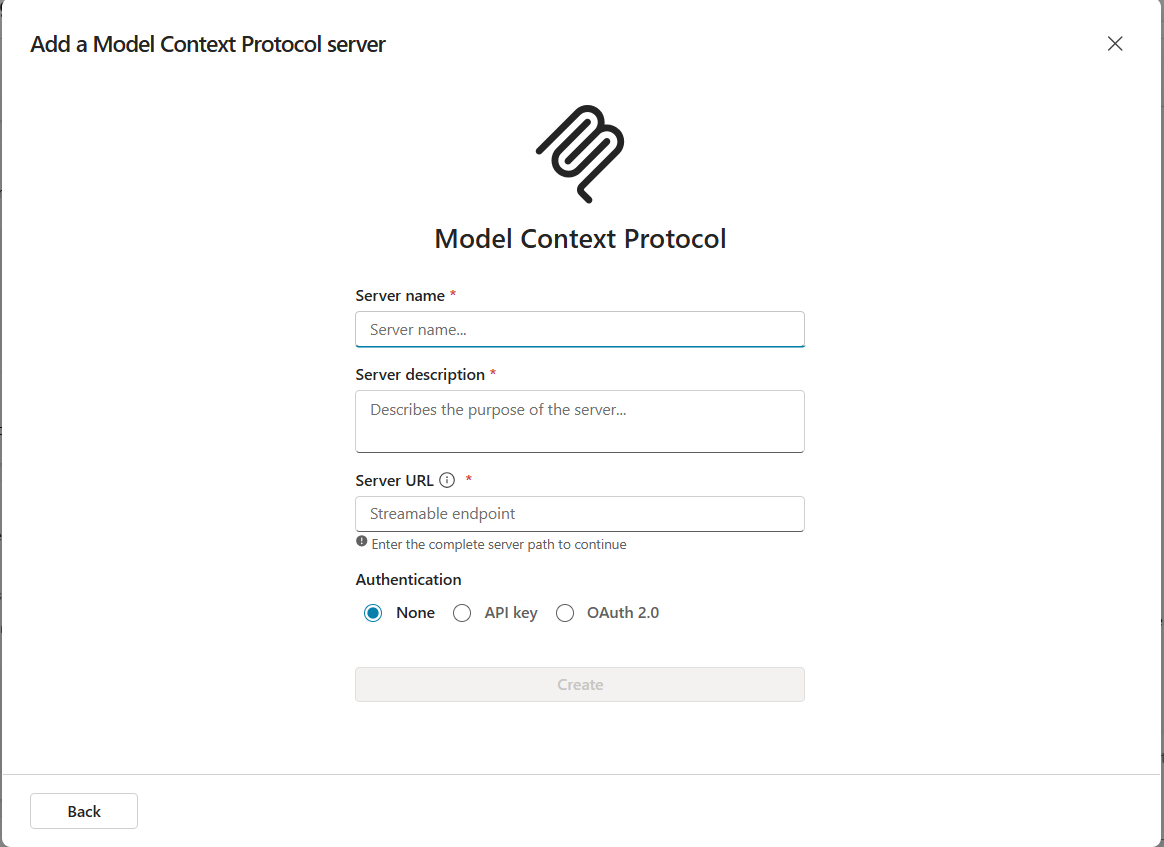
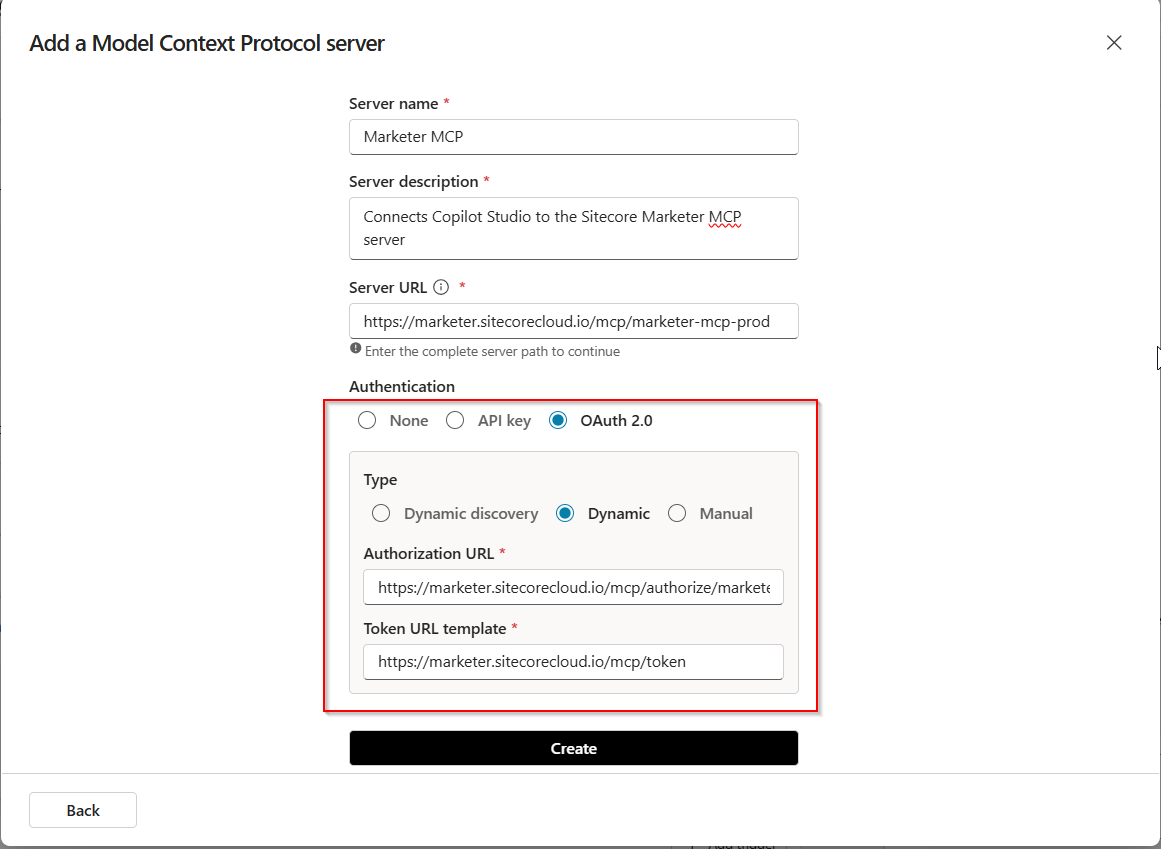
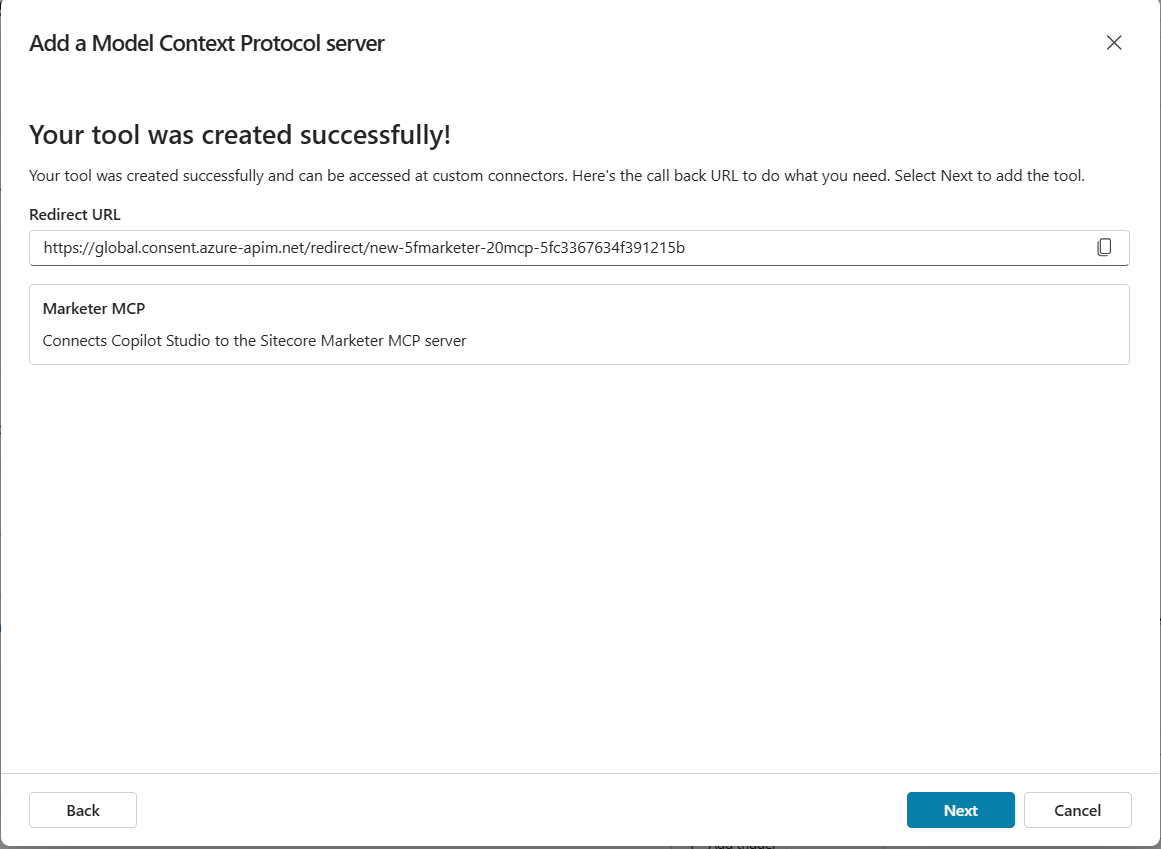
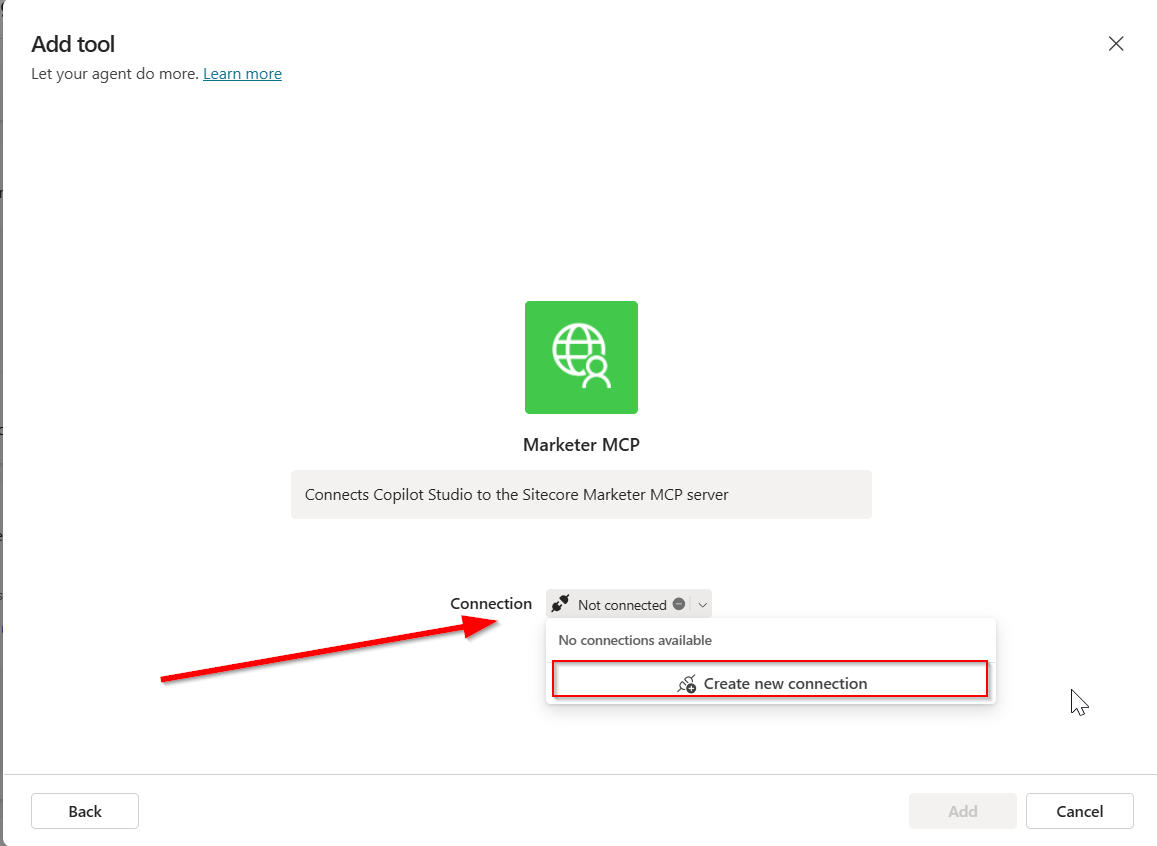
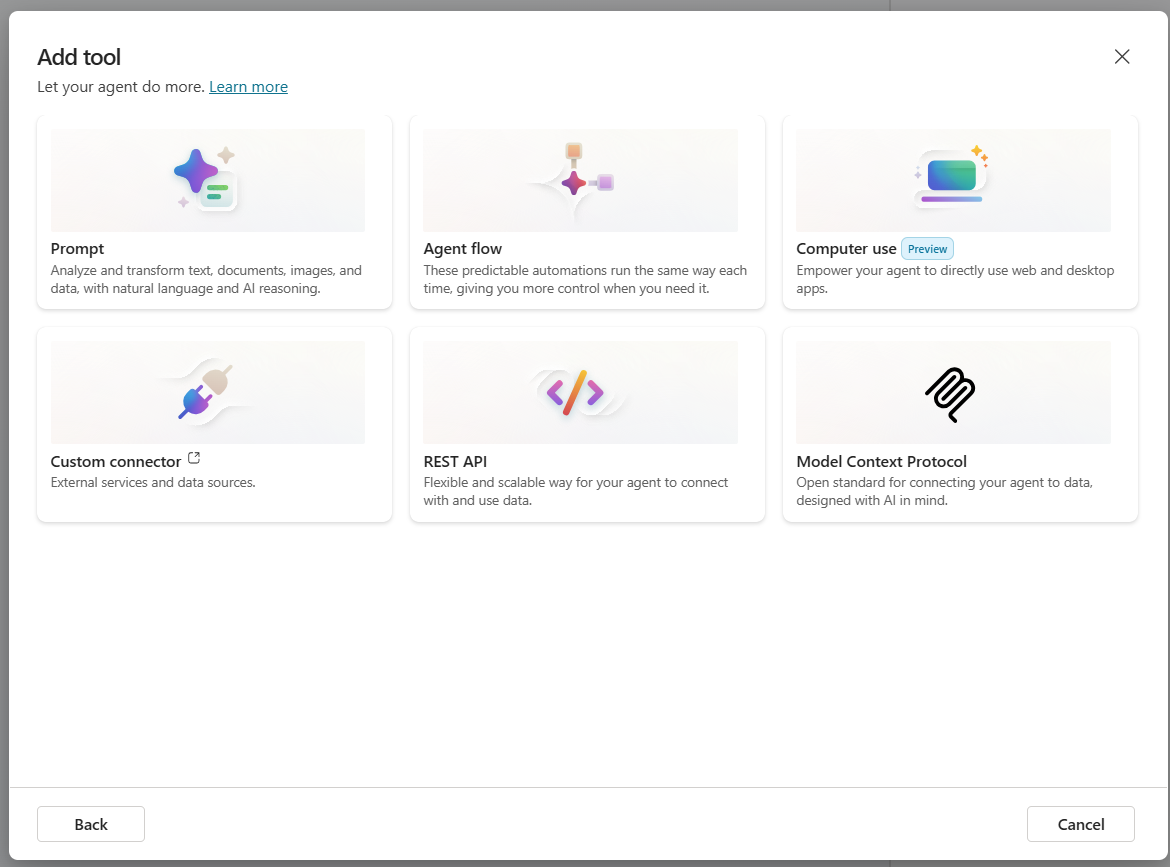
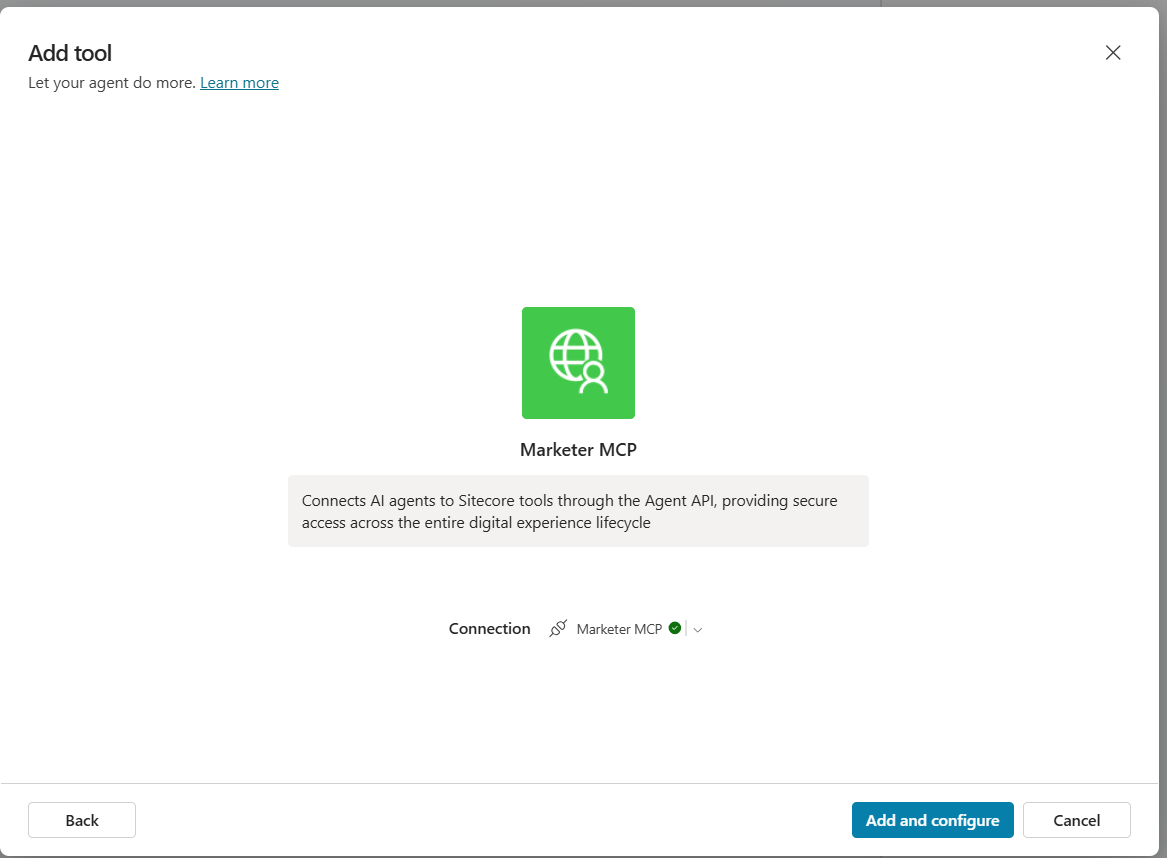
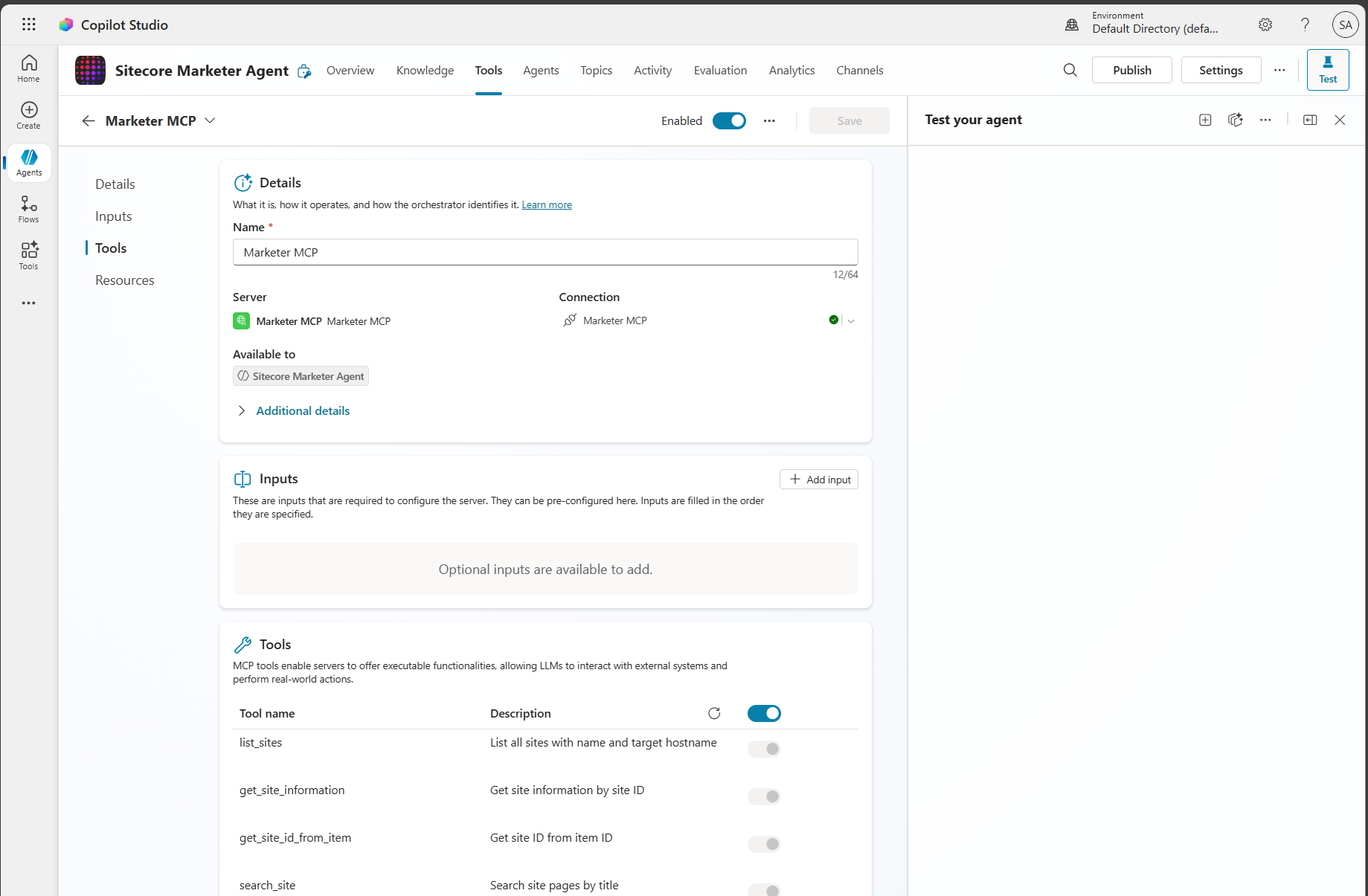
 Add new MCP.