
Background and Context
Sitecore released SitecoreAI New Media Library in beta version back in June 2026. SitecoreAI’s Modern Media Library brings a streamlined workspace to move beyond traditional folder-based workflows. But how does this next-generation experience stack up against the legacy Media Library? In this blog post, we’ll dive into Modern Media Library highlighting the core AI-powered capabilities—including automated metadata enrichment, smart tagging, and instant alt-text generation—that supercharge asset discovery, SEO, and accessibility.
What is New Sitecore Media Libary?
Some of the key highlights of the Modern Media Library are:
Purpose & Positioning: It provides a streamlined workspace for day-to-day media tasks. While the legacy Media Library remains accessible for folder-based workflows, the new modern Media Library is now the recommended primary experience for discovering, using, and reusing digital assets.
Key benefits of the modern medial library:
- AI-Powered Efficiency: Automatically enriches metadata upon upload by using AI to generate image tags and descriptive alt text, enhancing SEO and accessibility.
- Smart Discovery: Features advanced search and filtering tools built for high-speed navigation and finding assets quickly.
- Seamless Integration: Uses a simplified interface for tagging and organizing assets, laying the groundwork for a unified media-picking experience.
- Simplified Sharing: Allows users to generate public links to instantly share media assets or utilize them directly inside the SitecoreAI Page Builder.
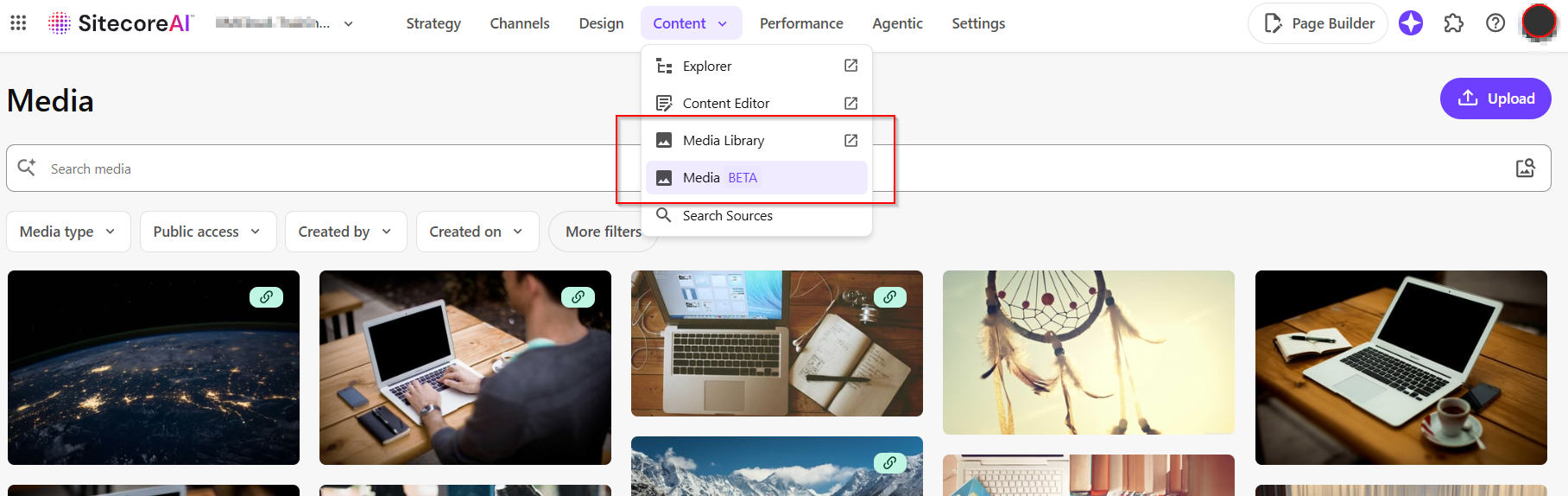
Availability: Sitecore have released Modern Media Library in beta version and is being rolled out as part of a phased release. It will appear within the Content menu in your SitecoreAI environment, as shown below:
Let us explore the Modern Media Library together
There is a dedicated Media page that is home to the Modern Media Library. This it the page you land on when opening the link Content > Media (Beta) as shown above.
At first glance, the Media page experience looks familiar with the ContentHub asset management capabilities for those of you who have worked with ContentHub.
The Media page has a more intuitive and streamlined experience:
- You can upload, organize, and manage media assets in one place
- Automatic tagging leveraging AI
- Image alt text generation during upload, great for search engine optimization (SEO) and Web Content Accessibility Guidelines (WCAG) compliance
- Improve discoverability and accessibility of assets
Let us upload an image into Modern Media Library
To upload a media file, simply click on the Upload button on the top right hand corner of the Media page. This will open a popup as shown below.
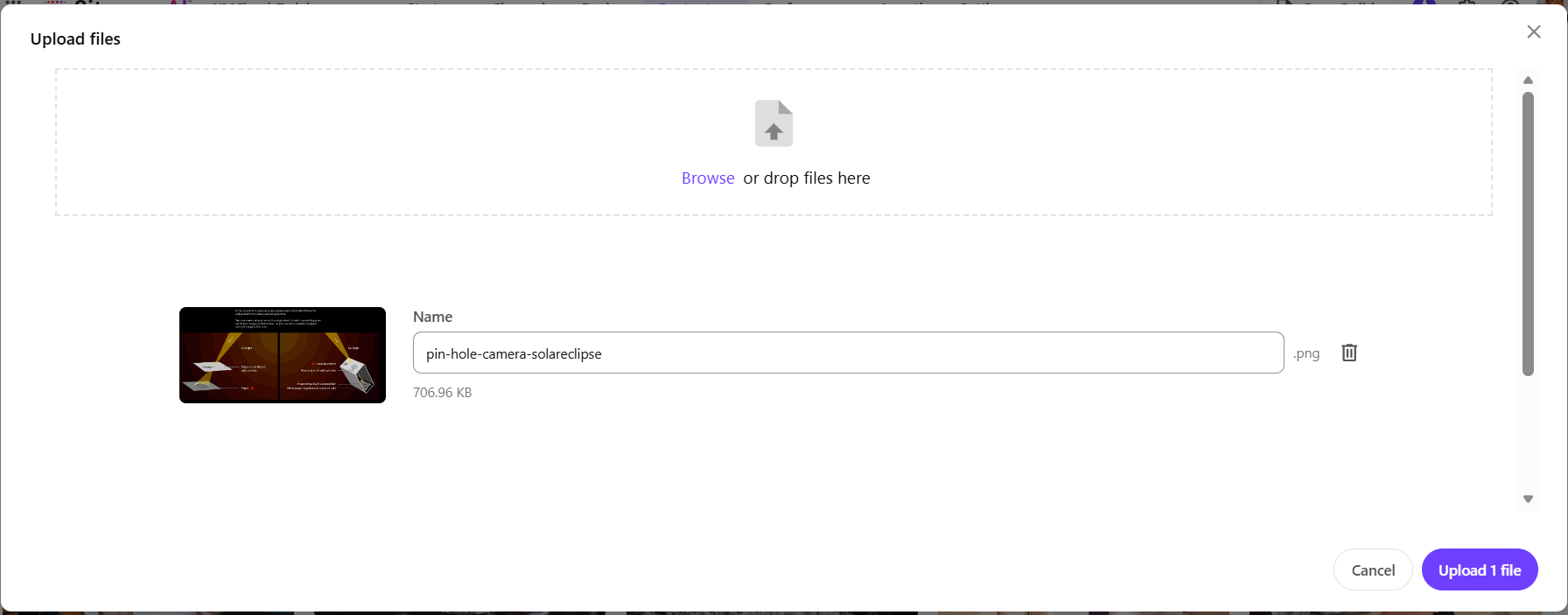
You can either use drag-and-drop or simply browse for your file from your device. You can upload multiple files at once, simply select your file to upload, then click Upload file button as shown below.
You can also upload documents, such as .pdf files, as well as audio (.mp3 and .wav) and video files (.mp4 and .webm).
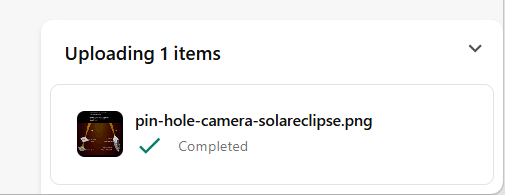
An upload progress notification will track upload status and indicate once completed
Media metadata generated with AI
Using AI, relevant and consistent metadata is automatically added to images when a file is uploaded. Note that the automatic metadata enrichment on upload is not available for videos, audio files, or PDFs and is not configurable in the current beta release.
As shown below, I have selected the uploaded file from the Media page, to view the details section.
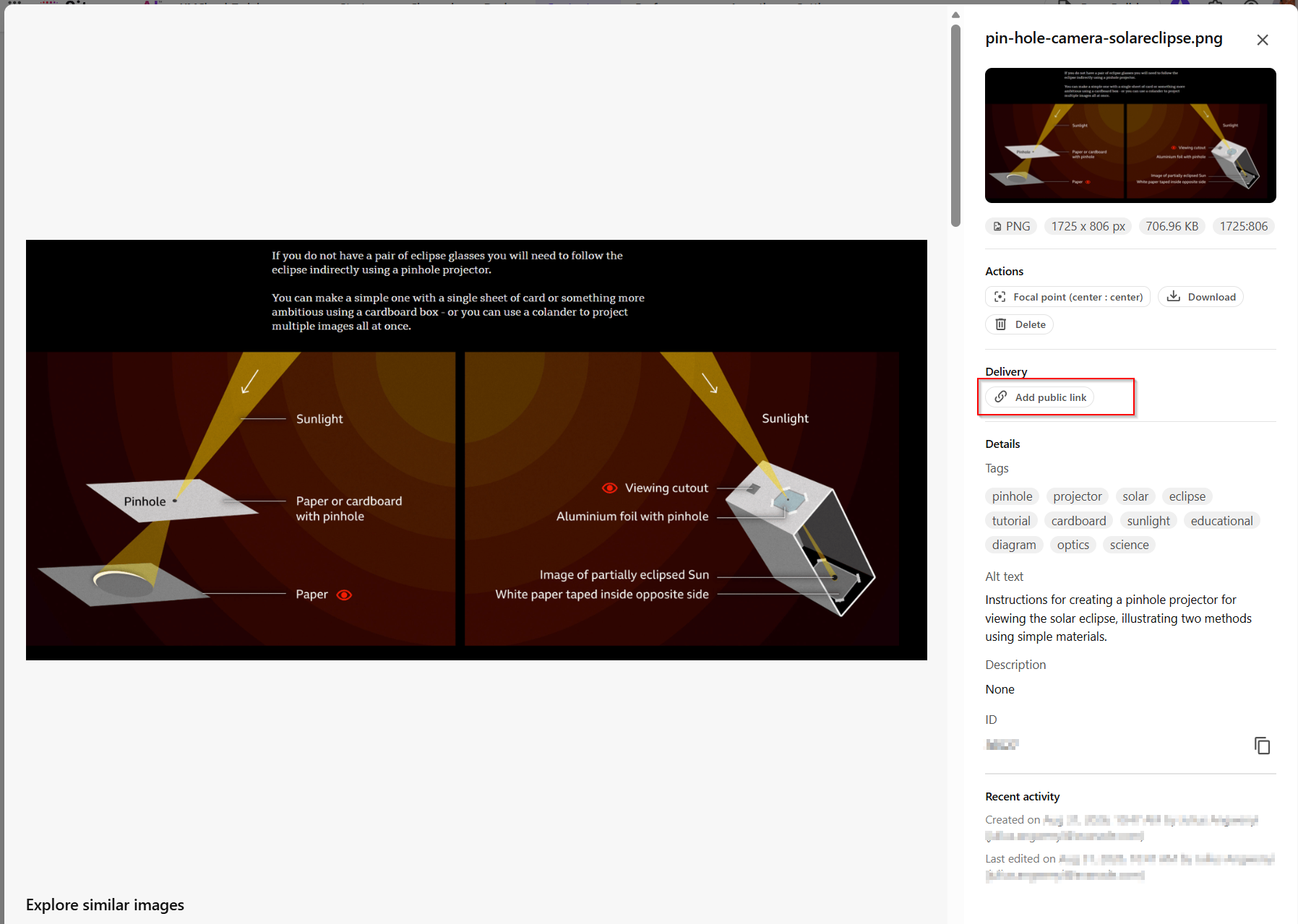
The details include:
- The media item ID, generated alt text and tags.
- An image thumbnail for .
jpeg, .png, .gif, .web, and .svgfiles - A full page preview,
I can now view and edit the metadata:
- Tagging
- Alt Text
- Details
- Generate a Public Link
- Set a focal point
Generate Public Link
To make an image public, add a public link and set the availability window that determines when the link is active. Clicking on the Add public link will open the popup shown below.
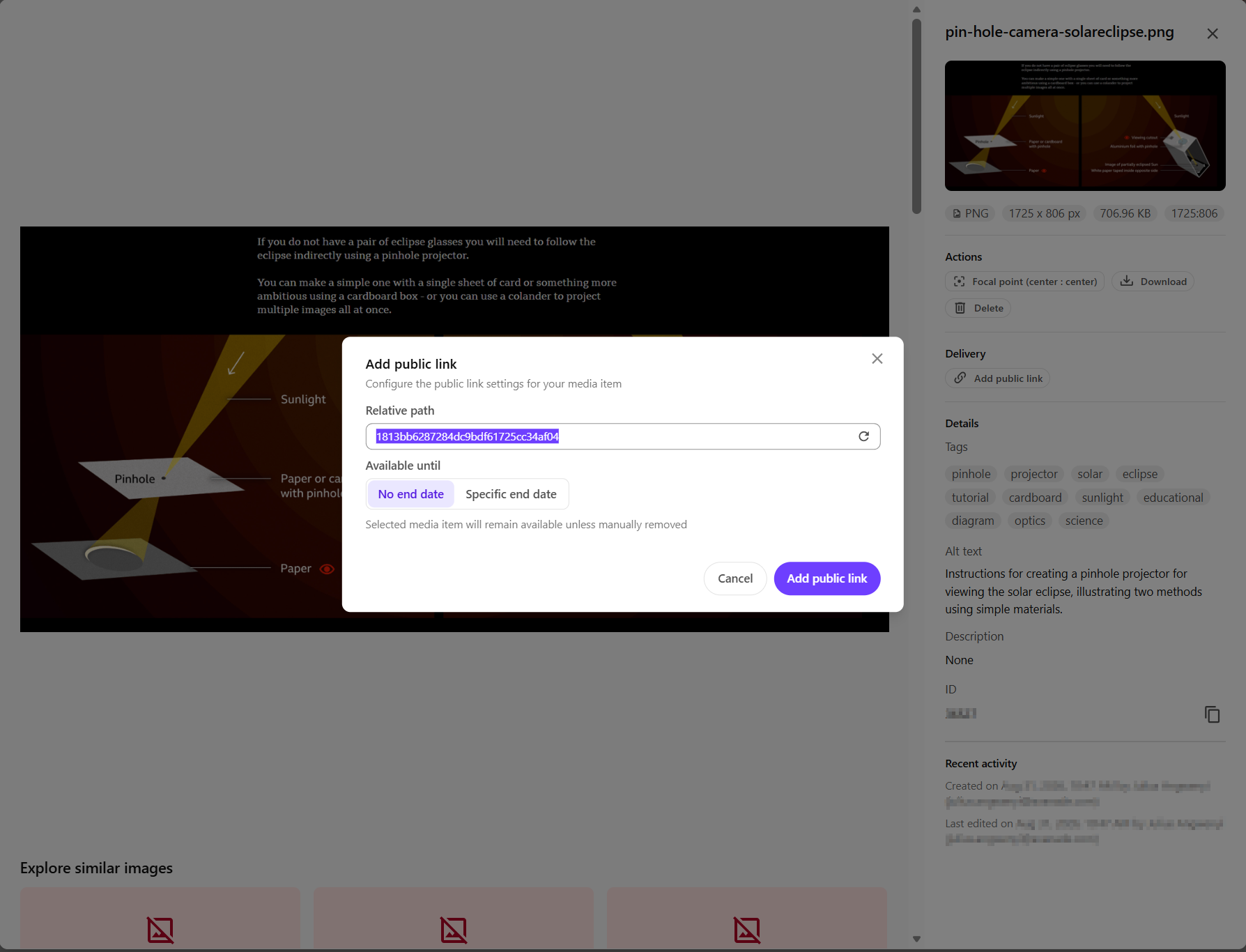
In the Add public link dialog, specify media availability by doing one of the following:
- If you want the media item to be available until manually removed, click No end date.
- If you want the media item to only be available up to a specific date, click Specific end date and select a date and time.
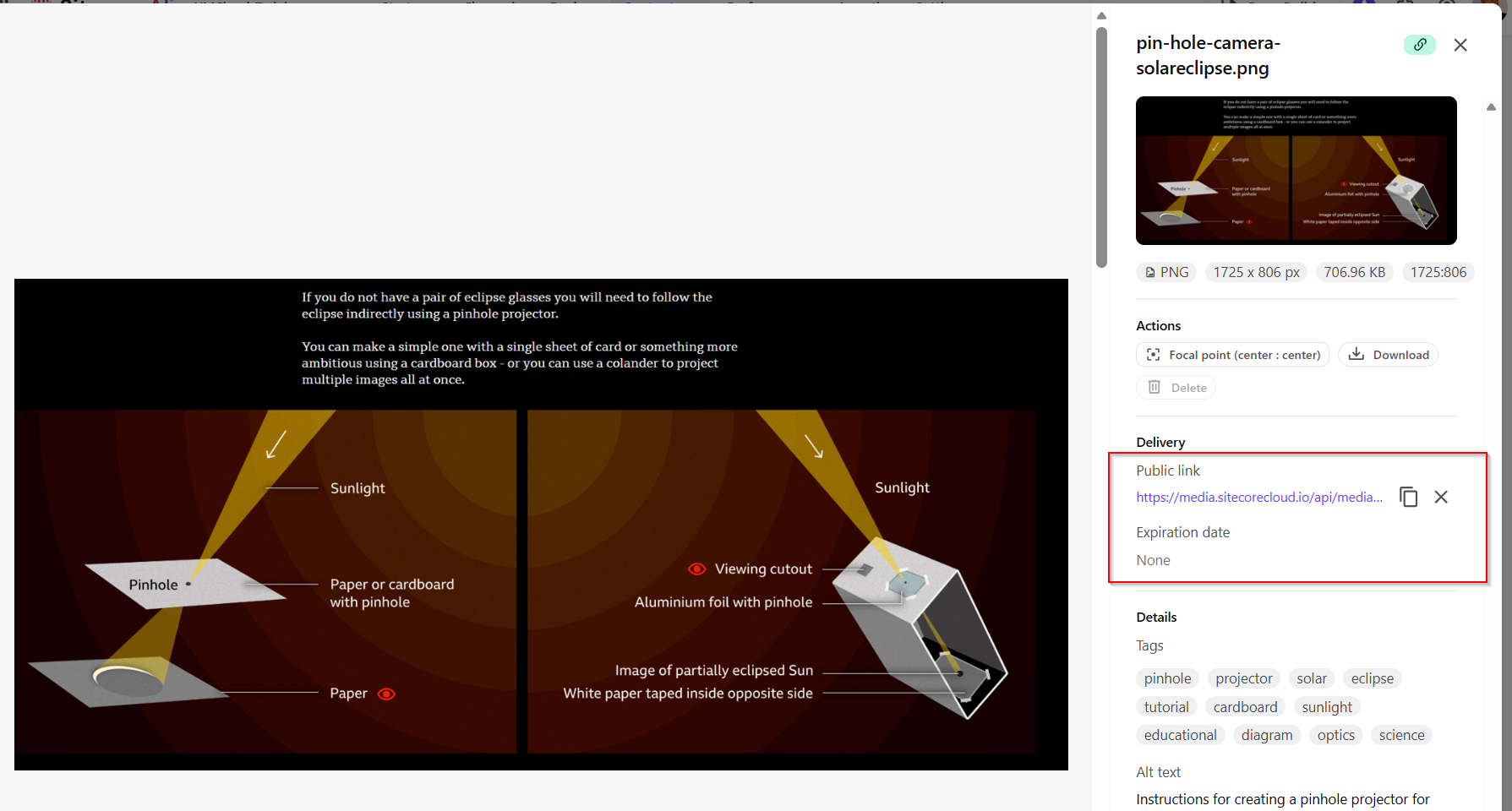
Click Add public link. This creates a public link that you can share with others, as shown below
Filtering media items and other features
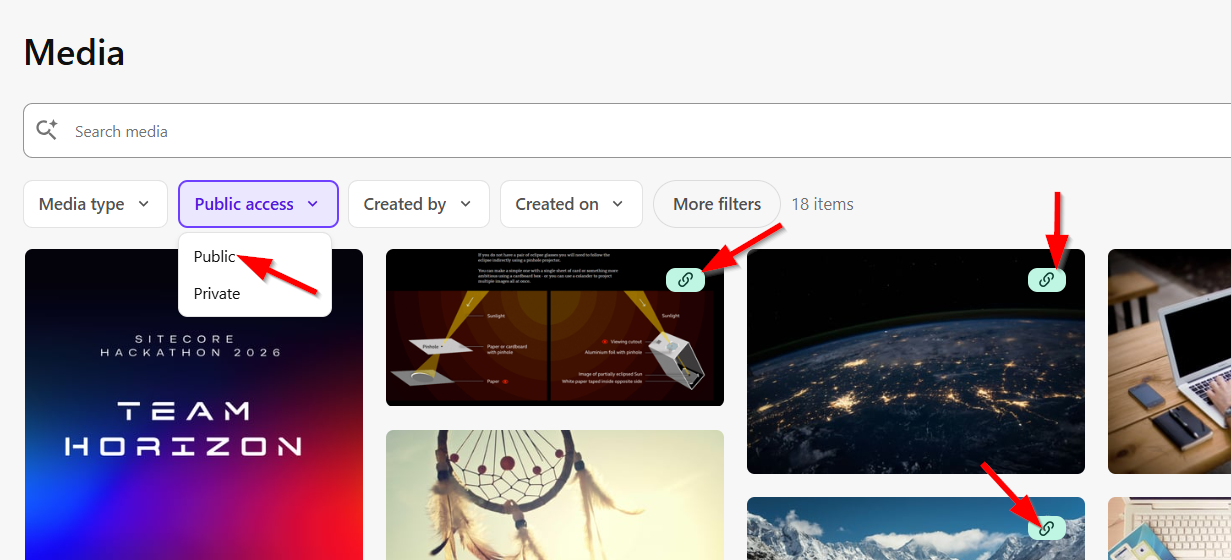
You can filter media items visible to the public using Public access filter which will list those with Public links as generated above. You will notice the Link icon overlay on the search results thumbnails as shown below.
You can also filter use the following:
- Media type – lets you select the type of media item you want to display.
- Created by – lets you display media items created by the current user or other users.
- Created on – lets you display media based on the date when the media item was created.
- Last updated by – lets you display media items last updated by the current user or other users.
- Last updated on – lets you display media based on the date when the media item was last updated
Page Editor – Browsing Media Library
In the Page Editor, click Browse media library link
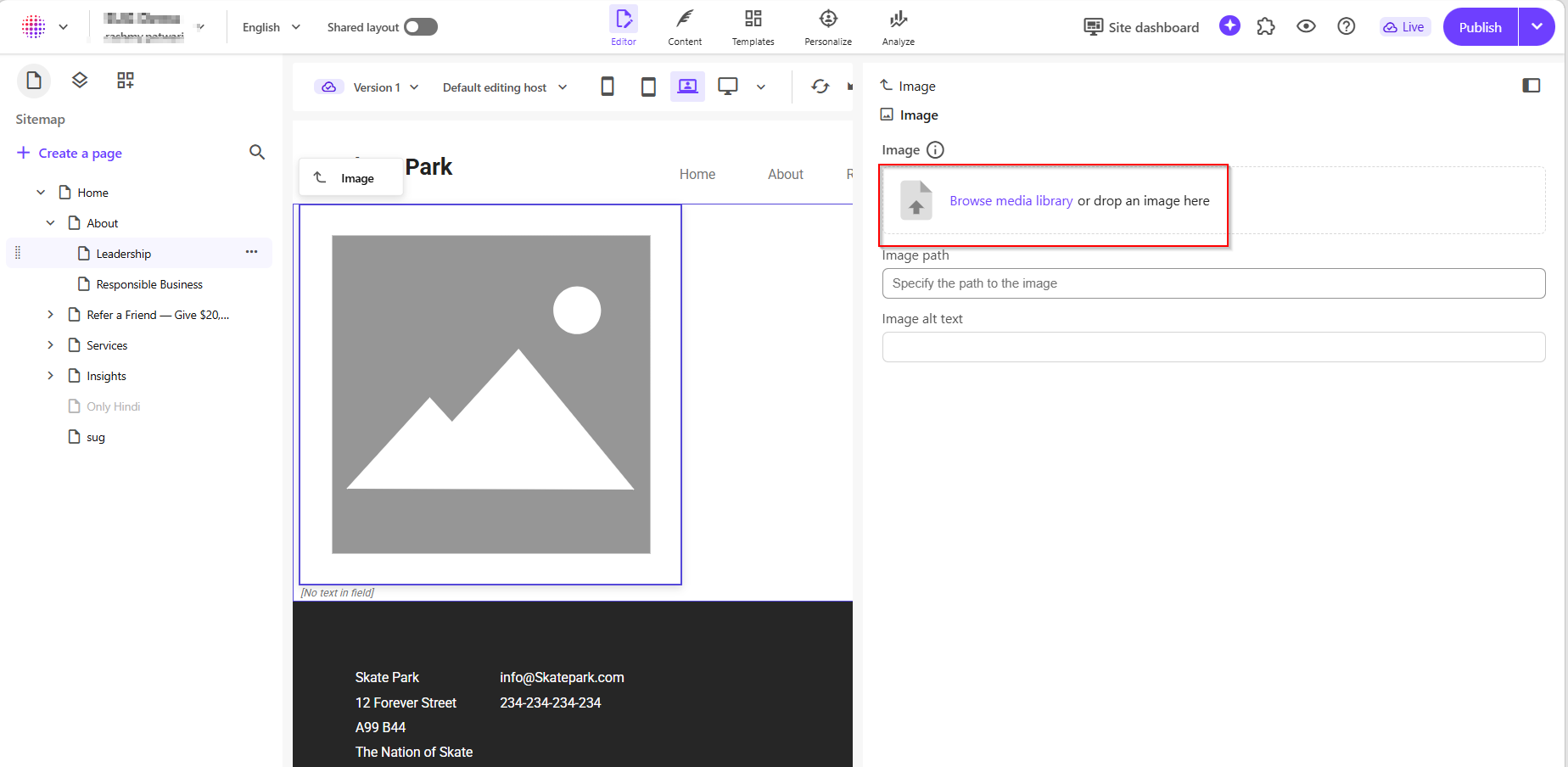
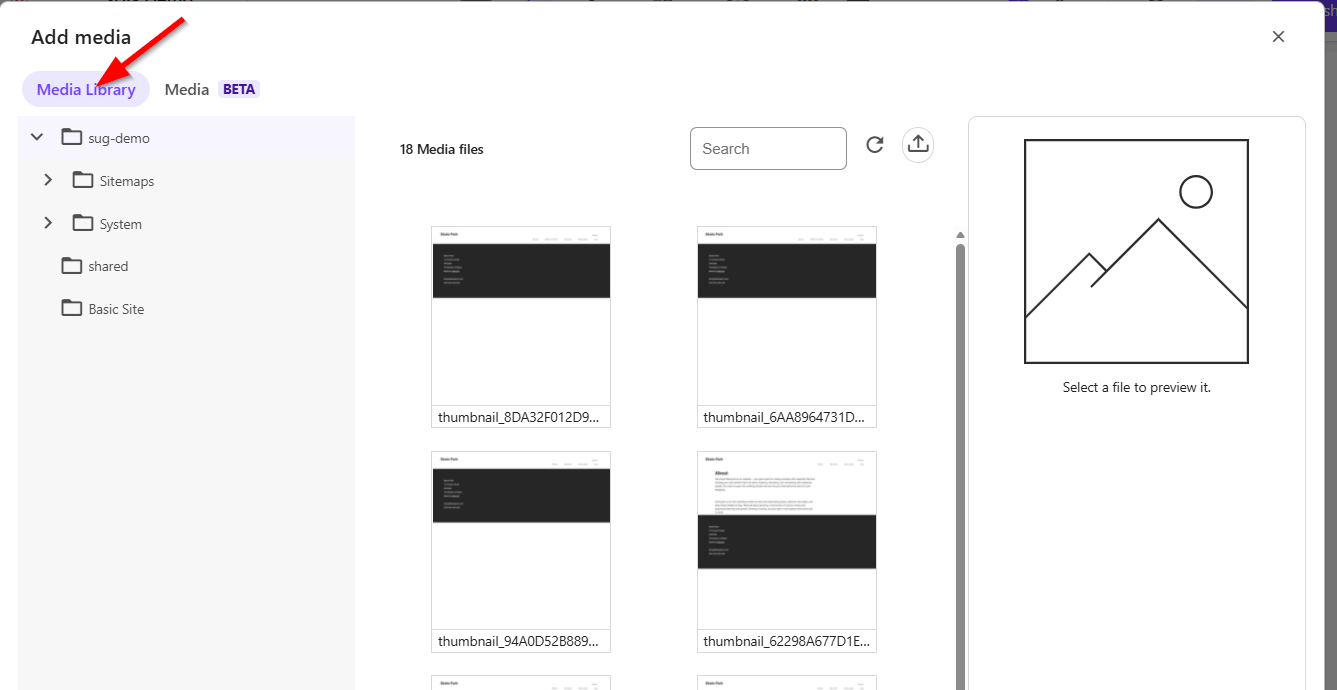
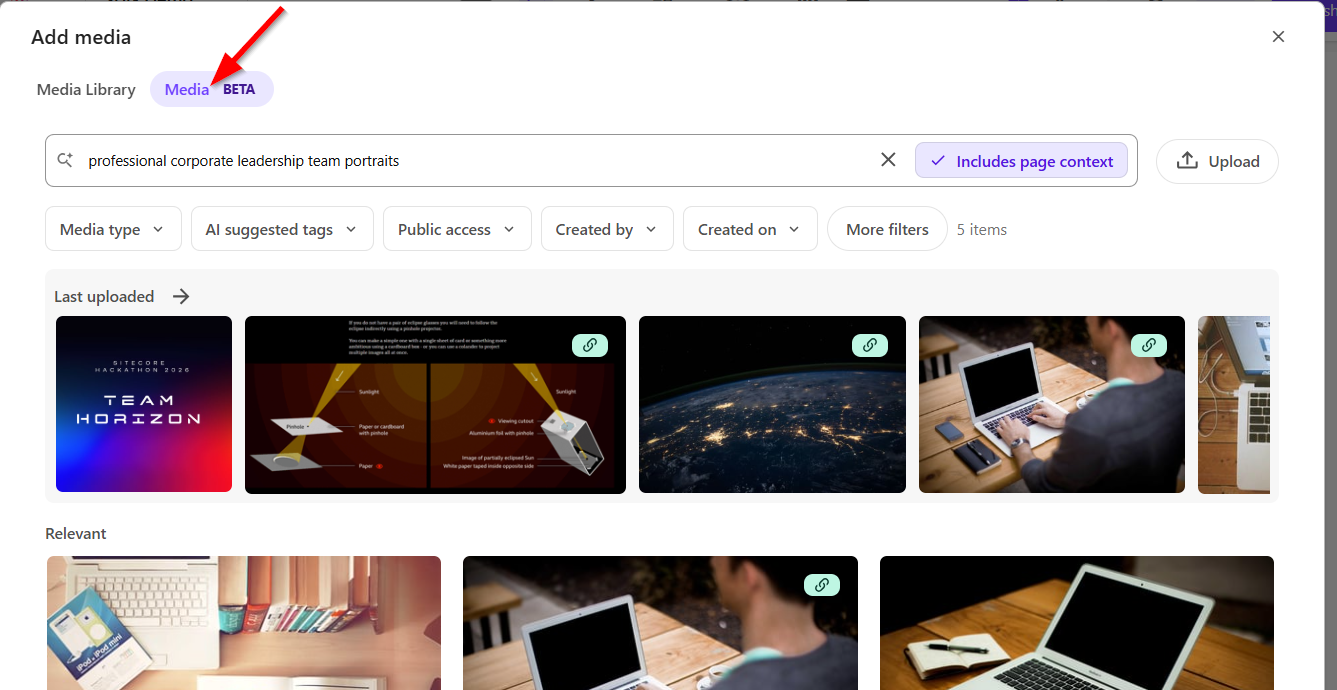
This will then open Add media popup as shown below. You will see we have two options available
- Media Library tab – which is the Legacy Media Library
- Media (BETA) tab – which is the Modern Media Library
Adding media from Legacy Media Library
Select the media item from the list within the Legacy Media Library tab, and insert it to the Page Editor
Adding media from Modern Media Library
Select the media item from the list within the Modern Media Library tab, and insert it to the Page Editor. Notice the AI-powered Search media is available for this option.
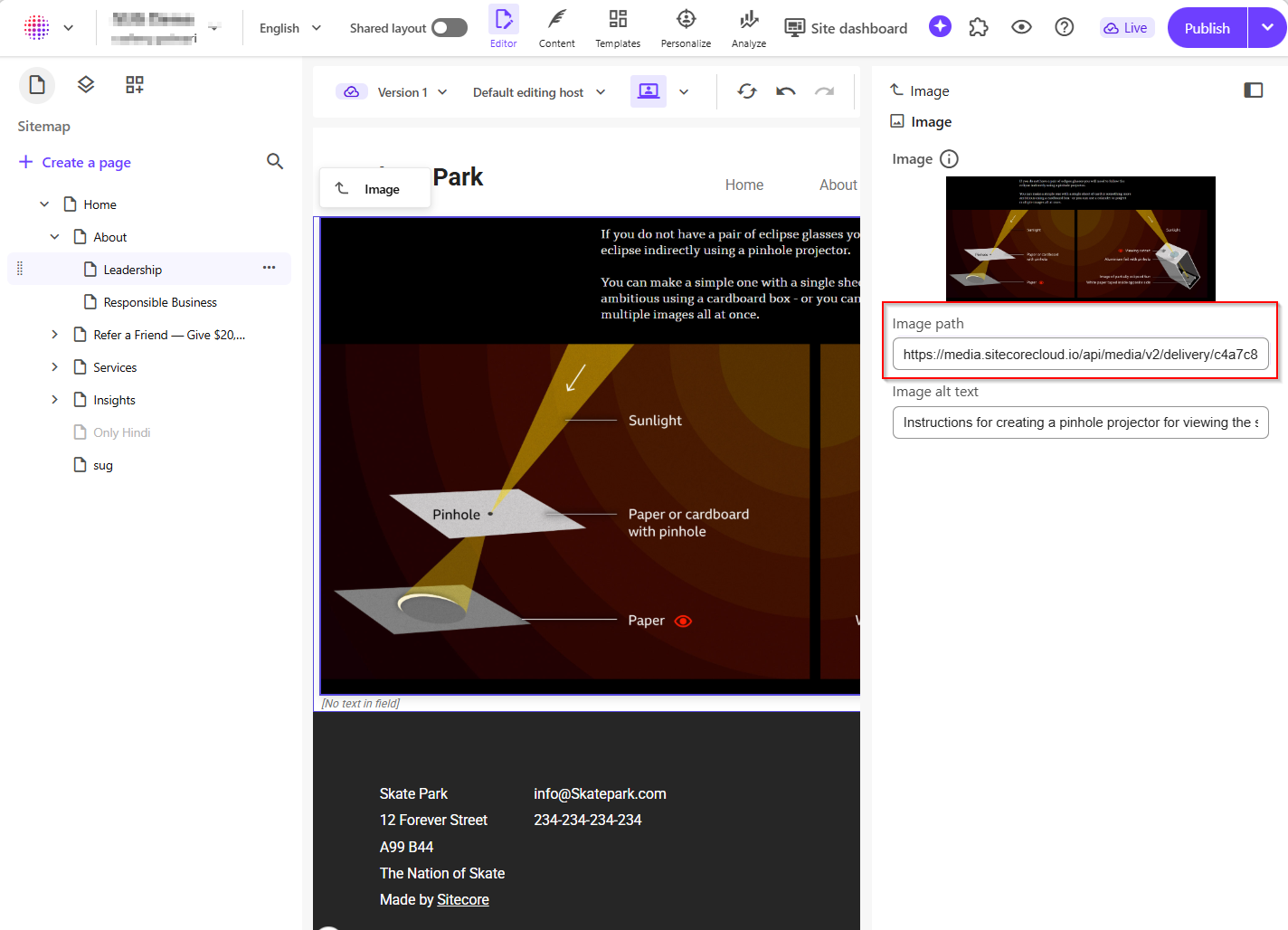
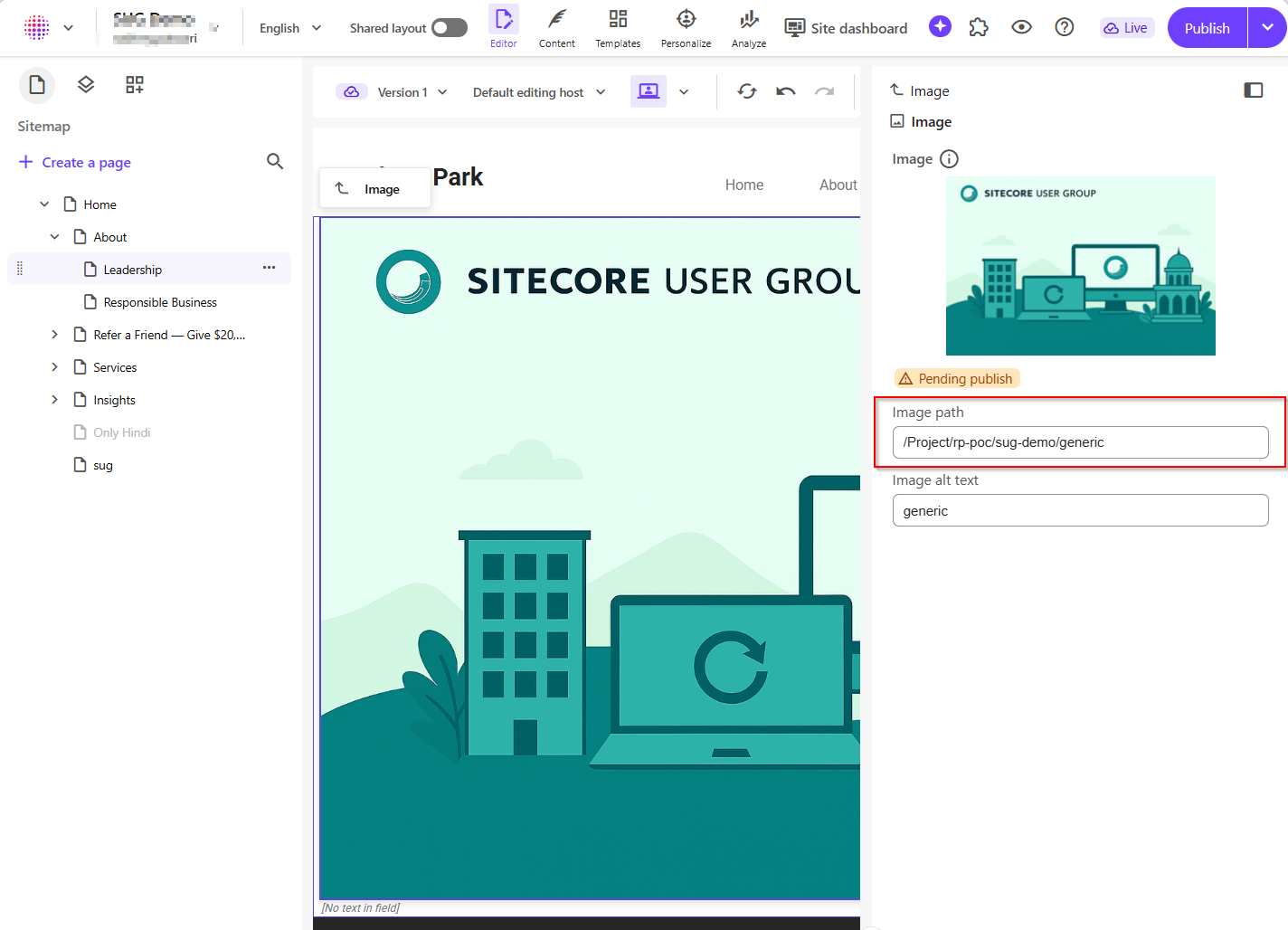
As shown below, the Page Editor will indicate the Image path accordingly to reflect which Media Library was used:
| Modern Media Library Image in Page Editor | Legacy Media Library Image in Page Editor |
 |  |
Next steps
In this blog post, we have explored the SitecoreAI Modern Media Library that is currently available in BETA. I have walked you through the user experience for uploading, viewing media assets as well as using them within Page Editor. I hope you found this valuable. You can view the feature announcement back in June 2026 as well as explore and get further details from Sitecore docs.
Please feel free to leave us a comment and feedback. Stay tuned for future posts.
