Configuring Sitecore Content Hub data retention period

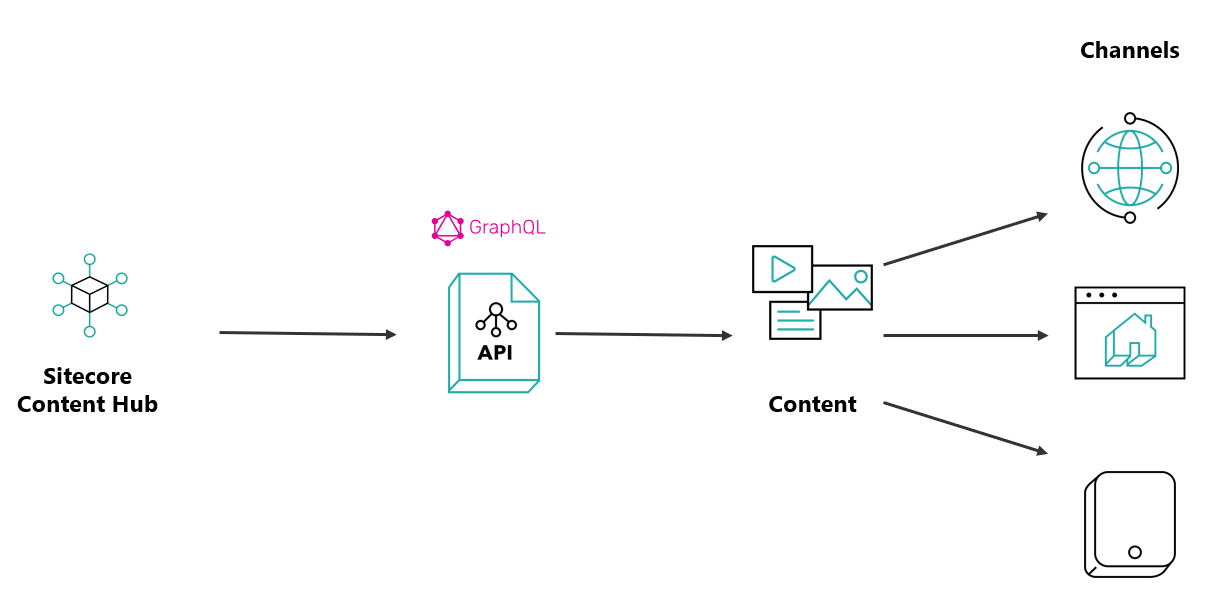
Sitecore Content Hub architecture

Image credit: https://doc.sitecore.com/ch/en/users/40/content-hub/security–scale-units.html

Why data retention policies?

Proper data retention policies are a crucial component of any effective cybersecurity strategy. As per the above architecture, the data tier has the following capabilities.

  • Redis Labs Enterprise provides data storage capabilities in Content Hub. This persistent storage is for the metadata of each Content Hub instance, including asset, product, and content details.
  • Azure Blob Storage is used for Media assets and other important files used by the Content Hub application are stored securely for access when and where needed.
  • Elastic Cloud Enterprise is a responsive service for users to find the desired content when they need it.

Which are the data backup rules?

ResourceDescription
Redis DBRedis DB backups are scheduled to execute every night. They are retained daily for one month and weekly for 52 weeks.
ElasticSearchElasticSearch index backups are retained for three weeks since they hold append-only data.

What are soft delete rules?

Below is the period the soft deletions are delayed:

  • Production blobs are hard deleted after 30 days.
  • QA blobs are hard deleted after 7 days.
  • DEV blobs are immediately deleted.

How to configure maintenance settings?

You can configure maintenance settings related to the archival and deletion of assets, including the following:

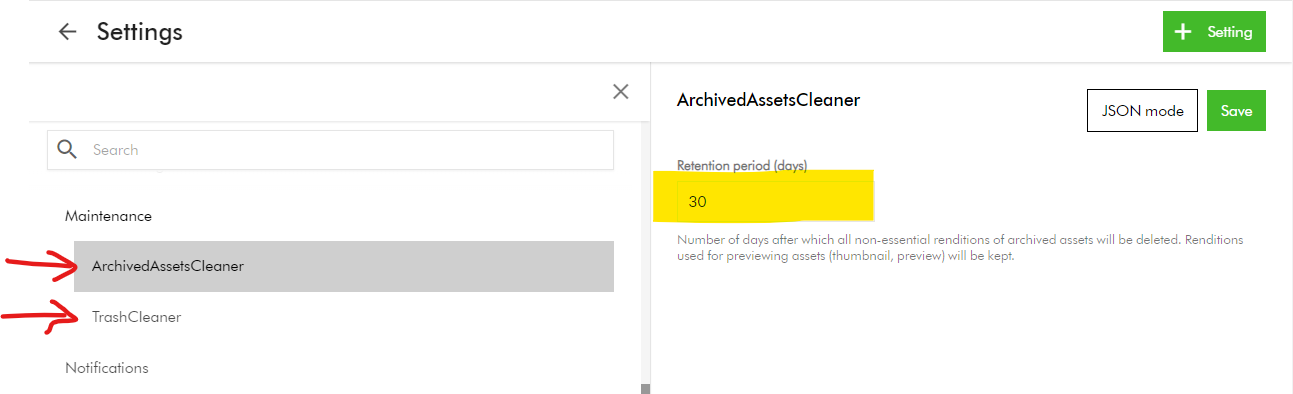
  • ArchivedAssetsCleaner – Number of days after which all non-essential renditions of archived assets will be deleted. Renditions used for previewing assets (thumbnail, preview) will be kept.
  • TrashCleaner – Number of days after which items in the trash will be deleted forever.

To configure these settings:

  1. On the menu bar, click Manage -> Settings
  2. On the Settings page, search and click Maintenace.
  3. Then, select ArchivedAssetsCleaner or TrashCleaner.
  4. Set Retention period (days) to a numerical value between 1 and 999.
  5. Click Save.

Content Hub Audit logs retention policy

Sitecore Audit logs provide a comprehensive record of all activities that occur within your Content Hub system. These includes:

  • System events
  • User actions
  • Changes to data

Sitecore retains these audit logs for a “retention period” to meet regulatory compliance and accountability purposes.

Types of audit logs data retention

Below are the types of data retention policies used in Content Hub:

  • Online retention: data is available through Content Hub search, reporting, or API.
  • Offline retention: data is not available through Content Hub search, reporting, or API, but can be made available for download through a service request.
  • Expired data: once the retention period ends, the data may be permanently deleted. To keep the data beyond this period, you must request and store it securely before it is deleted.

Retention policy – Production environments

Audit log categoryOnline retention timeOffline retention time
User or security events2 years7 years
Audit events2 years7 years
Operational logs3 monthsN/A

Retention policy – Non-production environments

Audit log categoryOnline retention timeOffline retention time
User or security events3 months2 years
Audit events3 monthsN/A
Operational logs1 monthN/A

Next steps

On this blog post, we have looked at how to configure your Content Hub data retention policies. Proper data retention policies are a crucial component of any effective cybersecurity strategy.

Stay tuned for future posts as well look and feel free to look around at my existing posts on Sitecore platform.

How to customize asset collections list on Sitecore Content Hub home page

I recently got asked the following question via email:

Just wondering if you can help, I’m wanting to change which Collections appear on the homepage and I’m not sure how to do it, do you know, how?

In the spirit of Scott Hanselman’s advise below, I have put together this blog post to answer this question.

“Don’t reply to random emails with long emails. Each question is a gift. Write a blog post and send them the link. If you get repeats, you’ve got links to send. Do this for 20 years and you’ll be a mid-level tech blogger like me, with a blog full of random answers to gifts.”

@shanselman

Asset collections on your home page?

To personalise the asset collections on your home page, you need to locate this component, enable custom settings and adjust them accordingly.

This is how to go about it.

If you have asset collections defined in your Content Hub instance, your home page will appear like the hero image at the beginning of this blog. A collection is a group of assets, which can be shared with other users, allowing collaboration on that collection.

By default, you will see the latest (up to four (4) collections) on your home page. You can of course customize this list to meet your use cases.

Step-by-step guide on customizing asset collections list

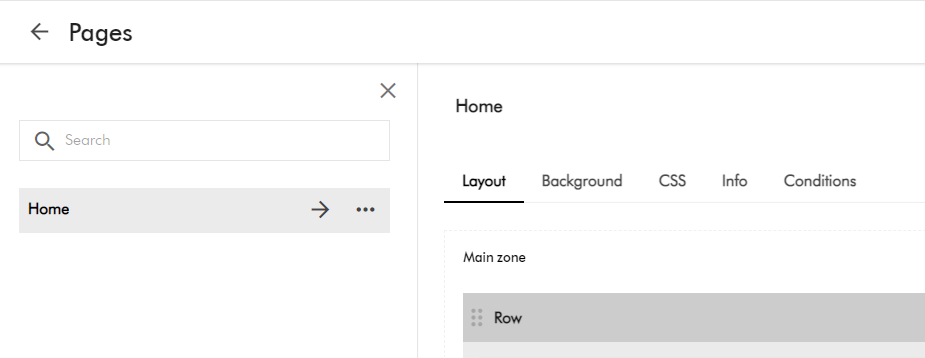
  1. Navigate to Pages using  Manage -> Pages
  2. Select the Home page item. You will see page similar to below:
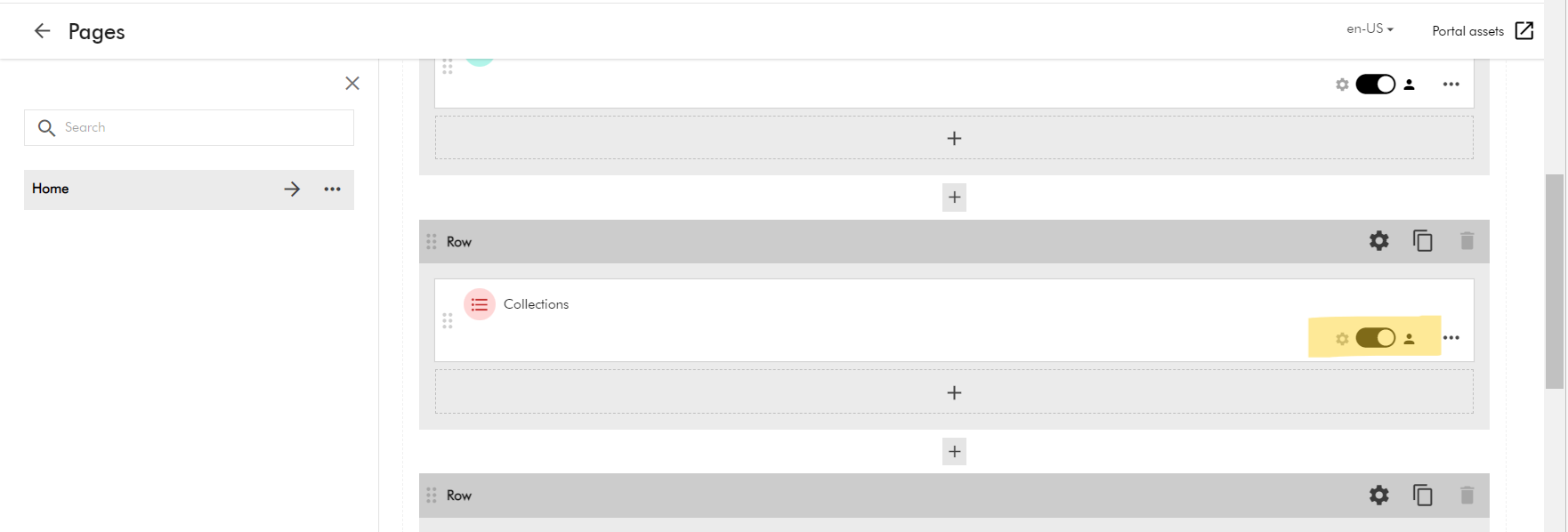
  3. Now scroll to the middle part of the home page. You will see the Row section with “Collections” component.
  4. Using the toggle button “Enable custom settings”. This will allow you to click on “Collections” component.
  5. This will the open the Entity list component.

Customizing Entity list component

Content Hub Entity list component is used to display an entity collection of a specific entity definition.

In our case, we are using this to display the asset collections (M.Collection)

Entity list component configuration settings are grouped into six tabs:

  • Select
  • Output
  • Template
  • Components
  • Labels
  • Advanced

On the Select tab, adjust the entity definition query to match your use cases. You can create the query on the Entity definitions column, such as the following.

  • Take: this has the count of collections shown, e.g., 4
  • Enable sorting: allows you to define sort criteria for your collection list
  • Sorting property: This has the sorting property, e.g., date created (Descending or Ascending)

You can apply filters to this query. In this case, only items that match the query and the filters are displayed.

Note: Your changes should be applied on the fly as shown on the Results column on the right-hand side

Once you are happy with your changes, click on Save and Close button. Now navigate to your home page, you should see your changes applied.

Next steps

On this blog post, we have looked at how to personalise the asset collections list on your Content hub home page. I am keen to hear your feedback or comments. Please do use the comments section for that.

Stay tuned for future posts as well look and feel free to look around at my existing posts on Sitecore platform.

How to bulk import Video Subtitles into Sitecore Content Hub

I recently was working on a cool project that required migration of hundreds of videos from a legacy video platform to Sitecore Content Hub as part of a digital modernization strategy. These video assets happened to have subtitles for multiple languages, which presented a significant challenge in itself.

If you are familiar with Sitecore Content Hub DAM, we have a capability to do a bulk import of DAM assets using the Excel import feature. There is also a fair number of blogs with guidance on how to go about this process. However, if you are looking for a quick guide on performing bulk import of video subtitles, there seems to be lack of documentation or step by step guidance.

I thought I document this process to fill this gap and share my story of overcoming this challenge.

First things first – recap on importing video subtitles via Portal page

I am assuming you already have a video asset imported into your Sitecore CH instance.

After selecting your video asset, the asset details page will look like this one below.

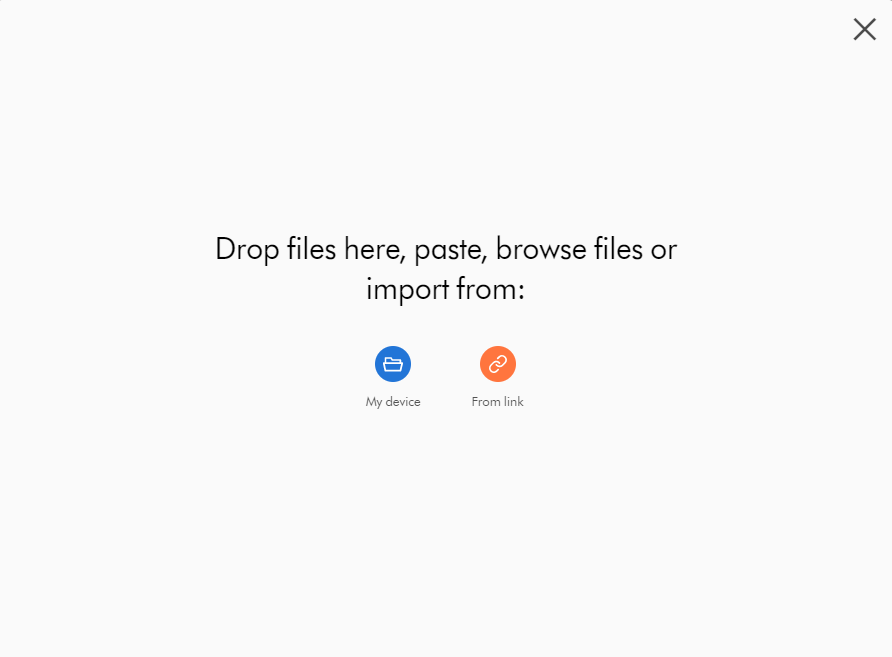
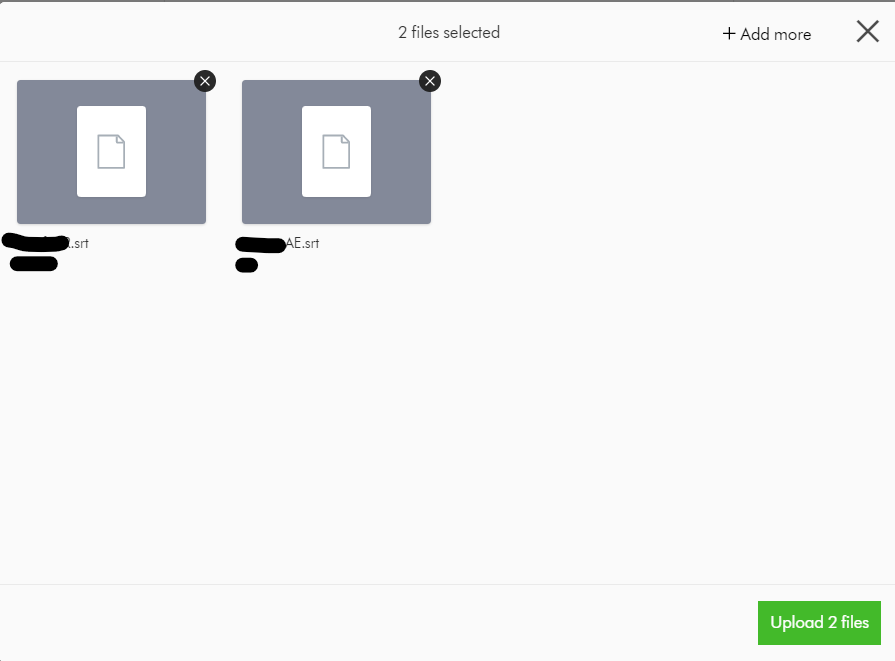
Clicking Upload files button will prompt with a dialog box shown below:

  • Click My device, navigate to the location of the files, select them, and then click Open. Optionally, to add more files, click + Add more; otherwise click Upload files.
  • Click From link, paste links to the files you want to upload, and then click Import.

Please note as of this writing, Sitecore CH supports only SRT and SUB subtitle formats.

After successful upload of the subtitle files, your Video subtitles section will look like this below.

At this stage, we haven’t specified the localised language for the subtitle file. To do this, click the file name or click Edit language and, in the Edit language dialog box, select the language from the drop-down list and then click Save.

Congratulations! You can now have the closed caption option (CC) show in the media player, which lets you select the uploaded subtitles to play along with your video.

Where are my subtitle files stored?

As you may have guessed it right, the subtitle files uploaded are actually M.Asset entities which as stored within the M.Content.Repository.Subtitle Content repository. You can view these files using your All-assets portal page, and filter the Subtitle Content repository.

How are the subtitle files linked to the video asset?

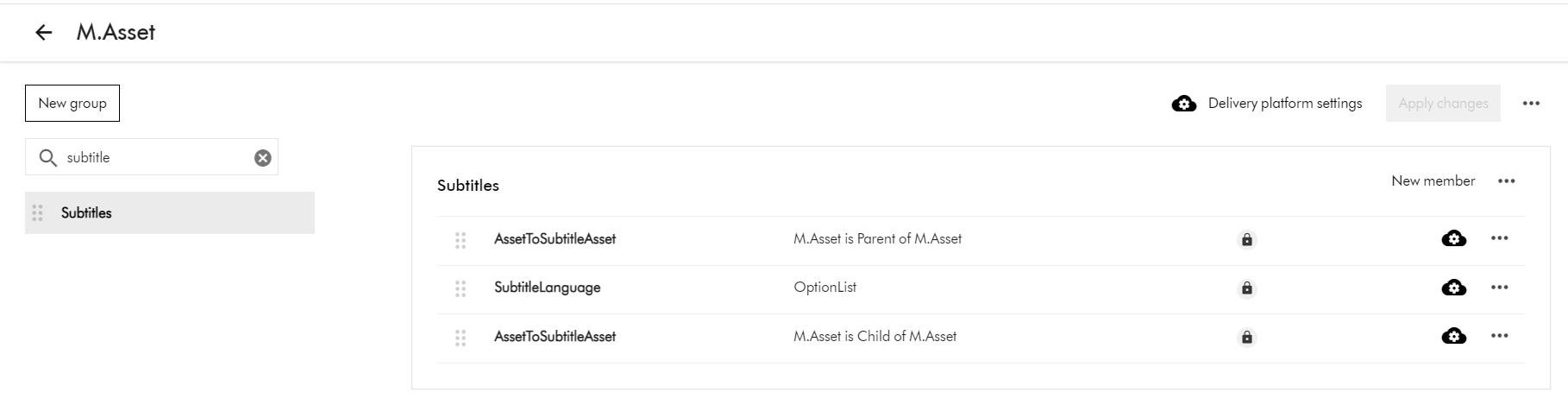
To view the subtitle and video asset relationship, head on to the Schema section by navigating to Manage -> Schema -> M.Asset

On the M.Asset schema page, search for subtitle. This will filter the schema for subtitles as show below.

This means that:

  • the video asset is the Parent of the Subtitle asset (AssetToSubtitleAsset:Parent)
  • the subtitle asset is the Child of Video asset (AssetToSubtitleAsset:Child)
  • the subtitle language is an OptionList

So, how do I bulk import Video Subtitles?

Now that we know subtitle are M.Asset entities, we will leverage the Excel Import template to achieve the bulk import.

When importing an Excel file, ensure that the name of each worksheet matches the name of the corresponding definition. For example, to import assets, a worksheet must be called M.Asset

You can hand-craft the Excel file if you already know the fields needed for your import. This guidance here also has preparation steps that you can undertake.

A safer option is to Export the sample video asset plus the subtitles, so you can figure out how the template should look like.

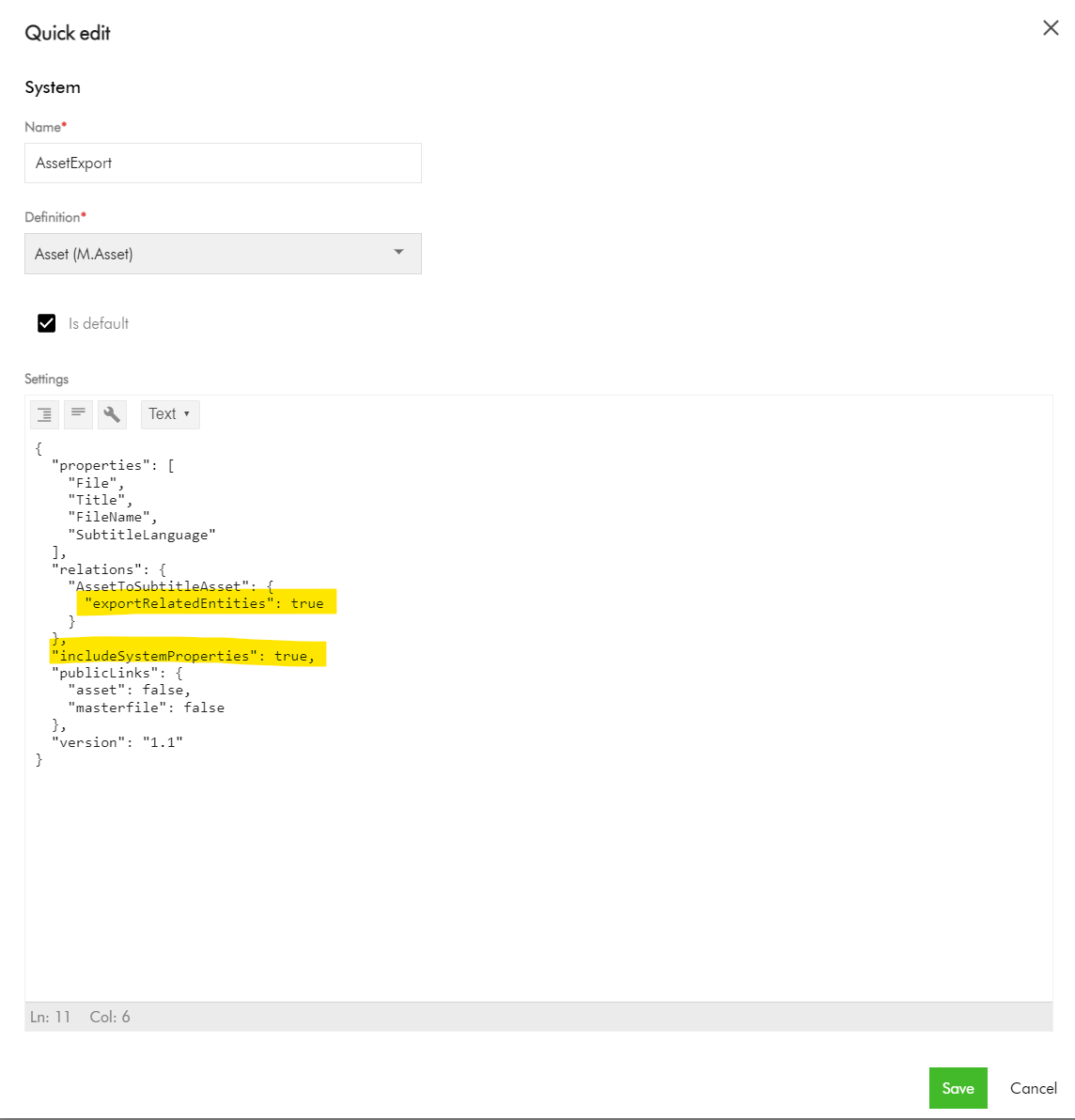
This will require creating an Export profile with minimal number of fields required for the bulk import. If you follow the steps on how to create an M.Asset export profile, you should end up with one similar to one below.

Manage -> Export Profiles -> Create new export profile

{
  "properties": [
    "File",
    "Title",
    "FileName",
    "SubtitleLanguage"
  ],
  "relations": {
    "AssetToSubtitleAsset": {
      "exportRelatedEntities": true
    }
  },
  "includeSystemProperties": true,
  "publicLinks": {
    "asset": false,
    "masterfile": false
  },
  "version": "1.1"
}

Pay attention to the Relations section, where we are enabling the export of the AssetToSubtitleAsset related entities. Also, ensure includeSystemProperties is enabled.

Export your sample video asset into Excel

  • Navigate to your Assets portal page.
  • Search and locate your video asset.
  • Select the video asset (tick the checkbox of your selection component)
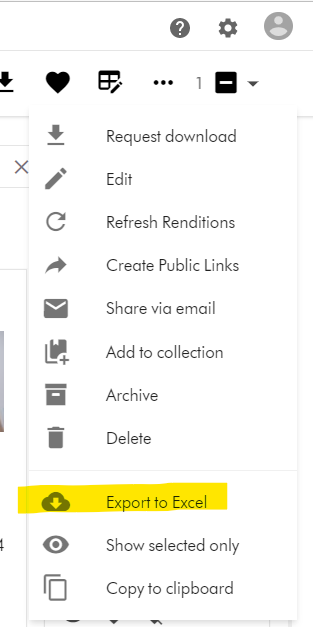
  • On the right-hand side, access the Actions dropdown menu, and click on “Export to Excel”
  • Your download should be ready and accessible from Profile -> Downloads link

M.Asset Video Subtitles Import template

Your M.Asset video subtitles import template will look similar to this one below.

You can view and download sample Excel file too.

As you can see:

  • Row 1 – this has the M.Asset entity properties in your Sitecore CH instance
  • Row 2 and 3 – these have the entries for the two subtitles that we configured.
  • Row 4 – this is the entry for the video asset.
  • Pay special attention to the AssetToSubtitleAsset:Parent which is how the subtitles are linked to the parent video asset using identifier  id123456789 in this example
  • Pay special attention to the AssetToSubtitleAsset:Child which is how the video asset is linked to all subtitles. This will have pipe delimited list of subtitles identifiers (e.g., id123456789-viralvideo-ar-AE|id123456789-viralvideo-fr-FR)
  • Please note, you need to pre-generate unique values for the identifier column for your subtitles, in order to be link them with parent video as shown above. This will be key to successful bulk import of the subtiltes.
  • Use the File column for the URL to the actual video asset and subtitle assets.  

And finally, the bulk import from Excel

To bulk import, use the Asset Creation page.

  1. On the menu bar, click Create.
  2. On the Create page, in the top-right corner, click Add and then select Import Excel.
  3. Do one of the following:
    • Drag the Excel file you want to upload into the dialog box.
    • Click browse, then pick the Excel file you want to upload.
  4. Optionally, click Add more to add more files if needed.
  5. Click Upload files.

Next steps

On this blog post, we have look at how to bulk import video subtitles to your Sitecore Content Hub instance. I am keen to hear your feedback or comments. Please do use the comments section for that.

I have also blogged on How to bulk import CMP content items with multiple languages. Please check it out too.

Stay tuned for future posts as well look and feel free to look around at my existing posts on Sitecore platform.

Sitecore personalize and mobile app projects series – part 2b

Introduction

On this series of blog posts, I am documenting my journey of delivering personalized content to end users of a mobile app.

Enabling Experience Edge for Sitecore XM

In this blog, I will cover integration between Sitecore Experience Edge and your Sitecore XM instance. Below is a reminder of our architecture.

Recap on Experience Edge for Experience Manager (XM)

Sitecore Experience Edge for Experience Manager (XM) is an API-based service from Sitecore that gives you globally replicated, scalable access to your Sitecore Experience Platform items, layout, and media.

Sitecore XM + Experience Edge architecture, adapted from Sitecore docs

Experience Edge for XM acts as a publishing target for your Sitecore content and media, and provides a GraphQL API that lets you deliver “Headless content”, which will be consumed by the Mobile app.

Getting Started with Sitecore XM Cloud

You can request for a demo from Sitecore, by filling and submitting this form available on Sitecore website. Sitecore Support team will then get back to you with details on how to access your Sitecore XM cloud instance.

Alternatively, you can request for an XM + Edge Demo from the Sitecore Demo Portal page. This is the Portal where you can also request the Sitecore Play! Summit and Sitecore Play! Shop demos. The XM + Edge Demo will come configured with an Experience Edge, ready to go.

Below are the steps to use:

Step-by-step guide to obtain XM + Edge Demo

  1. Logon to https://portal.sitecoredemo.com/. On the home page, click on “Quick Deploy”. This is the quickest way to get your demo instance based on Demo Team’s default configurations.
  2. This will open a modal, from which the user can:
    • select a demo template
    • select an instance name based on the guidelines described above, in the “Choosing an instance name” section
    • select a demo channel with preferred demo version
    • select a region to which the instance will be deployed to
  3. Instance names are valid under the following conditions:
    • The name must not already be used by another instance
    • The name must be at least 3 characters long
    • The name must contain only alphabetical characters or a hyphen
    • The name must start with a character (not a number or hyphen)
  4. In case the name is not valid, or the name is taken, an error message will appear after the name has been validated by the Demo Portal API
  5. Click on Deploy Now button to submit the information captured above
  6. The Demo provisioning process may take a couple of minutes. Grab a cup of tea or coffee while this runs. Finally, you will receive an email notification from get[at]sitecoredemo.com, similar to one below.
  7. You can follow the links in the email to access your instance. Alternatively, log on to https://portal.sitecoredemo.com/ and you will see the link on your dashboard

Accessing your Sitecore XM instance and Experience Edge instance

Opening your XM+ Edge Demo instance, you will get a landing page like one below

To access you XM instance, follow the URL in the section named Important Links This will open your Sitecore XM login page, and which you can access using the provided credentials To access your Experience Edge tenant, use the URL provided in the Edge Tenant section, plus the API key. You can see details on What is GraphQL in the other blog post in this series

Next steps

This completes this blog, where I have walked you through getting your Sitecore XM and Sitecore Experience Edge integration working. I hope you find this useful, and feel free to leave me any comments or thoughts.

In my next blog, I will be looking at integration between Sitecore Experience Edge and Sitecore Personalize.

Sitecore personalize and mobile app projects series – part 2a

Introduction

On this series of blog posts, I am documenting my journey of delivering personalized content to end users of a mobile app.

Enabling Sitecore Experience Edge for Sitecore Content Hub

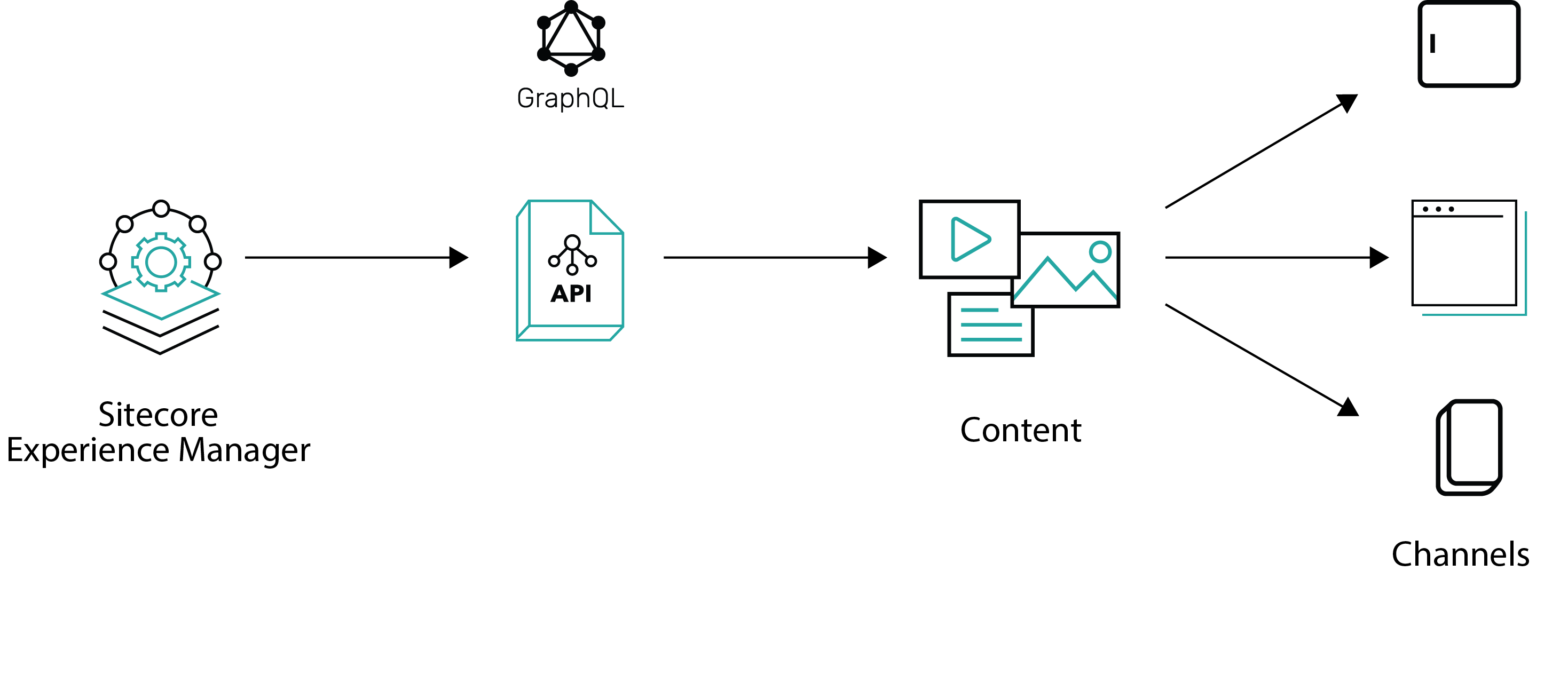
In this blog, I will deep dive into the two blocks from bottom of my reference architecture, shown below.  I will specifically cover integration between Sitecore Experience Edge and your Sitecore Content Hub instance. For the full reference architecture, refer to part one of this series.

Enabling Sitecore Experience Edge for Sitecore Content Hub

Recap on Sitecore Experience Edge

Sitecore Experience Edge for Content Hub is a set of services based on the Content as a Service (CaaS) model. It enables you to seamlessly deliver structured content across any channel that other applications and properties can easily consume

Sitecore Experience Edge - Content as a Service (CaaS)

Sitecore Experience Edge CaaS (Adopted from https://doc.sitecore.com/ch/en/users/42/content-hub/experience-edge–caas-intro.html)

Configure the publishing settings

To use the Experience Edge delivery platform, you must first enable the publishing settings and specify whether publishing is done automatically whenever there are changes or whether it is done manually.

Below are the steps to accomplish this, in your Sitecore Content Hub tenant:

  1. On the menu bar, click Manage
  2. On the Manage page, click Settings
  3. On the Settings page, in the left pane, click PublishingSettings. You can also search using the search box
  4. In the right pane, select the Publishing enabled check box
  5. If you want to automatically publish the schema or entities when changes are detected, select the Auto publishing enabled check box
  6. Click Publish schema to publish changes to the schema
  7. Click Publish all to CaaS to publish all publishable entities
  8. Click Save
Sitecore Experience Edge - configure publishing settings

Publishable entities

Once you have enabled Sitecore Experience Edge on your Content Hub instance, you will notice a Delivery Platform item is now added on your Manage screen, as shown below.

Sitecore Experience Edge - Delivery Platform icon on Manage screen

Click the Delivery platform icon above to navigate to the Delivery platform page, like the one shown below. On this page, you can choose which existing entities that you would like to publish or unpublish.

Sitecore Experience Edge Delivery platform page

You do this by clicking on the Icon next to your entities, which will launch a Delivery platform settings dialog box, similar to one shown below:

Sitecore Experience Edge - Delivery platform settings popup dialog

Enable Publish an entity definition

In the Delivery platform settings dialog box, turn on the Enable in delivery platform switch

Click Save & Publish.

Unpublish an entity definition

In the Delivery platform settings dialog box, turn off the Enable in delivery platform switch

Click Save & Publish

Verifying the Publish status

The publish status is now displayed next to the Delivery platform page title

Sitecore Experience Edge delivery platform publishing status

Next Steps

This completes this blog, where I have walked you through getting your Sitecore Experience Edge integration working. I hope you find this useful, and feel free to leave me any comments or thoughts.

In my next blog, I will be looking at integration between Sitecore Experience Edge and Sitecore Personalize. Stay tuned.

Sitecore Personalize and Mobile App projects series

Background

I recently started working on a project that primarily delivers content to end-users via a native mobile app. One of the key requirements I am working on is to deliver personalized content to end users of this mobile app.

This is my first opportunity to work with Sitecore Personalize in depth.

Wearing my architectural hat, and without re-inventing the wheel, I sought to look out for some reference architecture that I could build on.

There seems to be a lot of existing official Sitecore docs on Sitecore Personalize for both business users and developers. I will advise you will need some patience and time to go through the docs which have quite a lot of content.

If you prefer watching videos instead, the Sitecore Discover channel has done some justice to this topic too, especially the content from Dylan Young.

As much as the docs are very well written and the content is quite useful, I found myself jumping a bit to piece together my solution. This can be frustrating especially when Personalizing a Mobile App should be a common use-case you could imagine.

I have decided to document my journey on this project, so that I can share with you any learnings, tips, and tricks for Personalizing Native Mobile apps.

Mobile App Personalization reference architecture

Above is a reference architecture I have come up with for my solution.

At a very high level, my mobile app will consume content that is delivered on the Sitecore Experience edge. Sitecore Experience Edge is a set of services based on the Content as a Service (CaaS) model. It enables you to seamlessly deliver structured content across any channel that other applications and properties can easily consume.

The origin of this content published on the Sitecore Experience Edge could be either Sitecore Content Hub or Sitecore XM cloud. Sitecore Content Hub is a strategic enterprise solution that provides you with a variety of features centered around digital assets and marketing content.

Sitecore Personalize will leverage the Decisioning model, Omni-channel Experiences and Experimentation capabilities to provide all the required personalized content in the mobile app. This includes copy content, imagery and other media. I will be sharing step by step details on how to achieve this.

Sitecore Personalize can integrate with a Customer Data Platform (CDP) of choice, which I have left open for now. Please note I could decide to go with Sitecore CDP solution here too. The key feature here is to ingest customer profile data, to input into our Personalization decisioning engine.

I have introduced an Orchestration layer between my mobile app and the Sitecore Personalize, mainly for some security considerations that I will cover in detail a bit later in this blog series.

I will let you review and digest this high solution level architecture. Please leave me your initial thoughts and comments.

Next steps

In my next blog, I will deep dive into the two blocks from bottom of my reference architecture.

Sitecore AKS blue-green Search indexes deployments

This is a follow up to my Sitecore Zero Down time deployments series of blogs. I have also previously presented on this top during the Sitecore Symposium 2021.

If you haven’t read my previous blogs or watched my Sitecore Symposium 2021 session, I suggest you please pause now and go have a read or watch before proceeding with this blog post.

In this blog post, I will deep dive into the approach for Zero down-time deployments for Sitecore Indexes. I am going to use the Sitecore AKS workload for my scenario, although the same concepts can be applied for your Sitecore PaaS workloads too.

Blue-Green Web Index deployment strategy

To ensure complete isolation of your Sitecore Web Index during the Zero down-time deployments, you need to create two sets of the Web indexes:

  • Web Green Index to correspond to your CD green instance
  • And Web Blue Index to correspond to your Blue CD instance

This means during a deployment; you can do a full re-indexing of your staging CD without risk of breaking your LIVE CD

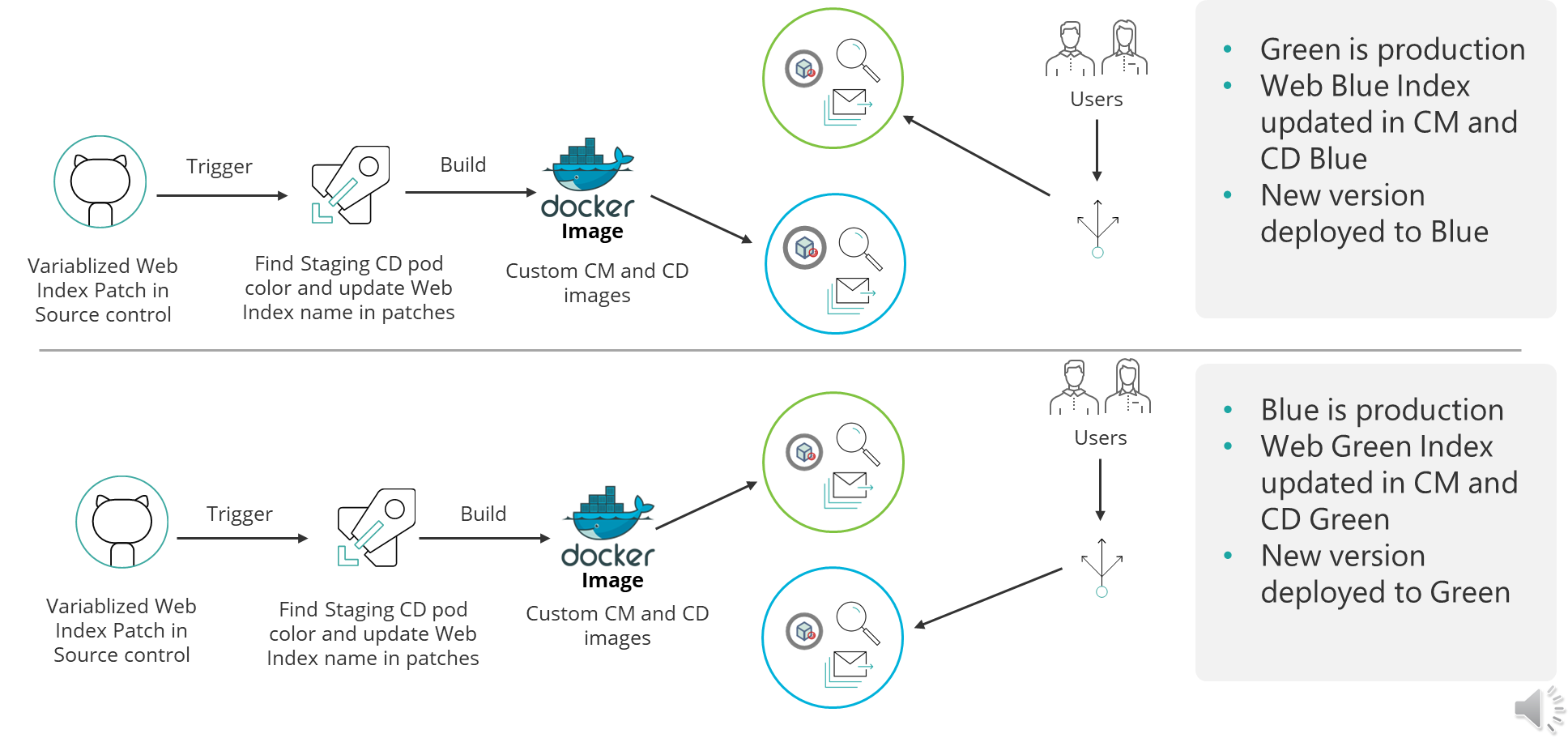
Blue Green Sitecore Web Index deployment strategy

This infographic captures the initial state when CD GREEN is LIVE and shows the transition when we do a new deployment.

You will notice that in the final state we have swapped CD BLUE to serve the live traffic, achieving Zero down-time deployments.

CI/CD Pipelines

How do you implement this?

Below, I am sharing a high-level CI/CD pipeline that I have used in my scenario for reference.

Sample CI/CD pipelines

In Blue-Green deployment strategy, you typically deploy to Blue CD instance, when Green CD is currently in production and serving LIVE traffic OR vice-versa. This is how we achieve zero downtime deployments. 

You can now extend your CI/CD pipelines to be aware of Web Blue Index and Web Green Index. You do this by ensuring that you update you Content Management (CM) instance configuration to point to the correct Web Blue or Web Green Index. This is achieved by parameterizing the Sitecore Index configuration patch files.

Your CI/CD process will then update your CM and CD images with correct Web Blue or Web Green index, before building them accordingly as show above. And that is it.

Prefer to watch the video instead?

If you prefer to watch my video instead, I have included the link below.

Video to walk you through the Sitecore AKS Blue-Green Search Index strategy

Next steps

If you have any feedback or questions, please leave me a comment, and I am happy to get back to you.

Also, you can subscribe to my YouTube channel, so you don’t miss out on latest updates.

Sitecore Zero-downtime deployments – Part 4

Sitecore PaaS/AKS blue-green deployments

With modern and mature DevOps, we all want smooth, sleek and painless automated deployments with zero-downtime. Sitecore deployments are no exception. Have you embraced zero-downtime deployments? This is not a new topic. If you look around Sitecore community, you see an odd question popping here and there regarding this topic.

The journey towards achieving zero-downtime deployments for any application in fact starts with your code base. So, in this series of blog posts, we will refresh ourselves on concepts like “Code Freeze” and the CI/CD process before deep diving into implementing Sitecore zero-downtime deployments.

Sitecore XP PaaS Blue-Green architecture

Sitecore XP PaaS reference architecture

The infographic above shows a typical Azure PaaS architecture for Sitecore XP scaled topology. In summary we have:

  • our Sitecore XP application roles such as CM, CD, ID among others
  • these role have access to Sitecore databases (master, web, core among others)
  • access to rest of the services such as Azure Key Vault, Azure Redis cache, App Insights, Azure Search among others

You will notice in this architecture, we have Blue-Web and Green-Web databases, which are corresponding to the BLUE-GREEN deployment slots for the CD App Service. We need separate web databases to enable us achieve content-safe deployments

The CM App Service also has BLUE-GREEN deployment slots specifically for code deployment, but with a shared master database. There is no compelling reason to have BLUE-GREEN master databases purely on basis of complexity introduced by such architecture (although it is not impossible to implement if you prefer this approach).

The rest of our XP scaled topology resources are shared

The Azure DevOps organisation typically will have access to run the CI/CD pipelines, is also included in the architecture.

How to manage settings

App Service Settings section can be leveraged to manage your Sitecore configuration settings including Sitecore connections Strings

Sitecore XP PaaS CI/CD process summary

Sitecore XP PaaS CI/CD process

Required steps:

  1. Tigger CD process
  2. Make copy of your web-db – this is for content safe deployment. Both CM and BLUE CD pointing to original web-db at this point. BLUE CD still in production with our live users accessing it
  3. Now deploy your new version to both CM instance and GREEN CD Staging slot instance – pointing them to use copy of web-db. Perform content deployment as usual, publish, rebuild the Sitecore indexes and perform any tests. This will not affect your BLUE CD at this stage.
  4. Once happy with deployment, then Swap CD production and staging slots. The GREEN CD with our new version is now production and our live users accessing it now. Zero down time achieved! Our previous version is still running in BLUE CD. If we have issues, we swap again to roll back.

Some notes:

 This example doesn’t have BLUE-GREEN for the CM instance, as I want to keep it simple – This though means your content editors will have to wait for deployment to finish to use the CM. If you really need CM zero down time, then you need to deploy CM BLUE-GREEN deployment slots as well. Alternatively, you can keep the deployment time to CM to a minimum and avoid BLUE-GREEN

You can be more also be creative with your Sitecore templates changes such that your changes are always backward compatible between successive releases  (e.g. don’t delete fields immediately, mark them as obsolete) This means you can safely rollback your changes without breaking the application

Sitecore XP AKS Blue-Green architecture

Sitecore using Containers makes use of Azure Kubernetes Service. This infographics shows a very simplified AKS blue-green strategy allows us to achieve zero downtime deployments.

Kubernetes Blue-Green strategy

How does it work?

  1. You will define a blue deployment for v1 and apply it to your desired state of your cluster.
  2. When version 2 comes along, you define a green deployment, apply it to your cluster, test and validate it without affecting blue deployment
  3. You then gradually replace V1 with V2
  4. Version 1 can be deleted if no longer needed.

Below we have a typical Sitcore XP Azure Kubernetes Service architecture for Sitecore XP scaled topology – the AKS cluster containing various pods running our containers.

Sitecore XP AKS Blue-Green reference architecture

You can see the scaled out Sitecore XP application roles running as individual Pods within this AKS cluster backed by a Windows Node Pool.

We also have access to Sitecore databases as well as other services such as Azure Key Vault, Azure Redis cache, App Insights among others.

I am showing our Azure DevOps organisations which will typically have access to run the CI/CD pipelines

Similar to the Azure PaaS architecture, AKS zero downtime deployments will make use of BLUE-GREEN deployment strategy for CD or CM instance

AKS Zero downtime deployments process

How do we do that? we don’t need to provision a separate cluster for GREEN environment. Instead, we define an additional GREEN deployment with its corresponding service and then label it accordingly, alongside our BLUE deployment.

For content-safe deployments, we will also be pointing to a copy of web database (Green) as shown.

Once we have tested and are happy with our new GREEN deployment, we switch traffic or routing to point to GREEN. We do this by updating our Ingress controller specification

Sitecore AKS Blue-Green (Green deployment)

In the above infographic, you can see now our end-users can access V2 in the GREEN deployment

BLUE deployment is on stand-by in case of roll back. And can be deleted if no longer required.

Note as previously discussed in PaaS deployments, you can implement BLUE-GREEN for the CM if required

Sitecore XP AKS CI/CD process

Sitecore XP AKS CI/CD process

Steps summary

  1. Trigger release pipeline process
  2. Make copy of your web-db – this is for content safe deployment. Both CM and BLUE CD pointing to web-db at this point. BLUE CD still in production with live users accessing it
  3. Apply your green deployment desired state onto the cluster. This creates the green pods with new version of docker images, and our Sitecore deployment including content deployment. This will use the copy of web-db we created earlier.  Publish and Rebuild indexes as usual and test and verify the deployment
  4. Once happy with deployment, Update traffic routing in Ingress Controller and live users can now access our new Sitecore version. In event of roll-back, update traffic routing in Ingress controller. If BLUE deployment no longer needed, clean it up to save on resources

Next steps

An this is a wrap. This post concludes this series of blog posts where we looked into implementing Sitecore Zero Downtime deployments. I hope you found this useful and can start your own journey towards achieving Zero Downtime deployments with your Sitecore workloads. If you have any comments or queries, please leave me a comment at the end of this post.

Sitecore Zero-downtime deployments – Part 3

Blue-Green Deployments

With modern and mature DevOps, we all want smooth, sleek and painless automated deployments with zero-downtime. Sitecore deployments are no exception. Have you embraced zero-downtime deployments? This is not a new topic. If you look around Sitecore community, you see an odd question popping here and there regarding this topic.

The journey towards achieving zero-downtime deployments for any application in fact starts with your code base. So, in this series of blog posts, we will refresh ourselves on concepts like “Code Freeze” and the CI/CD process before deep diving into implementing Sitecore zero-downtime deployments.

Blue-Green deployments architecture

Blue-green deployments strategy

In software engineering, blue-green deployment is a method of installing changes to a web, app, or database server by swapping alternating production and staging servers

Wikipedia

Key Concepts

In its purest form,  true BLUE/GREEN deployments means that we need two separate but identical environments, one is live (BLUE) and the other is on stand-by (GREEN). When you have  new version of your application, you deploy to the staging environment (GREEN) , test it without affecting BLUE. When you are happy with this new version, you can then swap it to be LIVE instance.

However, in practice, it doesn’t always make sense to run a copy of every resource. Furthermore, this may introduce some complexity to the process.

This is why we now have some shared resources as you can see in the infographic above, while others belong to BLUE or GREEN environment.

As part of this architecture, we need some way of switching or routing incoming traffic between the two environments.

Blue-Green deployment strategy effectively enables us to achieve zero down time deployments. This is because your users will not notice any downtime during deployments.

CI/CD process for Blue-Green deployments

CI/CD process for Blue-Green deployments

On the top part of the infographic above, – BLUE is currently production environment and our users accessing this environment. When we have, a new version of our application, it is deployed to GREEN environment, without affecting our users.

On the bottom part of the infographic above, – now GREEN is the production environment and our users are accessing this environment.  This leaves the BLUE environment available for us to deploy the next version of our application

We deploy to BLUE and GREEN in turns, this achieving zero downtime deployments. The process repeats in each deployment cycle.

Some benefits of Blue-Green strategy

If you haven’t already adopted the cloud for your Sitecore workloads – be it PaaS or Containers, then perhaps you need to start thinking about this seriously as there are benefits you will get.

“Blue-green deployments made easier with the cloud.”

fact

The cloud provides tooling you need to:

  • Automate your provisioning and tearing down of environments
  • Automate starting or stopping of services
  • Kubernetes simplifies container orchestration for us,  the Azure Kubernetes Service (AKS) provide a Control Plane for free
  • The flexibility and cost reductions the cloud offers makes blue-green deployments within everyone’s reach at this time and age, please embrace them.

Next steps

Hopefully, these blog post help you understand key concepts about BLUE-GREEN deployments.

In the next blog post in this series, we will look at implementing Sitecore Zero Downtime deployments.

Sitecore Zero-downtime deployments – Part 2

Sitecore Container based CI/CD Flow

With modern and mature DevOps, we all want smooth, sleek and painless automated deployments with zero-downtime. Sitecore deployments are no exception. Have you embraced zero-downtime deployments? This is not a new topic. If you look around Sitecore community, you see an odd question popping here and there regarding this topic.

The journey towards achieving zero-downtime deployments for any application in fact starts with your code base. So, in this series of blog posts, we will refresh ourselves on concepts like “Code Freeze” and the CI/CD process before deep diving into implementing Sitecore zero-downtime deployments.

Sitecore container based CI/CD flow

Sitecore Deployment options

Sitecore can be deployed to the cloud using IaaS, PaaS or Containers.  Microsoft Azure cloud  is preferred, although you can deploy to other providers like AWS

  • IaaS makes use of Virtual Machines
  • PaaS makes use of Azure App Service to run Sitecore web apps
  • Containers makes use of Azure Kubernetes Service (AKS)

How working with containers is different

When working outside of containers, you would typically build your application and then push it directly to the IaaS or PaaS instances hosting them. Using Containers changes this process slightly. The infographic below captures this process in detail

Sitecore containers CI/CD process summary

Explanation of the CI/CD process

  1. So developers make changes to the codebase.
  2. They then commit their changes into the repository, in this case stored in GitHub
  3. An Azure DevOps Pipeline monitors this repository and triggers a new image build each time there is a commit into the repo
  4. These images are built by Azure DevOps and the new image version is pushed into an Azure Container Registry (ACR) instance
  5. We have Other triggers for a base images that might have changed. For example, an update to the base Windows image or Sitecore image that can also trigger a new image build to occur. This is where the CI part of the process ends. We now have our new images built and available for deployment.
  6. So this is where the CD element starts. A release element is going to execute to start the deployment process.
  7. The first thing the CD element does is to push the new version of the k8s Specs into AKS, including pinning the deployments to the unique tag of the new images.
  8. AKS will now connect to the ACR instance to pull down these new images and build new deployments based on them.
  9. Of course any Sitecore deployment isn’t complete without a push of the content changes. Once the specs have been deployed the content is then also pushed to the CM instance running in AKS and a publish is executed.
  10. Once this has happened your end users can now browse the site and interact with the new containers running in AKS.

Hopefully, these blog post help you understand how to manage Sitecore Container based CI/CD process going forward. If you still struggling, engage your digital partners to look for long term solutions.

Next steps

In the next blog post in this series, we will look at BLUE-GREEN deployments and how to leverage this strategy to implement Sitecore Zero Downtime deployments.