It is that time of the year once again, and the Sitecore MVP 2025 applications are open.
Below is a summary of my contributions for 2024:
Content contributions
This year I mostly created content within Content Hub, Sitecore Experience Edge and Sitecore Personalize space. This is where I felt there were gaps based on industrial client work I have done this year. I believe I have produced content that meets expectations in terms of quality, quantity, and visibility and more importantly, adds value to our community. This has been through blog posts, code sharing via GitHub, YouTube content, Product Feedback via Gartner Peer Reviews among other social channels:
- Nov 30 2023 Creating and publishing a Content Hub custom connector – Visual Studio project set-up guide https://360agileweb.dev/2023/11/30/creating-and-publishing-a-content-hub-custom-connector-visual-studio-project-set-up-guide/
- Jan 31 2024 Creating and publishing a Content Hub custom connector – Func app integration testing https://360agileweb.dev/2024/01/31/creating-and-publishing-a-content-hub-custom-connector-func-app-integration-testing/
- Feb 29 2024 Content Hub – defining self-referencing relations, creating, linking and displaying entities – part 1 https://360agileweb.dev/2024/02/29/content-hub-defining-self-referencing-relations-creating-linking-and-displaying-entities/
- Mar 28 2024 Content Hub – defining self-referencing relations, creating, linking and displaying entities – part 2 https://360agileweb.dev/2024/03/28/content-hub-defining-self-referencing-relations-creating-linking-and-displaying-entities-part-2/
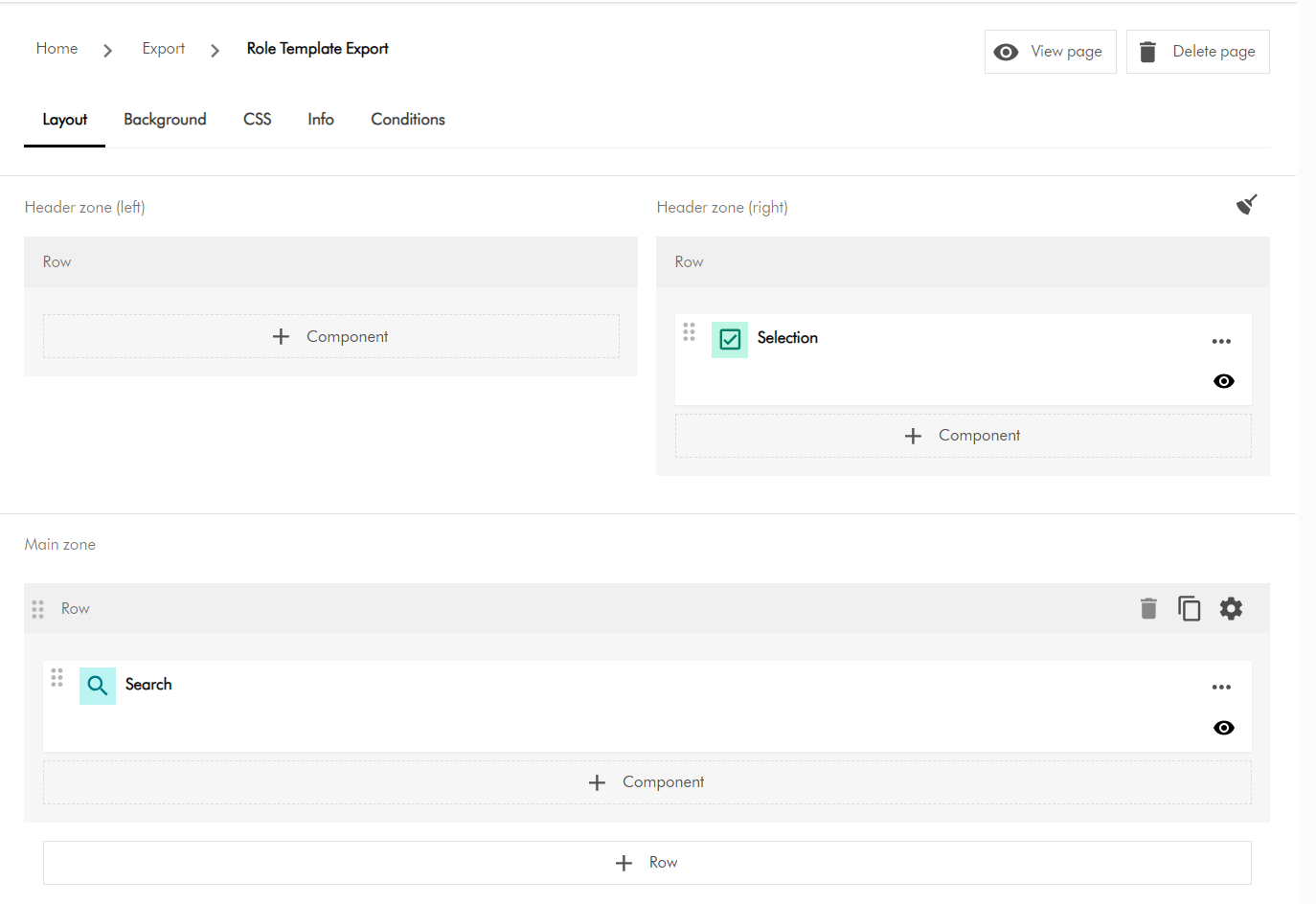
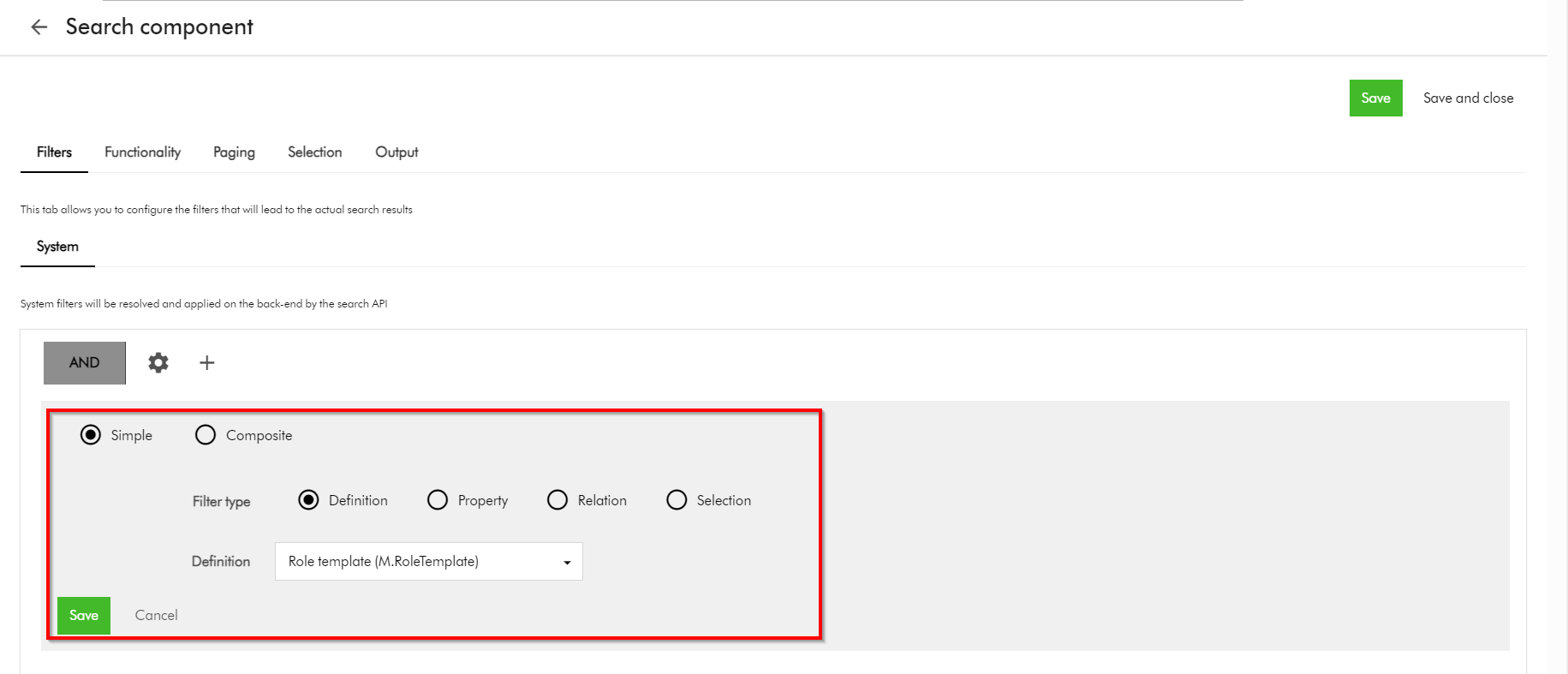
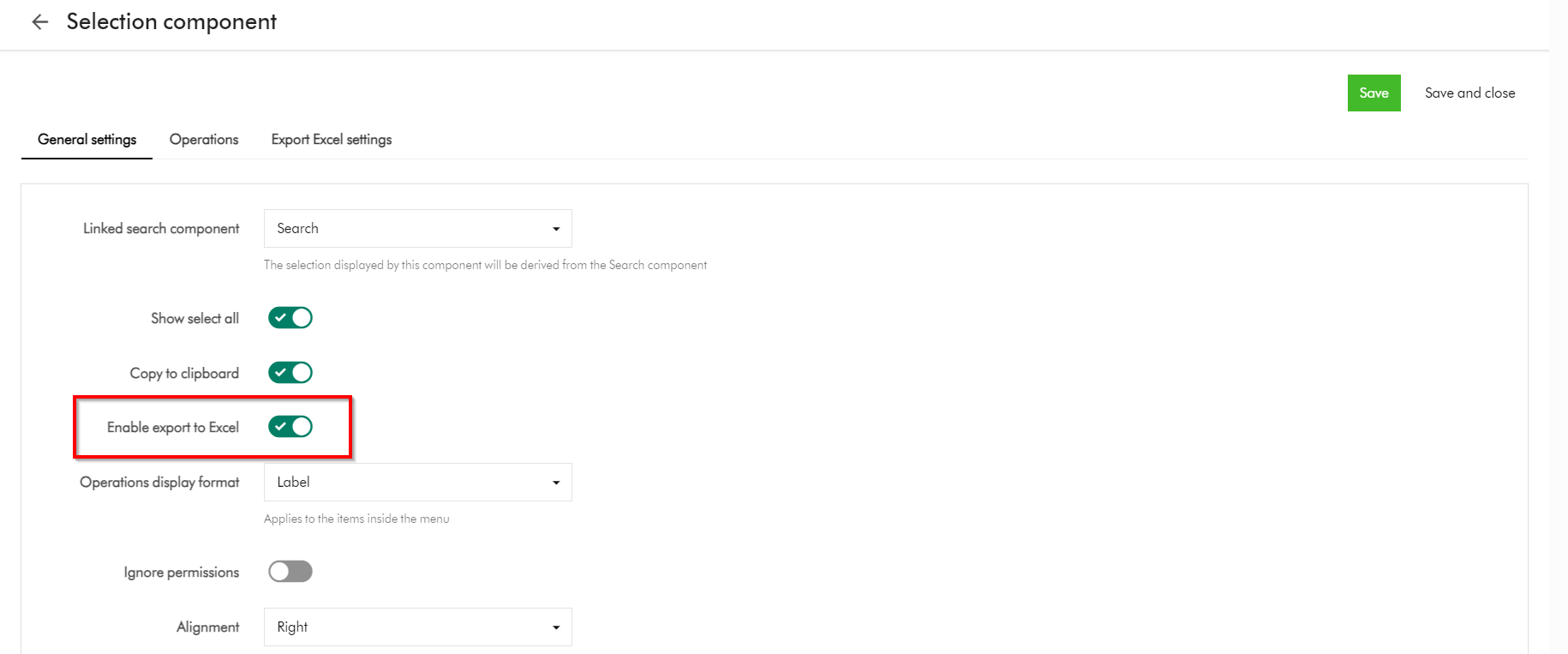
- Apr 17 2024 Content Hub tips & tricks – Selection component shows wrong name in linked Search component https://360agileweb.dev/2024/04/17/content-hub-tips-tricks-selection-component-shows-wrong-name-in-linked-search-component/
- May 24 2024 Streamlining Content Hub DevOps: Deploying Environment Variables and API Settings to QA and PROD https://360agileweb.dev/2024/05/24/streamlining-content-hub-devops-deploying-environment-variables-and-api-settings-to-qa-and-prod/
- Jun 20 2024 Content Hub tips & tricks – How to extend your delivery and rendition links expiry duration https://360agileweb.dev/2024/06/10/content-hub-tips-tricks-how-to-extend-your-delivery-and-rendition-links-expiry-duration/
- Jul 19 2024 Content Hub tips & tricks: Overriding Created by or Modify by ‘ScriptUser’ in your scripts https://360agileweb.dev/2024/07/19/content-hub-tips-tricks-overriding-created-by-or-modify-by-scriptuser-in-your-scripts/
- Aug 30 2024 Content Hub DevOps: Managing your action script code lifecycle in CI/CD pipelines https://360agileweb.dev/2024/08/30/content-hub-devops-managing-your-action-script-code-lifecycle-in-ci-cd-pipelines/
- Sep 24 2024 Content Hub tips & tricks: How to securely share your DAM assets with external users by leveraging collections – part 1 https://360agileweb.dev/2024/09/24/content-hub-tips-tricks-how-to-securely-share-your-dam-assets-with-external-users-by-leveraging-collections-part-1/
- Oct 28 2024 Content Hub tips & tricks: How to securely share your DAM assets with external users by leveraging collections – part 2 https://360agileweb.dev/2024/10/28/content-hub-tips-tricks-how-to-securely-share-your-dam-assets-with-external-users-by-leveraging-collections-part-2/
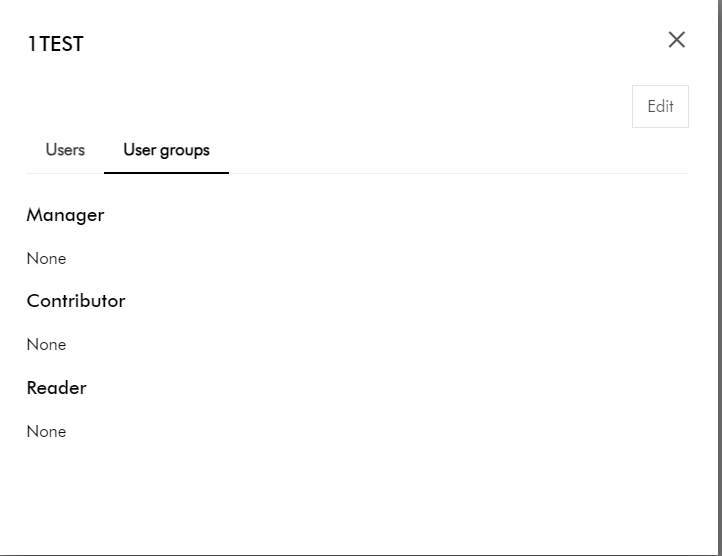
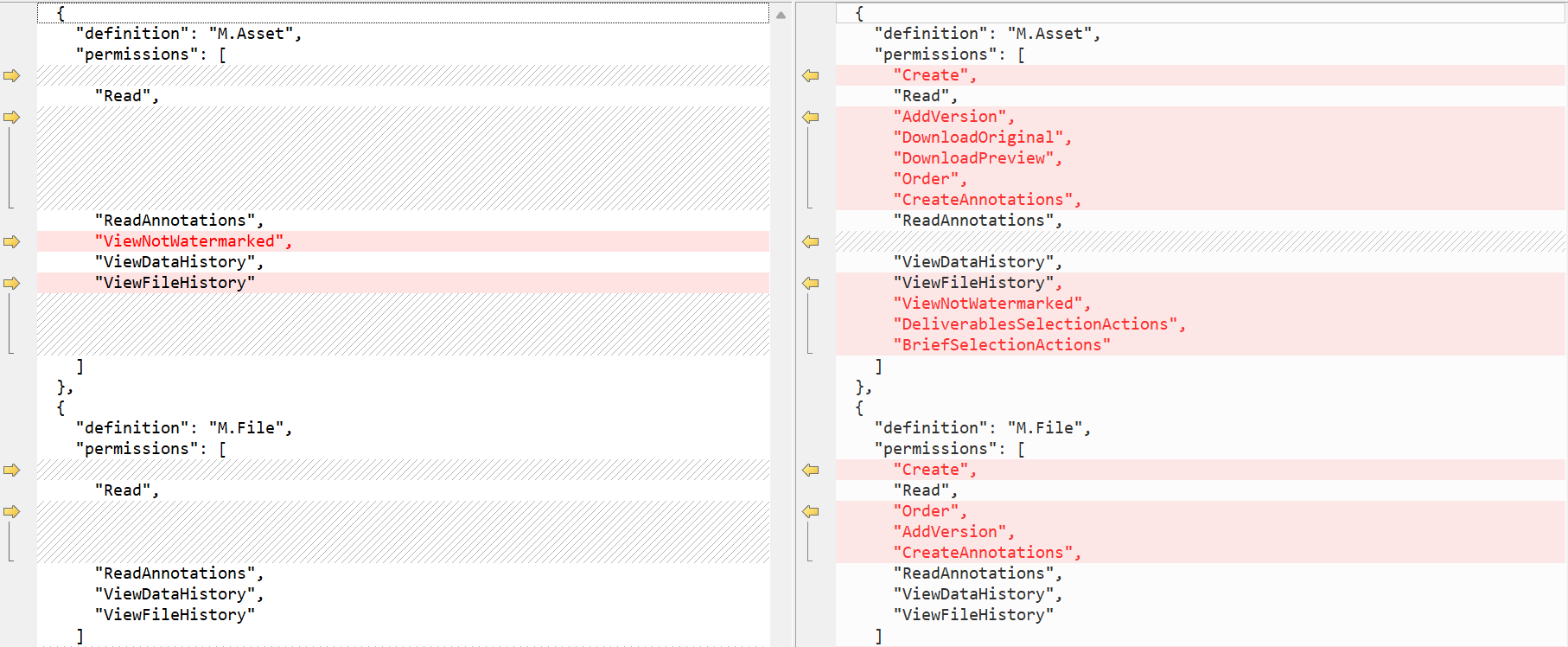
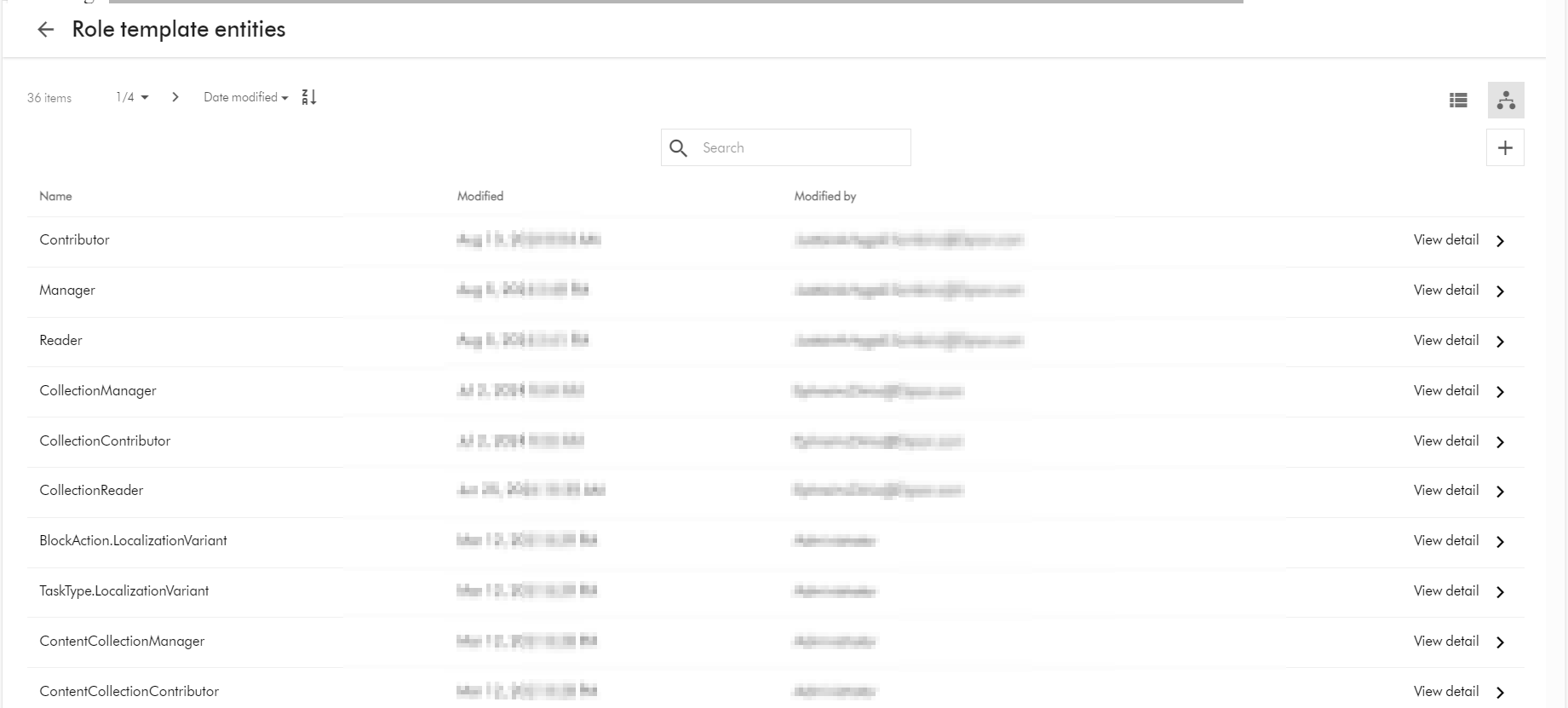
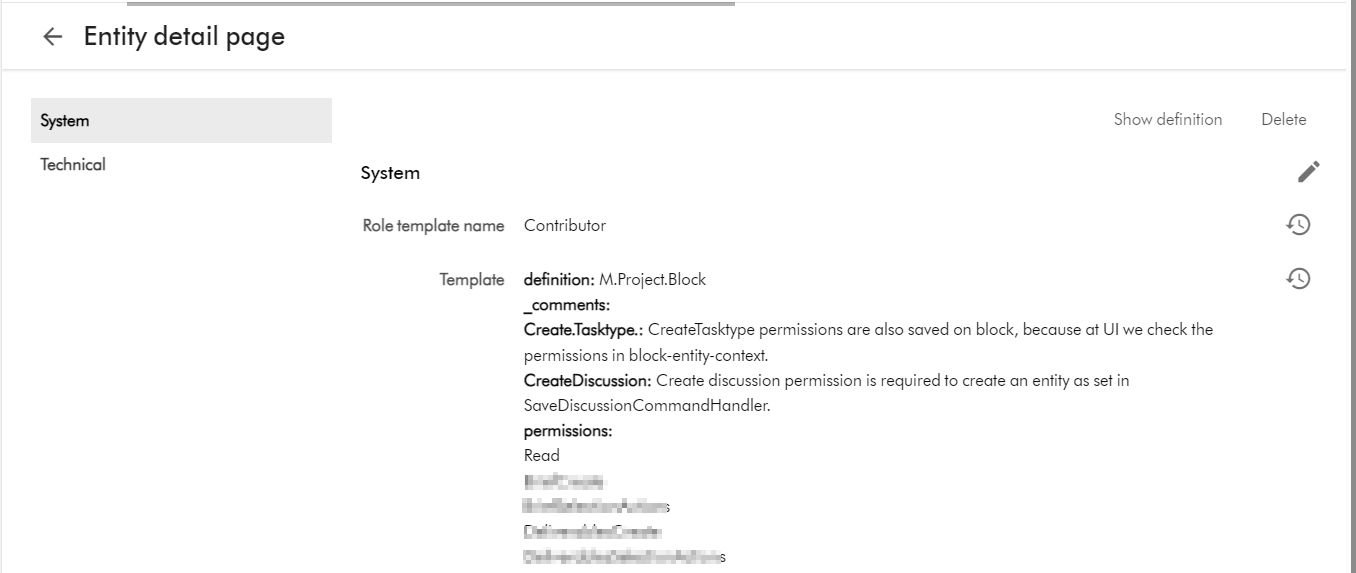
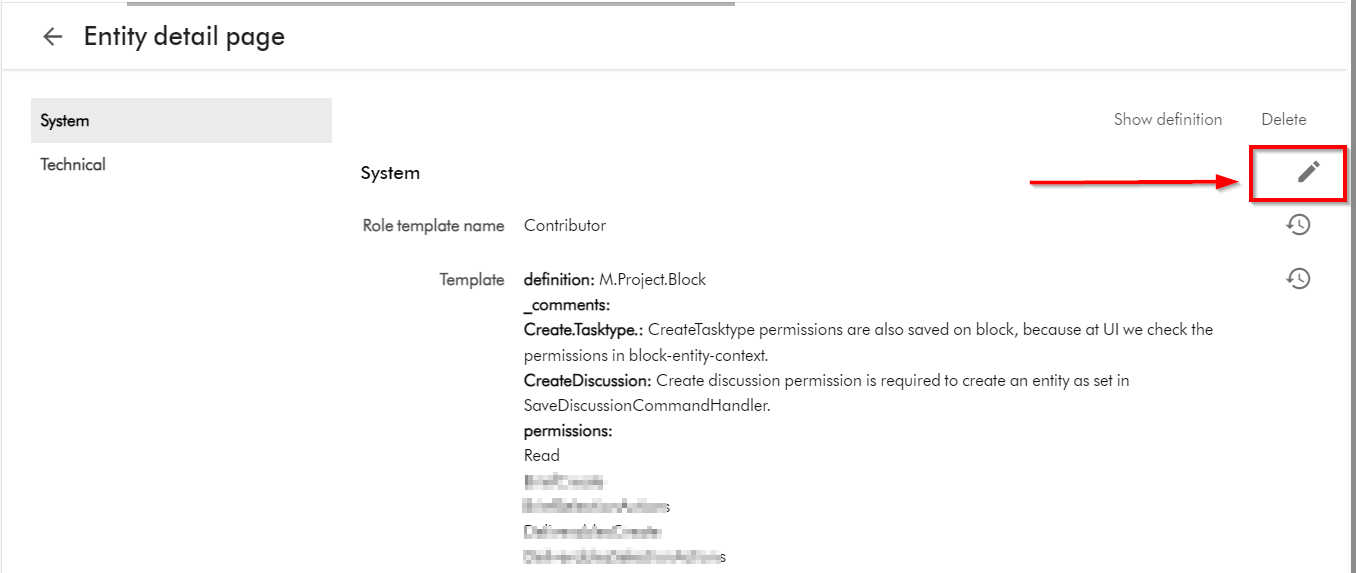
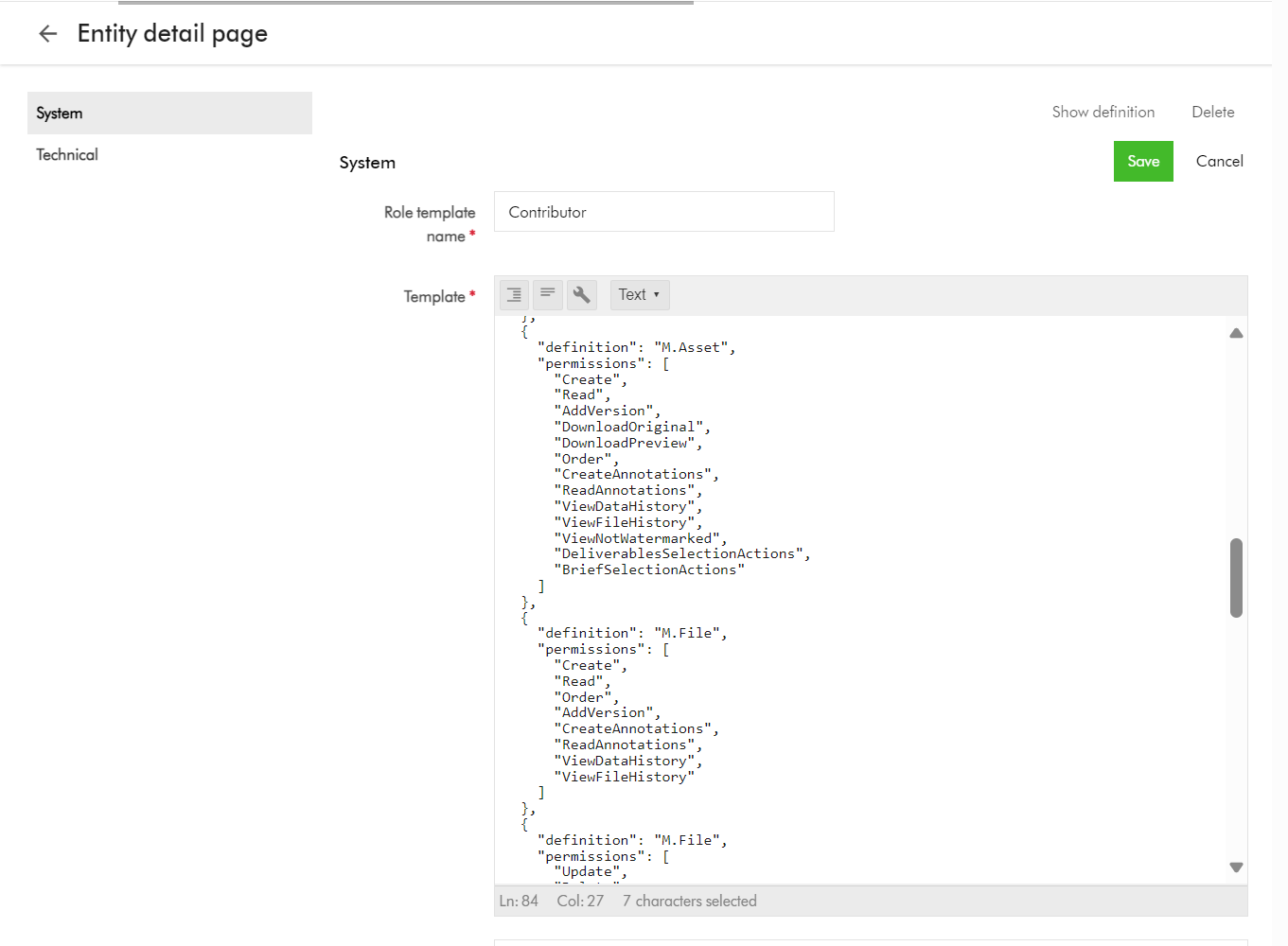
- Nov 11 2024 Content Hub tips & tricks: Extending MRM project permissions to improve your ways of working https://360agileweb.dev/2024/11/11/content-hub-tips-tricks-extending-mrm-project-permissions-to-improve-your-ways-of-working/
Gartner Peer Reviews:
- Sitecore Personalize: https://www.gartner.com/reviews/market/personalization-engines/vendor/sitecore/product/sitecore-personalize/review/view/5705580
- Content Hub: https://www.gartner.com/reviews/market/content-marketing-platforms/vendor/sitecore/product/sitecore-content-hub/review/view/5786156
Sitecore Hackathon 2024:
- Team Horizon 2024 we hacked Category 1 (Best Use of AI) https://github.com/Sitecore-Hackathon/2024-Team-Horizon-2024
Code and architectural artifacts:
- GitHub sample code artifacts, https://github.com/JuliusAngwenyi/content-hub-tools
- GitHub Gists, https://gist.github.com/JuliusAngwenyi
In person events
I’m a regular attendee and an active member of Sitecore User Group London. Include a chance to attend the in person event post Symposium hosted by Sitecore in their London Paddington office.
Engagement
I have continued online and offline conversations and driven Sitecore community engagement throughout 2024 in order to amplify the content I have created.
- Active member on sitecore.stackexchange,com (752 reputation with ~16k impact), https://sitecore.stackexchange.com/users/608/julius-a?tab=topactivity
- I have provided feedback to Sitecore Product Teams using the Sitecore Support Portal as well as directly via Sitecore Slack Channels. Such as the defect with Content Hub Selection component that I raised and was resolved in Sep 26, 2024 release of Content Hub.
- I regularly provide answers to questions from Sitecore community as well on our engagement channels
Next steps
For 2025, I look forward keeping up producing more valuable content in terms of quality, quantity, and visibility to our Sitecore community. I will be putting myself forward for public speaking events throughout the calendar year. I intent to continue identifying any gaps and filling them, providing product feedback, improvements, and references
Stay tuned and best of luck with those submitting the Sitecore MVP 2025 applications.