Foundry IQ – Agentic retrieval solution – part 2

Context

In this blog post, we are going to deep dive into the end-to-end solution, including a walk through of the source code. For background, please ensure you have read part 1 of the Foundry IQ solution.

I also presume you now have your Foundry Project as well as your local development environment setup as per the guidance provided in part 1.

Let us jump in!

Is your local Dev environment ready

In part 1, we covered Local dev environment setup. You can access the source code used in this solution from my GitHub repository to get started.

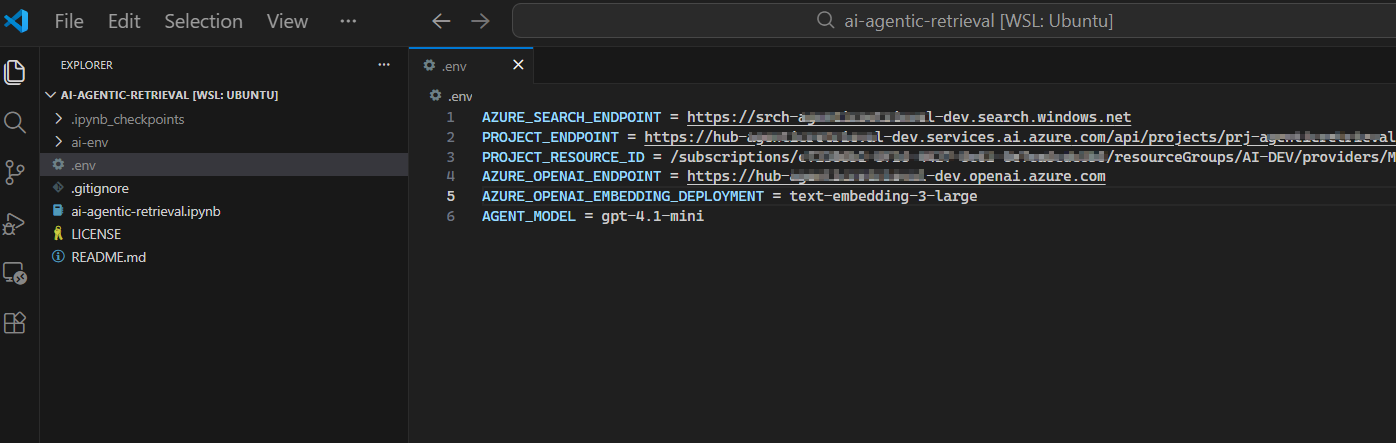
Your solution should look like the screenshot below:

Ensure you have a file named .env within the solution folder, where we are configuring the endpoints and other settings that we need for this solution.

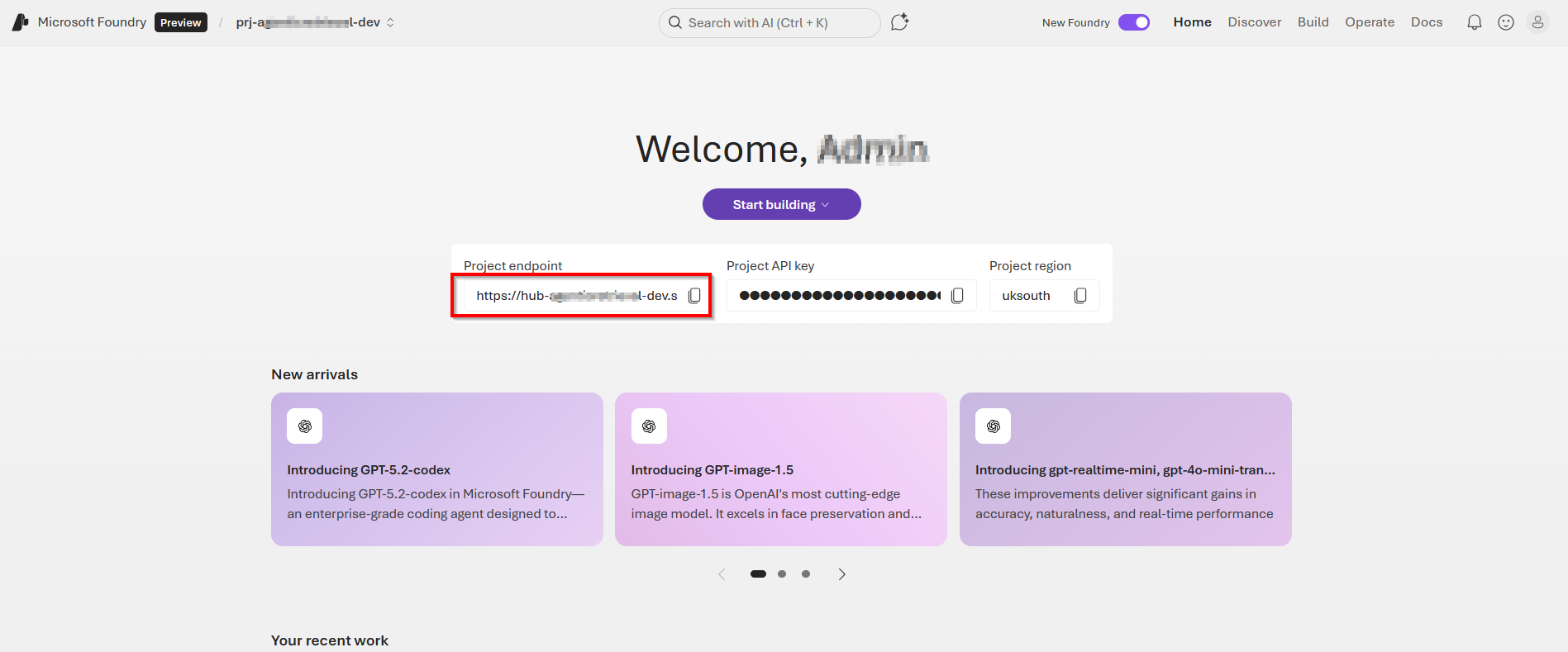
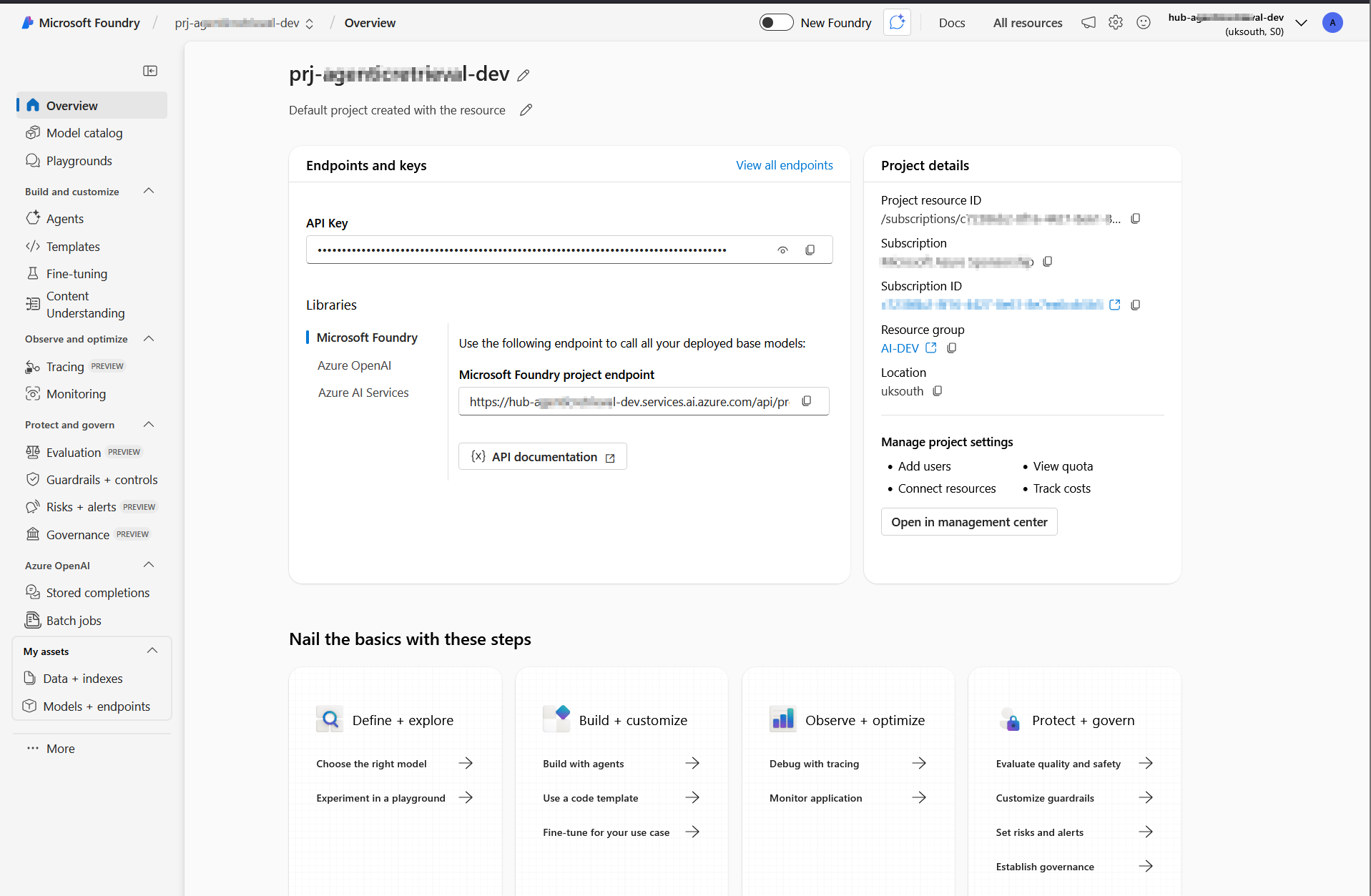
These endpoints and resource ID are available in the Azure portal (within Foundry portal as shown below).

  • AZURE_SEARCH_ENDPOINT is on the Overview page of your search service.
  • PROJECT_ENDPOINT is on the Endpoints page of your project.
  • PROJECT_RESOURCE_ID is on the Properties page of your project.
  • AZURE_OPENAI_ENDPOINT is on the Endpoints page of your project’s parent resource

Below is a sample .env file with these endpoints and settings populated and explained

AZURE_SEARCH_ENDPOINT = https://{your-service-name}.search.windows.net
PROJECT_ENDPOINT = https://{your-resource-name}.services.ai.azure.com/api/projects/{your-project-name}
PROJECT_RESOURCE_ID = /subscriptions/{subscription-id}/resourceGroups/{resource-group-name}/providers/Microsoft.CognitiveServices/accounts/{account-name}/projects/{project-name}
AZURE_OPENAI_ENDPOINT = https://{your-resource-name}.openai.azure.com
AZURE_OPENAI_EMBEDDING_DEPLOYMENT = text-embedding-3-large
AGENT_MODEL = gpt-4.1-mini

Activate the environment

Use the steps below to activate your Python virtual environment. These were already covered in part 1, however I am sharing them again here for your convenience.

  • For macOS / Linux (in Terminal) source ai-env/bin/activate
  • For Windows (in Command Prompt or PowerShell): .\ai-env\Scripts\activate
  • You’ll know it worked because your terminal prompt will change to show the name of your environment, like this: (ai-env) C:\Users\YourName\Desktop\MyProject>.

Install required packages

With the environment active, install required packages 

#Bash
pip3 install azure-ai-projects==2.0.0b1 azure-mgmt-cognitiveservices azure-identity ipykernel dotenv azure-search-documents==11.7.0b2 requests openai

Authenticate with Azure CLI

For keyless authentication with Microsoft Entra ID, sign in to your Azure account.

From your Terminal, run az login as shown below. Follow the prompts to authenticate

If you have multiple subscriptions, select the one that contains your Azure AI Search service and Microsoft Foundry project.

Start Jupyter Notebook

To start the application, type:

#Bash
jupyter-lab

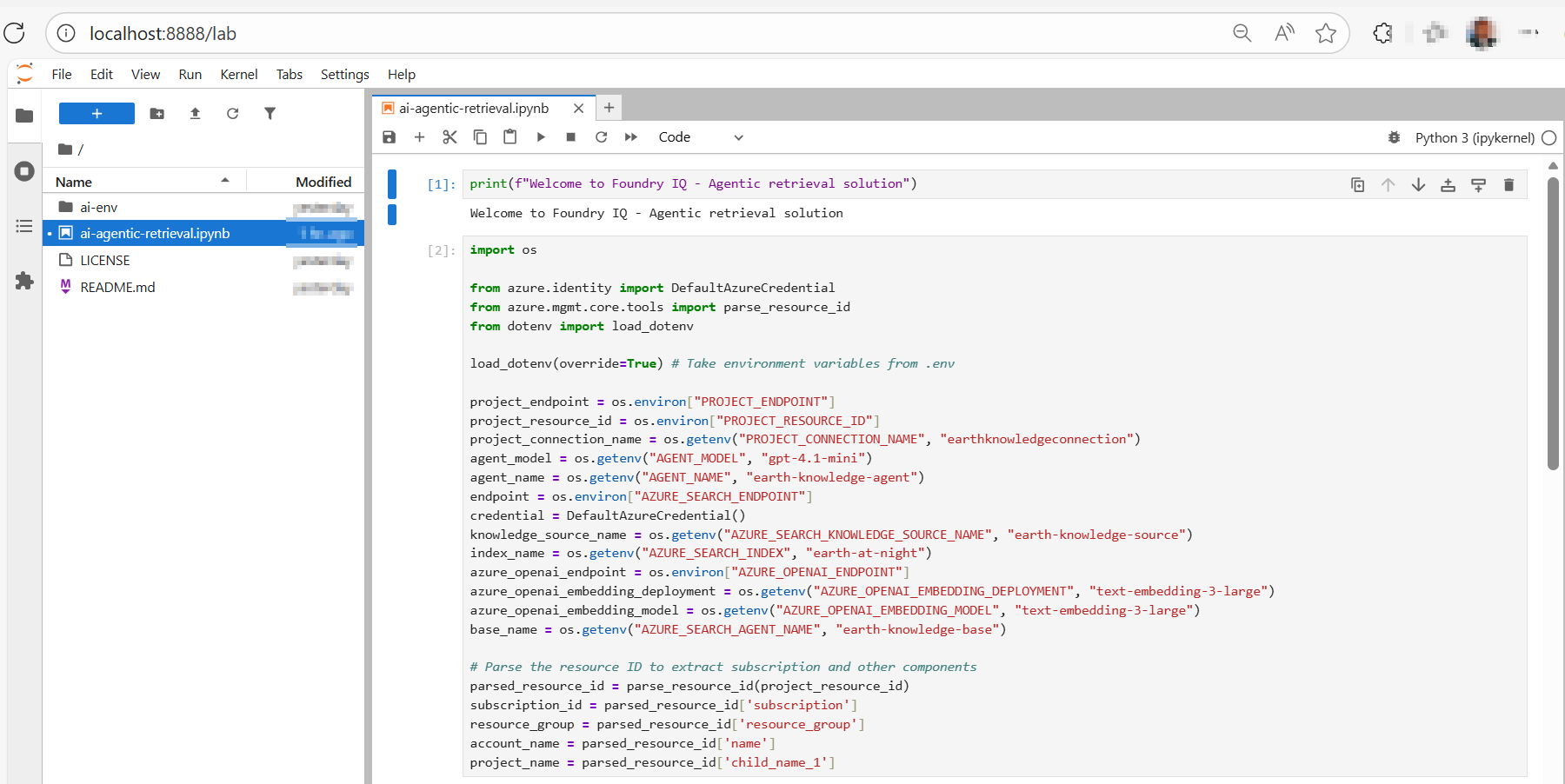
If successful, you will have JupyterLab launcher accessible on your browser. For example, on http://localhost:8888/lab

Start building and running code

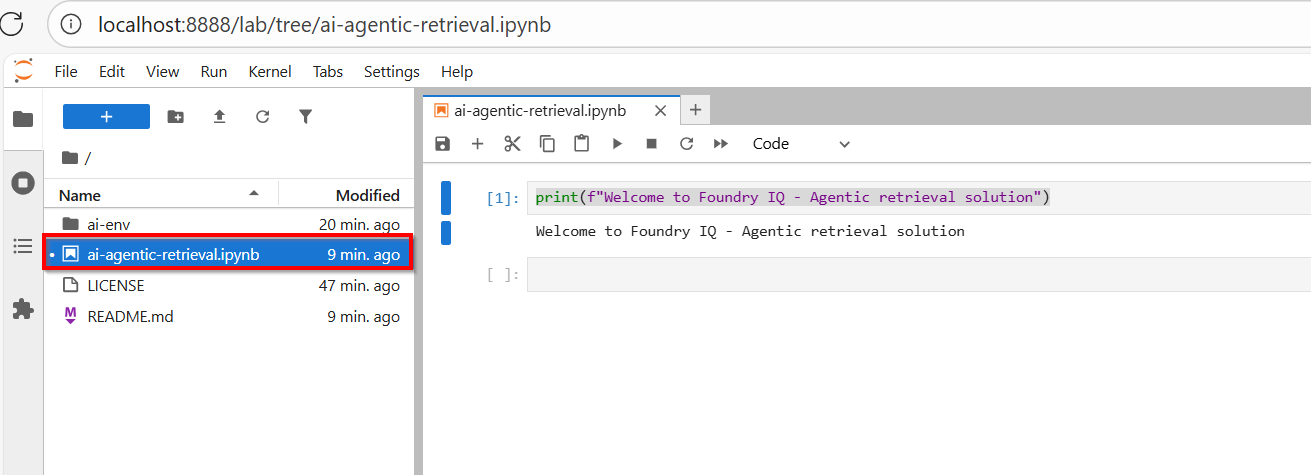
At this point, we are setup to run code snippets in our ai-agentic-retrieval.ipynb Notebook, as shown below

How to run Jupyter Notebook code listings

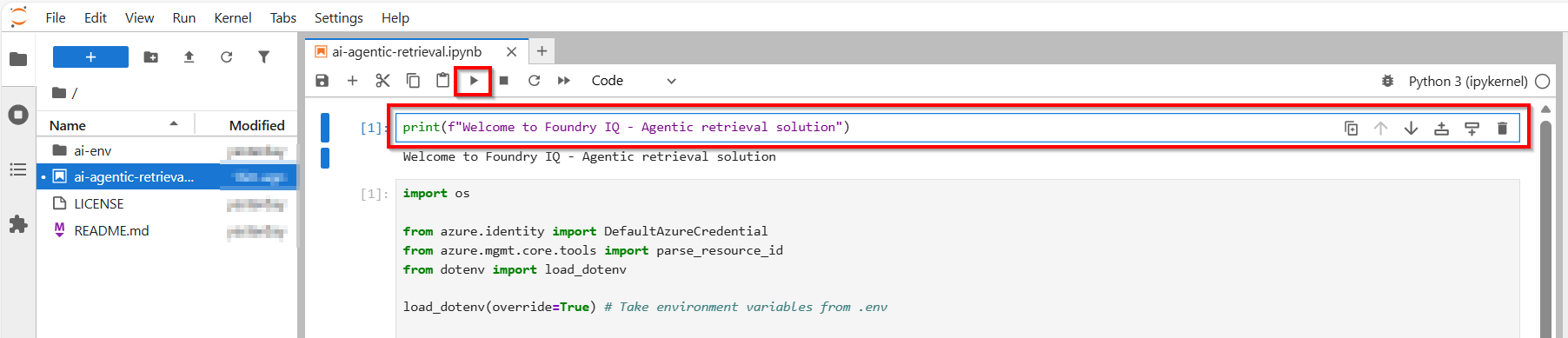
To run the code, simply select and highlight the cell or code block within the Jupyter Notebook. Once highlighted, press the ‘Run’ or ‘Play’ button on the top navigation bar.  Alternatively, you can press Shift + Enter keyboard short cuts as well.

Any expected response or output will then appear below the cell or code block, as shown below.

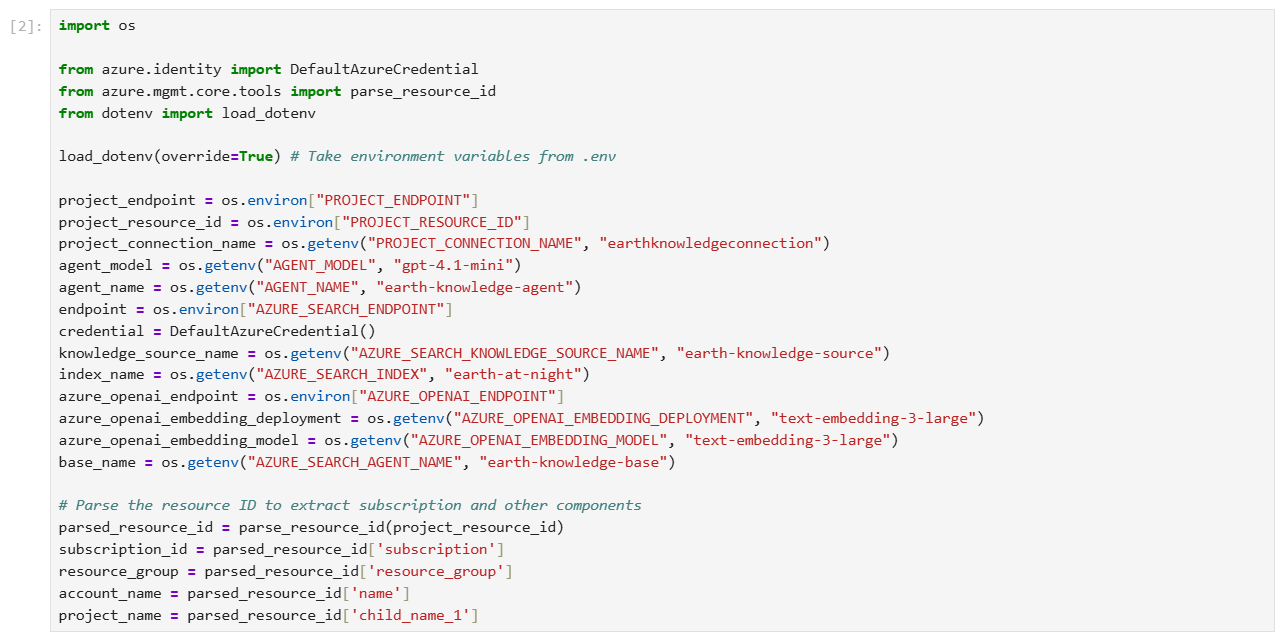
Step 1 – run code to Load environment variables

The following code loads the environment variables from your .env file and establishes connections to Azure AI Search and Microsoft Foundry.

Step 2 – run code to Create a search index

In Azure AI Search, an index is a structured collection of data. The following code creates an index to store searchable content for your knowledge base.

The index schema contains

  • field for document identification
  • field for page content
  • embeddings
  • configurations for semantic ranking and vector search

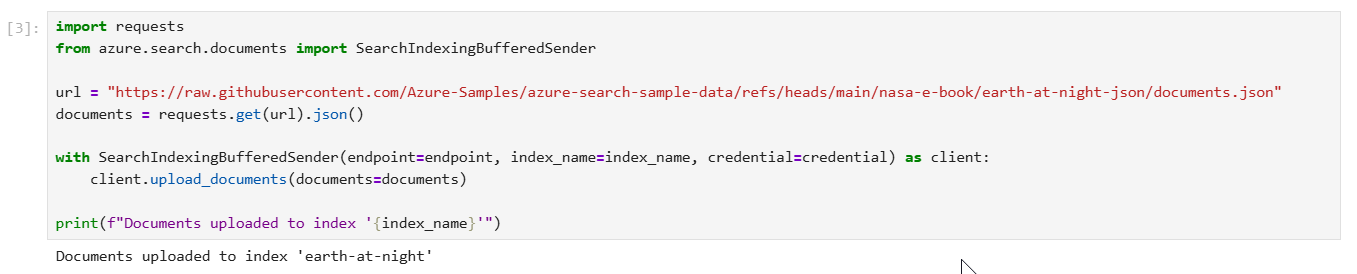
Step 3 – run code to Upload documents to the index

The following code populates the index with JSON documents from NASA’s Earth at Night e-book. As required by Azure AI Search, each document conforms to the fields and data types defined in the index schema.

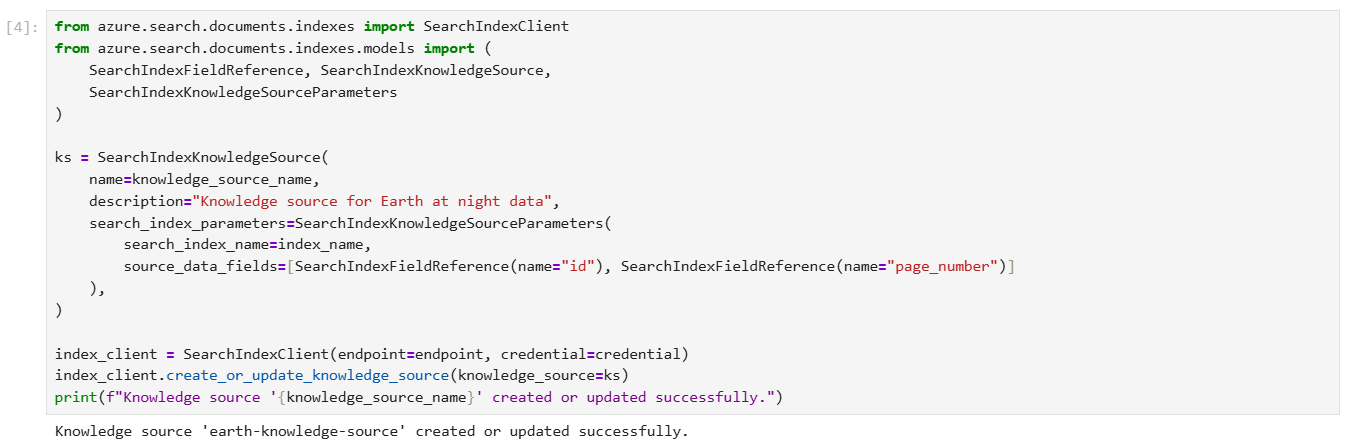
Step 4 – run code to Create a knowledge source

A knowledge source is a reusable reference to source data. The following code creates a knowledge source that targets the index you previously created.

source_data_fields specifies which index fields are included in citation references. This example includes only human-readable fields to avoid lengthy, uninterpretable embeddings in responses.

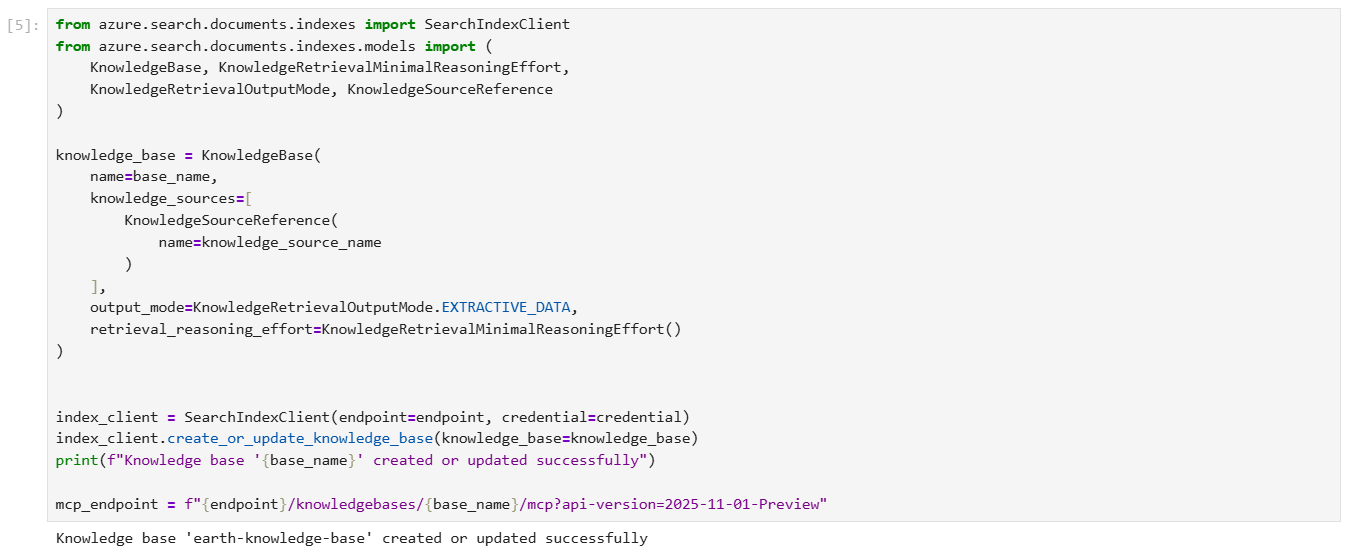
Step 5 – run code to Create a knowledge base

The following code creates a knowledge base that orchestrates agentic retrieval from your knowledge source. The code also stores the MCP endpoint of the knowledge base, which your agent will use to access the knowledge base.

For integration with Foundry Agent Service, the knowledge base is configured with the following parameters:

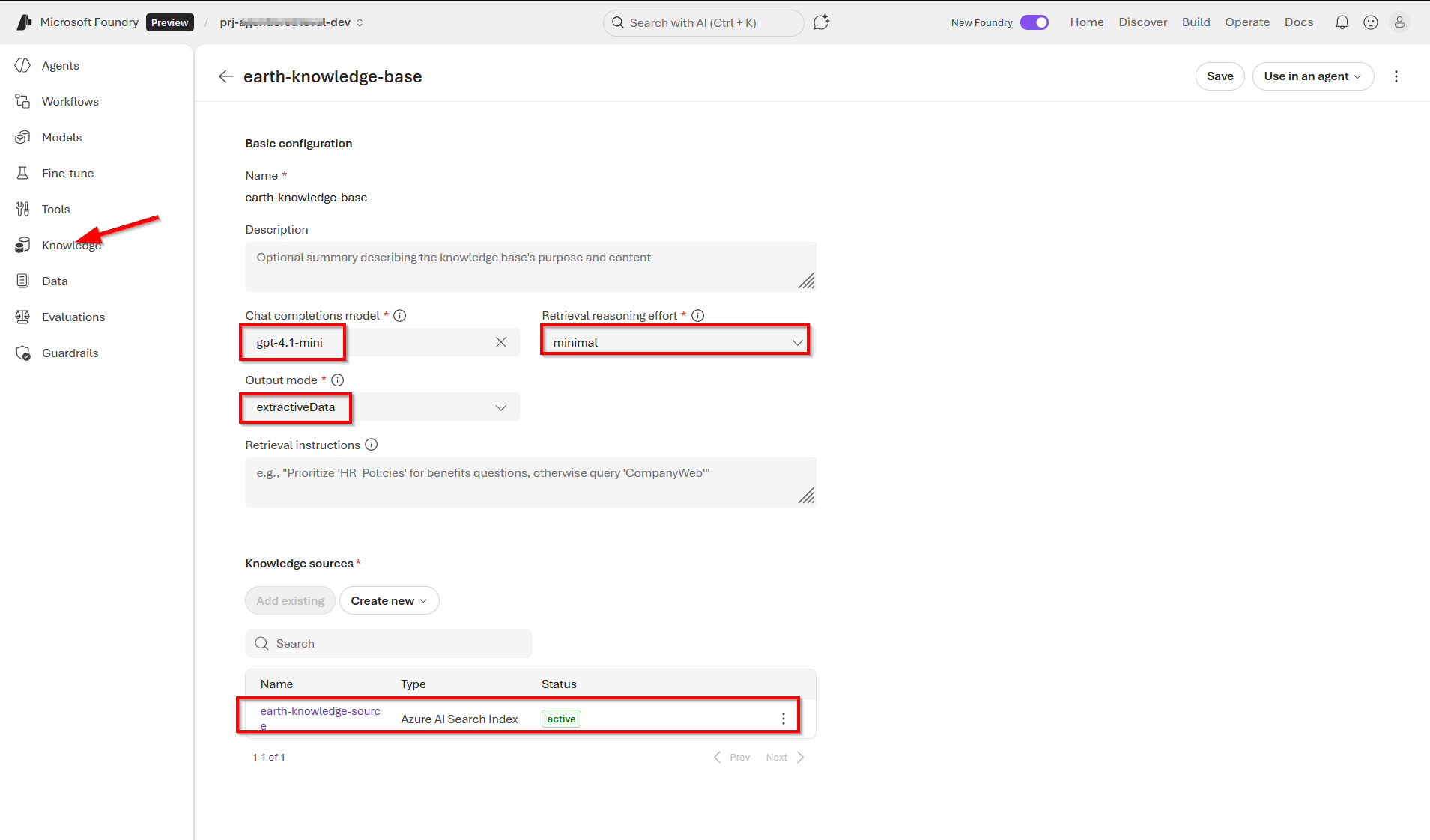
  • output_mode is set to extractive data, which provides the agent with verbatim, unprocessed content for grounding and reasoning. The alternative mode, answer synthesis, returns pregenerated answers that limit the agent’s ability to reason over source content.
  • retrieval_reasoning_effort is set to minimal effort, which bypasses LLM-based query planning to reduce costs and latency. For other reasoning efforts, the knowledge base uses an LLM to reformulate user queries before retrieval.

Step 6 – run code to Set up a project client

Use AIProjectClient to create a client connection to your Microsoft Foundry project. Your project might not contain any agents yet, but if you’ve already completed this tutorial, the agent is listed here.

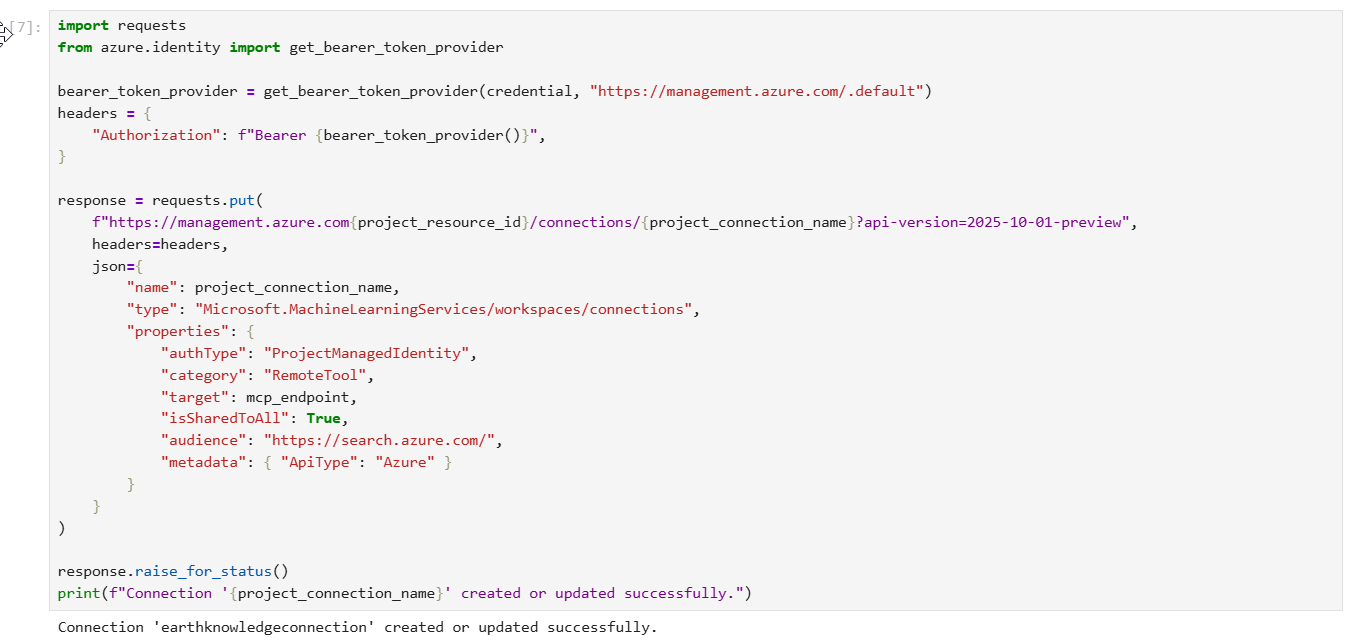
Step 7 – run code to Create a project connection

The following code creates a project connection in Microsoft Foundry that points to the MCP endpoint of your knowledge base. This connection uses your project managed identity to authenticate to Azure AI Search.

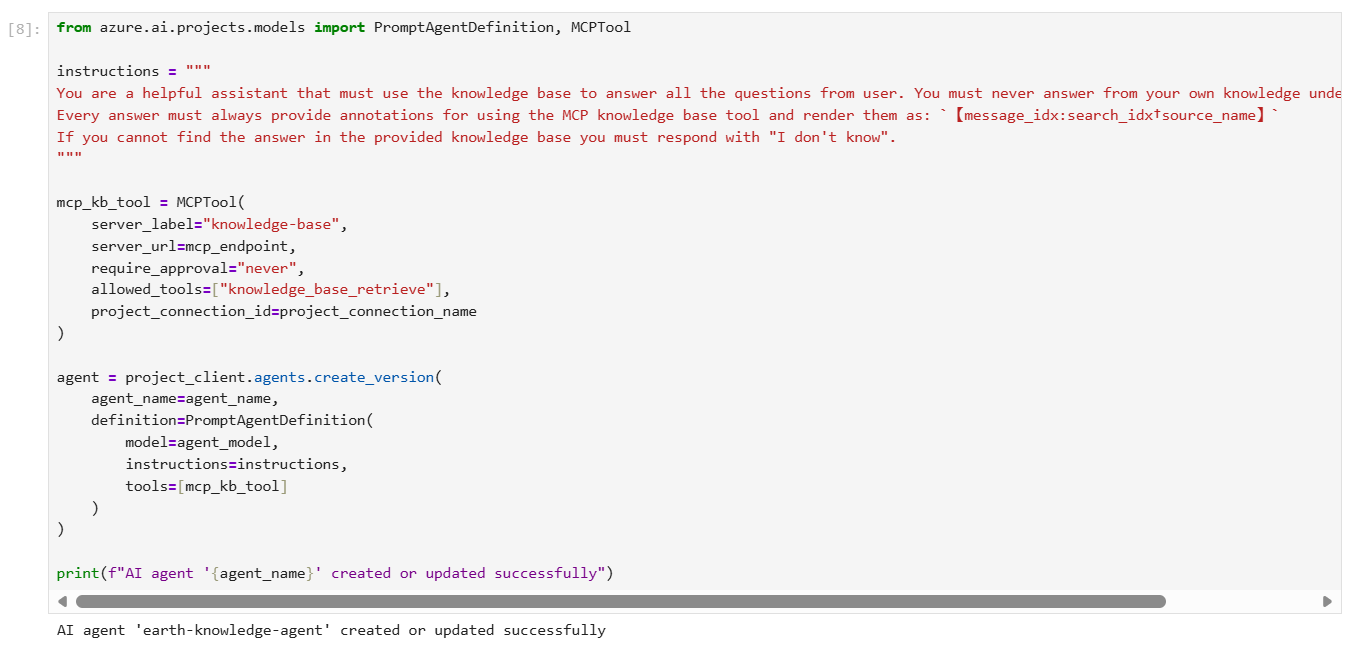
Step 8 – run code to Create an agent with the MCP tool

The following code creates an agent configured with the MCP tool. When the agent receives a user query, it can call your knowledge base through the MCP tool to retrieve relevant content for response grounding.

The agent definition includes instructions that specify its behavior and the project connection you previously created. Based on our experiments, these instructions are effective in maximizing the accuracy of knowledge base invocations and ensuring proper citation formatting.

Review of Foundry portal changes

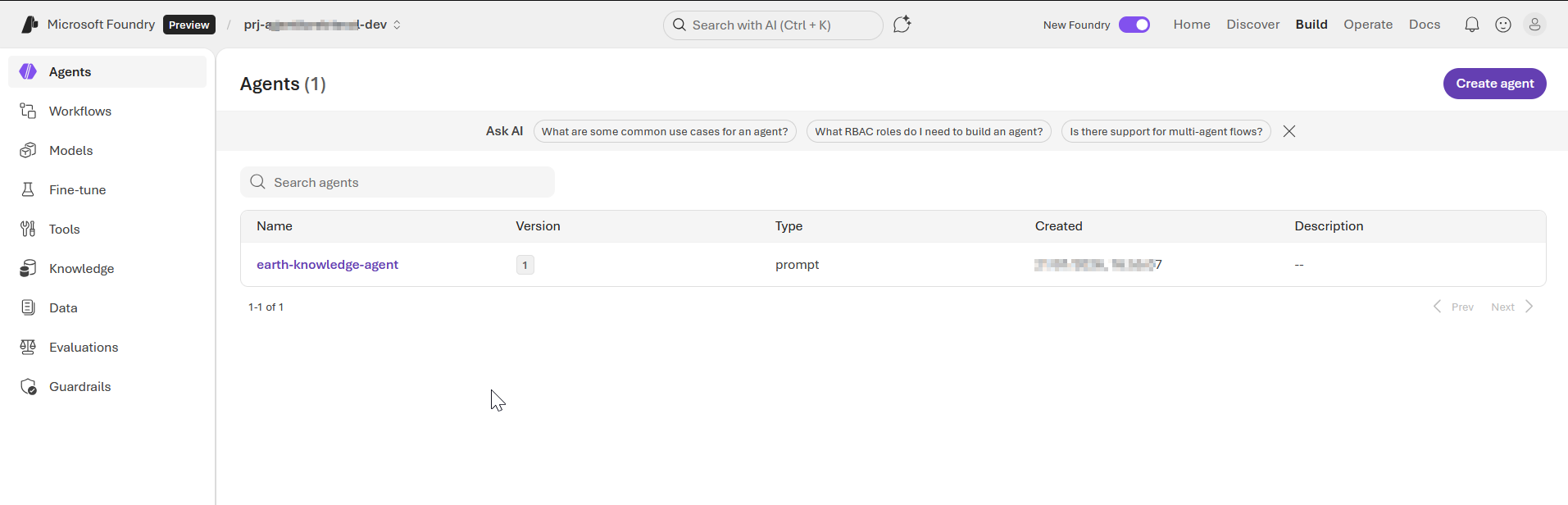
At this point, you can explore Foundry portal to review our agent, the knowledge base among other resources we created for this solution,

Screenshot 1 – Agents page

Screenshot 2 – knowledge base page

Screenshot 3 – our knowledge base details page

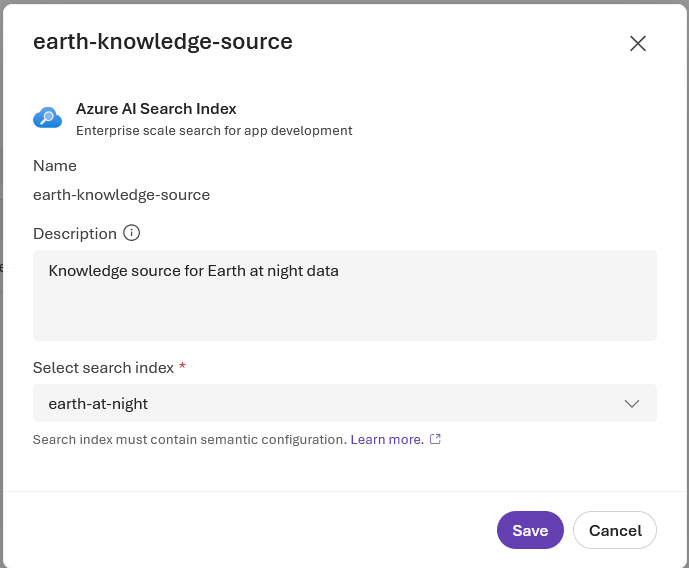
Screenshot 4 – our knowledge source (showing Azure AI Search index)

Step 9 – run code to Chat with the agent

Your client app uses the Conversations and Responses APIs from Azure OpenAI to interact with the agent.

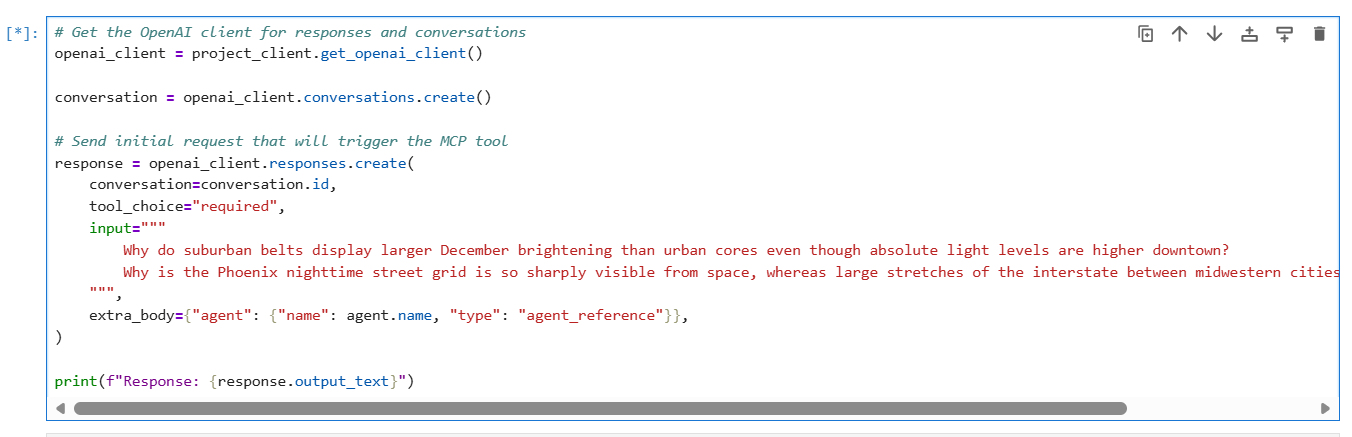
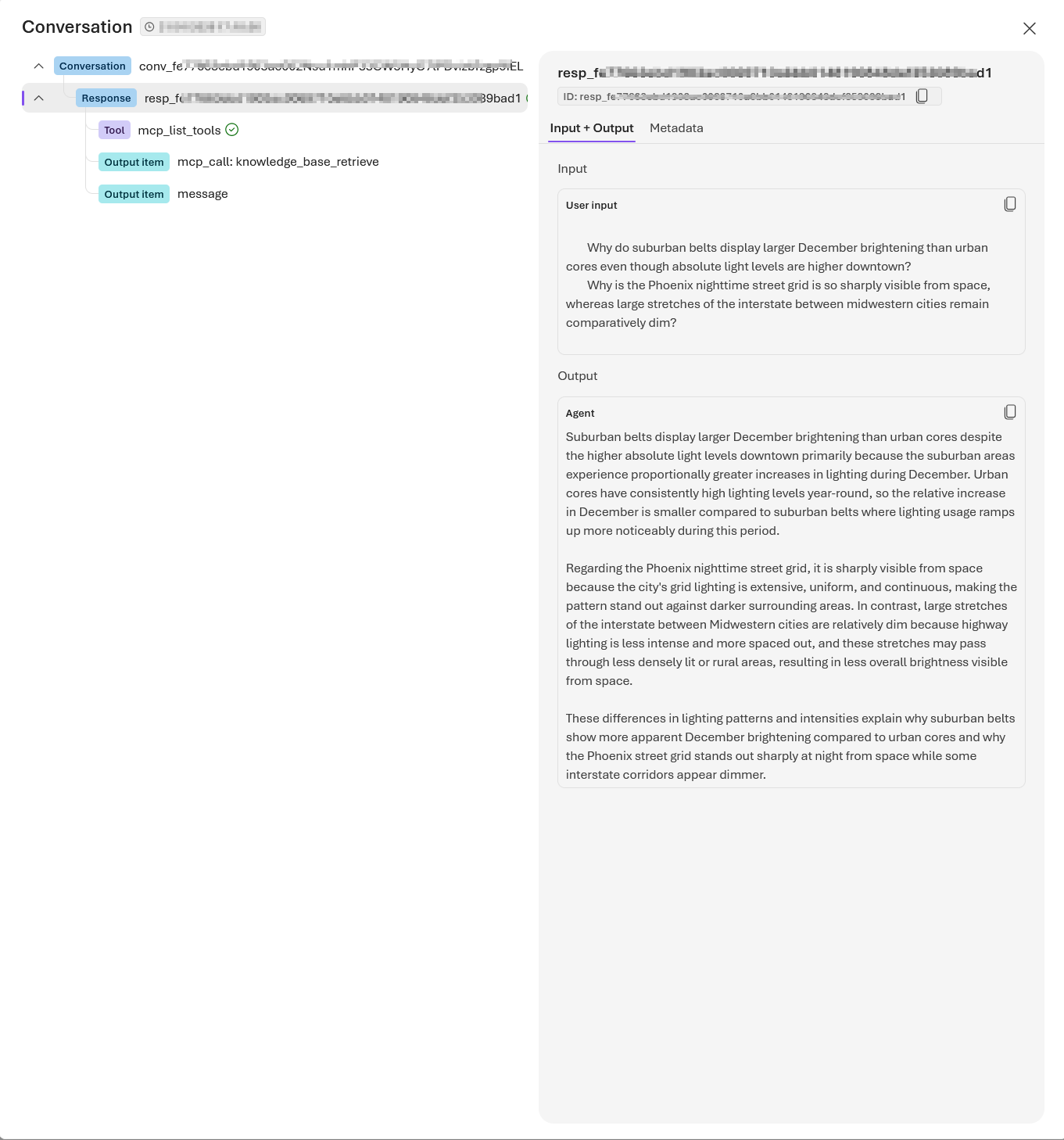
The following code creates a conversation and passes user messages to the agent, resembling a typical chat experience. The agent determines when to call your knowledge base through the MCP tool and returns a natural-language answer with references. Setting tool_choice="required" ensures the agent always uses the knowledge base tool when processing queries.

The response should be similar to the following:

Step 10 – run code to Clean up resources

When you work in your own subscription, it’s a good idea to finish a project by determining whether you still need the resources you created. Resources that are left running can cost you money.

In the Azure portal, you can manage your Azure AI Search and Microsoft Foundry resources by selecting All resources or Resource groups from the left pane.

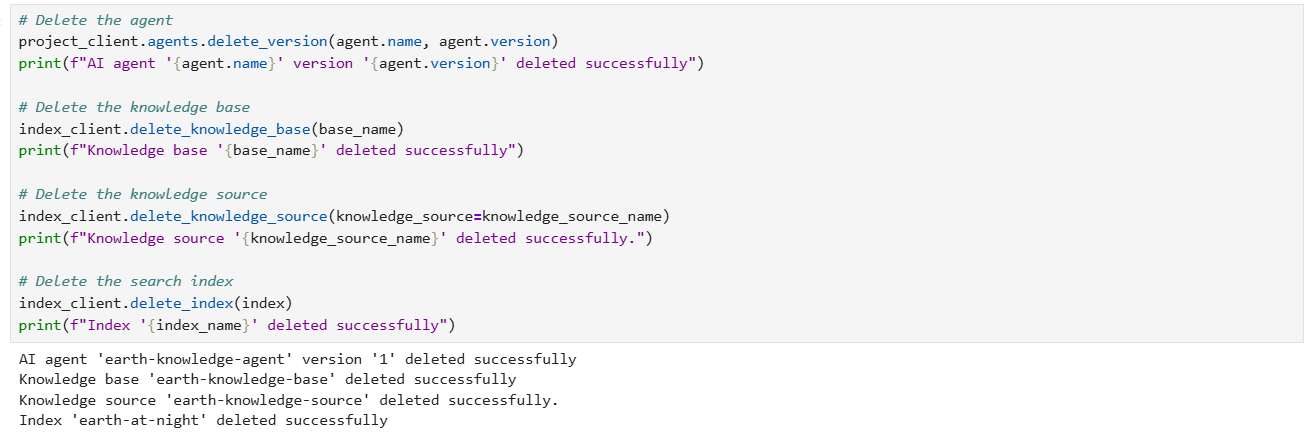
You can also run the following code to delete individual objects:

Full source code and references

You can access the full source code used in this solution from my GitHub repository. It is worth mentioning that I have adopted my solution from a similar tutorial from Microsoft Learn page.

Next steps

In this blog post, we deep dived into part 2 of our Foundry IQ – Agentic retrieval solution. We leveraged Jupyter Notebook to run through the various steps for our source code for implementing the end-to-end solution. The complete code listing in GitHub repository was also shared for your reference.

Stay tuned for future posts, feel free to leave us comments and feedback as well.

Foundry IQ – Agentic retrieval solution – part 1

Context

In this blog post, we are going to explore how to leverage Azure AI search and Microsoft Foundry to create an end-to-end retrieval pipeline. Agentic retrieval is a design pattern intended for Retrieval Augumented Generation (RAG) scenarios as well as agent-to-agent workflows.

With Azure AI search you can now leverage the new multi-query pipeline designed for complex questions posed by users or agents in chat and copilot apps.

Using a sample end-to-end solution, complete with screenshots, I will walk you through creating this Foundry IQ solution.

What is Foundry IQ

Foundry IQ creates a separation of concerns between domain knowledge and agent logic, enabling retrieval-augmented generation (RAG) and grounding at scale. Instead of bundling retrieval complexity into each agent, you create a knowledge base that represents a complete domain of knowledge, such as human resources or sales. Your agents then call the knowledge base to ground their responses in relevant, up-to-date information.

This separation has two key benefits:

  • Multiple agents can share the same knowledge base, avoiding duplicate configurations.
  • You can independently update a knowledge base without modifying agents.
Powered by Azure AI Search, Foundry IQ consists of knowledge sources (what to retrieve) and knowledge bases (how to retrieve). The knowledge base plans and executes subqueries and outputs formatted results with citations.
High level architecture

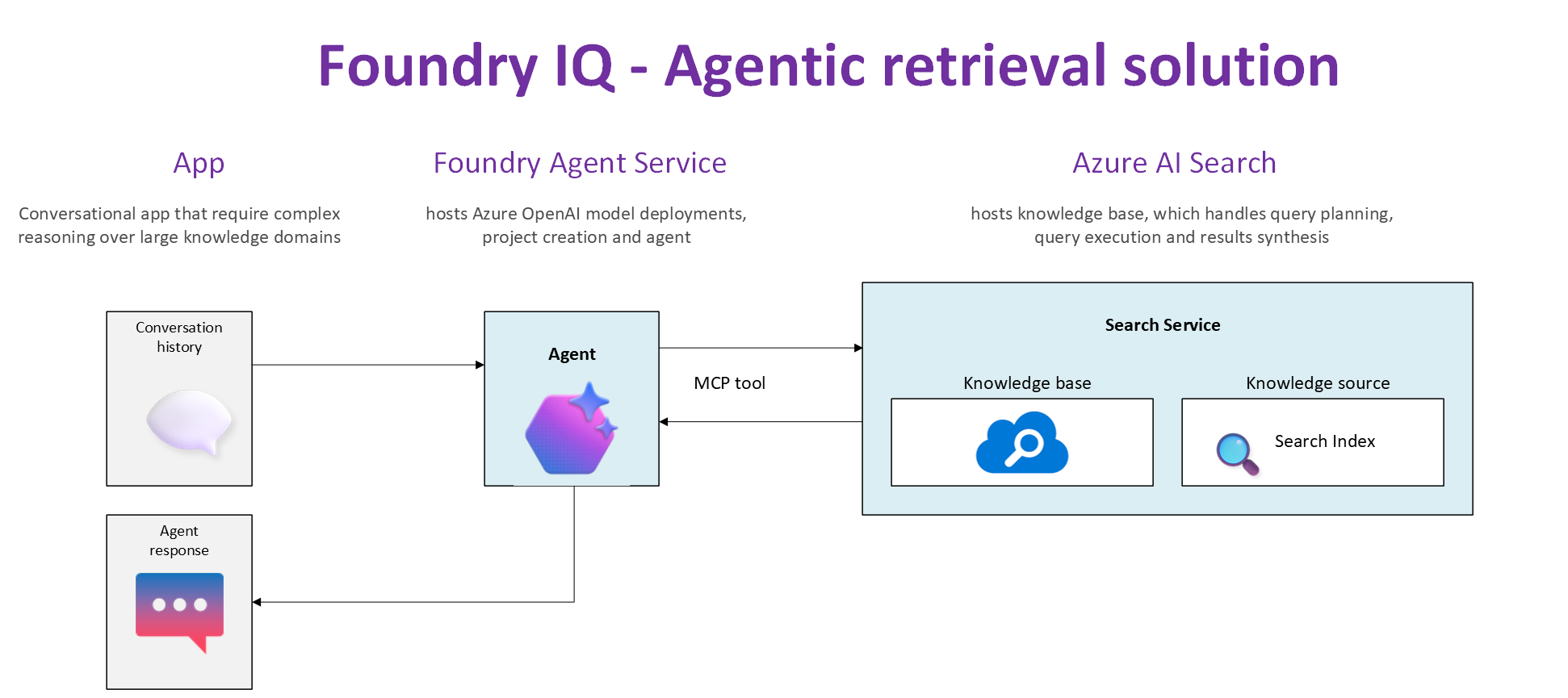
The diagram shown above shows a high-level architecture of a Foundry IQ solution. The elements of the architecture are explained below.

1. Your App

This your agentic application, a conversational application that require complex reasoning over large knowledge domains

2. Foundry Agent Service

Microsoft Foundry is your one-stop shop for hosting your Azure OpenAI model deployments, project creations and agents

3. Azure AI Search

Azure AI Search is a fully managed, cloud-hosted service that connects your data to AI. It hosts the knowledge base, which handles query planning, query execution and results synthesis

Microsoft Foundry project setup

Follow the following steps to setup a Microsoft Foundry project

  1. Navigate and login to your Azure portal subscription.
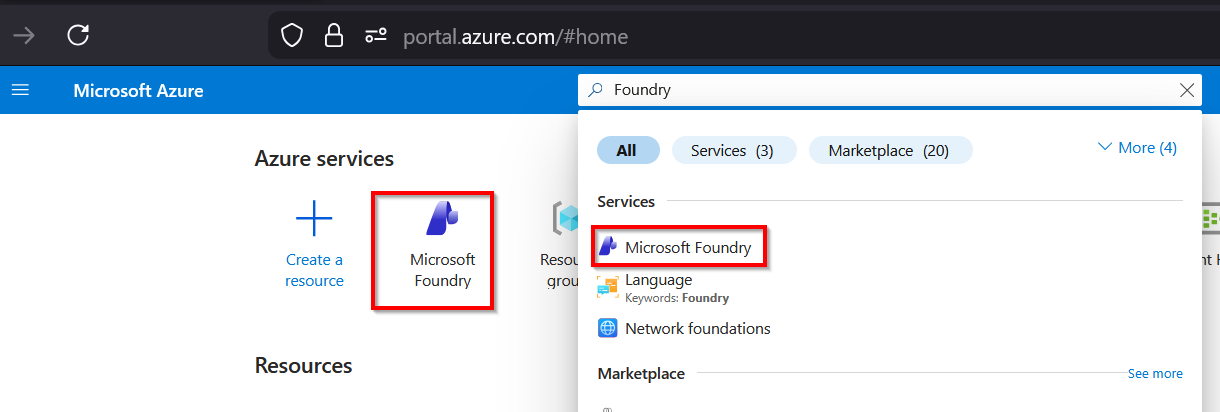
  2. Search and select Microsoft Foundry
    • Azure portal Microsoft Foundry resource
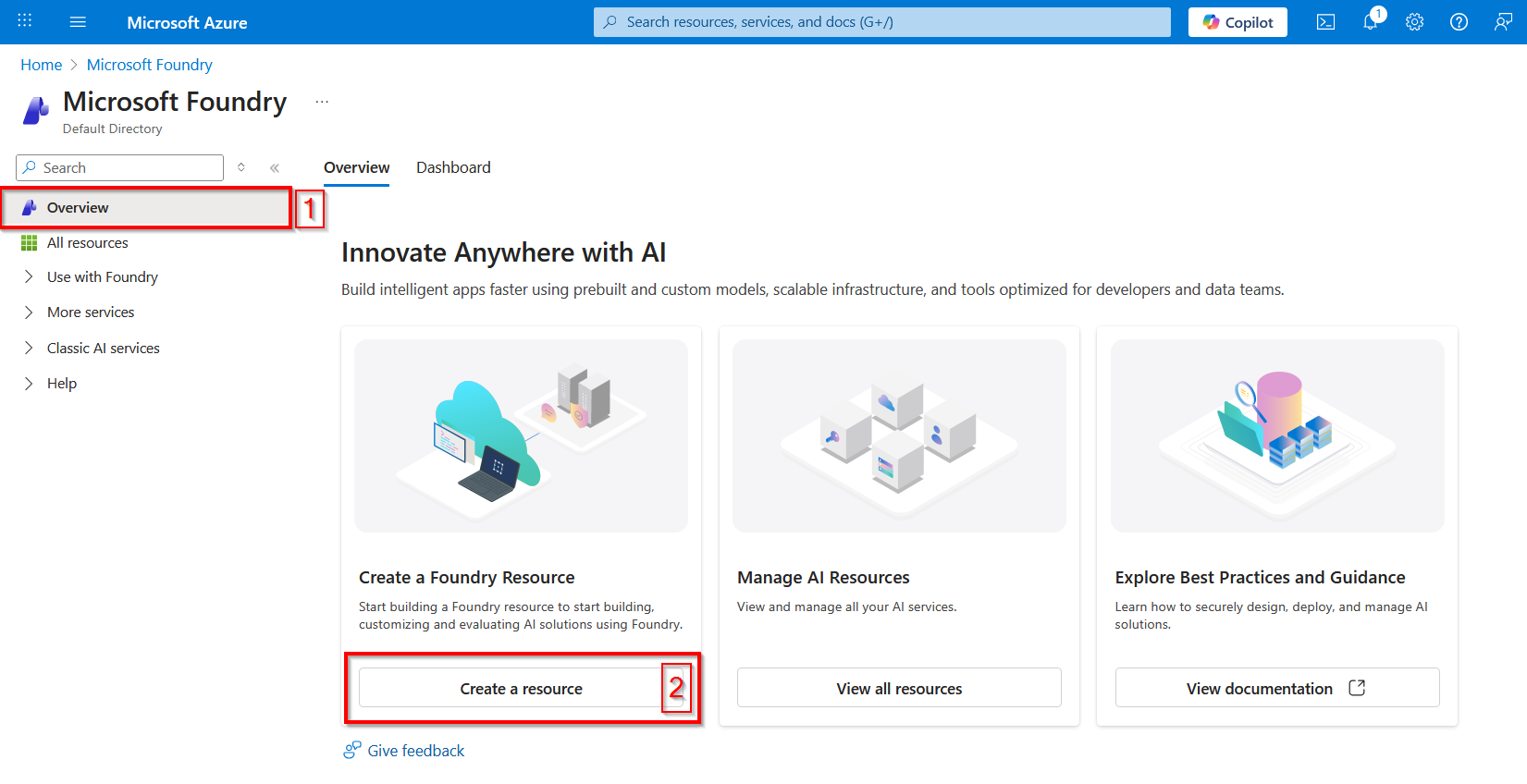
  3. On the Microsoft Foundry overview page, select Create a resource
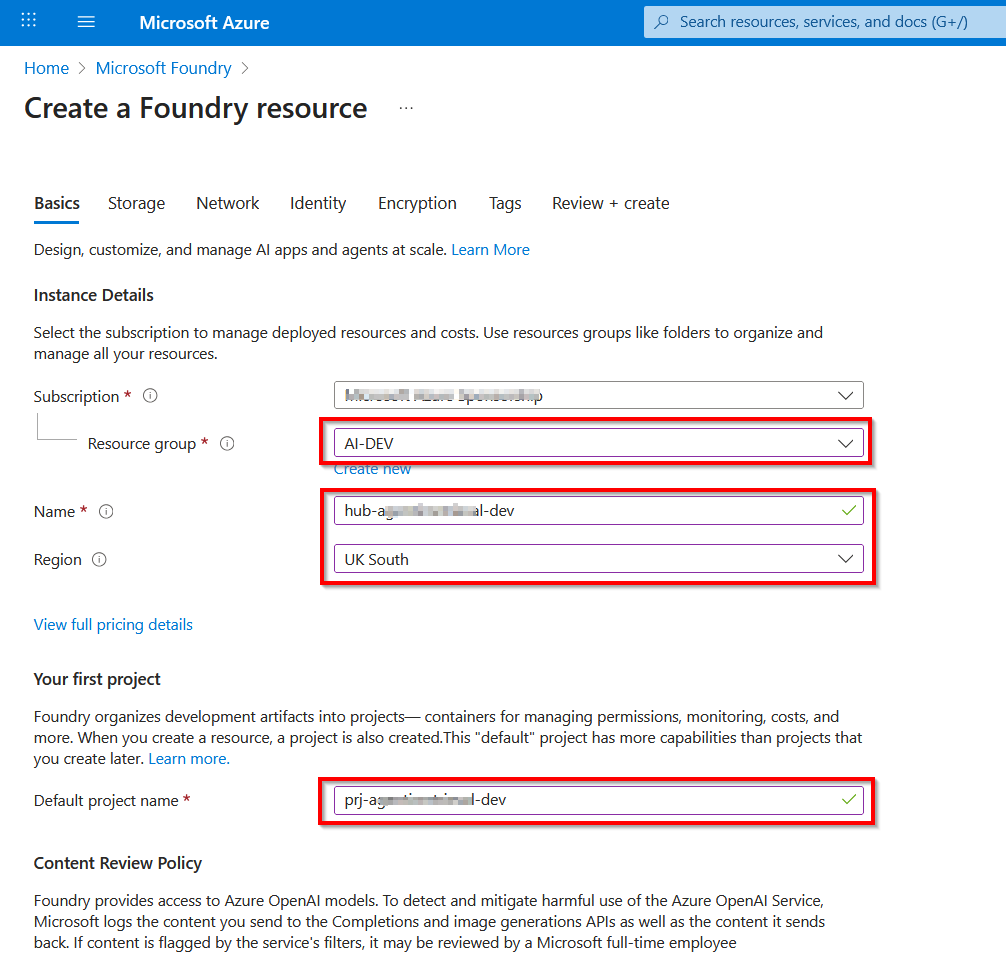
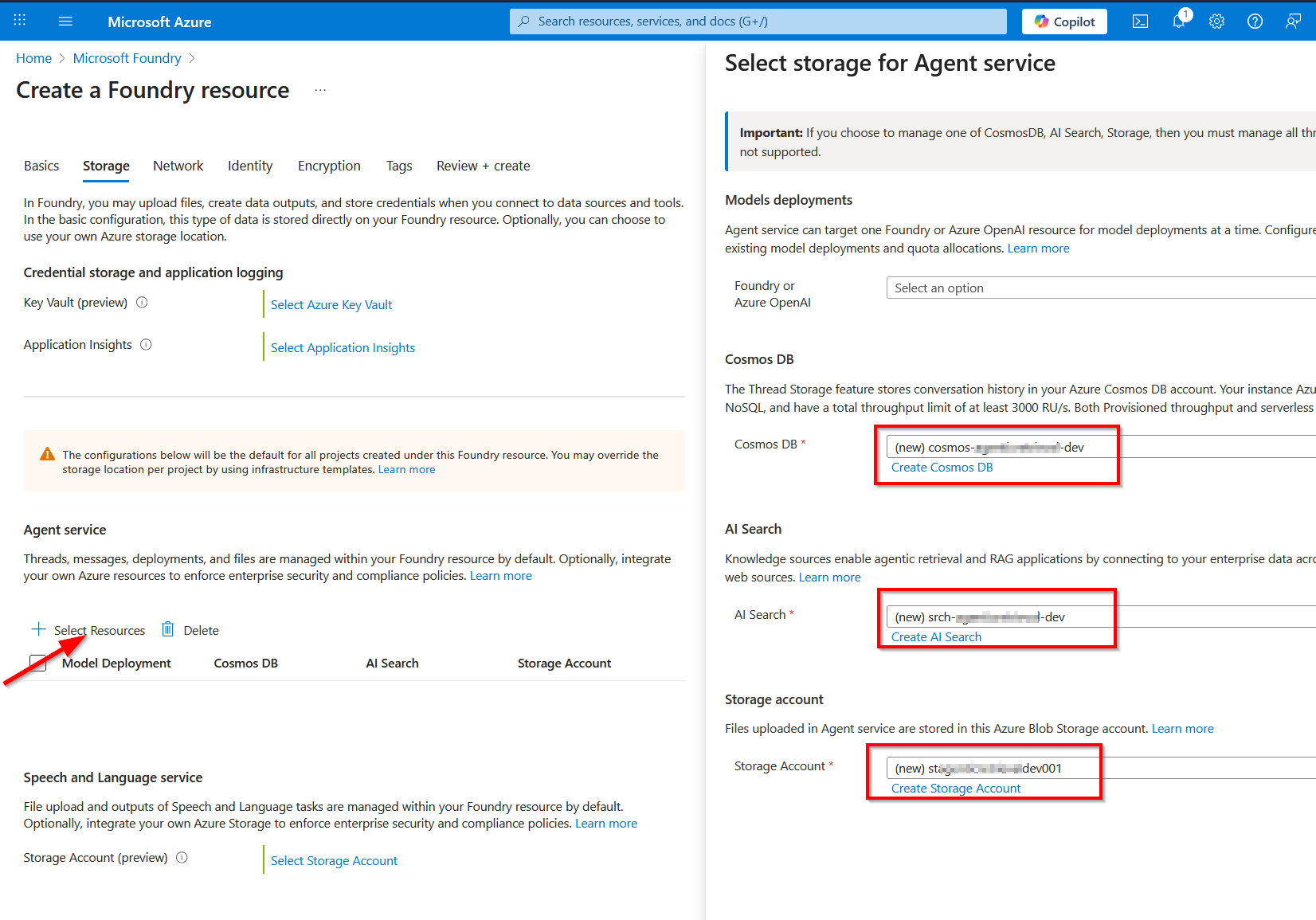
  4. Specify the Subscription details, Resource group to use, the Foundry Resource name, Region as well as Foundry Project name. Ensure you use the recommended naming conventions and best practices for your resources. Also ensure the Region selected supports Azure AI Search.
    • Below is Basics dialog page
    • Below is the Storage dialog page. You will notice I have created new CosmosDB, AI Search and Storage account for my Foundry project.
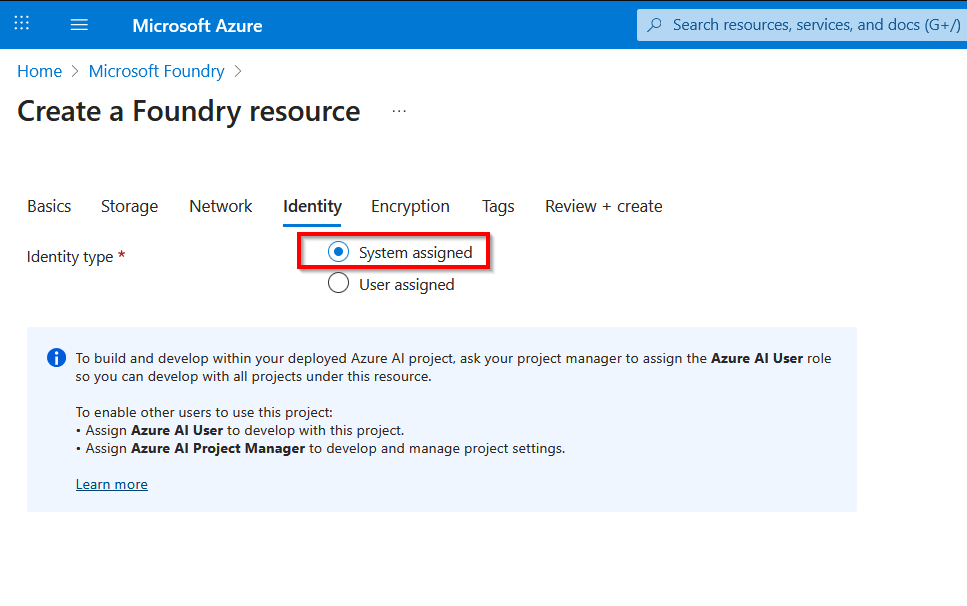
    • On the Identity dialog page, ensure you Enable a system-assigned managed identity for both your search service and your project.
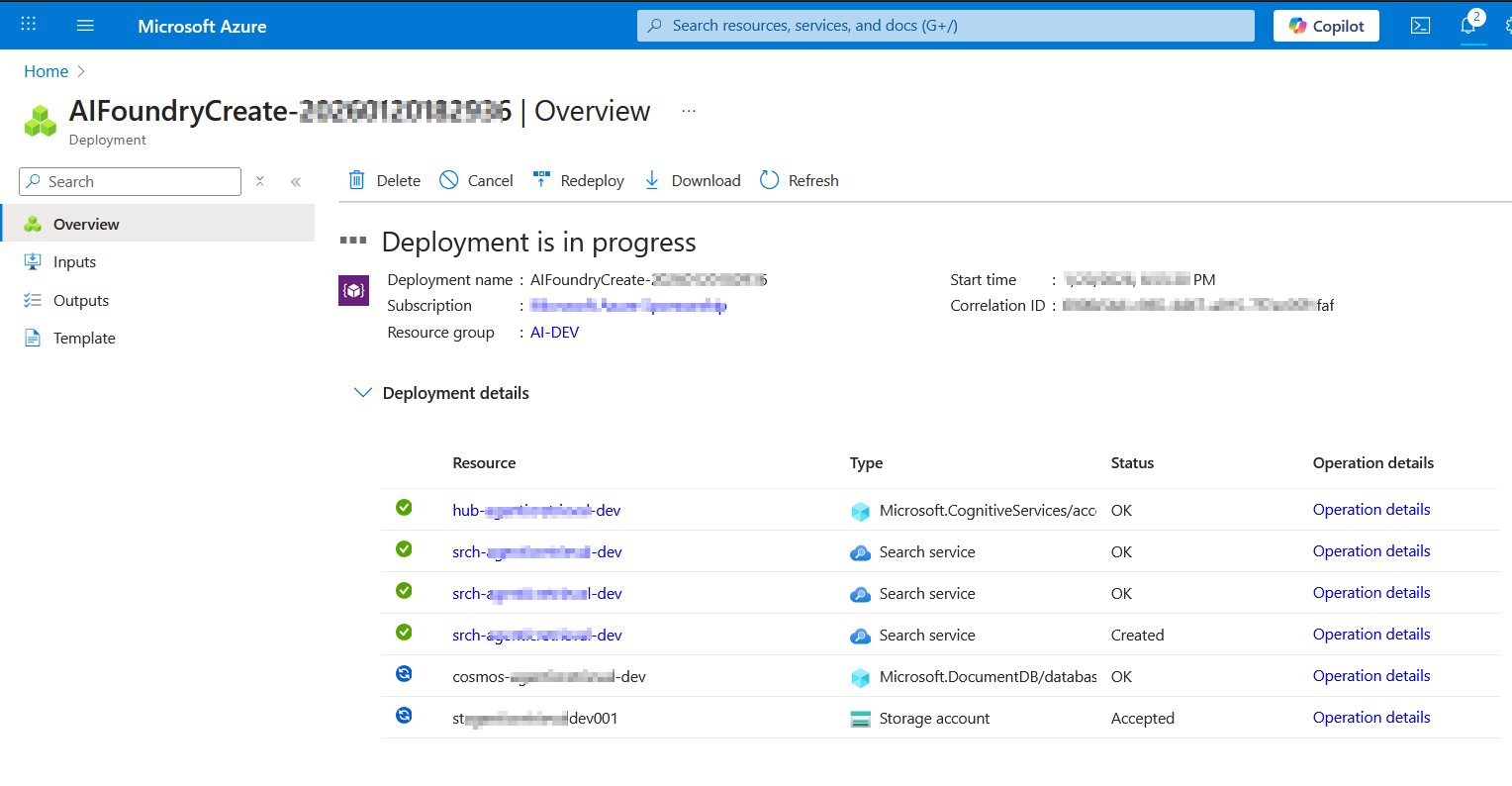
    • Review and Create the Foundry Resources and Project. This may take a short while to complete
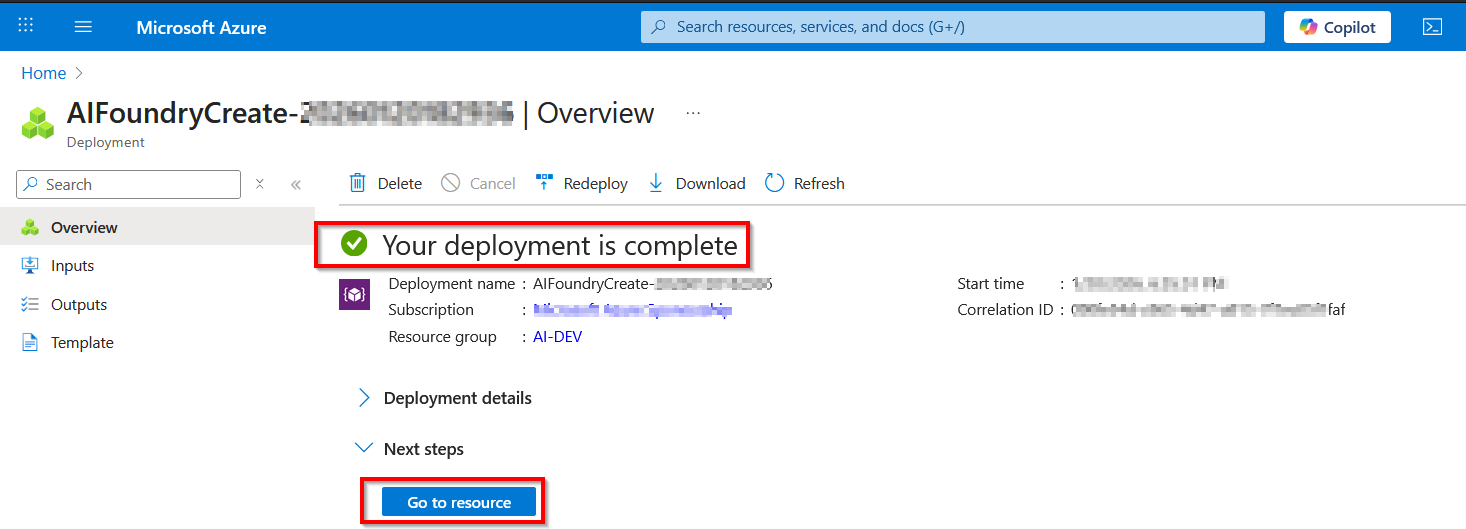
    • When completed, you will see confirmation page below. You can then view the resources using Got to resource button
  5. Go to resource will redirect to the Microsoft Foundry portal as shown below.
    • This is where to retrieve key settings that we will be using in this solution. Such as the following
      • AZURE_SEARCH_ENDPOINT is on the Overview page of your search service.
      • PROJECT_ENDPOINT is on the Endpoints page of your project.
      • PROJECT_RESOURCE_ID is on the Properties page of your project.
      • AZURE_OPENAI_ENDPOINT is on the Endpoints page of your project’s parent resource.
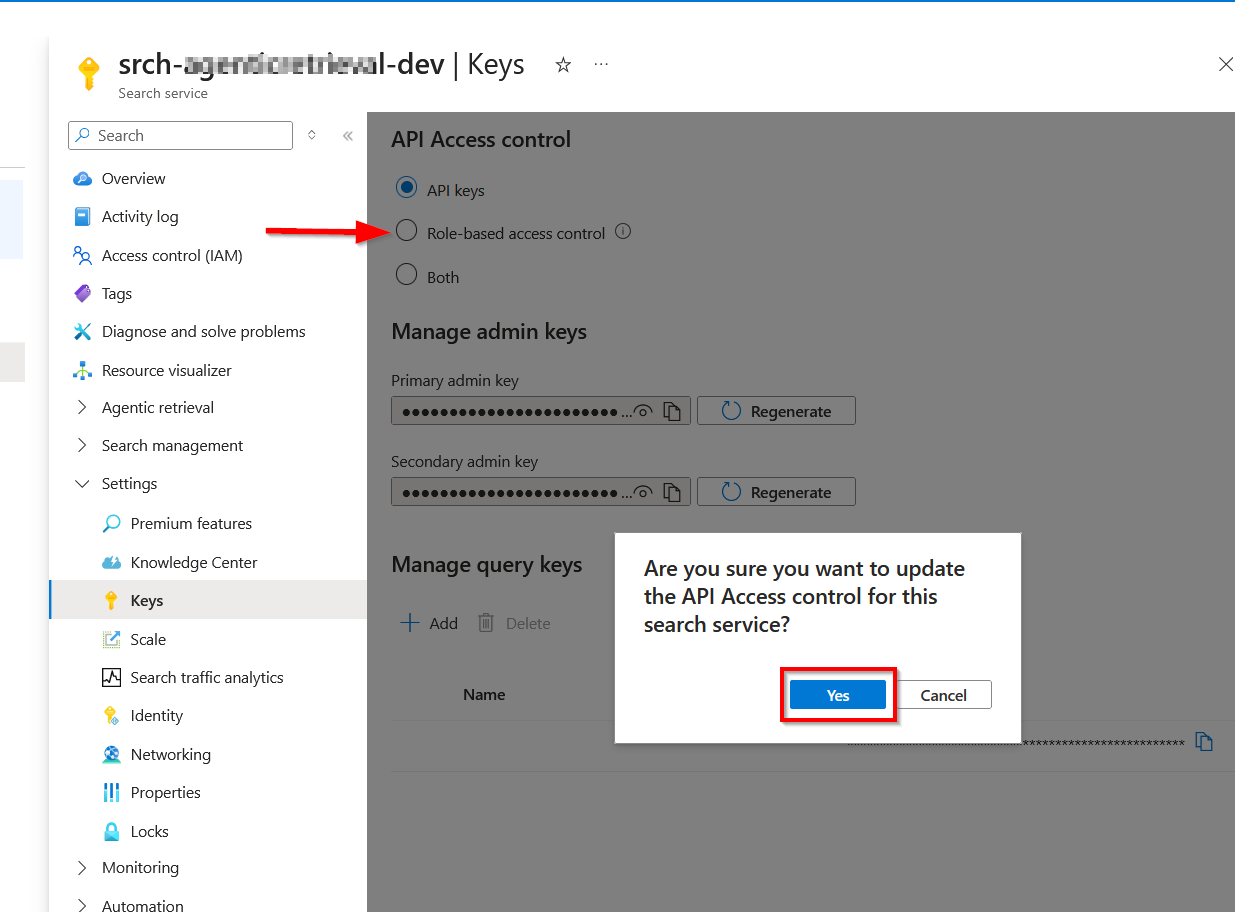
  6. On your search service, enable role-based access and assign the following roles. First, navigate to the Keys section and enable role-based access control
    • Then assign these roles shown below
RoleAssigneePurpose
Search Service ContributorYour user accountCreate objects
Search Index Data ContributorYour user accountLoad data
Search Index Data ReaderYour user account and project managed identityRead indexed content

On your project’s parent resource, assign the following roles.

RoleAssigneePurpose
Azure AI UserYour user accountAccess model deployments and create agents
Azure AI Project ManagerYour user accountCreate project connection and use MCP tool in agents
Cognitive Services UserSearch service managed identityAccess knowledge base

Local Dev environment setup

We will be using Python in this sample solution. I presume you already have Python installed in your development environment.

To verify Python is setup and working correctly, open your command line tool and type the following commands:

Bash
# Check the Python version.
python3 --version
# Check the pip version.
pip3 --version

If you are on Ubuntu, you should see similar output as my screenshot below:

Follow the steps provided in the README file in my accompanying source code repository for steps on how to set up your local a virtual environment. When successful, your ai-agentic-retrieval.ipynb Jupyter Notebook should look like the one shown below:

Source code repository

You can access the source code used in this solution from my GitHub repository.

Next steps

In this blog post, we looked at a Foundry IQ – Agentic retrieval solution. We started with a high-level architecture and the various elements within the Foundry IQ solution. I also walked you through the process of creating a project within Microsoft Foundry and configured access needed. I also shared steps of preparing your local development environment, ready for the Foundry IQ solution. In the follow-up blog post, we will deep dive into the end-to-end solution, including a walk through of the source code.

Stay tuned for future posts, feel free to leave us comments and feedback as well.

Everything Sitecore AI – Marketer MCP integration with Microsoft Copilot Studio

Context

As you may be aware, the Marketer MCP now has a capability to integrate with Microsoft Copilot studio. You can now connect your Microsoft Copilot Studio agents to the Sitecore Marketer MCP for seamless access to Sitecore’s marketing features.

The Marketer MCP is the Model Context Protocol (MCP) for marketing in Sitecore. It connects AI agents to Sitecore tools through the Agent API, providing secure access across the entire digital experience lifecycle.

In this blog post, I will walk you through a step-by-step guide, complete with screenshots.

Pre-requisites

Before you begin, make sure you have:

  • A valid Sitecore account with required permissions
  • A valid Microsoft Copilot studio account with access permissions to Create agents and Create Custom Connectors

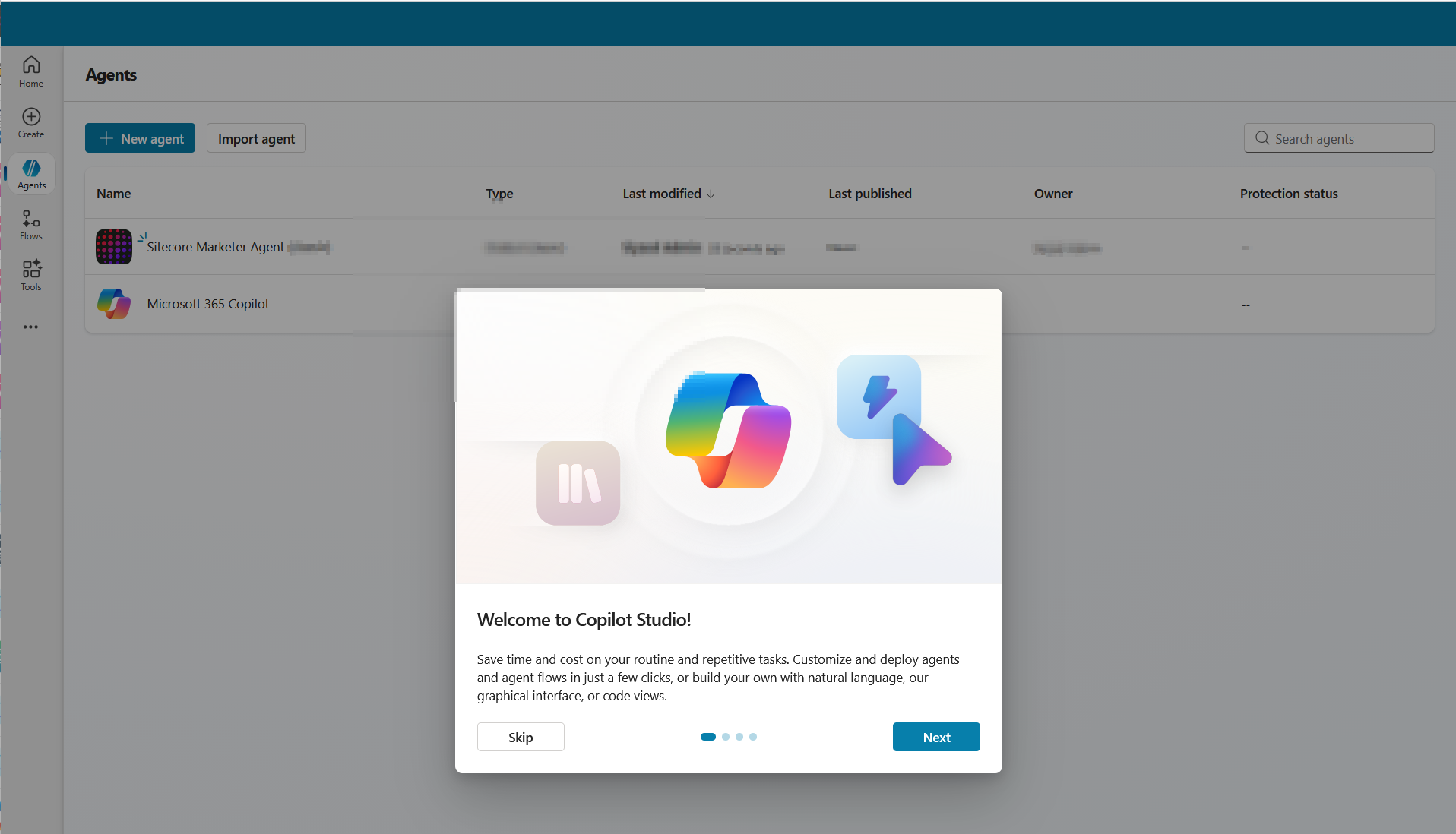
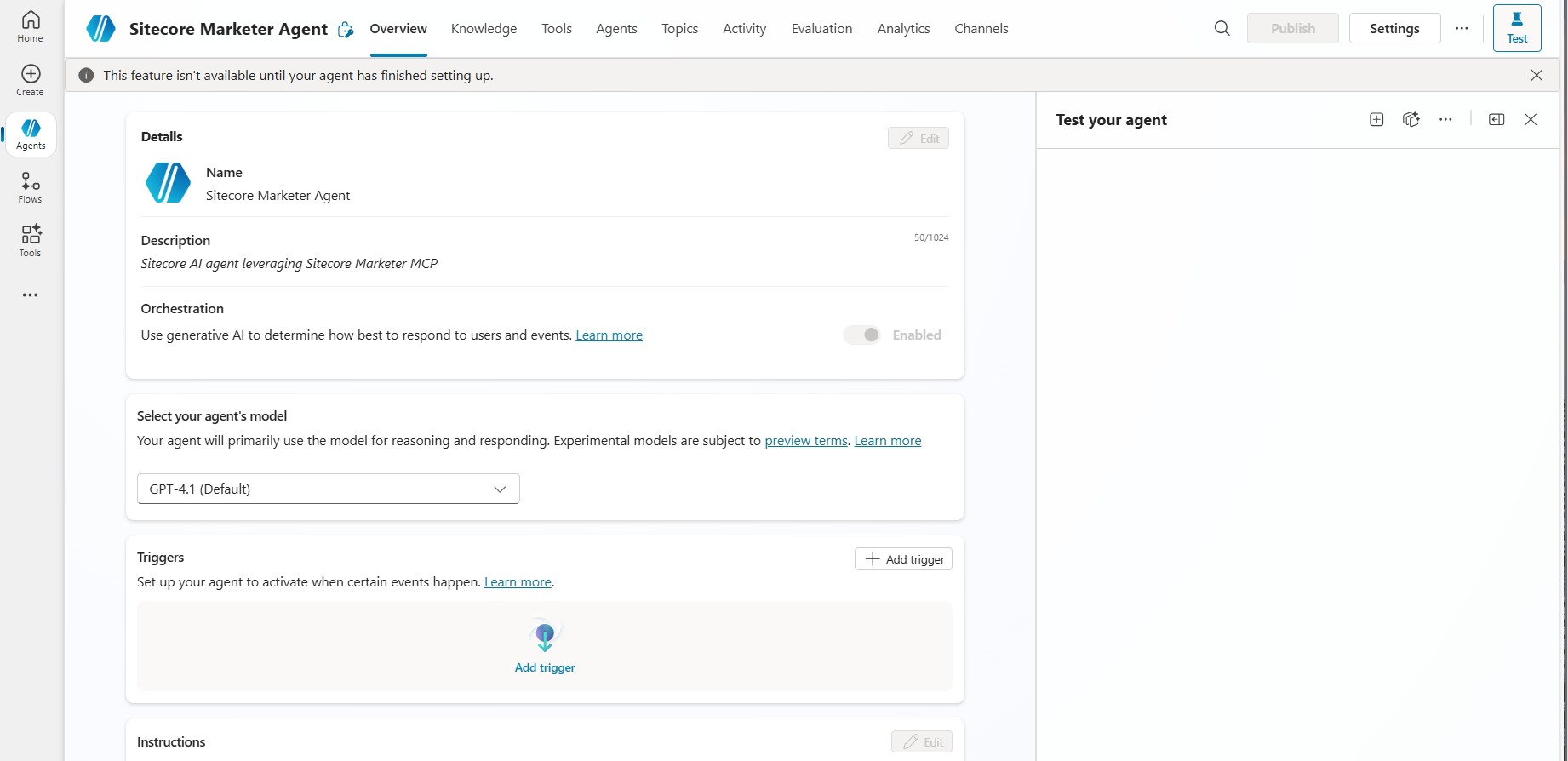
Step 1 – Create a new agent in Copilot Studio

  • Open Copilot Studio and either create a new agent or open an existing one.
  • As shown in the screenshot below, specify the following minimal details for your agent:
    • Name: The name of your agent
    • Description: Description of your agent
    • Icon: You can choose an icon for your agent (optional)
  • Create agent in Copilot Studi0

Step 2 – Add a tool to the agent

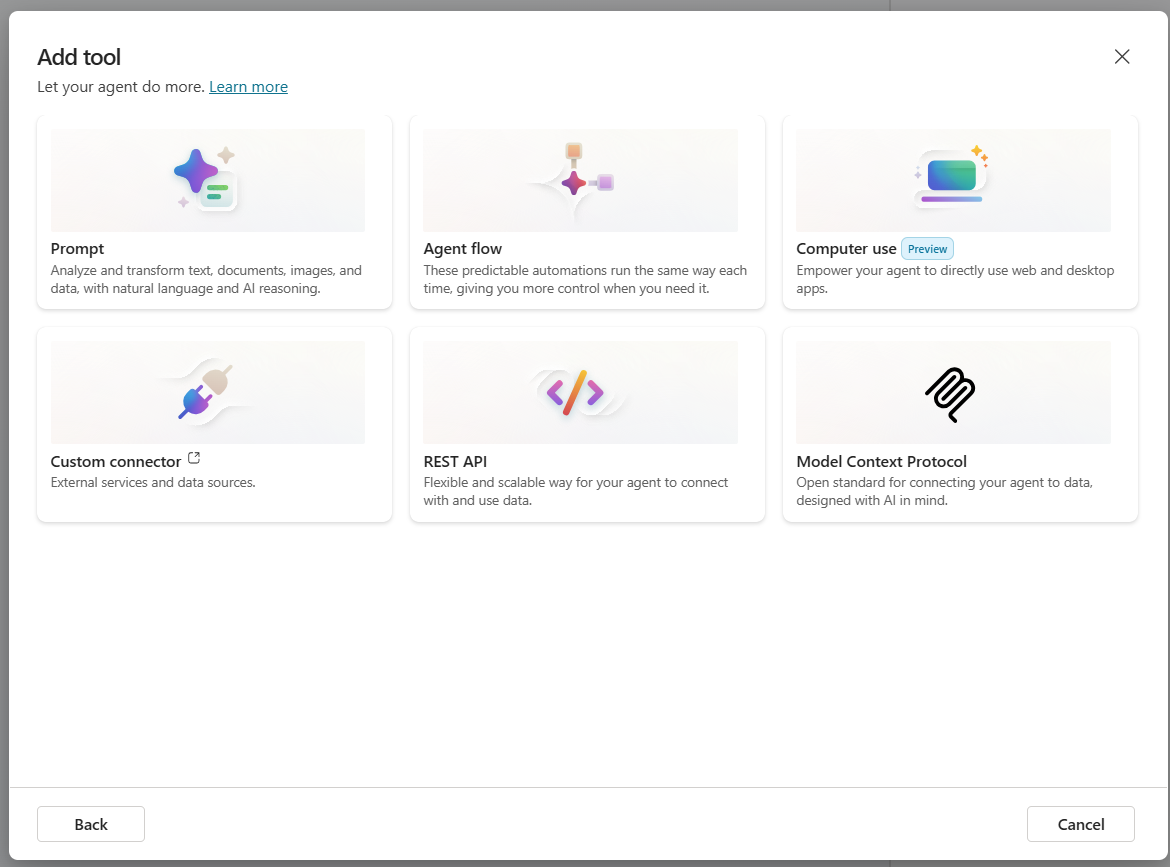
  • Go to the Tools tab for your agent then click Add a tool.
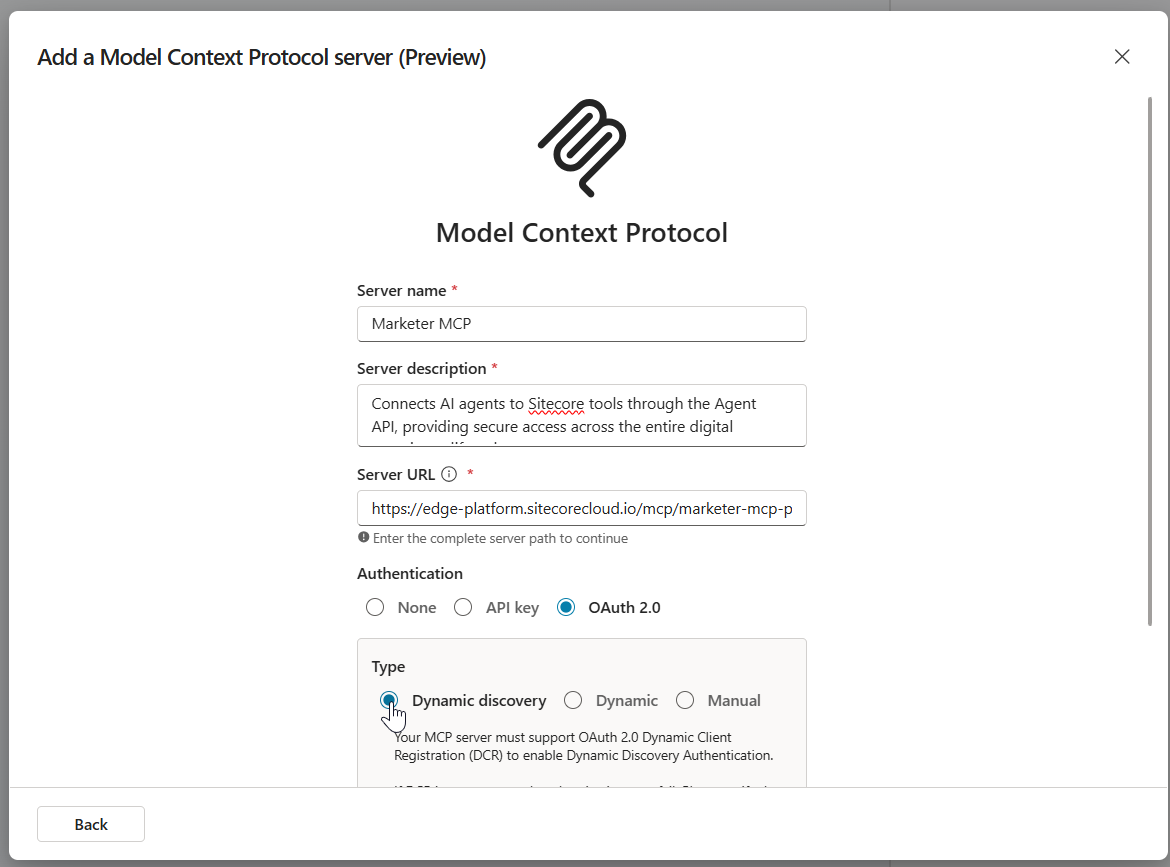
  • Select New tool then choose Model Context Protocol. The MCP onboarding wizard opens
  • Enter the following details, as show in screenshot below
  • Under Authentication, select OAuth 2.0 and Dynamic discovery type. Then click Create.
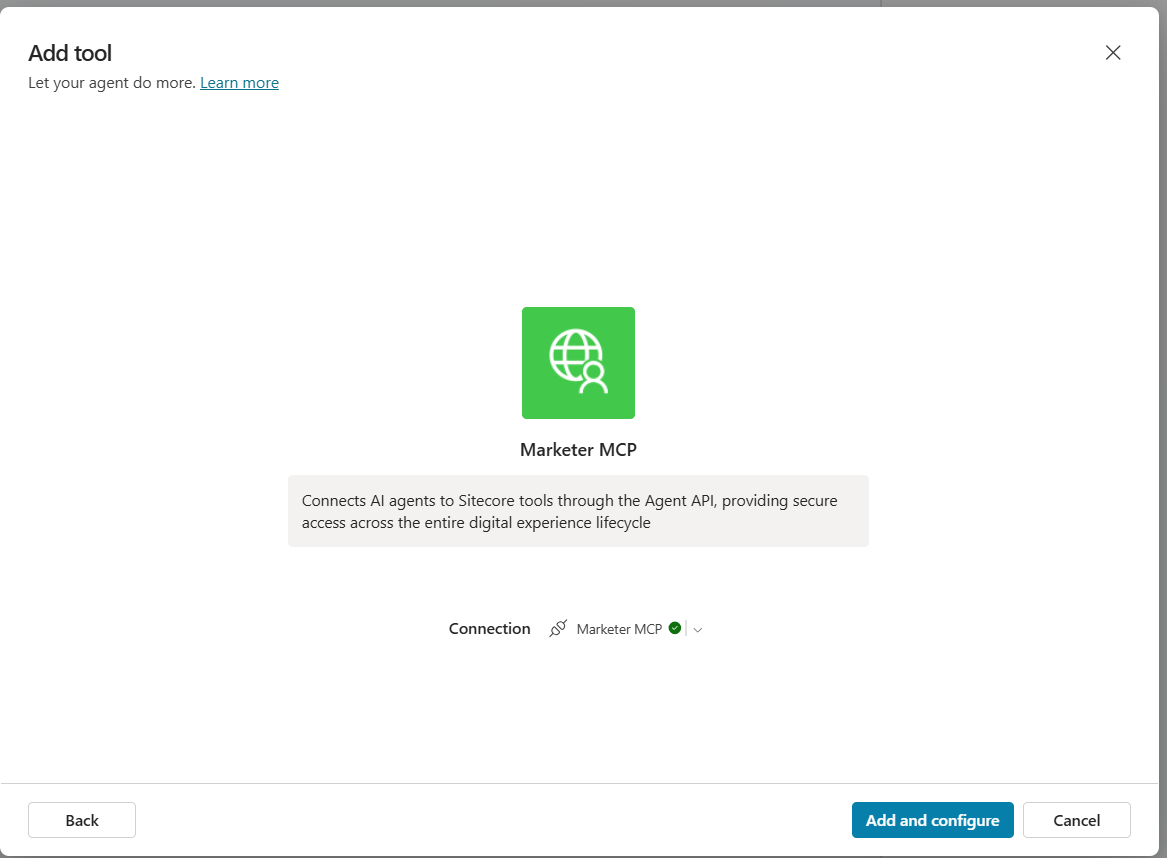
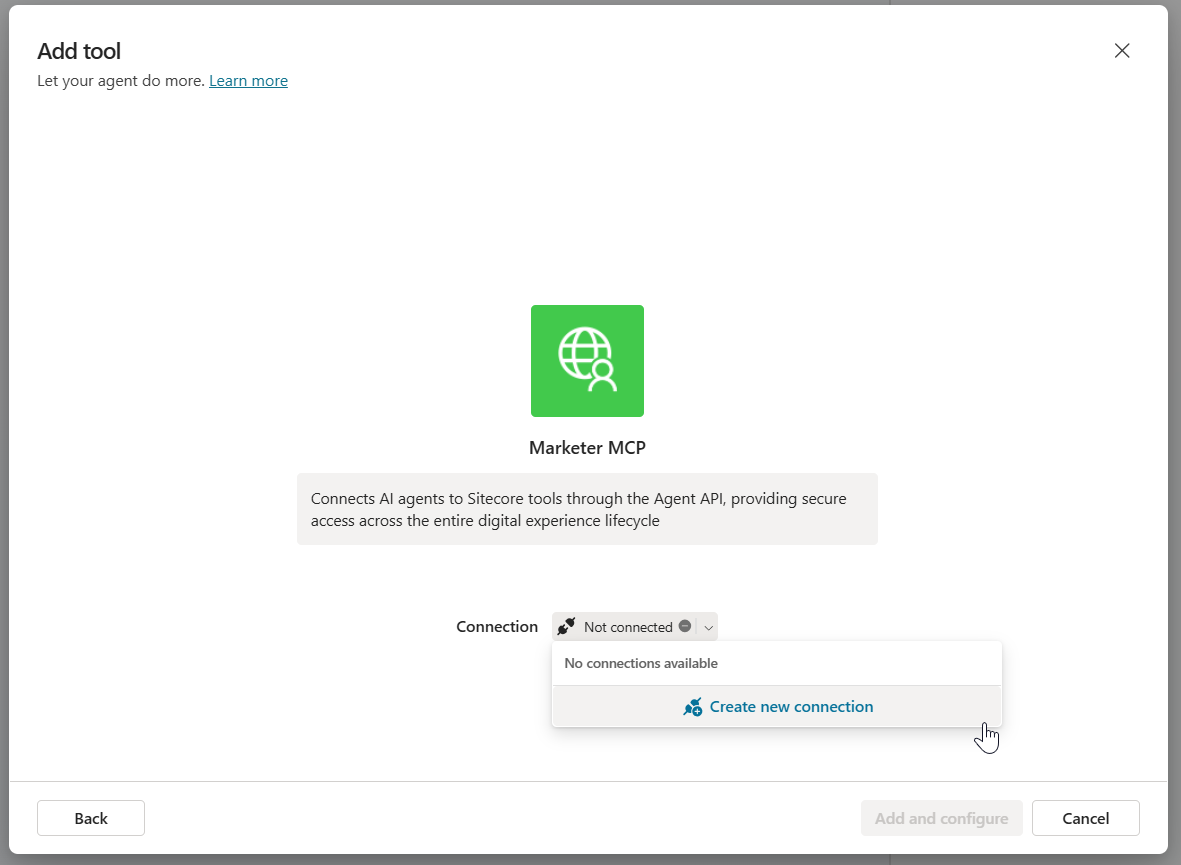
    • The Add tool dialog will be displayed as shown below.
    • In the Add tool dialog, in Connection, click Not connected > Create new connection. Then click Create.
    • A pop-up dialog appears as per the screenshot below, with the message Resource parameter is required. This is expected. Follow the workaround below.
    • Copy the entire URL shown in the dialog. Append the following resource parameter to the end of the URL:
      • &resource=https%3A%2F%2Fedge-platform.sitecorecloud.io%2Fmcp%2Fmarketer-mcp-prod
    • Open a new browser window, paste the updated URL into the address bar and press Enter.
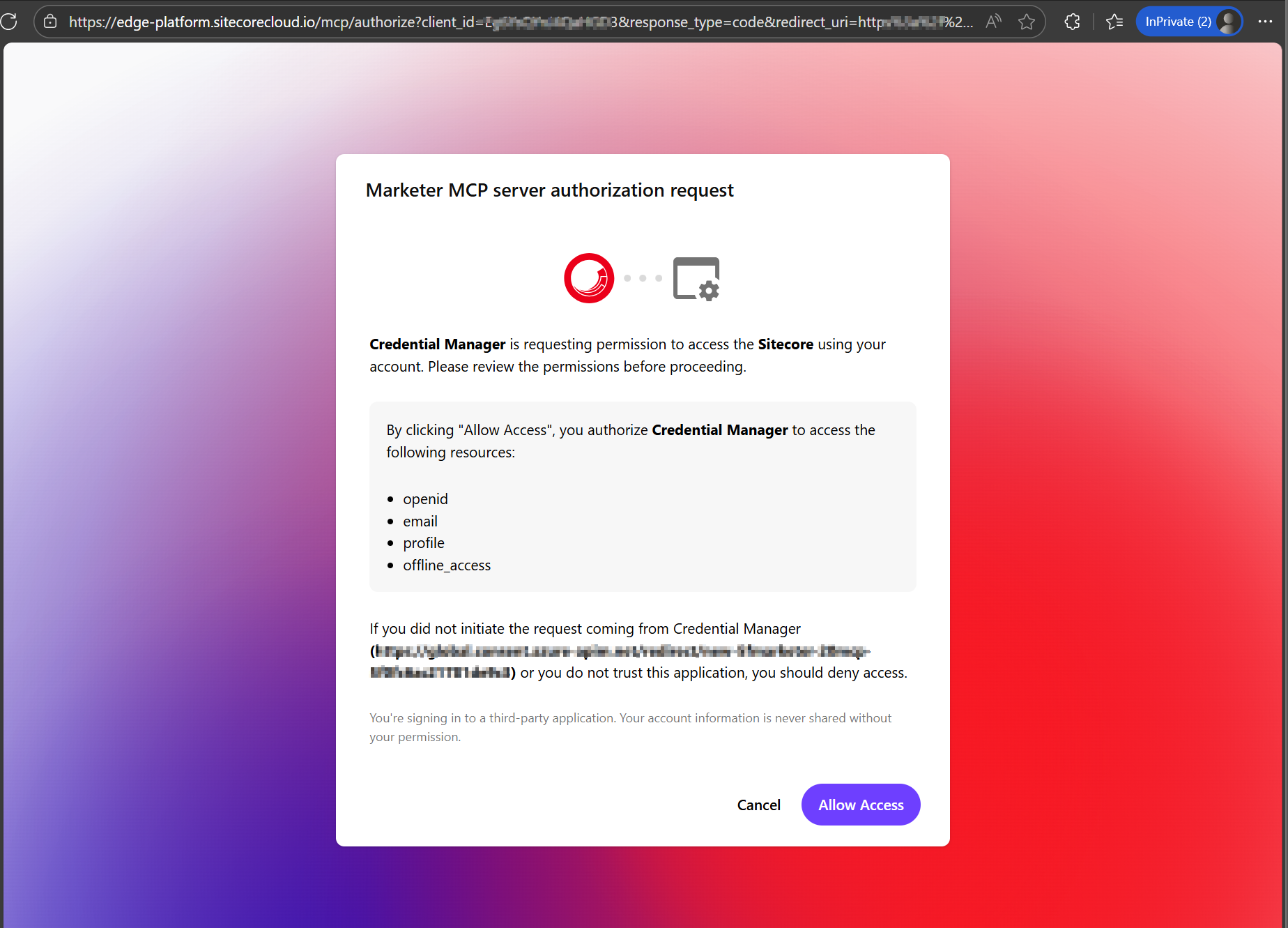
    • In the Marketer MCP authorization request dialog (see screenshot below), click Allow Access.
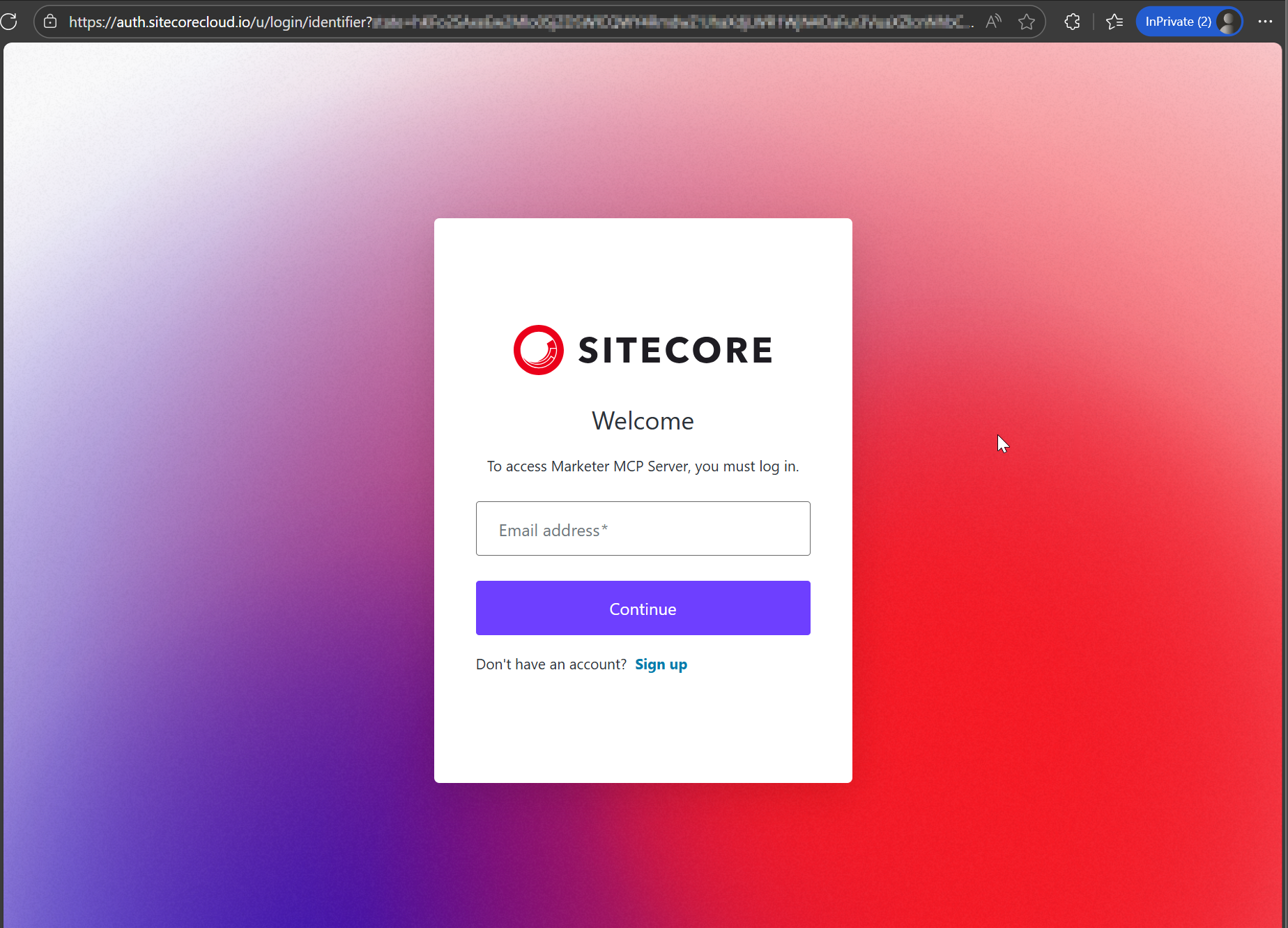
    • This will prompt you to login to your Sitecore Cloud Portal
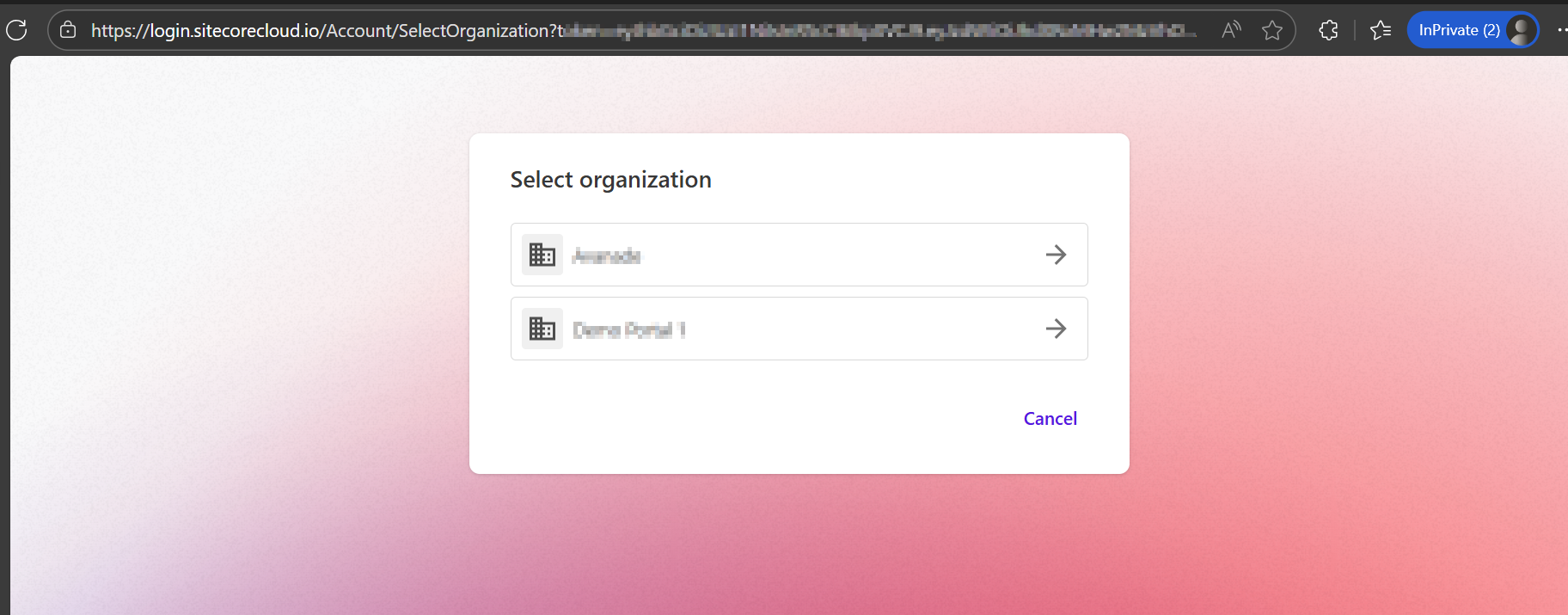
    • Then select the organization and tenant you want to use when interacting with the MCP server (as per screenshot below)
  • Return to the Add tool dialog in Copilot Studio. When it shows that you’re connected to the MCP server, click Add and configure.

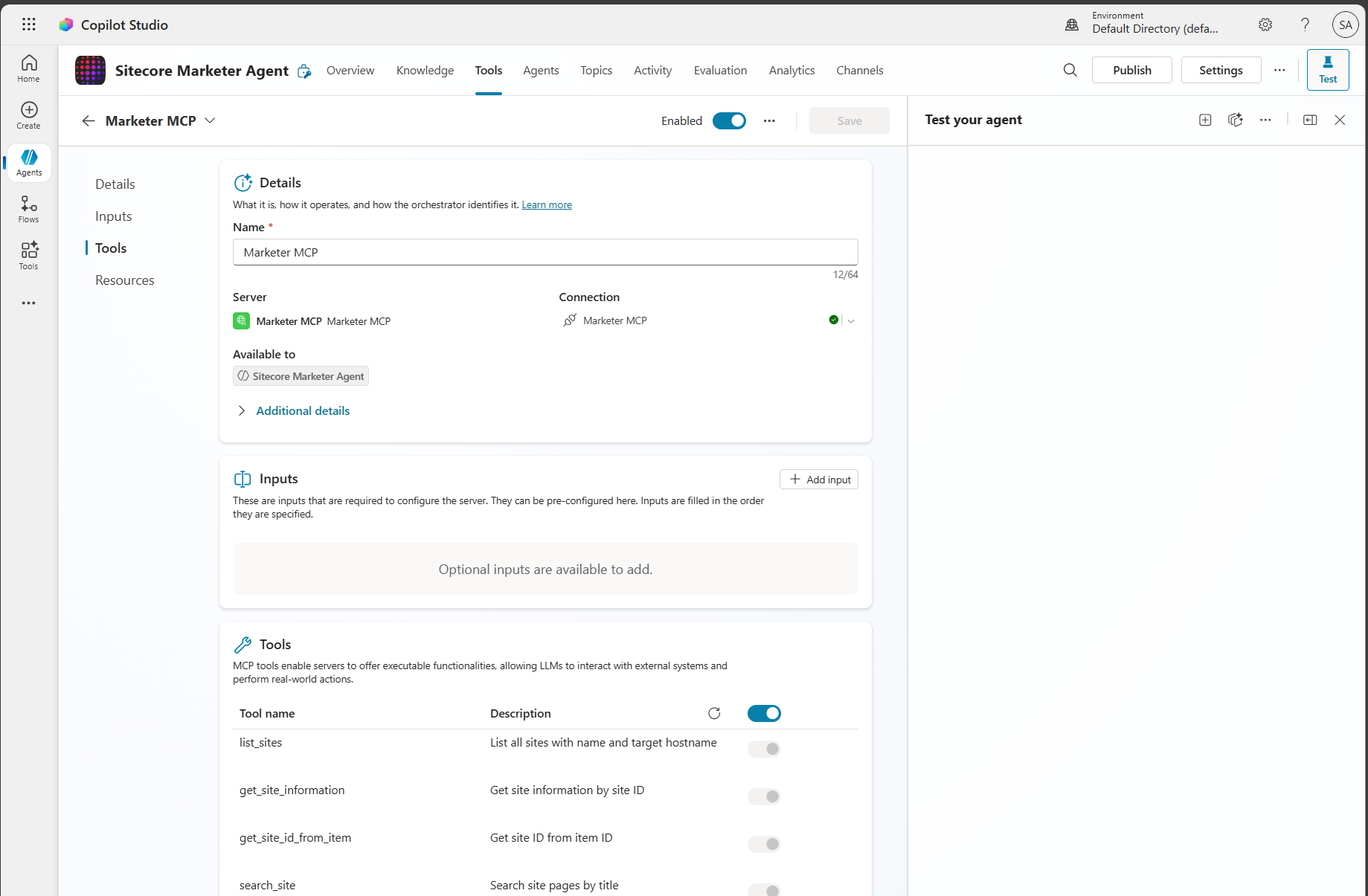
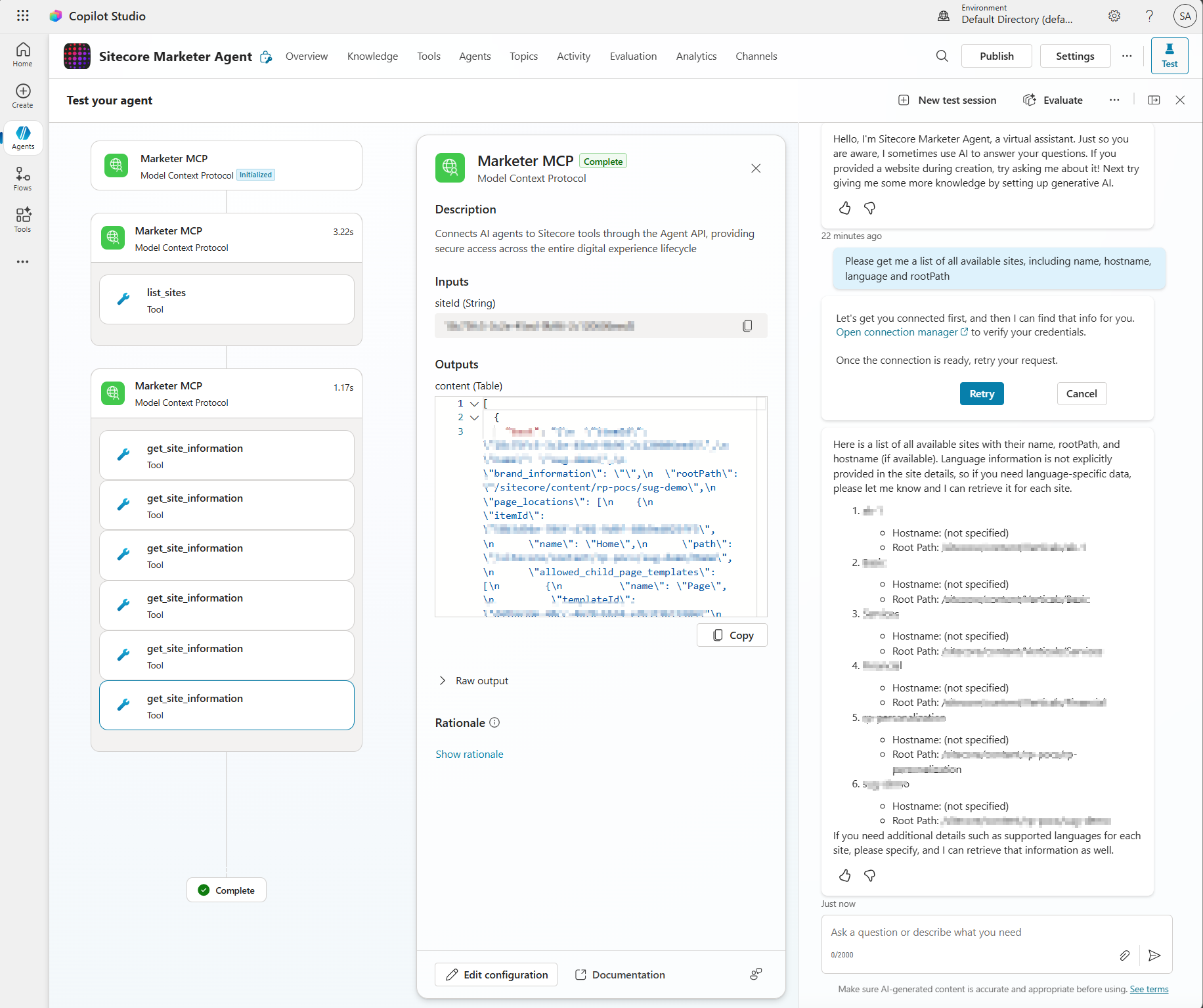
You should now see the Marketer MCP details and its tools enabled and ready to use. You can begin entering prompts to interact with Sitecore through the MCP.

Step 3 – Get prompting

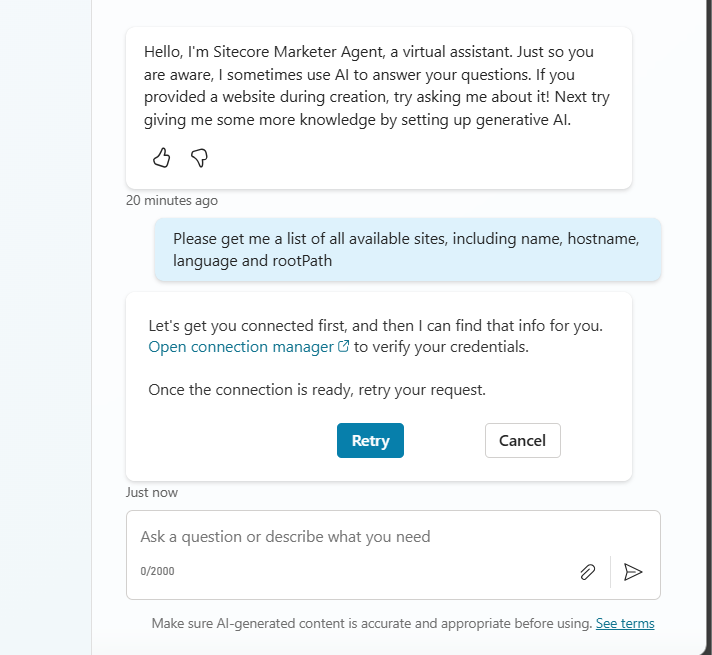
From your Copilot prompt text area, you can now use natural language to prompt and perform actions in SitecoreAI. The first time you write a prompt, you may see a connection warning message shown below.

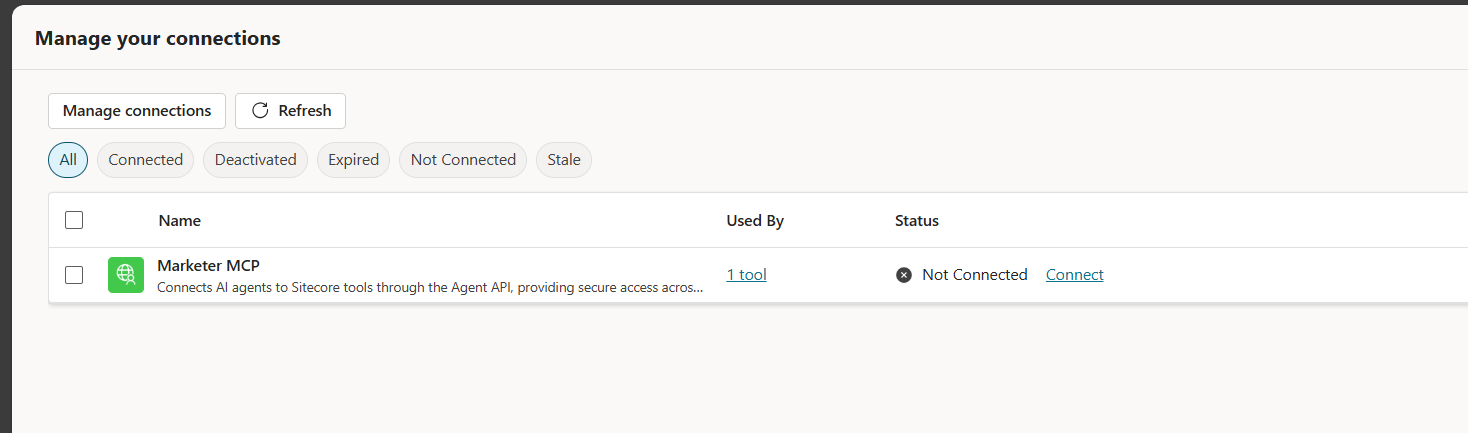
Simply follow the Open connection manager link to get connected. The link will open the dialog shown below

Click on Connect link. You will now get a response from your Sitecore AI as shown below.

Troubleshooting

You may come across some issues when establishing the connectivity into Marketer MCP from Copilot Studio. Below are the issues I encountered and how I resolved them.

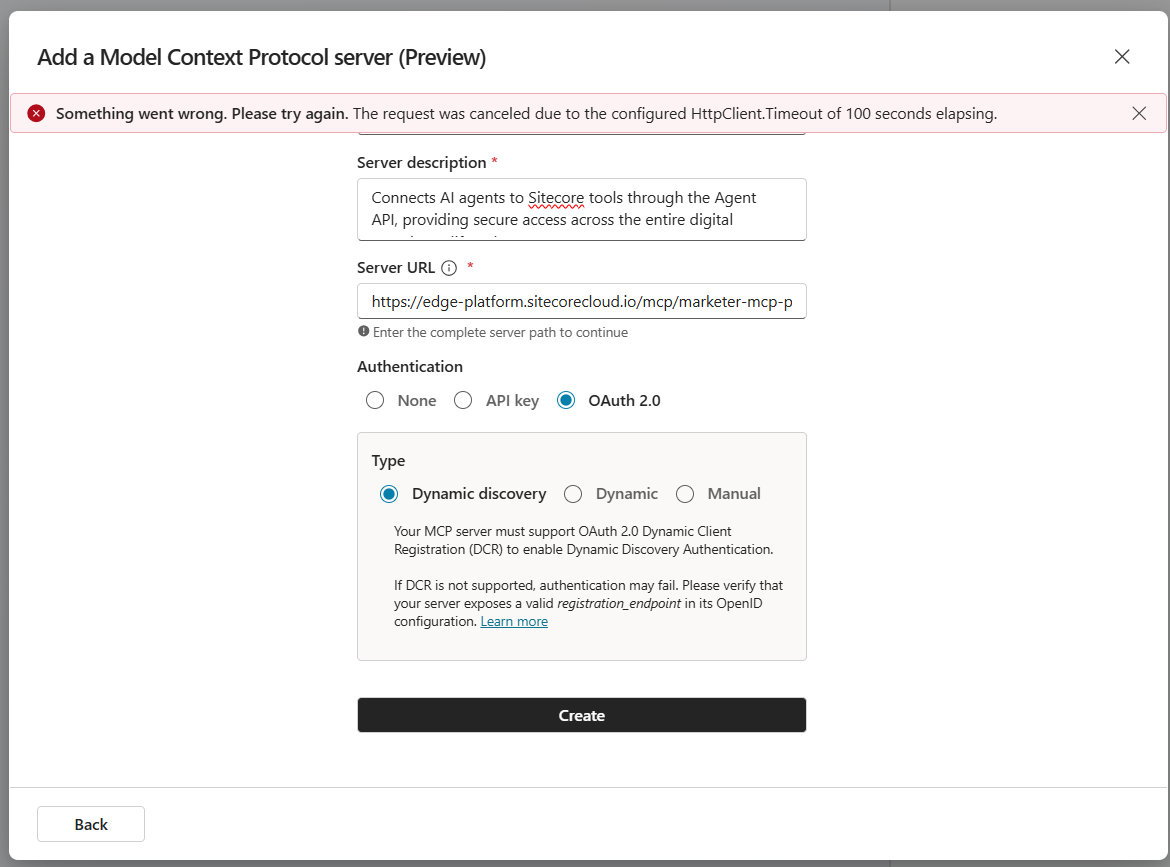
Issue 1: Timeout error

I got this error when Creating the connection:

Issue 1 Resolution:

I simply repeated that step for the second time and issue was resolved

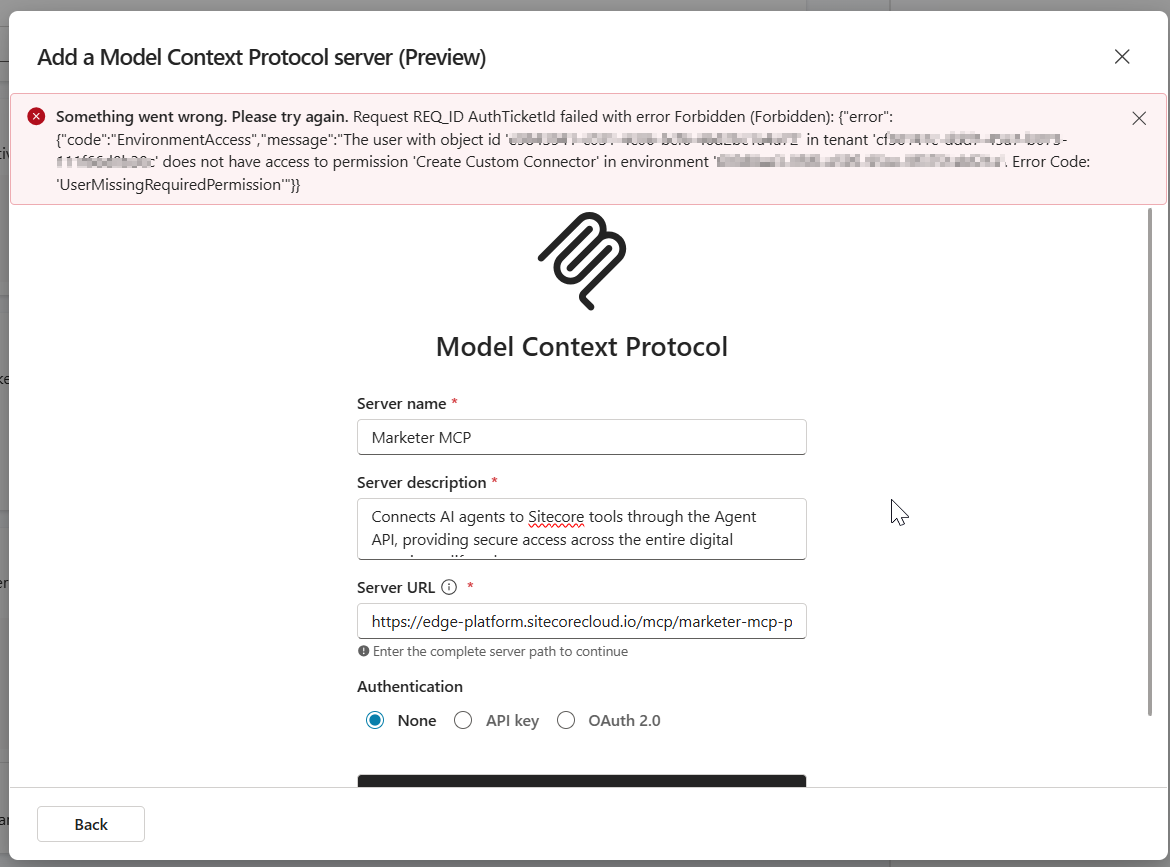
Issue 2: Environment Access permission error

The error below may occur when your Copilot Studio account doesn’t have access permissions to create a custom connection

Issue 2 Resolution:

Work with your ITS teams to provision the correct level of needed access in Copilot Studio

Next steps

In this blog post, we looked at a step-by-step guide on how to set the Marketer MCP integration with Microsoft Copilot Studio. We looked at potential connectivity issues that you may encounter and how to resolve them to get it working.

The Marketer MCP provides tools to create content, manage campaigns, run marketing automation, and handle content management. This is an evolving tool and remember to check latest updates from Sitecore.

The Marketer MCP is only reliable for the supported use cases listed here. Responses outside this scope have not been validated by Sitecore and might be inaccurate.

SitecoreAI docs

Stay tuned for future posts, feel free to leave us comments and feedback as well.

Everything AI – RAG, MCP, A2A integration architectures

Context

In this blog post, we are going to explore Agentic AI prominent integration architectures. We are going to discuss RAG, MCP and A2A architectures. If you are not familiar with these terminologies, don’t worry as you are in good company. Let us begin with how we got here in the first place.

What is an Agentic AI?

An AI agent is a system designed to pursue a goal autonomously by combining perception, reasoning, action, and memory. Often built using a large language model (LLM) and integrated with external tools. These agents perceive inputs, reason about what to do, act on those plans, and whilst also remembering any past interactions (memory).

We will now expound more on some of the key words below:

  • Perception – this is how your agent recognises or receives inputs such as a user prompt or some event occurring
  • Reasoning – this is the capability to break down a goal or objective into individual steps, identify which tools to use and adapt plans. This will usually be powered by an LLM
  • Tool – is any external system the agent can call or interact with, such as an API call or a database
  • Action – is the execution of the plan or decision by the agent, the act of sending an email for example, or submitting a form. Agent will perform the action leveraging the tools

What is Retrieval Augmented Generation (RAG)?

Carrying on with our AI agent conversation, suppose we need to empower our agent with deep, factual knowledge of a particular domain. Then RAG is the architectural pattern to use. As an analogy, think of RAG as an expert with instant access to your particular domain knowledge.

This pattern allows us to connect an LLM to an external knowledge source, which is typically a vector database. Therefore, the agent’s prompts are then “augmented” with this more relevant, retrieved data before the final response is generated.

Key benefit

With RAG, agents drastically reduces “noise” or “hallucinations” ensuring that the responses and answers are based on specific and latest domain knowledge or enterprise data

Some use cases

  • Q&A scenarios over Enterprise Knowledge – think of an HR agent that answers employee questions by referencing HR policy documents. Ensures the answers are accurate and citations of policies
  • Legal Team agent – that analyses company data rooms, summarizing risks and cross-referencing findings with internal documents and playbooks

What is Model Context Protocol (MCP)?

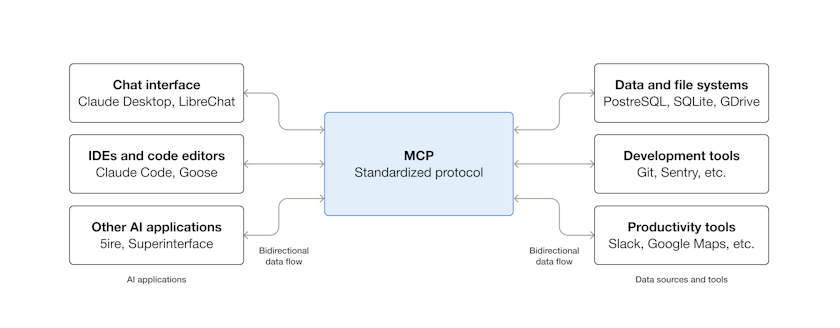
MCP is an open-source standard for connecting AI applications to external systems. As an analogy, think of MCP as a highly skilled employee who knows exactly which department (API) to call for a particular task.

MCP architecture, adapted from: https://modelcontextprotocol.io/docs/getting-started/intro

This is an emerging standard for enabling agents to discover and interact with external systems (APIs) in a structured and also predicable manner. It is like a USB-C for AI agents

Key benefit

MCP provides a governable, secure and standardized way for our agents to take action and interact with enterprise systems, doing more and going beyond simple data retrieval as in the use cases for RAG

Some use cases

  • Self-service sales agent – think of a Sales agent that allows a salesperson to create a new opportunity in a company CRM, then set up and add standard follow-up tasks as required. The agent does discovery of available CRM APIs, understand the required parameters and executes the transactions securely.
  • An accounting agent – think of automated financial operations where upon receiving an invoice in a email inbox, the agent calls the ERP system to create a draft bill, match it to Purchase Order and schedule a payment.

What is Agent-to-Agent (A2A)?

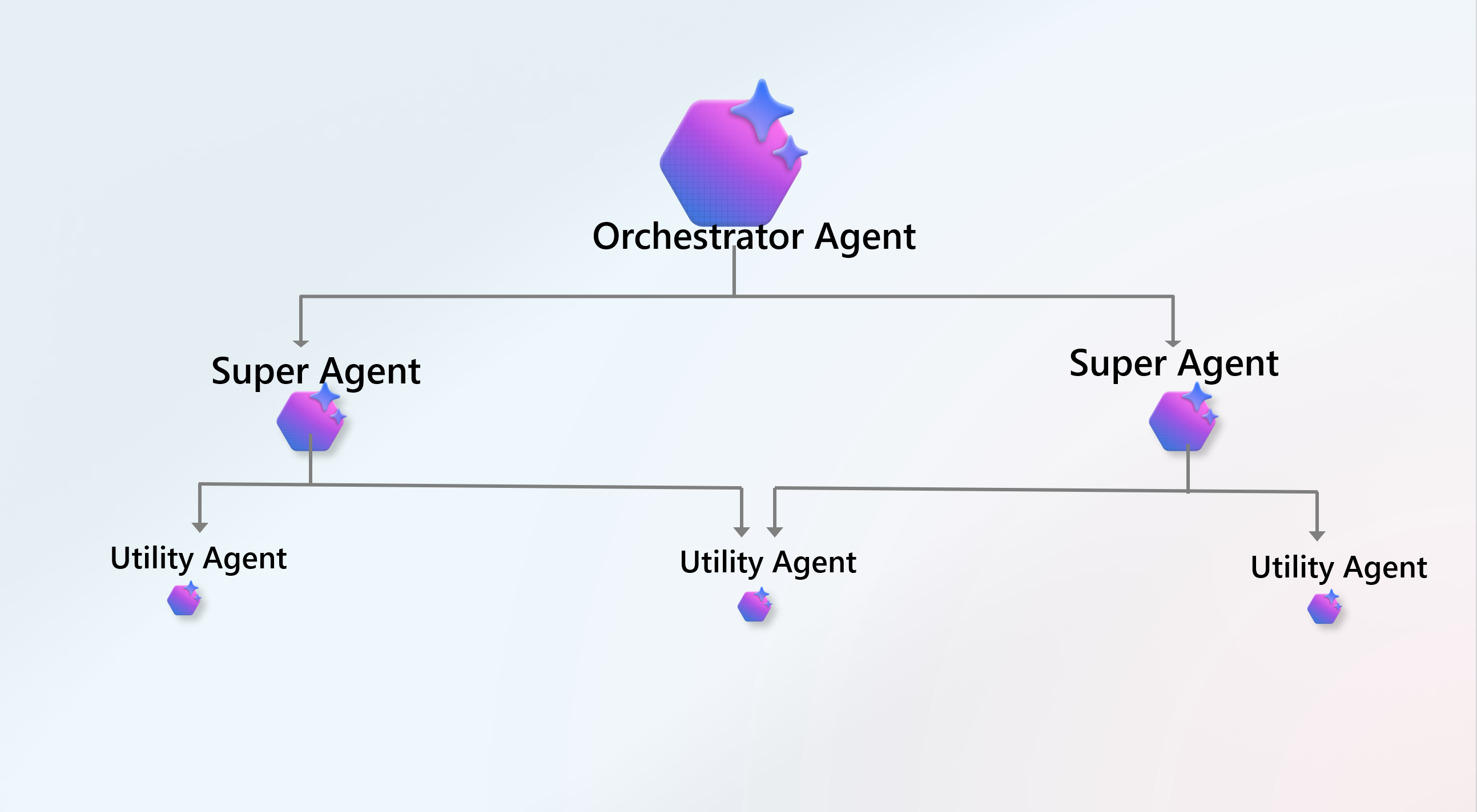
This does what is says on the tin. Multiple, specialized or utility agents collaborate to solve a problem that is too complex for a single agent. The graphic below illustrates this collaboration. As an analogy, think of a team of specialists collaborating on a complex project.

Key benefit

A2A enables tackling highly complex, multi-domain problems by leveraging specialized skills, similar to a human workforce.

Some use cases

  • Autonomous product development team – think of an autonomous product development teams consisting of “PM agent”, “Developer agent”, “QA agent” all working together. PM writes specs, Developer writes code and QA tests the code, iterating until a feature is completed. Specialization means agents can achieve higher quality of outputs at each stage of a complex workflow.

So which is it, RAG, MCP or A2A?

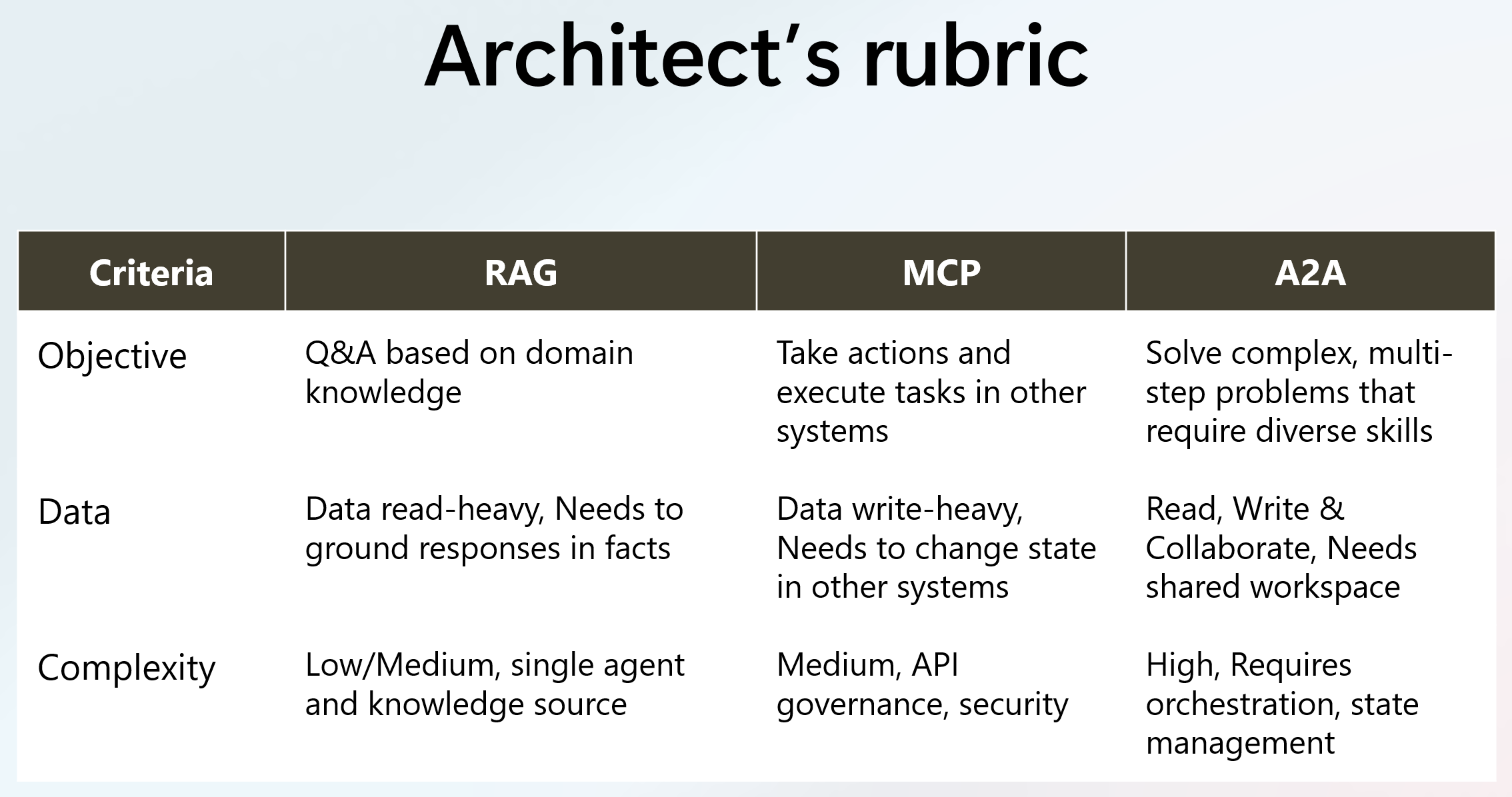
As architects we often rely on rubrics when we need to make architectural decisions. With Agent AI solutions, you can use a set of guidelines that best helps you assess the business domain problem and come up with the right solution. Below is an example rubric to help with your assessments and criteria when to leverage RAG, MCP or A2A.

Start with a goal

Agentic AI solutions are not any different. There is no “one size fits all” solutions. Always start with a goal, business objective so you can map the right Agentic AI solution for it. Sometimes Agentic AI many not be the right solution at all, don’t just jump on the bandwagon.

Trends and road ahead

Agentic AI is at very early stages and expect more emergence patterns in coming days and months. We may need to combine RAG and MCP and leverage a hybrid approach to solving AI problems. We already seeing the most valuable enterprise agents are not pure RAG or MCP but a hybrid.

Next steps

In this blog post, we looked at prominent integration architectures in this age of Agent AI. We explored RAG, MCP and A2A architectural patterns. We also looked at some of the use cases for each as well as key benefits we get from each pattern. We finished with a sample architecture rubric that can be leveraged.

Stay tuned for future posts, feel free to leave us comments and feedback as well.

Everything Sitecore AI and value to marketers – part two

Context

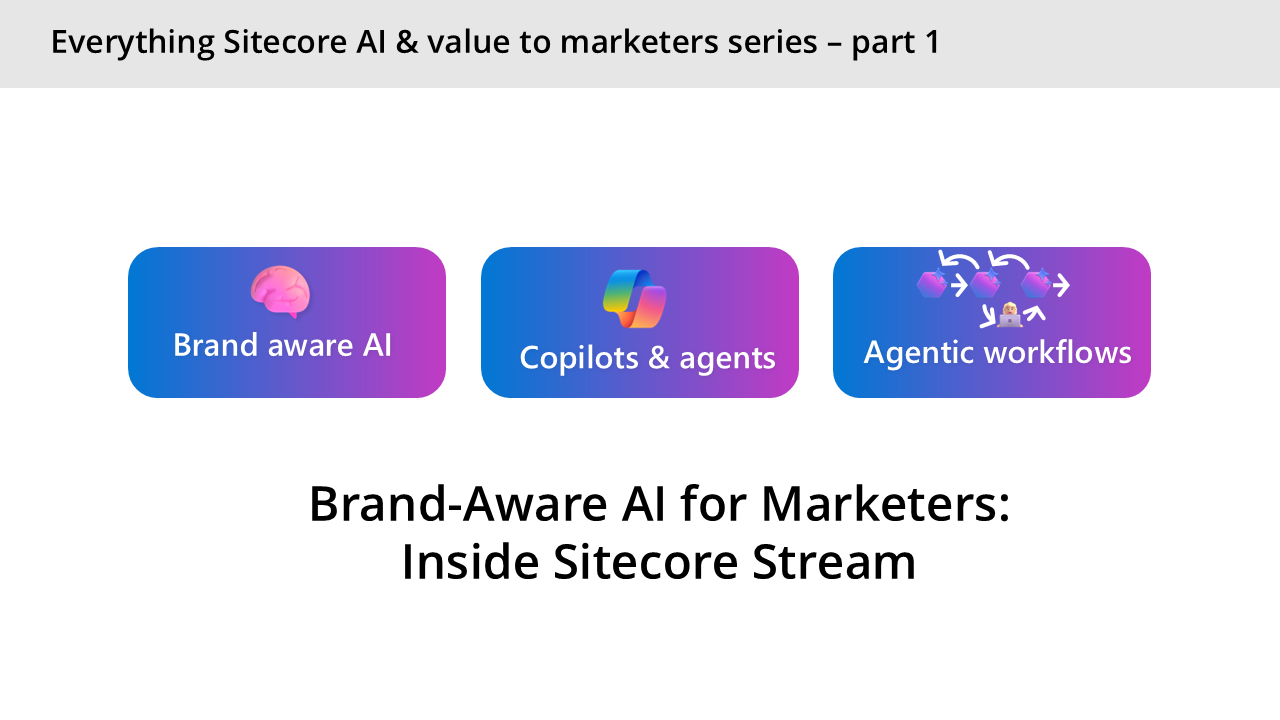
Welcome to part two of  this series about Everything Sitecore AI and value to marketers. In the previous session, we introduced Sitecore Stream and looked at the three main features: Brand aware AI, Copilots & agents and Agentic workflows.

In this blog post, we will explore further How the Brand Aware AI works, by looking at the architecture of Agents and how we bring them to life in our Stream Brand Assistant agent. There is also an accompanying video series on my YouTube channel.

What is an agent?

An agent is simply a software service that uses AI to assist users with information and task automation: An agent does a task, Take this do it and let me know when you are done.

We have three main elements on an Agent, as shown in the architecture below:

  1. Model – We now have access many Large Language Models and Small Language models that does the thinking
  2. Knowledge – This is the Instructions, data sources that enable the agent to ground prompts with Contextual data
  3. Tools –  A set of tools that agents can invoke such as retrieving information, Actions such as making API calls, and keeping a thread in memory of current conversation. You can also create custom tools using your own code or Azure Functions

How Brand Assistant agent works

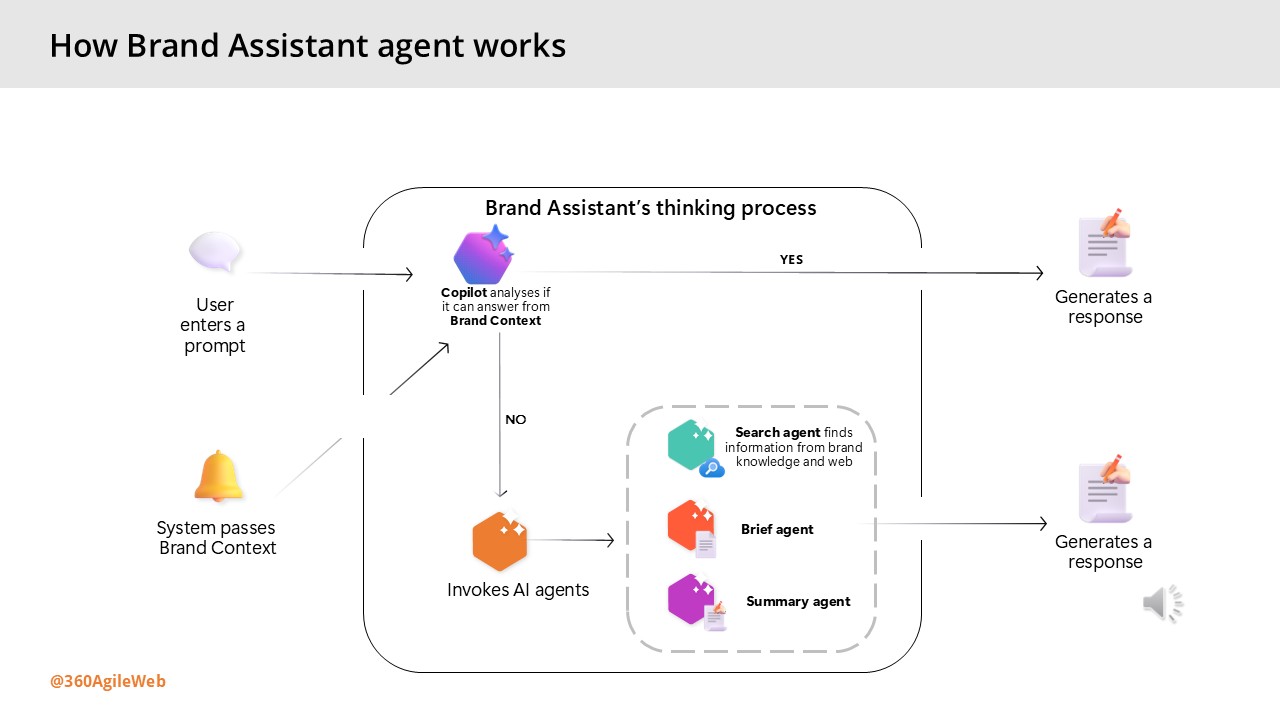
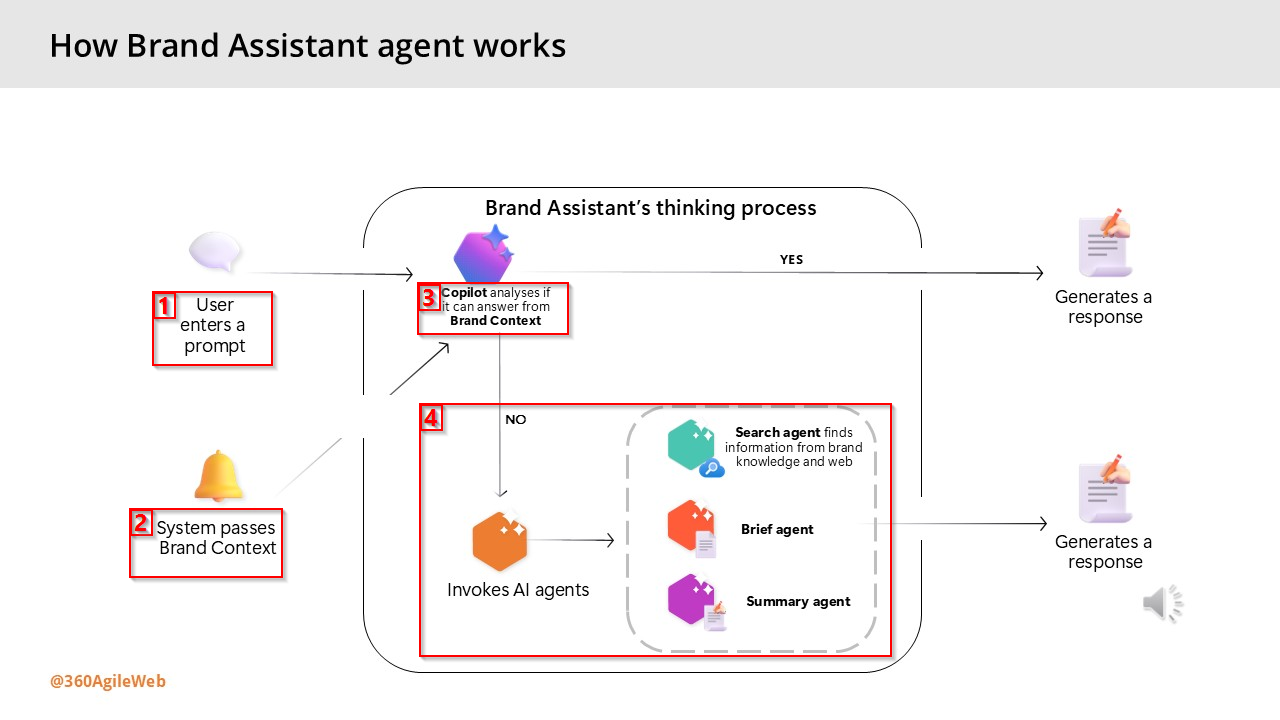
Below are the steps involved when interacting with the Brand Assistant within Sitecore Stream:

  1. The user enters a prompt – the user enters a prompt in Brand Assistant – such as a question or an instruction as shown during the demo by Alessandro earlier.
  2. The system passes information from the Brand Context – the system automatically provides information from the Brand Context brand kit section as a system prompt.
  3. Copilot analyzes if it can answer from Brand Context – the thinking process begins. The Brand Assistant evaluates whether the information passed from the Brand Context alone is enough to answer the prompt.
  4. Based on the analysis, the process continues in one of two ways:
    • Generate a direct response – if the Brand Context provides sufficient information, the Brand Assistant generates a direct response using only that content.
    • Invoke other AI agents – if the Brand Context doesn’t answer the prompt and more information is needed, the Brand Assistant automatically activates one or more AI agents to search and organize the information and generate a response:
      • Search agent – uses tools to find information from your brand knowledge, web searches, or both.
      • Brief agent – activated only when the user specifically requests a campaign or creative brief
      • Summary agent – condenses all retrieved information into a concise, relevant response.

Next steps

Have you started using Sitecore Stream with your Sitecore products yet? You can reach out to Sitecore directly by filling in the ‘Sitecore Steam: Get Your Demo’ form on their website. You can now access our YouTube video series accompanying the blog posts, which is available to watch on demand.

You can also get started integration Sitecore Stream Brand Management APIs with your solution by following this step-by-step guide.

Stay tuned for future posts, feel free to leave us comments and feedback as well.

Everything Sitecore AI and value to marketers part one

Context

As generative AI continues to evolve and become more deeply embedded in our digital landscape, its applications have expanded well beyond simple chat interfaces. Today, these models are powering intelligent agents capable of autonomously executing complex tasks and streamlining operations.

Forward-thinking organizations are now harnessing this potential to build AI-driven agents that orchestrate business processes and manage workloads in ways that were once out of reach.

In this post, we’ll take a closer look at how Sitecore is embracing this shift—leveraging Brand-Aware AI to transform the way enterprise marketing teams operate. There is also an accompanying video series on my YouTube channel.

Some of pain points that marketers face today

Before we look at how Sitecore are leveraging AI with Sitecore Stream, let me set  the context around some of the pain points that marketers face today:

  1. Keeping brand consistency – challenges around keeping their brands aligned with latest trends, efficiently improving previous campaigns & briefs, assets to keep a consistent brand tonal voice
  2. Taking longer time to make decisions – challenges around decision making turnaround time due to manual processes and large volumes of content and material that needs reviewing as part of the creative process
  3. Availability of robust Self-Serve tools –  challenges around lack of tools for efficient task planning, content supply chains, moving faster removing blockers and having more control
  4. Generic AI/ChatGPT has gapsChatGPT or similar generic AI products are not specific to marketers

What is Sitecore Stream

To address these challenges, Sitecore has taken steps to introduce AI-Driven marketing by creating Sitecore Stream. Sitecore Stream is the way Sitecore are infusing AI capabilities across their products.

Sitecore Stream consists of three components: Brand-aware AI, Copilots & agents and Agentic workflows, as discussed below.

Brand-aware AI

This is what powers Sitecore AI tools to generate content that reflects your brand’s identity. This is made possible by a foundational understanding of your brand called brand knowledge. In the next slide, I will show in detail how this brand knowledge is created in Sitecore Stream.

Brand-aware AI enables marketers to create high-quality content faster, by combining deep brand knowledge with real-time Web insights to generate outlines and long-form drafts in seconds.

Copilots and agents

These are the AI assistants designed to increase marketers’ productivity by speeding up decision-making and task execution. Copilots are for humans, Agents are for processes. Copilot is the UI for AI – the chat based interface is where you can ask specific questions about your brand. Better still, you can actually brainstorm with AI, e.g. you want to create new content for blog post or a campaign brief.

Agentic workflows

These are advanced tooling to orchestrate tasks and streamline marketing project management across teams. This capability enables you to discover gaps in your campaigns and reduce planning time with help of AI that understands  your brand and project context.

You can essentially ideate & plan entire campaign with help of AI. AI will recommend key top deliverables to bring your campaigns to life and recommend tasks to get them completed within seconds. Providing full agentic experiences to marketing campaigns, which human-in-the-loop too keep or discard suggestions

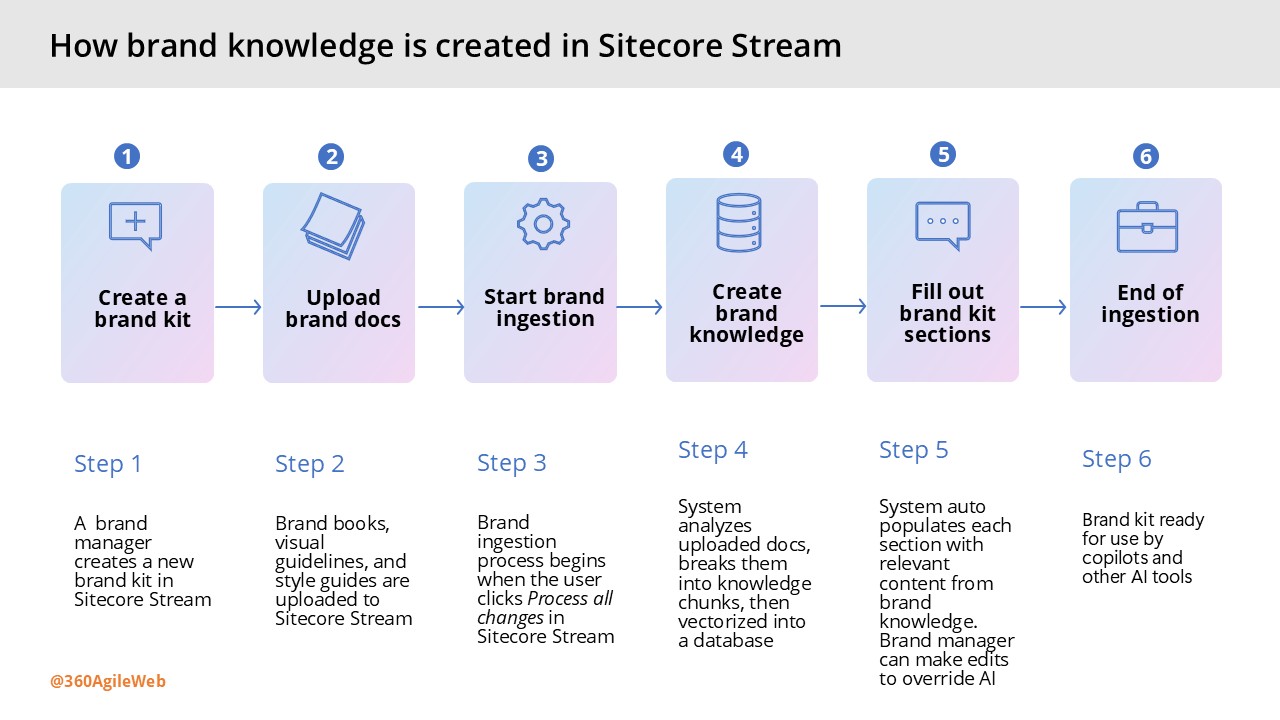
How to create your brand knowledge in Stream

This involves a 6-step process as outlined in the infographic shown below. If you are managing a multi-brand enterprise, you can repeat this process for each of your separate brands. Essentially creating multiple brand kits within Sitecore Stream.

Next steps

Have you started using Sitecore Stream with your Sitecore products yet? You can reach out to Sitecore directly by filling in the ‘Sitecore Steam: Get Your Demo’ form on their website.

I have also created a YouTube video series accompanying the blog posts, which is available to watch on demand.

Stay tuned for future posts, feel free to leave us comments and feedback as well.