Sitecore Content Hub DevOps: New Import/Export engine with breaking changes is now default

Context and background

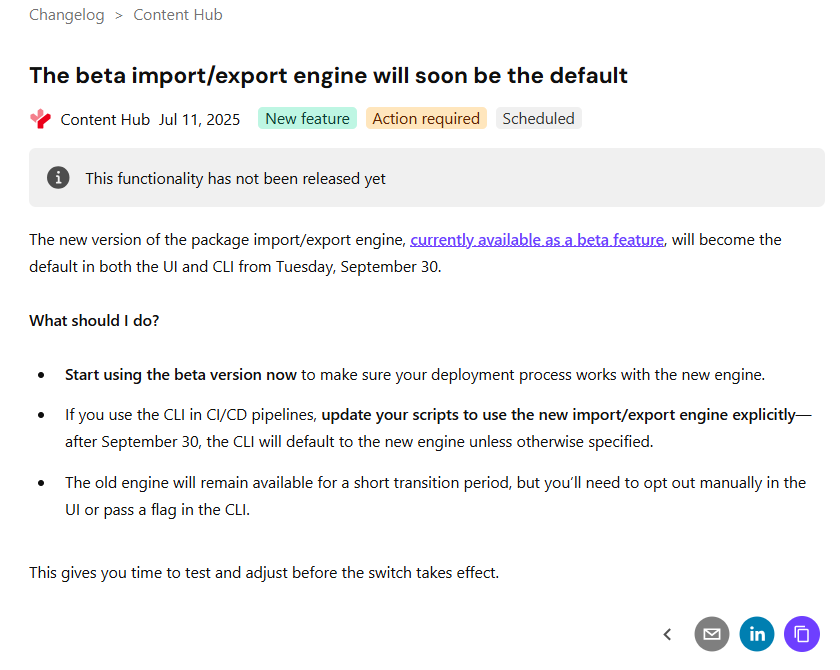
If you already using DevOps for deployments with your Content Hub environments, then you probably already aware of the breaking change that Sitecore introduced a few months ago. You can read the full notification on the Sitecore Support page The new version of the package import/export engine become the default in both the UI and CLI from Tuesday, September 30 according to the notification. Because of the breaking changes introduced, this means existing CICD pipelines won’t work. In fact, there is a high risk of breaking your environments if you try use existing CICD pipelines without refactoring.

In this blog post, I will look into details what breaking changes were introduced and how to re-align your existing CICD pipelines to work with the new import/export engine.

So what has changed in the new Import/Export engine?

Below is a screenshot from the official Sitecore docs summarizing the change. You can also access the change log here.

There is no further details available from the docs on specifics of the breaking change. However, it is very straightforward to figure out that Sitecore fundamentally changed the package architecture in the new import/export engine.

Resources are grouped by type

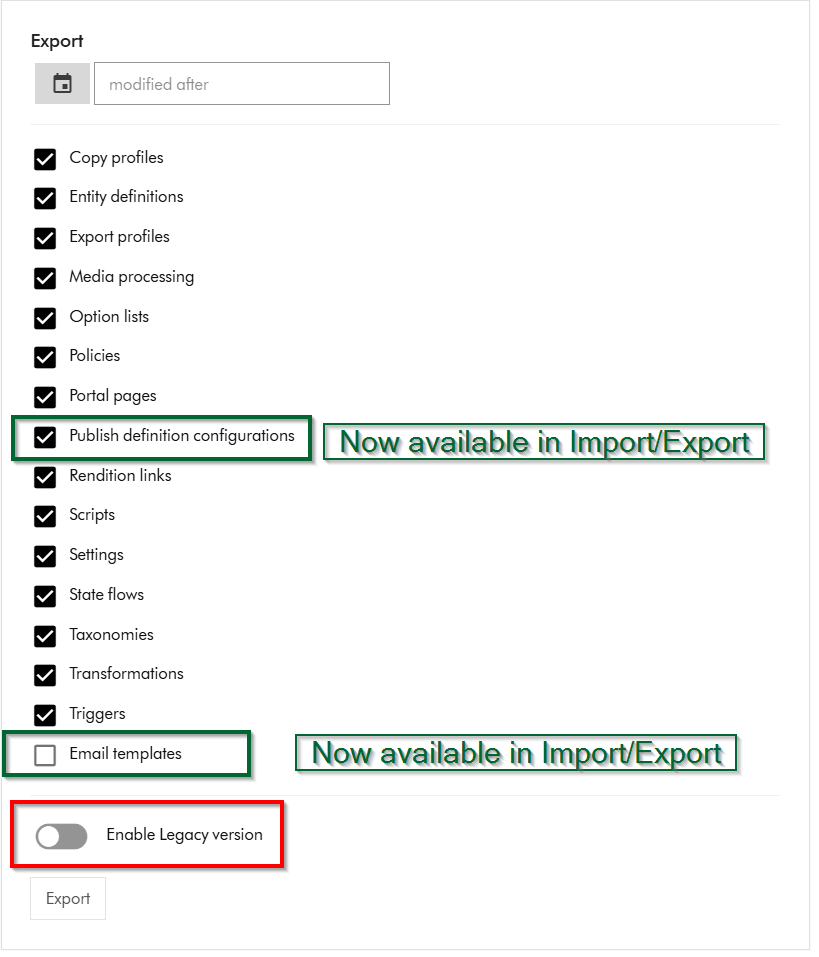
Within Sitecore Content Hub Import/Export UI, you have an option to Export components using both the previous/legacy engine and the new engine. As shown below, you can notice a toggle for Enable Legacy version, which when switched on will allow you to export a package with previous/legacy engine.

Also we can note that Publish definition configurations and Email templates are now available for Import/Export with the new engine. Email templates are unchecked by default.

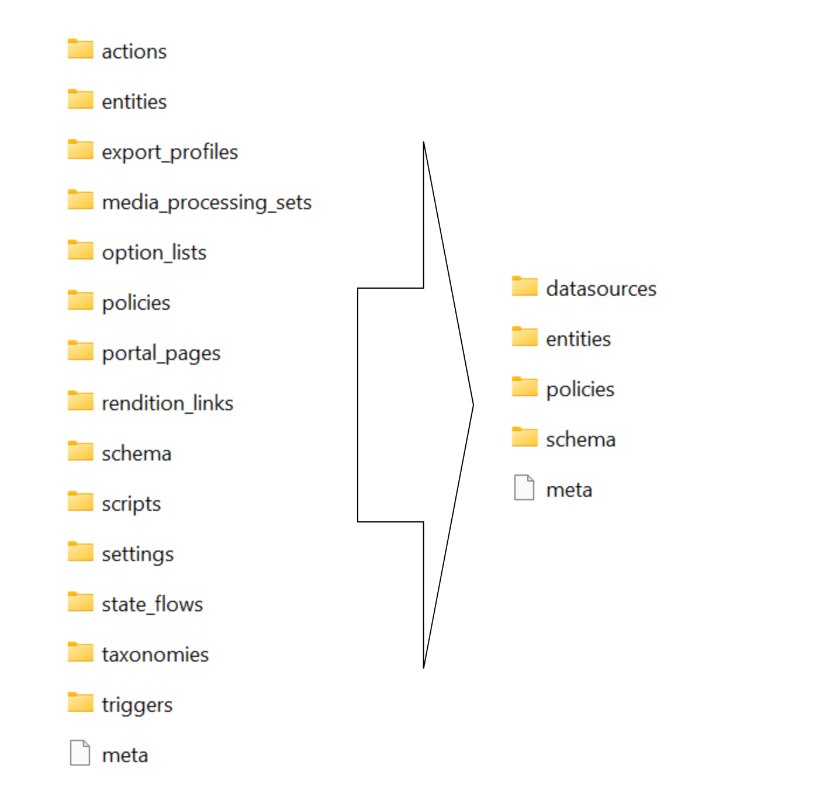
If you did a quick comparison between the export package from the old/legacy engine vs the new engine, it comes clear that Sitecore has updated the packaging structure to organise content by resource type rather than by export category

This change makes navigation more straightforward and ensures greater consistency throughout the package.

Summary of the changes between legacy and new export packages

Below is a graphic showing how the package structure was changed. On the left hand-side, we have the legacy/old package and on the right hand side is the new one.

Full comparison of package contents between old and new

Below is a more detailed comparison, showing how the packages differ.

ComponentLegacy package sub foldersNew package sub folders
Copy profilescopy_profilesentities
Email templatesn/aentities
Entity definitionsentities
schema
option_lists
datasources
entities
schema
Export profilesexport_profilesentities
Media processingmedia_processing_setsentities
Option listsoption_listsdatasources
Policiespoliciesdatasources
entities
policies
schema
Portal pagesentities
portal_pages
datasources
entities
policies
schema
Publish definition configurationsn/aentities
Rendition linksrendition_linksentities
Settingssettingsentities
State flowsstate_flowsdatasources
entities
policies
schema
Taxonomiestaxonomiesdatasources
entities
schema
Triggersactions
triggers
entities
Scriptsactions
scripts
entities

Resources are grouped by type

Instead of separate folders like portal_pages, media_processing_sets, or option_lists, the new export engine places files according to their resource type. ​

For example:​

  • All entities are stored in the entities/ folder.​
  • All datasources (such as option lists) are found in datasources/ folder​
  • Policies and schema files have their own dedicated folders.​

Each resource is saved as an individual JSON file named with its unique identifier.

Related components are now separated

When a resource includes related items—such as a portal page referencing multiple components—each component is now saved in its own JSON file. ​

These files are no longer embedded or nested under the parent resource. ​

Updating your CICD pipelines

It is very straight forward to update you existing CICD pipelines once we have analysed and understood the new package architecture. You can revisit my previous blog post where I covered this topic in detail You need to simply map your previous logic to work with the new package architecture. You will also need to re-baseline your Content Hub environments within your source control so that you are using the new package architecture.

Next steps

In this blog post, I have looked at the new Content Hub Import/Export engine. I dived into how you can analyse the packages produced from the legacy/old engine and compared it with the new engine. I hope you find this valuable and the analysis provides a view of what has changed in the new package architecture.

Please let me know if you have any comments above and would like me to provide further or additional details.

Step-by-step guide to integrating with Sitecore Stream Brand Management APIs

I previously blogged about Sitecore Stream Brand Management and looked at a high level architecture on how the Brand Kit works under the hood. Today, I continue this conversation and look at a more detailed step-by-step guide on how you can start integrating with the Stream Brand Management APIs.

As a quick recap, Sitecore have evolved the Stream Brand Management to provide a set of REST APIs to manage life-cycle of the brand kit as well as getting a list of all brand kits. You can now use REST APIs to create a new brand kit, including sections and subsections, and create or update the content of individual subsections. You can also upload brand documents and initiate the brand ingestion process.

  • Brand Management REST API (brand kits, sections/subsections)
  • Document Management REST API (upload/retrieve brand documents).

These new capabilities opens opportunities such as allowing you to ingest brand documents directly from your existing DAM. You could also integrate them with your AI agents so that you can enforce you brand rules

Step 1 – Register and get Brand Kit keys

Brand Management REST APIs use OAuth 2.0 to authorize all REST API requests. Follow these steps below:

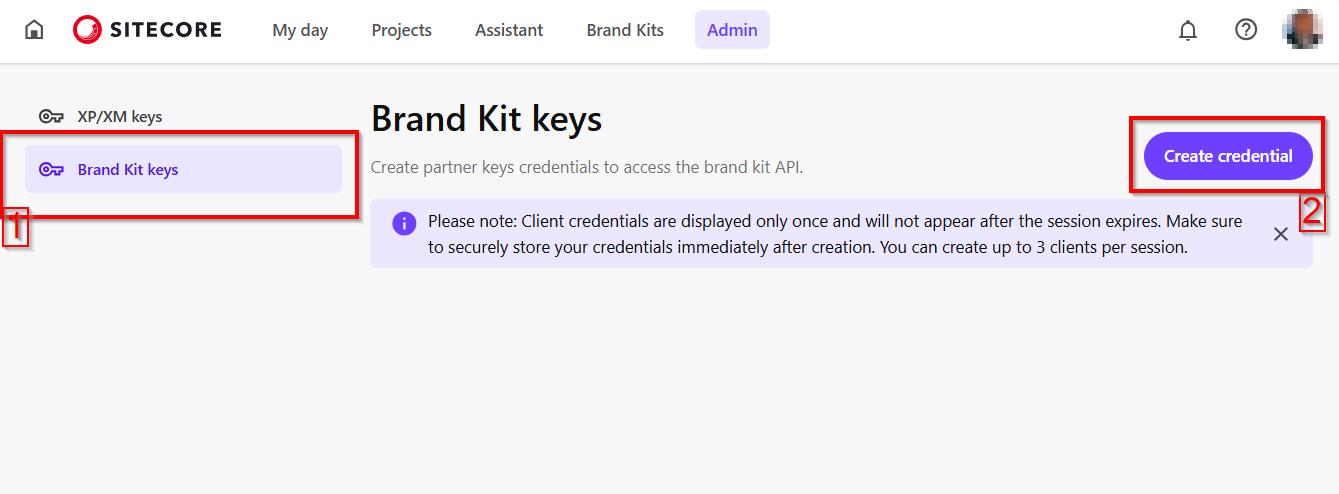
a) From your Sitecore Stream portal navigate to the the Admin page and then navigate to Brand Kit Keys section, as shown below.

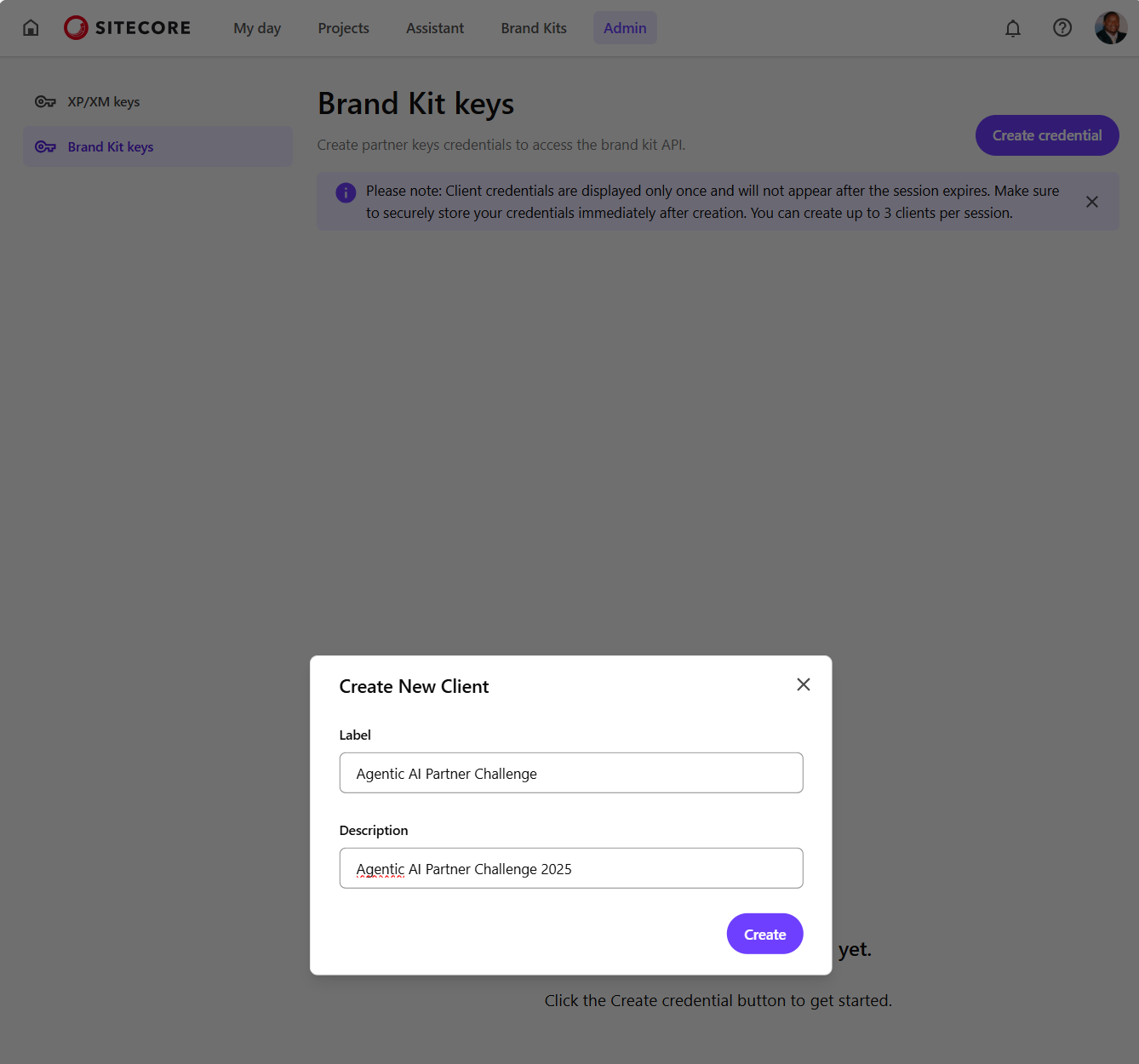
b) Then click on Create credential button which opens the Create New Client dialog similar to one shown below. Populate with the required client name and a description, then click on Create

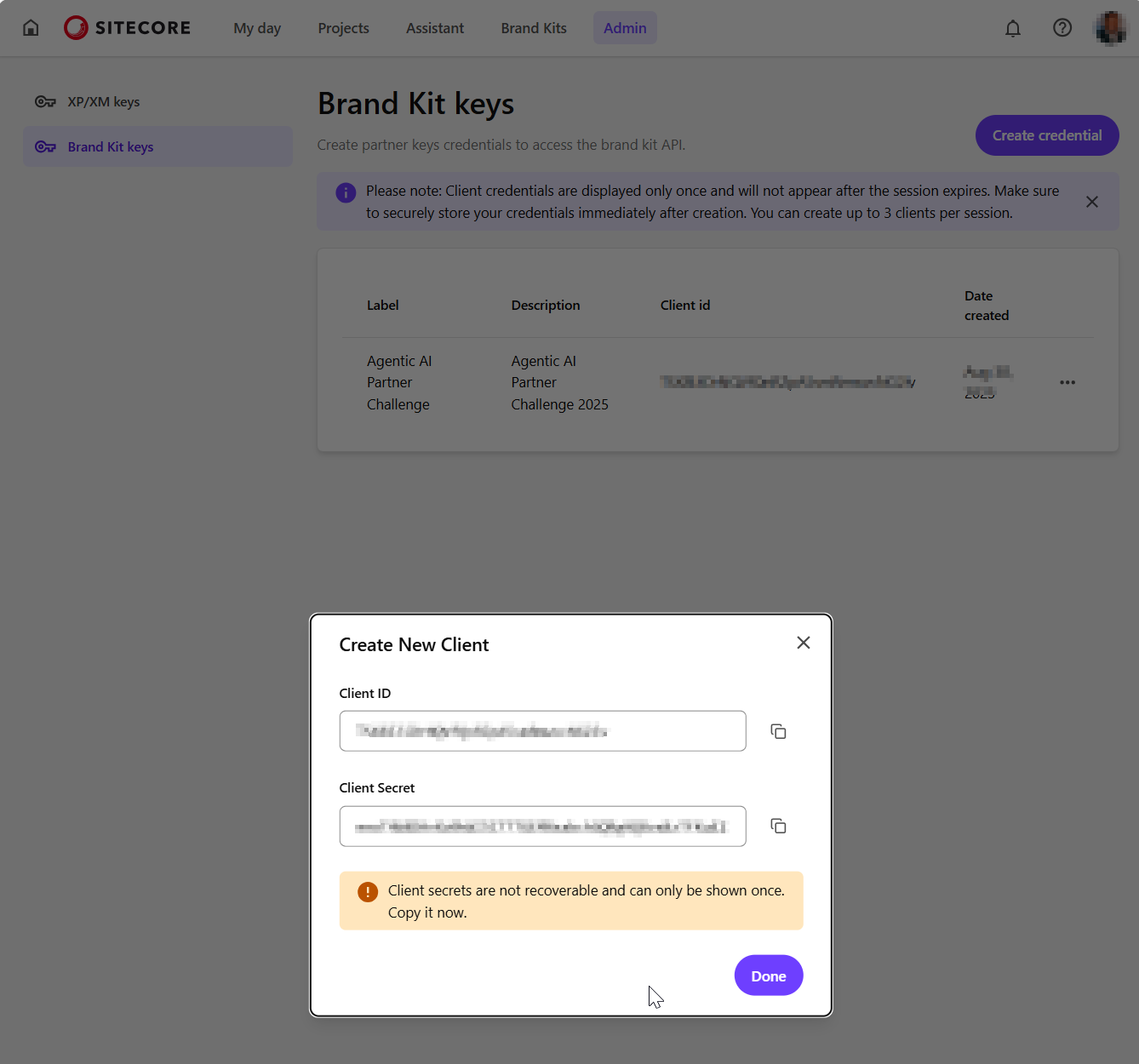
c) Your new client will be created as shown below. Ensure you copy the Client ID and Client Secret and keep them in a secure location. You will not be able to view the Client Secret after you close the dialog.

Step 2 – Requesting an access token

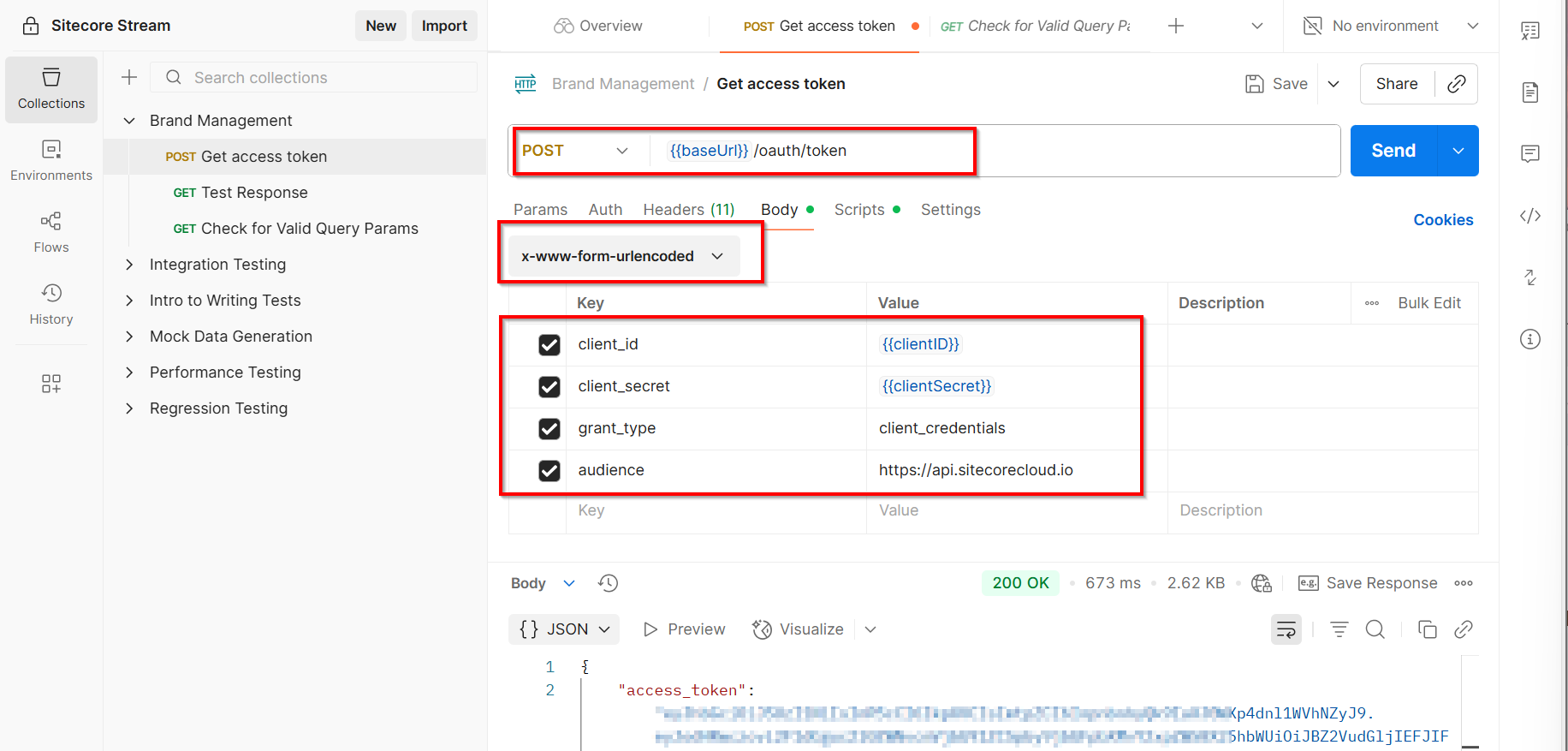
You can use your preferred tool to a request the access token. In the sample below, I am leveraging Postman to send a POST request to the https://auth.sitecorecloud.io/oauth/token endpoint.

  • client_id This is the Client ID from previous step
  • client_secret This is the Client Secret from previous step
  • grant_type This defaults to client_credentials
  • audience This defaults https://api.sitecorecloud.io

If successful, you will get the response that contains the access_token as shown below

  {
    "access_token": "{YOUR_ACCESS_TOKEN}",
    "scope": "ai.org.brd:w ai.org.brd:r ai.org.docs:w ai.org.docs:r ai.org:adminai.org.brd:w ai.org.docs:w ai.org:admin",
    "expires_in": 86400,
    "token_type": "Bearer"
  }

Step 3 – Query Brand Kit APIs

You can start making REST APIs securely by using the access token in the request header.

Get list of all brand kits

Below is a sample request that I used to get a list of available brand kits for my organisation. I am leveraging Postman to send a GET request to the https://ai-brands-api-euw.sitecorecloud.io/api/brands/v1/organizations/{{organizationId}}/brandkits endpoint.

You can get your organisationId from your Sitecore Cloud portal

https://portal.sitecorecloud.io/?organization=org_xyz

Full list of Brand Kit REST APIs

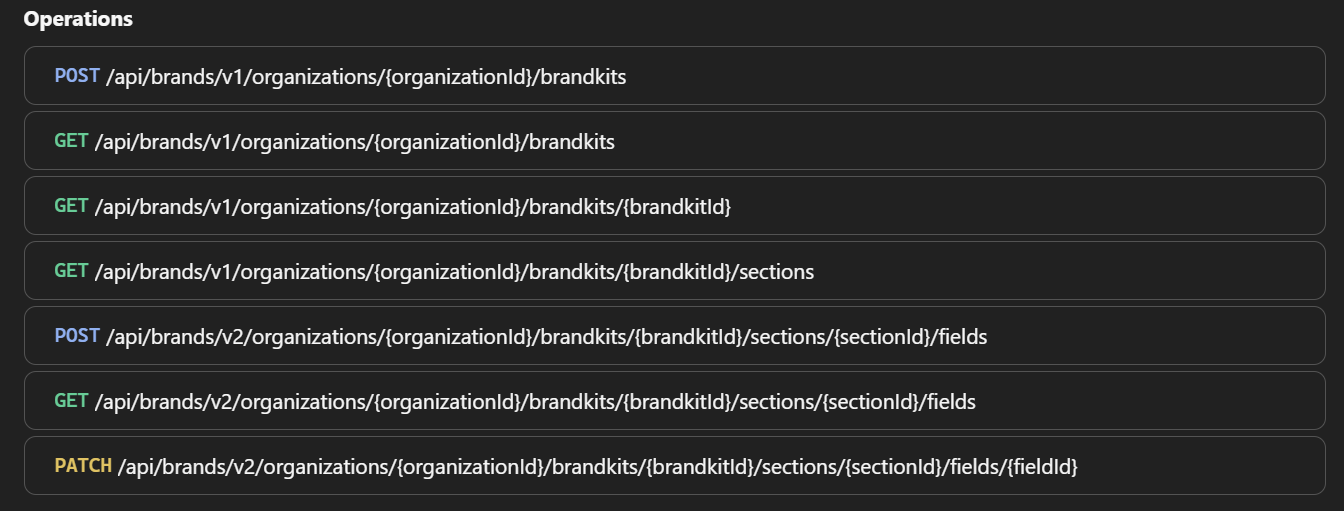
Sitecore API Catalog lists all the REST APIs plus sample code on how to integrate with them. Below is a snapshot of the list of operations at the time of writing this post:

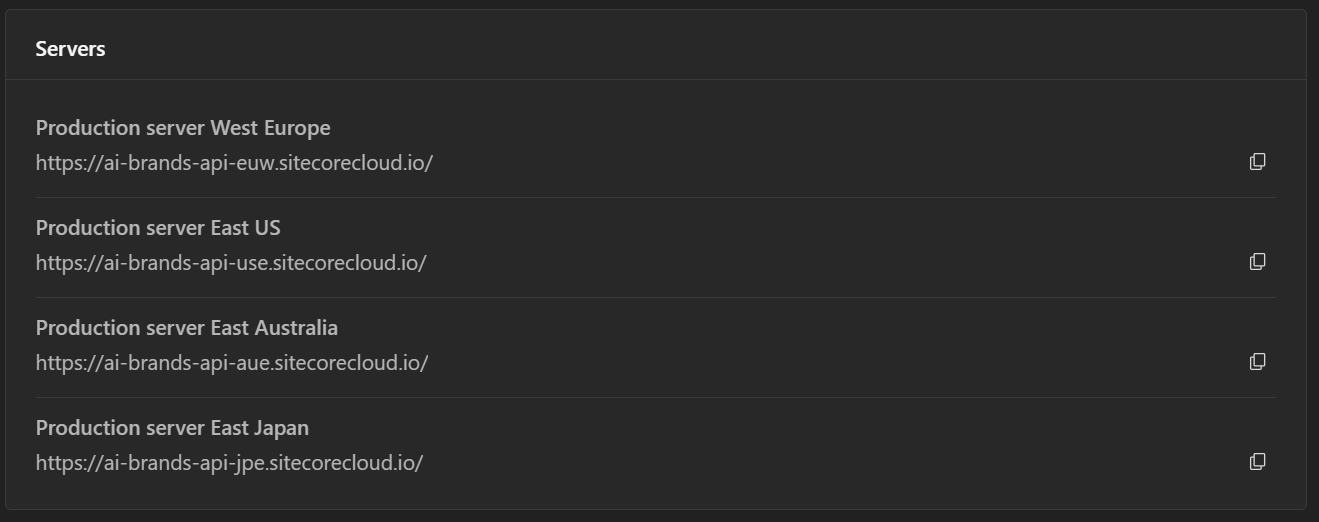
Ensure you are using the correct Brand Management server. Visit Sitecore API catalog for list of all the servers. Below is a snapshot of the list at the time of writing this post:

Next steps

Have you started integrating Sitecore Stream Brand Management APIs yet? I hope this step-by-step guide helps you start exploring the REST APIs so you can integrate them with your systems.

Stay tuned for future posts, feel free to leave us comments and feedback as well.

Content Hub DevOps: Resolving unable to delete entity because it’s being used in one or more policies errors

Context and background

Content Hub permissions and security model is underpinned by the user group policies model, whereby Content Hub users can perform actions based on their access rights. The official docs provides clear definition of the anatomy and architecture of the user group policies. For example, a user group policy consists of one or more rules, with each rule determining the conditions under which group members have permissions to do something.

While all the technical details of group policies are nicely abstracted away from our business users, there are use cases when you will need to in fact grapple with technical details of the policies. Such as when you can’t delete your taxonomies or entities, simply because you have used them in one or more rules in your policies.

In this blog post, I will outline this pain point and recommend a solution.

Unable to delete entity ‘…’ because it’s being used

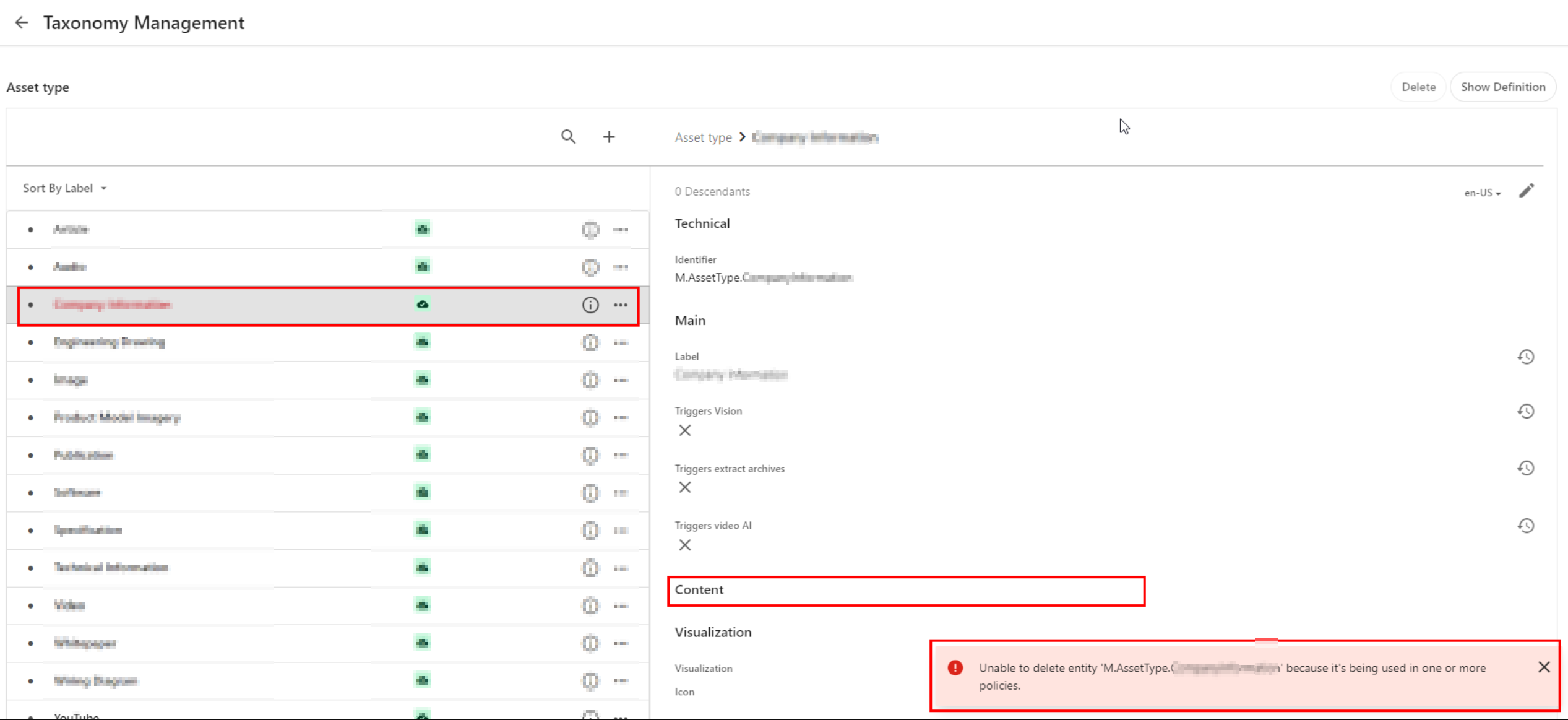
Yes that is right. If you have used a taxonomy value or some other entity as part of your user group policy definition – then it makes sense you can not delete it. That is expected logic, we have a clear dependency within the system. In which case, we need to break or remove this dependency first.

Below is a sample screenshot of this error message. In this example, the highlighted taxonomy value can not be deleted yet, until the dependency has been removed.

User group policy serialization as JSON

If you haven’t set up DevOps as part of your Content Hub development workflow, then we need to cover some basics around user group policies serialization. You can leverage Content Hub Import/Export feature to export all polices into a ZIP package, as detailed below:

  1. Using the Manage page, navigate to Import/Export.
  2. On the Import/Export page, in the Export section, select only the Policies check box and click Export. This will generate a ZIP package with all policies.
  3. Click View downloads at the right bottom of the screen.
  4. On the Downloads page, click the Download Order icon when the status of the package is ready for download. This will download the ZIP package with all policies.
  5. Unzip the downloaded package. This will have JSON files of all policies

A look at M.Builtin.Readers.json for example

Below is a snippet from the M.Builtin.Readers.json, which a serialized version of the M.Builtin.Readers user group (one of the out-of-the-box user groups)

Remember a group policy consists of one or more rules, with each rule having one or more conditions under which group members have permissions to do something.

I have highlighted one of the conditions within the first rule in this user group policy. This condition shows the dependency on one of the taxonomies, M.Final.LifeCycle.Status

On line 20, the reference (“href”) indicates which taxonomy child value is being used, which is M.Final.LifeCycle.Status.Approved

The full content of this file are available from my GitHub Gist for your reference.

How to safely delete or remove taxonomy references from user group policy JSON file

The serialized user group policy JSON file is a plain text file. So any a text editor of choice can be used to edit this file, and delete all references to the taxonomy with a dependency. And then save the changes in updated JSON file. That is it.

Due care has to be taken to ensure that the rest of the JSON file is not modified.

Once all references are deleted and verified, you can create a new ZIP package with the changed files, to be imported back into Content Hub.

It is recommended your certified Content Hub developers should make these changes (and validate them, say, using a text file comparison tool such as Beyond Compare). For example, you need to compare the original ZIP package with the newly created one to make sure that their structure is the same.

Finally, the newly created ZIP package can be imported using the Import/Export functionality as detailed in official docs.

DevOps: Automating removing taxonomy or entities references from user group policies

I have previously blogged about enabling DevOps as part of your Content Hub development workflow.

The current pain point becomes a bread-and-butter problem to solve assuming you already embraced Content Hub DevOps.

With some business logic implemented as part of your CI/CD pipelines, all references to taxonomy values or entities can be safely and reliably deleted from user group polices. This can be done with automation scripts and other tooling that comes with DevOps, truly bringing you ROI in your DevOps infrastructure.

Sample/suggested CI/CD pseudo code

  1. Define a CI/CD “user group policies clean-up” step to be invoked whenever we are deleting “entities” from your Content Hub instance.
  2. Using a Regex, scan and systematically delete such entities from your user group policies JSON files (depending on how you’ve setup your DevOps, all policies should be serialized to policies folder)
  3. Ensure your “user group policies clean-up” step runs ahead of any deletion of the entities (or taxonomy values). Remember you can’t delete an entity if it is being referenced in your user group policy.
  4. Work with your DevOps engineers to validate the steps and test any changes in non-production environment(s), before applying to production environment.

Remember to also look at my related blog post on DevOps automation for your Action Scripts.

Next steps

In this blog post, I have discussed a common pain point when you are Unable to delete entity because it’s being used in one or more policies. I explained why this is the case, and looked into technical details of user group policy architecture. I provided a solution, which can be automated with a robust DevOps culture adoption for Content Hub.

I hope my approach helps you address similar scenarios in your use-cases. Please let me know if you have any comments above and would like me to provide further or additional details.
Creating and publishing a Content Hub custom connector – Func app settings and debugging

Introduction

In my previous blog post, I covered how to set-up your Func app within Visual Studio. In this post, I would like to walk you through how to configure your Func app to allow you to run and debug it in your local development environement.

Func app local.settings.json file

Within your Visual Studio project, create local.settings.json file at the root of the project. A sample json file is shown below. This will be used to configure all the configuration settings to allow you to run and debug the Func app locally.

The local.settings.json file stores app settings and settings used by local development tools. Settings in the local.settings.json file are used only when you’re running your project locally.

Because the local.settings.json may contain secrets, such as connection strings, you should never store it in a remote repository.

DevOps best practices

Microsoft Azure portal func app application settings

Similarly, you will need to configure all the configuration setting on your Microsoft Azure portal for your test or production Func app instances.

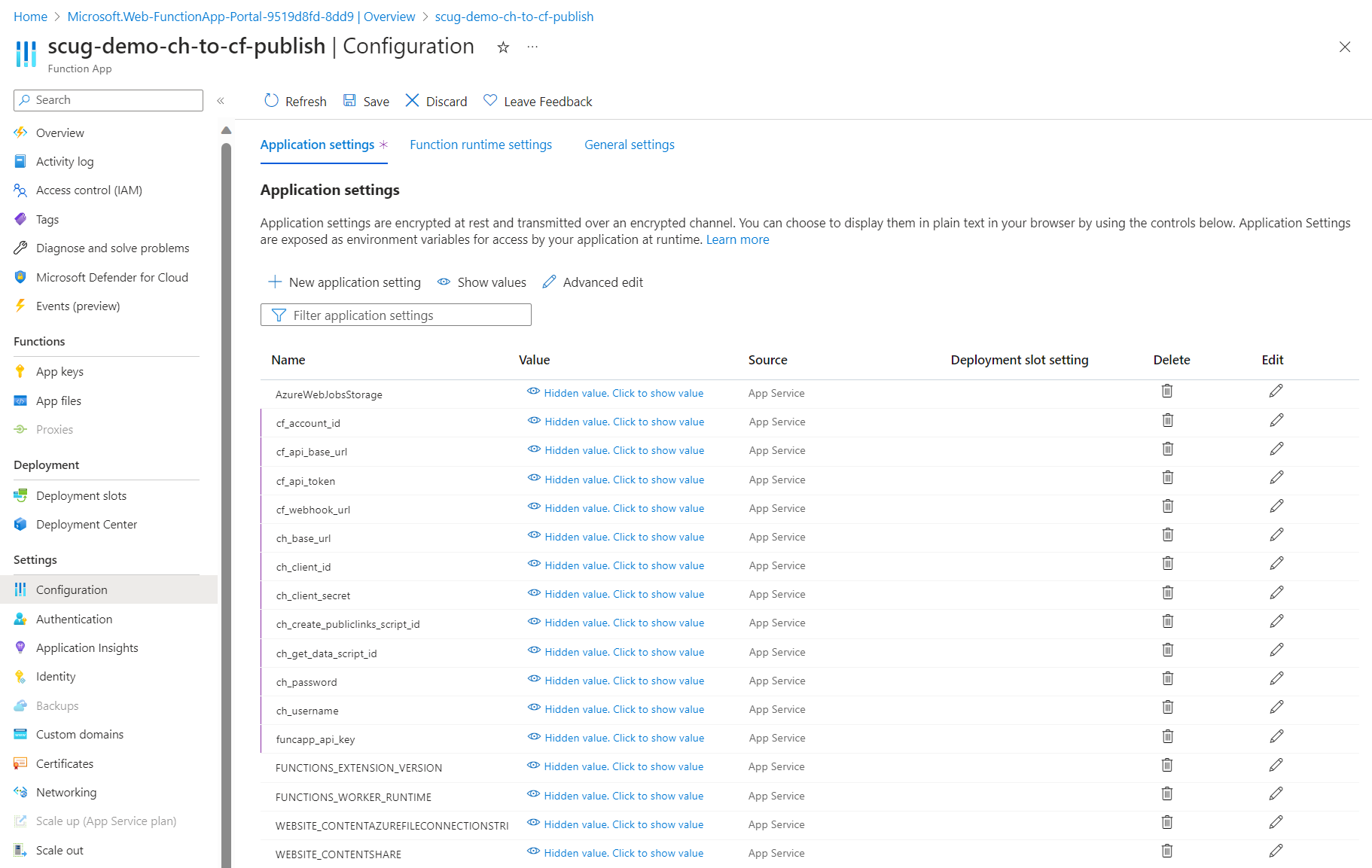
Clicking on Configuration menu, then Application settings tab will launch the page similar to the one shown below.

Depending on your needs, these application settings can be managed manually or very easily automated using DevOps pipelines.

List of required application settings

Below is a complete list of the Func app application settings

  • cf_account_id your Cloudflare account identifier
  • cf_api_base_url your Cloudflare API base URL
  • cf_api_token your Cloudflare API token
  • cf_webhook_url your Cloudflare webhook URL
  • ch_base_url your Content Hub instance base URL
  • ch_client_id your Content Hub instance client identifier
  • ch_client_secret your Content Hub instance client secret
  • ch_create_publiclinks_script_id your Content Hub action scrip identifier for creating public links
  • ch_get_data_script_id your Content Hub action scrip identifier for getting data
  • ch_password your Content Hub integration user password
  • ch_username your Content Hub integration user username
  • funcapp_api_key your custom Func app API key configured within your Content Hub integration

Next steps

In this blog post, we have explored at how to configure your Function app application settings to allow you to run and debug it in your local development environment. We also looked at configuring them on your published Func app on your Microsoft Azure portal.

Feel free to watch the rest of my YouTube playlist where I am demonstrating the end-to-end custom connector in action. Stay tuned.

Sitecore Zero-downtime deployments – Part 4

Sitecore PaaS/AKS blue-green deployments

With modern and mature DevOps, we all want smooth, sleek and painless automated deployments with zero-downtime. Sitecore deployments are no exception. Have you embraced zero-downtime deployments? This is not a new topic. If you look around Sitecore community, you see an odd question popping here and there regarding this topic.

The journey towards achieving zero-downtime deployments for any application in fact starts with your code base. So, in this series of blog posts, we will refresh ourselves on concepts like “Code Freeze” and the CI/CD process before deep diving into implementing Sitecore zero-downtime deployments.

Sitecore XP PaaS Blue-Green architecture

Sitecore XP PaaS reference architecture

The infographic above shows a typical Azure PaaS architecture for Sitecore XP scaled topology. In summary we have:

  • our Sitecore XP application roles such as CM, CD, ID among others
  • these role have access to Sitecore databases (master, web, core among others)
  • access to rest of the services such as Azure Key Vault, Azure Redis cache, App Insights, Azure Search among others

You will notice in this architecture, we have Blue-Web and Green-Web databases, which are corresponding to the BLUE-GREEN deployment slots for the CD App Service. We need separate web databases to enable us achieve content-safe deployments

The CM App Service also has BLUE-GREEN deployment slots specifically for code deployment, but with a shared master database. There is no compelling reason to have BLUE-GREEN master databases purely on basis of complexity introduced by such architecture (although it is not impossible to implement if you prefer this approach).

The rest of our XP scaled topology resources are shared

The Azure DevOps organisation typically will have access to run the CI/CD pipelines, is also included in the architecture.

How to manage settings

App Service Settings section can be leveraged to manage your Sitecore configuration settings including Sitecore connections Strings

Sitecore XP PaaS CI/CD process summary

Sitecore XP PaaS CI/CD process

Required steps:

  1. Tigger CD process
  2. Make copy of your web-db – this is for content safe deployment. Both CM and BLUE CD pointing to original web-db at this point. BLUE CD still in production with our live users accessing it
  3. Now deploy your new version to both CM instance and GREEN CD Staging slot instance – pointing them to use copy of web-db. Perform content deployment as usual, publish, rebuild the Sitecore indexes and perform any tests. This will not affect your BLUE CD at this stage.
  4. Once happy with deployment, then Swap CD production and staging slots. The GREEN CD with our new version is now production and our live users accessing it now. Zero down time achieved! Our previous version is still running in BLUE CD. If we have issues, we swap again to roll back.

Some notes:

 This example doesn’t have BLUE-GREEN for the CM instance, as I want to keep it simple – This though means your content editors will have to wait for deployment to finish to use the CM. If you really need CM zero down time, then you need to deploy CM BLUE-GREEN deployment slots as well. Alternatively, you can keep the deployment time to CM to a minimum and avoid BLUE-GREEN

You can be more also be creative with your Sitecore templates changes such that your changes are always backward compatible between successive releases  (e.g. don’t delete fields immediately, mark them as obsolete) This means you can safely rollback your changes without breaking the application

Sitecore XP AKS Blue-Green architecture

Sitecore using Containers makes use of Azure Kubernetes Service. This infographics shows a very simplified AKS blue-green strategy allows us to achieve zero downtime deployments.

Kubernetes Blue-Green strategy

How does it work?

  1. You will define a blue deployment for v1 and apply it to your desired state of your cluster.
  2. When version 2 comes along, you define a green deployment, apply it to your cluster, test and validate it without affecting blue deployment
  3. You then gradually replace V1 with V2
  4. Version 1 can be deleted if no longer needed.

Below we have a typical Sitcore XP Azure Kubernetes Service architecture for Sitecore XP scaled topology – the AKS cluster containing various pods running our containers.

Sitecore XP AKS Blue-Green reference architecture

You can see the scaled out Sitecore XP application roles running as individual Pods within this AKS cluster backed by a Windows Node Pool.

We also have access to Sitecore databases as well as other services such as Azure Key Vault, Azure Redis cache, App Insights among others.

I am showing our Azure DevOps organisations which will typically have access to run the CI/CD pipelines

Similar to the Azure PaaS architecture, AKS zero downtime deployments will make use of BLUE-GREEN deployment strategy for CD or CM instance

AKS Zero downtime deployments process

How do we do that? we don’t need to provision a separate cluster for GREEN environment. Instead, we define an additional GREEN deployment with its corresponding service and then label it accordingly, alongside our BLUE deployment.

For content-safe deployments, we will also be pointing to a copy of web database (Green) as shown.

Once we have tested and are happy with our new GREEN deployment, we switch traffic or routing to point to GREEN. We do this by updating our Ingress controller specification

Sitecore AKS Blue-Green (Green deployment)

In the above infographic, you can see now our end-users can access V2 in the GREEN deployment

BLUE deployment is on stand-by in case of roll back. And can be deleted if no longer required.

Note as previously discussed in PaaS deployments, you can implement BLUE-GREEN for the CM if required

Sitecore XP AKS CI/CD process

Sitecore XP AKS CI/CD process

Steps summary

  1. Trigger release pipeline process
  2. Make copy of your web-db – this is for content safe deployment. Both CM and BLUE CD pointing to web-db at this point. BLUE CD still in production with live users accessing it
  3. Apply your green deployment desired state onto the cluster. This creates the green pods with new version of docker images, and our Sitecore deployment including content deployment. This will use the copy of web-db we created earlier.  Publish and Rebuild indexes as usual and test and verify the deployment
  4. Once happy with deployment, Update traffic routing in Ingress Controller and live users can now access our new Sitecore version. In event of roll-back, update traffic routing in Ingress controller. If BLUE deployment no longer needed, clean it up to save on resources

Next steps

An this is a wrap. This post concludes this series of blog posts where we looked into implementing Sitecore Zero Downtime deployments. I hope you found this useful and can start your own journey towards achieving Zero Downtime deployments with your Sitecore workloads. If you have any comments or queries, please leave me a comment at the end of this post.

Sitecore Zero-downtime deployments – Part 3

Blue-Green Deployments

With modern and mature DevOps, we all want smooth, sleek and painless automated deployments with zero-downtime. Sitecore deployments are no exception. Have you embraced zero-downtime deployments? This is not a new topic. If you look around Sitecore community, you see an odd question popping here and there regarding this topic.

The journey towards achieving zero-downtime deployments for any application in fact starts with your code base. So, in this series of blog posts, we will refresh ourselves on concepts like “Code Freeze” and the CI/CD process before deep diving into implementing Sitecore zero-downtime deployments.

Blue-Green deployments architecture

Blue-green deployments strategy

In software engineering, blue-green deployment is a method of installing changes to a web, app, or database server by swapping alternating production and staging servers

Wikipedia

Key Concepts

In its purest form,  true BLUE/GREEN deployments means that we need two separate but identical environments, one is live (BLUE) and the other is on stand-by (GREEN). When you have  new version of your application, you deploy to the staging environment (GREEN) , test it without affecting BLUE. When you are happy with this new version, you can then swap it to be LIVE instance.

However, in practice, it doesn’t always make sense to run a copy of every resource. Furthermore, this may introduce some complexity to the process.

This is why we now have some shared resources as you can see in the infographic above, while others belong to BLUE or GREEN environment.

As part of this architecture, we need some way of switching or routing incoming traffic between the two environments.

Blue-Green deployment strategy effectively enables us to achieve zero down time deployments. This is because your users will not notice any downtime during deployments.

CI/CD process for Blue-Green deployments

CI/CD process for Blue-Green deployments

On the top part of the infographic above, – BLUE is currently production environment and our users accessing this environment. When we have, a new version of our application, it is deployed to GREEN environment, without affecting our users.

On the bottom part of the infographic above, – now GREEN is the production environment and our users are accessing this environment.  This leaves the BLUE environment available for us to deploy the next version of our application

We deploy to BLUE and GREEN in turns, this achieving zero downtime deployments. The process repeats in each deployment cycle.

Some benefits of Blue-Green strategy

If you haven’t already adopted the cloud for your Sitecore workloads – be it PaaS or Containers, then perhaps you need to start thinking about this seriously as there are benefits you will get.

“Blue-green deployments made easier with the cloud.”

fact

The cloud provides tooling you need to:

  • Automate your provisioning and tearing down of environments
  • Automate starting or stopping of services
  • Kubernetes simplifies container orchestration for us,  the Azure Kubernetes Service (AKS) provide a Control Plane for free
  • The flexibility and cost reductions the cloud offers makes blue-green deployments within everyone’s reach at this time and age, please embrace them.

Next steps

Hopefully, these blog post help you understand key concepts about BLUE-GREEN deployments.

In the next blog post in this series, we will look at implementing Sitecore Zero Downtime deployments.

Sitecore Zero-downtime deployments – Part 2

Sitecore Container based CI/CD Flow

With modern and mature DevOps, we all want smooth, sleek and painless automated deployments with zero-downtime. Sitecore deployments are no exception. Have you embraced zero-downtime deployments? This is not a new topic. If you look around Sitecore community, you see an odd question popping here and there regarding this topic.

The journey towards achieving zero-downtime deployments for any application in fact starts with your code base. So, in this series of blog posts, we will refresh ourselves on concepts like “Code Freeze” and the CI/CD process before deep diving into implementing Sitecore zero-downtime deployments.

Sitecore container based CI/CD flow

Sitecore Deployment options

Sitecore can be deployed to the cloud using IaaS, PaaS or Containers.  Microsoft Azure cloud  is preferred, although you can deploy to other providers like AWS

  • IaaS makes use of Virtual Machines
  • PaaS makes use of Azure App Service to run Sitecore web apps
  • Containers makes use of Azure Kubernetes Service (AKS)

How working with containers is different

When working outside of containers, you would typically build your application and then push it directly to the IaaS or PaaS instances hosting them. Using Containers changes this process slightly. The infographic below captures this process in detail

Sitecore containers CI/CD process summary

Explanation of the CI/CD process

  1. So developers make changes to the codebase.
  2. They then commit their changes into the repository, in this case stored in GitHub
  3. An Azure DevOps Pipeline monitors this repository and triggers a new image build each time there is a commit into the repo
  4. These images are built by Azure DevOps and the new image version is pushed into an Azure Container Registry (ACR) instance
  5. We have Other triggers for a base images that might have changed. For example, an update to the base Windows image or Sitecore image that can also trigger a new image build to occur. This is where the CI part of the process ends. We now have our new images built and available for deployment.
  6. So this is where the CD element starts. A release element is going to execute to start the deployment process.
  7. The first thing the CD element does is to push the new version of the k8s Specs into AKS, including pinning the deployments to the unique tag of the new images.
  8. AKS will now connect to the ACR instance to pull down these new images and build new deployments based on them.
  9. Of course any Sitecore deployment isn’t complete without a push of the content changes. Once the specs have been deployed the content is then also pushed to the CM instance running in AKS and a publish is executed.
  10. Once this has happened your end users can now browse the site and interact with the new containers running in AKS.

Hopefully, these blog post help you understand how to manage Sitecore Container based CI/CD process going forward. If you still struggling, engage your digital partners to look for long term solutions.

Next steps

In the next blog post in this series, we will look at BLUE-GREEN deployments and how to leverage this strategy to implement Sitecore Zero Downtime deployments.

Sitecore Zero-downtime deployments – Part 1

Why Zero-downtime deployments?

With modern and mature DevOps, we all want smooth, sleek and painless automated deployments with zero-downtime. Sitecore deployments are no exception. Have you embraced zero-downtime deployments? This is not a new topic. If you look around Sitecore community, you see an odd question popping here and there regarding this topic.

The journey towards achieving zero-downtime deployments for any application in fact starts with your code base. So, in this series of blog posts, we will refresh ourselves on concepts like “Code Freeze” and the CI/CD process before deep diving into implementing Sitecore zero-downtime deployments.

Code freeze? “Thing of the past”

A Code freeze is an adopted milestone from the Waterfall days.

“No changes whatsoever are permitted to a portion or the entirety of the program’s source code. Particularly in large software systems, any change to the source code may have unintended consequences, potentially introducing new bugs”

Wikipedia

Typical Code Freeze Challenges:

  • Complex Sitecore solution with several dependencies
  • Very large code bases possibly with legacy code
  • Multiple teams from multiple geographies
  • Complex and painful code merges
  • Dedicated QA testing window
  • Multiple languages and frameworks

All these challenges may mean you introduce some “code freeze” when preparing for your deployments. Naturally, this is not where you want to be. If not managed properly, this becomes a blocker, a barrier from a true CI/CD process and your journey to your Sitecore zero down time deployments. Let’s refresh ourselves on some tips to help address some of the issues.

Solving Code Freeze Challenges:

  • Adopt a code branching strategy
  • Adopt “clean code” principles
  • Adopt microservices architecture
  • Embrace modern CI/CD processes
  • Embrace containers

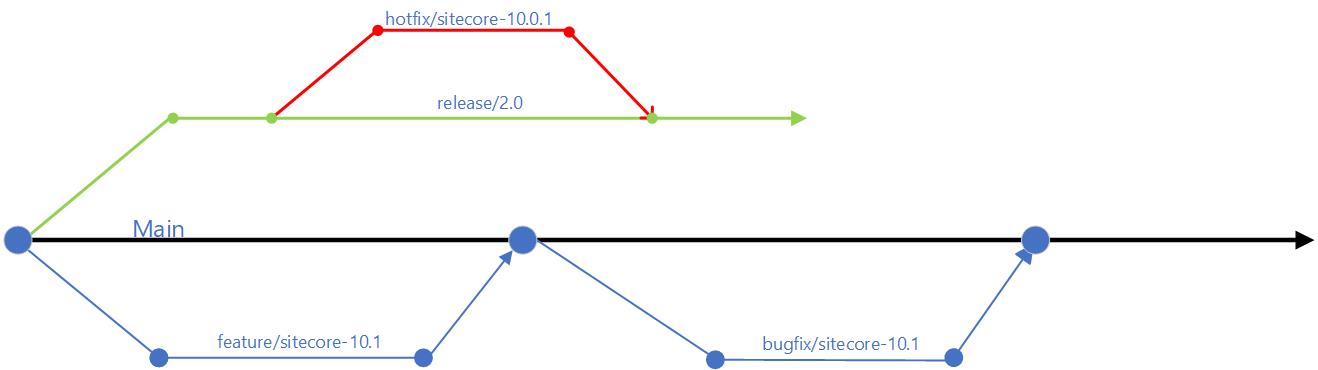
Git Branching Strategy

Git Branching Strategy
  • use of feature branches off the main branch – this will isolate work in progress from completed work, avoiding “code freezes” sessions when preparing for a release. Always use Pull Requests to merge feature branch into main branch. Make use of descriptive naming of your branches as best practice
  • use of release branches off main branch when close to your release, at end of your sprint or cycle. Make use of bugfix branches for any bugs fixes in your release and merge them back to release branch
  • There are other branching options available, such as the Release flow branching strategy

Embracing Microservices

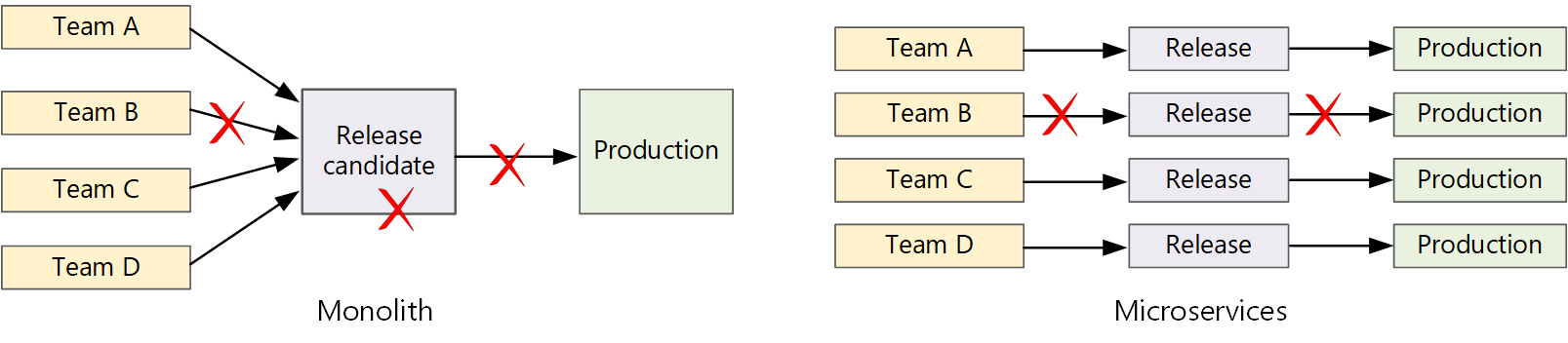
Diagram of a CI/CD monolith
CI/CD monolith v Microservices – courtesy of Microsoft Docs

Let us now look how Microservices make life easier.  A traditional monolithic app on the left, there is a single build pipeline whose output is the application executable. All development work feeds into this pipeline. If team B break, the whole thing breaks. In contrast with microservices philosophy on the right, there should never be a long release train where every team has to get in line. The team that builds service “A” can release an update at any time, without waiting for changes in service “B” to be merged, tested, and deployed.

Next steps

Hopefully, these tips help you address “Code Freeze” problem going forward. If you still struggling, engage your digital partners to look for long term solutions.

In the next blog post in this series, we will look at Sitecore CI/CD processes to support Sitecore Zero Downtime deployments.

Windows Azure programming patterns for Start-ups review

I have had a chance to review this book Windows Azure programming patterns for Start-ups. As a .NET developer and C#, I have to say I found this book both fulfilling and practical for the areas I wanted to learn in Windows Azure.

I am not very new to Windows Azure having written some code here and there. I found this book very practical in the approach the authors have taken to ensure all areas of Windows Azure are explained. In this book, the developer is angaged from page 1 as a brand new service is created from scratch to deployment.

I will say having read this book, I can now make informed choices on which Windows Azure storage to choose from Table Storage, Blobs, Queues and Windows Azure SQL databases. I also enjoyed the topic on ‘What’s New in Windows Azure’

.NET Rocks: Scott Guthrie at NDC!

Fresh off his keynote at the Norwegian Developers Conference in Oslo, Norway, Scott Guthrie dropped into the fishbowl to talk to Carl and Richard about his new role with the Azure team. Scott digs into how Azure has evolved and his focus on improving the developer experience. Read more and listen to his interview at .NET Rocks site.