Everything Sitecore AI – Marketer MCP integration with Microsoft Copilot Studio

Context

As you may be aware, the Marketer MCP now has a capability to integrate with Microsoft Copilot studio. You can now connect your Microsoft Copilot Studio agents to the Sitecore Marketer MCP for seamless access to Sitecore’s marketing features.

The Marketer MCP is the Model Context Protocol (MCP) for marketing in Sitecore. It connects AI agents to Sitecore tools through the Agent API, providing secure access across the entire digital experience lifecycle.

In this blog post, I will walk you through a step-by-step guide, complete with screenshots.

Pre-requisites

Before you begin, make sure you have:

  • A valid Sitecore account with required permissions
  • A valid Microsoft Copilot studio account with access permissions to Create agents and Create Custom Connectors

Step 1 – Create a new agent in Copilot Studio

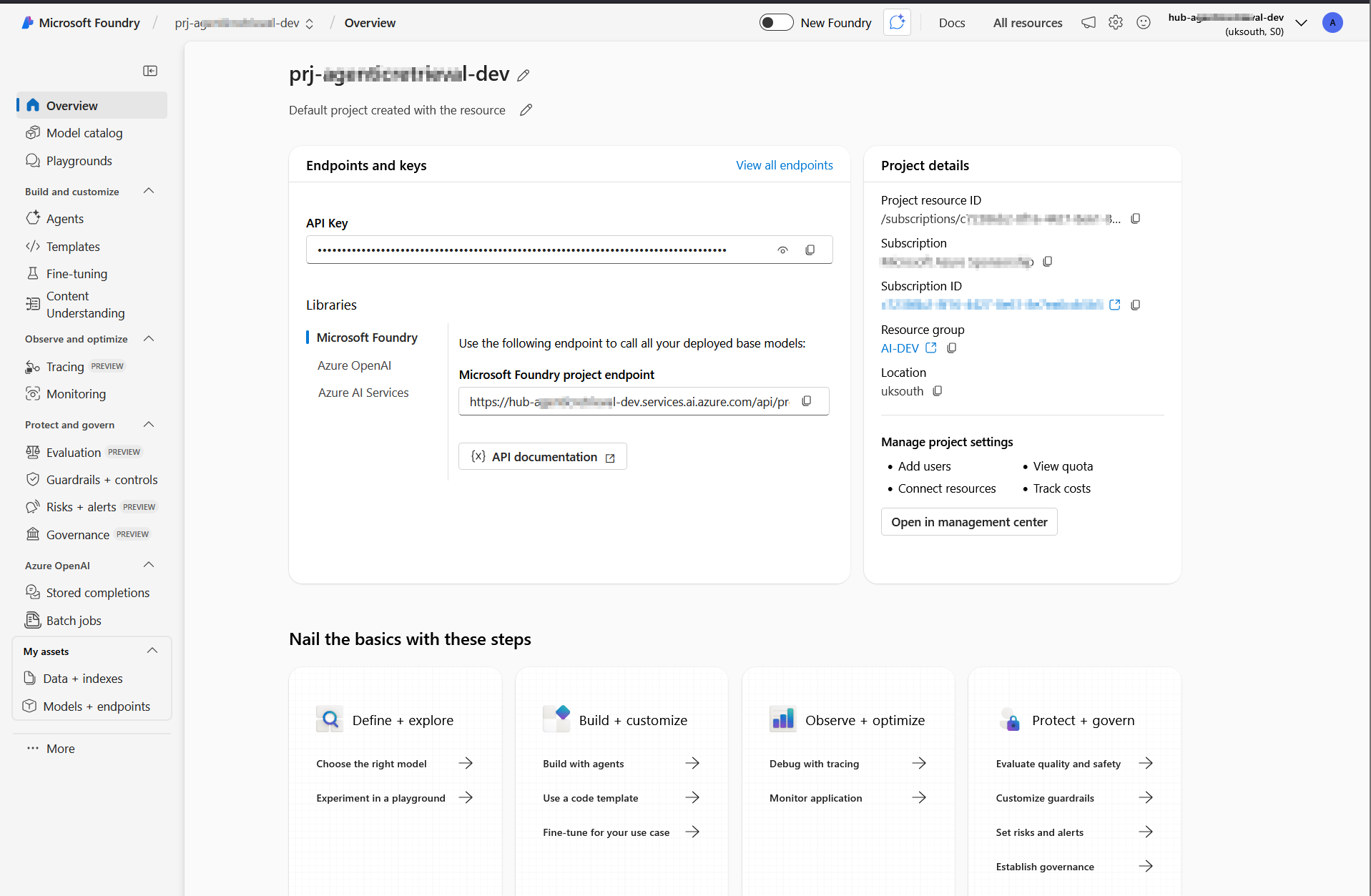
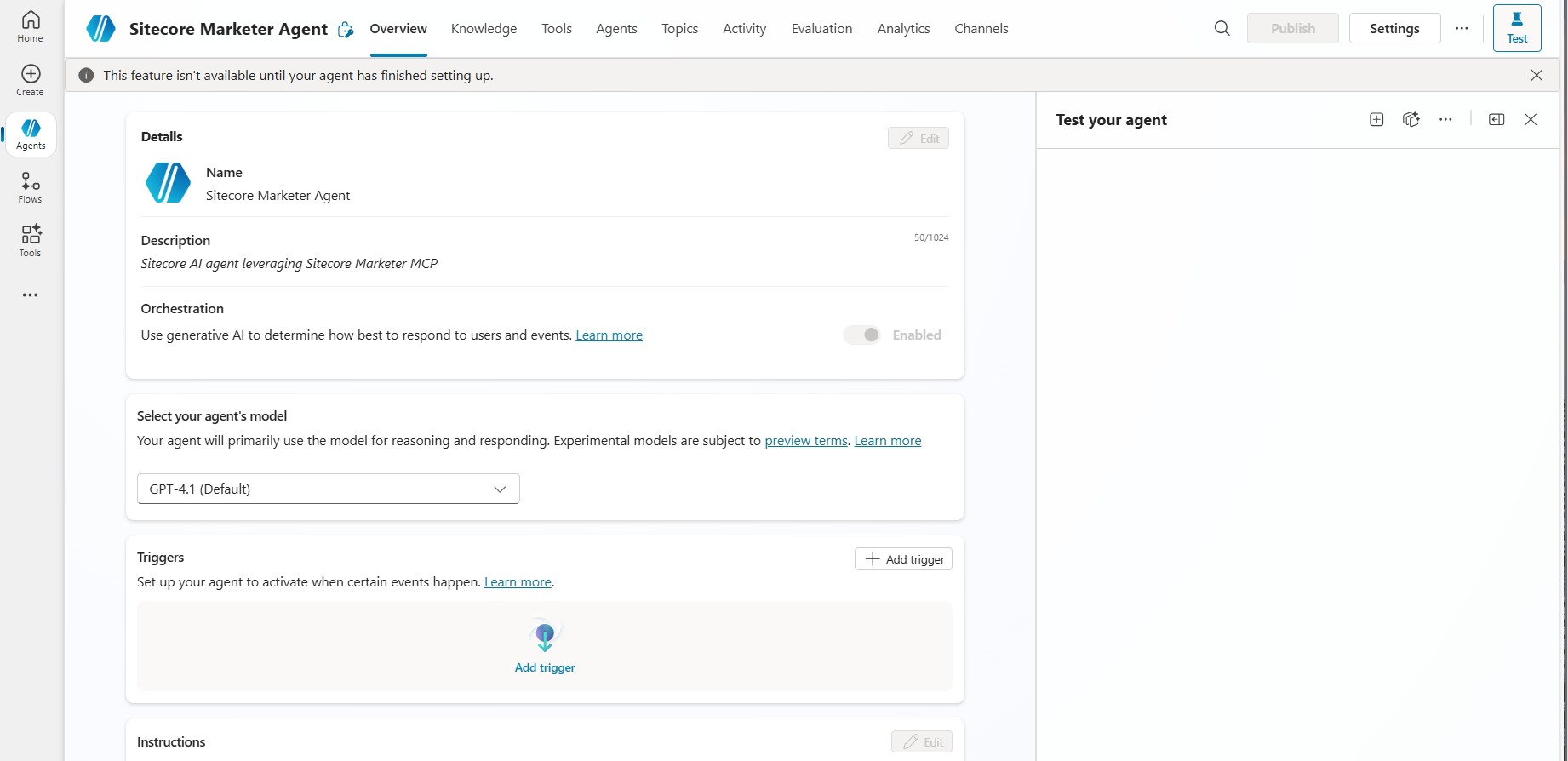
  • Open Copilot Studio and either create a new agent or open an existing one.
  • As shown in the screenshot below, specify the following minimal details for your agent:
    • Name: The name of your agent
    • Description: Description of your agent
    • Icon: You can choose an icon for your agent (optional)
  • Create agent in Copilot Studi0

Step 2 – Add a tool to the agent

  • Go to the Tools tab for your agent then click Add a tool.
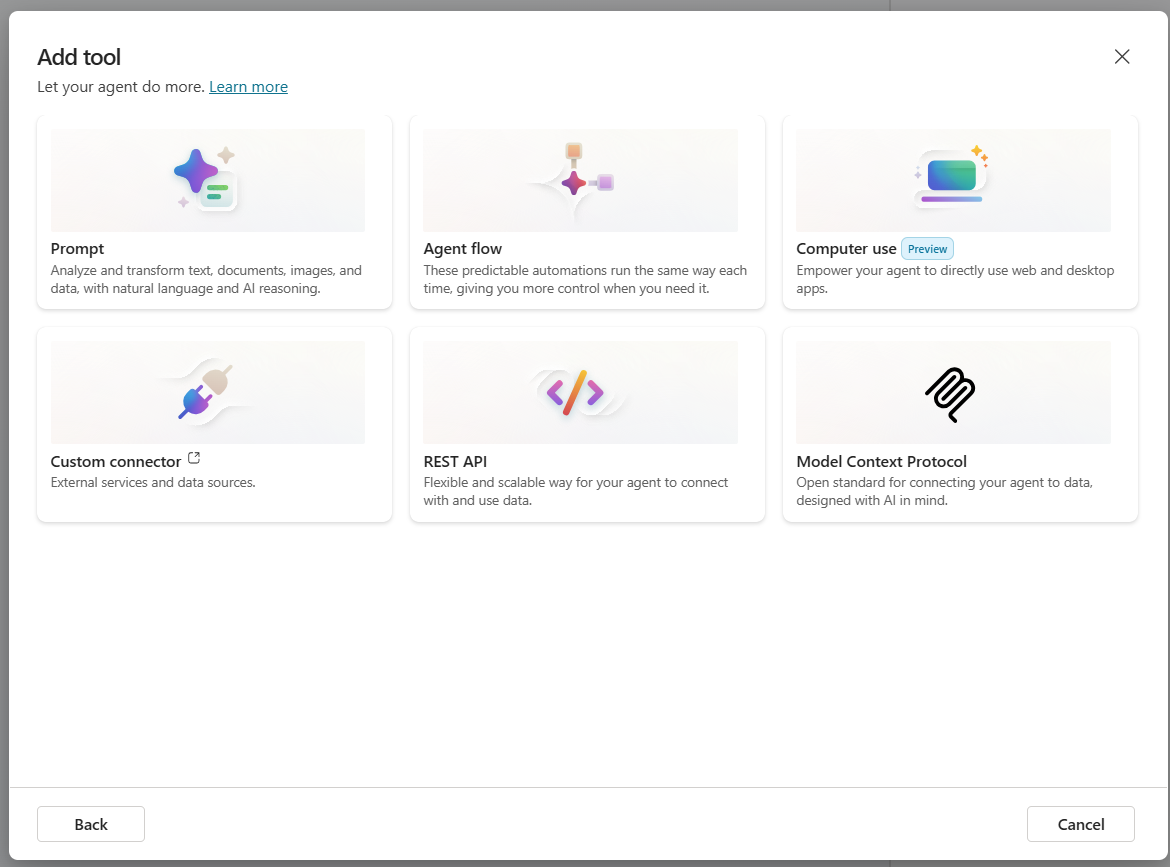
  • Select New tool then choose Model Context Protocol. The MCP onboarding wizard opens
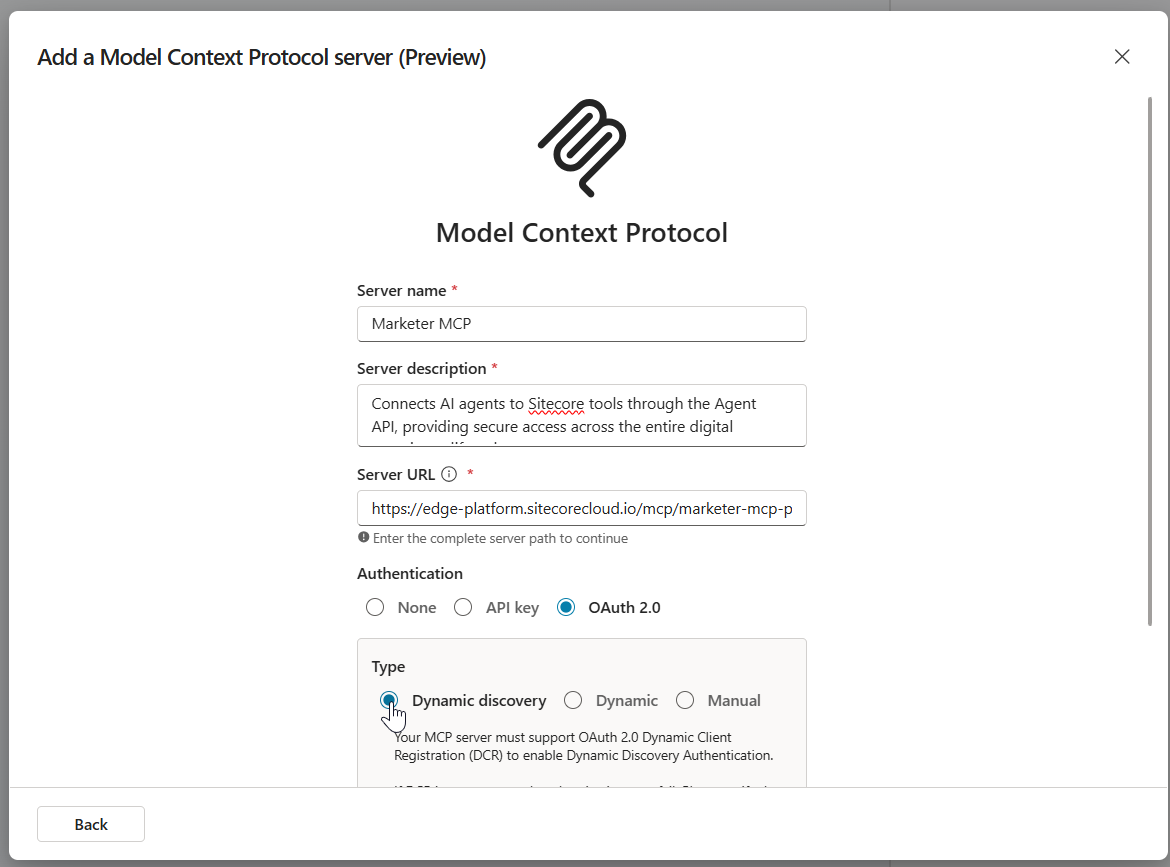
  • Enter the following details, as show in screenshot below
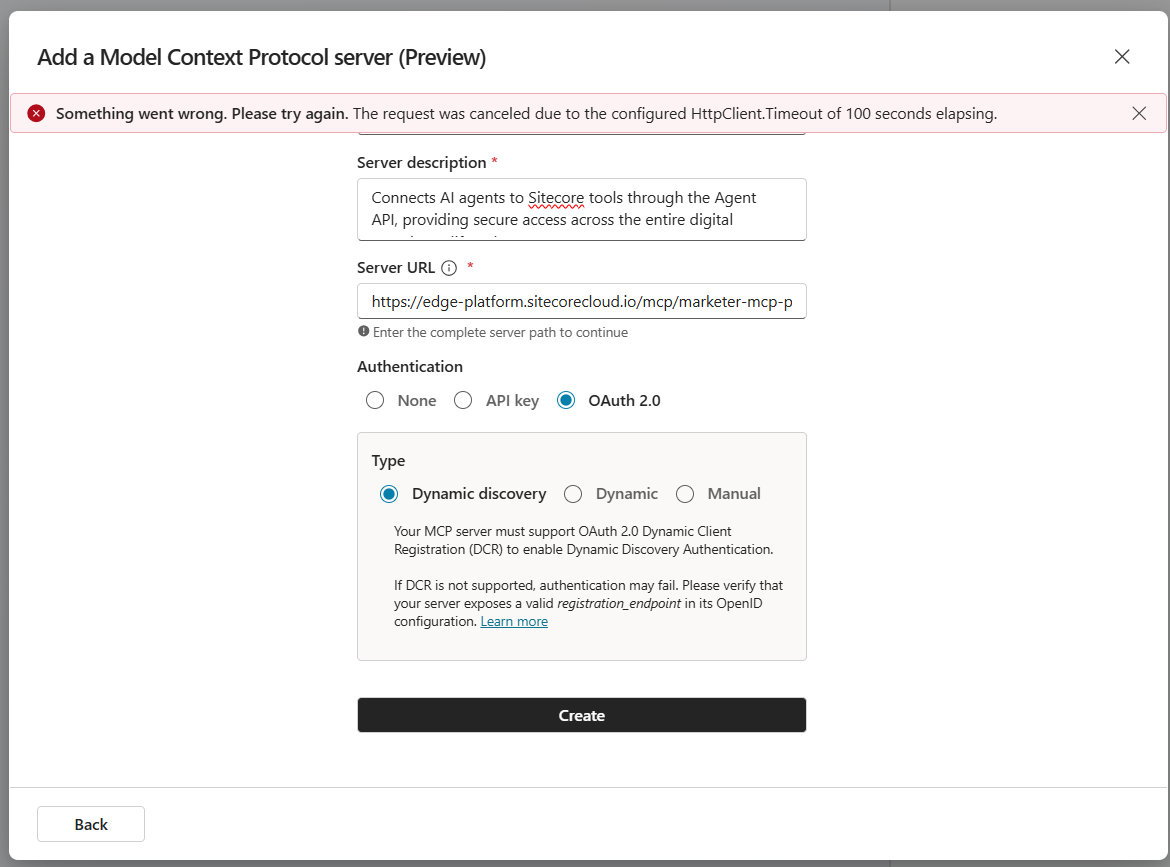
  • Under Authentication, select OAuth 2.0 and Dynamic discovery type. Then click Create.
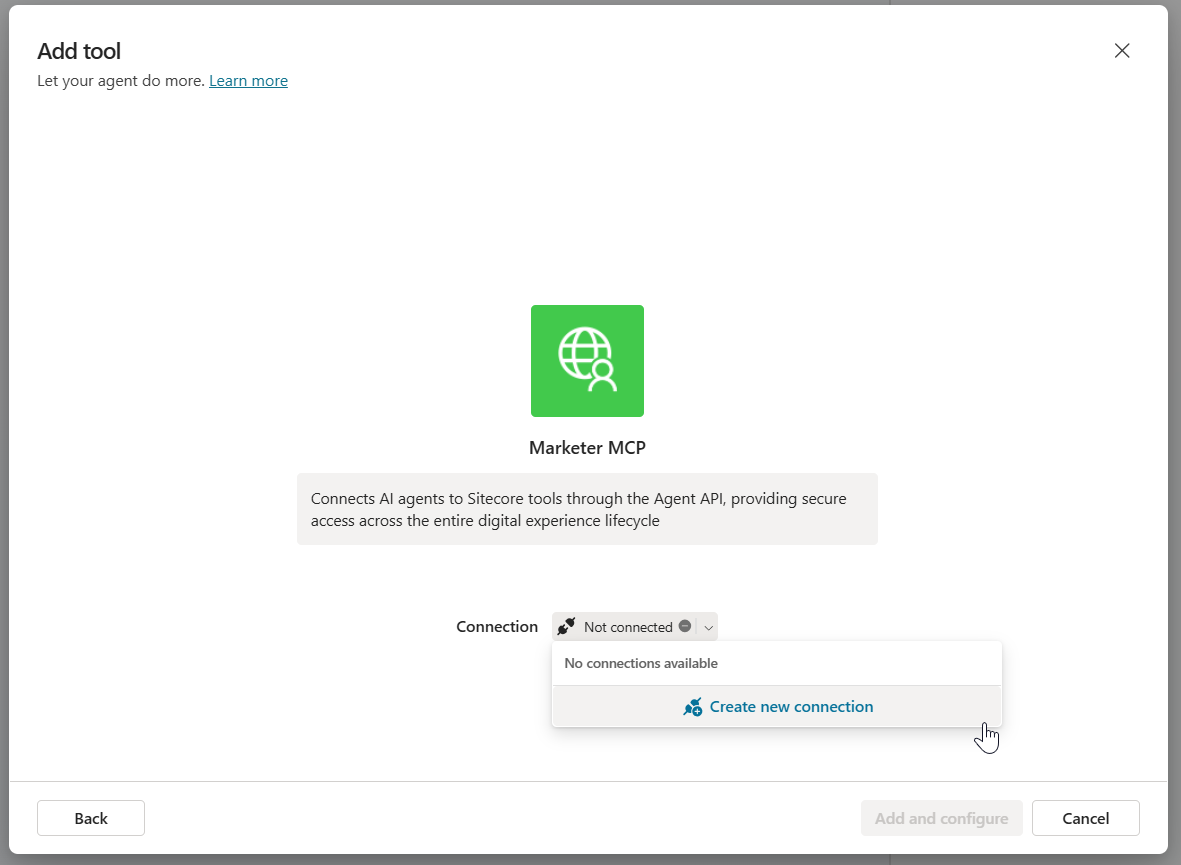
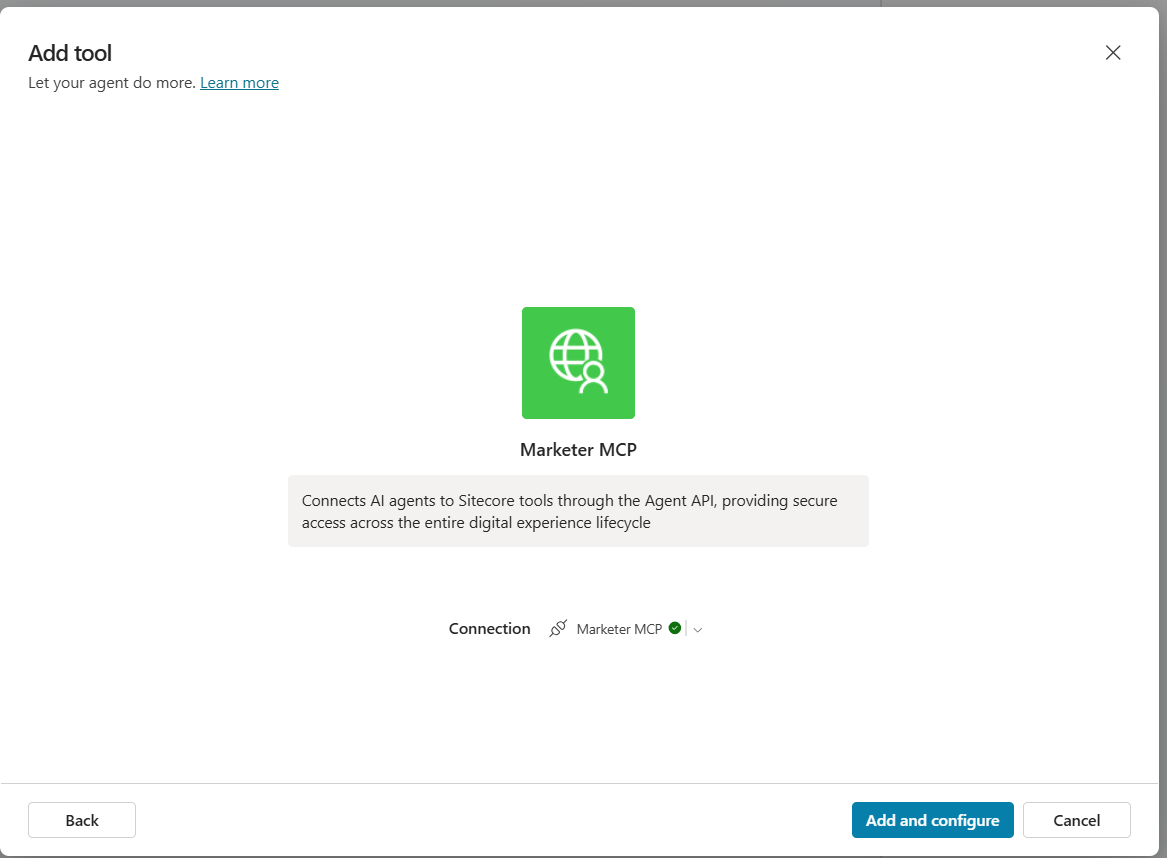
    • The Add tool dialog will be displayed as shown below.
    • In the Add tool dialog, in Connection, click Not connected > Create new connection. Then click Create.
    • A pop-up dialog appears as per the screenshot below, with the message Resource parameter is required. This is expected. Follow the workaround below.
    • Copy the entire URL shown in the dialog. Append the following resource parameter to the end of the URL:
      • &resource=https%3A%2F%2Fedge-platform.sitecorecloud.io%2Fmcp%2Fmarketer-mcp-prod
    • Open a new browser window, paste the updated URL into the address bar and press Enter.
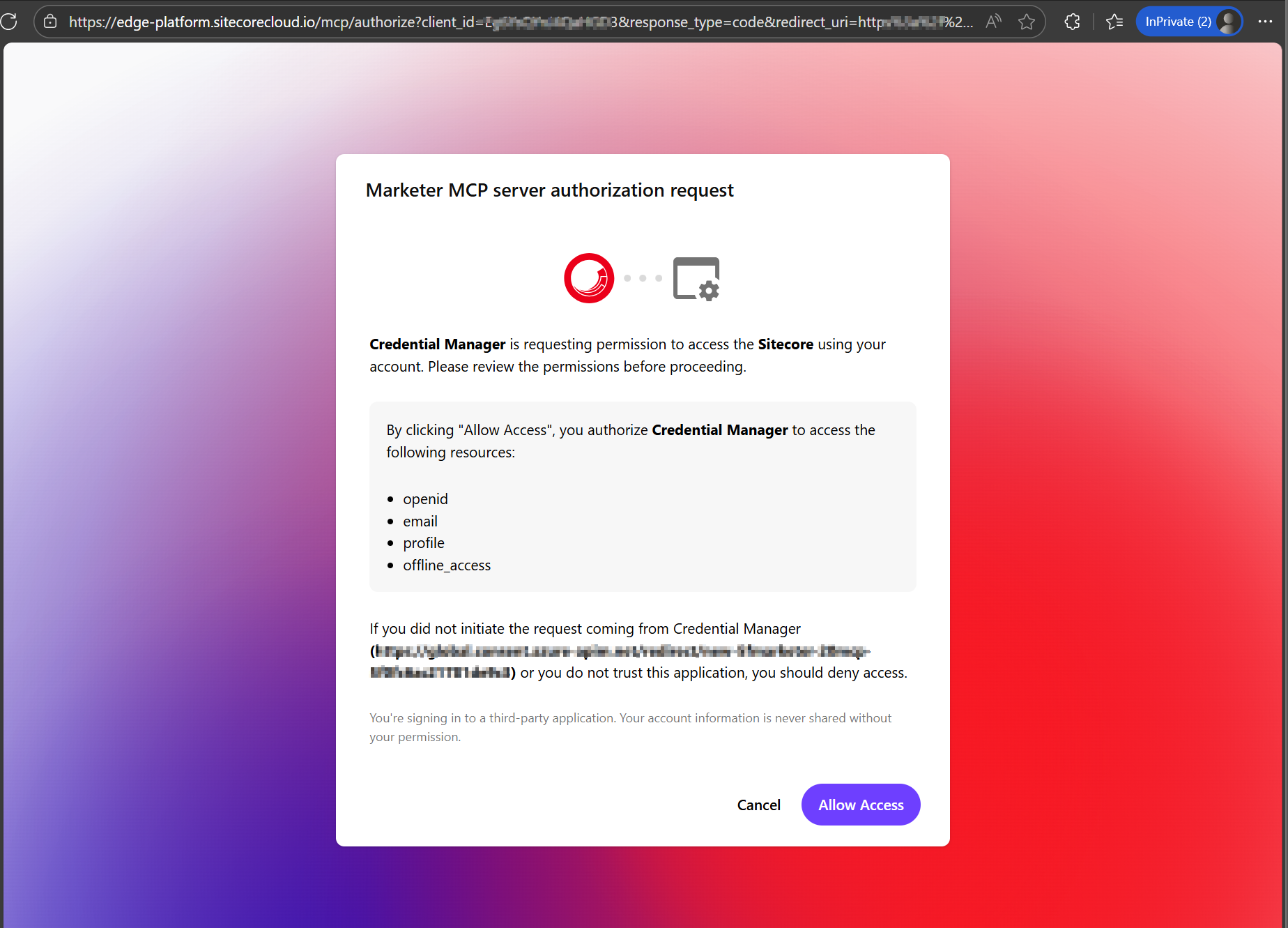
    • In the Marketer MCP authorization request dialog (see screenshot below), click Allow Access.
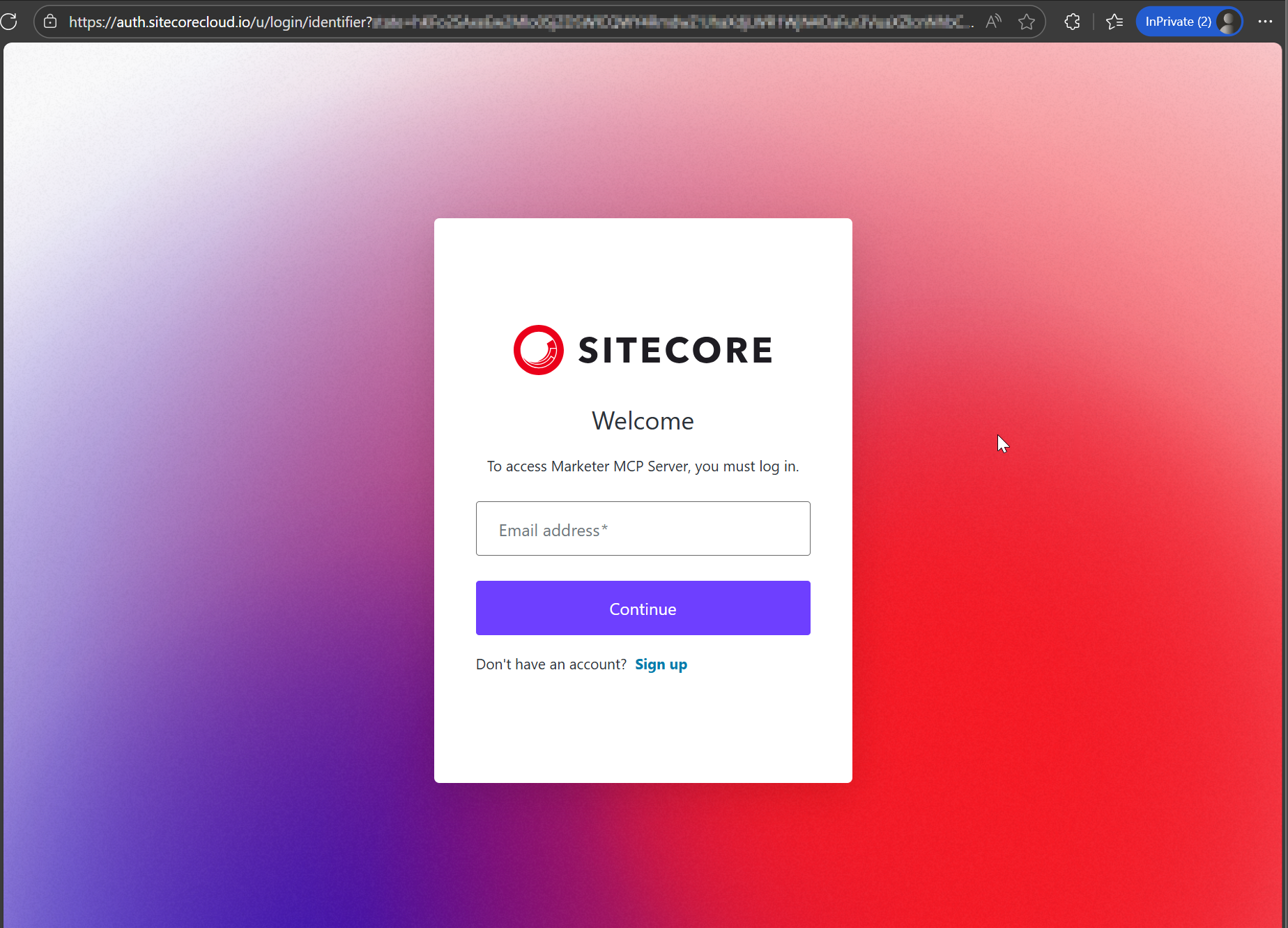
    • This will prompt you to login to your Sitecore Cloud Portal
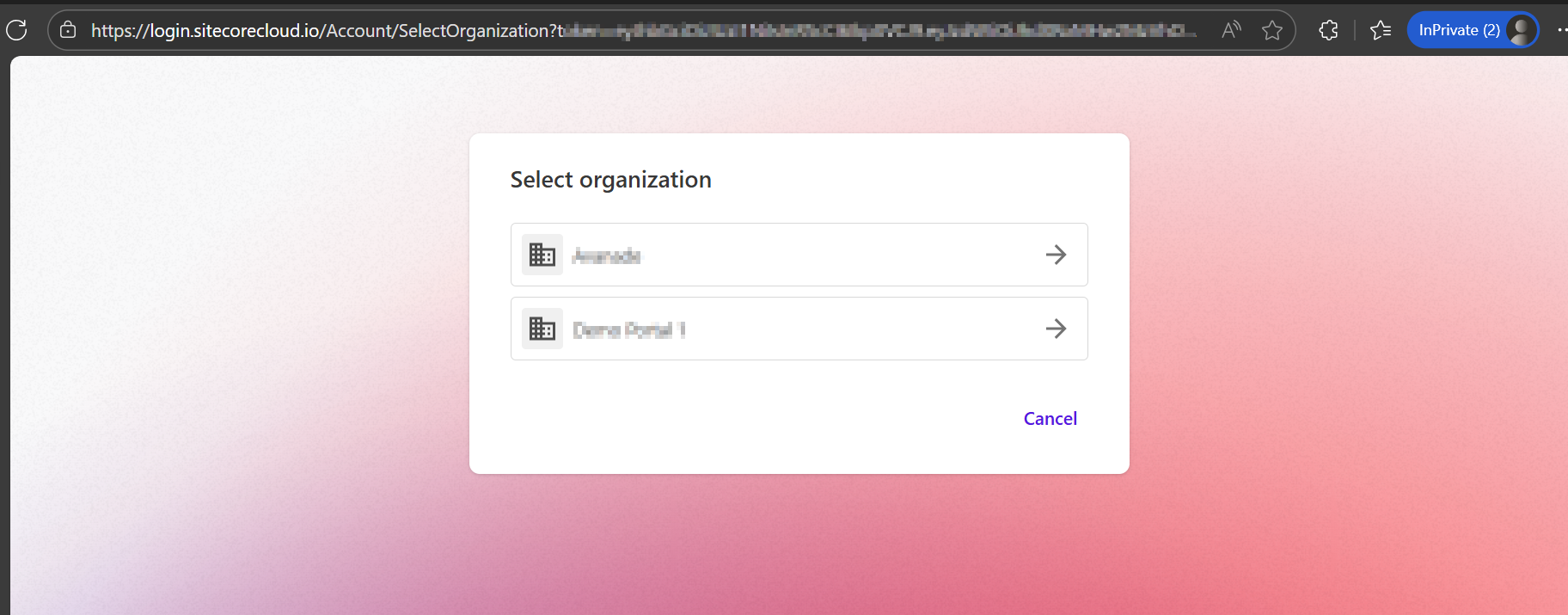
    • Then select the organization and tenant you want to use when interacting with the MCP server (as per screenshot below)
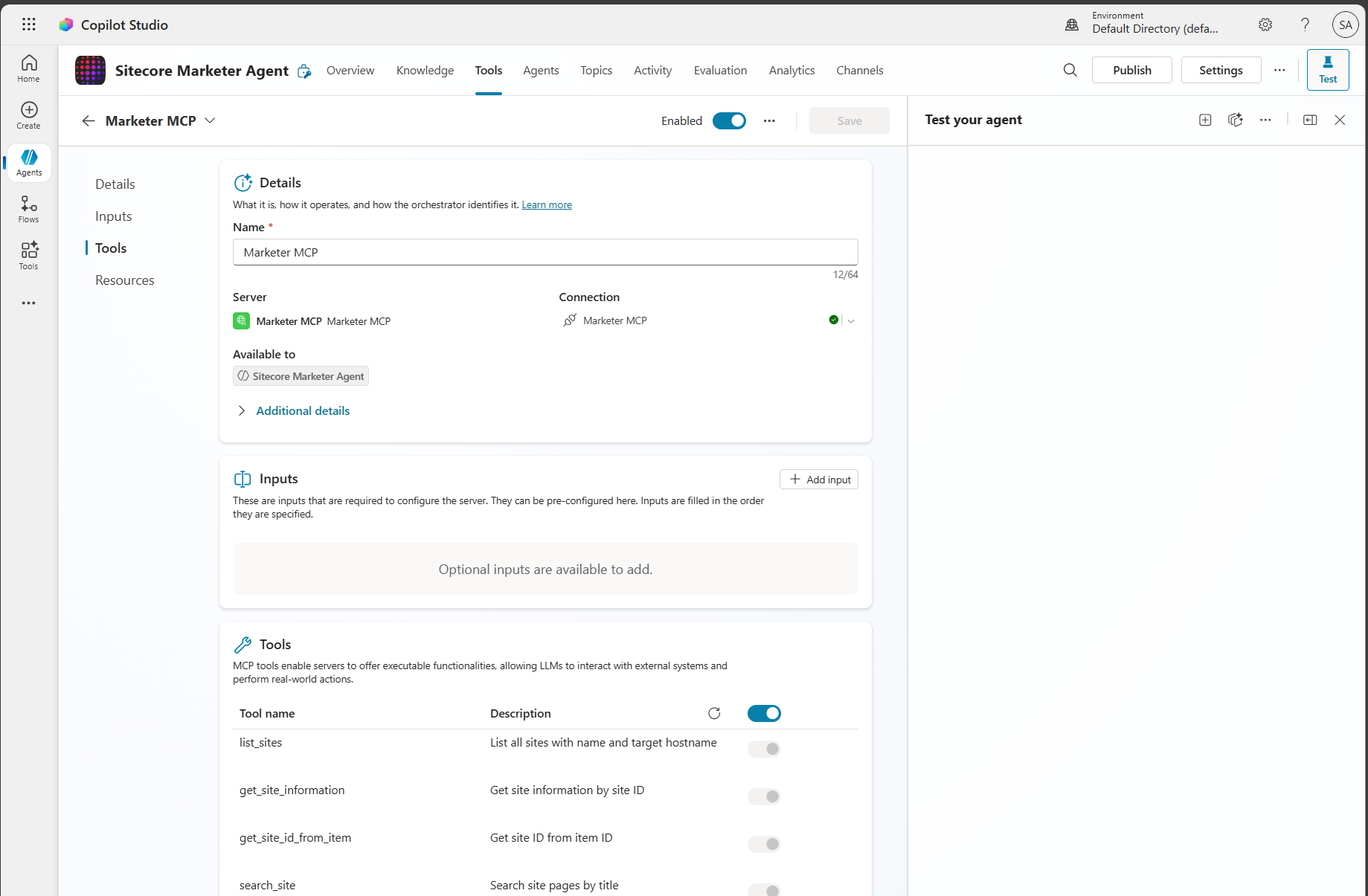
  • Return to the Add tool dialog in Copilot Studio. When it shows that you’re connected to the MCP server, click Add and configure.

You should now see the Marketer MCP details and its tools enabled and ready to use. You can begin entering prompts to interact with Sitecore through the MCP.

Step 3 – Get prompting

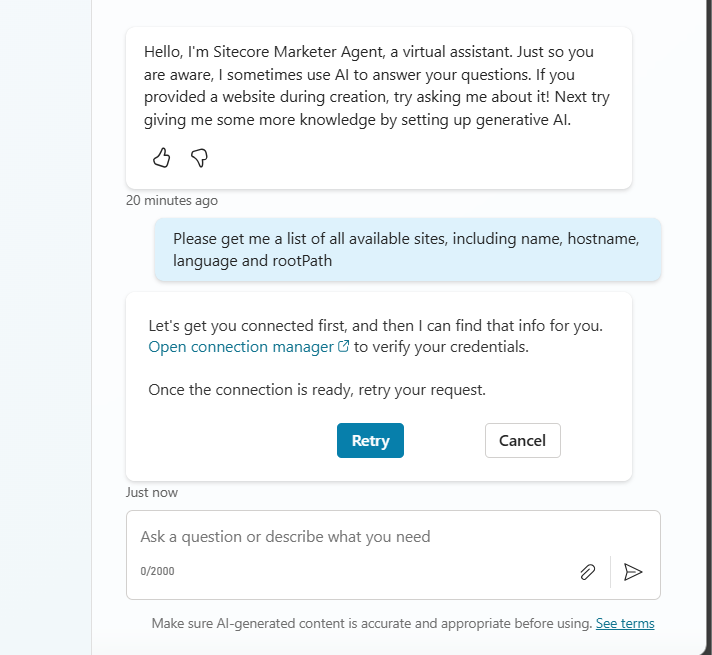
From your Copilot prompt text area, you can now use natural language to prompt and perform actions in SitecoreAI. The first time you write a prompt, you may see a connection warning message shown below.

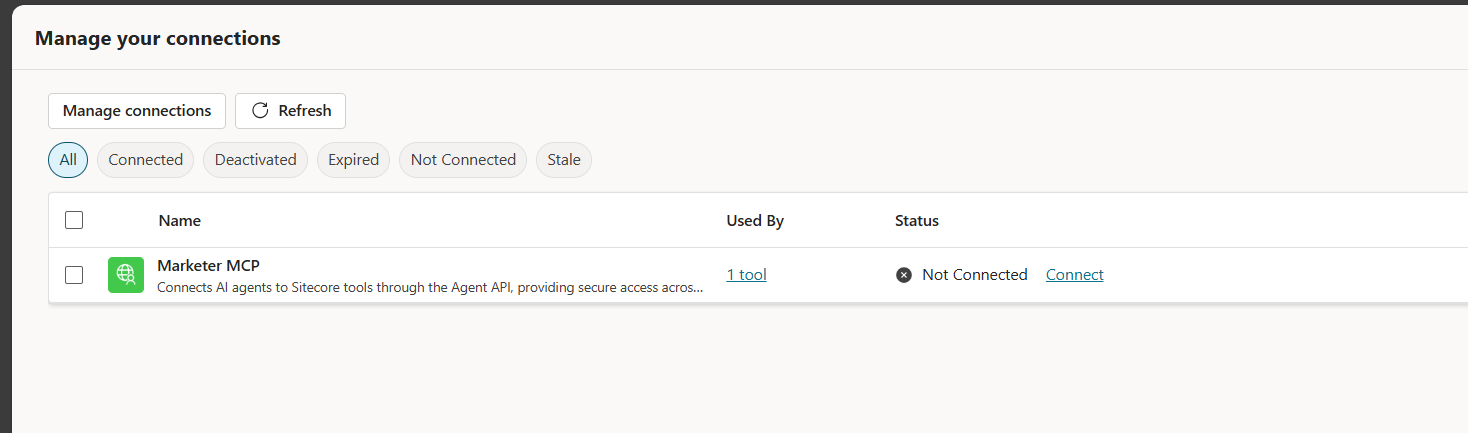
Simply follow the Open connection manager link to get connected. The link will open the dialog shown below

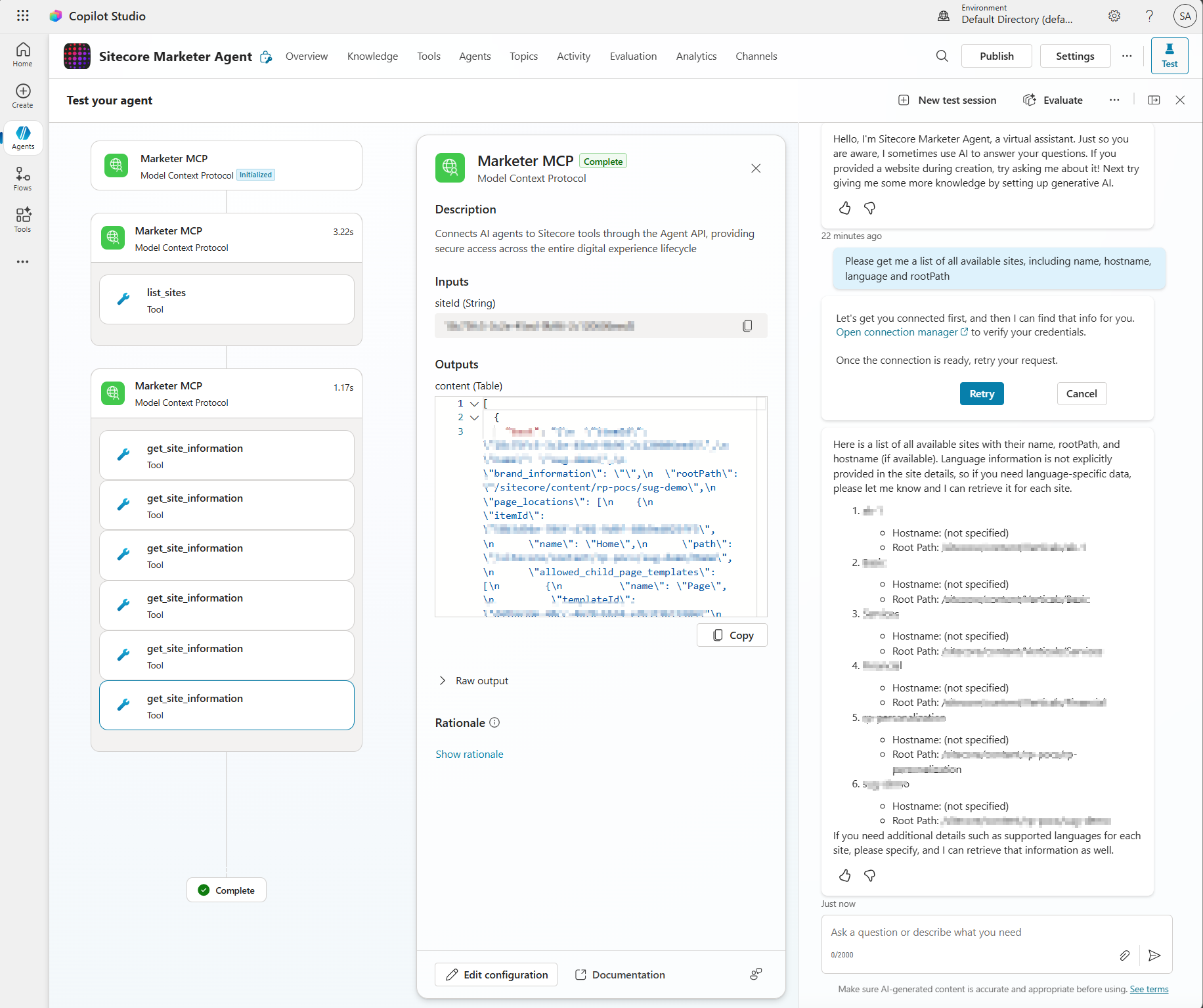
Click on Connect link. You will now get a response from your Sitecore AI as shown below.

Troubleshooting

You may come across some issues when establishing the connectivity into Marketer MCP from Copilot Studio. Below are the issues I encountered and how I resolved them.

Issue 1: Timeout error

I got this error when Creating the connection:

Issue 1 Resolution:

I simply repeated that step for the second time and issue was resolved

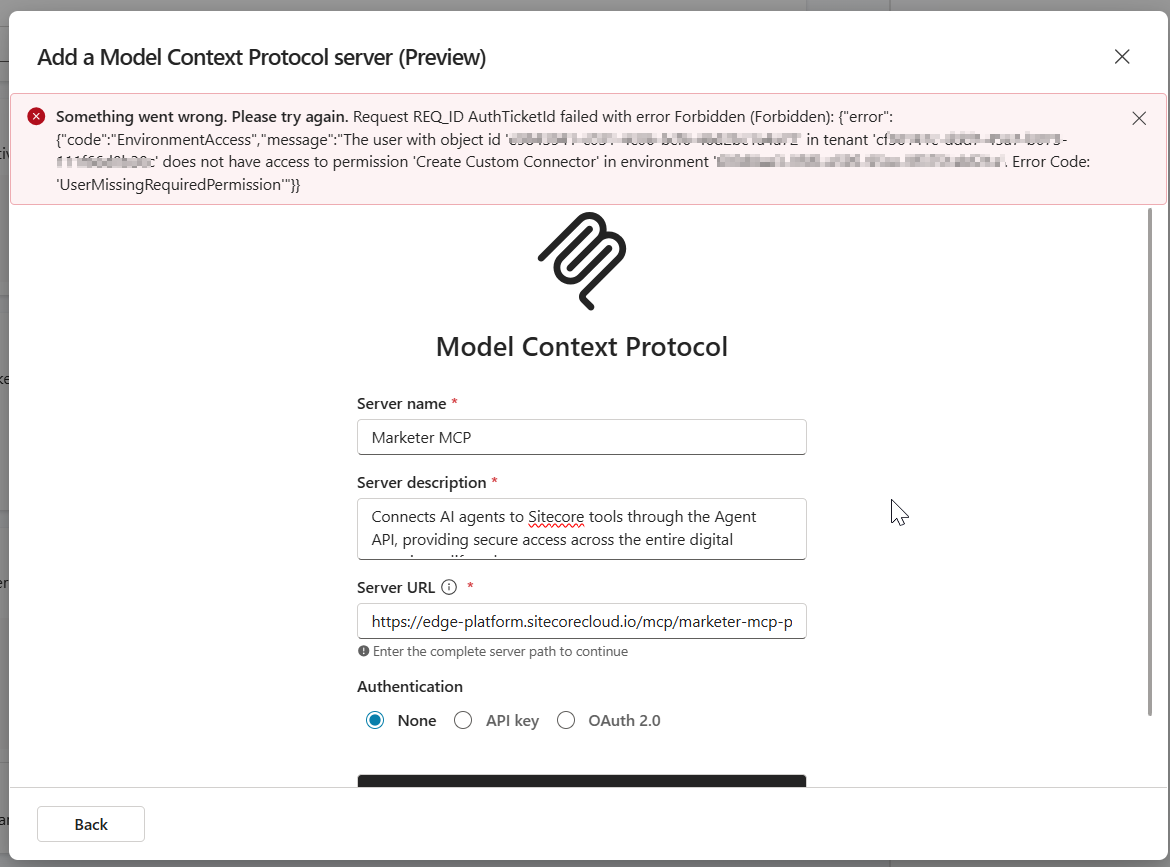
Issue 2: Environment Access permission error

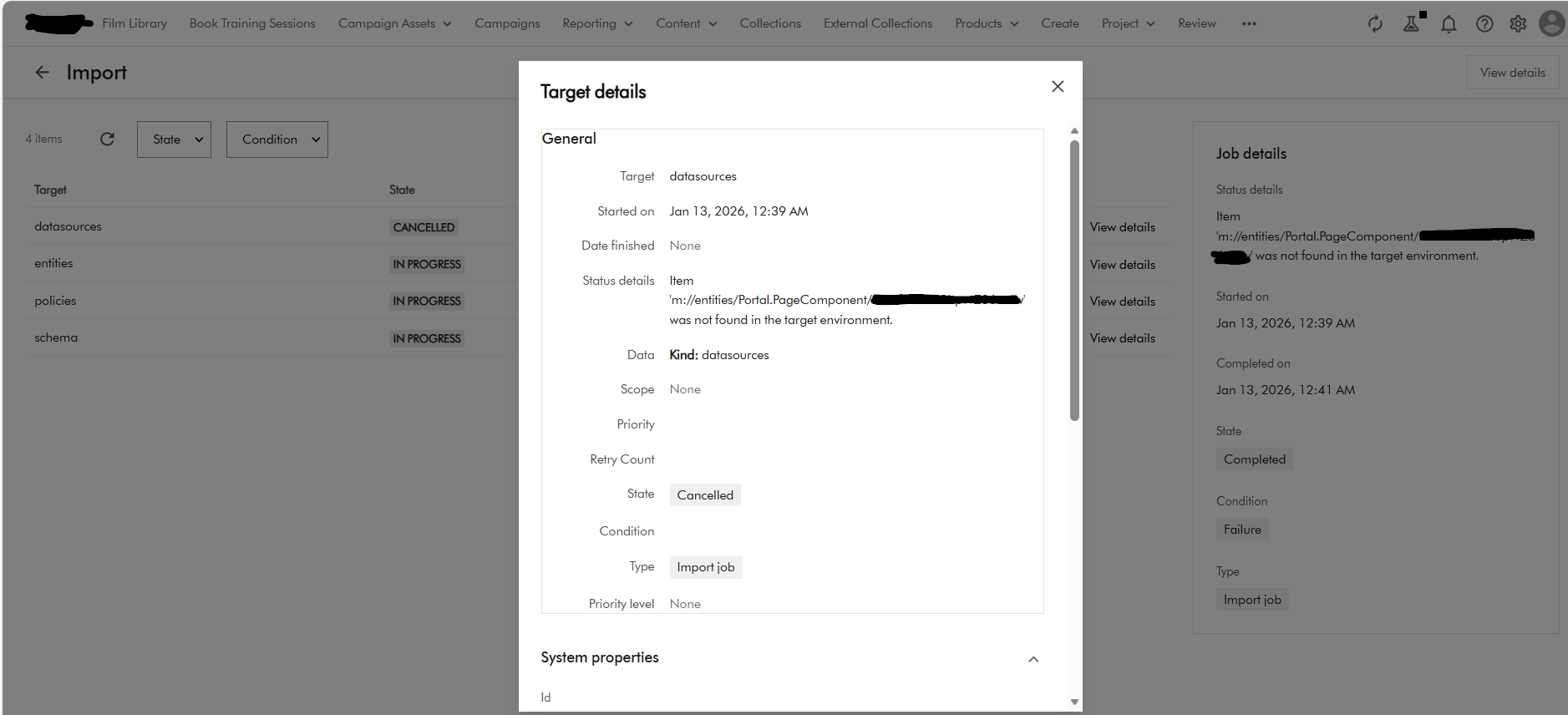
The error below may occur when your Copilot Studio account doesn’t have access permissions to create a custom connection

Issue 2 Resolution:

Work with your ITS teams to provision the correct level of needed access in Copilot Studio

Next steps

In this blog post, we looked at a step-by-step guide on how to set the Marketer MCP integration with Microsoft Copilot Studio. We looked at potential connectivity issues that you may encounter and how to resolve them to get it working.

The Marketer MCP provides tools to create content, manage campaigns, run marketing automation, and handle content management. This is an evolving tool and remember to check latest updates from Sitecore.

The Marketer MCP is only reliable for the supported use cases listed here. Responses outside this scope have not been validated by Sitecore and might be inaccurate.

SitecoreAI docs

Stay tuned for future posts, feel free to leave us comments and feedback as well.

The Agentic Leap: Sitecore Symposium 2025 AI Deep Dive into Strategy, Use Cases, and Client Success

The content below was generated with help of AI. I prompted AI to help create an executive summary and curated list that covers everything AI in upcoming Sitecore Symposium 2025, scheduled for November 3-5 in Orlando.

Executive Summary: The AI Mandate at Sitecore Symposium 2025

Sitecore Symposium 2025, will center on the fundamental redefinition of digital experience driven by Artificial Intelligence. The overarching theme, “Next is Now,” acknowledges that AI has profoundly altered consumer behavior, replacing traditional search with summarization and converting clicks into definitive conclusions. This shift mandates that brands meet customers across novel channels and touchpoints that did not exist recently.

  • The New Paradigm: Augmentation vs. Automation – A key strategic indicator of Sitecore’s direction is articulated by CEO Eric Stine, who will emphasize the limitations of existing, disconnected marketing solutions and the fragmented experiences they create. The strategic focus of Sitecore’s platform evolution is clear: prioritizing augmentation over automation and relevance over reach. This positioning redefines Sitecore’s AI not merely as a tool for reducing labor costs, but as a critical growth engine designed to scale human creativity and accelerate the marketer’s capacity to connect, create, and compete.
  • Industry Context and Strategic Sponsorship: Accenture’s Agentic Shift – The focus on agentic frameworks at Sitecore mirrors a broader industry trend among global professional services firms. Accenture, for example, is leveraging similar principles, having recently launched its “Physical AI Orchestrator” solution. This cloud-based offering integrates AI agents from Accenture’s AI Refinery™ platform to help manufacturers create software-defined facilities and live digital twins, highlighting the enterprise reliance on autonomous, goal-oriented AI systems. Accenture is participating as a Strategic Sponsor at Sitecore Symposium 2025. Furthermore, they are the exclusive partner for the highly anticipated #ExecutiveExchange, a premier program designed for senior industry leaders to explore the possibilities of content, data, and AI, and gain valuable actionable insights. Joined by Sitecore’s leadership and a select group of global thought leaders, this Exchange is designed to spark ideas and foster meaningful connections for C-suite attendees.
  • The Three Pillars of Sitecore’s AI Strategy – The Symposium agenda is structured to address the complete lifecycle of enterprise AI adoption, from strategic planning to implementation and governance. The sessions reveal a focus on three core pillars essential for achieving the AI advantage:
    • Strategic Vision: Establishing the architectural foundation, the product roadmap, and the necessary governance frameworks for the future “Agentic Web.”
    • Tactical Execution: Showcasing specific, measurable use cases in both content orchestration (velocity and compliance) and developer acceleration (code generation and platform governance).
    • Real-World Validation: Presenting client stories that validate how global brands build trust, achieve scalable personalization, and modernize their architecture to be truly “AI-ready.”

Strategic Vision: Sitecore’s AI Roadmap and Agentic Future

The strategic sessions at Symposium will focus on establishing the architectural and corporate intent behind Sitecore’s AI investments, demonstrating a shift beyond rudimentary generative capabilities toward advanced, integrated intelligence.

  • Defining the Advantage: Speed, Scale, and Trust – The General Session, “Speed, scale, and trust: The AI advantage for marketers,” sets the executive tone for the event. Sitecore Chief Product Officer Roger Connolly, joined by leaders from major global enterprises including Infor, Regal Rexnord, AFL Global, and Berkeley Homes, will discuss how intelligence and imagination must work together to unlock entirely new ways to compete in the digital space. The discussion centers on utilizing AI to accelerate content delivery, amplify creative output, and, most critically, build lasting trust at scale.  The repeated emphasis on “trust” is highly significant in the enterprise context. It signals that Sitecore recognizes the profound corporate liability associated with AI outputs, such as hallucinations or compliance breaches. Therefore, the core strategy involves developing AI solutions with inherent guardrails for brand safety, data integrity, and regulatory adherence, positioning AI not just as an efficiency tool, but as a critical competitive advantage built on verifiable governance.
  • The Agentic Framework: The Technical Roadmap – A key session provides an exclusive look into Sitecore’s product roadmap, focusing on how its platform is being reimagined with intelligence. This session details how advanced agentic frameworks will power intelligent and seamless workflows across the entire product suite. This move toward agentic frameworks signifies a major architectural transition. Rather than relying on rigid, sequential DXP workflows, Sitecore is building decentralized, goal-oriented AI entities—or “agents”—that possess the autonomy and context needed to execute complex, cross-product tasks. These AI agents will be empowered to “plan, synthesize, and act” wherever assistance is needed. The necessary precursor for this capability is a fully composable, API-first backbone, such as XM Cloud, which provides agents with the required data context and execution permissions to operate effectively and autonomously across the DXP ecosystem.
  • The Foundational Imperative: The Experience OS – For AI acceleration to be effective, a unified and governed digital ecosystem must be in place. The session “The Experience OS: Preparing Digital Foundations for AI Acceleration” addresses this foundational requirement. The analysis indicates that fragmented, ungoverned legacy systems (characterized by low content and data maturity) inevitably lead to inconsistent AI outputs and dramatically increase the human resources required for correction and oversight. Leaders from Horizontal Digital and Gradial will share how AI can accelerate site operations only after a foundation is built that successfully unifies teams, standardizes components, and establishes scalable governance. Establishing this “Experience OS” is therefore the fundamental structural step that enables the desired strategic outcome: efficiency, consistency, and accelerated delivery across all digital properties.

Strategic Partner Spotlight: Accenture’s AI and Innovation Sessions

Accenture’s presence at Sitecore Symposium 2025 extends far beyond the Executive Exchange, featuring a strong lineup of engaging sessions that showcase innovation and customer impact, particularly around AI-driven strategies. Attendees are encouraged to visit Accenture at booth 229 to connect with their Sitecore experts and explore how AI-driven content strategies are shaping the future of digital experience.

Key sessions featuring Accenture include:

The Curated AI Session Guide

The following table provides a curated list of key Sitecore Symposium 2025 agenda items, summarizing their strategic importance, technical focus, and client application.

Session TitleCore Theme/FocusSpeakers/Client Case StudySummary and Key TakeawaysRegistration Link
Speed, scale, and trust: The AI advantage for marketers (General Session)Executive Strategy & TrustRoger Connolly (Sitecore CPO), Infor, Regal Rexnord, AFL Global, Berkeley HomesExecutive insights on positioning AI as an advantage, leveraging intelligence and imagination to accelerate delivery and build lasting trust at scale, moving beyond mere automation.Link
Sitecore’s AI roadmap: How agentic frameworks will transform digital experienceAI Roadmap & Agentic ArchitectureSitecore Product TeamExclusive look at the AI roadmap, demonstrating how future AI agents will be empowered to “plan, synthesize, and act” across the DXP for seamless, intelligent workflows.Link
Harnessing AI for content creation: Introducing AI Experience Generation for Sitecore XM CloudContent Use Case & Product DemoRichard Seal (Principal Engineer, Sitecore), Mo CherifPractical demonstration of the new AI Experience Generation app in the XM Cloud Marketplace, detailing AI-driven page creation and the technical architecture for building Marketplace extensions.Link
Orchestrating the Future: AI-Powered Content Operations with Sitecore, Gradial, and EPAMContent Supply Chain & Operational EfficiencyTimothy Marsh, Amanda Follit (EPAM)Strategic methods to overcome content fragmentation and slow cycles by implementing intelligent, orchestrated AI content supply chains that enhance audience resonance.Link
Navigating AI readiness – it’s not what you thinkOrganizational Strategy & AdoptionVickie Bertini (EPAM)Addresses the non-technical hurdles of AI implementation, focusing on organizational resistance, strategic roadblocks, and how to effectively manage change in the enterprise.Link
Creating an AI-powered content supply chain for regulatory markets using SitecoreIndustry Use Case & ComplianceMike Shaw (CI Digital)Essential session for high-compliance sectors (H&LS, FS) detailing how AI-driven automation ensures governance, streamlines approvals, and transforms regulatory data into compliant narratives.Link
Cutting Sitecore development time by up to 80% with AIDeveloper Tooling & Code GenerationRajitha Khandavalli (Meritage Homes)Deep dive into leveraging context augmentation with MCP Servers and integrating external data (Jira, Figma) to enable accurate, high-speed, AI-generated code generation, drastically reducing development cycles.Link
Deliver Measurable Operation Efficiency with Agentic AIPlatform Governance & DevOpsN/A (HelixGuard Focus)Introduction to the HelixGuard “AI co-pilot,” blending MCP intelligence, analytics, and automation to proactively elevate platform performance, governance, and experience delivery in an agentic framework.Link
Scaling smarter: How Vizient uses Sitecore to personalize, integrate, and innovate in a complex B2B healthcare landscapeClient Story & AI FoundationJonathan Price (Americaneagle.com)Case study detailing how a complex B2B healthcare organization established “AI-ready infrastructure” and achieved smart personalization and faster time to market following a digital transformation.Link
The Experience OS: Preparing Digital Foundations for AI AccelerationInfrastructure Strategy & GovernancePam Butkowski (Horizontal Digital)Strategic session outlining the necessary pre-conditions for AI success: unifying teams, standardizing components, and establishing scalable governance models for faster delivery and consistency.Link

Conclusion: Leading the Future of DX with Sitecore AI

The Sitecore Symposium 2025 agenda confirms a decisive strategic pivot: Sitecore is transitioning from providing a traditional Digital Experience Platform (DXP) to offering an Intelligent Experience OS built on the principles of augmentation and agency. The analysis of the session topics suggests that the focus is on three intertwined strategic vectors: the deployment of agentic frameworks to automate complex, cross-platform workflows; the delivery of measurable efficiency via AI-driven content orchestration and developer acceleration; and the commitment to enterprise governance to ensure trust and compliance in high-stakes environments.
For digital leaders and technologists, the Symposium presents a compelling narrative that moves beyond simple generative AI experimentation. It outlines a comprehensive, strategic path forward where AI serves as the catalyst for continuous innovation, provided that organizations first establish the required foundational agility, standardization, and change management principles necessary to support a truly intelligent and composable digital future.

Next steps

In this blog post, we looked at the upcoming Sitecore Symposium 2025, where we looked at everything AI related. With help of AI, I have managed to review the agenda items and come up with this curated list. Stay tuned for future posts, feel free to leave us comments and feedback as well.

Everything AI – RAG, MCP, A2A integration architectures

Context

In this blog post, we are going to explore Agentic AI prominent integration architectures. We are going to discuss RAG, MCP and A2A architectures. If you are not familiar with these terminologies, don’t worry as you are in good company. Let us begin with how we got here in the first place.
What is an Agentic AI?

An AI agent is a system designed to pursue a goal autonomously by combining perception, reasoning, action, and memory. Often built using a large language model (LLM) and integrated with external tools. These agents perceive inputs, reason about what to do, act on those plans, and whilst also remembering any past interactions (memory).

We will now expound more on some of the key words below:

  • Perception – this is how your agent recognises or receives inputs such as a user prompt or some event occurring
  • Reasoning – this is the capability to break down a goal or objective into individual steps, identify which tools to use and adapt plans. This will usually be powered by an LLM
  • Tool – is any external system the agent can call or interact with, such as an API call or a database
  • Action – is the execution of the plan or decision by the agent, the act of sending an email for example, or submitting a form. Agent will perform the action leveraging the tools

What is Retrieval Augmented Generation (RAG)?

Carrying on with our AI agent conversation, suppose we need to empower our agent with deep, factual knowledge of a particular domain. Then RAG is the architectural pattern to use. As an analogy, think of RAG as an expert with instant access to your particular domain knowledge.

This pattern allows us to connect an LLM to an external knowledge source, which is typically a vector database. Therefore, the agent’s prompts are then “augmented” with this more relevant, retrieved data before the final response is generated.

Key benefit

With RAG, agents drastically reduces “noise” or “hallucinations” ensuring that the responses and answers are based on specific and latest domain knowledge or enterprise data

Some use cases

  • Q&A scenarios over Enterprise Knowledge – think of an HR agent that answers employee questions by referencing HR policy documents. Ensures the answers are accurate and citations of policies
  • Legal Team agent – that analyses company data rooms, summarizing risks and cross-referencing findings with internal documents and playbooks

What is Model Context Protocol (MCP)?

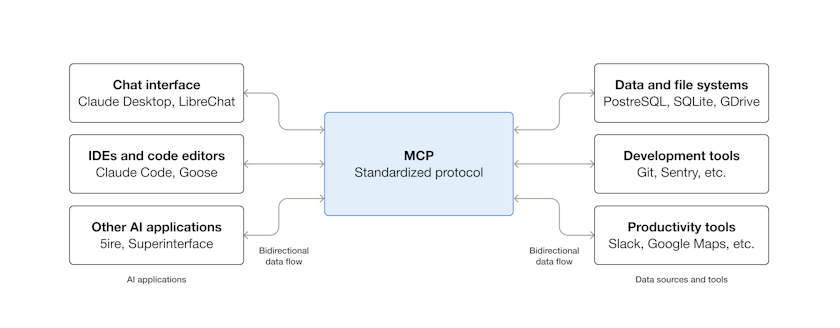
MCP is an open-source standard for connecting AI applications to external systems. As an analogy, think of MCP as a highly skilled employee who knows exactly which department (API) to call for a particular task.

MCP architecture, adapted from: https://modelcontextprotocol.io/docs/getting-started/intro

This is an emerging standard for enabling agents to discover and interact with external systems (APIs) in a structured and also predicable manner. It is like a USB-C for AI agents

Key benefit

MCP provides a governable, secure and standardized way for our agents to take action and interact with enterprise systems, doing more and going beyond simple data retrieval as in the use cases for RAG

Some use cases

  • Self-service sales agent – think of a Sales agent that allows a salesperson to create a new opportunity in a company CRM, then set up and add standard follow-up tasks as required. The agent does discovery of available CRM APIs, understand the required parameters and executes the transactions securely.
  • An accounting agent – think of automated financial operations where upon receiving an invoice in a email inbox, the agent calls the ERP system to create a draft bill, match it to Purchase Order and schedule a payment.

What is Agent-to-Agent (A2A)?

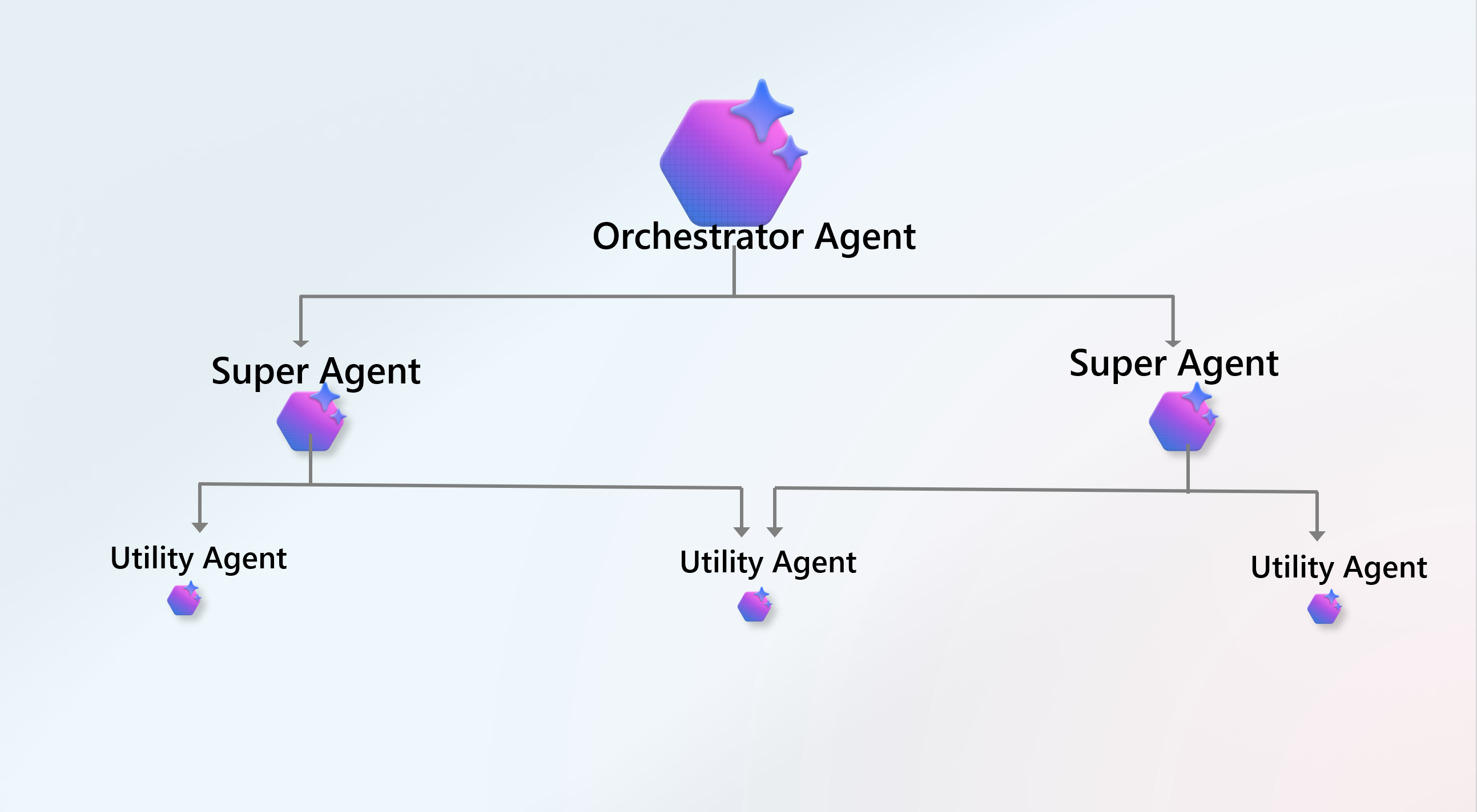
This does what is says on the tin. Multiple, specialized or utility agents collaborate to solve a problem that is too complex for a single agent. The graphic below illustrates this collaboration. As an analogy, think of a team of specialists collaborating on a complex project.

Key benefit

A2A enables tackling highly complex, multi-domain problems by leveraging specialized skills, similar to a human workforce.

Some use cases

  • Autonomous product development team – think of an autonomous product development teams consisting of “PM agent”, “Developer agent”, “QA agent” all working together. PM writes specs, Developer writes code and QA tests the code, iterating until a feature is completed. Specialization means agents can achieve higher quality of outputs at each stage of a complex workflow.

So which is it, RAG, MCP or A2A?

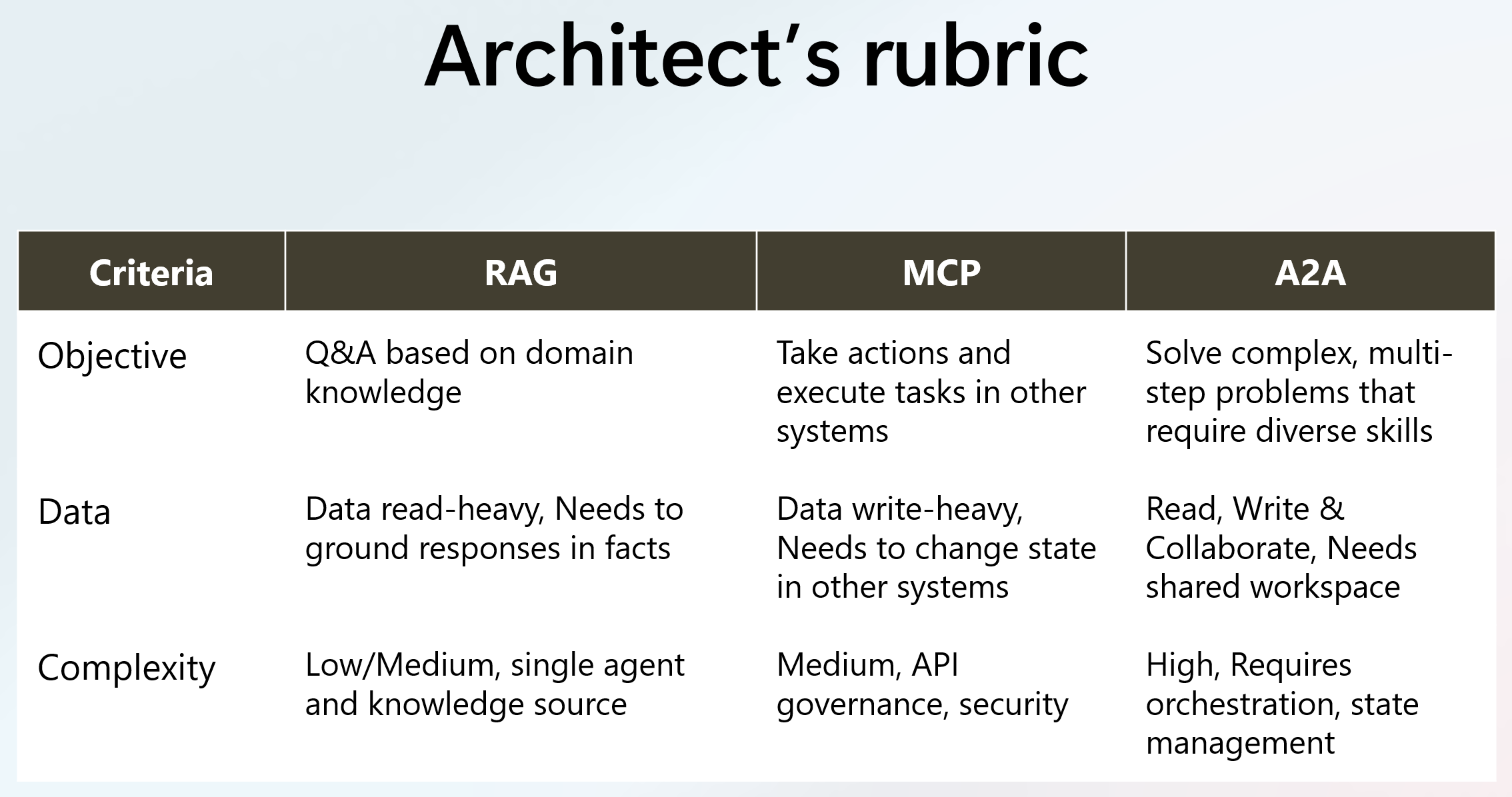
As architects we often rely on rubrics when we need to make architectural decisions. With Agent AI solutions, you can use a set of guidelines that best helps you assess the business domain problem and come up with the right solution. Below is an example rubric to help with your assessments and criteria when to leverage RAG, MCP or A2A.

Start with a goal

Agentic AI solutions are not any different. There is no “one size fits all” solutions. Always start with a goal, business objective so you can map the right Agentic AI solution for it. Sometimes Agentic AI many not be the right solution at all, don’t just jump on the bandwagon.

Trends and road ahead

Agentic AI is at very early stages and expect more emergence patterns in coming days and months. We may need to combine RAG and MCP and leverage a hybrid approach to solving AI problems. We already seeing the most valuable enterprise agents are not pure RAG or MCP but a hybrid.

Next steps

In this blog post, we looked at prominent integration architectures in this age of Agent AI. We explored RAG, MCP and A2A architectural patterns. We also looked at some of the use cases for each as well as key benefits we get from each pattern. We finished with a sample architecture rubric that can be leveraged.

Stay tuned for future posts, feel free to leave us comments and feedback as well.

Everything Sitecore AI and value to marketers – part two

Context

Welcome to part two of  this series about Everything Sitecore AI and value to marketers. In the previous session, we introduced Sitecore Stream and looked at the three main features: Brand aware AI, Copilots & agents and Agentic workflows.

In this blog post, we will explore further How the Brand Aware AI works, by looking at the architecture of Agents and how we bring them to life in our Stream Brand Assistant agent. There is also an accompanying video series on my YouTube channel.

What is an agent?

An agent is simply a software service that uses AI to assist users with information and task automation: An agent does a task, Take this do it and let me know when you are done.

We have three main elements on an Agent, as shown in the architecture below:

  1. Model – We now have access many Large Language Models and Small Language models that does the thinking
  2. Knowledge – This is the Instructions, data sources that enable the agent to ground prompts with Contextual data
  3. Tools –  A set of tools that agents can invoke such as retrieving information, Actions such as making API calls, and keeping a thread in memory of current conversation. You can also create custom tools using your own code or Azure Functions

How Brand Assistant agent works

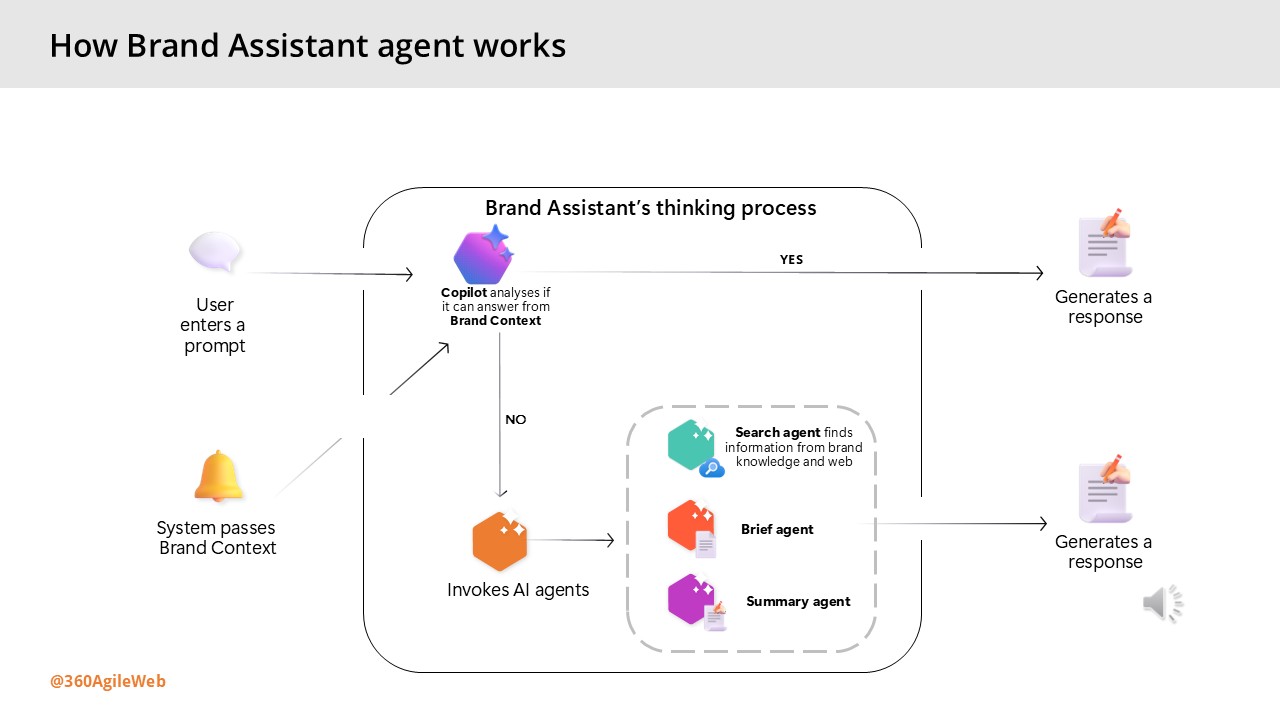
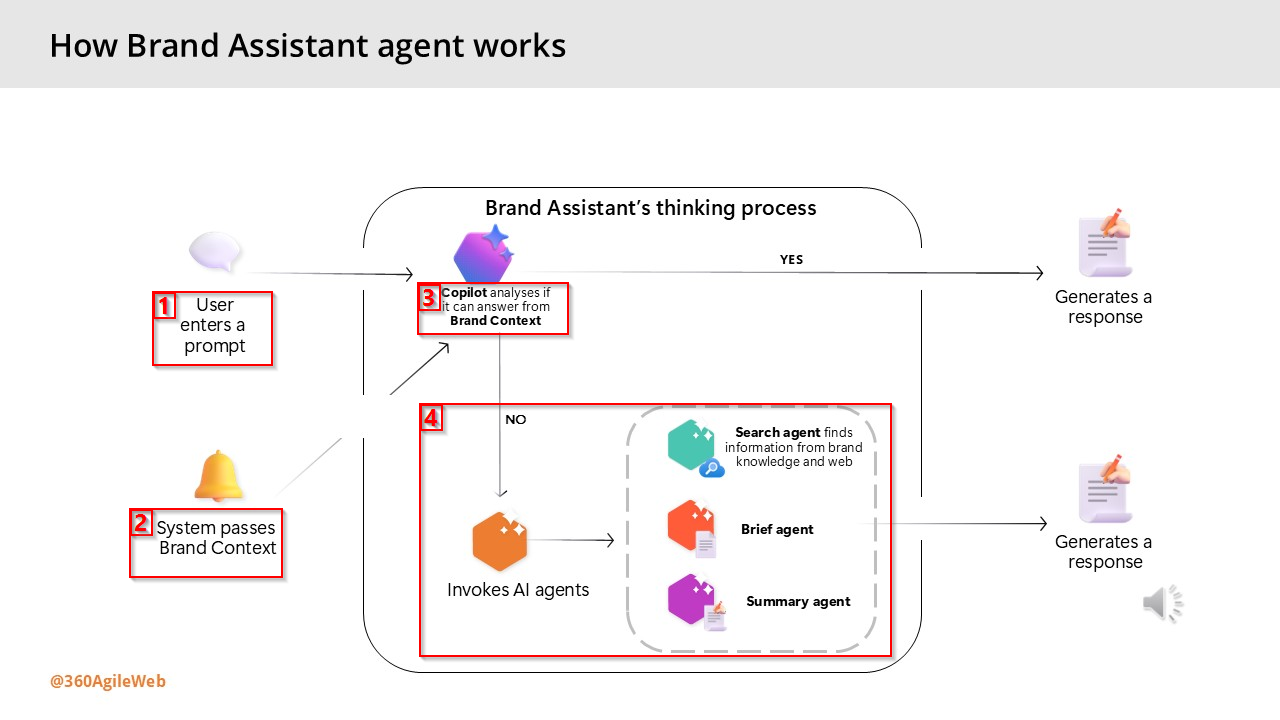
Below are the steps involved when interacting with the Brand Assistant within Sitecore Stream:

  1. The user enters a prompt – the user enters a prompt in Brand Assistant – such as a question or an instruction as shown during the demo by Alessandro earlier.
  2. The system passes information from the Brand Context – the system automatically provides information from the Brand Context brand kit section as a system prompt.
  3. Copilot analyzes if it can answer from Brand Context – the thinking process begins. The Brand Assistant evaluates whether the information passed from the Brand Context alone is enough to answer the prompt.
  4. Based on the analysis, the process continues in one of two ways:
    • Generate a direct response – if the Brand Context provides sufficient information, the Brand Assistant generates a direct response using only that content.
    • Invoke other AI agents – if the Brand Context doesn’t answer the prompt and more information is needed, the Brand Assistant automatically activates one or more AI agents to search and organize the information and generate a response:
      • Search agent – uses tools to find information from your brand knowledge, web searches, or both.
      • Brief agent – activated only when the user specifically requests a campaign or creative brief
      • Summary agent – condenses all retrieved information into a concise, relevant response.

Next steps

Have you started using Sitecore Stream with your Sitecore products yet? You can reach out to Sitecore directly by filling in the ‘Sitecore Steam: Get Your Demo’ form on their website. You can now access our YouTube video series accompanying the blog posts, which is available to watch on demand.

You can also get started integration Sitecore Stream Brand Management APIs with your solution by following this step-by-step guide.

Stay tuned for future posts, feel free to leave us comments and feedback as well.

Everything Sitecore AI and value to marketers part one

Context

As generative AI continues to evolve and become more deeply embedded in our digital landscape, its applications have expanded well beyond simple chat interfaces. Today, these models are powering intelligent agents capable of autonomously executing complex tasks and streamlining operations.

Forward-thinking organizations are now harnessing this potential to build AI-driven agents that orchestrate business processes and manage workloads in ways that were once out of reach.

In this post, we’ll take a closer look at how Sitecore is embracing this shift—leveraging Brand-Aware AI to transform the way enterprise marketing teams operate. There is also an accompanying video series on my YouTube channel.

Some of pain points that marketers face today

Before we look at how Sitecore are leveraging AI with Sitecore Stream, let me set  the context around some of the pain points that marketers face today:

  1. Keeping brand consistency – challenges around keeping their brands aligned with latest trends, efficiently improving previous campaigns & briefs, assets to keep a consistent brand tonal voice
  2. Taking longer time to make decisions – challenges around decision making turnaround time due to manual processes and large volumes of content and material that needs reviewing as part of the creative process
  3. Availability of robust Self-Serve tools –  challenges around lack of tools for efficient task planning, content supply chains, moving faster removing blockers and having more control
  4. Generic AI/ChatGPT has gapsChatGPT or similar generic AI products are not specific to marketers

What is Sitecore Stream

To address these challenges, Sitecore has taken steps to introduce AI-Driven marketing by creating Sitecore Stream. Sitecore Stream is the way Sitecore are infusing AI capabilities across their products.

Sitecore Stream consists of three components: Brand-aware AI, Copilots & agents and Agentic workflows, as discussed below.

Brand-aware AI

This is what powers Sitecore AI tools to generate content that reflects your brand’s identity. This is made possible by a foundational understanding of your brand called brand knowledge. In the next slide, I will show in detail how this brand knowledge is created in Sitecore Stream.

Brand-aware AI enables marketers to create high-quality content faster, by combining deep brand knowledge with real-time Web insights to generate outlines and long-form drafts in seconds.

Copilots and agents

These are the AI assistants designed to increase marketers’ productivity by speeding up decision-making and task execution. Copilots are for humans, Agents are for processes. Copilot is the UI for AI – the chat based interface is where you can ask specific questions about your brand. Better still, you can actually brainstorm with AI, e.g. you want to create new content for blog post or a campaign brief.

Agentic workflows

These are advanced tooling to orchestrate tasks and streamline marketing project management across teams. This capability enables you to discover gaps in your campaigns and reduce planning time with help of AI that understands  your brand and project context.

You can essentially ideate & plan entire campaign with help of AI. AI will recommend key top deliverables to bring your campaigns to life and recommend tasks to get them completed within seconds. Providing full agentic experiences to marketing campaigns, which human-in-the-loop too keep or discard suggestions

How to create your brand knowledge in Stream

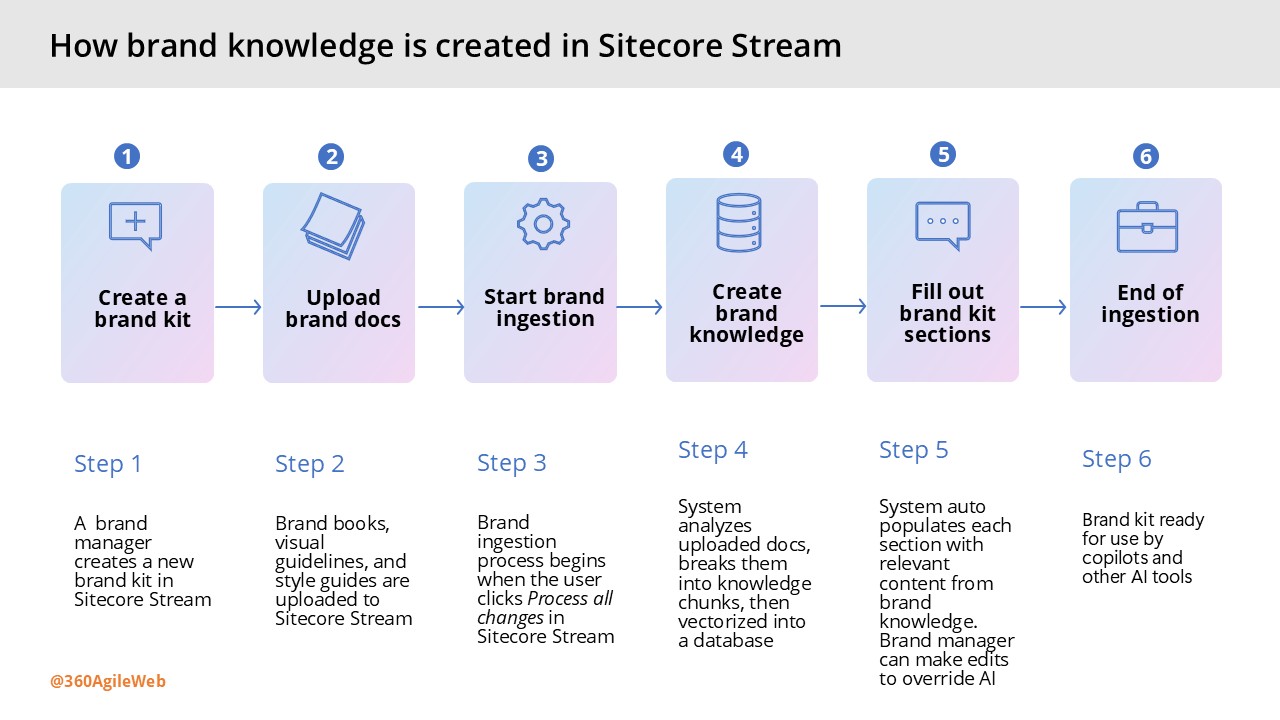
This involves a 6-step process as outlined in the infographic shown below. If you are managing a multi-brand enterprise, you can repeat this process for each of your separate brands. Essentially creating multiple brand kits within Sitecore Stream.

Next steps

Have you started using Sitecore Stream with your Sitecore products yet? You can reach out to Sitecore directly by filling in the ‘Sitecore Steam: Get Your Demo’ form on their website.

I have also created a YouTube video series accompanying the blog posts, which is available to watch on demand.

Stay tuned for future posts, feel free to leave us comments and feedback as well.