Sitecore Zero-downtime deployments – Part 1

Why Zero-downtime deployments?

With modern and mature DevOps, we all want smooth, sleek and painless automated deployments with zero-downtime. Sitecore deployments are no exception. Have you embraced zero-downtime deployments? This is not a new topic. If you look around Sitecore community, you see an odd question popping here and there regarding this topic.

The journey towards achieving zero-downtime deployments for any application in fact starts with your code base. So, in this series of blog posts, we will refresh ourselves on concepts like “Code Freeze” and the CI/CD process before deep diving into implementing Sitecore zero-downtime deployments.

Code freeze? “Thing of the past”

A Code freeze is an adopted milestone from the Waterfall days.

“No changes whatsoever are permitted to a portion or the entirety of the program’s source code. Particularly in large software systems, any change to the source code may have unintended consequences, potentially introducing new bugs”

Wikipedia

Typical Code Freeze Challenges:

  • Complex Sitecore solution with several dependencies
  • Very large code bases possibly with legacy code
  • Multiple teams from multiple geographies
  • Complex and painful code merges
  • Dedicated QA testing window
  • Multiple languages and frameworks

All these challenges may mean you introduce some “code freeze” when preparing for your deployments. Naturally, this is not where you want to be. If not managed properly, this becomes a blocker, a barrier from a true CI/CD process and your journey to your Sitecore zero down time deployments. Let’s refresh ourselves on some tips to help address some of the issues.

Solving Code Freeze Challenges:

  • Adopt a code branching strategy
  • Adopt “clean code” principles
  • Adopt microservices architecture
  • Embrace modern CI/CD processes
  • Embrace containers

Git Branching Strategy
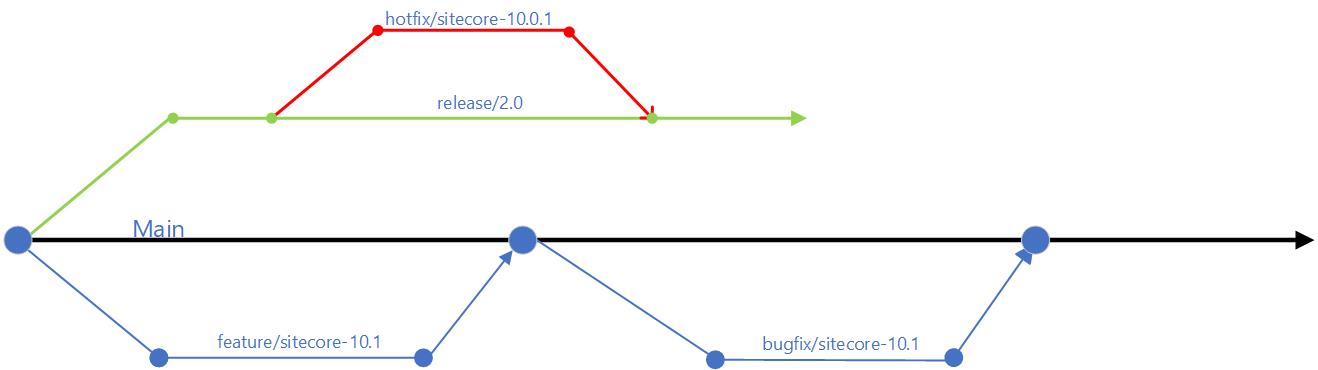
Git Branching Strategy
  • use of feature branches off the main branch – this will isolate work in progress from completed work, avoiding “code freezes” sessions when preparing for a release. Always use Pull Requests to merge feature branch into main branch. Make use of descriptive naming of your branches as best practice
  • use of release branches off main branch when close to your release, at end of your sprint or cycle. Make use of bugfix branches for any bugs fixes in your release and merge them back to release branch
  • There are other branching options available, such as the Release flow branching strategy

Embracing Microservices
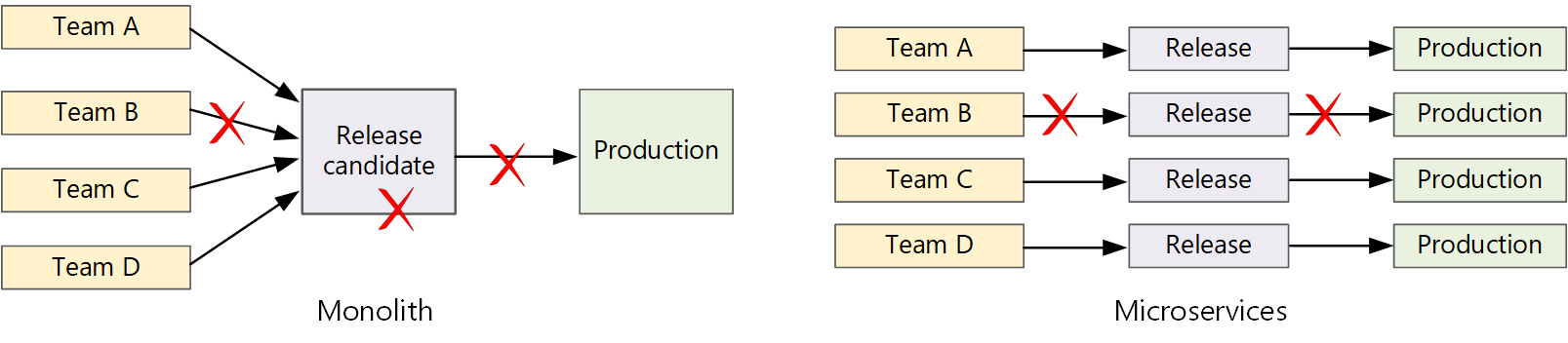
Diagram of a CI/CD monolith
CI/CD monolith v Microservices – courtesy of Microsoft Docs

Let us now look how Microservices make life easier.  A traditional monolithic app on the left, there is a single build pipeline whose output is the application executable. All development work feeds into this pipeline. If team B break, the whole thing breaks. In contrast with microservices philosophy on the right, there should never be a long release train where every team has to get in line. The team that builds service “A” can release an update at any time, without waiting for changes in service “B” to be merged, tested, and deployed.

Next steps

Hopefully, these tips help you address “Code Freeze” problem going forward. If you still struggling, engage your digital partners to look for long term solutions.

In the next blog post in this series, we will look at Sitecore CI/CD processes to support Sitecore Zero Downtime deployments.

Using Facebook Login with Sitecore Identity 9.3

Facebook for developers

Today we will walk through steps about extending your Sitecore Identity Server 9.3 to work with Facebook sub-provider. We will be creating a Sitecore Host plugin, which you should be familiar if your have read my previous blog on Sitecore Host Plugins.

Why Facebook Logins?

The scenario is that you would like your front door visitor to your Sitecore based website to be able to authenticate using their Facebook logins.

The good news is that Sitecore Identity Server can be configured as a federation gateway which means we can leverage Facebook as external provider with little effort.

What steps are needed?

  1. Register your Sitecore Application on the Facebook For Developers Portal. This process is to get an Application Identifier and Application Secret, that are needed in your Sitecore Instance. I will walk with you on how to do this process.
  2. Create and deploy a Sitecore Host Plugin that extends Sitecore Identity Server to support Facebook Logins. I will walk with you on how to create this plugin, with full access to the source code in my GitHub Repository

Register your Sitecore Application

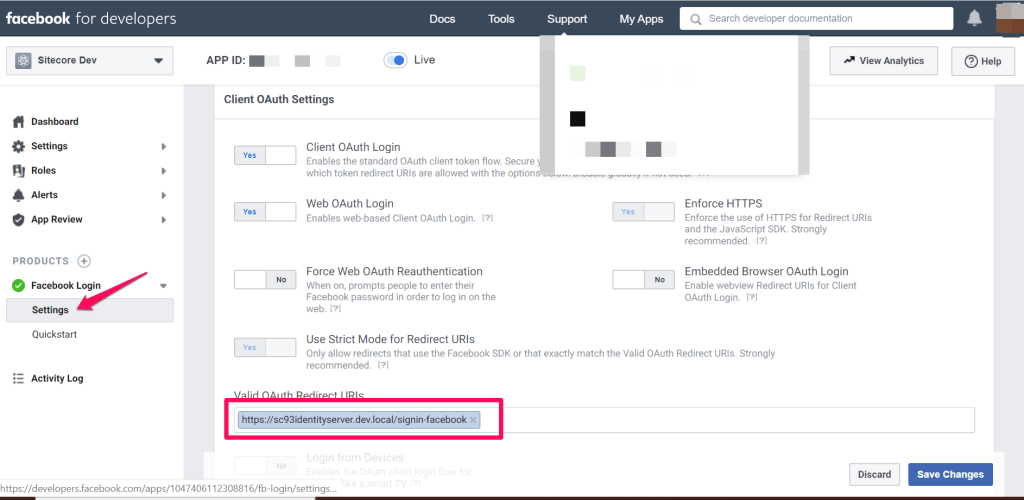
Head to Facebook for Developers portal. On the portal, follow the link to create a new application. This will require you to specify the application display name after which, you will get a dashboard similar to this below.

Application Dashboard

Ensure you configure a redirect URL for your Sitecore Identity Server instance and save your changes. This will be of the format below:

https://Your_SI_Base_Url/signin-facebook

For example, my SI redirect URL is https://sc93identityserver.dev.local/signin-facebook

Creating Sitecore Host Plugin for Facebook Login

Sitecore Host Facebook Plugin

I have previously blogged on how to create a Visual Studio project for your Sitecore Host plugin. I will recommend you have a read before proceeding further.

We need to reference the Microsoft.AspNetCore.Authentication.Facebook package needed for Facebook login functionality for ASP.NET core applications. This is it.

Facebook AppId and AppSecret configuration

Within our Sitecore Host Plugin configuration file, we will define two properties as follows:

AppId – This will be mapped to the Application Identifier available from Facebook for Developers portal

AppSecret – This will be mapped to the Application secret availabe form Facebook for Developer portal

Provide definition of ConfigureServices for the Plugin

As per Sitecore Host Plugin requirements, we need to configure services for the subprovider according to the instructions for this provider, and specify the SignInScheme  setting as idsrv.external

To use authentication middleware, we must have an object of the type Microsoft.AspNetCore.Authentication.AuthenticationBuilder

To initialise this object, we must use 

new Microsoft.AspNetCore.Authentication.AuthenticationBuilder(services) 

instead of services.AddAuthentication()

Notice how we use AuthenticationBuilder(services).AddFacebook() pipeline below, which is available to us via the Microsoft.AspNetCore.Authentication.Facebook package we referenced earlier.

Facebook Plugin – ConfigureServices code listing

Facebook Plugin in Action

After successful deployment of this plugin to your instance of Sitecore Identity server, you should see the Sitecore Identity login screen below.

Please note you will need to re-start your IIS to pick the plugin changes.

Source code

This is it. You now have a working Facebook Plugin that you can deploy to your Sitecore Identity Server 9.3 instance. The full source code for this plugin is available on my public GitHub Repository.

2012 in review

The WordPress.com stats helper monkeys prepared a 2012 annual report for this blog.

Here’s an excerpt:

The new Boeing 787 Dreamliner can carry about 250 passengers. This blog was viewed about 1,400 times in 2012. If it were a Dreamliner, it would take about 6 trips to carry that many people.

Click here to see the complete report.

3.10 Country/Region Specific Requirements – Windows Phone Marketplace

I recently re-submitted a previously live app to new markets. I was surprised when I was told it failed certification. Reason is Policy 3.10.

Specifically, I got this comments: Your application uses the Bing Maps Silverlight Control for Windows Phone. Bing Maps is not supported for
Group 1 countries at this time. You may resubmit your application and deselect the Group 1 countries.

Result: Fail

So watch out, don’t submit Bing Maps enabled apps to Group 1 countries, which are:

Group 1: China

Suprise yourself with this FREE Shake It Share It app

‘Shake It Share It’ is a handy pictures app to surprise you with your random pictures in your camera roll.
It uses a normal distribution randomising algorithm to surprise you with pictures in your camera roll.
And why not share your suprise on facebook with this app?

How to:

  • Auto mode: Your pictures will be randomly selected after a delay of ‘n’ milli seconds which you can change using the swttings page
  • Manual mode: Shake your phone to randomly select your pictures
  • Use settings page to configure your auto mode delay in ms (1000 ms= 1 sec)
  • To share on facebook, ensure you have paused if in auto mode, then select picture to share using ‘Back’ and ‘Next’
  • You can get it either by searching it in the market place or downloading it directly using link below

    u.k. crime map

    Shake It Share It

    View your street-level crime stats in England and Wales (United Kingdom) with this handy app

    UK Crime Map is a handy location-aware app to help you view street-level crime in streets of England and Wales in United Kingdom.
    This app uses your current location when initialising default view of the map.
    Your location is not shared in any way with any third party.
    Crimes at street-level within a 1 mile radius of a single point.
    The street-level crimes returned in the API are only an approximation of where the actual crimes occurred,
    they are NOT the exact locations.

    Police API URL: The Police API allows you to retrieve information about neighbourhood areas in
    all 43 English and Welsh police forces http://policeapi2.rkh.co.uk/api/docs/method/crime-street/

    You can get it either by searching it in the market place or downloading it directly using link below

    u.k. crime map

    U.K. Crime map

    Crime map dashboard

    Attending Tech.Ed Australia 2011? we got wp7 app for it!

    If you’re planning on attending Tech.Ed Australia 2011 conference and if you own a Windows Phone 7, please check out our new TechEdAU 2011app for Windows Phone 7 that is now available in the marketplace. You can get it either by searching it in the market place or downloading it directly using link below

    TechEdAU 2011

    TechEdAU 2011 app

    TechEdAU 2011 is a handy app for attendees of Microsoft Tech.Ed Australia 2011 conference.


    Attendees will find this app useful as follows:

    • Browse all Sessions available
    • Browse all Speakers and Tracks available
    • Browse filtered sessions by Session Type such as Breakout, Hands-on-labs
    • Browse filtered sessions by Levels such as Intermediate, Advanced, Expert
    • Browse filtered sessions by Speakers and Tracks such as Architecture, Windows Phone, etc
    • Manage favorite sessions lists on the app
    • View details of each session including schedules, speakers, tracks, level, tags
    • View session Rooms to session summary details
    • Browsing session now defaults to ‘timeslots’ view to filter Day1, Day2, Day3 (Aug 30 – Sep 2)
    • Favorite sessions now appear with a ‘favorite’ icon for easier identification on the browsing lists
    The app uses:
    * phone’s internet connection
    * phone’s web browser
    * location services
    to access the Tech.Ed 2011 Conference Session OData feeds and website resources.

    Disclaimer:
    TechEdAU 2011 app uses the official Tech.Ed Australia 2011 Conference Session OData feeds to retrieve all the content displayed.
    It also links to the official Tech.Ed 2011 website resources to serve hyperlinks.
    wp7agile is not responsible for any content displayed.

    TechEdAU 2011 uses:
    * phone’s internet connection
    * phone’s web browser
    * location services
    to access the Tech.Ed 2011 Conference Session OData feeds and website resources.
    The performance and responsiveness of this app may be affected by slow internet connections.
    By purchasing the app, you have agreed with terms and conditions.