Content Hub DevOps: Resolving unable to delete entity because it’s being used in one or more policies errors

Context and background

Content Hub permissions and security model is underpinned by the user group policies model, whereby Content Hub users can perform actions based on their access rights. The official docs provides clear definition of the anatomy and architecture of the user group policies. For example, a user group policy consists of one or more rules, with each rule determining the conditions under which group members have permissions to do something.

While all the technical details of group policies are nicely abstracted away from our business users, there are use cases when you will need to in fact grapple with technical details of the policies. Such as when you can’t delete your taxonomies or entities, simply because you have used them in one or more rules in your policies.

In this blog post, I will outline this pain point and recommend a solution.

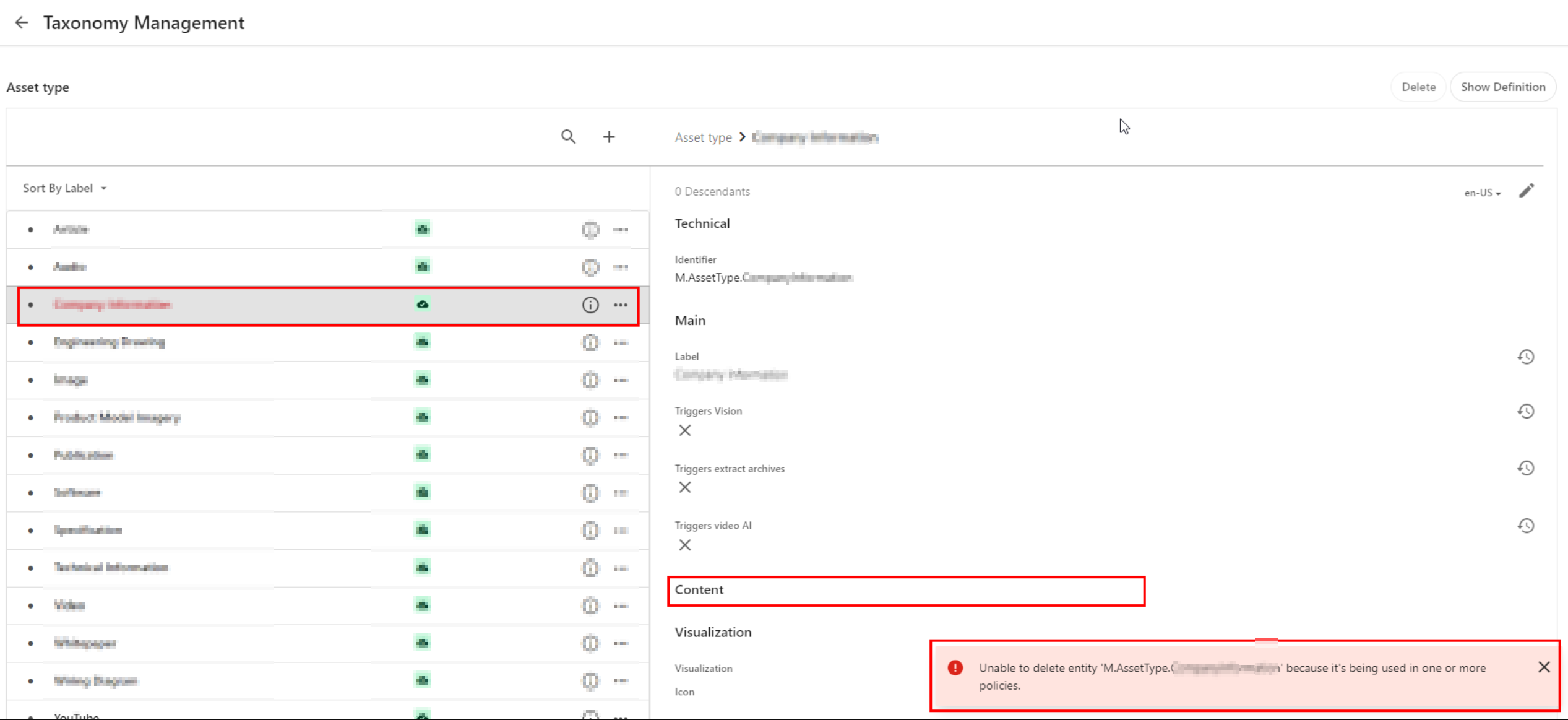
Unable to delete entity ‘…’ because it’s being used

Yes that is right. If you have used a taxonomy value or some other entity as part of your user group policy definition – then it makes sense you can not delete it. That is expected logic, we have a clear dependency within the system. In which case, we need to break or remove this dependency first.

Below is a sample screenshot of this error message. In this example, the highlighted taxonomy value can not be deleted yet, until the dependency has been removed.
User group policy serialization as JSON

If you haven’t set up DevOps as part of your Content Hub development workflow, then we need to cover some basics around user group policies serialization. You can leverage Content Hub Import/Export feature to export all polices into a ZIP package, as detailed below:

  1. Using the Manage page, navigate to Import/Export.
  2. On the Import/Export page, in the Export section, select only the Policies check box and click Export. This will generate a ZIP package with all policies.
  3. Click View downloads at the right bottom of the screen.
  4. On the Downloads page, click the Download Order icon when the status of the package is ready for download. This will download the ZIP package with all policies.
  5. Unzip the downloaded package. This will have JSON files of all policies

A look at M.Builtin.Readers.json for example

Below is a snippet from the M.Builtin.Readers.json, which a serialized version of the M.Builtin.Readers user group (one of the out-of-the-box user groups)

Remember a group policy consists of one or more rules, with each rule having one or more conditions under which group members have permissions to do something.

I have highlighted one of the conditions within the first rule in this user group policy. This condition shows the dependency on one of the taxonomies, M.Final.LifeCycle.Status

On line 20, the reference (“href”) indicates which taxonomy child value is being used, which is M.Final.LifeCycle.Status.Approved

The full content of this file are available from my GitHub Gist for your reference.

How to safely delete or remove taxonomy references from user group policy JSON file

The serialized user group policy JSON file is a plain text file. So any a text editor of choice can be used to edit this file, and delete all references to the taxonomy with a dependency. And then save the changes in updated JSON file. That is it.

Due care has to be taken to ensure that the rest of the JSON file is not modified.

Once all references are deleted and verified, you can create a new ZIP package with the changed files, to be imported back into Content Hub.

It is recommended your certified Content Hub developers should make these changes (and validate them, say, using a text file comparison tool such as Beyond Compare). For example, you need to compare the original ZIP package with the newly created one to make sure that their structure is the same.

Finally, the newly created ZIP package can be imported using the Import/Export functionality as detailed in official docs.

DevOps: Automating removing taxonomy or entities references from user group policies

I have previously blogged about enabling DevOps as part of your Content Hub development workflow.

The current pain point becomes a bread-and-butter problem to solve assuming you already embraced Content Hub DevOps.

With some business logic implemented as part of your CI/CD pipelines, all references to taxonomy values or entities can be safely and reliably deleted from user group polices. This can be done with automation scripts and other tooling that comes with DevOps, truly bringing you ROI in your DevOps infrastructure.

Sample/suggested CI/CD pseudo code

  1. Define a CI/CD “user group policies clean-up” step to be invoked whenever we are deleting “entities” from your Content Hub instance.
  2. Using a Regex, scan and systematically delete such entities from your user group policies JSON files (depending on how you’ve setup your DevOps, all policies should be serialized to policies folder)
  3. Ensure your “user group policies clean-up” step runs ahead of any deletion of the entities (or taxonomy values). Remember you can’t delete an entity if it is being referenced in your user group policy.
  4. Work with your DevOps engineers to validate the steps and test any changes in non-production environment(s), before applying to production environment.

Remember to also look at my related blog post on DevOps automation for your Action Scripts.

Next steps

In this blog post, I have discussed a common pain point when you are Unable to delete entity because it’s being used in one or more policies. I explained why this is the case, and looked into technical details of user group policy architecture. I provided a solution, which can be automated with a robust DevOps culture adoption for Content Hub.

I hope my approach helps you address similar scenarios in your use-cases. Please let me know if you have any comments above and would like me to provide further or additional details.
Content Hub tips & tricks: How to securely share your DAM assets with external users by leveraging collections – part 2

Background

On the previous post, I looked at how to securely share your DAM assets externally by leveraging collections. Among other things, we covered four options you can use to secure the asset collections. One of the options involved defining a permissions policies on M.Asset (model for your assets) based on M.Collection (model for your asset collections). However, this option seems to come with some nuances and will not work by default. I will carry on the conversation to demonstrate how to make this option to work.

Why doesn’t the policy definition work?

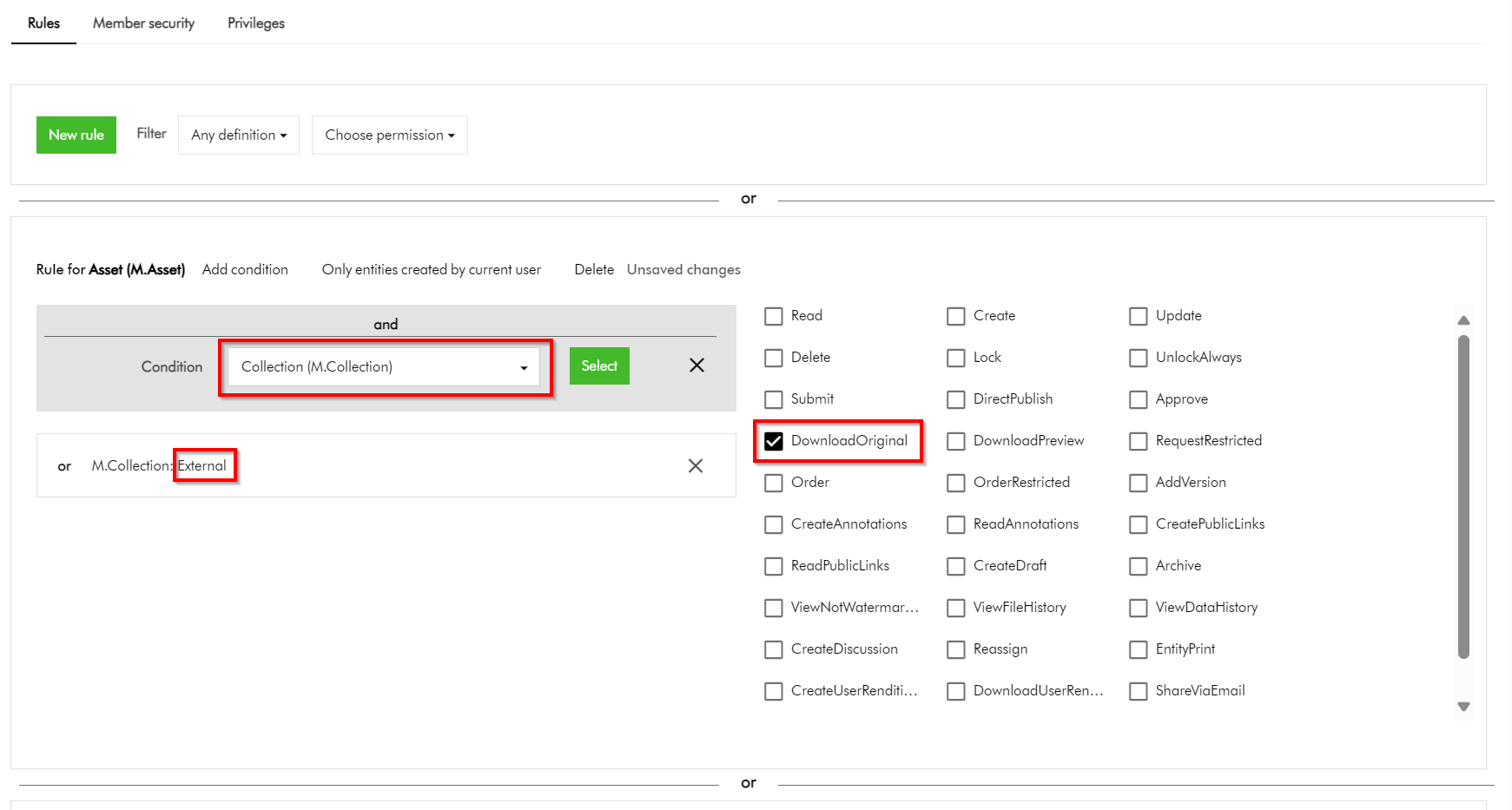
In simple terms, the above policy states that we would like to allow all assets belonging to our collection named “External” to be downloadable. Simple. But it doesn’t work.

But why?

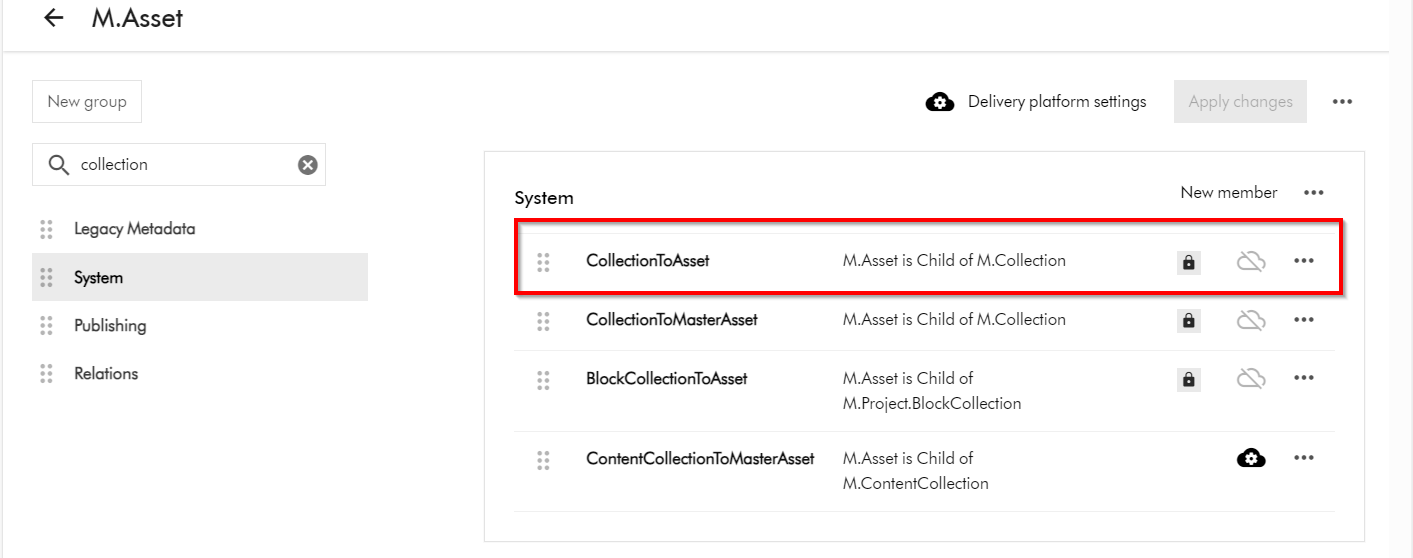
This is because the “Inherits security” setting for the CollectionToAsset relation is turned off by default. In other words, this means security related metadata (from the parents towards the children) can not be inherited while this setting is turned off.

M.Asset is a child of M.Collection (as shown below in the schema details for M.Asset definition). To access M.Asset schema page, click on Manage -> Schema -> then search for M.Asset

How do I turn on “Inherits security” for the CollectionToAsset relation?

Short answer is you can’t modify this by yourself. You will need support from Sitecore Technical Support to make this change for you. Please note CollectionToAsset is a system relation and is locked down to Super users as well.

You can raise Sitecore Support Cases using the Support portal and request the team to enable the “Inherits security” on CollectionToAsset on your environments. This should be actioned swiftly after which your policy definitions can start to work as expected.

Next steps

In this blog post, we have looked at how to make user group permissions policies on M.Asset based on M.Collection work. We looked at nuances that make this not to work by default and how to resolve and get it working. I hope you find this useful for your similar use cases.

Stay tuned and please give us any feedback or comments.

Content Hub tips & tricks: How to securely share your DAM assets with external users by leveraging collections – part 1

Background

One of the great values you get with your investments in Sitecore Content Hub platform is the collaboration capabilities with your external partners and users in your content supply chains. Siecore Content Hub provides out-of-the box the Asset Collections capability, which enables you to group your assets. Which seamlessly allows collaboration on that asset collection through comments, for example.

However, there is a catch.

When you create an asset collection and want a fine grained control on whether these assets should be downloadable, this doesn’t always seem to work as expected.

For example, you have a collection named “External” with only “Asset test 1” and “Asset test 2” included. And you need these two assets to be downloadable. However, when this collection is shared, there are scenarios when other additional assets will seem to appear within External collection, instead of just “Asset test 1” and “Asset test 2” as expected.

In this blog post, I will be sharing some top tips and tricks on how you can be in control of this process, ensuring you only share assets that need to be shared, securely.

How do I create an asset collection

The existing official docs provide step-by-step guidance on how to create asset collections. I will repeat the main steps below, for the sake of to keeping the flow in this blog post.

To create an asset collection:

  1. On the menu bar, click Collections.
  2. In the top-right corner of the Collections page, click + Collection.
  3. In the Collection dialog, populate the details of the collection you are creating
  4. Click Save.

How do I add assets to my asset collection

Again, the existing official docs provide robust step-by-step guide on how to add asset to a collection. Please note that it is best practice to add existing assets to your collection – which are at the correct stage of your content lifecycle. Avoid uploading new assets directly at this stage.

How do I share my asset collection

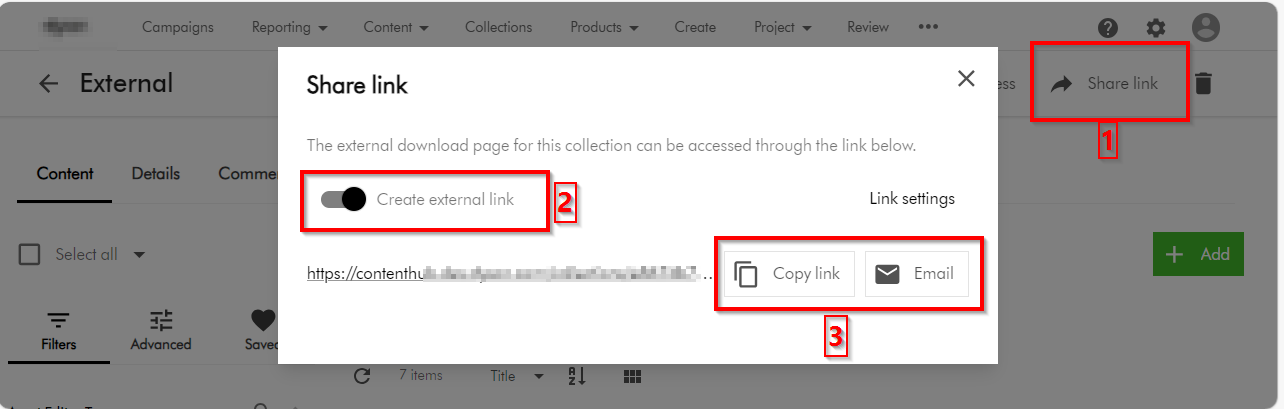
You can share the collection by following the following three main steps:

  1. On the collection details page, click Share link share link icon.
  2. In the Share link dialog, turn on the Create external link switch. This will then generate for you a link
  3. To share the link via email, use the Click Email email icon button, which should prompt for emailing details. You can alternatively use the Copy link button to copy the URL and share it as well
Tips and tricks on securing you asset collections

Now that we have covered the basics on how to create an asset collection and share it, I will focus on top tips and tricks of ensuring we are sharing the collection using best practices and for the correct external collaborators.

Top tip 1 – Leverage user groups to manage external collaborators

User groups underpins the permissions model within Content Hub. Members of a user group are granted permissions and privileges according to the user group policies assigned to that group. By managing permissions and privileges using groups, you can streamline how they are assigned.

  • Read-only external collaborators – Define a separate user group for your external collaborators who need a read-only access. These are not expected to make any contributions, but may be to give them a status update of your assets.
  • Contributor external collaborators – Define a separate user group for your external collaborators who you would like to give you comments and feedback on shared assets.
  • Download external collaborators – Define a separate user group for your external collaborators who you would like download your shared assets. The use case is when you would like them them to use download the shared assets for allowed activities such are offline brands channels.
  • Add external collaborators to a user group – Always add external collaborators as users in your Content Hub instance, then assign them one of the above user groupings. Sitecore Content Hub allows users belonging to an external domains to be added using Users Manager (and they can sign in with their username and passwords) Depending on your security policies and governance, it is possible to also leverage Single sign on with External domains. If you need guidance, reach out to your Security and Identity team or Sitecore Technical support.

Top tip 2 – Leverage user group policies to lock down UX and pages

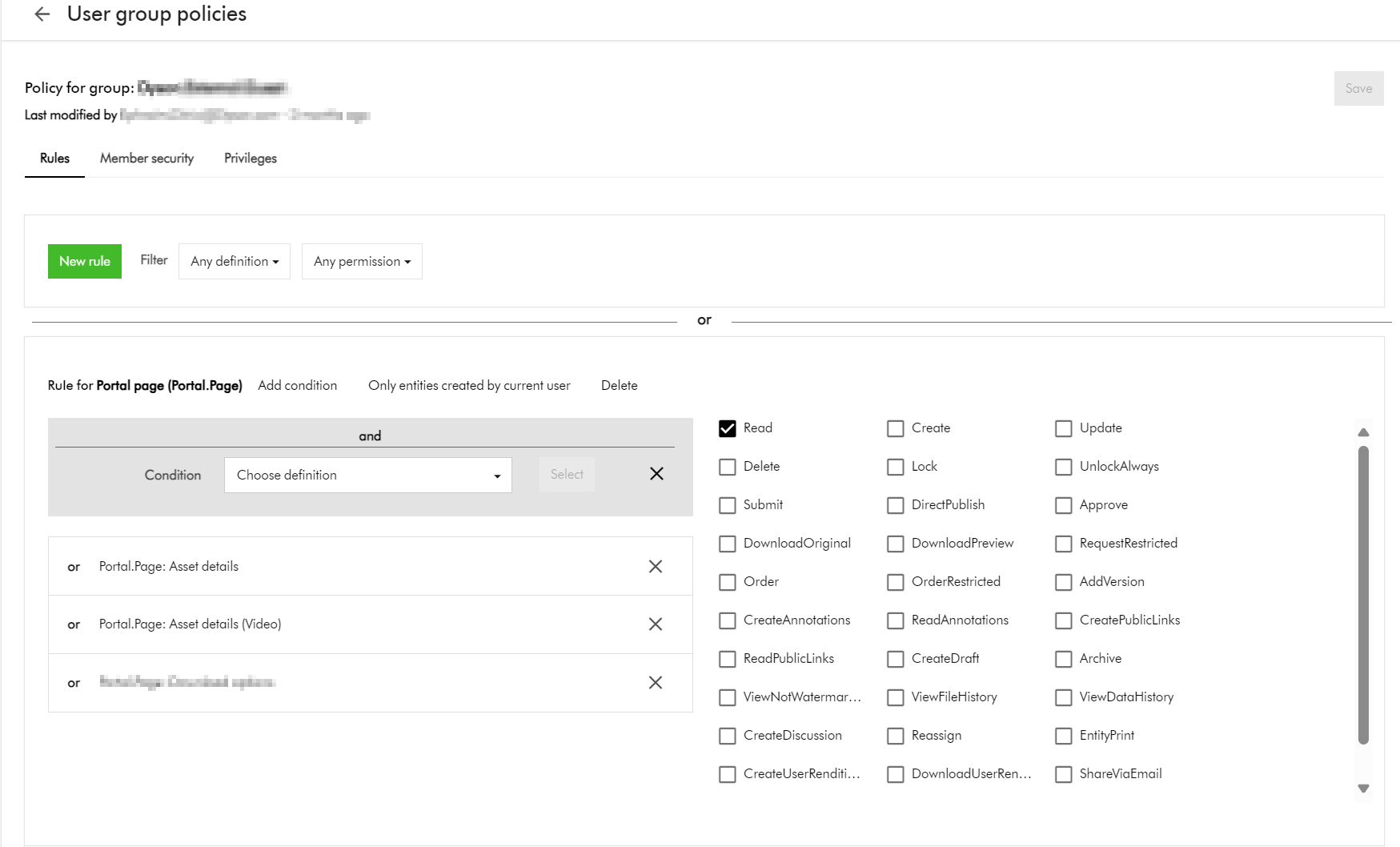
You need to make a decision which pages your external collaborators can view. For example, should they access your Asset details page, which will potentially give them access to additional meta data?

If you have followed Top tip 1 above, all you need to do is define user group policies for each relevant user groups.

Below is an example of how you can give access to allow viewing Asset details page(s) such as Asset details or Video asset details page as shown below.

Top tip 3 – Additional policies – downloadable assets based on a taxonomy value

You recall the scenario I described at the start of the blog. You have a collection named “External” with only “Asset test 1” and “Asset test 2” included. How will you go about ensuring only these two assets are downloadable?

  1. Define taxonomy, use this to tag and identify external assets:
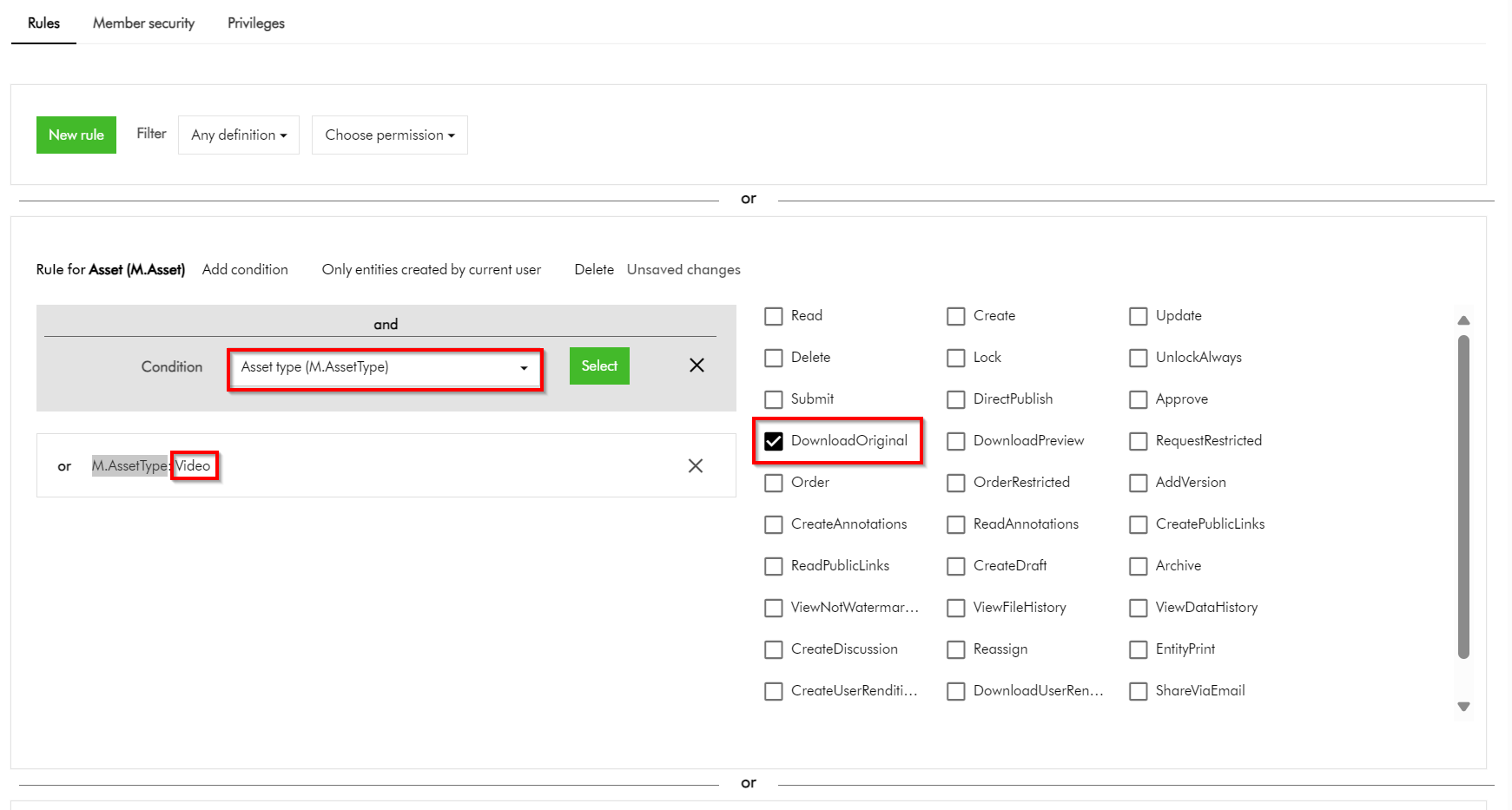
    • This option requires you to define some form of Taxonomy, say, ExternalAsset which entities Yes or No. For all externally shareable assets, you will need to tag them with value of Yes. You can then leverage this Taxonomy within your User Group policies definitions to narrow down which assets can be downloadable. As an example, this policy below shows how I can narrow which asset is downloadable based on M.AssetType value of Video
  2. This clearly works. However, with this option you will need to ensure all assets are tagged accordingly before sharing them externally. This could add more work to your content workflows.

Top tip 4 – Additional policies – downloadable assets based on current asset collection

You could be asking, why can’t I apply the additional policy for downloadable assets based on the current asset collection? Good question.

If you try this approach, your User group policy will look like this instead.

This is perfectly fine. You could have thought this will work, right?

This option does not work. It seems you can not define a policy on M.Asset (model for your assets) based on M.Collection (model for your asset collections) by default.

While grappling with this issue, I reached out to Sitecore Technical support for guidance. Good news is we have a technical solution for this specific problem. Stay tuned on my next blog post when I will cover how you can make a group policy definition policy on M.Asset based on M.Collection such as in the screenshot above work.

Next steps

In this blog post, we have looked at Content Hub asset collections a great feature for collaboration capabilities with your external users during your digital assets lifecycle. We have looked at some of the top tips you can leverage to secure your collections when sharing them with your external collaborators. I hope you find this useful for your similar use cases.

On the follow up blog post, I will look into details how to resolve the specific problem identified above. Please give us any feedback or comments.

Content Hub gems: Troubleshooting issue when creating asset public links

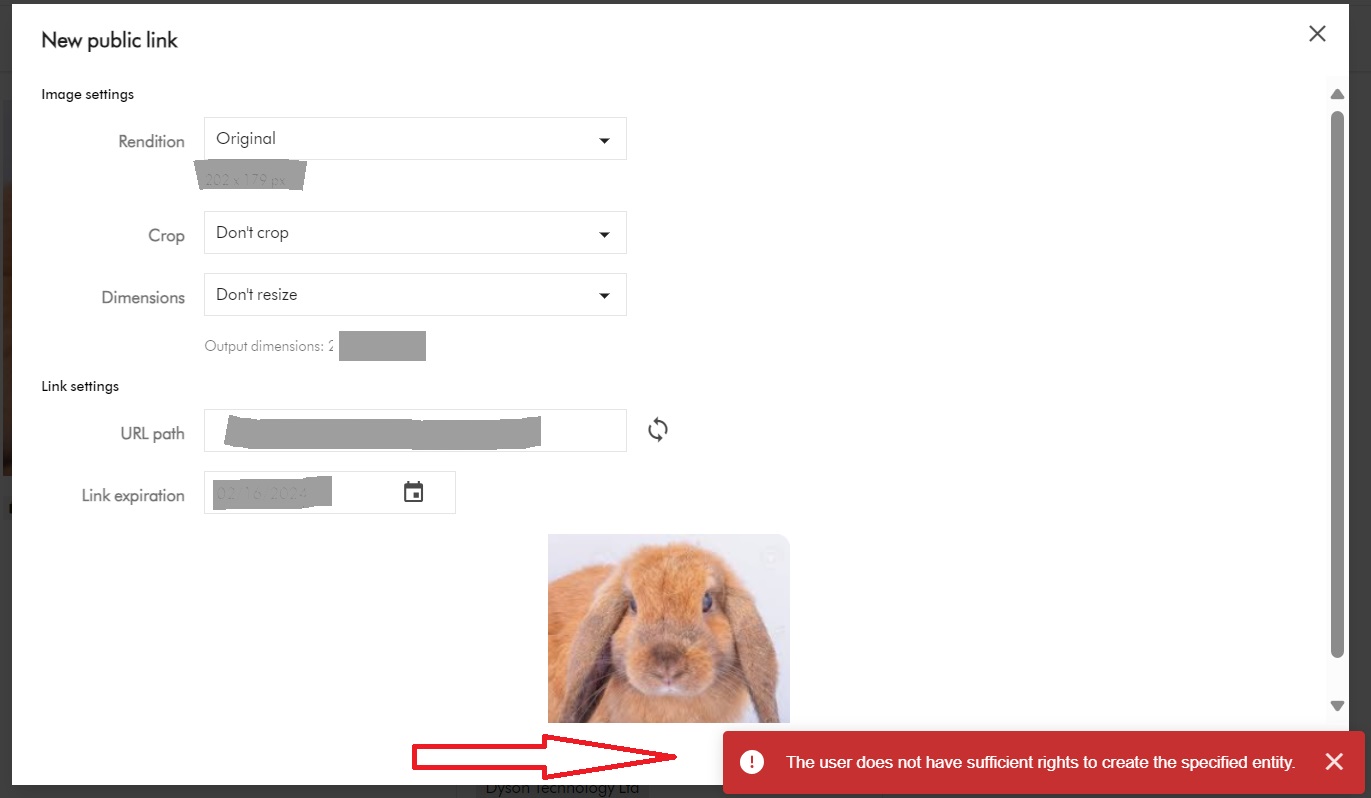
You may encounter this is error “The user does not have sufficient rights to create the specified entity

We will look at how to troubleshoot and resolve it. But first, what are public links?

What are public links used for?

In Content Hub, we use public links to share assets with external partners who typically do not have direct permission to download the assets. This means anyone who has access to this static URL can cache and fetch the file.

Creation of Public Links

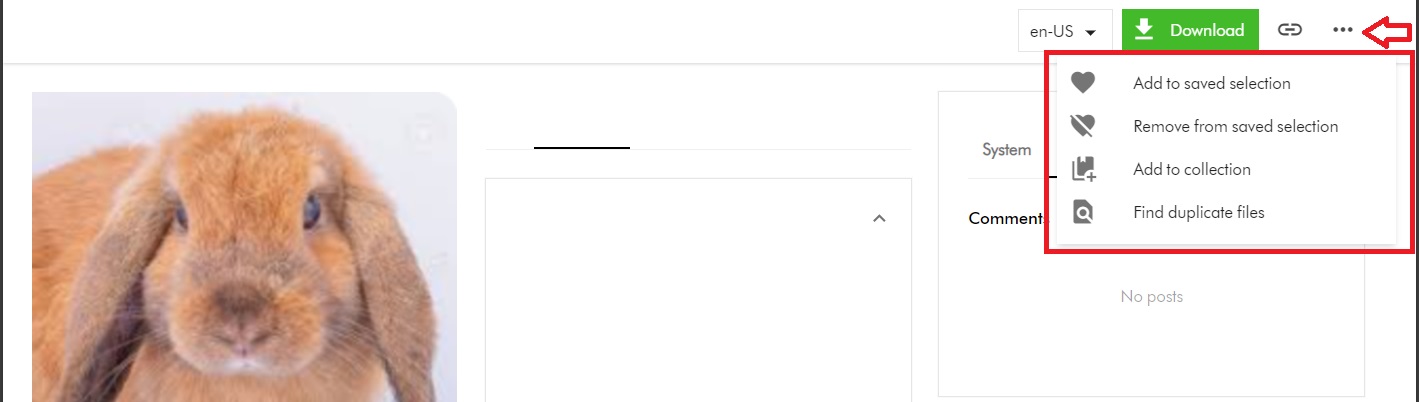
I will start with a scenario where my Content Hub user doesn’t have permission to create public links. My user belongs to my GlobalContentCreator user group. Within Content Hub, on the Asset Details page, when my user tries to access the Public links menu, they notice it is missing as shown below.

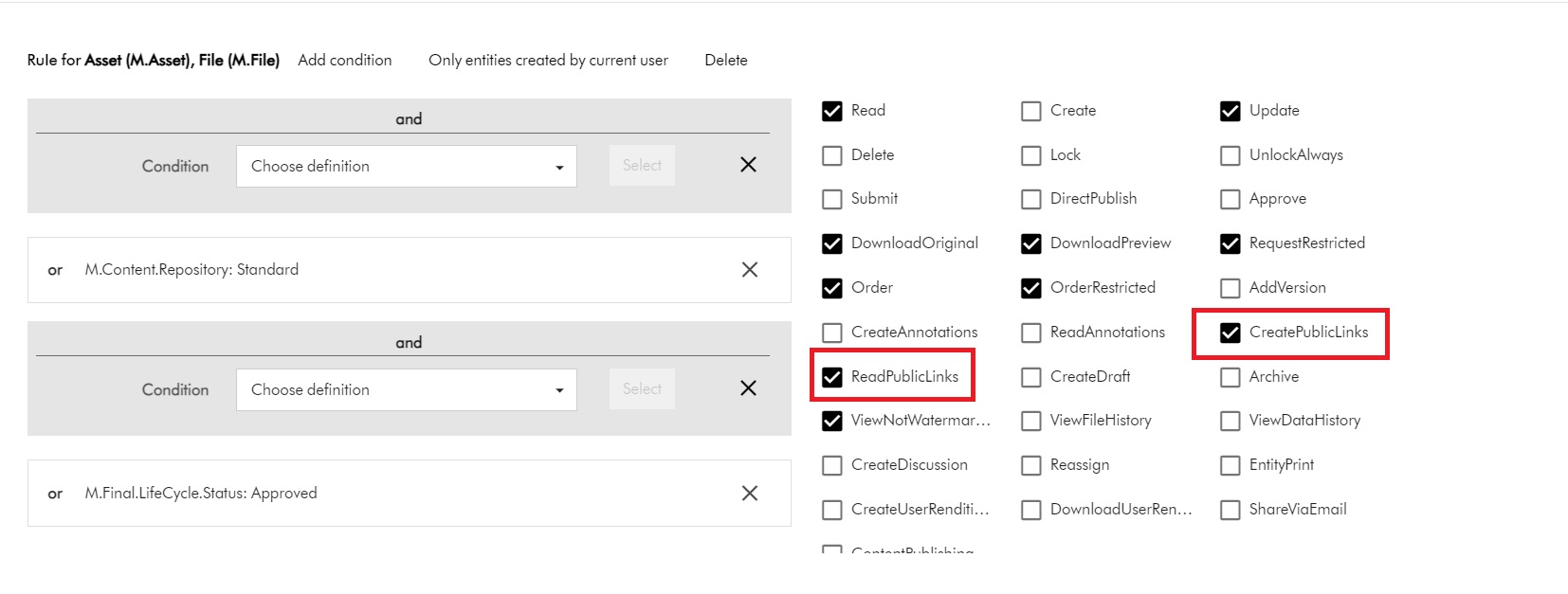
The Public links menu is missing because the required permissions have not been configured within GlobalContentCreator user group. Below is a snippet of the existing permissions for M.Asset and M.File

You notice the CreatePublicLinks and ReadPublicLinks permissions are missing. We need to enable them first, as shown below:

With this change in place, the Public links menu now appears on the Asset Details page for my user, as shown below.

Does this resolve the issue?

I will now let my user to put this to test.

As expected, when my user clicks on the Public links menu, it opens New pubic link popup window. They proceed to fill out the form and submitting it as shown below. However, they are still getting the error. What is going on?

M.PublicLink permissions are needed as well

Asset public links are entities of type M.PublicLink. In fact, M.Asset is Parent of M.PublicLink (using the AssetToPublicLink relationship)

Therefore, I need to assign additional permissions for M.PublicLink. I need to update my GlobalContentCreator user group with the following changes:

The minimum permissions needed are Read and Create to create the public links. However, I have additionally allowed my users to update and delete them as well.

This is it. With this change, the issue is resolved and my users can happily generate public links. Happy days.

Next steps

In this blog post, I have explored steps you need to take to troubleshoot and resolve the issue “the user does not have sufficient rights to create the specified entity” when generating public links.

Stay tuned and leave us any feedback or comments.