Faced with deprecated AD module, let us look at possible upgrade options to Sitecore version 9.3 or 10 to for your Sitecore Identity Management
1. Do not use on-premises Active Directory?
If you choose to stop using on-premises AD with your Sitecore instance, THEN:
You will need to upgrade from 8.2 to 9.3 or version 10 using Sitecore provided Security Database Scripts
You will then need use the default Sitecore Identity provider for Sitecore local users
This option means you will keep all existing CMS users after the upgrade
There will be no more on-premises AD sync needed
Your upgraded Sitecore Security Database is now your single source of truth for Identity Management
2. Keep on-premises Active Directory?
If you choose to keep your on-premises AD with your Sitecore instance. THEN you will need to make it work with latest Sitecore 9.3 or 10. To achieve this:
You will need to do a vanilla 9.3 or 10 setup, no Sitecore Security DB upgrade is necessary in this case
Now we have your on-premises AD working with Sitecore Identity, so your on-premises AD users can access Sitecore instance
No on-premises AD sync is needed as we are using Sitecore Identity
On-premises AD is now your single source of truth for Identity management
3. Switch into Azure Active Directory?
Depending on your cloud transformation strategy, this is probably what you should be considering at some point
We have a couple of options here such as using Azure AD Connect or Azure AD connect Health to help with the transformation. I will also recommend working with your digital transformation partner to explore further options.
IF you choose to switch into Azure AD instead, THEN
You will need to do a vanilla 9.3 or 10 setup as we did in previous option, no Sitecore Security DB upgrade is necessary
Use the Azure AD Sitecore Identity Plugin that ships out of the box with Sitecore
Now we your Azure AD users can access your Sitecore instance
No Azure AD sync is needed as we are using Sitecore Identity
Azure AD is now your single source of truth for Identity management
In this series of blog posts, we will revisit the recently concluded Sitecore Symposium 2020 where I will examine my key takeaways from the event.
This year saw the biggest Symposium ever with more than 5,500 people registering across more than 70 countries. I somehow managed to get myself an All-Access ticket, which I got as reward for being a speaker during the event.
Having an All-Access ticket meant you had access to all Live, Featured and On-Demand sessions. As of the time of going to press, you can still access the Video On-demand which is very cool in case you need to re-play any of the sessions you might have missed.
In this blog, I will start with revisiting the sessions presented by the Avanade teams.
This Digital & Business Transformation session saw Christian Bennich our Digital Marketing Lead in Avanade Nordic interviewing Troels Kjær Rasmussen the Head of Customer Facing Applications, Demant Group.
I really enjoyed this session as it captures what we do best at Avanade, your digital transformation partner. In the session, Troels describes how 5 years ago, Dermant Group had a challenging Business landscape with aggressive acquisitions, branding equity and other technology challenges. This impacted their Total Cost of Ownership too. Fast forward to today, the Avanade partnership has helped “Establish one strategic platform that could cater for the combined needs of the entire group”. Worth mentioning that at the core of this transformation journey is the Microsoft Azure cloud and Sitecore Experience platform.
The key takeaways from Troels includes to always aim for long term success through a repetitive model of: Realize, Learn, Scale.
I would highly recommend watching this session on-demand for the full interview.
This Experience-focused Commerce on-demand session was presented by Benjamin Adamski, Solution Architect, Avanade and Boris Brodsky, Director of Architecture, Avanade.
During the session, Boris and Benjamin outlined the case for IoT as there is marketplace expectations for seamless and automated commerce to extend into the physical world.
Armed with staggering statistics, the Avanade duo put forward a compelling case for taking IoT seriously:
it is estimated that there will be 1.9 Billion 5G Cellular subscription by 2024
it is estimated that more than 75 Billion IoT devices will be connected to the web by 2025
Some of the key takeaways include driving the business outcomes with IoT and Connected Commerce leveraging:
Automated checkouts
Personalised discounts
Smart Shelves/Inventory Management
Automatic Supply Chain Management
This is one of those session you will want to replay and replay again, as Boris and Benjamin go on and on How to implement IoT with Sitecore leveraging Headless Sitecore Experience Commerce.
This Featured Sitecore Fundamentals session was presented by Andy Leonetti, Digital Strategist, Avanade and Leah Feldman, MarTech Strategist, Avanade.
Tapping into Andy’s 10+ years with Customer Engagement and plenty of Digital Marketing experience from Leah, the Avanade duo put together “Your guide to experimentation” with Sitecore experiences.
This session tells the story behind the framework for testing and optimising the Microsoft Partner Network that will inspire you to get testing if you are not already!
Key takeaway for me is how easy it is to leverage out-of-the-box Sitecore Experience Optimization capabilities to test and learn.
Andy and Leah summarised their session with the pointers below:
Make it valuable – align experiments to organisational business outcomes
Define & measure – define your experimentation inputs
Set up & run – set up your test using your measurement inputs
Share results – determine the experiment winner and communicate results
Take it to next level – Utilize Engagement value scale and generate impactful experiment ideas
Make it repeatable – Create a process for your team to follow and optimise
I have previously blogged about my session and how I prepared for it. You can revisit the post here.
My session was themed Problem Solving Through Technology, and I discussed how you can leverage the Sitecore Host architecture to resolve the issue of deprecated Sitecore AD module as you transition into the cloud.
Key takeaways from my session is how easy and quick to leverage Sitecore Host architecture to create custom Sitecore Identity host plugins, including free sample code samples
Conclusion and Next Steps
This concludes part one of this series of blog posts revisiting the recently concluded Sitecore Symposium 2020. Until next time, keep watching!
Thank you for joining us for our first London Technical User Group of the year on February 26, 2020. This was my first technical talk at a Sitecore User Group event. And I would like to share my experience with you.
Blank Canvas
So, where do you start? Perhaps the most difficult part is finding out a topic to speak about. I could imagine this resonates with you too. I decided to talk about Sitecore Host because I believe it is an area that relatively new and has not been blogged about as much. It also gave me chance “learn by doing” as I needed to demonstrate one or two highlight features of Sitecore Host.
Nailing your topic
Having nailed the topic, I embarked on reviewing as much documentation as I could to get content for my own talk. I also planned out the various scenarios for my technical demos. Naturally, I went for Sitecore Horizon 9.3 being the new kid in the block in the Sitecore Host front. For comparison, I also went for Sitecore Identity Server, which also gave me the opportunity to demonstrate creating and extending Sitecore Host Plugin another highlight feature for me.
So, what is your story?
The next thing was to come up with a story on why I believe Sitecore Host is so cool. For me, what is interesting about Sitecore Host is as follows:
Sitecore have created a pluggable architecture that gives us a framework we can extend safely using .NET Core hosting bundle.
Sitecore is already doing cool stuff with this framework, Sitecore Horizon 9.3, Sitecore Identity and Universal Tracker Service
Sitecore Identity Server as a federation gateway can be extended to work with ADFS, and many more external providers
So, what is the big deal? Well, if you were to implement support for ADFS in a Sitecore version prior to Sitecore Identity Server, it won’t take you hours, we are talking weeks in fact. That is a big deal for me and my clients. So, I did an experiment and timed myself. The results are out – and it took me under 2 hours to create ADFS Host plugin!!!
I also got a chance to share my gotchas during my preparation, which are now available for you to view on my series of blog posts accompanying the talk.
Talking the talk
And on the actual event, how do you execute your talk? How do you keep the time? Oh well this was the tricky part as I had to restart my Sitecore instances in multiple occasions during the demos…and you know how slow the instances can be in your local dev environment. That is not very time efficient. Perhaps I needed to borrow a leaf from Jeremy Davis style of presenting with pre-recorded screen capture videos of demos. And with subtle pauses which allowed him to talk about the key points, without demo getting on his way. I think I will try this next time.
I also got some constructive feedback which I would like to share with you:
“Talking through code is tricky – Even though this is a technical user group, there are some non-technical people in the audience. Whilst it’s ok for them not to follow, you don’t want this to last too long or they get their phones-out.”
“Naturally when talking through code, you have to focus on what you are talking though – physically looking at your machine. This means you are dis-engaged from the audience (think about body language) – the aim is to be able to talk through code whilst barely even looking away from the audience.“
Happy my first talk is in my back pocket now. I can’t wait for another opportunity to do another presentation in future User Group event.
The second Sitecore User Group event will be in Manchester is on Wednesday March 11, 2020 week. Grab your ticket and join the Sitecore community over there who will be digging into testing personalization and optimization, using Docker with Sitecore and have a look at the new Horizon editor.
In this four part series of blog posts, we will examine in detail the Sitecore Host platform and what benefits this brings to Sitecore Experience Platform. We will also have a closer look at Sitecore Host Applications as well as the Sitecore Host plugins. I will encourage you to please read through these blog posts starting with part one, through part four. I have also provided links below if you would like to jump and have a peek on the other parts as well. All code snippets referenced in the blog posts can also be found on my public Github repo using the link provided below.
You can define a Sitecore Host Plugin as a feature or functionality that is dynamically loaded into Sitecore Host. As you will see later on, a plugin can contain Code, Configuration, Commands and Content. A plugin can also depend on another plugin, and therefore plugins are always loaded in a dependency order.
Definition of a Sitecore Host Plugin
Creating a Visual Studio Project
Ensure you have installed Visual Studio version 2017 and above. To create a Sitecore Host Plugin in Visual Studio, follow the steps below:
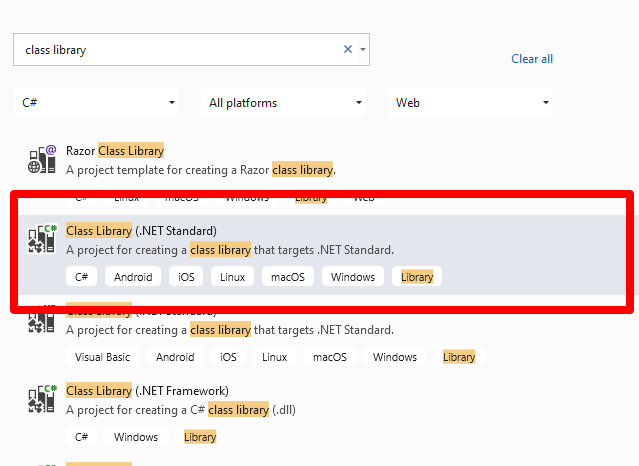
Create a Class Library project targeting .NET Standard 2.0 framework, as shown below. Simply filter project templates by language preference, platform and project type. There is also a text box where I have filtered by “class library”
Visual Studio 2019 – create new project dialog
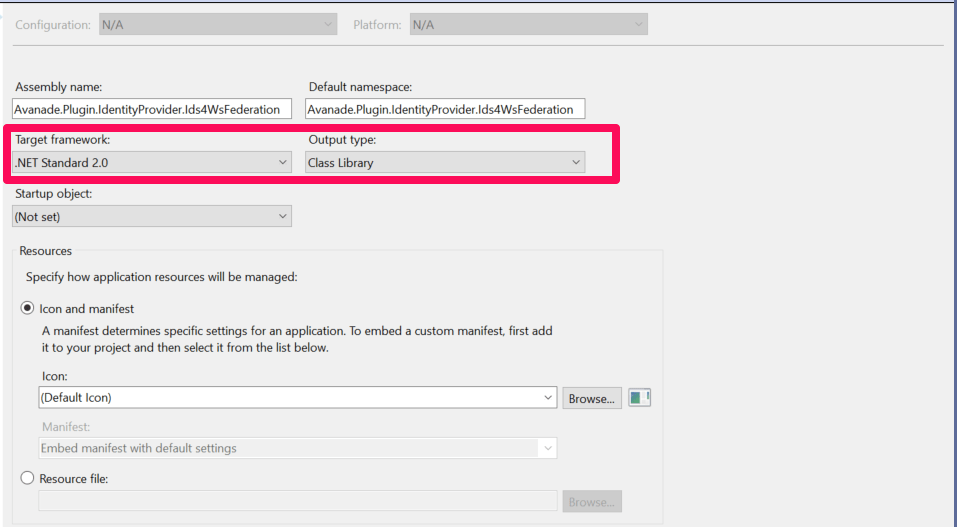
Select the highlighted template and then assign the project a uniquely identifiable name (this will be the plugin unique name). After you have successfully created your project, it is time to verify the Target Framework has been set correctly. This can be done by viewing the project properties as shown below.
Right-click on the project name
Select the properties menu item
Which should open the dialog shown below. Adjust appropriately if this is different in your case.
Visual Studio – .NET Standard 2.0 target framework
Then create a global.json file at the root of the project. This will specify the version of Sitecore.Framework.Runtime.Build package, which is required when creating plugins. It provides MSBuild targets to support creating Sitecore plugins
Edit the csproj file and add this line below after the Project node
The final csproj file should look like the one below
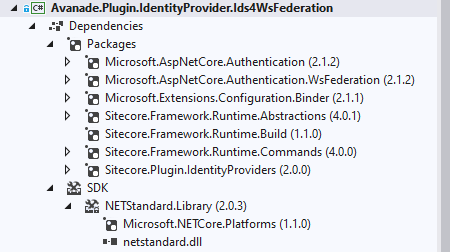
Then add necessary references to required Packages, such as shown below.
You will notice I am additionally referencing Microsoft.AspNetCore.Authentication.WsFederation package needed for Web Services Federation functionality for ASP.NET core applications.
Now that we have a Visual Studio project for a Sitecore Host Plugin, we are going to create a external provider to allow us to use Ws-Federation protocol such as Active Server Federation Services (ADFS) with Sitecore Identity Server.
Define Plugin Configuration
The Sitecore Identity Server Plugin requires an XML based configuration based on Sitecore Identity Server template as shown below. In your Visual Studio project, create a solution folder named “Config“. Then add an XML file using the naming convention {Plugin_name}.xml where {Plugin_name} is the name of this project. So in our case, we will name it Avanade.Plugin.IdentityProvider.Ids4WsFederation.xml
In this configuration we will define the following:
“Sitecore:ExternalIdentityProviders:IdentityProviders:Ids4WsFederation” – the configuration section name. Please note Ids4WsFederation is the section name for the xml tag.
AuthenticationScheme – this is IdS4-Ids4WsFederation The second part Ids4WsFederation much be same as the section name for the xml tag (by convention)
DisplayName – This is the caption for the Login button that will appear on Sitecore Identity login page
Enabled – This is the flag that enables the subprovider when set to true
Wtrealm – This is the Ws-Federation or ADFS Relying Party URI as configured on your ADFS instance.
ClaimTransformations – This section is used to place transformation rules for how source claims from Ws-Federation or ADFS will be mapped into Identity Server normalised claims. Sample claim transformations have been provided in the source code in my public GitHub Repo
Mapping Plugin Configuration into C# models
In your Visual Studio project, create a class named Ids4WsFederationIdentityProvider.cs that inherits from the Sitecore.Plugin.IdentityProviders.IdentityProvider. Notice the class name has a suffix of IdentityProvider as a recommended naming convention.
In this class we will define two properties of type string: MetadataAddress and Wtrealm. This are the additional properties we need from our configuration file above, the rest of the properties are defined in the base Sitecore.Plugin.IdentityProviders.IdentityProvider class.
Provide definition of ConfigureServices for the Plugin
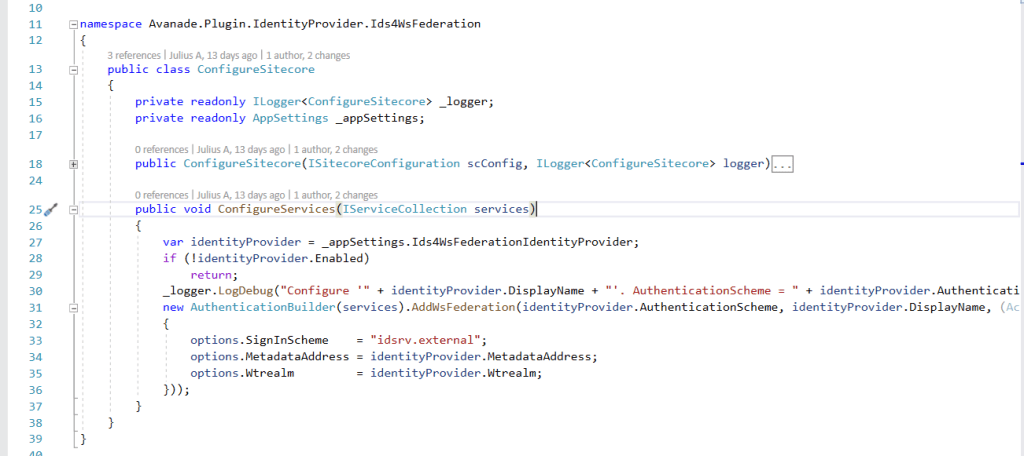
As per Sitecore Host Plugin requirements, we need to configure services for the subprovider according to the instructions for this provider, and specify the SignInScheme setting as idsrv.external
To use authentication middleware, we must have an object of the type Microsoft.AspNetCore.Authentication.AuthenticationBuilder
To initialise this object, we must use
new Microsoft.AspNetCore.Authentication.AuthenticationBuilder(services)
instead of services.AddAuthentication()
Notice how we use AuthenticationBuilder(services).AddWsFederation() pipeline below, which is available to us via the Microsoft.AspNetCore.Authentication.WsFederation package we referenced earlier.
Below is the full code listing of the required implementation
Configure Services code listing
Define Sitecore.Plugin.manifest file for the Plugin
Finally we need to define the Plugin manifest file, which looks like the screenshot below.
Sitecore.Plugin.manifest file definition
The manifest file defines the following properties for the plugin
PluginName – Unique and identifiable name for the plugin
AssemblyName – This is the name of the Class Librabary
Dependencies – a list of other plugins your plugin depends on. In our case, this is depending on Sitecore.Plugin.IdentityProviders version 4.0.0-r00257
Tags – This is by default set to “Sitecore”
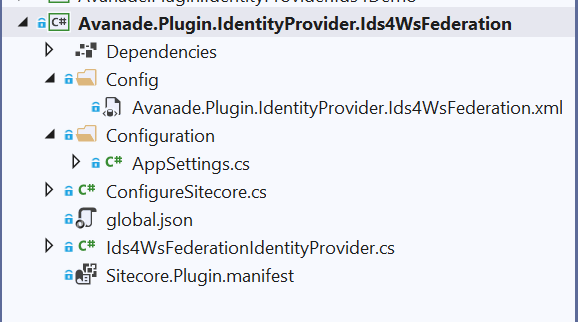
Your final Visual Studio Project structure should be similar to the one shown in the screenshot below. This code is also available on my public Github Repo
Building your Plugin Nuget package and deploying it
You can manually publish your project to generate a Nuget package for your plugin.
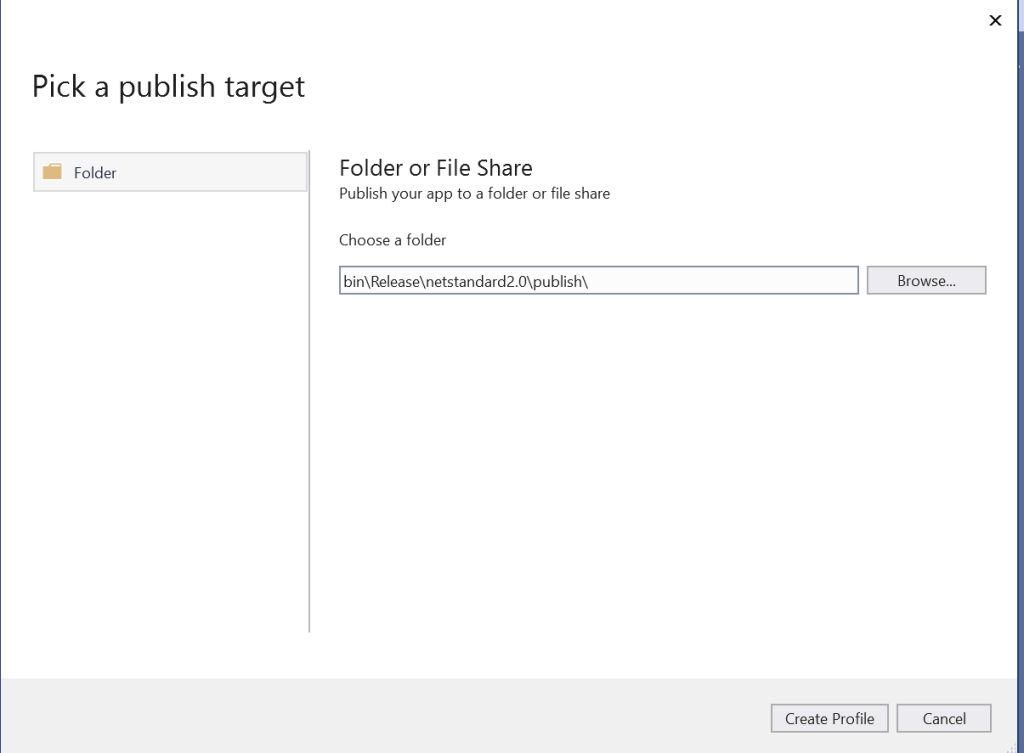
Right-click your project in Visual Studio, then choose Publish… menu item. Follow the steps to publish the code to a staging folder.
And then you will publish a standard Nuget package located within publish sub-folder shown below:
Deploying your Plugin Manually
Plugins are distributed as Nuget packages. To add a plugin to a host application so that it is loaded at runtime, the plugin must be unpacked and have its assets copied to the correct locations.
Create an environment folder
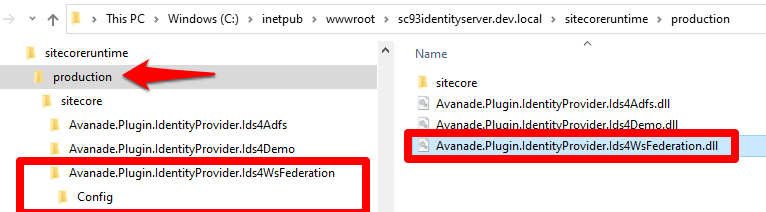
If you do not have one already, you need to create an environment folder under the sitecoreruntime folder. A Sitecore Host application will default its environment to Production. Unless a different environment is supplied at startup (via the –env command) it will look for the production folder first:
For example: hostapp/sitecoreruntime/production
Create a plugin folder
You need to create a folder for the plugin (in our case name it Avanade.Plugin.IdentityProvider.Ids4WsFederation) . This is where the plugin manifest, assets and configuration are located. This is located inside the sitecore folder, which is inside an individual environment folder
The sitecoreruntime/<env>/sitecore folder does not override files in the hosts sitecore folder. This is a unique folder used for loading plugin assets.
Runtime environment folders cannot contain a sitecoreruntime folder of their own.
Unpack plugin data from a Nuget package and deploy it
We have our plugin named Avanade.Plugin.IdentityProvider.Ids4WsFederation.1.0.0.nupkg
Unpack the plugin contents. You will notice our package contains special sitecore directory in the root of the nupkg package with additional things inside it. Everything else is the standard Nuget structure.
Copy the contents of the Nuget sitecore folder to the plugin folder you created previously (for example, sitecoreruntime/production/sitecore/Avanade.Plugin.IdentityProvider.Ids4WsFederation).
Our plugin package contains a lib folder, copy the assets from the correct target framework to the root of the sitecoreruntime/<env> folder (for example, sitecoreruntime/production/*.dll)
Our plugin package contains a content folder, copy the assets from this folder to the plugin folder created previously (for example, sitecoreruntime/production/sitecore/Avanade.Plugin.IdentityProvider.Ids4WsFederation)
The final folder structure will looks similar to this below
Ws-Federation subprovider in Action
After successful deployment of this plugin to your instance of Sitecore Identity server, you should see the Login screen below.
Please note you will need to re-start your IIS to pick the plugin changes.
SI with additional provider for ADFS
Troubleshooting plugin
If you encounter any issues with your ADFS plugin, it is possible that the claims mappings have issues. Please refer to the Claims Troubleshooting section on previous blog post for some tips on resolving potential issues.
Conclusion
In this blog post, we examined creating and extending Sitecore Host plugins. We walked through the process of creating your .NET Core project in Visual Studio. We also walked through the actual code samples required to extend the Sitecore Identity with a new subprovider for Ws-Federation (ADFS). The code samples used in this blog post is also available in this GitHub Repo
This is the final blog post of this four-part series. I hope you found it useful and given you some motivation to go and start creating cool Sitecore Host Plugins.
Please feel free to leave us your feedback and/or comments below.
In this four part series of blog posts, we will examine in detail the Sitecore Host platform and what benefits this brings to Sitecore Experience Platform. We will also have a closer look at Sitecore Host Applications as well as the Sitecore Host plugins. I will encourage you to please read through these blog posts starting with part one, through part four. I have also provided links below if you would like to jump and have a peek on the other parts as well. All code snippets referenced in the blog posts can also be found on my public Github repo using the link provided below.
Sitecore Identity Server is a mechanism to log in Sitecore for both Sitecore Users & External Users
Key Highlights
Introduced in Sitecore 9.1 and it builds on Federated Authentication introduced in Sitecore 9.0
It is based on IdentityServer4 which is an OpenID Connect and OAuth 2.0 framework for ASP.NET Core
Acts as a federation gateway to configure multiple identity providers
As a federation gateway, this enables developers to focus on customization. This means IdentityServer can be customized to fit your Your developers can write code to adapt into what makes sense in your scenarios
In Sitecore 9.1 and later, Sitecore Identity enabled by default
Enabling Azure Active Directory (AzureAd) Identity Provider
By default, IdentityServer comes with AzureAd Identity Provider that is disabled. You can enable this provider using the following steps.
Locate the Sitecore.Plugin.IdentityProvider.AzureAd plugin on your IndentityServer instance as shown in screenshot below:
AzureAd-HostPugin-Location
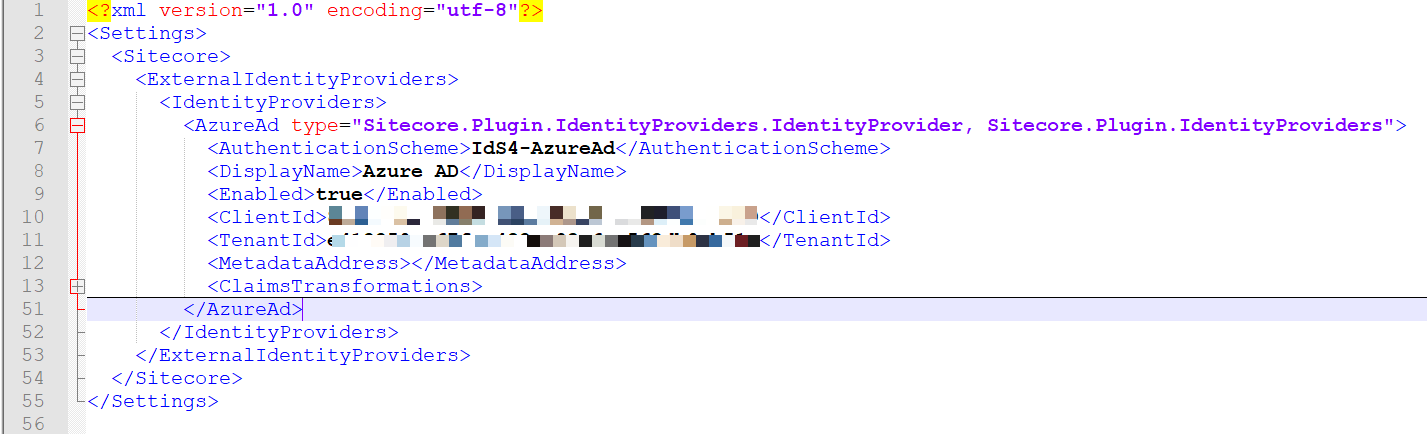
Open and edit the Sitecore.Plugin.IdentityProvider.AzureAd.xml config file and supply the values as follows
DisplayName – specify the caption of the login button, for example “Login with Azure AD”
Enabled – set this to true
ClientId – specify your Azure registered Application ID. More guidance about this is provided later in this blog
TenantId – specify your Azure Tenant ID for your registered application. More guidance about this is provided later in this blog
ClaimsTransformations – specify claim mappings of AzureAd source claims to Sitecore Identify normalised claims. As a federation gateway, IdentitySever shields your client applications from the complexities of external providers by performing a claim transformation to what Identify server has control over.
Configuring Claims Transformations
By default, Sitecore Identity operates with the following custom scopes: sitecore.profile as an identity resource and sitecore.profile.api as an API resource.
You can find default scope definitions in the {SI_server_root_folder}\sitecore\Sitecore.Plugin.IdentityServer\Config\identityserver.xml file.
The sitecore.profile and sitecore.profile.api scopes both contain the following claims:
The screenshot below shows examples of mapping AzureAd specific claims into normalised claims above in IdentityServer
AzureAd-ClaimTransformation
To give users roles:
Map a particular incoming claim to the appropriate role claims. The above screenshot shows an example of transforming the 8b0acd88-5eaf-4776-a637-d2952f2321ae Azure AD group to the sitecore\Developer role role
To make a user an administrator:
Add http://www.sitecore.net/identity/claims/isAdmin and set the value to true (being an admin user in Sitecore is not about having a particular role). The screenshot above shows an example of making all users from f30226fc-16e1-4d7e-bf5d-2f4b8df553aa Azure AD group into Sitecore Administrator users
Mapping the IdentityServer normalised claims into Sitecore
Normalised claims are mapped into Sitecore using the configuration: sitecore:federatedAuthentication:propertyInitializer:maps node.
The {Sitecore_Instance_Root_Folder}\App_Config\Sitecore\Owin.Authentication.IdentityServer\Sitecore.Owin.Authentication.IdentityServer.config file has an example of this, as shown below:
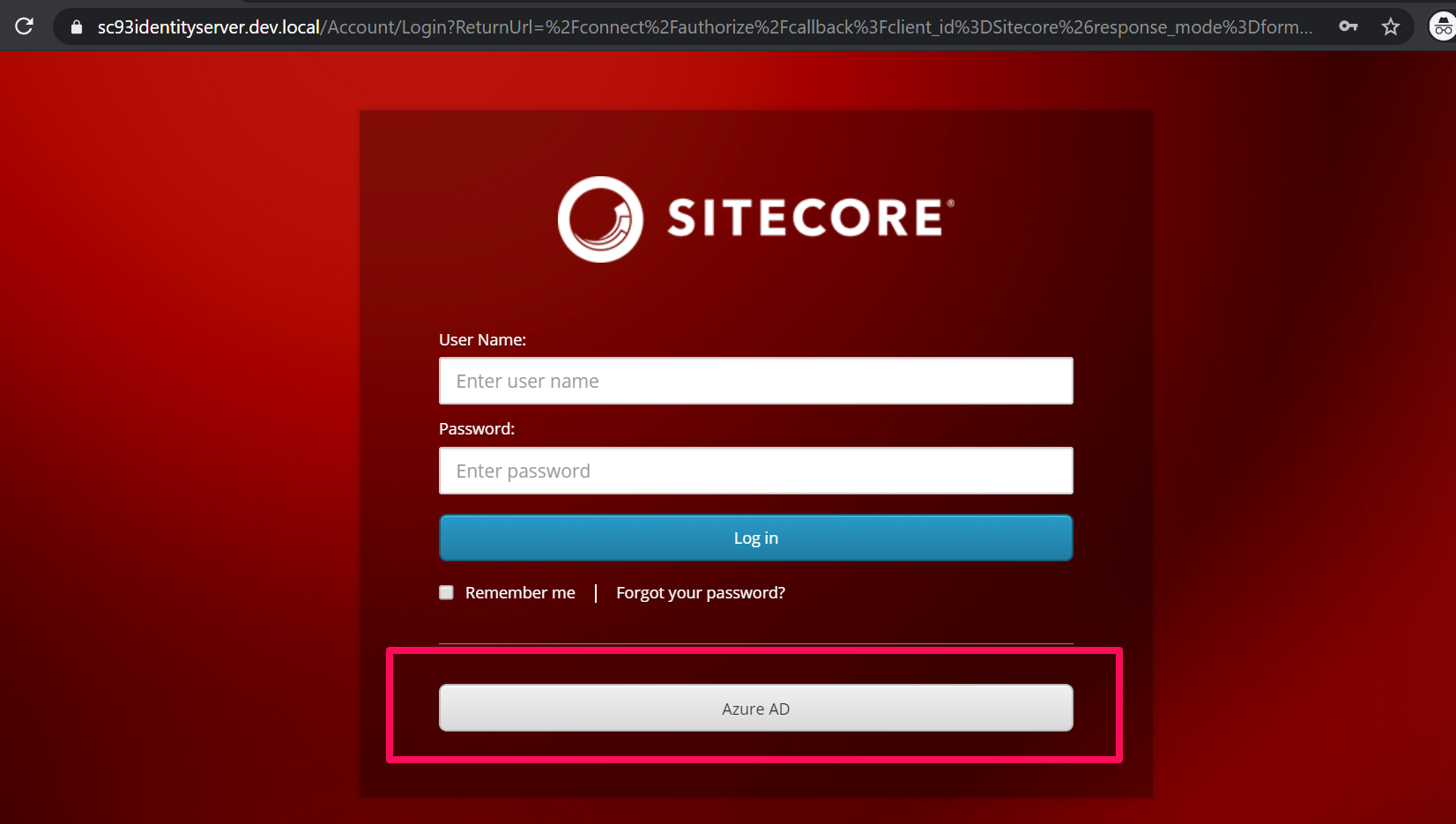
If you have configured everything as expected, then you should see an additional login button on your IdentityServer login page as shown below
Azure AD subprovider
Clicking on the “Azure AD” button will redirect you to the AzureAd login page, from which you can then login with your AzureAd users
Sitecore user name generation
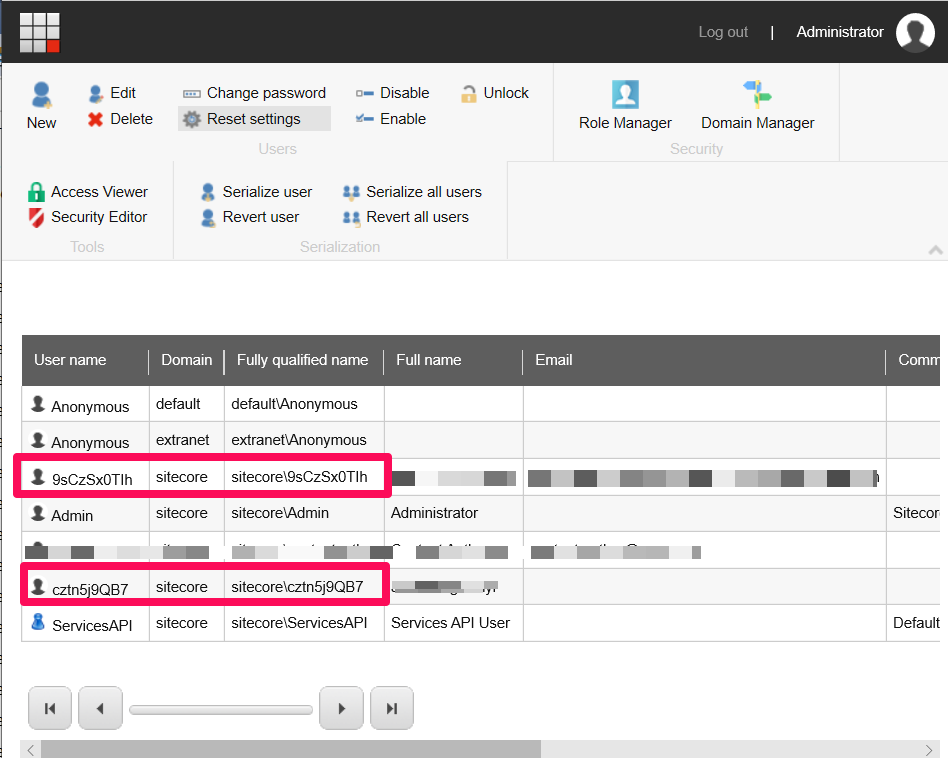
Once successfully logged in via AzureAd external provider, you should have this user persisted within Sitecore User Manager. The screenshot below shows a sample user from AzureAd
Sitecore-Owin-Auth-ExternalUserNames
User names must be unique across a Sitecore instance. You cannot use user names from different external providers as Sitecore user names because this does not guarantee that the user names are unique.
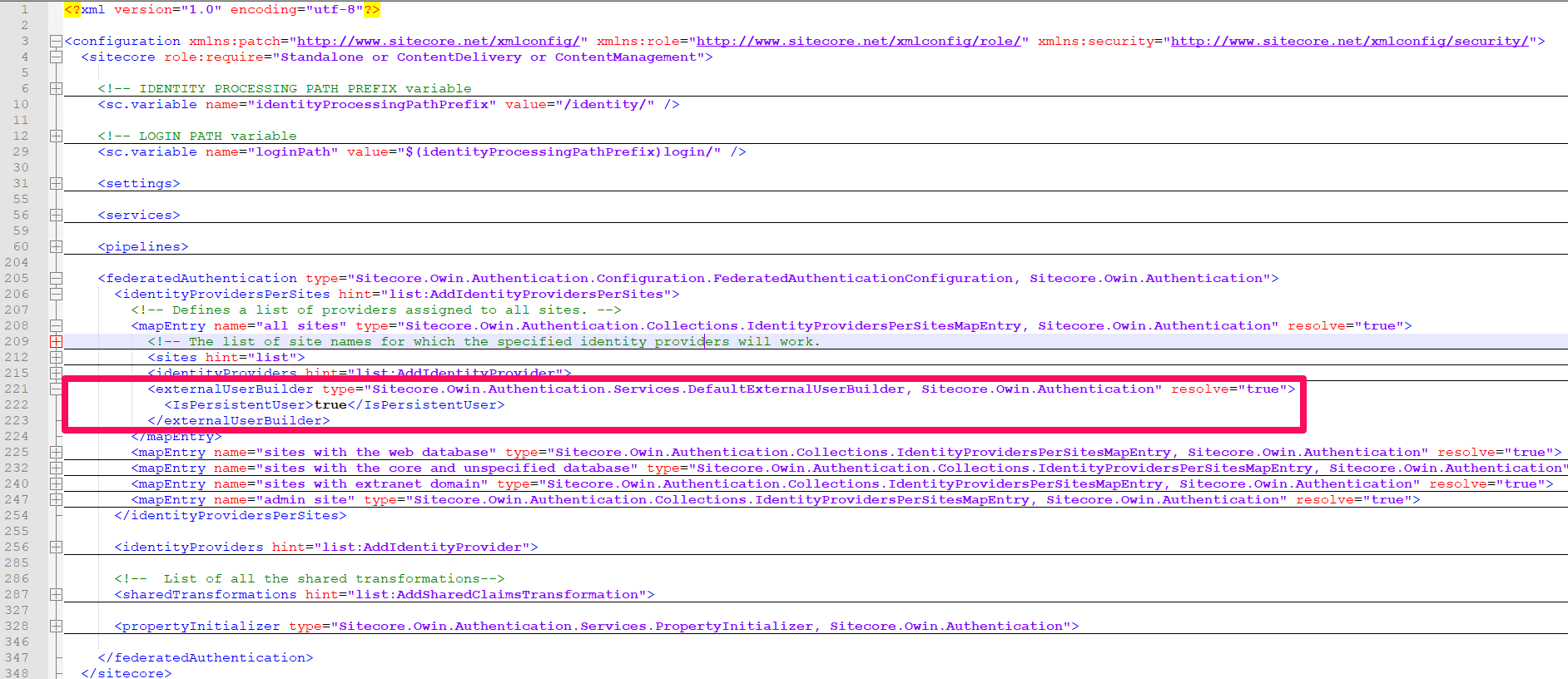
The DefaultExternalUserBuilder class creates a sequence of user names for a given external user name. It then uses the first of these names that does not already exist in Sitecore. The values in the sequence depend only on the external username and the Sitecore domain configured for the given identity provider.
Should you choose to customise your user names, you can provide your own implementation, such as the one suggested in Sitecore.StackExchange.com
Please note the default implementation is provided in Sitecore.Owin.Authentication.dll
Then you will need to register your custom implementation within the configuration file {Sitecore_Instance_Root_Folder}\App_Config\Sitecore\Owin.Authentication\Sitecore.Owin.Authentication.config
Claims mappings troubleshooting using ASP.NET 2.0 Membership Tables
When performing end to end testing with your AzureAd external provider, you may come across issue with claim mappings into IdentityServer. The good news is that all the source claims originating from AzureAd are captured and stored in the Core database, within the ExternalUserData table, as shown in the screenshot below
Asp.Net2.0Membership-ExternalUserDataTable
Each external user successfully persisted will have an entry in this table, and the [Data] column has the JSON payload of their source claims, which looks like in the screenshot below
Sitecore-Owin-Auth-ExternalUser-SourceClaims
Ensure your IdentityServer claim mappings match those in this Json, otherwise your mapping will not work.
Conclusion
In this blog post, we examined what is Sitecore Identity Server in detail and explored the powerful feature of federation gateway. We also explored the default use case of Azure Active Directory and how to configure Sitecore Identity to work with Azure AD as external identity provider
In the fourth and final part of this four-part series, we will examine Creating and Extending Sitecore Host Plugins in detail. We will walk through creating a Sitecore Identity subprovider plugin for Active Directory Federation Services (ADFS)
Please feel free to leave us your feedback and/or comments below.
In this four part series of blog posts, we will examine in detail the Sitecore Host platform and what benefits this brings to Sitecore Experience Platform. We will also have a closer look at Sitecore Host Applications as well as the Sitecore Host plugins. I will encourage you to please read through these blog posts starting with part one, through part four. I have also provided links below if you would like to jump and have a peek on the other parts as well. All code snippets referenced in the blog posts can also be found on my public Github repo using the link provided below.
Sitecore Horizon 9.3 is a new alternative approach to editing Sitecore content, that is now available in Sitecore XP 9.3 and later. It is a light-weight Angular-based application which features a Page Editor, Page Insights and a Simulator.
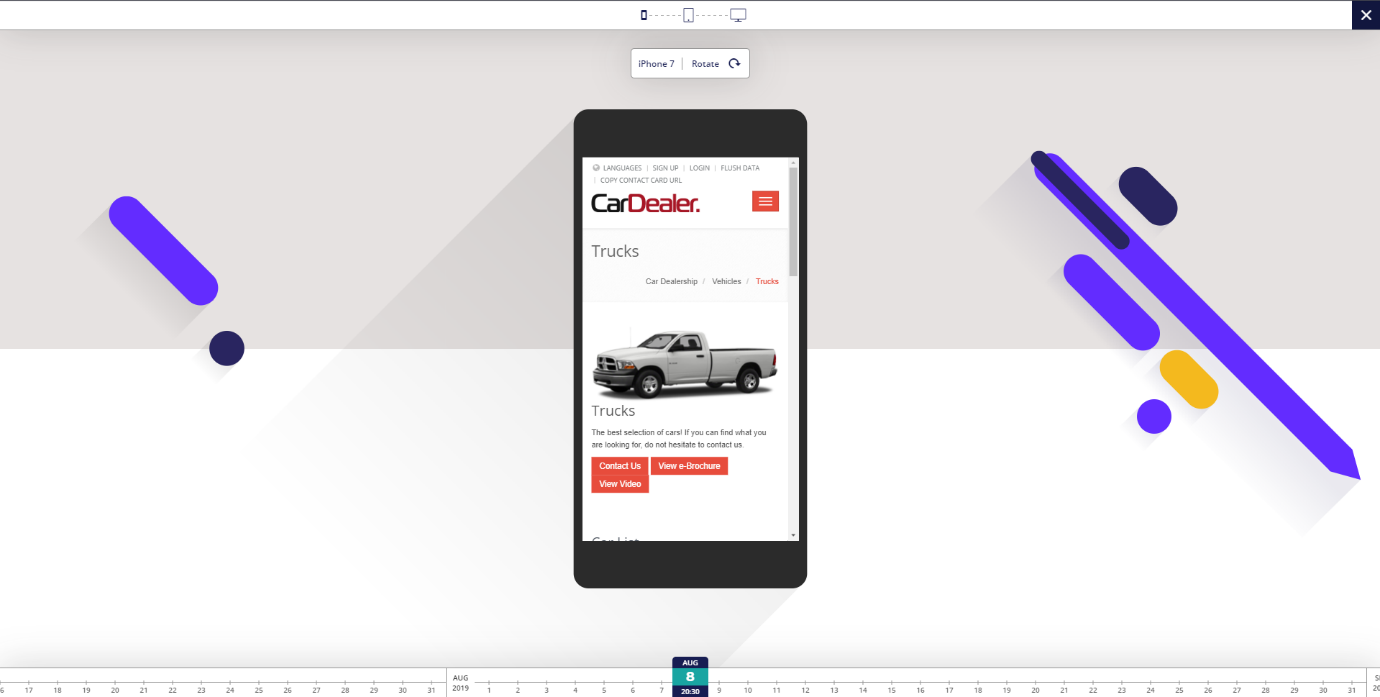
The screenshot below shows the icons for Page Editor, Page Insights and Device Simulator.
Horizon client app is built with Angular 7.2 utilizing Node.js for server-side rendering. It uses GraphQL-based backend API to communicate with backend
What you can do with Sitecore Horizon 9.3
At the time of writing this blog, with the Sitecore Horizon Page Editor, you can do the following
Create a page or folder. Can only create a page if Insert Options have been defined at that level
Edit text and image fields only
Image dialog features a cool dynamic image search
Build simple layouts – without complex rendering properties
A facility to use drag and drop when adding renderings to a page
You can move items through workflow if configured
You can publish content, this will use current language version plus all related items (NOT sub-items)
Uses smart publish meaning will only publish if their has been changes since last publish
Rename page or folders – which will update the item Display Name (not item name)
With Sitecore Horizon Page Insights, you can do the following
view page analytics and insights
Use Sitecore Host Plugins to extend the page insights
With Sitecore Horizon Device Simulator, you can do the following
It allows page previews with different device types
Can rotate the device in portrait and landscape modes
What you can NOT do with Sitecore Horizon 9.3
As of the time of writing this blog, Sitecore Horizon 9.3 has some compatibility issues with some of the Sitecore features and service as follows:
Sitecore Experience Accelerator (SXA) supports basic page editing with Horizon
Sitecore Horizon does not support editing of rendering parameters
You can not change layout and composition of page within Horizon, use Experience Editor instead
Sitecore Horizon has limited support for JavaScript Services (JSS) sites such as you can open JSS site but cannot edit fields on pages
Sitecore Horizon is not compatible with Sitecore Publishing Service
You will get error trying to publish content via Horizon on an instance with Publishing Module enabled
Horizon does not support Internet Explorer or Safari on MacOs
Extending Sitecore Horizon using Host Plugins
Sitecore Horizon Page Insights is one area that can be extended to have more page analytics displayed on the Page Insights. Out of the box, Sitecore have provided the Sitecore.Horizon.Insights.Plugin which comes with five insights as shown below.
Horizon-page-insights
Conclusion
In this blog post, we examined what is Sitecore Horizon 9.3 in detail and explored what you can and can not do with it. This being the initial release, I would encourage you to download your copy and play with it further so we can give feedback to Sitecore. I expect Sitecore to enhance this Module in coming releases as well as seeing cool Sitecore Host Plugins created by the community to enhance it.
Introduction to Sitecore Host, Sitecore Host Applications and Sitecore Host Plugins
In this four part series of blog posts, we will examine in detail the Sitecore Host platform and what benefits this brings to Sitecore Experience Platform. We will also have a closer look at Sitecore Host Applications as well as the Sitecore Host plugins. I will encourage you to please read through these blog posts starting with part one, through to part four. I have also provided the links below if you would like to jump and have a peek on the other parts as well. All code snippets referenced in the blog posts can also be found on my public Github repo using the link provided below.
Sitecore Host part one – Introduction to Sitecore Host, Sitecore Host applications and Sitecore Plugins (this post)
Sitecore Host in a new common platform for all Sitecore Services, that was introduced in Sitecore Experience Platform 9.1. Sitecore Host acts as a base for a Sitecore Service and it requires .NET Core runtime and hosting bundle 2.1
Sitecore Service is a feature or piece of functionality that runs separately outside of main Sitecore instance
One cool benefit that Sitecore Host provides is the pluggable nature of its architecture. This means the base Sitecore Services can be extended through Sitecore Host Plugins, without having to change or recompile any part of the base code.
What is Sitecore Host Plugin?
You can define a Sitecore Host Plugin as a feature or functionality that is dynamically loaded into Sitecore Host. As you will see later on, a plugin can contain Code, Configuration, Commands and Content. A plugin can also depend on another plugin, and therefore plugins are always loaded in a dependency order.
What is Sitecore Host Application?
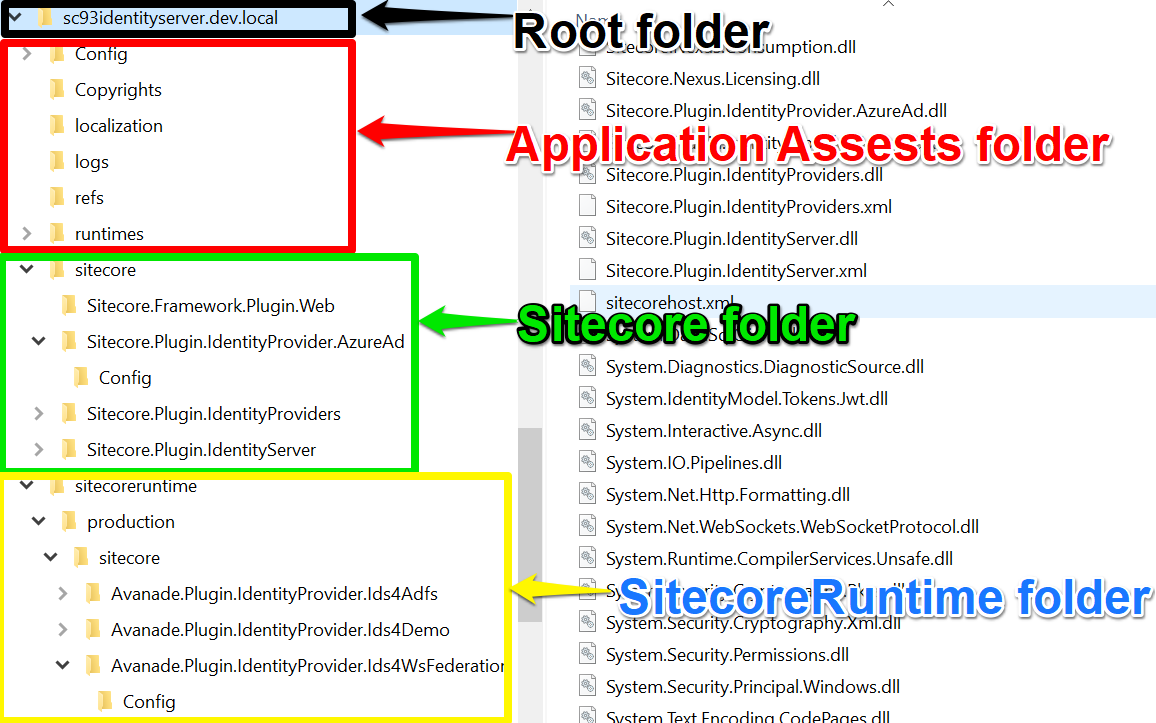
Sitecore Host Application is therefore a fully hosted application that consists of the Sitecore Host base code plus one or more Sitecore Host plugins. It consists of the following parts: Root folder, Application Assets Folder, Sitecore folder and SitecoreRuntime folder.
Sitecore Host applications includes:
Universal Tracker Service
Sitecore Identity Server
Sitecore Horizon 9.3
Sitecore Host Directory Structure
Root Folder
All code libraries/DLLs including the .NET Core runtime
The Host DLL itself (E.g. Authoring.Host.dll)
Optional configuration file for Sitecore Host itself (sitecore.xml)
Optional environment-specific configurations, e.g. sitecore.production.xml for production environment
Application Assets Folder
Contain the Sitecore Host Application Core assets such as Configuration files
Content folders
MVC views folders
Sitecore Folder
Contains Sitecore Host plugin libraries supplied by Sitecore
Contains the Sitecore Host plugin manifest files plus any additional assets such as configuration files
SitecoreRuntime Folder
Special folder to extend or modify base Sitecore Host application
Contains custom Sitecore Host plugins, such as those created by developers
Each folder acts as a store for an environment
Structure mirrors main Host application
Cross-platform support
In Windows environments, these applications are hosted as Internet Information Services (IIS) websites as the .NET Core hosting bundle comes with IIS Support. As .NET is cross-platform, these applications can be hosted using the Kestrel web server on Linux and macOS
Other Sitecore Host Benefits
Sitecore Host platform comes with many benefits to both the businesses as well as to the developers building cool stuff with Sitecore.
Unified service registration and Dependency Injection
Unified configuration system that is merged and patched the same way
Unified file system access and directory structure
Unified Command-line actions that work the same way for all applications
Dynamically loaded plugins
Cross-platform ready – the services behave the same way whether run on cloud or on-premises, in Windows, Linux or macOS workloads
Installation experience is consistent
Conclusion
In this blog post, we examined what is Sitecore Host, Sitecore Host applications and their composition and directory structure. We also had an introduction to Sitecore Host plugins and the extensibility the framework introduces to Sitecore Host. We finished with some of the benefits Sitecore Host brings.
Sitecore Horizon 9.3 (referred as Horizon for brevity in this blog) is the new alternative approach to editing content that is now available together with release of Sitecore Experience Platform 9.3 since late November 2019. Horizon is a separate Module that can be installed and is hosted separately from the main Sitecore XP 9.3 instance.
Sitecore previously announced Horizon in Symposium 2017 with a preview version released with Sitecore XP 9.1
The new editing environment in Sitecore XP 9.3, known as “Horizon” offers brands an easy to use, intuitive, and contextual interface with everything a user needs for easy navigation. The new editor user interface sets a foundation for the future and also provides real-time contextual insights as content is created and published, giving marketers the knowledge they need to drive improved conversions
~~~~
Sitecore official Symposium 2019 announcement
Horizon architecture at a glance
Horizon introduces a new IIS website instance, the content Authoring host application
Horizon deploys an integration module to every CM instance
Horizon client application is built with Angular 7.2 utilizing Node.js for server-side rendering
Horizon client application uses GraphQL-based backend API to communicate with backend. This is similar to Sitecore JSS services
HTTPs requirement for communications between CM instance and the Authoring host application
User authentication via the Sitecore Identity Service
As prerequisite you must install Sitecore Experience Platform 9.3 or later. Also verify that
Sitecore CM instance has HTTPS enabled
Sitecore Identity must be installed
WebSocket Protocol is enabled in Windows Server Manager. Please see the screenshot below, where you need to tick to enable this feature and update your system.
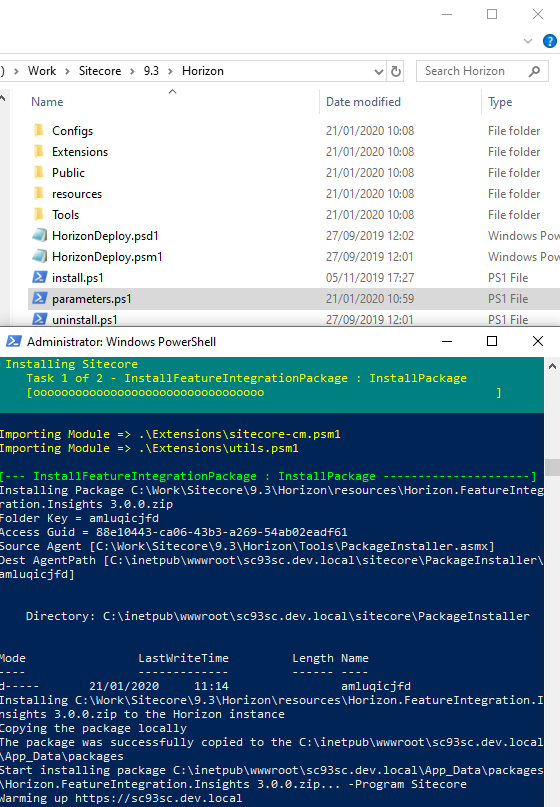
Unpack the Sitecore Horizon 9.3.0.zip package to a working folder (as shown in screenshot below). You will then need to update the parameter.ps1 PowerShell script with parameters for the following:
ContentManagementInstanceName – specify CM instance name
ContentManagementWebProtocol – this must be HTTPS
SitecoreIdentityServerPhysicalPath – specify path to Identity Server
SitecoreIdentityServerPoolName – specify Identify Server application pool name
SitecoreIdentityServerSiteName – specify Identity Server site name
LicensePath – specify your license full path (including file name)
AuthoringHostName – (recommended authoringhost.cmdomain.com as sub-domain of CM instance)
After you save your changes to parameter.ps1 PowerShell script, simply run the install.ps1 PowerShell script from your command prompt or PowerShell command to install Horizon
Below is a sample parameters.ps1 script with the parameters specified. Notice the license path must include the file name.
Sample parameters.ps1 script with values
Whilst Horizon is installing, you will see the progress screen similar to the one shown below
Horizon installation in progress
Launching Sitecore Horizon
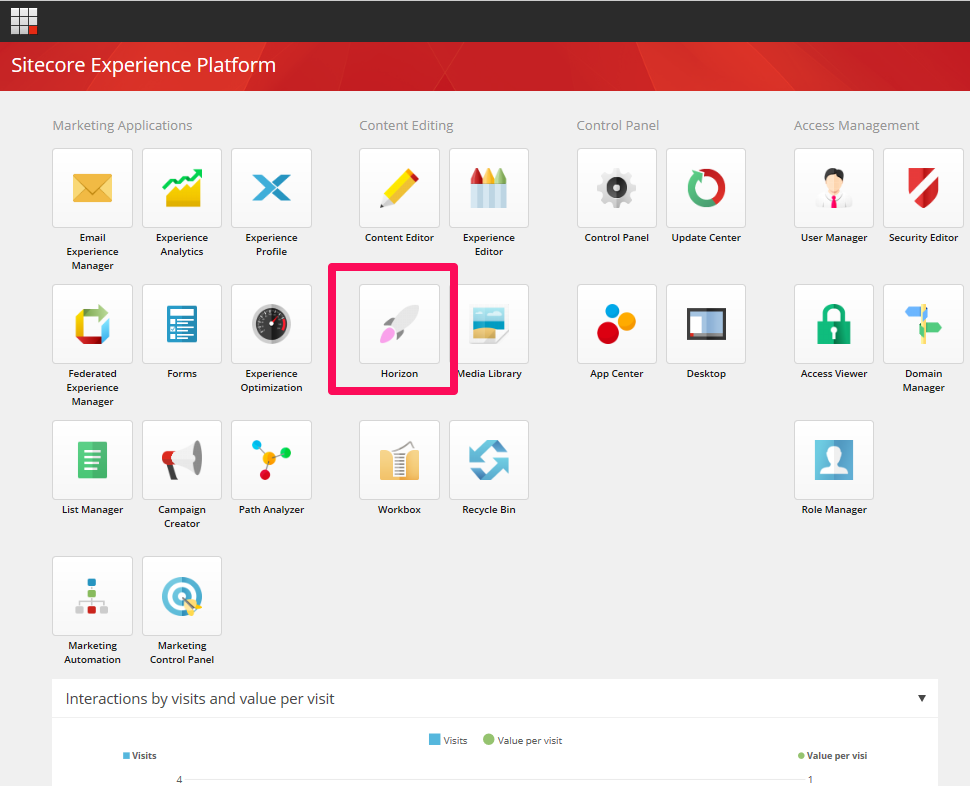
Sitecore Horizon 9.3 once successfully installed can be launched from the Launchpad of your main Sitecore XP 9.3 as shown below
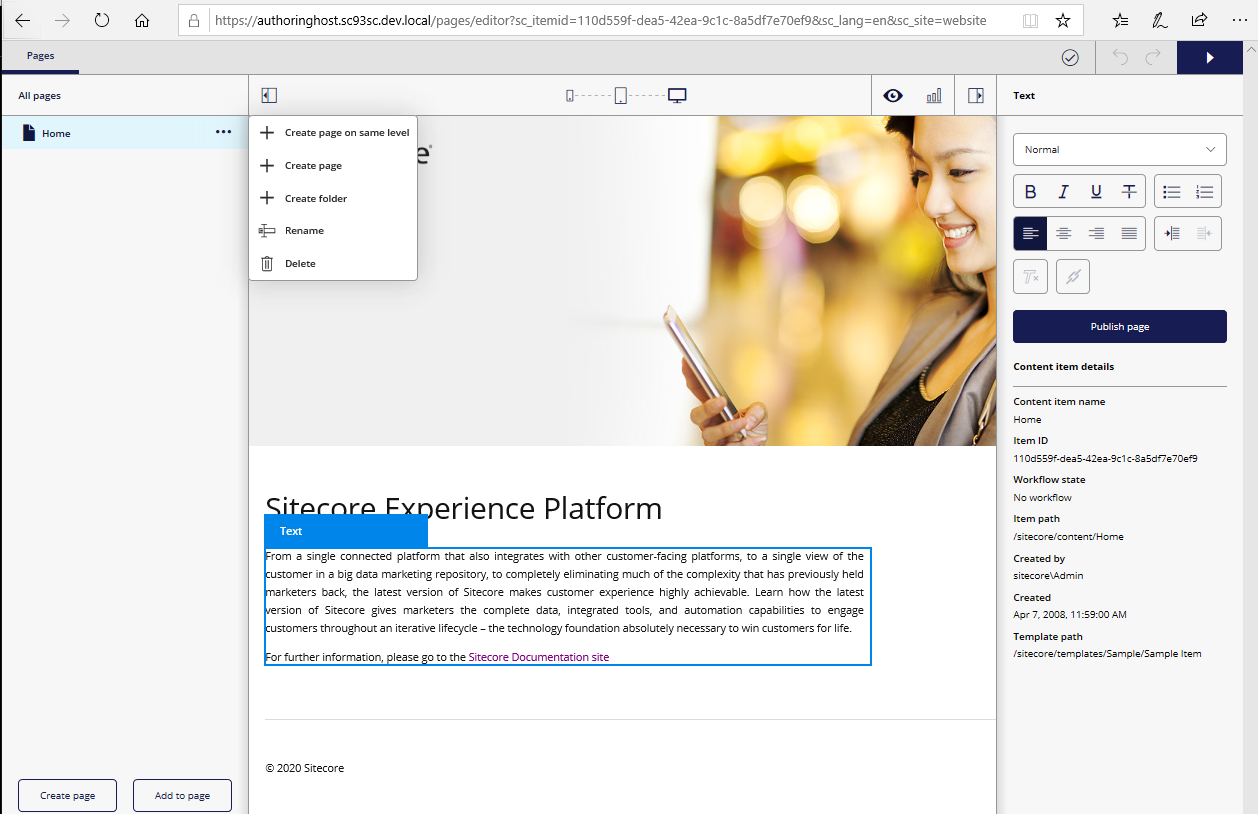
Click on Horizon “missile” icon to launch the Horizon Authoring host application, as shown below
Congratulations! You have successfully installed Horizon when you see the above page. You will notice that Horizon is opened on a separate tab from your main Sitecore instance Launchpad
What changes does Horizon introduce to wwwroot
As mentioned above in the architecture at a glance, Horizon create a new IIS website as well as integration module to every CM instance.
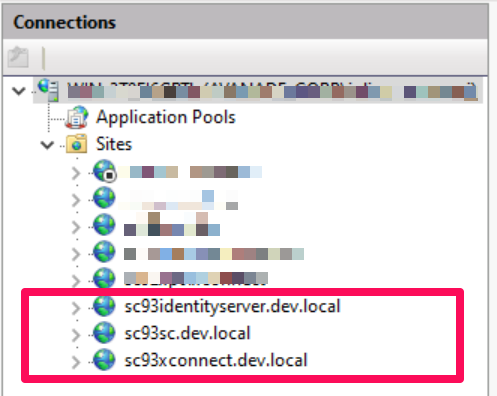
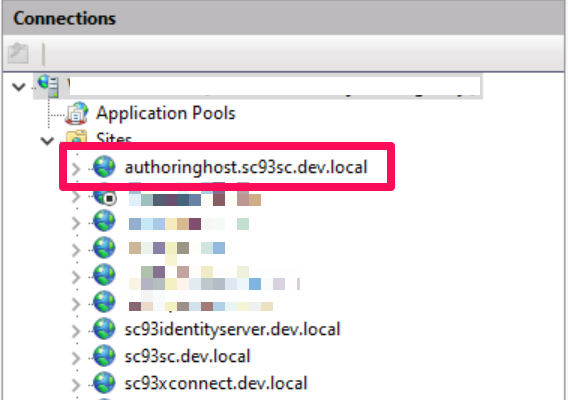
Below is a screenshot showing IIS websites before and after Horizon is installed.
IIS Websites before horizon
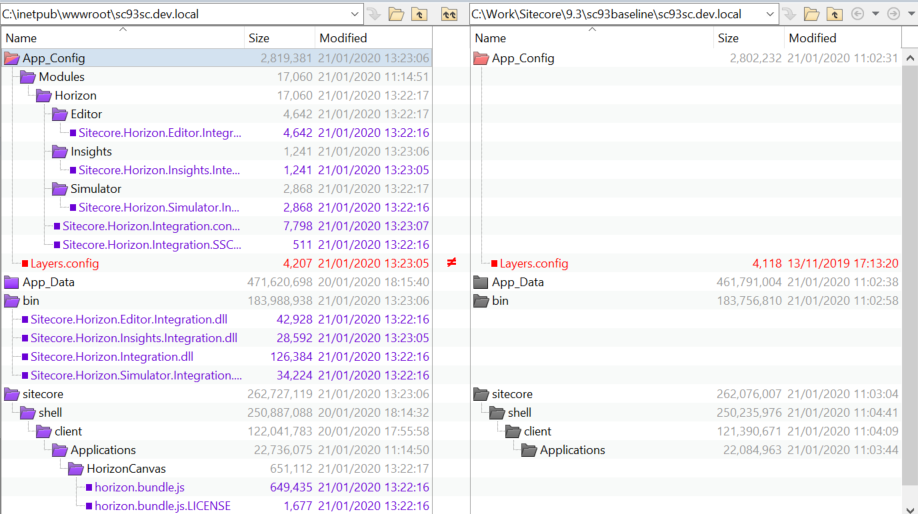
And below are the changes to your main Sitecore instance (wwwroot changes).
Red highlight indicates the file(s) were modified. Blue/Purple indicates new files were introduced
wwwroot changes introduced by Horizon to CM instance
And below are the changes to your Sitecore Identity server (wwwroot changes).
Red highlight indicate the file(s) were modified.
Troubleshooting Installation Issues
You may come across installation issues. Below is how you can troubleshoot them
Node.js issues
You may come across Node.js issues which means Horizon will not load successfully when launched. You may get the error message below on your browser after launching Horizon
Failed to render a page: InternalServerError when launching Horizon, see screenshot below
You may get exceptions reported in the logs similar to this one below
An unhandled exception was thrown by the application. System.InvalidOperationException: Failed to start Node process. To resolve this:. [1] Ensure that Node.js is installed and can be found in one of the PATH directories. Current PATH enviroment variable is: Make sure the Node executable is in one of those directories, or update your PATH.
To resolve the Node.js issue, try the following options:
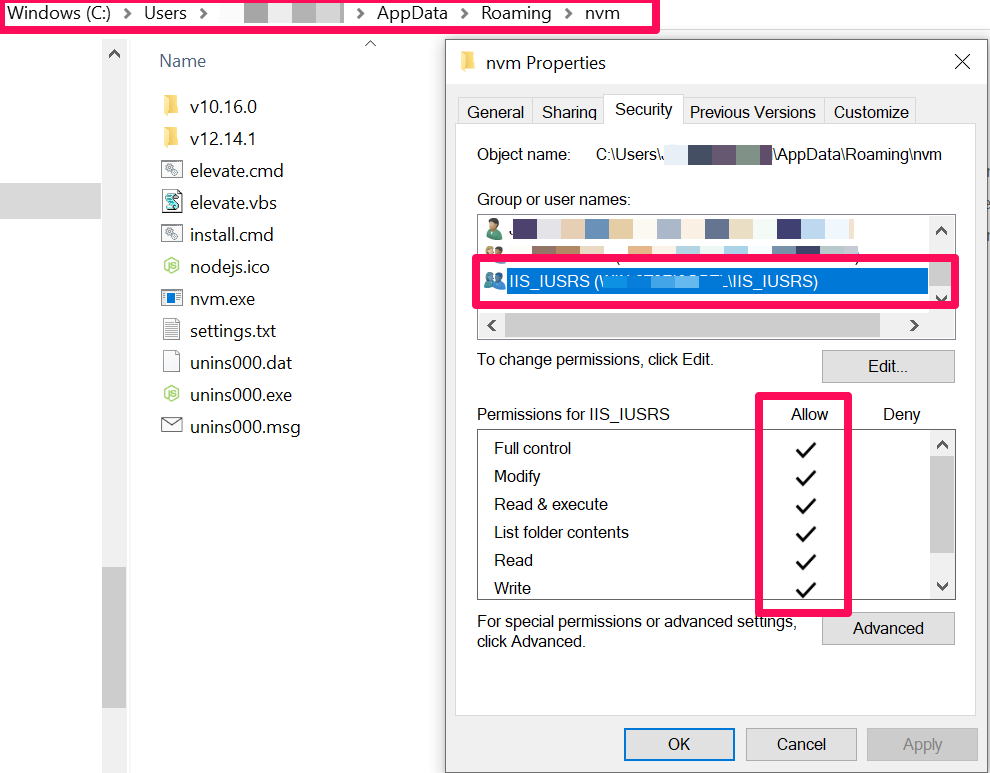
A) If you are using Node.js version management utility (NVM) to manage your NodeJS versions, ensure you have given the IIS application pool permissions to your NVM Roaming folder. Below is a screenshot showing how to give permissions
setting permission on nvm roaming folder
B) If you are not using NVM, then please try uninstall Node.js and then re-install it again using the Windows Installer. Please refer to the Sitecore Horizon 9.3 Installation guide on the required Node.js version
Enabling logging on Authoring.Host.dll
Horizon logs are written on the logs sub-folder located at the wwwroot of the Horizon instance, as shown below:
update web.config to enable logs
If you can’t see any log files in the logs sub-folder, you can update the web.config file located at the wwwroot of the Horizon instance as shown below. Simply set the stdoutLogEnabled =”true” save your changes, and then recycle the Horizon app pool
Hope you find this post useful. Please watch this space as I will blog more about Horizon, including a deep dive on its features among other areas.