Sitecore Host part four

Creating and Extending Sitecore Host Plugins

Sitecore identity reference architecture

In this four part series of blog posts, we will examine in detail the Sitecore Host platform and what benefits this brings to Sitecore Experience Platform. We will also have a closer look at Sitecore Host Applications as well as the Sitecore Host plugins. I will encourage you to please read through these blog posts starting with part one, through part four. I have also provided links below if you would like to jump and have a peek on the other parts as well. All code snippets referenced in the blog posts can also be found on my public Github repo using the link provided below.

  1. Sitecore Host part one – Introduction to Sitecore Host, Sitecore Host applications and Sitecore Plugins
  2. Sitecore Host part two – Sitecore Horizon 9.3
  3. Sitecore Host part three – Sitecore Identity Server
  4. Sitecore Host part four – Creating and extending Sitecore Host Plugins (this post)
  5. Code samples in my Github Repository

You can define a Sitecore Host Plugin as a feature or functionality that is dynamically loaded into Sitecore Host. As you will see later on, a plugin can contain Code, Configuration, Commands and Content. A plugin can also depend on another plugin, and therefore plugins are always loaded in a dependency order.

Definition of a Sitecore Host Plugin

Creating a Visual Studio Project

Ensure you have installed Visual Studio version 2017 and above. To create a Sitecore Host Plugin in Visual Studio, follow the steps below:

  • Create a Class Library project targeting .NET Standard 2.0 framework, as shown below. Simply filter project templates by language preference, platform and project type. There is also a text box where I have filtered by “class library”
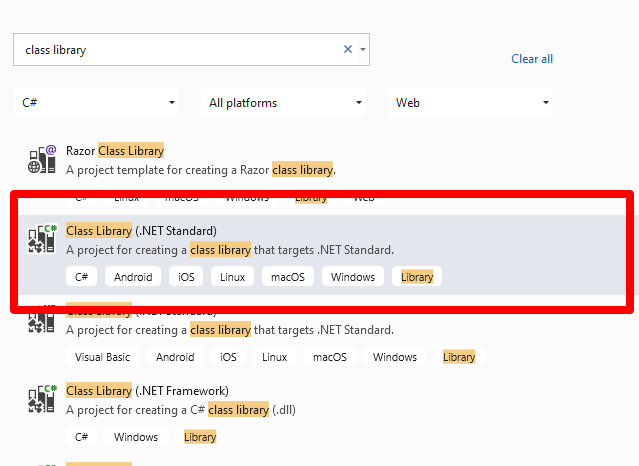
Visual Studio 2019 – create new project dialog

Select the highlighted template and then assign the project a uniquely identifiable name (this will be the plugin unique name). After you have successfully created your project, it is time to verify the Target Framework has been set correctly. This can be done by viewing the project properties as shown below.

  1. Right-click on the project name
  2. Select the properties menu item

Which should open the dialog shown below. Adjust appropriately if this is different in your case.
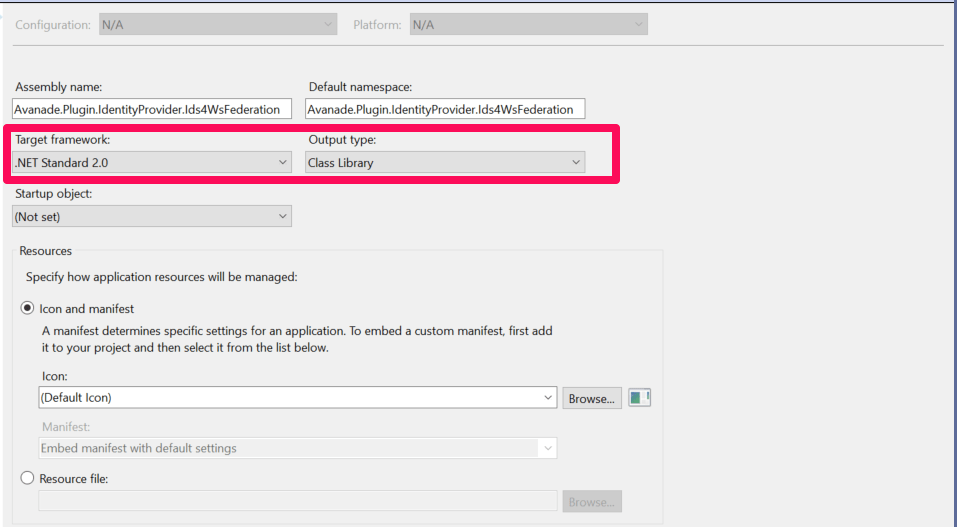
Visual Studio – .NET Standard 2.0 target framework
  • Then create a global.json file at the root of the project. This will specify the version of Sitecore.Framework.Runtime.Build package, which is required when creating plugins. It provides MSBuild targets to support creating Sitecore plugins

{
“msbuild-sdks”: {
“Sitecore.Framework.Runtime.Build”: “1.1.0”
}
}

  • Edit the csproj file and add this line below after the Project node

The final csproj file should look like the one below

  • Then add necessary references to required Packages, such as shown below.
  • You will notice I am additionally referencing Microsoft.AspNetCore.Authentication.WsFederation package needed for Web Services Federation functionality for ASP.NET core applications.
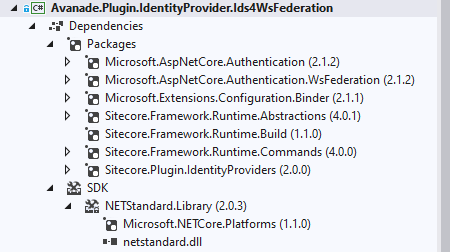
Sitecore Host packages references required

Sitecore Identity Ws-Federation subprovider Plugin

Now that we have a Visual Studio project for a Sitecore Host Plugin, we are going to create a external provider to allow us to use Ws-Federation protocol such as Active Server Federation Services (ADFS) with Sitecore Identity Server.

Define Plugin Configuration

The Sitecore Identity Server Plugin requires an XML based configuration based on Sitecore Identity Server template as shown below. In your Visual Studio project, create a solution folder named “Config“. Then add an XML file using the naming convention {Plugin_name}.xml where {Plugin_name} is the name of this project. So in our case, we will name it Avanade.Plugin.IdentityProvider.Ids4WsFederation.xml

In this configuration we will define the following:

  • “Sitecore:ExternalIdentityProviders:IdentityProviders:Ids4WsFederation” – the configuration section name. Please note Ids4WsFederation is the section name for the xml tag.
  • AuthenticationScheme – this is IdS4-Ids4WsFederation The second part Ids4WsFederation much be same as the section name for the xml tag (by convention)
  • DisplayName – This is the caption for the Login button that will appear on Sitecore Identity login page
  • Enabled – This is the flag that enables the subprovider when set to true
  • MetadataAddress – This is the Ws-Federation or ADFS publicly accessible Metadata Universal Resorce Identifier (URI) of your ADFS instance.
  • Wtrealm – This is the Ws-Federation or ADFS Relying Party URI as configured on your ADFS instance.
  • ClaimTransformations – This section is used to place transformation rules for how source claims from Ws-Federation or ADFS will be mapped into Identity Server normalised claims. Sample claim transformations have been provided in the source code in my public GitHub Repo

Mapping Plugin Configuration into C# models

In your Visual Studio project, create a class named Ids4WsFederationIdentityProvider.cs that inherits from the Sitecore.Plugin.IdentityProviders.IdentityProvider. Notice the class name has a suffix of IdentityProvider as a recommended naming convention.

In this class we will define two properties of type string: MetadataAddress and Wtrealm. This are the additional properties we need from our configuration file above, the rest of the properties are defined in the base Sitecore.Plugin.IdentityProviders.IdentityProvider class.

Provide definition of ConfigureServices for the Plugin

As per Sitecore Host Plugin requirements, we need to configure services for the subprovider according to the instructions for this provider, and specify the SignInScheme  setting as idsrv.external

To use authentication middleware, we must have an object of the type Microsoft.AspNetCore.Authentication.AuthenticationBuilder

To initialise this object, we must use 

new Microsoft.AspNetCore.Authentication.AuthenticationBuilder(services) 

instead of services.AddAuthentication()

Notice how we use AuthenticationBuilder(services).AddWsFederation() pipeline below, which is available to us via the Microsoft.AspNetCore.Authentication.WsFederation package we referenced earlier.

Below is the full code listing of the required implementation
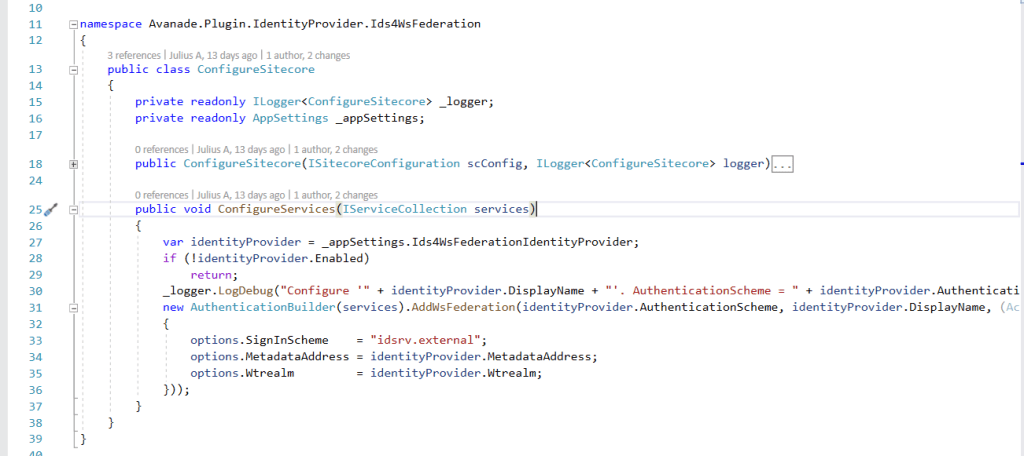
Configure Services code listing

Define Sitecore.Plugin.manifest file for the Plugin

Finally we need to define the Plugin manifest file, which looks like the screenshot below.

Sitecore.Plugin.manifest file definition

The manifest file defines the following properties for the plugin

  • PluginName – Unique and identifiable name for the plugin
  • AssemblyName – This is the name of the Class Librabary
  • Version – The assigned semantic version number of your plugin
  • Dependencies – a list of other plugins your plugin depends on. In our case, this is depending on Sitecore.Plugin.IdentityProviders version 4.0.0-r00257
  • Tags – This is by default set to “Sitecore”

Your final Visual Studio Project structure should be similar to the one shown in the screenshot below. This code is also available on my public Github Repo
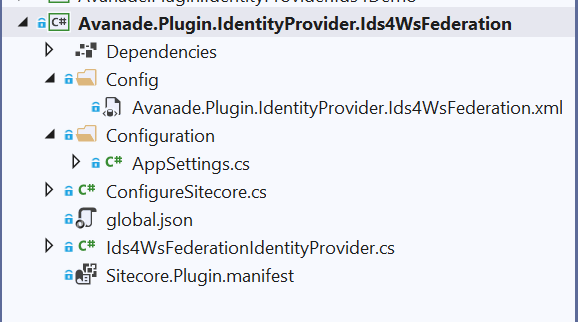
Building your Plugin Nuget package and deploying it

You can manually publish your project to generate a Nuget package for your plugin.

Right-click your project in Visual Studio, then choose Publish… menu item. Follow the steps to publish the code to a staging folder.
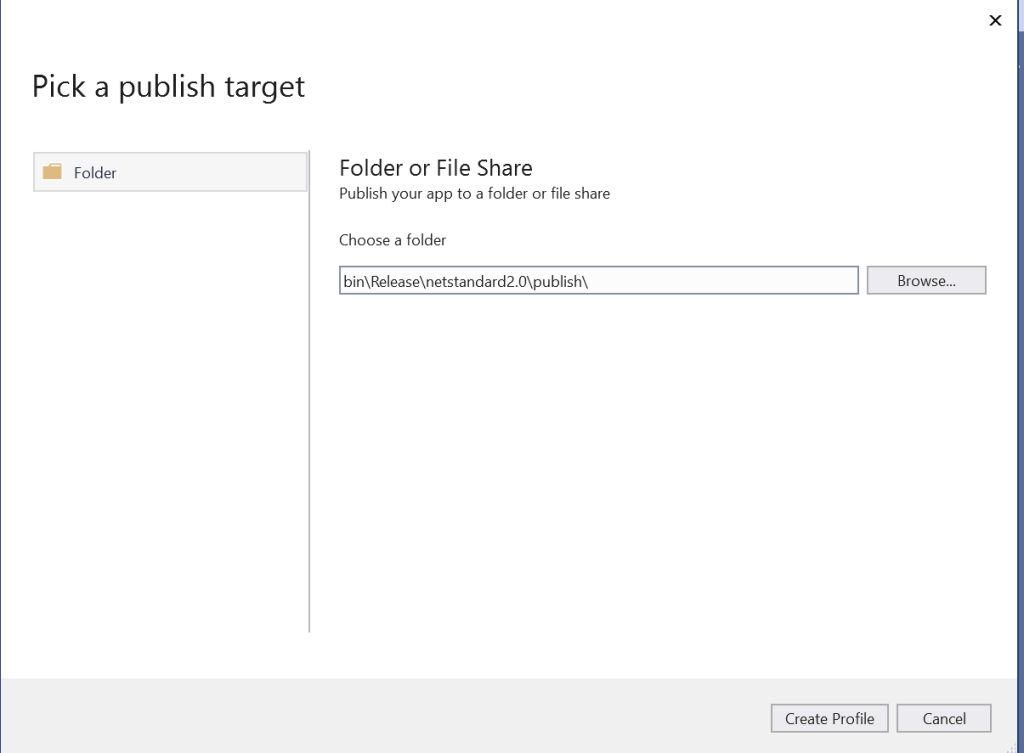
And then you will publish a standard Nuget package located within publish sub-folder shown below:

Deploying your Plugin Manually

Plugins are distributed as Nuget packages. To add a plugin to a host application so that it is loaded at runtime, the plugin must be unpacked and have its assets copied to the correct locations.

Create an environment folder

If you do not have one already, you need to create an environment folder under the sitecoreruntime folder. A Sitecore Host application will default its environment to Production. Unless a different environment is supplied at startup (via the –env command) it will look for the production folder first:

For example:  hostapp/sitecoreruntime/production

Create a plugin folder

You need to create a folder for the plugin (in our case name it Avanade.Plugin.IdentityProvider.Ids4WsFederation) . This is where the plugin manifest, assets and configuration are located. This is located inside the sitecore folder, which is inside an individual environment folder

The sitecoreruntime/<env>/sitecore folder does not override files in the hosts sitecore folder. This is a unique folder used for loading plugin assets.

Runtime environment folders cannot contain a sitecoreruntime folder of their own.

Unpack plugin data from a Nuget package and deploy it

We have our plugin named Avanade.Plugin.IdentityProvider.Ids4WsFederation.1.0.0.nupkg

Unpack the plugin contents. You will notice our package contains special sitecore directory in the root of the nupkg package with additional things inside it. Everything else is the standard Nuget structure.

Copy the contents of the Nuget sitecore folder to the plugin folder you created previously (for example,  sitecoreruntime/production/sitecore/Avanade.Plugin.IdentityProvider.Ids4WsFederation).

Our plugin package contains a lib folder, copy the assets from the correct target framework to the root of the sitecoreruntime/<env> folder (for example, sitecoreruntime/production/*.dll)

Our plugin package contains a content folder, copy the assets from this folder to the plugin folder created previously (for example,  sitecoreruntime/production/sitecore/Avanade.Plugin.IdentityProvider.Ids4WsFederation)

The final folder structure will looks similar to this below
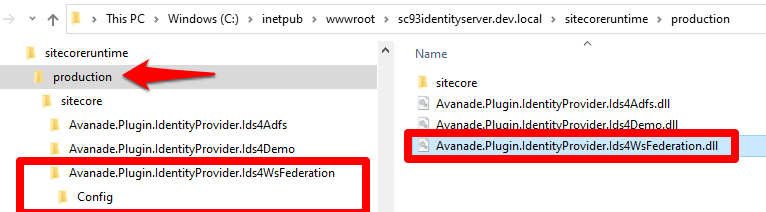
Ws-Federation subprovider in Action

After successful deployment of this plugin to your instance of Sitecore Identity server, you should see the Login screen below.

Please note you will need to re-start your IIS to pick the plugin changes.
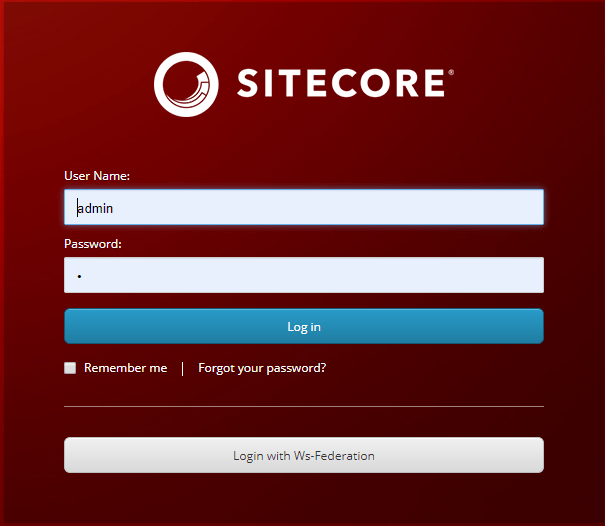
SI with additional provider for ADFS

Troubleshooting plugin

If you encounter any issues with your ADFS plugin, it is possible that the claims mappings have issues. Please refer to the Claims Troubleshooting section on previous blog post for some tips on resolving potential issues.

Conclusion

In this blog post, we examined creating and extending Sitecore Host plugins. We walked through the process of creating your .NET Core project in Visual Studio. We also walked through the actual code samples required to extend the Sitecore Identity with a new subprovider for Ws-Federation (ADFS). The code samples used in this blog post is also available  in this GitHub Repo 

This is the final blog post of this four-part series. I hope you found it useful and given you some motivation to go and start creating cool Sitecore Host Plugins.

Please feel free to leave us your feedback and/or comments below.

Sitecore Host part two

Sitecore Horizon 9.3

In this four part series of blog posts, we will examine in detail the Sitecore Host platform and what benefits this brings to Sitecore Experience Platform. We will also have a closer look at Sitecore Host Applications as well as the Sitecore Host plugins. I will encourage you to please read through these blog posts starting with part one, through part four. I have also provided links below if you would like to jump and have a peek on the other parts as well. All code snippets referenced in the blog posts can also be found on my public Github repo using the link provided below.

  1. Sitecore Host part one – Introduction to Sitecore Host, Sitecore Host applications and Sitecore Plugins
  2. Sitecore Host part two – Sitecore Horizon 9.3 (this post)
  3. Sitecore Host part three – Sitecore Identity Server
  4. Sitecore Host part four – Creating and extending Sitecore Host Plugins
  5. Code samples in my Github Repository

What is Sitecore Horizon?

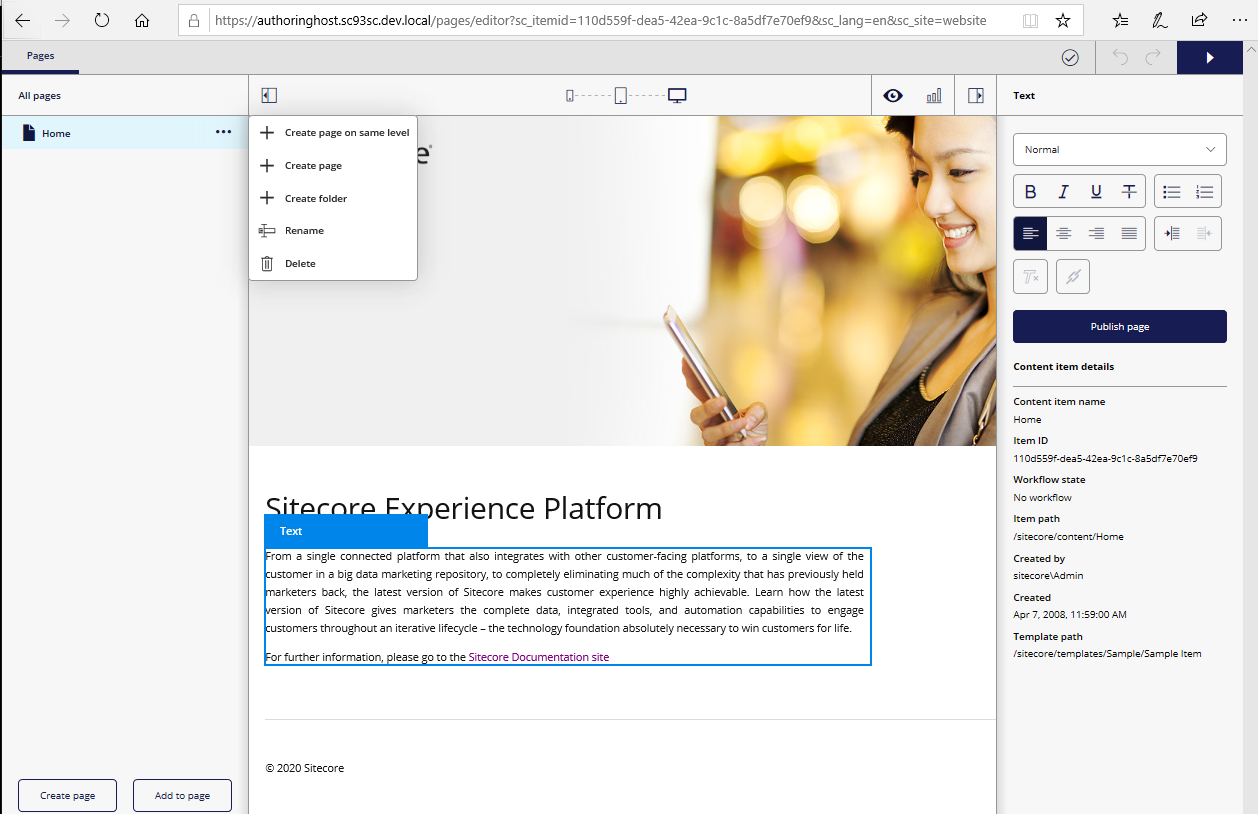
Sitecore Horizon 9.3 is a new alternative approach to editing Sitecore content, that is now available in Sitecore XP 9.3 and later. It is a light-weight Angular-based application which features a Page Editor, Page Insights and a Simulator.

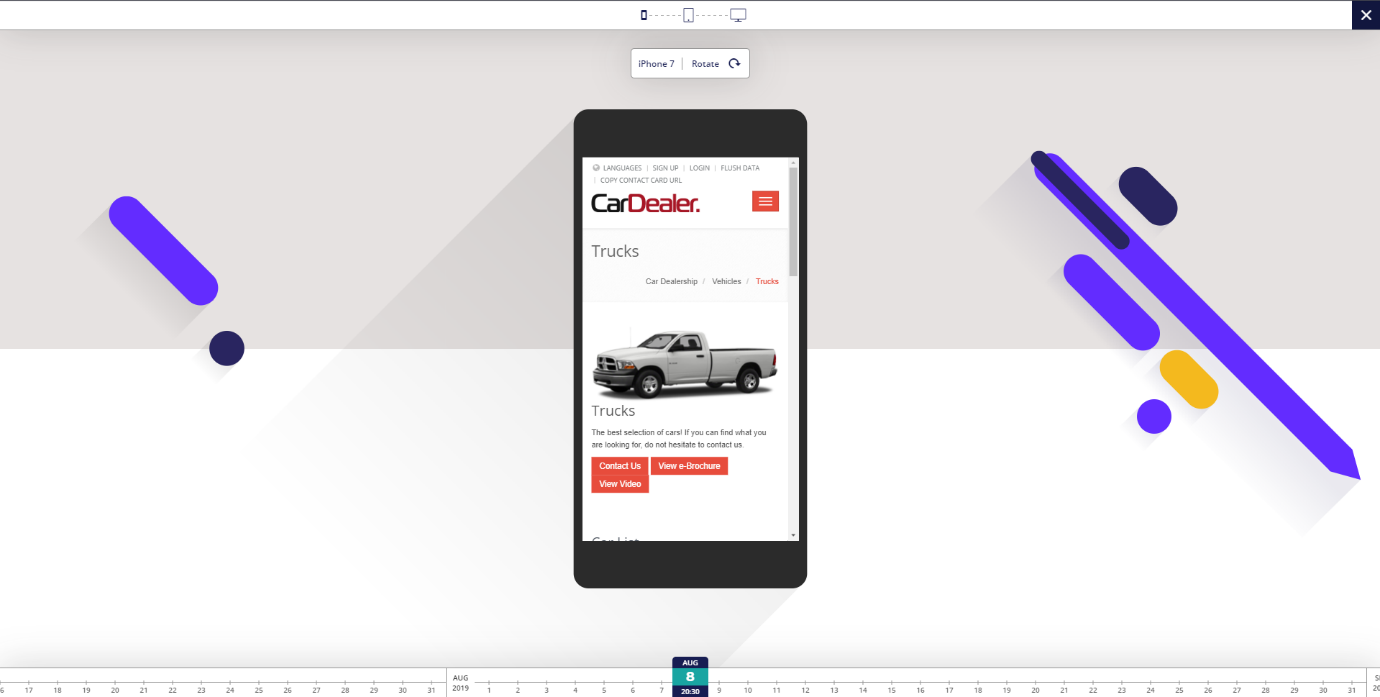
The screenshot below shows the icons for Page Editor, Page Insights and Device Simulator.

Horizon-main-features
Sitecore Horizon – main features

Sitecore Horizon is a Sitecore Host application that  is installed separately from the main Sitecore instance

Horizon architecture

  • Horizon deploys an integration module to every CM instance
  • Horizon client app is built with Angular 7.2 utilizing Node.js for server-side rendering
  • Horizon client app uses GraphQL-based backend API to communicate with backend
  • Sitecore Content Management instance must use HTTPS to communicate with Horizon host application
  • User authentication is by Sitecore Identity Server

Horizon client app is built with Angular 7.2 utilizing Node.js for server-side rendering. It uses GraphQL-based backend API to communicate with backend

What you can do with Sitecore Horizon 9.3

At the time of writing this blog, with the Sitecore Horizon Page Editor, you can do the following

  • Create a page or folder. Can only create a page if Insert Options have been defined at that level
  • Edit text and image fields only
  • Image dialog features a cool dynamic image search
  • Build simple layouts – without complex rendering properties
  • A facility to use drag and drop when adding renderings to a page
  • You can move items through workflow if configured
  • You can publish content, this will use current language version plus all related items (NOT sub-items)
  • Uses smart publish meaning will only publish if their has been changes since last publish
  • Rename page or folders – which will update the item Display Name (not item name)

With Sitecore Horizon Page Insights, you can do the following

  • view page analytics and insights
  • Use Sitecore Host Plugins to extend the page insights

With Sitecore Horizon Device Simulator, you can do the following

  • It allows page previews with different device types
  • Can rotate the device in portrait and landscape modes

What you can NOT do with Sitecore Horizon 9.3

As of the time of writing this blog, Sitecore Horizon 9.3 has some compatibility issues with some of the Sitecore features and service as follows:

  • Sitecore Experience Accelerator (SXA) supports basic page editing with Horizon
  • Sitecore Horizon does not support editing of rendering parameters
  • You can not change layout and composition of page within Horizon, use Experience Editor instead
  • Sitecore Horizon has limited support for JavaScript Services (JSS) sites such as you can open JSS site but cannot edit fields on pages
  • Sitecore Horizon is not compatible with Sitecore Publishing Service
  • You will get error trying to publish content via Horizon on an instance with Publishing Module enabled
  • Horizon does not support Internet Explorer or Safari on MacOs

Extending Sitecore Horizon using Host Plugins

Sitecore Horizon Page Insights is one area that can be extended to have more page analytics displayed on the Page Insights. Out of the box, Sitecore have provided the Sitecore.Horizon.Insights.Plugin which comes with five insights as shown below.

Horizon-page-insights

Conclusion

In this blog post, we examined what is Sitecore Horizon 9.3 in detail and explored what you can and can not do with it. This being the initial release, I would encourage you to download your copy and play with it further so we can give feedback to Sitecore. I expect Sitecore to enhance this Module in coming releases as well as seeing cool Sitecore Host Plugins  created by the community to enhance it.

In the third part of this four-part series, we will examine Sitecore Identity Server in detail.

Please feel free to leave us your feedback and/or comments below.

Sitecore Horizon 9.3 – installation guide

Sitecore-Horizon-Hero

What is Sitecore Horizon?

Sitecore Horizon 9.3 (referred as Horizon for brevity in this blog) is the new alternative approach to editing content that is now available together with release of Sitecore Experience Platform 9.3 since late November 2019. Horizon is a separate Module that can be installed and is hosted separately from the main Sitecore XP 9.3 instance.

Sitecore previously announced Horizon in Symposium 2017 with a preview version released with Sitecore XP 9.1

The new editing environment in Sitecore XP 9.3, known as “Horizon” offers brands an easy to use, intuitive, and contextual interface with everything a user needs for easy navigation. The new editor user interface sets a foundation for the future and also provides real-time contextual insights as content is created and published, giving marketers the knowledge they need to drive improved conversions
~~~~
Sitecore official Symposium 2019 announcement

Horizon architecture at a glance

  • Horizon introduces a new IIS website instance, the content Authoring host application
  • Horizon deploys an integration module to every CM  instance
  • Horizon client application is built with Angular 7.2 utilizing Node.js for server-side rendering
  • Horizon client application uses GraphQL-based backend API to communicate with backend. This is similar to Sitecore JSS services
  • HTTPs requirement for communications between CM instance and the Authoring host application
  • User authentication via the Sitecore Identity Service

Horizon Installation – Prerequisites

  • Installation assets and guide available from dev.sitecore.net on the Sitecore Horizon 9.3.0 page
  • As prerequisite you must install Sitecore Experience Platform 9.3 or later. Also verify that
    • Sitecore CM instance has HTTPS enabled
    • Sitecore Identity must be installed
    • WebSocket Protocol is enabled in Windows Server Manager. Please see the screenshot below, where you need to tick to enable this feature and update your system.

5.0 horizon-websocket-protocol

  • The following tooling must be installed
    • Sitecore Install Framework 2.2.0 or later
    • .NET Core runtime and hosting bundle 2.1
    • Node v10.16.0 and npm 6

Horizon Installation – step by step guide

  1. This is based on an existing XP0 Developer Workstation Sitecore XP 9.3 installation. Please follow my blog post for a guide on how to setup Sitecore XP 9.3 on your on-premises developer instance.
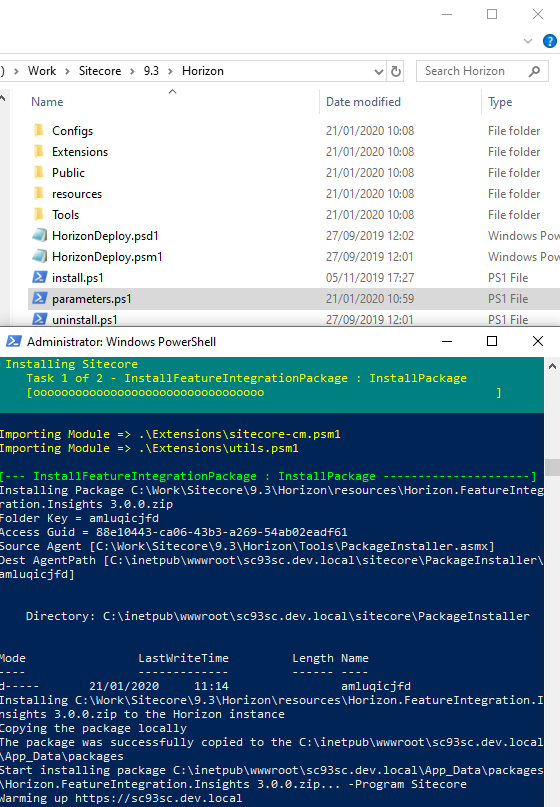
  2. Unpack the Sitecore Horizon 9.3.0.zip package to a working folder (as shown in screenshot below). You will then need to update the parameter.ps1 PowerShell script with parameters for the following:
    • ContentManagementInstanceName – specify CM instance name
    • ContentManagementWebProtocol – this must be HTTPS
    • SitecoreIdentityServerPhysicalPath – specify path to Identity Server
    • SitecoreIdentityServerPoolName – specify Identify Server application pool name
    • SitecoreIdentityServerSiteName – specify Identity Server site name
    • LicensePath – specify your license full path (including file name)
    • AuthoringHostName – (recommended authoringhost.cmdomain.com as sub-domain of CM instance)
  3. After you save your changes to parameter.ps1 PowerShell script, simply run the install.ps1 PowerShell script from your command prompt or PowerShell command to install Horizon

5.1 horizon-installps1

Horizon install package extracted showing parameters.ps1 script

Below is a sample parameters.ps1 script with the parameters specified. Notice the license path must include the file name.

5.2.1. horizon-parameters-sample
Sample parameters.ps1 script with values

Whilst Horizon is installing, you will see the progress screen similar to the one shown below

5.3 horizon-install-progress
Horizon installation in progress

Launching Sitecore Horizon

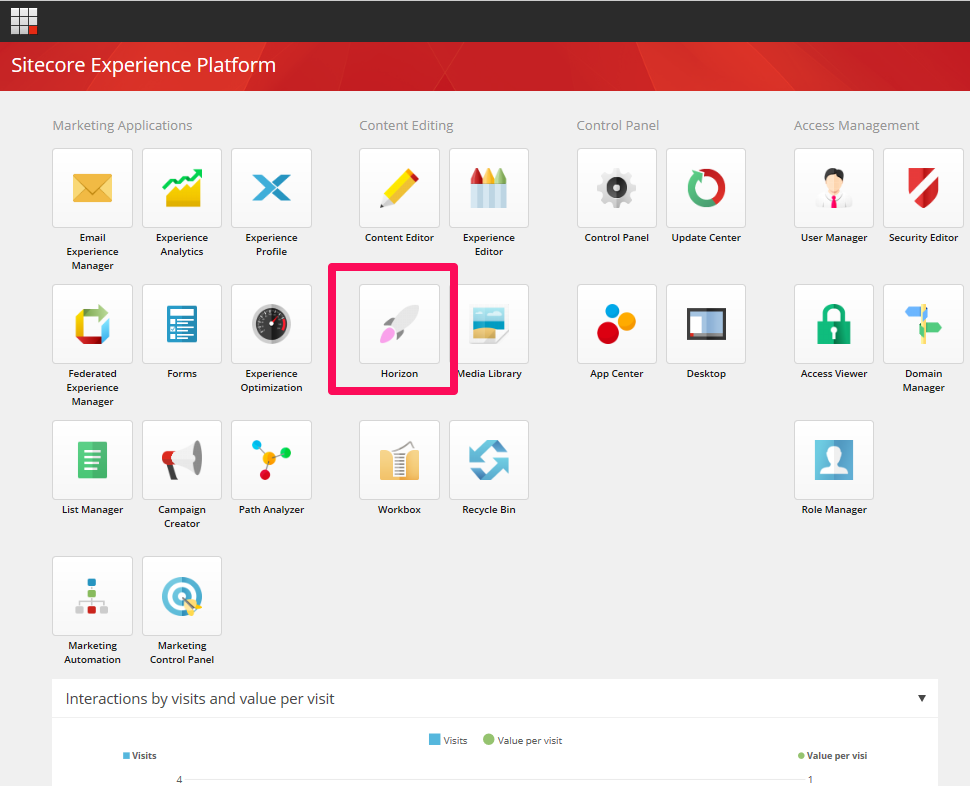
Sitecore Horizon 9.3 once successfully installed can be launched from the Launchpad of your main Sitecore XP 9.3 as shown below

5.4 horizon-install-complete

Click on Horizon “missile” icon to launch the Horizon Authoring host application, as shown below

5.6 horizon-autoring-instance

Congratulations! You have successfully installed Horizon when you see the above page. You will notice that Horizon is opened on a separate tab from your main Sitecore instance Launchpad

What changes does Horizon introduce to wwwroot

As mentioned above in the architecture at a glance, Horizon create a new IIS website as well as integration module to every CM instance.

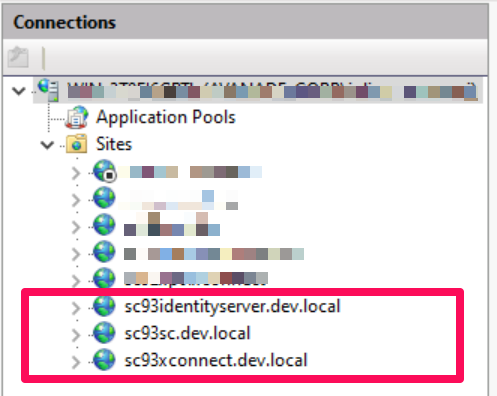
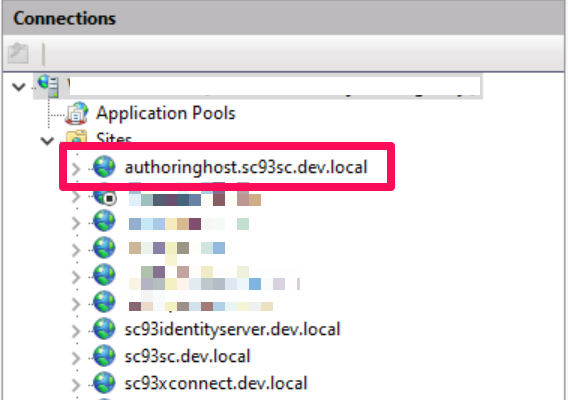
Below is a screenshot showing IIS websites before and after Horizon is installed.

IIS Websites before horizon

5.4.1-horizon-install-complete-iiswebsites_edited

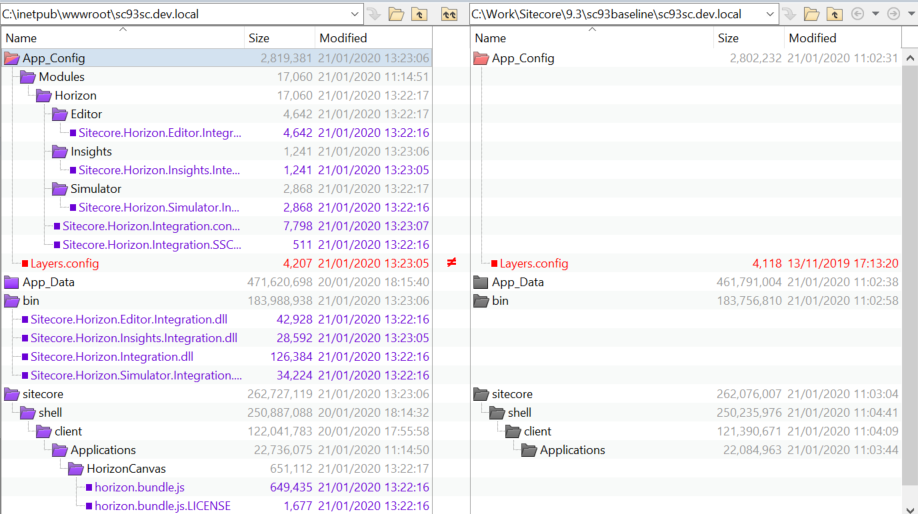
And below are the changes to your main Sitecore instance (wwwroot changes).

Red highlight indicates the file(s) were modified. Blue/Purple indicates new files were introduced

wwwroot changes introduced by Horizon to CM instance

And below are the changes to your Sitecore Identity server (wwwroot changes).

Red highlight indicate the file(s) were modified.

6.2 horizon-updates-to-identity-server

Troubleshooting Installation Issues

You may come across installation issues. Below is how you can troubleshoot them

Node.js issues

You may come across Node.js issues which means Horizon will not load successfully when launched. You may get the error message below on your browser after launching Horizon

Failed to render a page: InternalServerError when launching Horizon, see screenshot below 

5.5.1 horizon-nodejs-error

You may get exceptions reported in the logs similar to this one below

An unhandled exception was thrown by the application.
System.InvalidOperationException: Failed to start Node process. To resolve this:.
[1] Ensure that Node.js is installed and can be found in one of the PATH directories.
    Current PATH enviroment variable is:
    Make sure the Node executable is in one of those directories, or update your PATH.

To resolve the Node.js issue, try the following options:

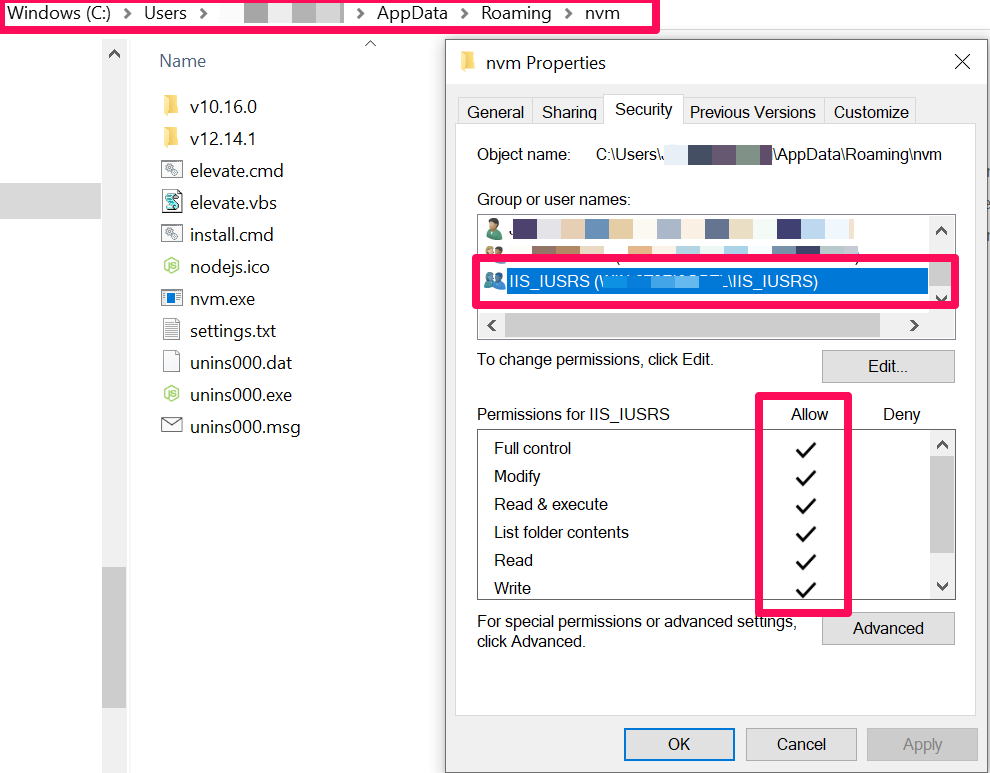
A) If you are using Node.js version management utility (NVM) to manage your NodeJS versions, ensure you have given the IIS application pool permissions to your NVM Roaming folder. Below is a screenshot showing how to give permissions

5.5.3 horizon-nodejs-error-nvm-permissions
setting permission on nvm roaming folder

B) If you are not using NVM, then please try uninstall Node.js and then re-install it again using the Windows Installer. Please refer to the Sitecore Horizon 9.3 Installation guide on the required Node.js version

Enabling logging on Authoring.Host.dll

Horizon logs are written on the logs sub-folder located at the wwwroot of the Horizon instance, as shown below:

update web.config to enable logs

If you can’t see any log files in the logs sub-folder, you can update the web.config file located at the wwwroot of the Horizon instance as shown below. Simply set the stdoutLogEnabled =”true” save your changes, and then recycle the Horizon app pool

Hope you find this post useful. Please watch this space as I will blog more about Horizon, including a deep dive on its features among other areas.