How to bulk import CMP content items with multi-languages into Sitecore Content Hub

If you have bulk imported DAM assets into your Sitecore Content Hub using the Excel Import, then you are already familiar with the process. In fact, I recently blogged on how to bulk import video subtitles with multi-languages.

However, Sitecore Content Hub is a great platform with many hidden gems. In this blog post, I will be exploring the hidden gems on how the bulk import CMP content items. Hopefully save you valuable time of having to figure out on your own.

What is Sitecore Content Hub CMP?

CMP stands for Content Marketing Platform.

Below is an excerpt from the Sitecore official docs

A Content Marketing Platform allows the planning, authoring, collaboration, curation and distribution of the different content types that drive the execution of a content marketing strategy while allowing campaign management. CMP is a central hub providing an overall view of all content and how it is performing. It is an essential platform to help with planning and analyzing content marketing campaigns and individual pieces of content.

Sitecore official docs

I will highly recommend watching the Sitecore Content Hub Content Marketing Platform (CMP) Walkthrough video from Sitecordial

For my use case, I will be looking at Blogs, which is one of the out of the box content types in CMP.

Creating a Blog entity within Content Hub CMP

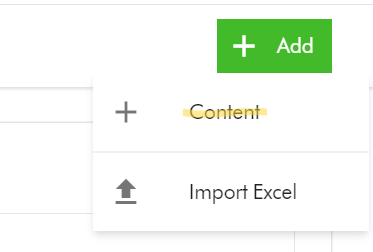
  1. To create a Blog entity, on the Content creation page, select Add Content 
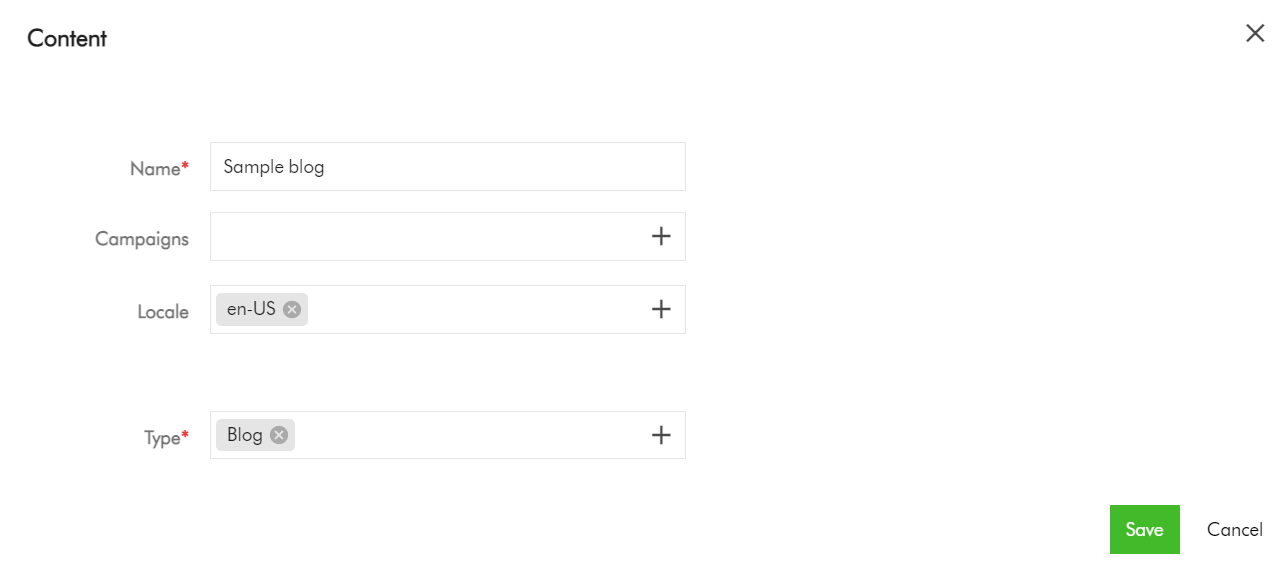
  2. On the add Content dialog, enter the Name and Type, which are mandatory fields. For Type, select Blog from the list of available Content Types. You can also specify the Locale (although this will default to your current Locale). Click Save to save your entry.
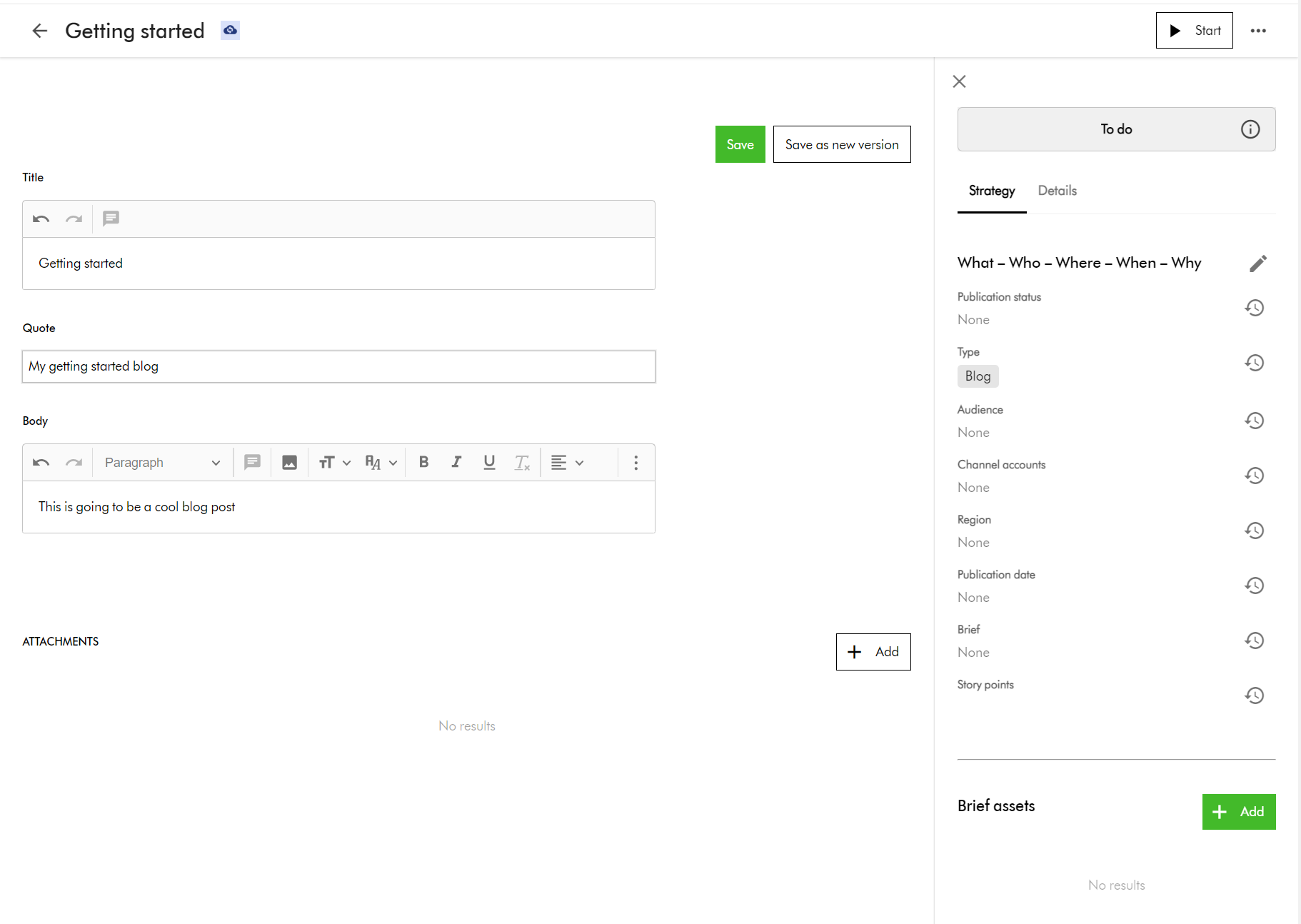
  3. Now select your new Blog item to edit. You should see the edit screen shown below. Enter content for the blog title, quote and body, then click Save to commit your changes.
Adding translations for multi-languages for your Blog entity

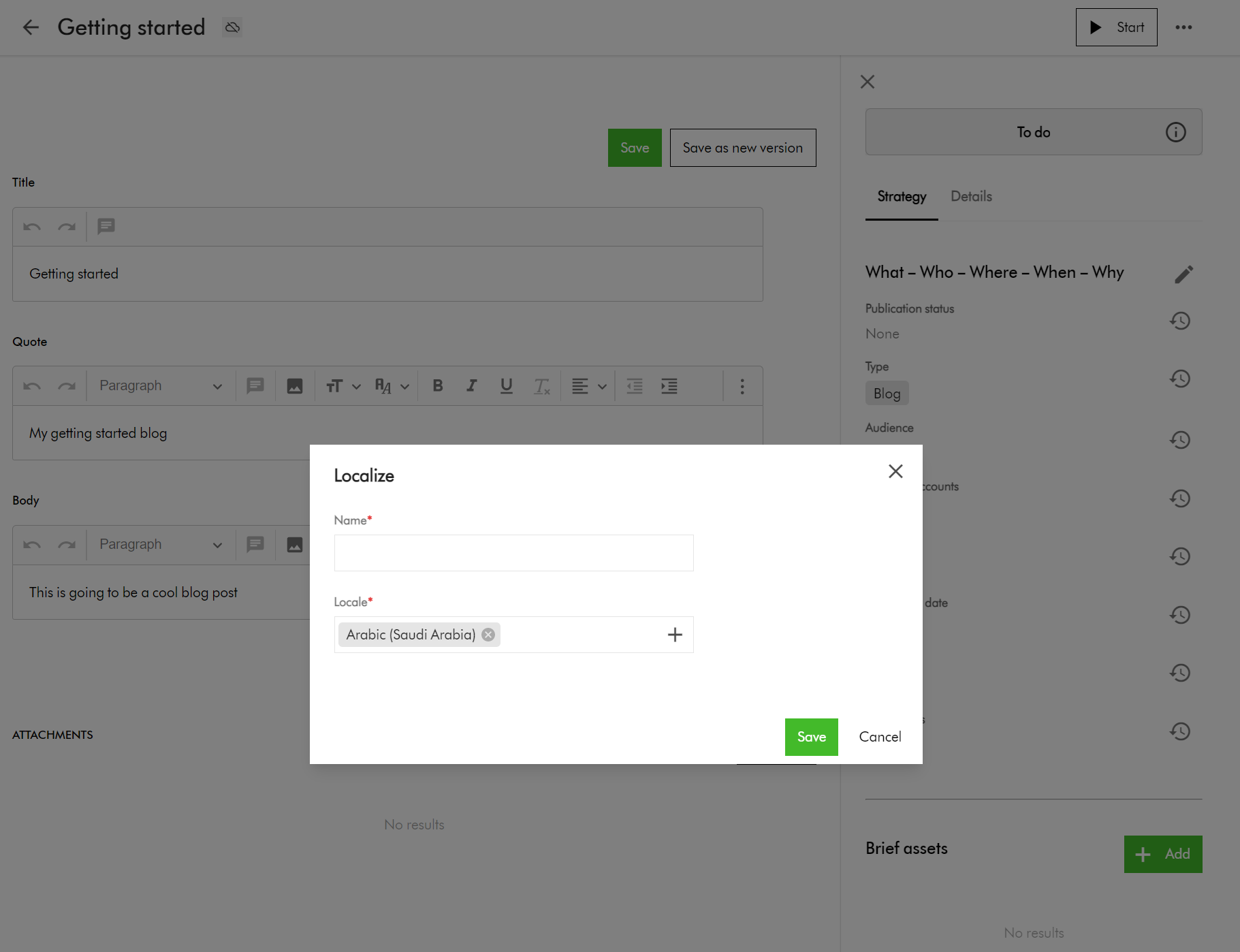
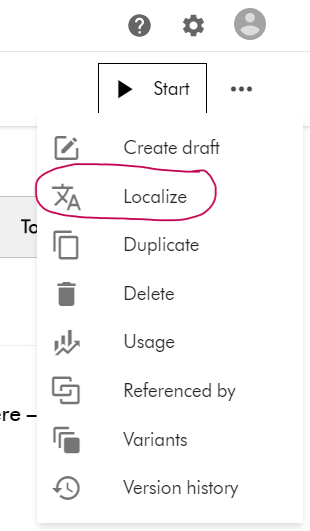
  1. To add a new translation, select the Localize action item from the Action menu, available from the top right-hand side of the edit screen.
  2. This will prompt you to enter name and locale on a popup shown below.
  3. Click Save to create this variant for the selected language
  4. This will then open the edit screen for you to edit the translated content for the blog item.
Preparing your CMP content items for Bulk Import

Now that we have familiarized ourselves on how to add a single Blog item and a single translation using the portal, let us look at bulk import.

 As usual, we will leverage the Excel Import template for the bulk import. In my related blog post, I already explained the pre-requisites you need for Excel Imports.

Blog items are M.Content entities, therefore we need to ensure our import worksheet is named M.Content

I have prepared an Export profile for exporting Blogs for your reference. You can access the Export Profiles area using the steps below.

Manage -> Export Profiles -> Create new export profile

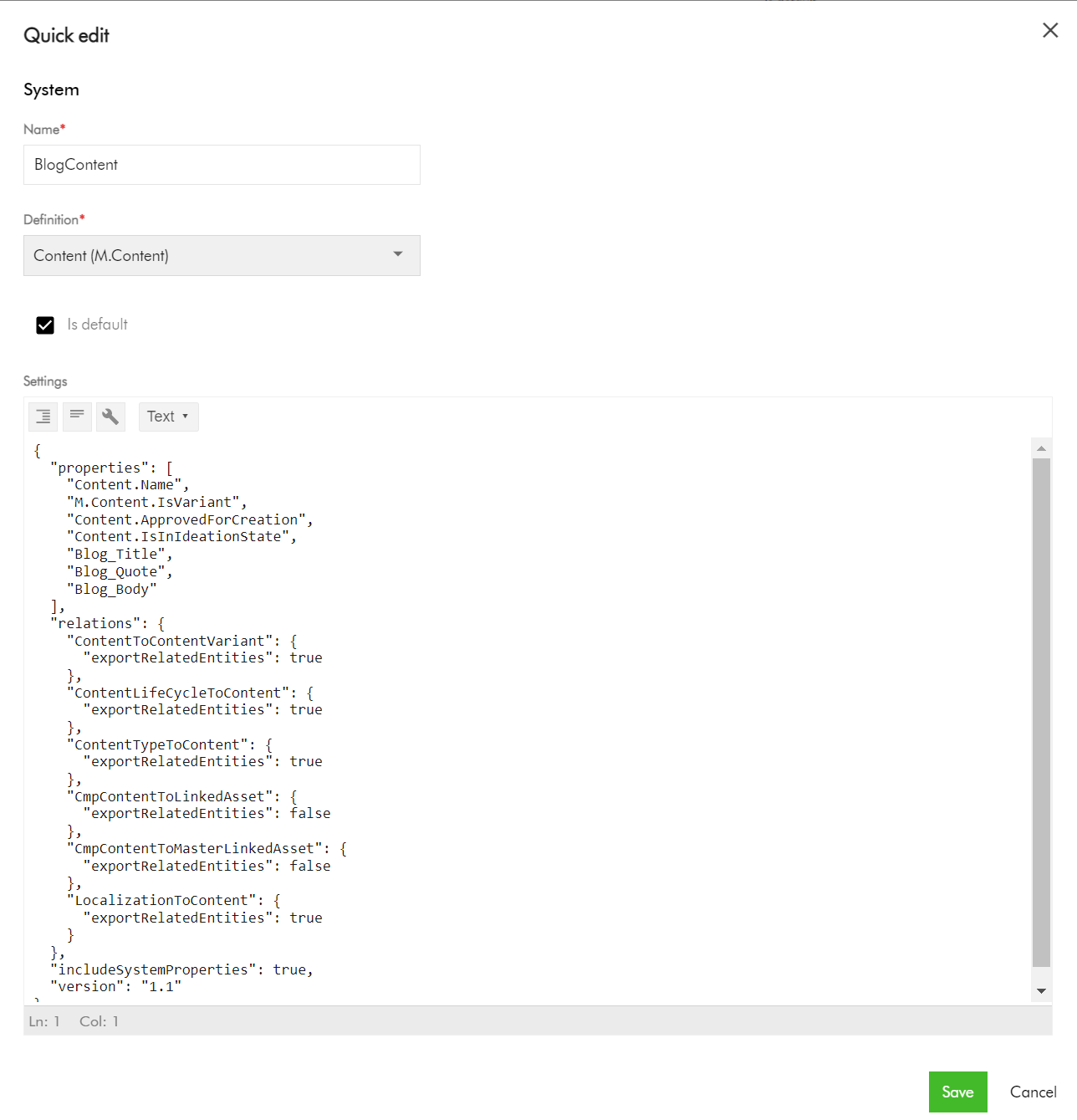
The screenshot below shows my BlogContent export profile.
Key highlights on the Content export profile

Pay attention to the Relations section, where we are enabling the export of the related entities for:

  • ContentToContentVariant
  • ContentLifeCycleToContent
  • ContentTypeToContent
  • LocalizationToContent

Also, ensure includeSystemProperties is enabled.  

This export profile will output worksheets for these Relations for your reference when generating the Excel Import template.

Export your CMP Blog entities into Excel

  1. Navigate to your Content search portal page.
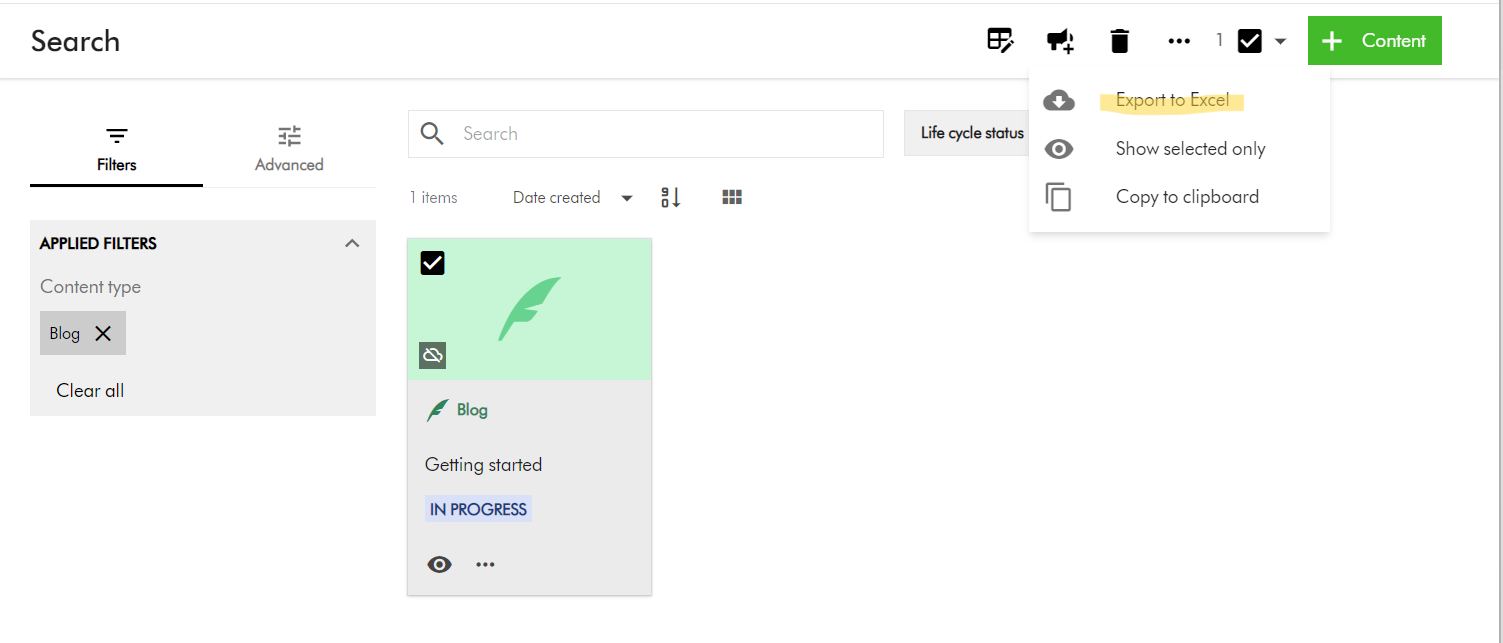
  2. Search and locate your blog(s). You can use the Filters section to filter Content type of Blog.
  3. Select the blog(s) entities (by ticking the checkbox of your selection component)
  4. On the right-hand side, access the Actions dropdown menu, and click on “Export to Excel” as shown below.
  5. Your download should be ready and accessible from Profile -> Downloads link
A look at M.Content Excel Import template

Your M.Content import template will look similar to this one below.

You can now view or download the full Excel template file that I have used

Key highlights:

  • Row 1 – this is the default blog entity based on your default language, e.g., en-US
  • Row 2 through 4 – these are the variants of the blog entity for my localized languages. In your case, you many more or less, as per your localized languages you are supporting.
  • Pay special attention to the ContentToContentVariant:Parent which is how the variants are linked to the default blog entity using identifier  id123456789-blog-en-US in my example.
  • Pay special attention to the ContentToContentVariant:Child which is how the default blog entity is linked to all variants. This will have pipe delimited list of variant identifiers (e.g., id123456789-blog-ar-AE|id123456789-blog-zh-CN|id123456789-blog-da-DK)
  • Please note, you need to pre-generate unique values for the identifier column for your variant blog entities. This ensures you can script and control how to link them with parent blog as shown above. This will be key to successful bulk import of the blog entities with multi-language support.
  • Use M.Content.IsVariant to mark which blog entities are variants
  • Use the CmpContentToLinkedAsset column to link the blog entities to existing assets (images or videos) from your DAM if required.  You can link multiple assets by using a pipe delimited list of assets identifiers.
  • Use the CmpContentToMasterLinkedAsset column to assign a Cover Image to the blog entities
  • The LocalizationToContent has the M.Localization taxonomy values corresponding to each localized language
  • I have provided default values for the columns Content.ApprovedForCreation, Content.IsInIdeationState, ContentLifeCycleToContent as per my use case. In your case, provide appropriate values that meet your content strategy.

Finally, let us do bulk import of Blog entities into CMP

And finally, to bulk import, use the Content Creation page. Ensure the creation component on your page has Import Excel option enabled.

  1. On the Content creation page, select Import Excel
  2. Do one of the following:
    • Drag the Excel file you want to upload into the dialog box.
    • Click browse, then pick the Excel file you want to upload.
  3. Optionally, click Add more to add more files if needed.
  4. Click Upload files.

 Next steps

On this blog post, we have looked at how to bulk import Blogs to your Sitecore Content Hub CMP. I am keen to hear your feedback or comments. Please do use the comments section for that.

Stay tuned for future posts as well look and feel free to look around at my existing posts on Sitecore platform.

Sitecore personalize and mobile app projects series – part 3

Introduction

On this series of blog posts, I am documenting my journey of delivering personalized content to end users of a mobile app.

Connecting Sitecore Personalize to Sitecore Experience Edge

In this blog, I will deep dive into the integration between Sitecore Experience Edge and Sitecore Personalize part of the architecture, shown below. For the full reference architecture, refer to part one of this series.

Integrating Sitecore EE with Sitecore Personalize

What is Sitecore Personalize

Before we jump into how to integrate Sitecore Experience Edge with Sitecore Personalize, lets first look at what is Sitecore Personalize? Sitecore Personalize is cloud-native solution from Sitecore, for delivering tailored experiences to every customer, on any channel, and at scale.

Sitecore Personalize brings lots of value for marketers, including the following:

  • supports experiments that optimize experiences in any digital product, app, or channel
  • applies AI-driven digital decisioning capabilities to connect operational data
  • provides client-side personalization
  • reinforces decisioning and next-best actions and offers
  • provides inbound and outbound personalization

I will be focusing on the mobile app channel, with hope of exploring all the capabilities available to us.

Getting Started with Sitecore Personalize

Partner CDP Training Sandbox

If you are part of Sitecore Partner Programme, then you should already have access to a Partner CDP Training Sandbox. You can reach out directly to Sitecore Support to get your credentials to gain access to the tenant for your partner sandbox account.

Your Partner CDP Training Sandbox will have both Sitecore CDP and Sitecore Personalize. I will NOT be covering Sitecore CDP in this post. It is not part of my solution, but feel free to explore more about it.

Depending on your location, you will access your Partner CDP Training Sandbox using either of the following URLs:

  • app.boxever.com (Europe)
  • app-ap.boxever.com (Asia Pacific (APAC)
  • app-us.boxever.com (United States)

Request for a demo

You can also request for a Sitecore CDP demo from Sitecore by following the steps on the Request a demo page. This will require you to submit a form to Sitecore, after which you will get an invitation to sign up and access the Sitecore CDP demo tenant. Please note this will give you access to both Sitecore CDP & Personalize, at the time of this writing.

Sitecore Personalize – Navigation and Menus

The screenshots shared below are from my Partner CDP Training Sandbox, which has both Sitecore CDP & Personalize. If you are working with Sitecore Personalize only, these screenshots may have some differences for your case.

Click on the leftmost button, to the left of “CDP & Personalize” logo to switch between multiple tenants, as shown below.

Sitecore CDP & Personalize navigation menus

For documentation links, your tenant settings, and your profile settings, use the buttons to the right of the top nav menus, as shown above

Step by step on how to connect to Sitecore Experience Edge

To add a connection to Sitecore Experience Edge, use these steps:

  1. Use the Developer center top nav menu item, and click on Connections sub-menu item, as shown below.
  2. This will open the Connections page, shown below. Click on Add Connection button on the right-hand-corner to start the process
  3. This will launch an Add Connection dialog box, shown below
  4. Select the Data System category. This will open a 5-screen wizard form to capture the new connection details. The first screen is where you name and describe your connection, as shown below. Enter the Name, Description and choose an Icon, and click Next button to progress the wizard
  5. In the second wizard screen, you will specify the Authenticate method. Select None. So, no need to click on Test Authentication button. Click Next to progress the wizard to the Request screen
  6. On the third screen, you need to Configure Request details as shown on the screenshot below
    • Request URL
      • On the Request URL field, select a POST request, with URL of https://edge.sitecorecloud.io/api/graphql/v1  This will be your Sitecore Experience Edge Delivery API endpoint. It is a GraphQL endpoint that exposes your approved and published content.
    • Headers
      • Next, you need to add custom HTTP HEADER named “X-GQL-Token”, where you will specify the API Key required for your endpoint.
      • You can create this API Key from your Sitecore Content Hub instance, using the Manage -> API Keys page. Alternatively, you can create this programmatically using the Token API
    • Request
      • The easiest way to compose the request body is to make use GraphQL playground to compose your queries – taking advantage of schema discovery and auto-complete capabilities. As shown on the screenshot above, this is a simple query to list all approved and published assets with their Id and Title only. I grabbed this from the XHR request call on the  browser developer tools
    • Test Request
      • Now you can click on Test Request button, which should give you some Response, like the screenshot above. If you encounter any issues at this step, it is either you have a wrong API Key or a malformed GraphQL query. One tip is to ensure the  “query” part of the request has been formatted into a single line, as shown above.
      • Click Next button to progress the wizard to the fourth step, the Map screen
  7. We will revisit the map screen later on during this project. Skip this for now, by clicking on Next button to progress to final screen of this five-step wizard
  8. On the last Review & Save screen, you will see the summary of your details. If you are happy with everything, click on Save button to complete the wizard

You have now successfully established a connection with your Sitecore Experience Edge, and this will be available on your Connections list, for use in the future steps.

What is GraphQL

GraphQL is a query language for APIs that allows clients to specify exactly which data they want to fetch by making a single request and providing a query with the desired data fields.

Below is a screenshot of the GraphQL playground available using https://edge.sitecorecloud.io/api/graphql/ide/

Next Steps

This completes this blog, where I have walked you through getting your Sitecore Personalize connected with your Sitecore Experience Edge. I hope you find this useful, and feel free to leave me any comments or thoughts.

In my next blog, I will be looking at Sitecore Personalize capabilities, APIs and how to integrate it with the mobile app. Stay tuned.

Sitecore personalize and mobile app projects series – part 2a

Introduction

On this series of blog posts, I am documenting my journey of delivering personalized content to end users of a mobile app.

Enabling Sitecore Experience Edge for Sitecore Content Hub

In this blog, I will deep dive into the two blocks from bottom of my reference architecture, shown below.  I will specifically cover integration between Sitecore Experience Edge and your Sitecore Content Hub instance. For the full reference architecture, refer to part one of this series.

Enabling Sitecore Experience Edge for Sitecore Content Hub

Recap on Sitecore Experience Edge

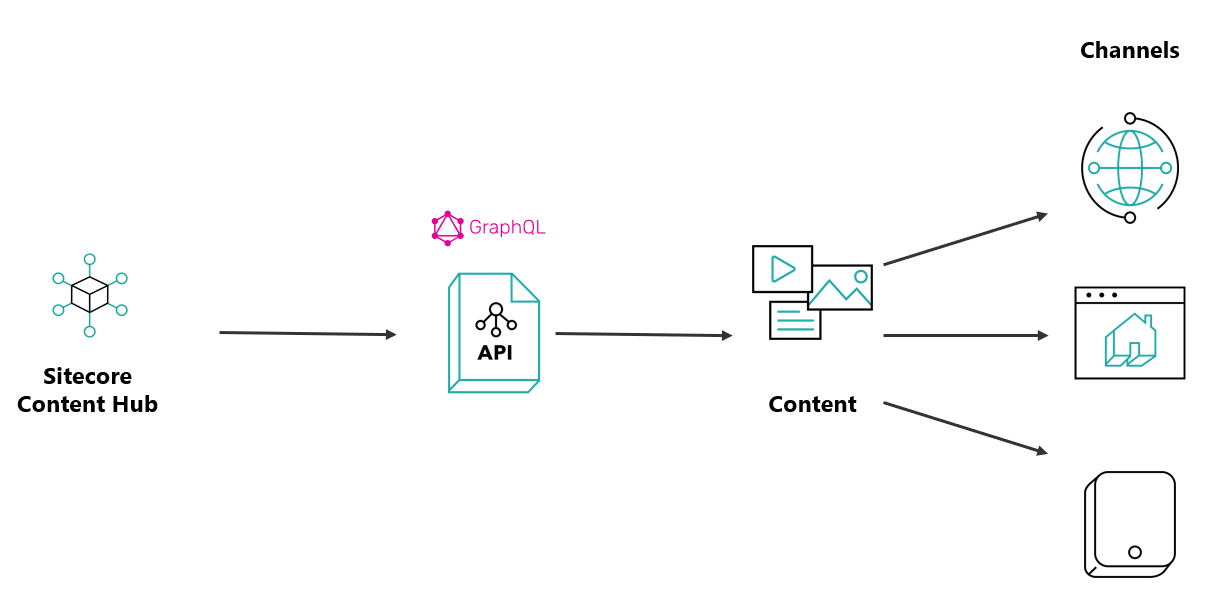
Sitecore Experience Edge for Content Hub is a set of services based on the Content as a Service (CaaS) model. It enables you to seamlessly deliver structured content across any channel that other applications and properties can easily consume

Sitecore Experience Edge - Content as a Service (CaaS)

Sitecore Experience Edge CaaS (Adopted from https://doc.sitecore.com/ch/en/users/42/content-hub/experience-edge–caas-intro.html)

Configure the publishing settings

To use the Experience Edge delivery platform, you must first enable the publishing settings and specify whether publishing is done automatically whenever there are changes or whether it is done manually.

Below are the steps to accomplish this, in your Sitecore Content Hub tenant:

  1. On the menu bar, click Manage
  2. On the Manage page, click Settings
  3. On the Settings page, in the left pane, click PublishingSettings. You can also search using the search box
  4. In the right pane, select the Publishing enabled check box
  5. If you want to automatically publish the schema or entities when changes are detected, select the Auto publishing enabled check box
  6. Click Publish schema to publish changes to the schema
  7. Click Publish all to CaaS to publish all publishable entities
  8. Click Save
Sitecore Experience Edge - configure publishing settings

Publishable entities

Once you have enabled Sitecore Experience Edge on your Content Hub instance, you will notice a Delivery Platform item is now added on your Manage screen, as shown below.

Sitecore Experience Edge - Delivery Platform icon on Manage screen

Click the Delivery platform icon above to navigate to the Delivery platform page, like the one shown below. On this page, you can choose which existing entities that you would like to publish or unpublish.

Sitecore Experience Edge Delivery platform page

You do this by clicking on the Icon next to your entities, which will launch a Delivery platform settings dialog box, similar to one shown below:

Sitecore Experience Edge - Delivery platform settings popup dialog

Enable Publish an entity definition

In the Delivery platform settings dialog box, turn on the Enable in delivery platform switch

Click Save & Publish.

Unpublish an entity definition

In the Delivery platform settings dialog box, turn off the Enable in delivery platform switch

Click Save & Publish

Verifying the Publish status

The publish status is now displayed next to the Delivery platform page title

Sitecore Experience Edge delivery platform publishing status

Next Steps

This completes this blog, where I have walked you through getting your Sitecore Experience Edge integration working. I hope you find this useful, and feel free to leave me any comments or thoughts.

In my next blog, I will be looking at integration between Sitecore Experience Edge and Sitecore Personalize. Stay tuned.

Sitecore Personalize and Mobile App projects series

Background

I recently started working on a project that primarily delivers content to end-users via a native mobile app. One of the key requirements I am working on is to deliver personalized content to end users of this mobile app.

This is my first opportunity to work with Sitecore Personalize in depth.

Wearing my architectural hat, and without re-inventing the wheel, I sought to look out for some reference architecture that I could build on.

There seems to be a lot of existing official Sitecore docs on Sitecore Personalize for both business users and developers. I will advise you will need some patience and time to go through the docs which have quite a lot of content.

If you prefer watching videos instead, the Sitecore Discover channel has done some justice to this topic too, especially the content from Dylan Young.

As much as the docs are very well written and the content is quite useful, I found myself jumping a bit to piece together my solution. This can be frustrating especially when Personalizing a Mobile App should be a common use-case you could imagine.

I have decided to document my journey on this project, so that I can share with you any learnings, tips, and tricks for Personalizing Native Mobile apps.

Mobile App Personalization reference architecture

Above is a reference architecture I have come up with for my solution.

At a very high level, my mobile app will consume content that is delivered on the Sitecore Experience edge. Sitecore Experience Edge is a set of services based on the Content as a Service (CaaS) model. It enables you to seamlessly deliver structured content across any channel that other applications and properties can easily consume.

The origin of this content published on the Sitecore Experience Edge could be either Sitecore Content Hub or Sitecore XM cloud. Sitecore Content Hub is a strategic enterprise solution that provides you with a variety of features centered around digital assets and marketing content.

Sitecore Personalize will leverage the Decisioning model, Omni-channel Experiences and Experimentation capabilities to provide all the required personalized content in the mobile app. This includes copy content, imagery and other media. I will be sharing step by step details on how to achieve this.

Sitecore Personalize can integrate with a Customer Data Platform (CDP) of choice, which I have left open for now. Please note I could decide to go with Sitecore CDP solution here too. The key feature here is to ingest customer profile data, to input into our Personalization decisioning engine.

I have introduced an Orchestration layer between my mobile app and the Sitecore Personalize, mainly for some security considerations that I will cover in detail a bit later in this blog series.

I will let you review and digest this high solution level architecture. Please leave me your initial thoughts and comments.

Next steps

In my next blog, I will deep dive into the two blocks from bottom of my reference architecture.