Content Hub tips & tricks: Overriding Created by or Modify by ‘ScriptUser’ in your scripts

Background

If you currently leveraging Action scripts as part of your Content Hub solution, you probably noticed that any updates done to your entities are tagged as Created by or Modified by ‘Scriptuser’. You may as well not be aware that actually this is how the Content Hub platform works by design. At present, all scripts operate under the Scriptuser account

But how do I override the ‘Scriptuser’ account?

Frustratingly, there isn’t much documentation around this ‘Scriptuser’ on the official docs. You are not alone in this. That is why I have put together this blog post to help provide a solution to this problem.

It is not all doom and gloom. In fact, if you look around in Sitecore docs, the IMClient provides a capability to impersonate a user, using the the ImpersonateAsync method.

Below is a definition from Sitecore docs:

ImpersonateAsync(string)

Creates a new IMClient that acts on behalf of the user with the specified username. The current logger will be copied to the new client.

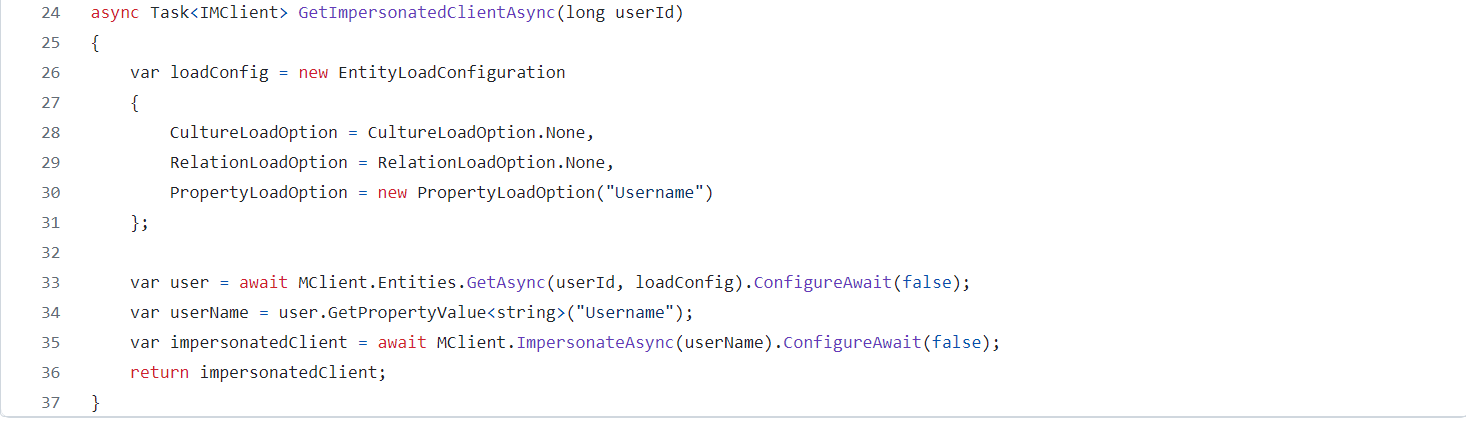
So we will need a function to get an impersonated MClient

Looks like we have a solution then. All we need to do now is define function within our Action Script, that will create an instance of an impersonated MClient. This impersonated client will in effect allow us to override the Scriptuser with the current user triggering our Action Script. Which is the solution to our current problem.

Good news, I have already defined such a function for you. I have named this function GetImpersonatedClientAsync, a shown below.

You should be familiar on how to load an entity property, by leveraging the PropertyLoadOption in your EntityLoadConfiguration, as shown above. That is how I am able to retrieve the Username property from the current user entity (currently authenticated user within Content Hub). This will be the user that has triggered our Action Script.

It is need as a parameter when calling the MClient.ImpersonateAsync as shown on line 35 above.

I have left the details of how triggering of an Action script happens, since I have covered this topic in my previous blog posts, such as this one.

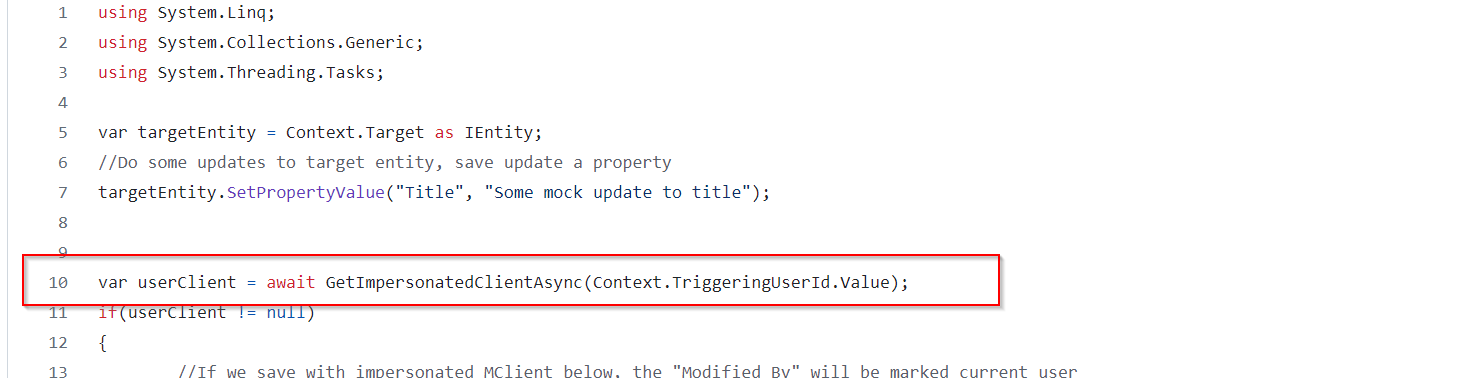
However, I would like to call out that the UserId of the authenticated user is always available within the Action Script via accessing the Context object. Below is a snippet of how I have done this on line 10.

Saving changes with Impersonated MClient

We now need to use the impersonated MClient in all instances where we are saving changes in our Action Script. Below is a code snippet on how to achieve this. You can see on line 15, I am using the impersonated userClient. You can easily compare this with line 20, which is a fallback option that uses default MClient.

You can view the full source code of the above script from my public GitHub Gist.

Next steps

In this blog post, we have looked at a how to override the Scriptuser within an action script. I have walked you through a sample action script and also shared sample source code for your reference. I hope you find this useful for your similar use cases.

Stay tuned and leave please us any feedback or comments.

Content Hub tips & tricks: Getting entity created by, modified by and other audit data in your scripts

Background

I have previously blogged about creating Action Scripts to help aggregate your Content Hub data for sharing with external or third party integrations. In this blog post, I wanted to demonstrate how to access your entities audit data such as when the entity was created and who created it. Also when it was last modified and who made the modification.

IEntity is all you need

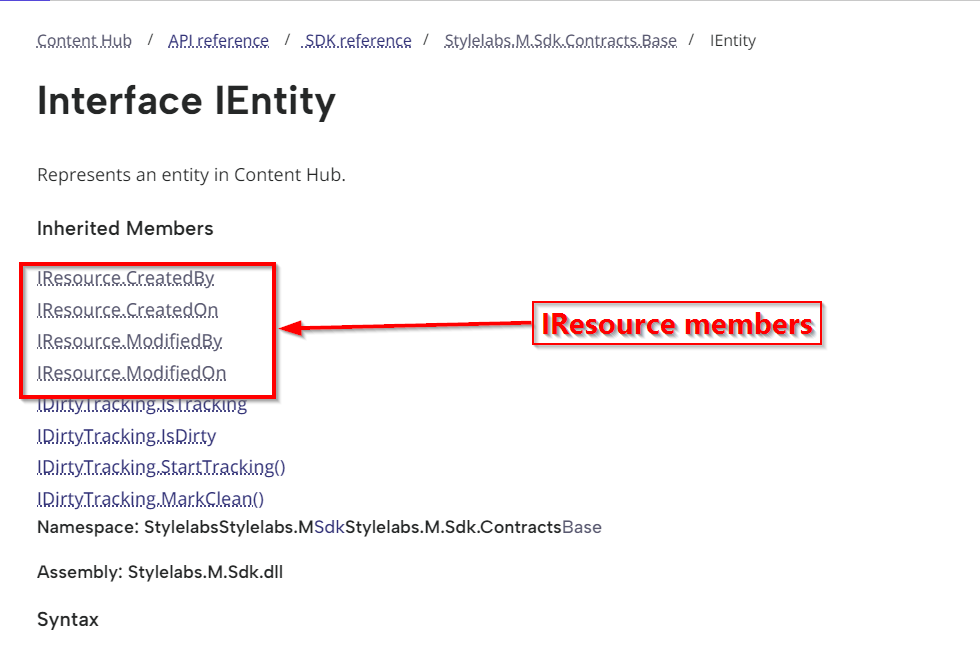
IEntity represents an entity within Content Hub.

Luckily enough, IEntity already inherits the IResource type which defines the audit fields that we need, as highlighted above.

Sample Action script code

Below is a snippet of an action script, to demonstrate how to access these audit fields.

And below is the sample output from the above script.

Script explanation

  • Line 14 through 27 demonstrates how to get the entity object within your action script. The Context object provides you with the triggering context properties. In this case we are can try obtain the entity from Context.Target as shown on Line 14. The rest of the code checks if we succeeded to get the entity object, in which case we can try load it using a custom function GetEntity as shown in Line 20. I will cover details about this in a minute.
  • Line 29 demonstrates how to obtain the entity definition name
  • Line 32 through 35 demonstrates how to obtain the entity auditing metadata.

How to load entity using custom fuction

Below is the code snippet how to load an entity using an entity Id, by leveraging the MClient.Entities.GetAsync method. Notice you will need to specify the load configuration, where additionally we can specify which properties and relations we need to load for the entity.

For example, I am loading the “AssetTitle” property as well as the “AssetTypeToAsset” relation for my M.Asset entity type.

You can view the full source code of the above script from my public GitHub Gist.

Sample Trigger for our script

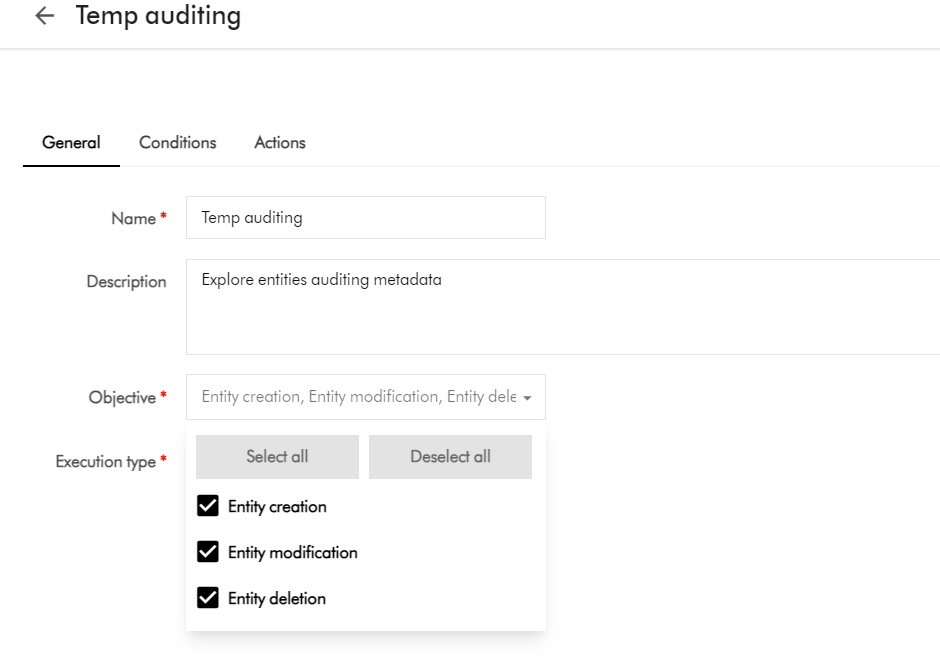
Below is a sample trigger, indicating the triggering events we are interested in. As you can see, our trigger will fire whenever an entity has been created, modified or deleted within Content Hub.

I haven’t shown the triggering conditions, and how to link this to an Action. This information is available within Content Hub documentation, if you would like to explore further.

Next steps

In this blog post, we have looked at a how to access an entity’s auditing metadata within an action script. I walked you through a sample action script and a sample output, and also shared sample source code for your reference. I hope you find this useful for your similar use cases.

Stay tuned and leave please us any feedback or comments.

Content Hub tips & tricks – How to extend your delivery and rendition links expiry duration

Background and context

When you are searching for assets within Content Hub, the search is underpinned by a search component within your page. You can also leverage the same search component, within the Search API to integrate the search results to an external or third-party system. One such use case, for example, is where you would like your business users to search for your assets on an external portal, without gaining direct access to Content Hub.

Search API – postman request

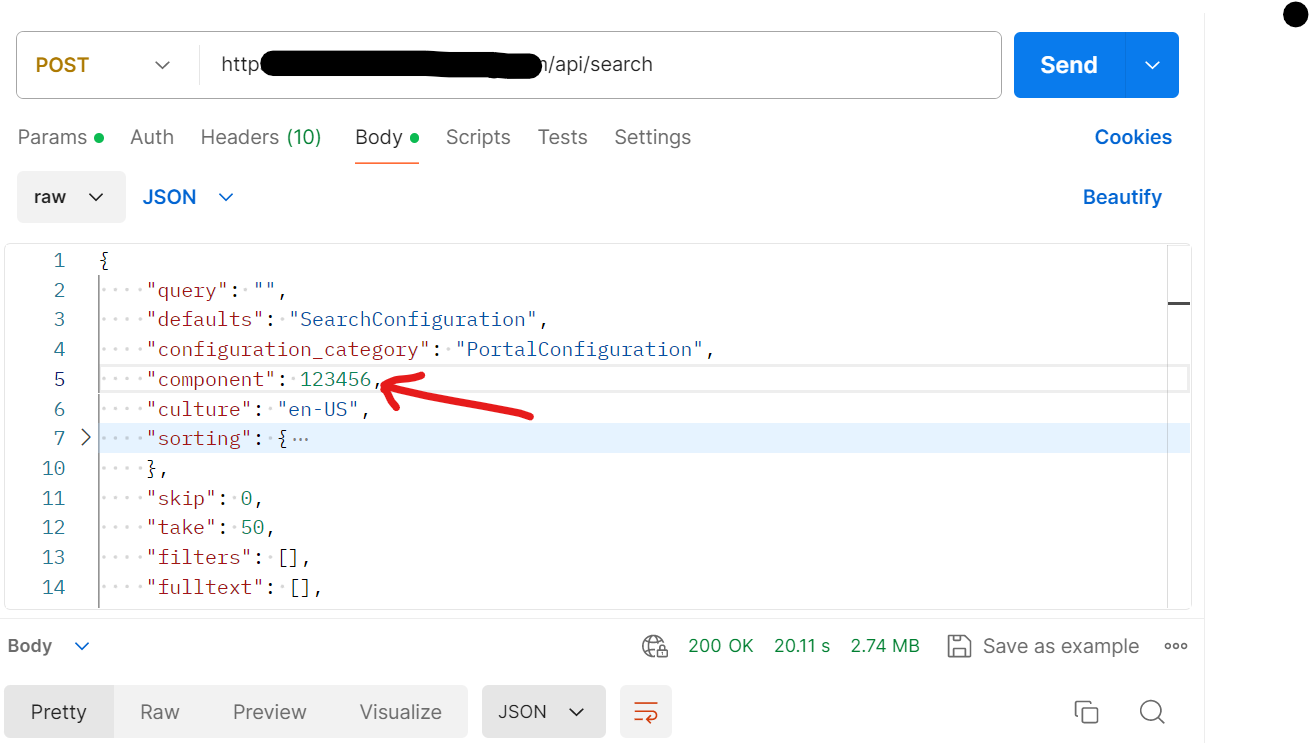
Below is an example of a POST request, indicating the search component Id within the request body. Of course you will also need to specify the required X-Auth-Token header to authenticate your request. (I am assuming you know how to go about this, and I have skipped these details)

Delivery links default expiry duration is only 20 mins

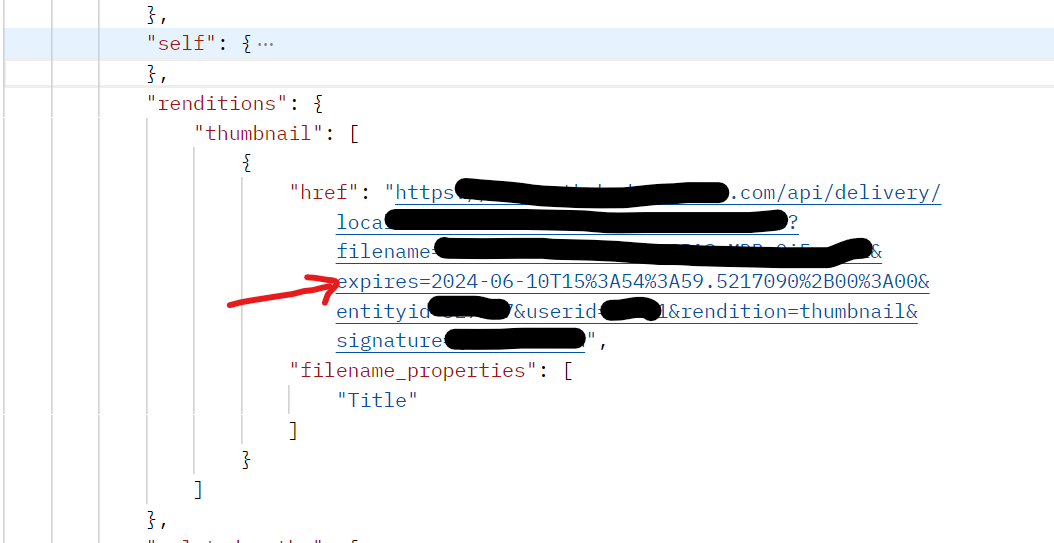
The response that you receive from Search API will contain a list of your assets that meet the search criteria. Each item in the response will contain the asset metadata details defined in your search component. In addition, you will get Thumbnail delivery link for the asset. This is particularly of interest for me, as the default expiry time is set to 20 minutes and is not enough for my current scenario. Below is a snippet of such response, indicating the thumbnail delivery link. Notice the expires url param indicated.

How to extend the default expiry duration for delivery or rendition link

The good news is that this expiry duration is configurable within Content Hub. This behavior is related to the media processing task. When a media processing task is created, it is possible to enable the store output functionality and configure rendition links for these tasks with the needed parameters.

Steps to follow:

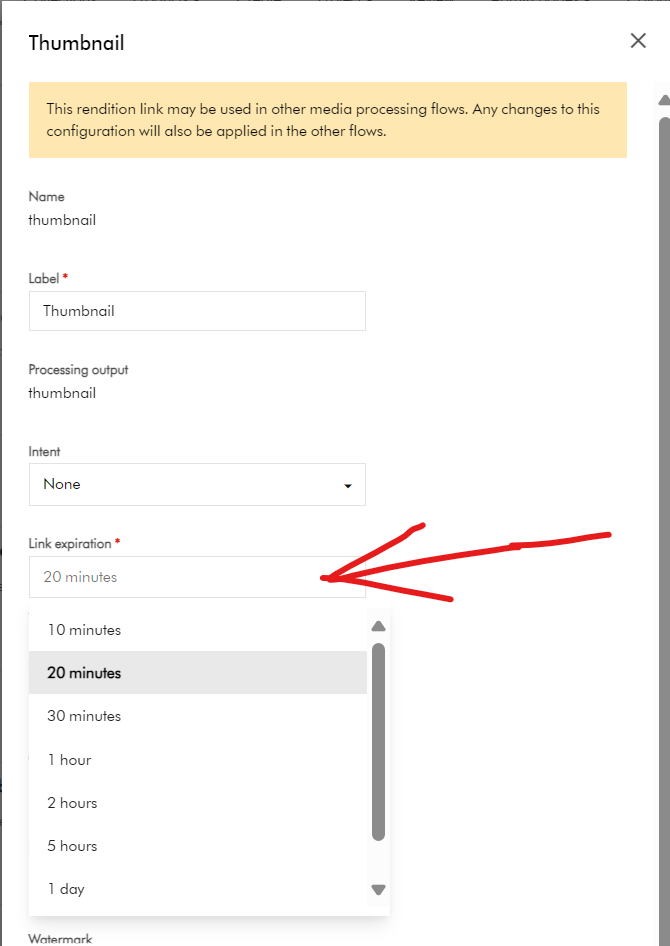
  1. Open Manage -> Media Processing -> Images -> thumbnail task -> Outputs tab -> the “Edit” Rendition link button
  2. Find the “Link expiration” field and change it to the required value.
  3. Save the task. Publish the changes on the Manage -> Media Processing page

After these steps, when you send a request to the search API, it should return the rendition link with the new expiration time.

Next steps

In this blog post, we have explored that the Search API will return a response which has thumbnail delivery links expiry of 20 minutes. I have explored how to update this configuration within the Media Processing tasks, so you can choose a longer expiry to meet your needs.

Please let me know if you have any comments regarding above and if would like me to provide further or additional details.

Streamlining Content Hub DevOps: Deploying Environment Variables and API Settings to QA and PROD

Context and background

I recently worked on an exciting Content Hub project which required automation of deployments from DEV environments to QA/TEST and PROD. One of the challenges I faced was how to handle environment specific variables and settings. One particular use case is the API call Action type, which has references to some API call endpoint and using an Api Key. Typically, such an API call will point to a non-production endpoint in your QA/TEST Content Hub and a production facing endpoint for the PROD Content Hub

Sounds familiar, should be easy right?

I thought so. I thought I put this question to my favourite search engine to see what is out there. The truth is Content Hub DevOps is nothing new really. There is plenty of documentation on how to go about it, including this blog post from the community From the Sitecore official docs, you can also find details about how to leverage Content Hub CLI to enable your DevOps workflows.

However, I couldn’t come across an end-to-end guide that solves my current problem. Nicky’s blog post “How to: Environment Variables in Content Hub Deployments” was pretty good actually and I have to say I found the approach quite compelling and detailed. However, I didn’t adopt Nicky’s approach as I would like to use automated end-to-end DevOps pipelines. Unfortunately, Nicky’s approach doesn’t.

My approach

Below is a high level process I have used.

  • Leveraging Content Hub CLI to extract a baseline of your Content Hub components. For example ch-cli system export --type Scripts --wait --order-id command allows you to export Actions, Scripts and Triggers package, which you can extract all yours Actions, Scripts and Triggers as JSON files. These can then be source controlled, allowing you to track future updates on a file-by-file basis. For a full list of components that you can export, you can pass --help param as shown below.
  • Without DevOps, you will typically package and deploy your Actions, Scripts and Triggers, say from DEV Content Hub into QA Content Hub instance. You will then have to manually update any of your API call Actions with the QA specific endpoint URL.
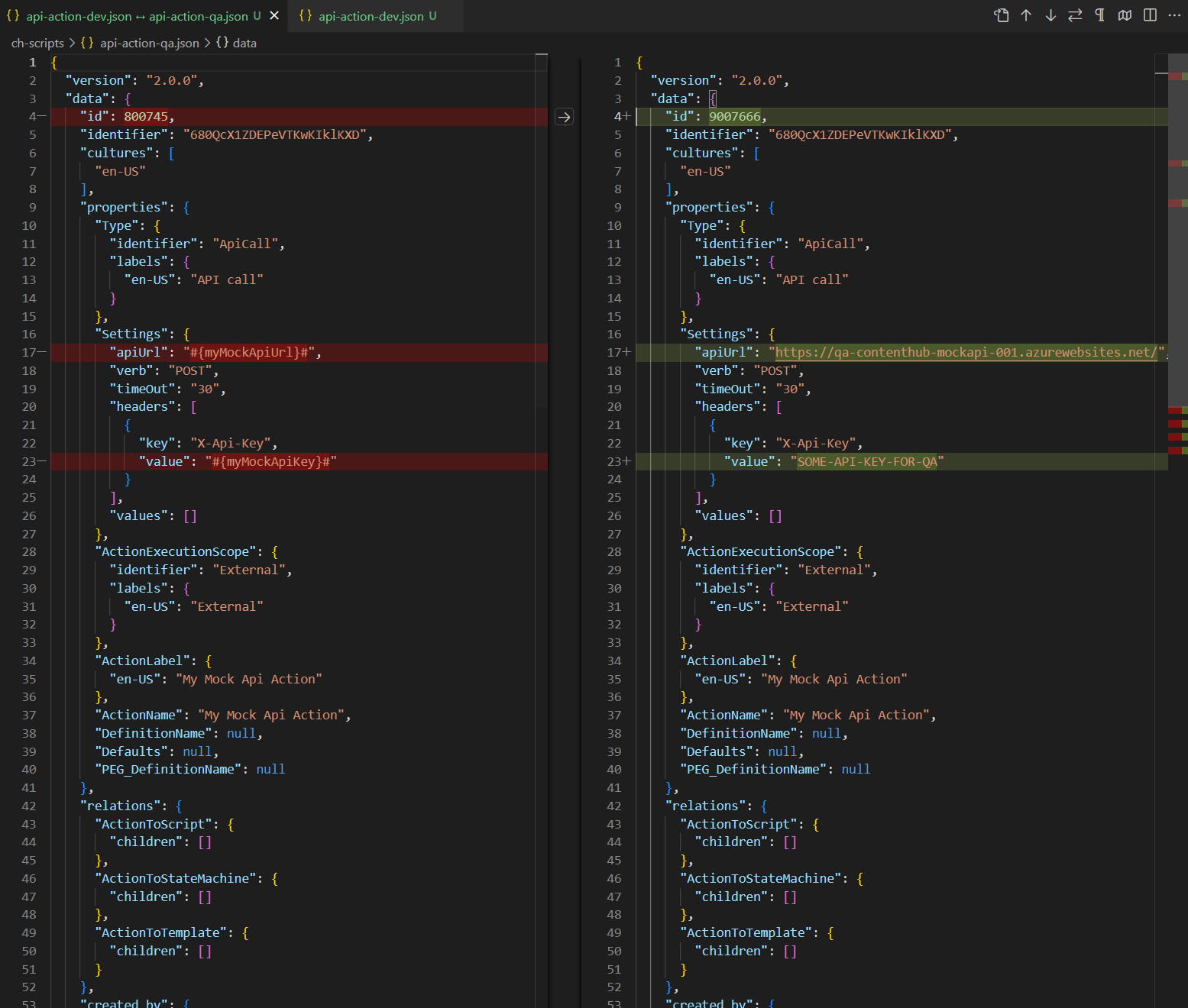
  • With Content Hub CLI, I am able to source control and compare my Content Hub DEV and QA files as shown below. Left-hand side is my DEV mock API action, right-hand side is my QA. Please keep note the identifier is the same (680QcX1ZDEPeVTKwKIklKXD) to ensure the same file can be deployed across to Content Hub QA and PROD
  • This is quite powerful, since I can take this to another level and define Environment specific variables for my mock API action, as shown below. I have identified I will need #{myMockApiUrl}# and {myMockApiKey} variables.
    • Notice I am leveraging the ReplaceTokens Azure pipelines task. Left-hand side is my DEV mock API action, this time I have parameterised the variables. Right-hand side is my QA to help illustrate the differences. During the QA deployment, my CI/CD pipelines will transform the source controlled file on the left-hand side into QA file on the right.
  • This is it, I have solved my problem. I have identified which component(s) have environment specific variables and parameters. I can now leverage DevOps CI/CD pipelines to package all my components, generate a deploy package specific for Content Hub QA environment.
  • Deploying a package using Content Hub CLI uses this command: ch-cli system import --source "path to your deploy package.zip" --job-id --wait
  • Wearing my DevOps hat, I am able to write a complete end-to-end CI/CD pipelines to automate the deployments.

Using Azure DevOps CI/CD pipelines

It is very straight forward to define and implement an end-to-end Azure DevOps CI/CD pipelines once we have defined our process and development workflows.

Azure variables template definition

One capability you can leverage is the Azure variables template definitions to allow you to define Content Hub QA and PROD variables, such as below. Please notice #{myMockApiUrl}# and {myMockApiKey} variables in this template file. They now have Content Hub QA specific values. We will need a similar file to hold Content Hub PROD variables.

Referencing Azure variables template file in main pipeline

The Azure variable template file for QA (qa-variable-template.yml, in my case) can then be linked to the main Azure CI/CD pipeline yaml file, such as shown below:

Replacing tokens in main pipelines

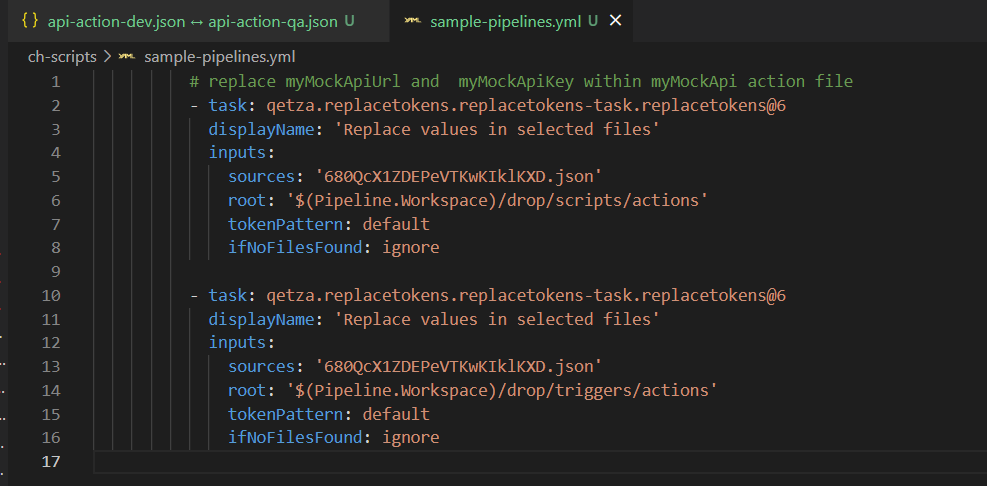
Replacing tokens sample is shown below. Please notice the API call Action Identifier 680QcX1ZDEPeVTKwKIklKXD that was referenced in my previous screenshots above

Next steps

In this blog post, I have introduced the problem and use-case when you need to manage and deploy Content Hub environment specific variables. I have used an API call Action type to illustrate this use case. I have also covered how to leverage Content Hub CLI to serialise Content Hub components and demonstrated an example of using Actions, Scripts and Triggers components. I finished with my own approach and how I did an implementation of an end-to-end automated DevOps process. I hope my approach helps you address similar scenarios in your use-cases. Please let me know if you have any comments above and would like me to provide further or additional details.

Content Hub tips & tricks – Selection component shows wrong name in linked Search component

Problem and context

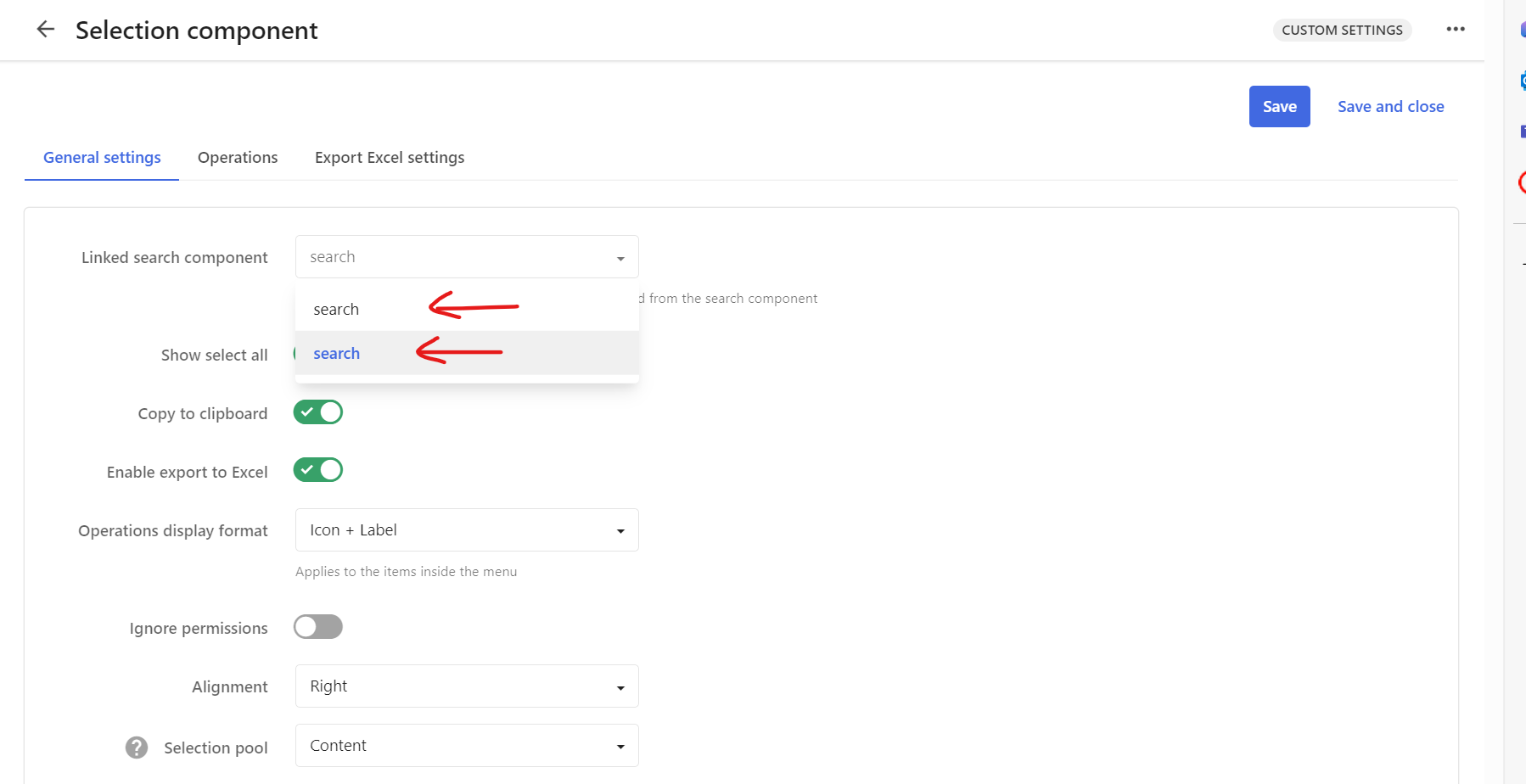
Consider the scenario as per the screenshot above. You are configuring a second Search component on your Assets search page. You make a genuine mistake and name your second Search component identical with your existing one, as shown. In this case, you would like to link your second Search component with your existing Selection component as shown.

Selection component shows ‘duplicates’

I know that I have made a genuine mistake of using the same ‘search‘ name for my second Search component. My selection component will display the following.

This is obviously confusing and we don’t know which is which. Now I will try rectify my mistake, and rename my second Search component.

Renaming Search component

Do rename my second Search component, I click on the Settings button shown below

Which opens the Settings pop up, from where I will specify a new Title as shown below and Save it.

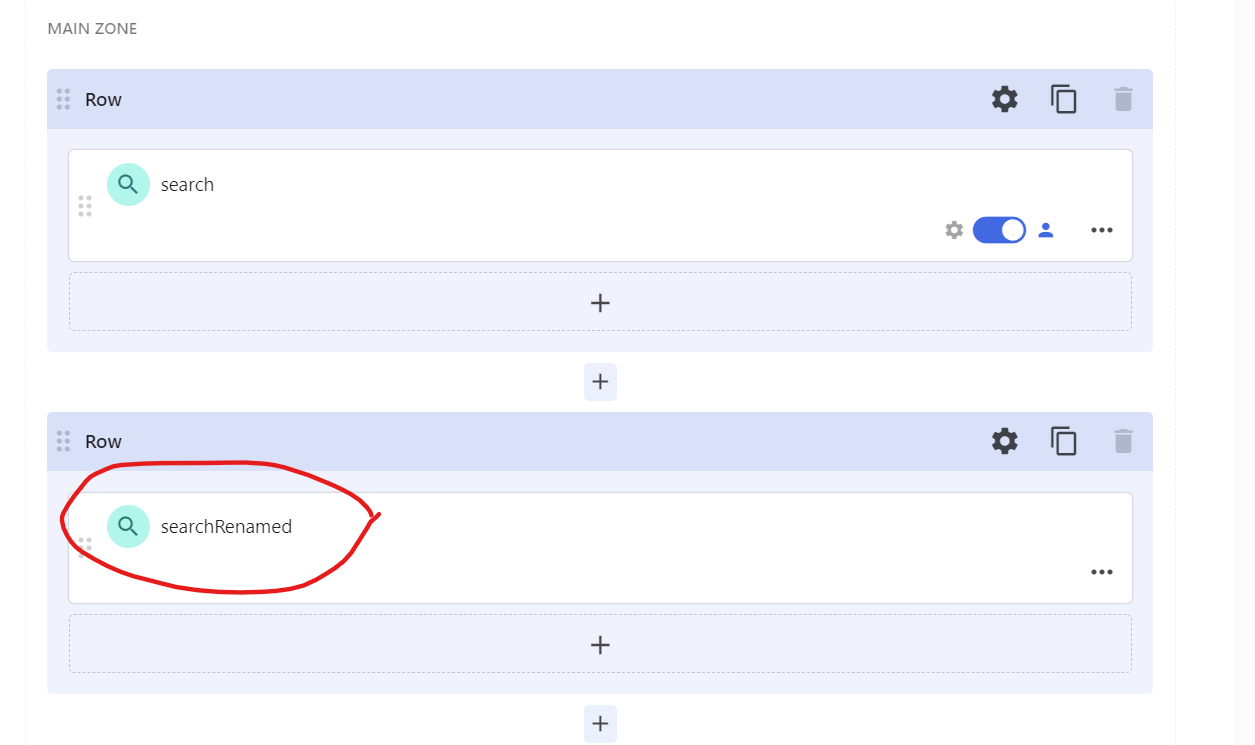
Below is the outcome showing my second Search component renamed.

Selection component still shows ‘previous’ name

After this change, I was expecting my Selection component to show ‘searchRenamed’. However, I still have the same problem as shown below.

Sitecore Technical support have logged a product bug

I reached out to Sitecore Technical support and shared my use case above. Below is the response I received.

Hi Julius,

Based on the provided information we would like to define the scope of the current case:

Issue definition: in the drop down list the PageComponent.Name property is used instead of PageComponent.Title in the Linked search component (in the Selection component).
Investigation target: we will work diligently to help find the root cause and a resolution to the defined issue.

Additional notes:

[Redacted]

The issue reported has been registered as an issue in the Content Hub product.

The reference of the bug report is the following: MONE-44866, which can be further reviewed and followed-up via the support portal in the “My Product Issue” page

Update:

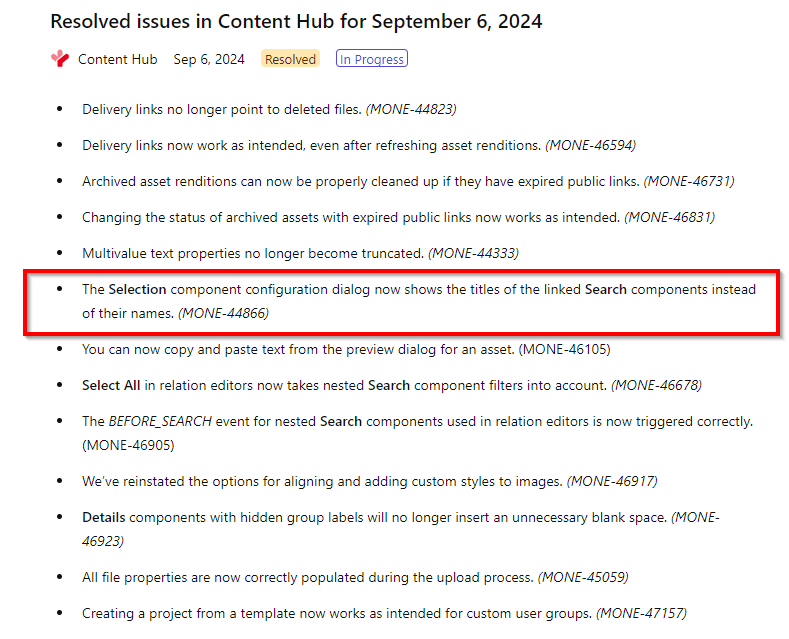
Glad to report that Content Hub product team have resolved this issue in September 6, 2024 release

Tips and tricks

Currently, the Selection component’s Linked search component drop down list uses the PageComponent.Name instead of PageComponent.Title. While Sitecore have acknowledged this as product bug, you can easily work around this issue.

  1. If you are going to create more than one Search Component, ensure you name the appropriately with distinct and easily identifiable titles. This is because the title will be used as the component name in the backend, which will ultimately be displayed on the list when linked to Selection component.
  2. If you initially assign your second Search Component the same name as the first one, then renaming the second component will NOT resolve the issue as I have explained in this blog post. Either delete the second Search component and create a new one with a unique Title.
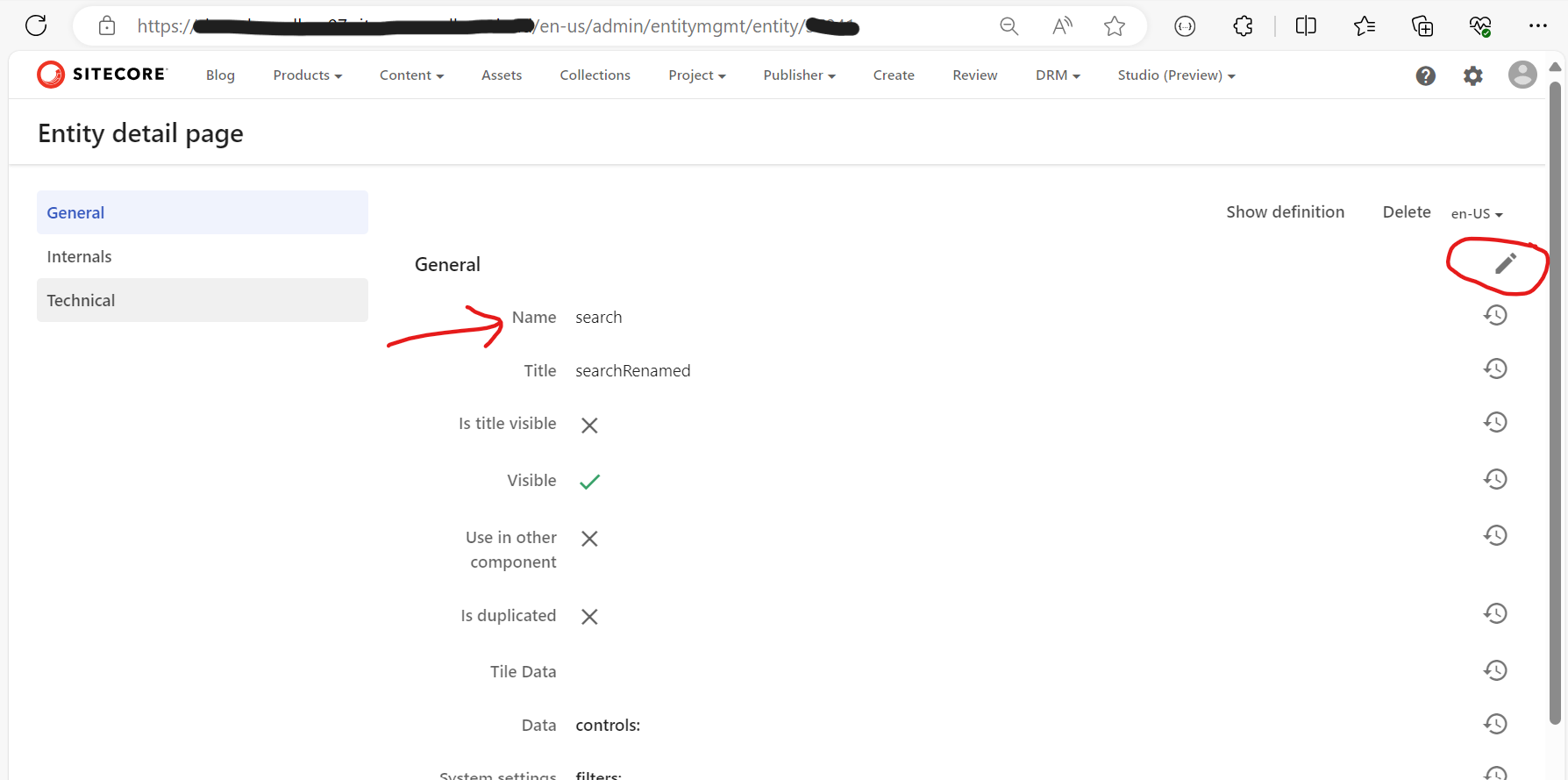
  3. Or, use the Entity Management page to rename the Name of the second Search component to make it unique, as shown below. You will need to know the Entity Id of your second Search component.
  4. Entity Management page can be accessed using the URL below
https://<your-instance-url>/en-us/admin/entitymgmt/entity/<ENTITy_ID>

Next steps

In this blog post, we have looked at a scenario where having more than one Search components with the same name causes ‘duplication’ issue with your Selection component Linked Search component list. I have shared some tips and tricks to help you work around this issue.

Stay tuned and leave please us any feedback or comments.

Content Hub – defining self-referencing relations, creating, linking and displaying entities – part 2

Introduction

In the previous blog post, I introduced you to self-referencing relations in Content Hub, plus possible use-cases for them. In this blog post, I will focus on how to create and populate self-referencing entities and display them within Content Hub.

Displaying linked assets on the Asset Details page

As discussed in the previous blog post, a typical use case for self-referencing relations is to link a set of assets to a parent or master asset.

Below is a mockup of the parent or master asset details page to illustrate this use-case.

This is a typical asset details page that you get out-of-the-box with your Content Hub instance. I have done one customization to this page, to allow me to display our Linked assets panel as highlighted above.

As you can notice:

  • I am displaying panel heading ‘Linked assets’.
  • I have ‘+ Add existing items’ CTA button. This is the button when clicked, allows me to search for existing assets that I would like to link to the current parent or master asset.
  • I have a refresh button. This allows me to refresh the linked assets list without re-loading my entire page
  • A have list of linked three (3) assets shown in a tabular form, including the asset meta data of ID, Title and Article Type To Asset

We will now look at how I have built this linked assets panel.

Modifying Asset Details page

To customize the existing Asset details page, we need to view the Page designer component. From the ‘Manage’ dashboard, select ‘Pages’ component, which will open the ‘Pages’ window.

Search for ‘Asset details’ page, as shown below. As you can see, I have added a new section to the existing page layout. This section has the ‘Linked assets’ panel.

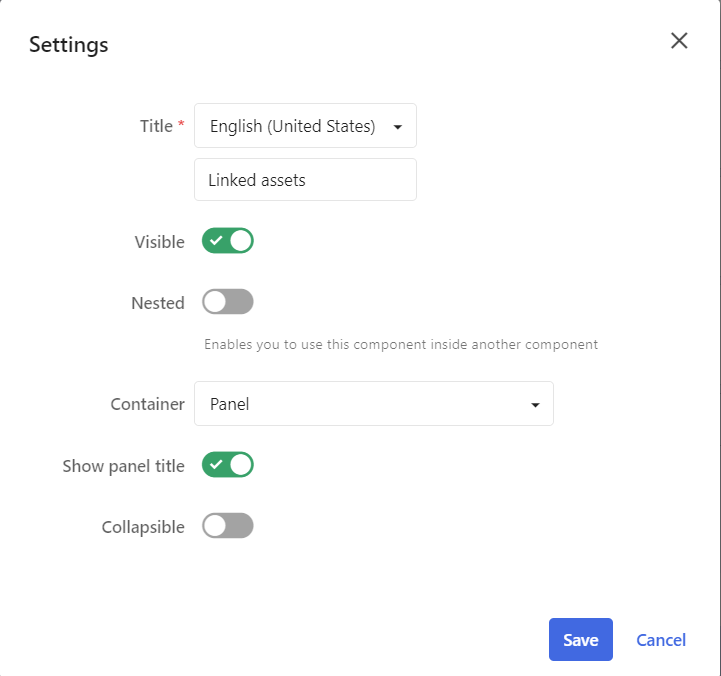
  • Linked assets – this is the panel component which contains the display components for linking the assets. Below is the settings popup for this panel.
  • SearchEligibleAssets – this is the Search component that I have configured to search and filter existing assets that will be linked to the parent or master asset. Below is the configuration settings for this search component.
  • Notice we are searching and only linking existing assets that have not been deleted.
  • The ‘SearchEligibleAssets’ component should be set to be ‘Nested’ component as we are using it from within our ‘Linked assets’ componet.

Linked assets panel component

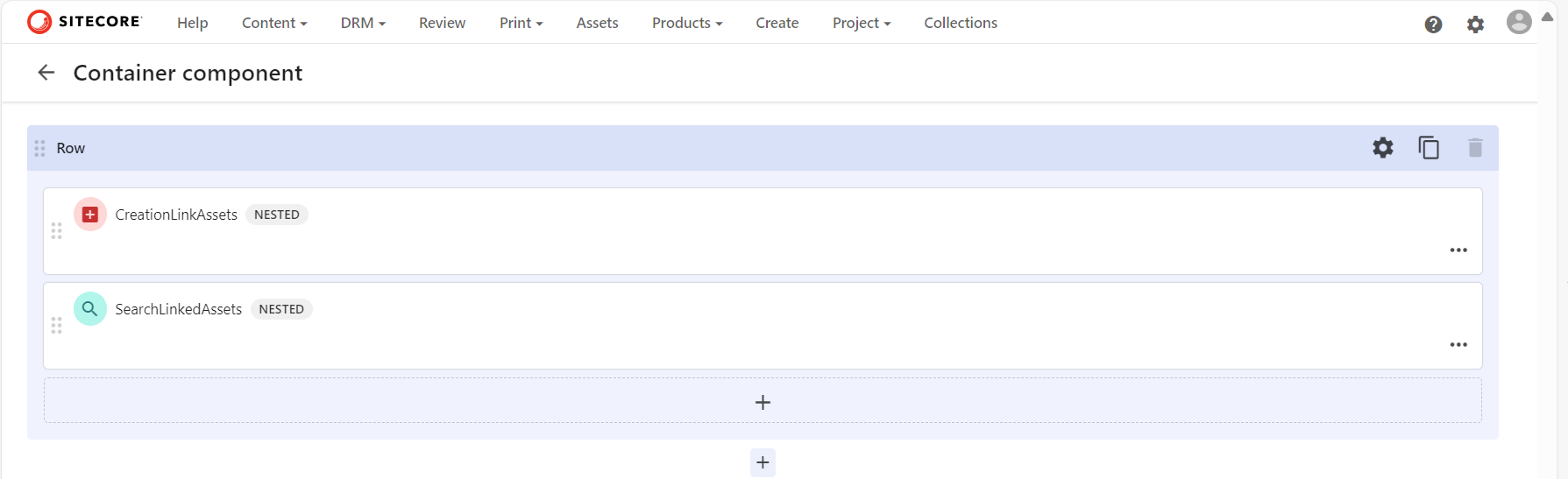
Let us look at the components within our ‘Linked assets’ panel.

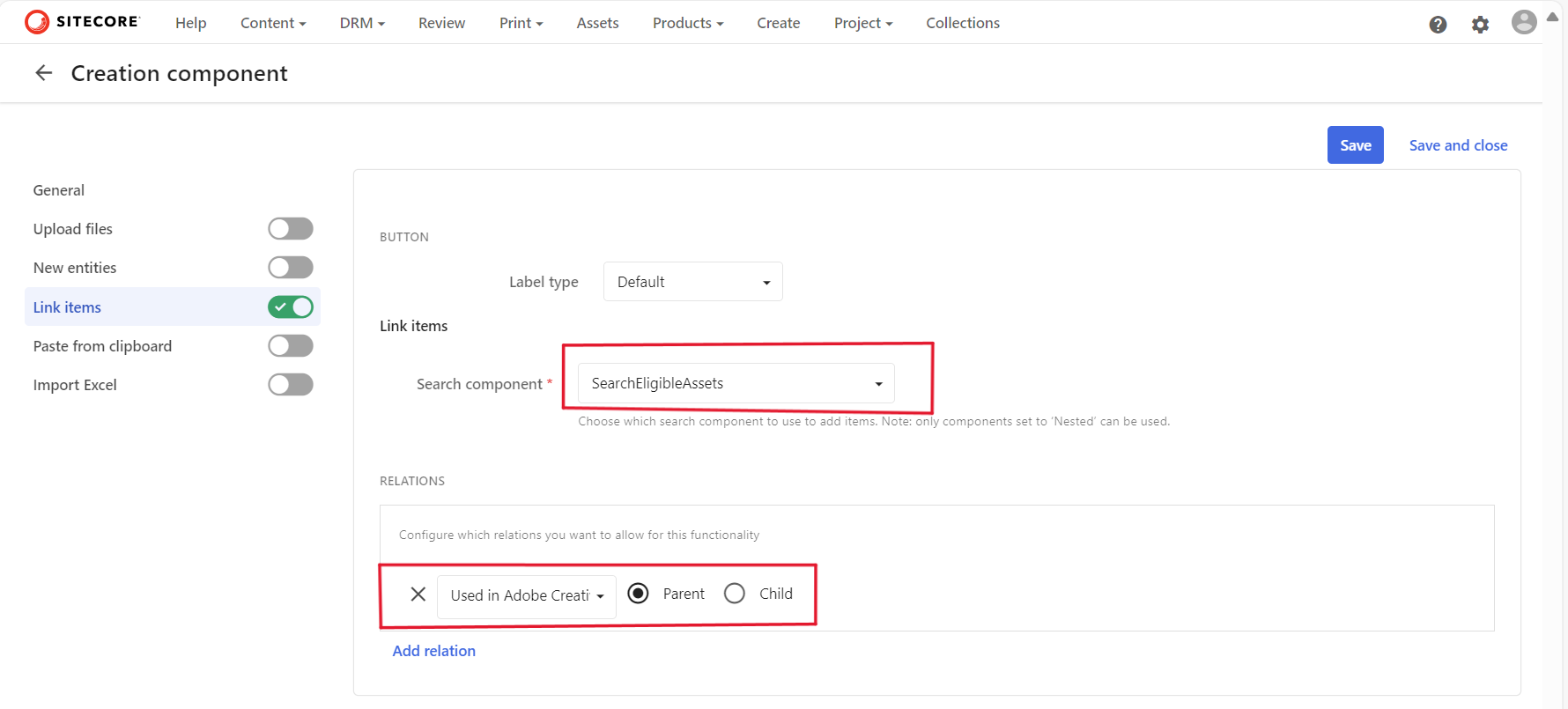
  • CreationLinkAssets – this is our Creation component, that will create new links based on the selected assets to our parent or master asset. Below is screenshot showing how we using it to link assets to the parent or master asset.
      • We need to link our ‘SeachEligibleAssets‘ Search component to the Creation component, as shown below
      • The assets to be linked are using our ‘AssetToLinkedAsset‘ relation, setting the Parent as shown above.
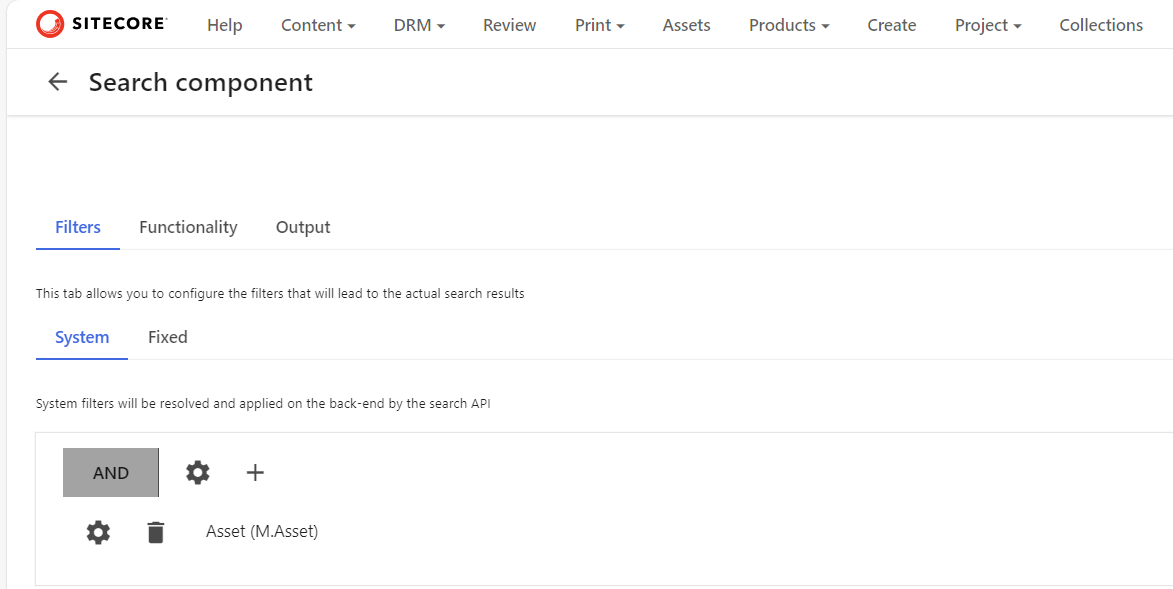
  • SearchLinkedAssets – is is our Search component that will display all existing and already linked assets to our parent or master asset. Below is configuration to achieve this
    • Ensure M.Asset is selected in ‘System’ filter
    • Then within the ‘Fixed’ filter, filter out using our ‘AssetToLinkedAsset’ relation as shown below
    • As specify we are displaying all assets which have the current asset (Page Entity) as their Parent using the self-referencing ‘AssetToLinkedAsset’ relation.
  • This is it. All done.

Next steps

In this blog post, we have done a deep-dive into how to create and populate self-referencing entities and link them up to create parent-child hierarchy and to display them within Content Hub.

Stay tuned and leave please us any feedback or comments.

Content Hub gems: Troubleshooting issue when creating asset public links

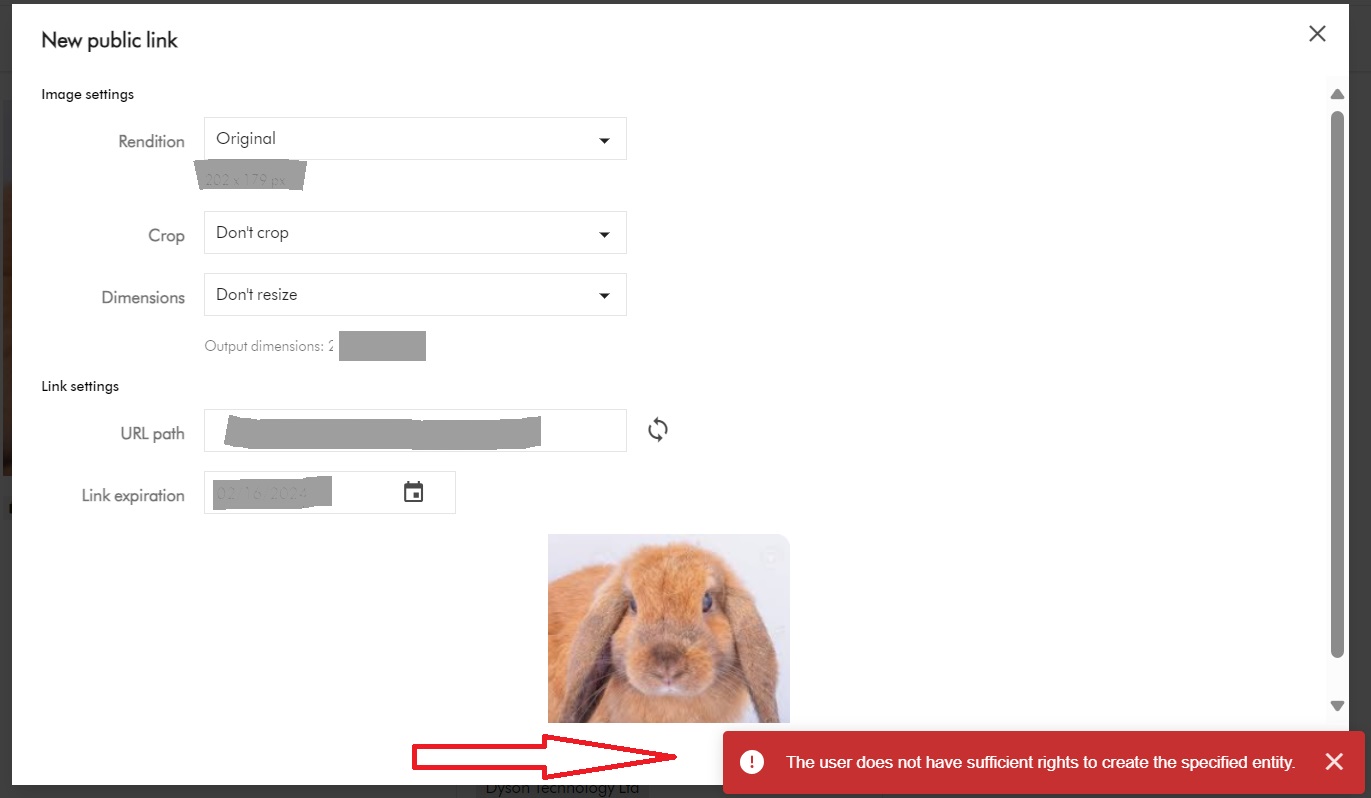
You may encounter this is error “The user does not have sufficient rights to create the specified entity

We will look at how to troubleshoot and resolve it. But first, what are public links?

What are public links used for?

In Content Hub, we use public links to share assets with external partners who typically do not have direct permission to download the assets. This means anyone who has access to this static URL can cache and fetch the file.

Creation of Public Links

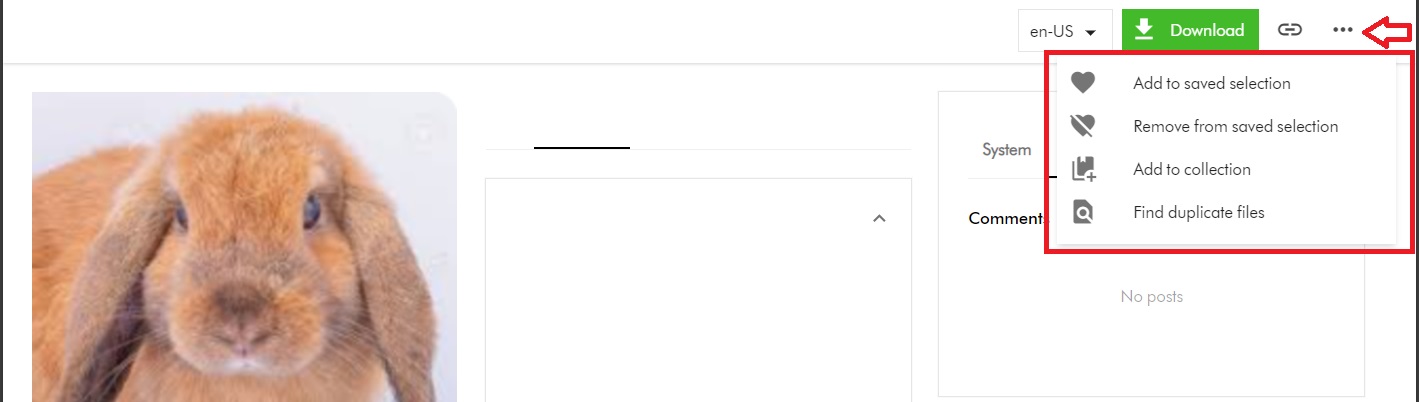
I will start with a scenario where my Content Hub user doesn’t have permission to create public links. My user belongs to my GlobalContentCreator user group. Within Content Hub, on the Asset Details page, when my user tries to access the Public links menu, they notice it is missing as shown below.

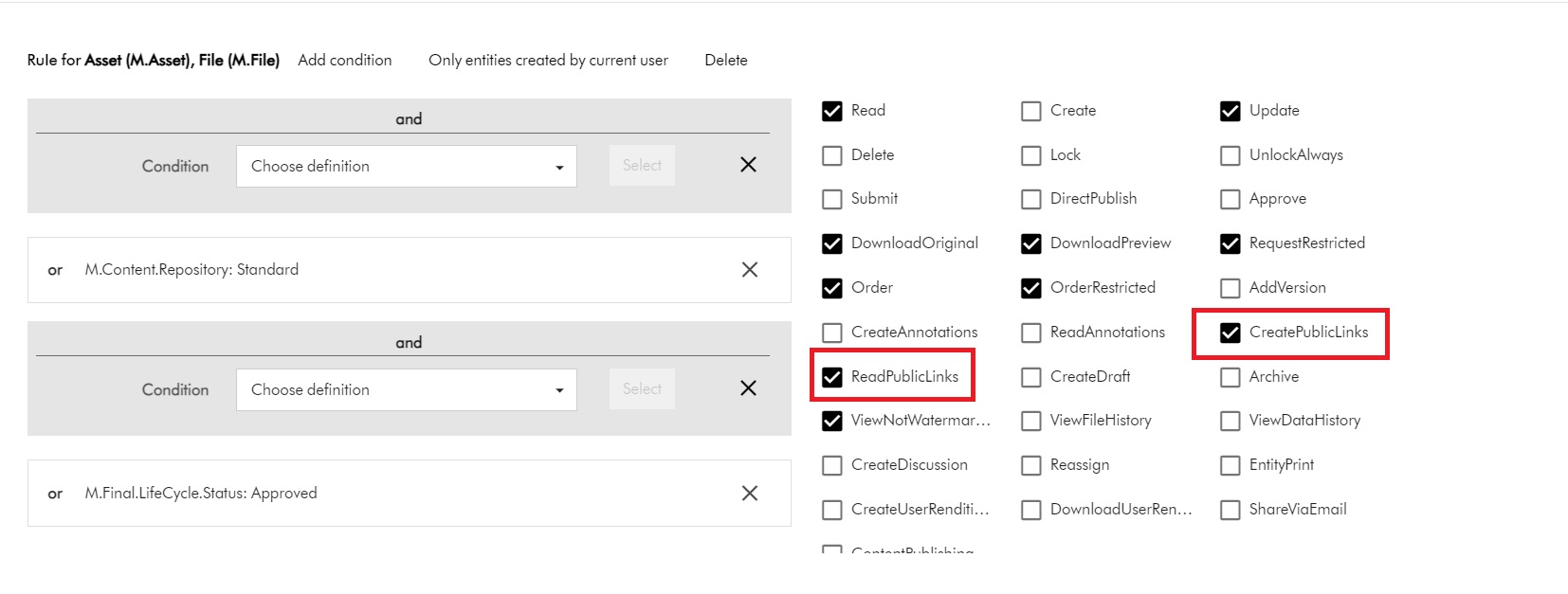
The Public links menu is missing because the required permissions have not been configured within GlobalContentCreator user group. Below is a snippet of the existing permissions for M.Asset and M.File

You notice the CreatePublicLinks and ReadPublicLinks permissions are missing. We need to enable them first, as shown below:

With this change in place, the Public links menu now appears on the Asset Details page for my user, as shown below.

Does this resolve the issue?

I will now let my user to put this to test.

As expected, when my user clicks on the Public links menu, it opens New pubic link popup window. They proceed to fill out the form and submitting it as shown below. However, they are still getting the error. What is going on?

M.PublicLink permissions are needed as well

Asset public links are entities of type M.PublicLink. In fact, M.Asset is Parent of M.PublicLink (using the AssetToPublicLink relationship)

Therefore, I need to assign additional permissions for M.PublicLink. I need to update my GlobalContentCreator user group with the following changes:

The minimum permissions needed are Read and Create to create the public links. However, I have additionally allowed my users to update and delete them as well.

This is it. With this change, the issue is resolved and my users can happily generate public links. Happy days.

Next steps

In this blog post, I have explored steps you need to take to troubleshoot and resolve the issue “the user does not have sufficient rights to create the specified entity” when generating public links.

Stay tuned and leave us any feedback or comments.

Creating and publishing a Content Hub custom connector – Func app integration testing

In my previous blog post, I covered how to configure your Function app for debugging within your local development environment. In this blog post, we are going to carry on from where I left and look at how to start doing some end-to-end integrations tests with your Func app.

Getting your Sitecore Content Hub ready

As explained in my YouTube video – 3 Content Hub: API call action set-up, you need to set up an API call action within Content Hub. This is the action that will trigger the execution of our Func app.

Below are steps to follow to accomplish this.

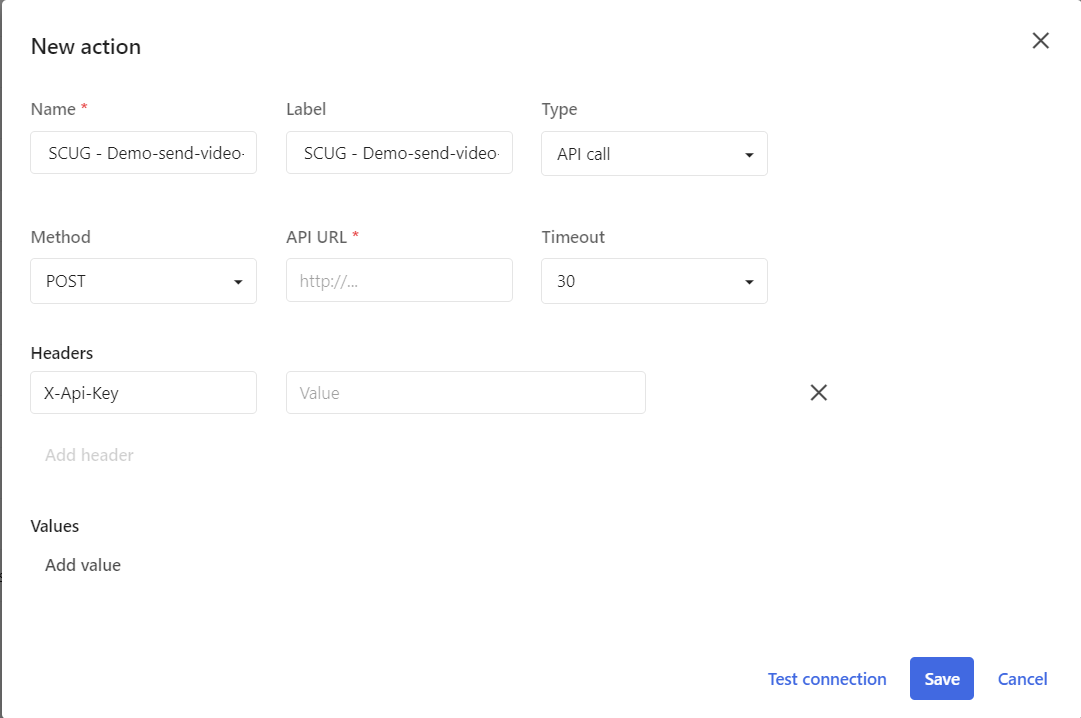
  • Using Manage -> Actions menu, click on ‘New action’ button to launch the create New action popup, similar to the one shown below.
  • Populate all the required details as shown above:
    • Name: Specify the name of the API call
    • Label: Specify the display label for the API call
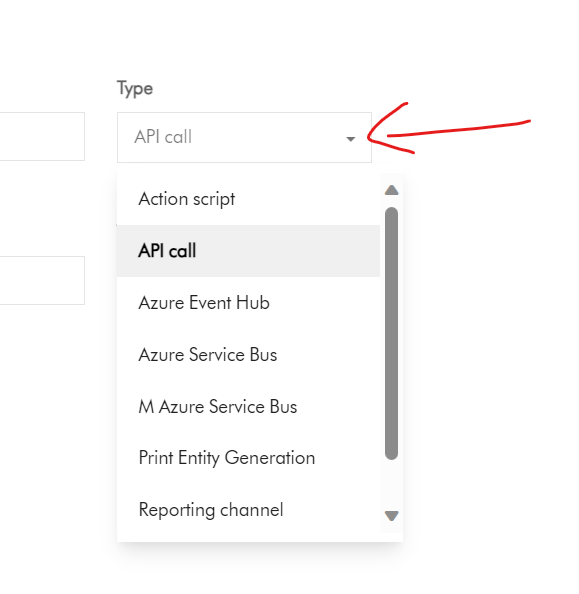
    • Type: Select API call from the Type dropdown list, similar to one shown below
    • Method: Select POST. This means a POST request will be sent to our Func app when this action is executed
    • API URL: Specify your Func app URL. I will provide further details later on how to obtain your Func app URL in your local Dev environment
    • Timeout: Specify a value of timeout in milliseconds. Content Hub provide a choice of 30, 60, 90, 120, 300 and 600 as of writing this blog
    • Headers: Add any custom HTTP Headers for the POST request. In my case, I have a custom X-Api-Key which I am using to specify the Func app Api key
    • Values: Add any additional meta data that you want passed into the Func app.

Getting your local Dev Func app ready for testing and debugging

As explained in my previous blog, you need to ensure your local.settings.json has all the required application settings. This is to ensure we can establish an integration between Func app and your Content Hub instance.

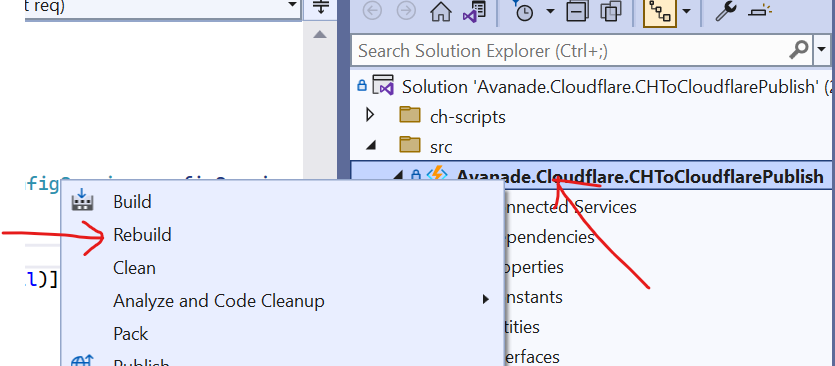
Then you need to build your Visual Studio project and ensure you have no Build errors. You can do this using Build -> Rebuild solution option. Alternatively, right-click on your project, and select Rebuild

Your Visual Studio Output window will show Rebuild All succeeded message, similar to the one below.

Setting up Breakpoint within the code files

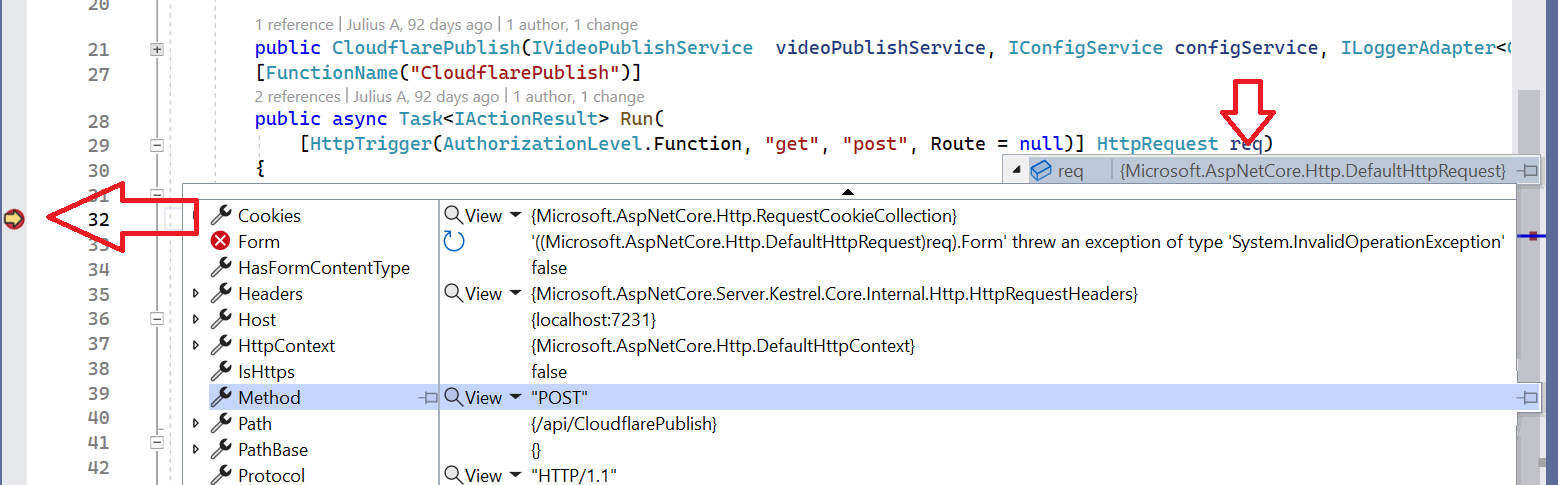
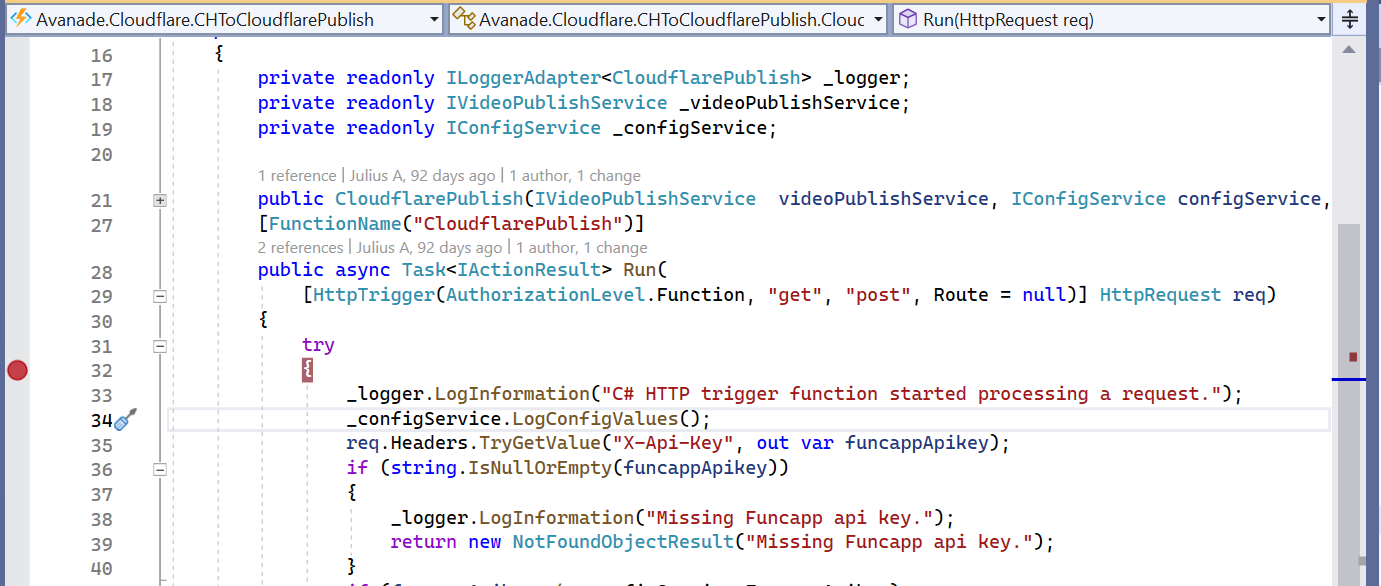
To be able to debug and step-into your code files, add the relevant Breakpoints on a particular line of code using Debug -> Toggle Breakpoint menu or F9 shortcut key. In my example below, I have togged a Breakpoint on line 32.

Start running your local Dev Func app in Debug mode

We are now ready to execute our local Dev Func app in debug mode. From Debug menu, click on Start Debugging menu or select F5 shortcut key.

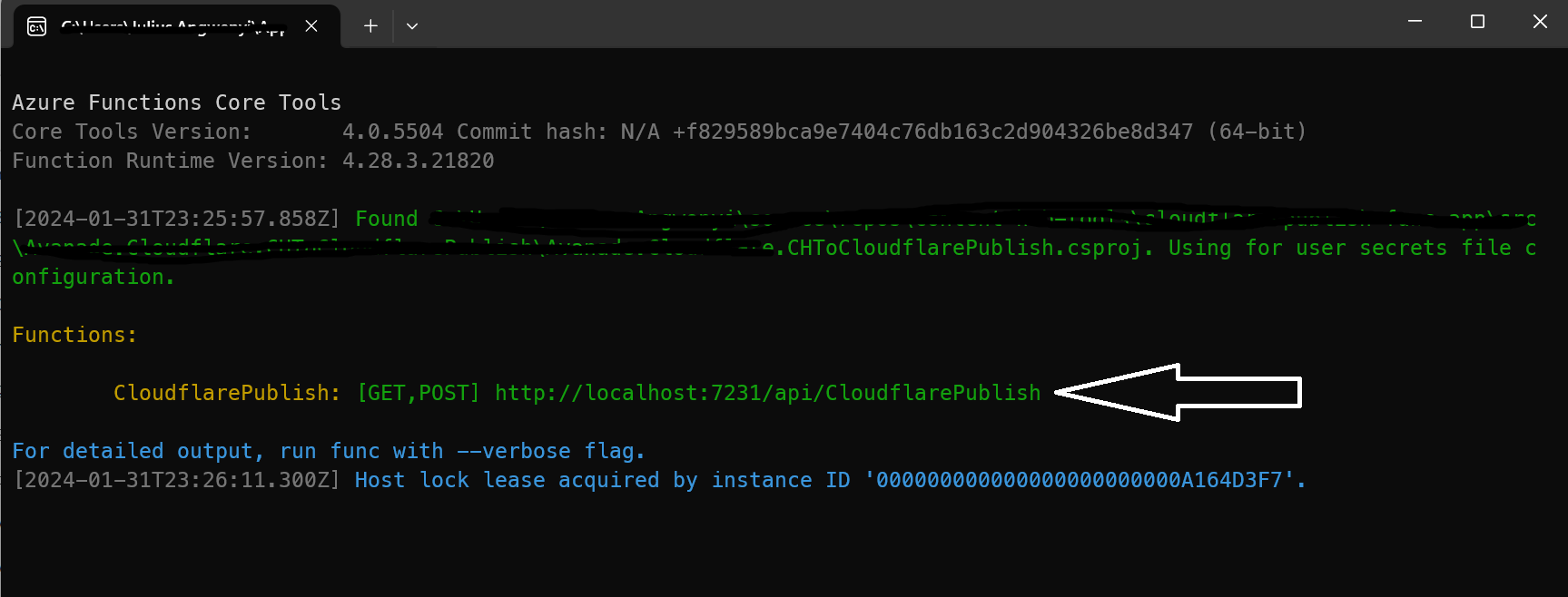
This will launch a Func app runtime command window, similar to the one shown below:

Your local Dev Func app is now ready to process your POST requests. The URL is indicated using the arrow above. Remember earlier on we needed to configure the Content Hub API call URL, this will be the value to use. Copy and apply this in your Content Hub accordingly.

Triggering your local Dev Func app from Content Hub

As I demonstrated in my YouTube video – 1 Cloudflare Stream connector demo, I am triggering the API call using a custom button. In my use case, I have added this button to the Blog details page. Clicking on ‘Send to Cloudflare’ button, will trigger the local Func app.

You will notice the local Func app will have activated any Breakpoints you have set up within the Visual Studio project. This will allow you to step into any lines of code that you would like to inspect at debug-level.

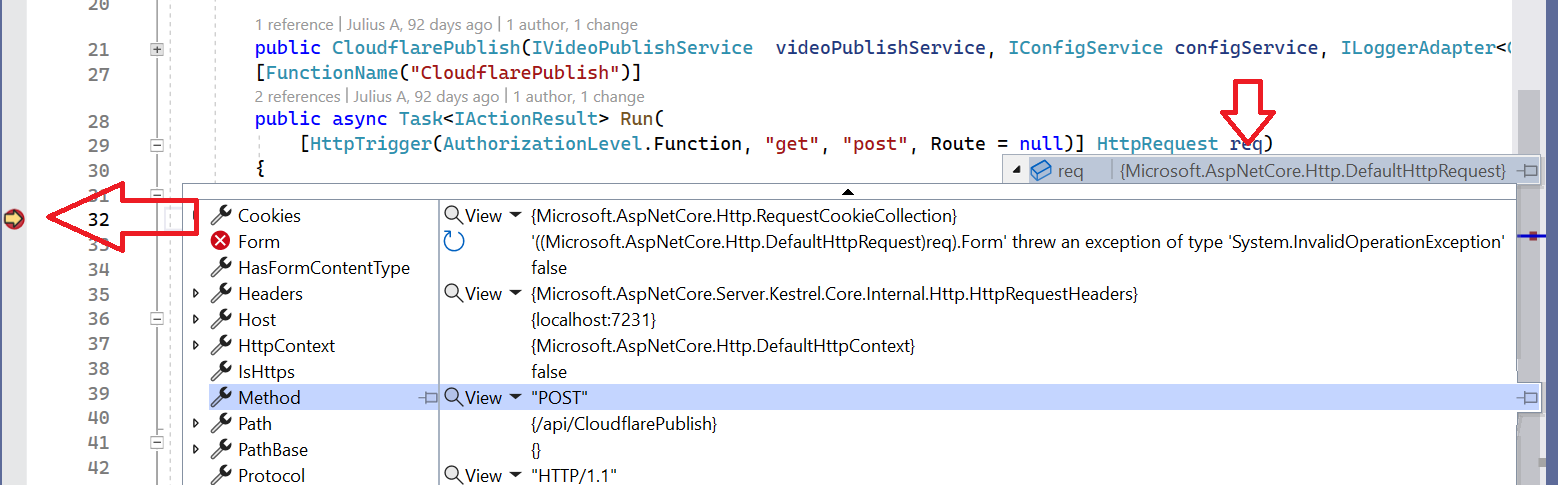
Sample active Breakpoint with request Debug details

Below you can see my Breakpoint on line 32, where I am inspecting debug-level details of my POST request.

Next steps

In this blog post, we have explored how to prepare both your Sitecore Content Hub API call and your local Dev Function app for integration testing. We also looked at steps of configuring and triggering the Func app whilst in debug mode. Feel free to watch the rest of my YouTube playlist where I am demonstrating the end-to-end custom connector in action. Stay tuned.

Creating and publishing a Content Hub custom connector – Func app settings and debugging

Introduction

In my previous blog post, I covered how to set-up your Func app within Visual Studio. In this post, I would like to walk you through how to configure your Func app to allow you to run and debug it in your local development environement.

Func app local.settings.json file

Within your Visual Studio project, create local.settings.json file at the root of the project. A sample json file is shown below. This will be used to configure all the configuration settings to allow you to run and debug the Func app locally.

The local.settings.json file stores app settings and settings used by local development tools. Settings in the local.settings.json file are used only when you’re running your project locally.
Because the local.settings.json may contain secrets, such as connection strings, you should never store it in a remote repository.

DevOps best practices

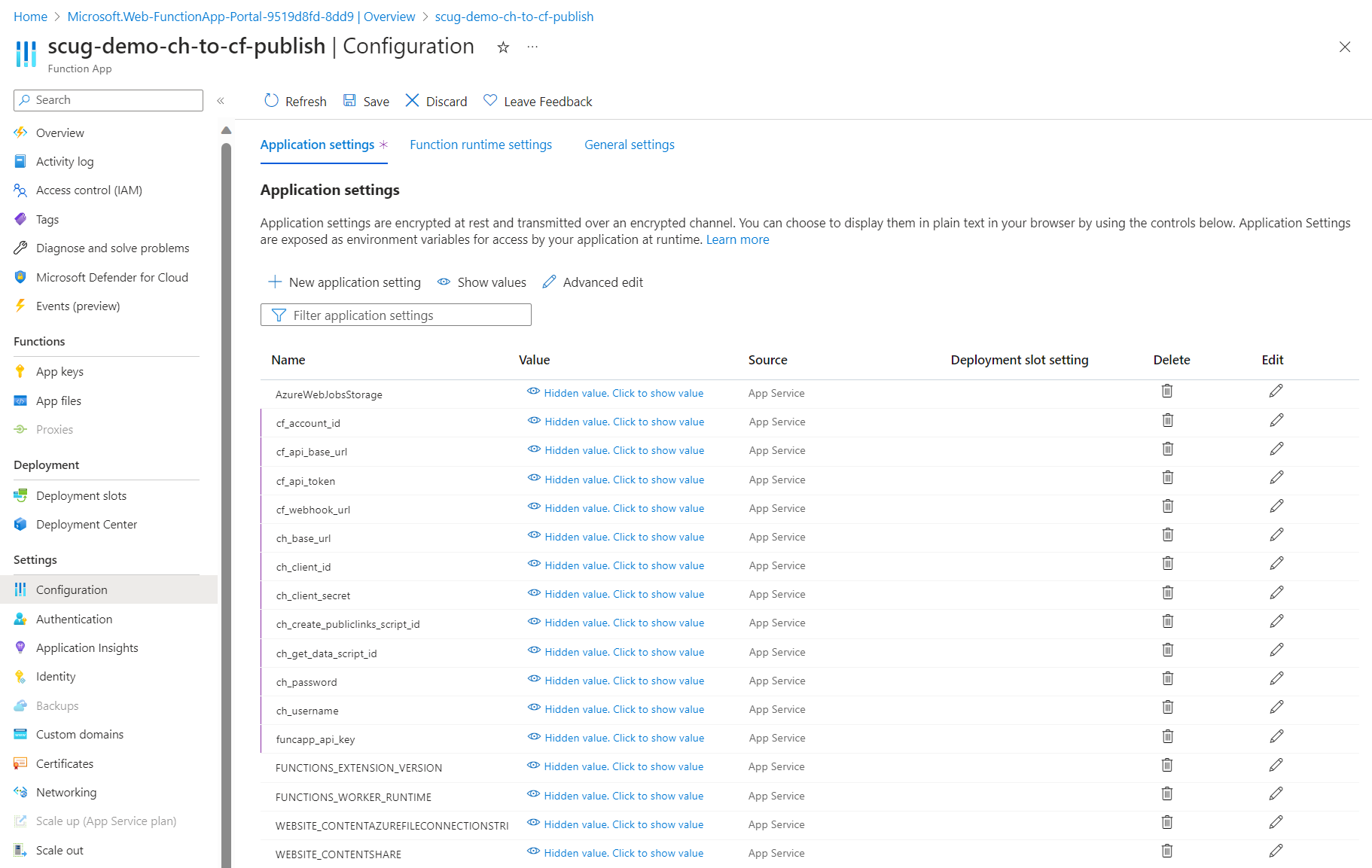
Microsoft Azure portal func app application settings

Similarly, you will need to configure all the configuration setting on your Microsoft Azure portal for your test or production Func app instances.
Clicking on Configuration menu, then Application settings tab will launch the page similar to the one shown below.

Depending on your needs, these application settings can be managed manually or very easily automated using DevOps pipelines.

List of required application settings

Below is a complete list of the Func app application settings

  • cf_account_id your Cloudflare account identifier
  • cf_api_base_url your Cloudflare API base URL
  • cf_api_token your Cloudflare API token
  • cf_webhook_url your Cloudflare webhook URL
  • ch_base_url your Content Hub instance base URL
  • ch_client_id your Content Hub instance client identifier
  • ch_client_secret your Content Hub instance client secret
  • ch_create_publiclinks_script_id your Content Hub action scrip identifier for creating public links
  • ch_get_data_script_id your Content Hub action scrip identifier for getting data
  • ch_password your Content Hub integration user password
  • ch_username your Content Hub integration user username
  • funcapp_api_key your custom Func app API key configured within your Content Hub integration

Next steps

In this blog post, we have explored at how to configure your Function app application settings to allow you to run and debug it in your local development environment. We also looked at configuring them on your published Func app on your Microsoft Azure portal.

Feel free to watch the rest of my YouTube playlist where I am demonstrating the end-to-end custom connector in action. Stay tuned.

Creating and publishing a Content Hub custom connector – Visual Studio project set-up guide

Background

I recently shared a video playlist on how I built a Content Hub custom connector that allows you to publish video assets into your existing video streaming platforms

On this blog post, I wanted to share details on how to setup your Visual Studio project and solution as well us how to deploy or publish the connector to your Microsoft Azure cloud.

Create a function app project

Using latest Visual Studio IDE, create a new Azure Functions project, using C# template as shown below

Choose a meaningful name for your project and progress through the next step. Ensure you select Http triggered function as show below.

Finalise the create project wizard to get your project created.

Add Content Hub web SDK reference

As shown below, add a reference to Stylelabs.M.Sdk.WebClient NuGet Package to your project.

In addition, ensure you have added the Microsoft NuGet Packages below to enable dependency injection to your Func app.

Enabling FunctionStartup in your Func app

To enable dependency injection in your project, add a Startup class similar to the one shown below. The Startup class needs to inherit the FunctionStartup, which allows us to configure and register our interfaces.

Creating Function App on Microsoft Azure portal

As explained in the video playlist, you will need to publish your Func app into your Microsoft Azure subscription.

You will need to create a Function App app in your Microsoft Azure subscription using the create template as shown below. Ensure you select relevant Subscription, Resource Group and .NET Runtime stack.

Progress through the create wizard screens to stand up your Function app in the portal.

Getting publish profile from the Microsoft Azure portal

On your newly created Function app, navigate to the Deployment Center as shown below

Clicking on the the Manage publish profile link should present a pop up window, from which you can download the publish profile. Keep note on the location where you have downloaded this publish profile file.

Importing publish profile into your Visual Studio project

Right-click on your project within VS, which should pop-up the menu shown below.

Click on the Publish… menu to launch the Publish window similar to the one shown below.

Using the Import Profile option will allow you to browse and select the publish profile file that you previously downloaded from Microsoft Azure portal. This will then successfully setup the publish profile to your Microsoft Azure subscription.

Publishing the custom connector from VS into Microsoft Azure portal

On the Publish window, you will notice your publish profile is selected, similar to one below.

Clicking on Publish button will deploy the Function app to your Microsoft Azure subscription.

Next steps

In this blog post, we have explored at how to set-up a Function app in your local developer environment, add required NuGet Packages as well us publishing it to your Microsoft Azure subscription

Feel free to watch the rest of my YouTube playlist where I am demonstrating the end-to-end custom connector in action. Stay tuned.