Sitecore Content Hub DevOps: New Import/Export engine with breaking changes is now default

Context and background

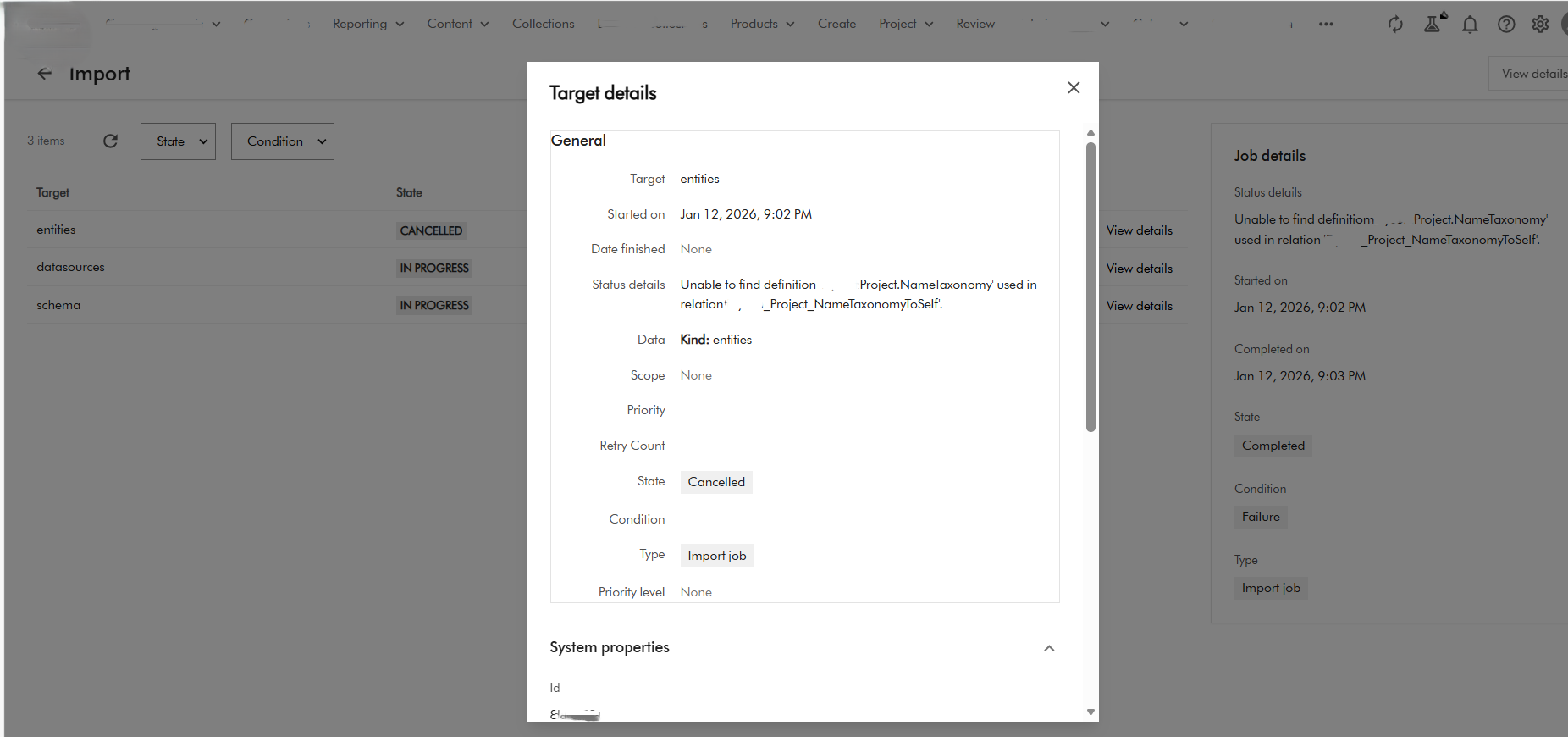
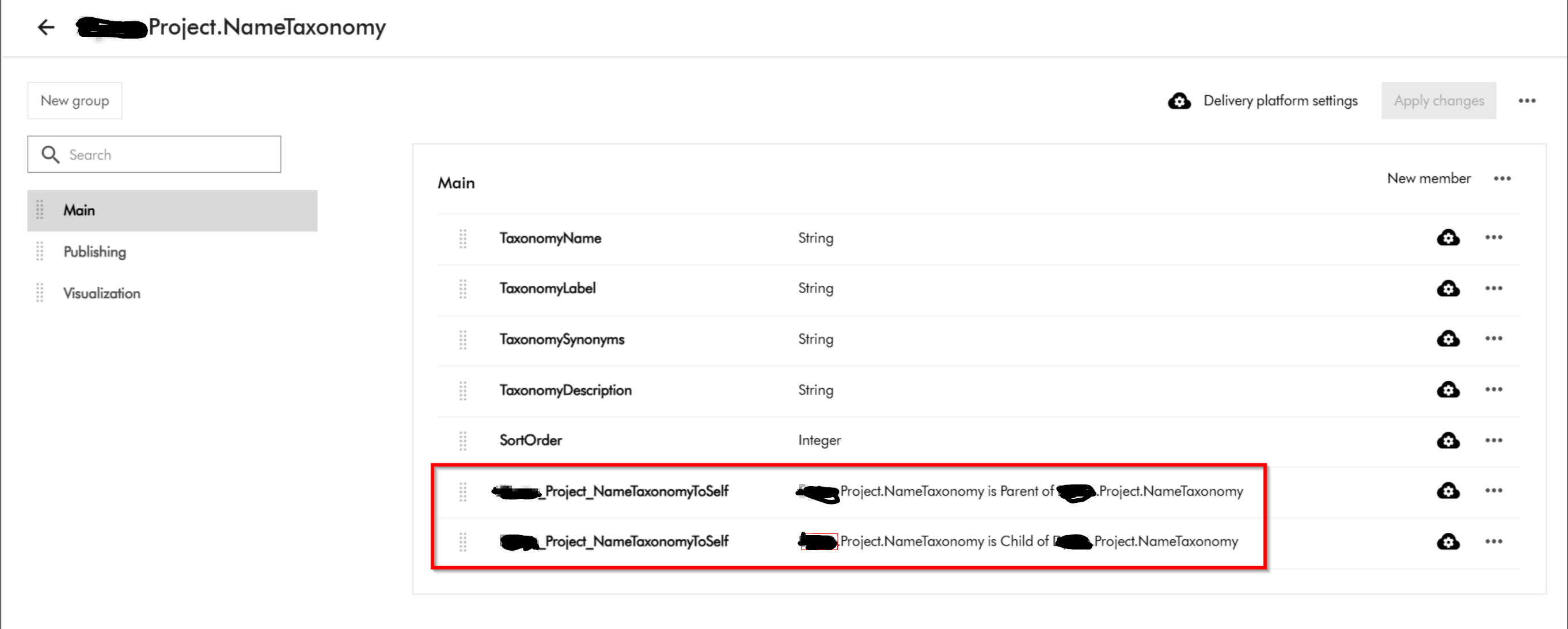
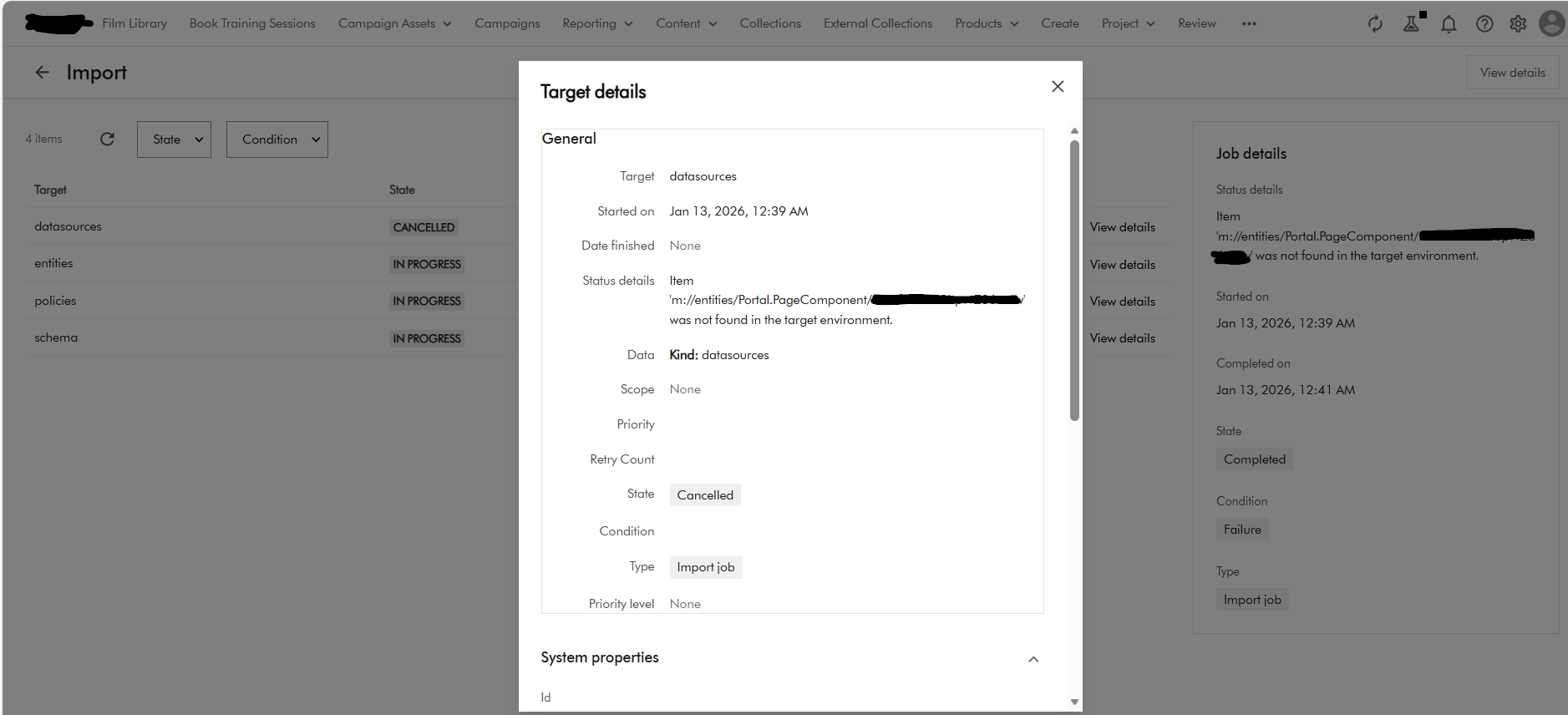
If you already using DevOps for deployments with your Content Hub environments, then you probably already aware of the breaking change that Sitecore introduced a few months ago. You can read the full notification on the Sitecore Support page The new version of the package import/export engine become the default in both the UI and CLI from Tuesday, September 30 according to the notification. Because of the breaking changes introduced, this means existing CICD pipelines won’t work. In fact, there is a high risk of breaking your environments if you try use existing CICD pipelines without refactoring.

In this blog post, I will look into details what breaking changes were introduced and how to re-align your existing CICD pipelines to work with the new import/export engine.

So what has changed in the new Import/Export engine?

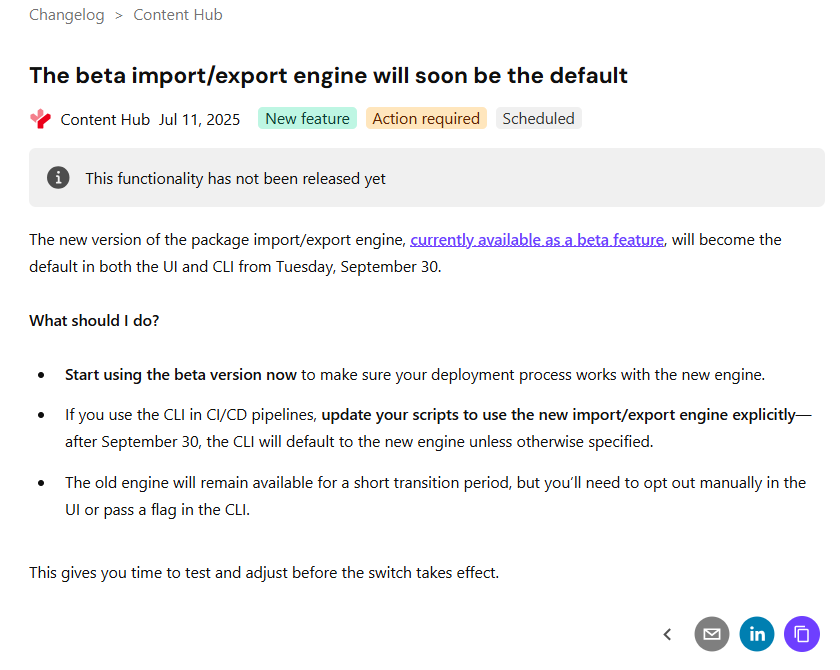
Below is a screenshot from the official Sitecore docs summarizing the change. You can also access the change log here.

There is no further details available from the docs on specifics of the breaking change. However, it is very straightforward to figure out that Sitecore fundamentally changed the package architecture in the new import/export engine.

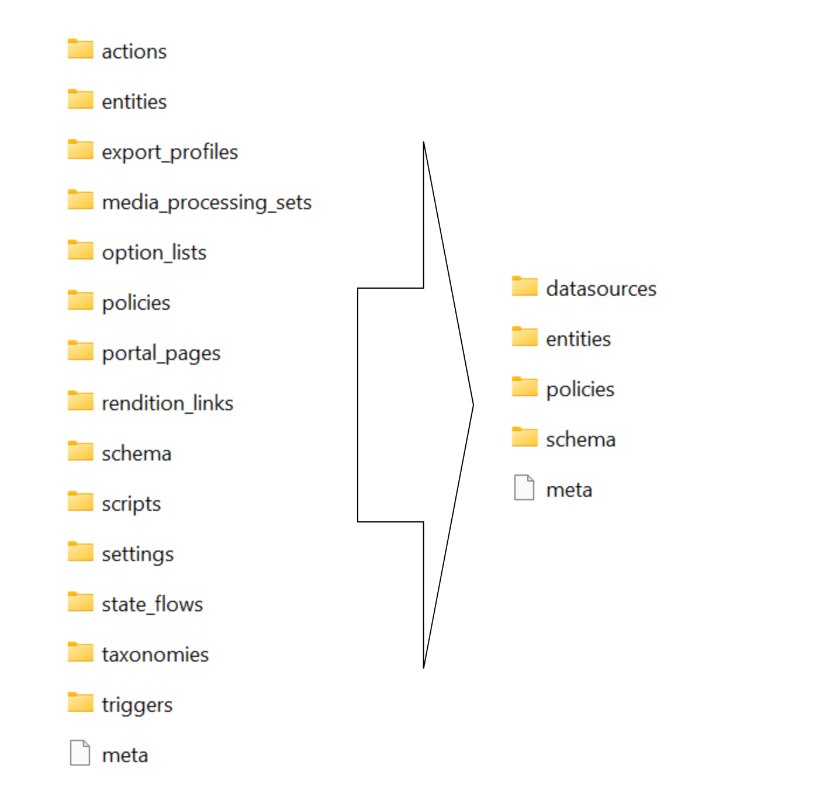
Resources are grouped by type

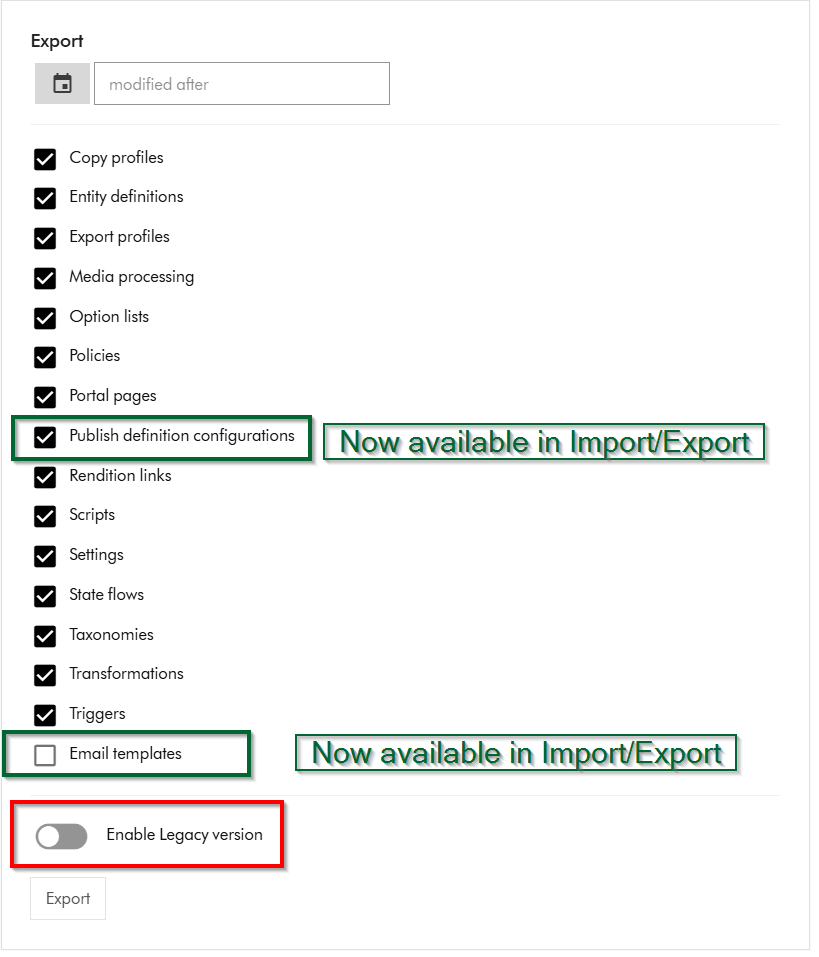
Within Sitecore Content Hub Import/Export UI, you have an option to Export components using both the previous/legacy engine and the new engine. As shown below, you can notice a toggle for Enable Legacy version, which when switched on will allow you to export a package with previous/legacy engine.

Also we can note that Publish definition configurations and Email templates are now available for Import/Export with the new engine. Email templates are unchecked by default.

If you did a quick comparison between the export package from the old/legacy engine vs the new engine, it comes clear that Sitecore has updated the packaging structure to organise content by resource type rather than by export category

This change makes navigation more straightforward and ensures greater consistency throughout the package.

Summary of the changes between legacy and new export packages

Below is a graphic showing how the package structure was changed. On the left hand-side, we have the legacy/old package and on the right hand side is the new one.

Full comparison of package contents between old and new

Below is a more detailed comparison, showing how the packages differ.

ComponentLegacy package sub foldersNew package sub folders
Copy profilescopy_profilesentities
Email templatesn/aentities
Entity definitionsentities
schema
option_lists
datasources
entities
schema
Export profilesexport_profilesentities
Media processingmedia_processing_setsentities
Option listsoption_listsdatasources
Policiespoliciesdatasources
entities
policies
schema
Portal pagesentities
portal_pages
datasources
entities
policies
schema
Publish definition configurationsn/aentities
Rendition linksrendition_linksentities
Settingssettingsentities
State flowsstate_flowsdatasources
entities
policies
schema
Taxonomiestaxonomiesdatasources
entities
schema
Triggersactions
triggers
entities
Scriptsactions
scripts
entities

Resources are grouped by type

Instead of separate folders like portal_pages, media_processing_sets, or option_lists, the new export engine places files according to their resource type. ​

For example:​

  • All entities are stored in the entities/ folder.​
  • All datasources (such as option lists) are found in datasources/ folder​
  • Policies and schema files have their own dedicated folders.​

Each resource is saved as an individual JSON file named with its unique identifier.

Related components are now separated

When a resource includes related items—such as a portal page referencing multiple components—each component is now saved in its own JSON file. ​

These files are no longer embedded or nested under the parent resource. ​

Updating your CICD pipelines

It is very straight forward to update you existing CICD pipelines once we have analysed and understood the new package architecture. You can revisit my previous blog post where I covered this topic in detail You need to simply map your previous logic to work with the new package architecture. You will also need to re-baseline your Content Hub environments within your source control so that you are using the new package architecture.

Next steps

In this blog post, I have looked at the new Content Hub Import/Export engine. I dived into how you can analyse the packages produced from the legacy/old engine and compared it with the new engine. I hope you find this valuable and the analysis provides a view of what has changed in the new package architecture.

Please let me know if you have any comments above and would like me to provide further or additional details.

Content Hub DevOps: Managing your action script code lifecycle in CI/CD pipelines

Context and background

When working with automated CI/CD pipelines with you Sitecore Content Hub, you need to be aware of the development lifecycle for your Action Scripts. This is to ensure your source code repo for your scripts doesn’t get ‘bloated with orphaned‘ script code files. In this blog post, I will cover how to manage the development lifecycle of your Action Scripts to mitigate against this problem.

What happens when you serialize action scripts into source control

I have previously blogged on Content Hub DevOps, especially on leveraging Content Hub CLI to extract a baseline of your Content Hub components. For example ch-cli system export --type Scripts --wait --order-id command allows you to export Actions, Scripts and Triggers package. When you unzip or extract the files within this package, you will notice there is a scripts folder. This will have two types of files: .json files and .csx files (assuming your actions scripts are written in C#.NET)

Script .json file type

For each action script packaged from your Sitecore Content Hub instance, it will have two files. One of them is the script .json file.
Below is a sample action script json file:

This file contains all the relevant meta-data about the action script. In particular, you will notice that it is referencing a second file using the ScriptToActiveScriptContent relations property. Using our sample above, this json file is referencing this code file “ZOGG4GbbQpyGlTYM7r1GfA

Script .csx code file

The code file based on C#.NET, is similar to the sample shown below.

What happens when you modify the code in your scripts

Each time you make changes to your Action Script source code and successfully build it, Content Hub will generate a new code file version behind the scenes. This will be automatically linked to its corresponding script .json file.

To visualise this, you will notice that when you serialise your Action Script again from your Content Hub instance, a new code file will be generated.

If you now compare the previous code file with the new one, it will become obvious which changes Content Hub has made to the .json file. Below is a sample comparison.

What should you do with the ‘old’ code file

We have now established what is going on whenever the source code in your action script is changed and successfully rebuilt. Each time, a new file will be generated. The old file will remain in your source code repository, unused and effectively ‘orphaned’.

My recommendation is to design your DevOps process that will always clean-up or delete all files from your scripts folder in your source code, before pulling the latest serialised files from your Content Hub instance.

You can do this in an automated way leveraging the Content Hub CLI commands. Alternatively, you can do it old school way leveraging PowerShell commands to delete all files from scripts folder before serializing new ones again. Whichever mechanism you leverage, ensure old and used code files do not bloat your source code repo.

Next steps

In this blog post, I have discussed what happens when you make code changes to your action scripts. I explained why you will have ‘old’ or ‘orphaned’ code files within your script folder that will bloat your source code repo. I also covered steps you can take to mitigate this problem.

I hope my approach helps you address similar scenarios in your use-cases. Please let me know if you have any comments above and would like me to provide further or additional details.
Streamlining Content Hub DevOps: Deploying Environment Variables and API Settings to QA and PROD

Context and background

I recently worked on an exciting Content Hub project which required automation of deployments from DEV environments to QA/TEST and PROD. One of the challenges I faced was how to handle environment specific variables and settings. One particular use case is the API call Action type, which has references to some API call endpoint and using an Api Key. Typically, such an API call will point to a non-production endpoint in your QA/TEST Content Hub and a production facing endpoint for the PROD Content Hub

Sounds familiar, should be easy right?

I thought so. I thought I put this question to my favourite search engine to see what is out there. The truth is Content Hub DevOps is nothing new really. There is plenty of documentation on how to go about it, including this blog post from the community From the Sitecore official docs, you can also find details about how to leverage Content Hub CLI to enable your DevOps workflows.

However, I couldn’t come across an end-to-end guide that solves my current problem. Nicky’s blog post “How to: Environment Variables in Content Hub Deployments” was pretty good actually and I have to say I found the approach quite compelling and detailed. However, I didn’t adopt Nicky’s approach as I would like to use automated end-to-end DevOps pipelines. Unfortunately, Nicky’s approach doesn’t.

My approach

Below is a high level process I have used.

  • Leveraging Content Hub CLI to extract a baseline of your Content Hub components. For example ch-cli system export --type Scripts --wait --order-id command allows you to export Actions, Scripts and Triggers package, which you can extract all yours Actions, Scripts and Triggers as JSON files. These can then be source controlled, allowing you to track future updates on a file-by-file basis. For a full list of components that you can export, you can pass --help param as shown below.
  • Without DevOps, you will typically package and deploy your Actions, Scripts and Triggers, say from DEV Content Hub into QA Content Hub instance. You will then have to manually update any of your API call Actions with the QA specific endpoint URL.
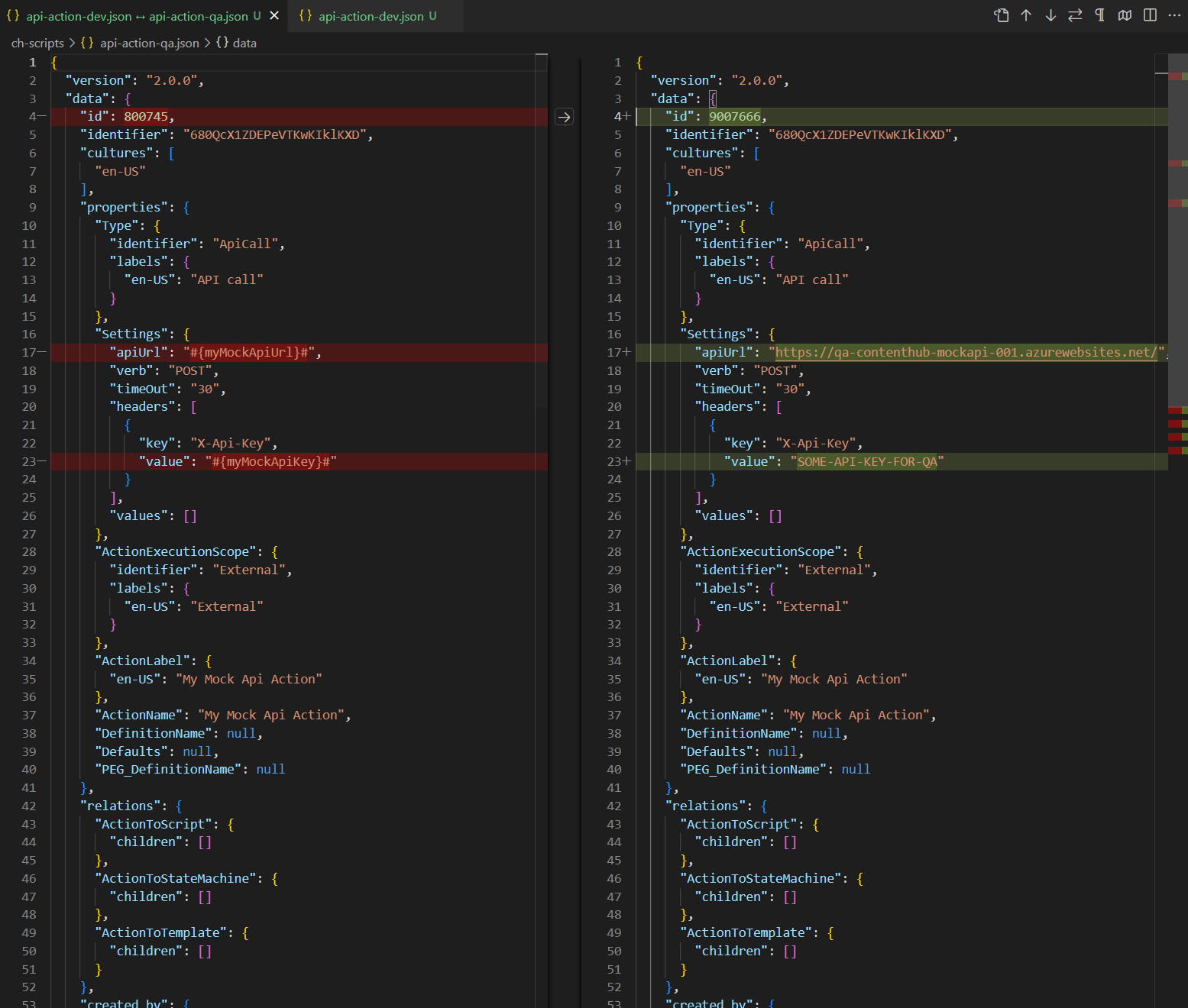
  • With Content Hub CLI, I am able to source control and compare my Content Hub DEV and QA files as shown below. Left-hand side is my DEV mock API action, right-hand side is my QA. Please keep note the identifier is the same (680QcX1ZDEPeVTKwKIklKXD) to ensure the same file can be deployed across to Content Hub QA and PROD
  • This is quite powerful, since I can take this to another level and define Environment specific variables for my mock API action, as shown below. I have identified I will need #{myMockApiUrl}# and {myMockApiKey} variables.
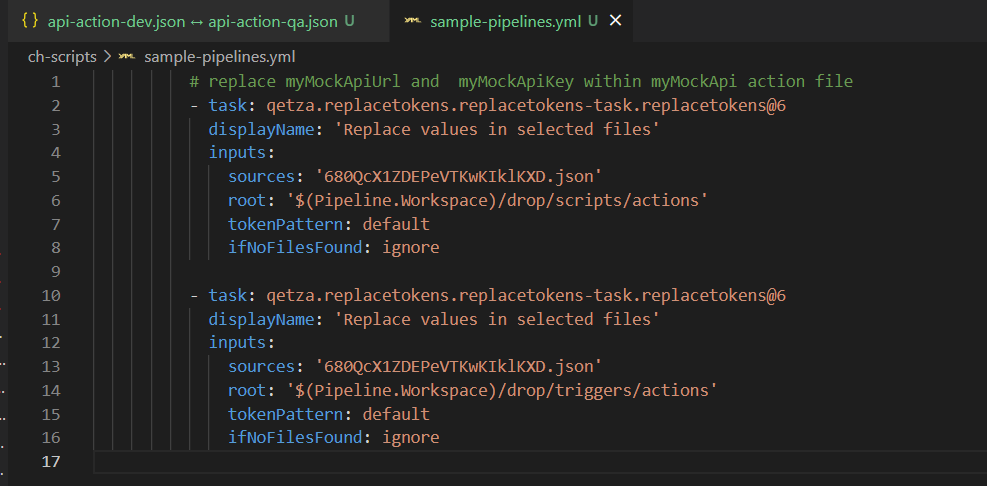
    • Notice I am leveraging the ReplaceTokens Azure pipelines task. Left-hand side is my DEV mock API action, this time I have parameterised the variables. Right-hand side is my QA to help illustrate the differences. During the QA deployment, my CI/CD pipelines will transform the source controlled file on the left-hand side into QA file on the right.
  • This is it, I have solved my problem. I have identified which component(s) have environment specific variables and parameters. I can now leverage DevOps CI/CD pipelines to package all my components, generate a deploy package specific for Content Hub QA environment.
  • Deploying a package using Content Hub CLI uses this command: ch-cli system import --source "path to your deploy package.zip" --job-id --wait
  • Wearing my DevOps hat, I am able to write a complete end-to-end CI/CD pipelines to automate the deployments.

Using Azure DevOps CI/CD pipelines

It is very straight forward to define and implement an end-to-end Azure DevOps CI/CD pipelines once we have defined our process and development workflows.

Azure variables template definition

One capability you can leverage is the Azure variables template definitions to allow you to define Content Hub QA and PROD variables, such as below. Please notice #{myMockApiUrl}# and {myMockApiKey} variables in this template file. They now have Content Hub QA specific values. We will need a similar file to hold Content Hub PROD variables.

Referencing Azure variables template file in main pipeline

The Azure variable template file for QA (qa-variable-template.yml, in my case) can then be linked to the main Azure CI/CD pipeline yaml file, such as shown below:

Replacing tokens in main pipelines

Replacing tokens sample is shown below. Please notice the API call Action Identifier 680QcX1ZDEPeVTKwKIklKXD that was referenced in my previous screenshots above

Next steps

In this blog post, I have introduced the problem and use-case when you need to manage and deploy Content Hub environment specific variables. I have used an API call Action type to illustrate this use case. I have also covered how to leverage Content Hub CLI to serialise Content Hub components and demonstrated an example of using Actions, Scripts and Triggers components. I finished with my own approach and how I did an implementation of an end-to-end automated DevOps process. I hope my approach helps you address similar scenarios in your use-cases. Please let me know if you have any comments above and would like me to provide further or additional details.

Content Hub gems: Leveraging action scripts to aggregate CMP content and your linked assets – part 2

Introduction

We previously looked at how to leverage action scripts to simply how to access content and linked assets with a single web API call. In this blog post, we follow up with a deep dive into the code and logic within the action script itself.

The script

The first part of the script is shown below.

  1. Line 1 to 5 has all the required libraries being used in the script
  2. Line Line 7 & 8 has logic for extracting the id of the content item, which we are gathering the data in this script. Data from the web API request is specified in Context.Data, which is a JToken. The script expects it to be a JObject containing a contentId property.
  3. Line 10 to 14 contains logic for checking whether the content id could not be extracted from the data. In which case, a response http status-code 400 (bad request) together with a user-friendly error-message is returned. This is done with help of helper function SetError, as shown below:
  4. Line 16 to 19 contain the EntityLoadConfiguration we are going to use when loading the assets linked to our content item. Only Filename, Title and Description as well as AssetToSubtitleAsset relation will be loaded in our use case.
  5. Line 21 to 24 similarly contain the EntityLoadConfiguration we are going to use when loading the content item (our blog post content type). Blog_Title, Blog_Quote, Blog_Body as well as CmpContentToMasterLinkedAsset & CmpContentToLinkedAsset relations will be loaded here. CmpContentToMasterLinkedAsset relation holds the link to the master image associated with this item. CmpContentToLinkedAsset relation has the assets linked with this item, such as the video asset.
  6. Line 26 to 31 contain the logic for loading the content (Blog post), by leveraging MClient.Entities.GetAsync function and specifying the content id and the EntityLoadConfiguration already defined above. We have a check on line 27 whether the content entity was actually found, and return a response http status-code 400 (bad request) together with a user-friendly error-message, when none was found.
  7. Line 33 to 37 start preparing the output object for our script. We have created a new JObject which has the shown properties. We have added the values of properties Blog_Title and Blog_Quote and Blog_Body. We are going to add more properties as we walk through the rest of the script.

Second part of the script

The code listing from line 39 through to 83 has the logic for loading the video asset linked with this content item.

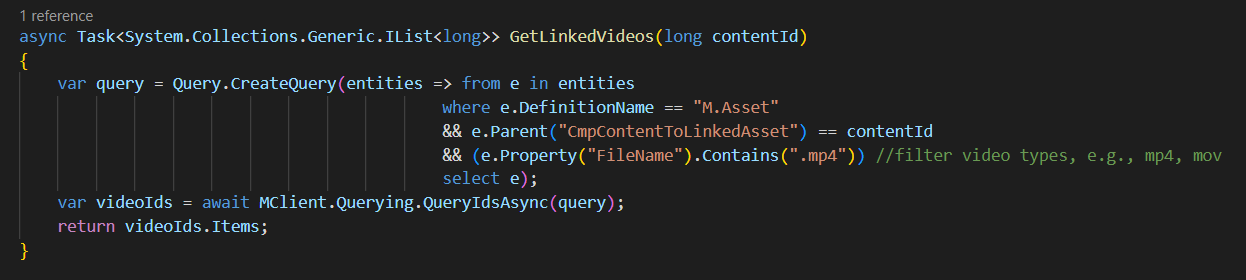
  1. Line 39 get the list of video asset ids by using a helper function GetLinkedVideos shown below. This function makes use of the LINQ query, which filters down only entities of type M.Asset which are linked to current content id (parent in the CmpContentToLinkedAsset relation). In my use case, I have used the file extension .mp4 to identify video asset (but you could use any other property or combination of properties to meet your specific use cases)
  2. Line 40 checks if our GetLinkedVideos found any video ids, in which case the rest of the logic will try and process them
  3. Line 42 extract the first video id that was found. I have used the MCient.Logger.Info method to log user friendly messages that helped me show which video ids were found. These message appear on the Action Script’s View Logs window.
  4. Line 45 to 46 contain the logic for loading the video asset entity, by leveraging MClient.Entities.GetAsync function and specifying the video asset id and the EntityLoadConfiguration already defined before in first part of the script. Line 46 checks to ensure the video asset was found, for us to do further processing
  5. Line 48 and 49 contains the logic for getting the video asset public link, which is required as part of the output from the script. On line 48, I am leveraging GetPublicLinks function, which I have defined as shown below. I am interested in the original rendition of my video asset. Please note that if the video asset does not have original public link generated, nothing will be retrieved.
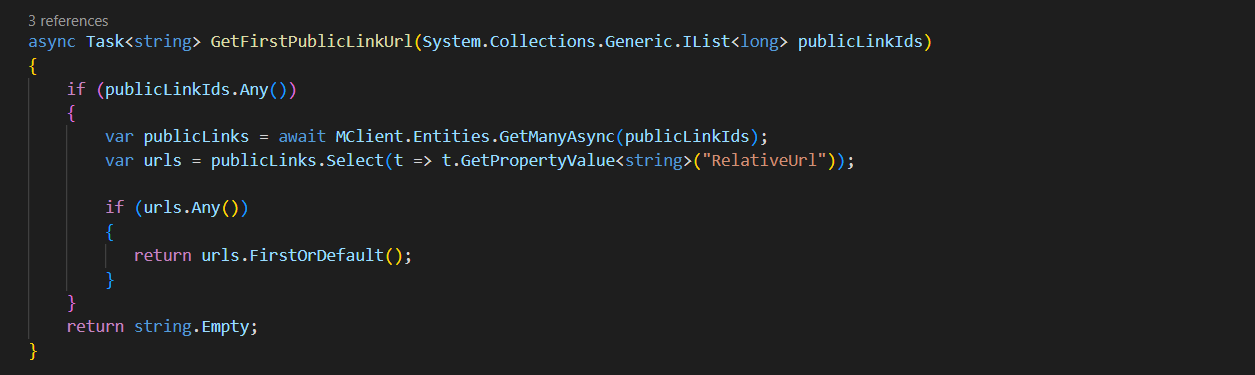
  6. Which is why the code on line 49 further makes use of a function named GetFirstPublicLinkUrl which helps load the M.PublicLink entity and inspect the RelativeUrl property, as shown below.
  7. Line 50 to 55 we are now creating a new JObject which has the shown properties as expected the output of the script. This object is added to videoAsset section of our main result object.
  8. Line 57 contain logic for getting the video asset subtitles. The AssetToSubtitleAsset is a IParentToManyChildrenRelation, so we get hold of subtitles using the Children property from this relation. In essence, a video subtitle is an asset in its own right. So the code listing from Line 59 is trying to load each of the subtitle asset and we are interested in the Title property as well as the Public Link (original rendition). This is now familiar to how we got public link for the video asset itself. We add each of these properties in a JArray, which in turn, is added to the result.

Part three of the script

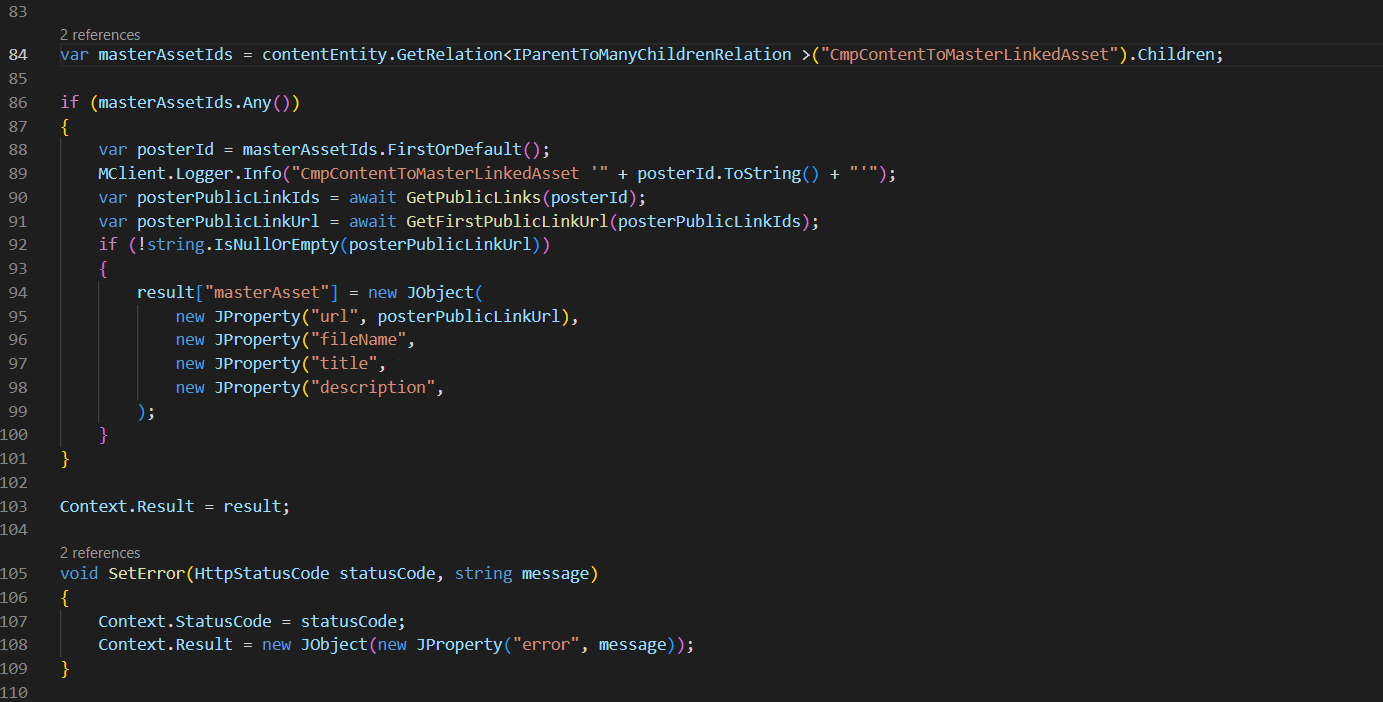
In the last part of the script, we also get the master asset linked to our content item. In this case, we are interested in the asset Public Link, asset file name, Blog_Title and Blog_Body properties. We create a new JObject which has the shown properties as expected and added to the result object.

Line 103 stores our result object that we have been preparing onto the Context. This tells the script to return it to the user.

Final script output

The script output is similar to the one shown below.

This completes the code listing for this script.

Next steps

In this blog post, I have looked at the second part of the Content Hub Action Scripts for Web API use cases. We have taken a deep dive into the source code for the script, covering the various components and how they work together. For a practical use cases, look at my blog post on how I have created a custom connector for publishing video assets from Content Hub into Cloudflare Stream

Stay tuned and leave us any feedback or comments.

Content Hub gems: Leveraging action scripts to aggregate CMP content and your linked assets – part 1

Use case and problem

Within Content Hub CMP, the content metadata can be stored in various places including the properties and related entities. For example, a Blog post content item can have multiple attachments, such as Imagery and Video assets linked from the DAM, as shown below.

Imagine you wanted to query all these metadata for your blog post, plus all the linked attachments. For the assets, you would like to also get video subtitles or even public links for them. Sounds complicated enough?

Well, this blog post will explore a Content Hub hidden gem to save your day. Please read on.

Web Scripts

Luckily for us, Content Hub supports creation of Action scripts that are designed to be executed using a Web API. This is a very powerful capability since we can leverage such a script to aggregate metadata from various Content Hub entities, whether this is stored within properties or relations. We can then execute this script using a single Web API, thereby avoiding unnecessary multiple trips to fetch such data.

How to create an Action Script

  1. To create a new script, navigate to Manage -> Scripts page
  2. Then click on +Script button
  3. This will pop-up a screen similar to this shown below. Enter Name, specify Action Script type and optionally enter Description. Click Save
  4. The Action script will be created and appears on the scripts list, similar to below:

How to add code/edit, build and publish your script

  1. Click on your script from the script list, which will open Script details page
  2. Click on the Edit button on top of the page to enable editor section, as shown below. Use the editor section to add the source code for your script
  3. Click on Build button to compile the source code for your script.
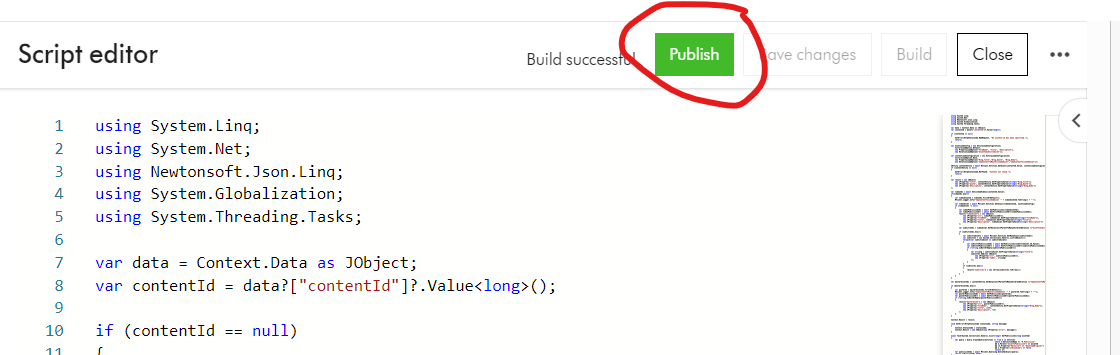
  4. Click on Publish button to publish the script and make code changes take effect.
  5. Finally, remember to Enable the script from the script list, to make it available for use

Executing your Action Script

To execute your Action script, simply send an HTTP POST request to the script endpoint, using a tool such as Postman or CURL. Below is a Postman sample. ch_base_url is your Content Hub instance base URL. SCRIPT_ID is the script identifier

In the sample request above, I have specified the request body with a parameter containing the CMP content identifier that I would like to aggregate all the metadata. I will cover more on the workings of this script in a follow up blog post.

Please note I presume you know how to specify the Authentication for the Web API calls to your Content Hub instance. This involves getting access tokens from your Content Hub instance.

Script output

If successful, you will get an output similar to the one below.

You can see within a single Web API call, we are able to get all the metadata related to a CMP Blog post content item:

  • M.Content properties for the Blog post such as Title, Quote and Description
  • M.Content relations such as CmpContentToMasterLinkedAsset and CmpContentToLinkedAsset
  • M.Asset properties such as Filename, Title and Description
  • M.Asset relations such as AssetToSubtitleAsset
  • Video asset subtitle properties such as Filename, Title and Description
  • M.Asset public links such as DownloadOriginal URLs

Next steps

In this blog post, I have introduced the first part on Content Hub Action Scripts for Web API use cases. We have walked through steps of creating a new script, editing and build the source code, publishing and enabling it for use. We have also looked at how to execute the Web script using a Postman tool.

In the second part, we will deep dive into the source code for the script that I used to produce the sample output above. Stay tuned and leave us any feedback or comments.

How to bulk import CMP content items with multi-languages into Sitecore Content Hub

If you have bulk imported DAM assets into your Sitecore Content Hub using the Excel Import, then you are already familiar with the process. In fact, I recently blogged on how to bulk import video subtitles with multi-languages.

However, Sitecore Content Hub is a great platform with many hidden gems. In this blog post, I will be exploring the hidden gems on how the bulk import CMP content items. Hopefully save you valuable time of having to figure out on your own.

What is Sitecore Content Hub CMP?

CMP stands for Content Marketing Platform.

Below is an excerpt from the Sitecore official docs

A Content Marketing Platform allows the planning, authoring, collaboration, curation and distribution of the different content types that drive the execution of a content marketing strategy while allowing campaign management. CMP is a central hub providing an overall view of all content and how it is performing. It is an essential platform to help with planning and analyzing content marketing campaigns and individual pieces of content.

Sitecore official docs

I will highly recommend watching the Sitecore Content Hub Content Marketing Platform (CMP) Walkthrough video from Sitecordial

For my use case, I will be looking at Blogs, which is one of the out of the box content types in CMP.

Creating a Blog entity within Content Hub CMP

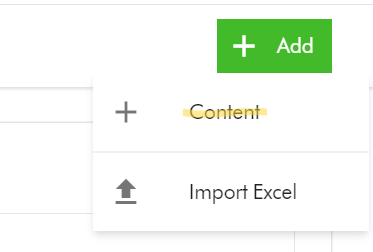
  1. To create a Blog entity, on the Content creation page, select Add Content 
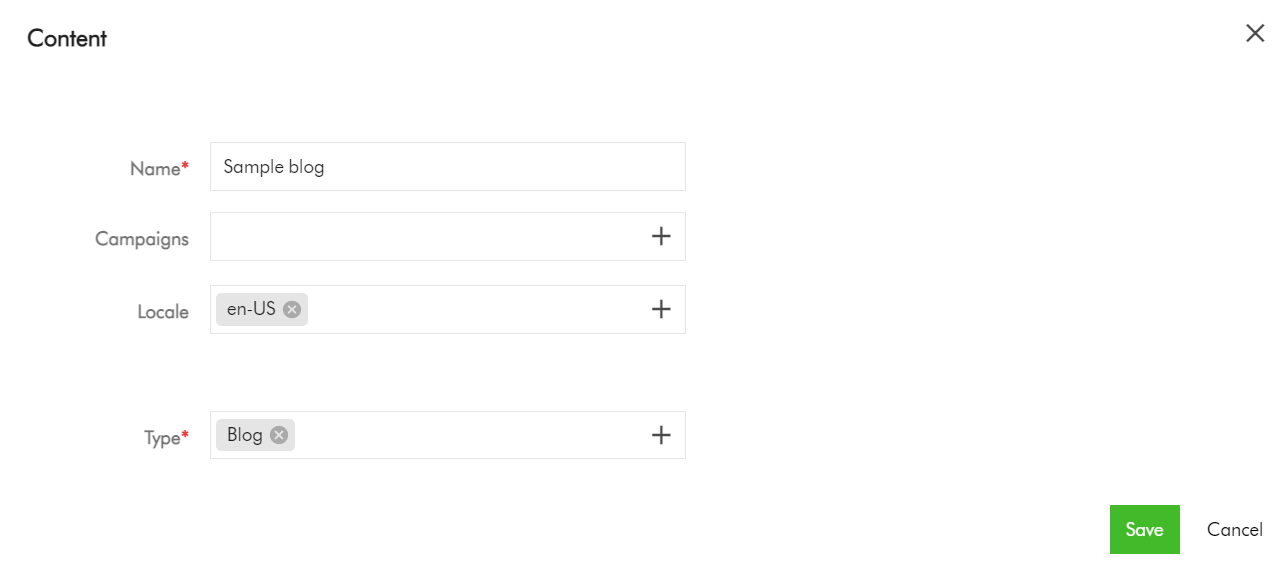
  2. On the add Content dialog, enter the Name and Type, which are mandatory fields. For Type, select Blog from the list of available Content Types. You can also specify the Locale (although this will default to your current Locale). Click Save to save your entry.
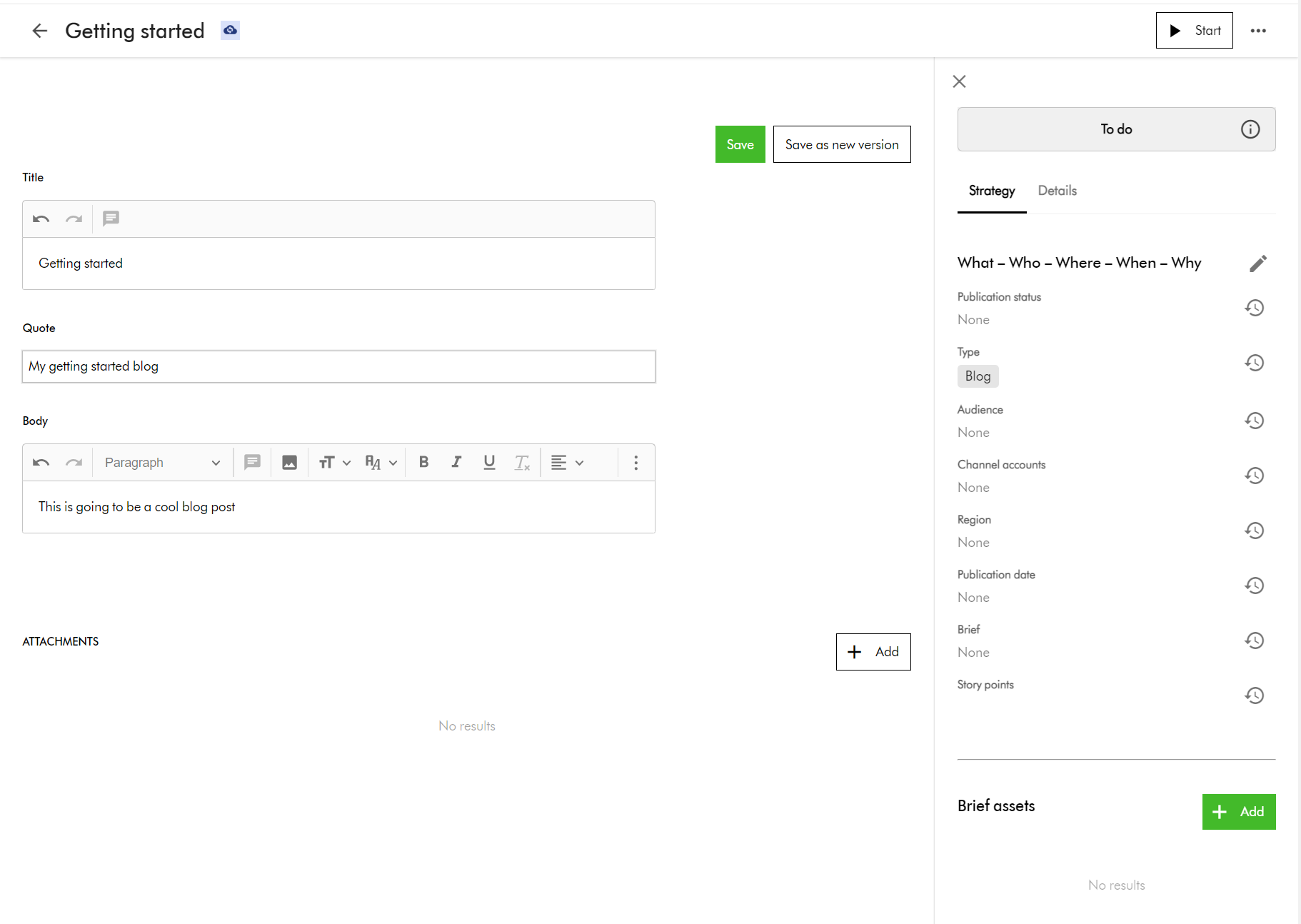
  3. Now select your new Blog item to edit. You should see the edit screen shown below. Enter content for the blog title, quote and body, then click Save to commit your changes.

Adding translations for multi-languages for your Blog entity

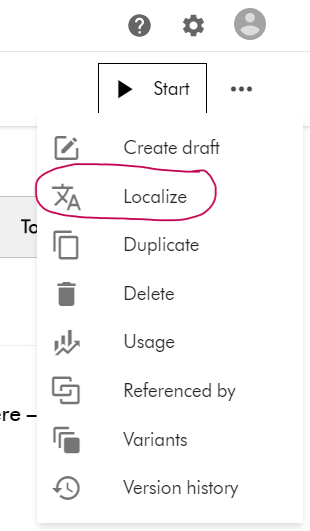
  1. To add a new translation, select the Localize action item from the Action menu, available from the top right-hand side of the edit screen.
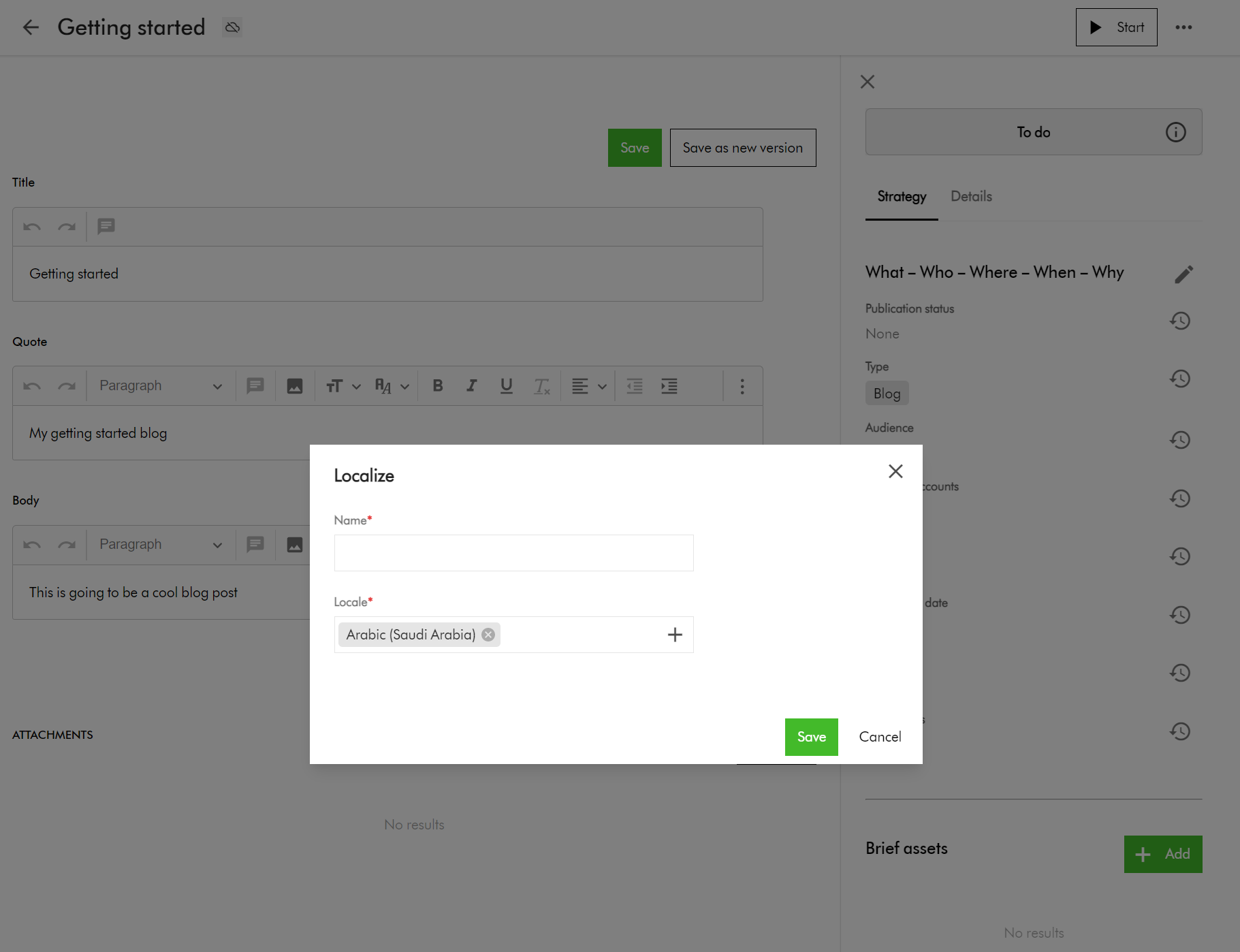
  2. This will prompt you to enter name and locale on a popup shown below.
  3. Click Save to create this variant for the selected language
  4. This will then open the edit screen for you to edit the translated content for the blog item.

Preparing your CMP content items for Bulk Import

Now that we have familiarized ourselves on how to add a single Blog item and a single translation using the portal, let us look at bulk import.

 As usual, we will leverage the Excel Import template for the bulk import. In my related blog post, I already explained the pre-requisites you need for Excel Imports.

Blog items are M.Content entities, therefore we need to ensure our import worksheet is named M.Content

I have prepared an Export profile for exporting Blogs for your reference. You can access the Export Profiles area using the steps below.

Manage -> Export Profiles -> Create new export profile

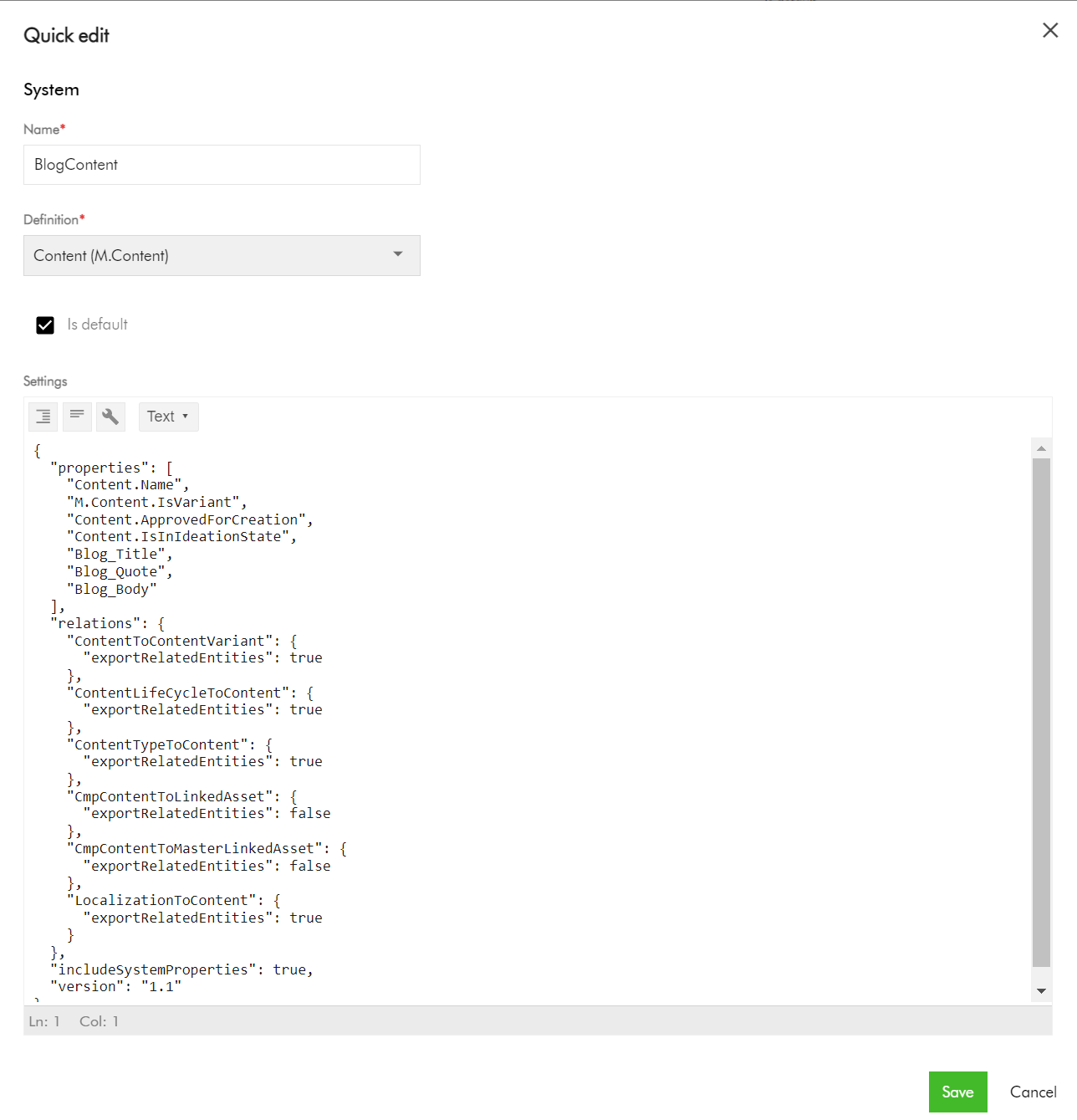
The screenshot below shows my BlogContent export profile.

Key highlights on the Content export profile

Pay attention to the Relations section, where we are enabling the export of the related entities for:

  • ContentToContentVariant
  • ContentLifeCycleToContent
  • ContentTypeToContent
  • LocalizationToContent

Also, ensure includeSystemProperties is enabled.  

This export profile will output worksheets for these Relations for your reference when generating the Excel Import template.

Export your CMP Blog entities into Excel

  1. Navigate to your Content search portal page.
  2. Search and locate your blog(s). You can use the Filters section to filter Content type of Blog.
  3. Select the blog(s) entities (by ticking the checkbox of your selection component)
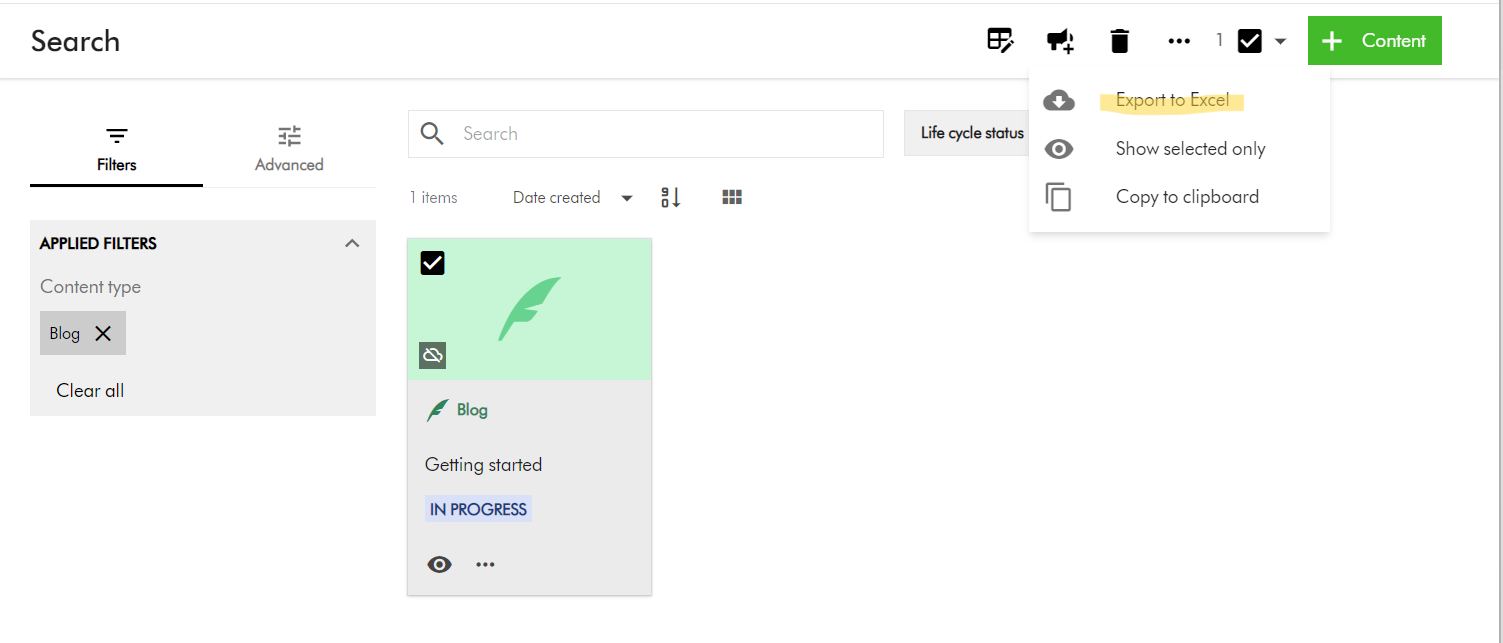
  4. On the right-hand side, access the Actions dropdown menu, and click on “Export to Excel” as shown below.
  5. Your download should be ready and accessible from Profile -> Downloads link

A look at M.Content Excel Import template

Your M.Content import template will look similar to this one below.

You can now view or download the full Excel template file that I have used

Key highlights:

  • Row 1 – this is the default blog entity based on your default language, e.g., en-US
  • Row 2 through 4 – these are the variants of the blog entity for my localized languages. In your case, you many more or less, as per your localized languages you are supporting.
  • Pay special attention to the ContentToContentVariant:Parent which is how the variants are linked to the default blog entity using identifier  id123456789-blog-en-US in my example.
  • Pay special attention to the ContentToContentVariant:Child which is how the default blog entity is linked to all variants. This will have pipe delimited list of variant identifiers (e.g., id123456789-blog-ar-AE|id123456789-blog-zh-CN|id123456789-blog-da-DK)
  • Please note, you need to pre-generate unique values for the identifier column for your variant blog entities. This ensures you can script and control how to link them with parent blog as shown above. This will be key to successful bulk import of the blog entities with multi-language support.
  • Use M.Content.IsVariant to mark which blog entities are variants
  • Use the CmpContentToLinkedAsset column to link the blog entities to existing assets (images or videos) from your DAM if required.  You can link multiple assets by using a pipe delimited list of assets identifiers.
  • Use the CmpContentToMasterLinkedAsset column to assign a Cover Image to the blog entities
  • The LocalizationToContent has the M.Localization taxonomy values corresponding to each localized language
  • I have provided default values for the columns Content.ApprovedForCreation, Content.IsInIdeationState, ContentLifeCycleToContent as per my use case. In your case, provide appropriate values that meet your content strategy.

Finally, let us do bulk import of Blog entities into CMP

And finally, to bulk import, use the Content Creation page. Ensure the creation component on your page has Import Excel option enabled.

  1. On the Content creation page, select Import Excel
  2. Do one of the following:
    • Drag the Excel file you want to upload into the dialog box.
    • Click browse, then pick the Excel file you want to upload.
  3. Optionally, click Add more to add more files if needed.
  4. Click Upload files.

 Next steps

On this blog post, we have looked at how to bulk import Blogs to your Sitecore Content Hub CMP. I am keen to hear your feedback or comments. Please do use the comments section for that.

Stay tuned for future posts as well look and feel free to look around at my existing posts on Sitecore platform.