Sitecore Zero-downtime deployments – Part 3

Blue-Green Deployments

With modern and mature DevOps, we all want smooth, sleek and painless automated deployments with zero-downtime. Sitecore deployments are no exception. Have you embraced zero-downtime deployments? This is not a new topic. If you look around Sitecore community, you see an odd question popping here and there regarding this topic.

The journey towards achieving zero-downtime deployments for any application in fact starts with your code base. So, in this series of blog posts, we will refresh ourselves on concepts like “Code Freeze” and the CI/CD process before deep diving into implementing Sitecore zero-downtime deployments.

Blue-Green deployments architecture

Blue-green deployments strategy

In software engineering, blue-green deployment is a method of installing changes to a web, app, or database server by swapping alternating production and staging servers

Wikipedia

Key Concepts

In its purest form,  true BLUE/GREEN deployments means that we need two separate but identical environments, one is live (BLUE) and the other is on stand-by (GREEN). When you have  new version of your application, you deploy to the staging environment (GREEN) , test it without affecting BLUE. When you are happy with this new version, you can then swap it to be LIVE instance.

However, in practice, it doesn’t always make sense to run a copy of every resource. Furthermore, this may introduce some complexity to the process.

This is why we now have some shared resources as you can see in the infographic above, while others belong to BLUE or GREEN environment.

As part of this architecture, we need some way of switching or routing incoming traffic between the two environments.

Blue-Green deployment strategy effectively enables us to achieve zero down time deployments. This is because your users will not notice any downtime during deployments.

CI/CD process for Blue-Green deployments

CI/CD process for Blue-Green deployments

On the top part of the infographic above, – BLUE is currently production environment and our users accessing this environment. When we have, a new version of our application, it is deployed to GREEN environment, without affecting our users.

On the bottom part of the infographic above, – now GREEN is the production environment and our users are accessing this environment.  This leaves the BLUE environment available for us to deploy the next version of our application

We deploy to BLUE and GREEN in turns, this achieving zero downtime deployments. The process repeats in each deployment cycle.

Some benefits of Blue-Green strategy

If you haven’t already adopted the cloud for your Sitecore workloads – be it PaaS or Containers, then perhaps you need to start thinking about this seriously as there are benefits you will get.

“Blue-green deployments made easier with the cloud.”

fact

The cloud provides tooling you need to:

  • Automate your provisioning and tearing down of environments
  • Automate starting or stopping of services
  • Kubernetes simplifies container orchestration for us,  the Azure Kubernetes Service (AKS) provide a Control Plane for free
  • The flexibility and cost reductions the cloud offers makes blue-green deployments within everyone’s reach at this time and age, please embrace them.

Next steps

Hopefully, these blog post help you understand key concepts about BLUE-GREEN deployments.

In the next blog post in this series, we will look at implementing Sitecore Zero Downtime deployments.

Sitecore Zero-downtime deployments – Part 2

Sitecore Container based CI/CD Flow

With modern and mature DevOps, we all want smooth, sleek and painless automated deployments with zero-downtime. Sitecore deployments are no exception. Have you embraced zero-downtime deployments? This is not a new topic. If you look around Sitecore community, you see an odd question popping here and there regarding this topic.

The journey towards achieving zero-downtime deployments for any application in fact starts with your code base. So, in this series of blog posts, we will refresh ourselves on concepts like “Code Freeze” and the CI/CD process before deep diving into implementing Sitecore zero-downtime deployments.

Sitecore container based CI/CD flow

Sitecore Deployment options

Sitecore can be deployed to the cloud using IaaS, PaaS or Containers.  Microsoft Azure cloud  is preferred, although you can deploy to other providers like AWS

  • IaaS makes use of Virtual Machines
  • PaaS makes use of Azure App Service to run Sitecore web apps
  • Containers makes use of Azure Kubernetes Service (AKS)

How working with containers is different

When working outside of containers, you would typically build your application and then push it directly to the IaaS or PaaS instances hosting them. Using Containers changes this process slightly. The infographic below captures this process in detail

Sitecore containers CI/CD process summary

Explanation of the CI/CD process

  1. So developers make changes to the codebase.
  2. They then commit their changes into the repository, in this case stored in GitHub
  3. An Azure DevOps Pipeline monitors this repository and triggers a new image build each time there is a commit into the repo
  4. These images are built by Azure DevOps and the new image version is pushed into an Azure Container Registry (ACR) instance
  5. We have Other triggers for a base images that might have changed. For example, an update to the base Windows image or Sitecore image that can also trigger a new image build to occur. This is where the CI part of the process ends. We now have our new images built and available for deployment.
  6. So this is where the CD element starts. A release element is going to execute to start the deployment process.
  7. The first thing the CD element does is to push the new version of the k8s Specs into AKS, including pinning the deployments to the unique tag of the new images.
  8. AKS will now connect to the ACR instance to pull down these new images and build new deployments based on them.
  9. Of course any Sitecore deployment isn’t complete without a push of the content changes. Once the specs have been deployed the content is then also pushed to the CM instance running in AKS and a publish is executed.
  10. Once this has happened your end users can now browse the site and interact with the new containers running in AKS.

Hopefully, these blog post help you understand how to manage Sitecore Container based CI/CD process going forward. If you still struggling, engage your digital partners to look for long term solutions.

Next steps

In the next blog post in this series, we will look at BLUE-GREEN deployments and how to leverage this strategy to implement Sitecore Zero Downtime deployments.

My top 10 .NET web development productivity tools, which are yours?

Productivity

So I write software for a living. I have been doing this for more than 10 years. I have written all sorts of web applications while working for different organisations. I also write Windows native apps on my own spare time.

I believe there are many ways to deliver a software project, hence the phrase there’s more than one way to skin a cat! However from time to time we choose to do things in a certain way based on several factors. For me, productivity has to be on top of the list.

Below I share my top 10 .NET web development tools that make me more productive in the software projects I do.

Text editors and IDE

  • Textpad – This is a free simple and yet a very powerful text editor for quickly editing your code files including web pages. It features a powerful expression engine compatible with Perl and Javascript with syntax highlighting. It can handle very large file sizes and can be handy for quick find and replace tasks in large text based files
  • Notepad++ – This a free source code editor which is optimised to ensure higher execution speed and smaller program size. It is very hand if you want to develop in other languages other than English
  • Visual Studio – Probably the best IDE available and very popular with MSDN community. Powerful, Versatile and Extensible tool enabling building apps for any platform
  • Brackets – This is a very modern open source text editor that understands web design. A lightweight, yet powerful tool if you need an easy way to get a quick, clean, minimal CSS HTML document flow going.

Typography for the web

  • Adobe Typekit – Visually design and package beautiful fonts you want, anywhere, anytime
  • Google Fonts – Probably doesn’t require much introduction. Just Google it J
  • Font squirrel – If you need 100% free fonts for commercial use then you’ve got it. Visually design and package your fonts
  • Modular Scale – So have you ever wondered why they use Pixels, Ems and not Inches? And do you know what is Ems@16 ?This utility will help you convert between these units, and scale up or down your font sizes while keeping meaningful ratio between them
  • Adobe Color CC – Talk of colour schemes or themes, this tool from Adobe allows you to visually play with various to achieve the best contrast for your brands
  • CSS with vertical rhythm – If you have designed for the web then probably this is one of your favourite tools. If you have not used it, try it you won’t regret it.

CSS and styling

  • Bootstrap – Probably the most popular HTML, CSS and Javascript framework for developing responsive, mobile first brands. Its open source and available on GitHub.
  • CSS Reset – Get yourself scripts to quickly reset your styling of all HTML elements to a consistent baseline. You never need to scratch your head again asking Which CSS Reset should I use?
  • Browser reset – Another free browser reset script to get you started if you want to reduce browser inconsistencies in things like default line heights, margins and font sizes of headings, and so on

Entity Framework

  • MvcScaffolding NuGet package – This is a fast and customizable way to add controllers, views, and other items to your ASP.NET MVC application. You will love this at first sight.
  • EF Power Tools Visual Studio extension – There we go again. I love code first and not database first. Well, if you got an existing database or go for database first, this extension will reverse engineer an existing database and get you all those POCOs
  • EF Profilerby hibernating rhinos – Unfortunately you will need to pay for this tool but you won’t regret it. Using Entity Framework means much of the database work happen under the covers. Now you got a tool to profile all that.

Regex

Learn, build, & test Regular Expressions – This is a very handy tool to quickly build and text RegEx before you include them in your source code. You can also choose for an existing list of commonly used RegEx such as the one for validating an email address. It comes with excellent text editor with highlight syntax for all the RegEx matches.

Source code re-factoring and experience

  • ReSharper – This probably does not require much introduction. A popular productivity tool for Visual Studio, improving navigation within your project code files, code inspection and refactorings.

Source code repository

  • GitHub – Everyone is using it. If you can’t beat them you can as well join them.
  • Visual Studio Online – Not to be confused with Visual Studio IDE, this cloud based solution allows you to host your source code on the cloud for free for 5 basic user licences

Rich media

  • Windows snipping tool – Allows you to quickly capture screen shots on your desktop
  • Pixlr – Free and yet powerful online tool to quickly edit your rich media without installing anything
  • Paint net – A free image and photo editing software for your desktop

Console and Scripting Tools

  • Cmder. A nice looking and portable console emulator for Windows. It looks very sexy from the start
  • Windows PowerShell – We all love the power of scripting in Windows. Quickly create and test PowerShell scripts for automating your tasks

Online resources and Collaboration

  • Programming books repository on GitHub has a comprehensive list of books for almost anything you will ever need to know about programming.
  • Stackoverflow – It does what it says on the tin. We have all gotten or seen a “Stack overflow “error at some point. If you got any questions on anything programming related, Stackoverflow has got the answer for it already. You don’t believe me? Just try them.

So this is me. Which are yours?

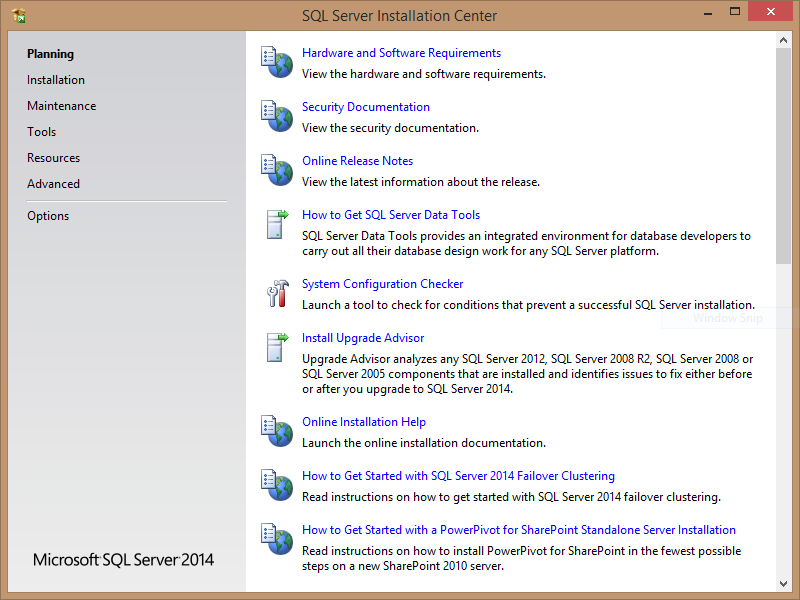
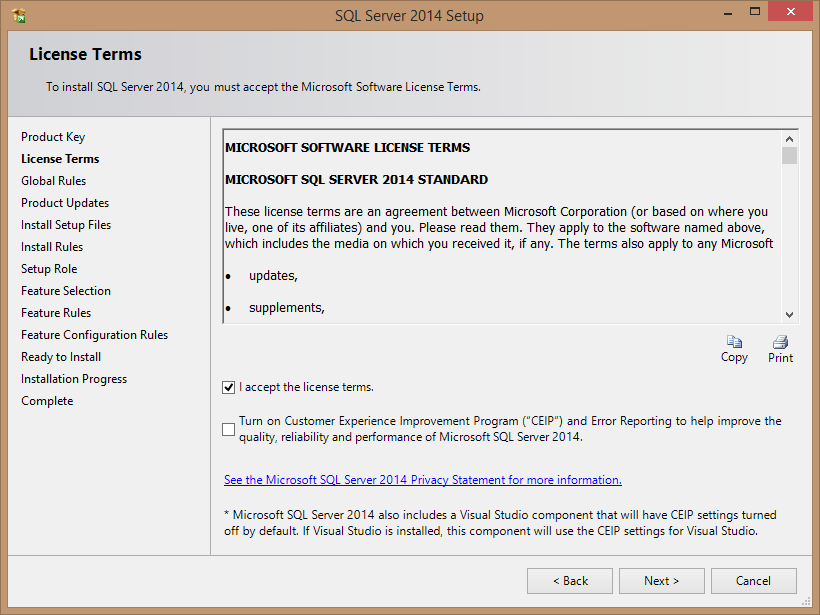
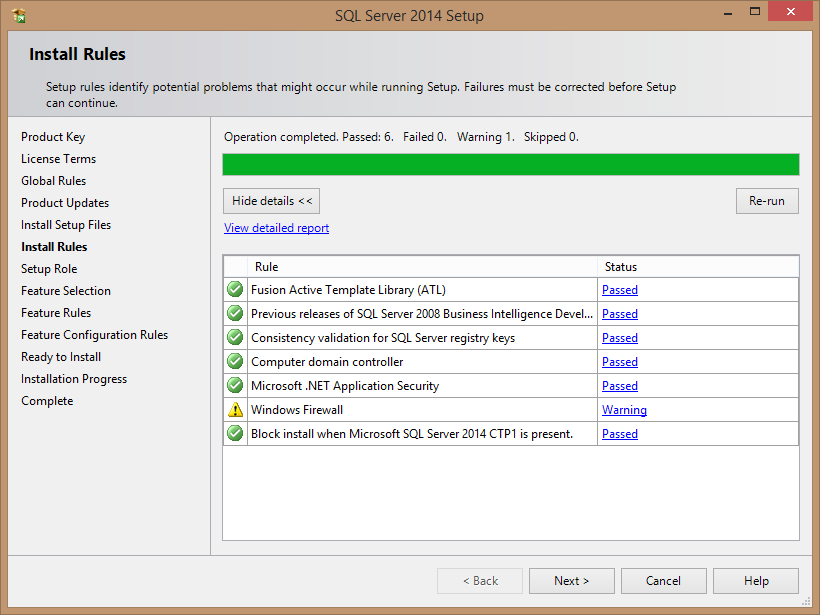
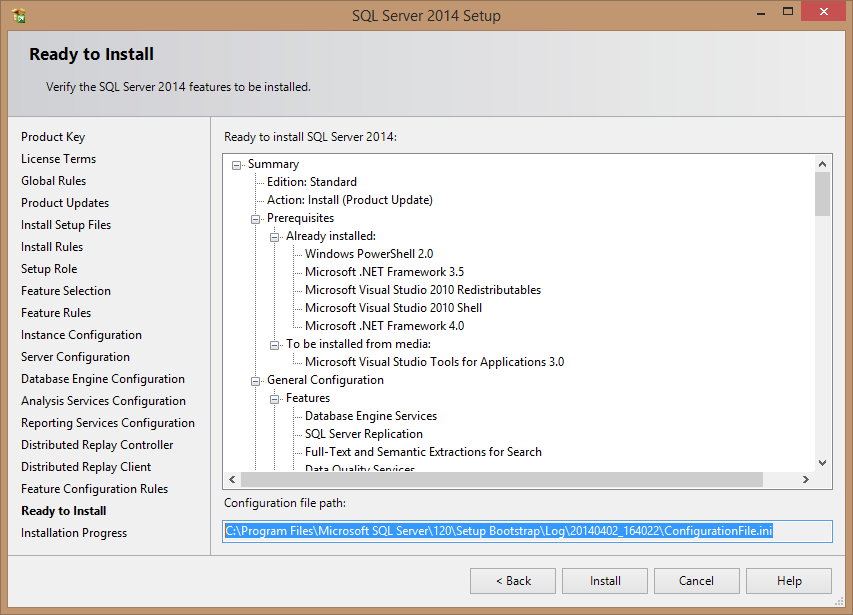
Try SQL Server 2014

Have you tried the latest SQL Server 2014? I have. I have put together the installation wizard screen shots that I captured while installing my copy.

Get started

Download your copy from this link provided by the SQL Server Team via Twitter

Screen shots of the installation process

ImageImageImageImageImageImageImageImageImageImageImage


Hope this helps!

I will blog about the new features and share my thought in the next article. Until then, good luck with your installations.

Need a Windows 8 genius? We got an app for that too


Win8 Genius – it does what it says on the tin, it is your genius on your Windows 8 device.
We are building a set of dashboards for you where you can access information about your Windows 8 and device centrally in the modern fluid user interface. A place where you can view your network/internet info, your device info, your printers info among others. And what about a live tile to loop through some of these message on your home screen?

We are starting small but open for ideas on which pieces of information that can be added to this genius app.

The initial version of the app has been submitted to the store for certification. We are currently working on next dashboards which will be available soon.

We are happy for any feedback you may have:


Main Page

Now searching appointments on your phone as easy as ABC

Search Appointments is a handy app to allow you to search your calendar for appointments by specifying search text and date range. You can also narrow down your search to particular accounts on your phone such as Live, Outlook and others

Privacy Statement
This app access your user data, i.e. your calendar appointments for purposes of searching them. This app does not share your calendar appointments data with any third party. By using this app you accept this app to access your data.

How To Use This App

  1. Select the Account your wish to search your appointments in.
  2. Enter the search criteria usinsg the text box provided.
  3. Enter the date range for the appointments you wish to search for using the date picker.

We got Olympics 2012 apps for you


This summer sees the Olympics come to London, England. We got some amazing and exciting Windows Phone 7 apps lined for you.

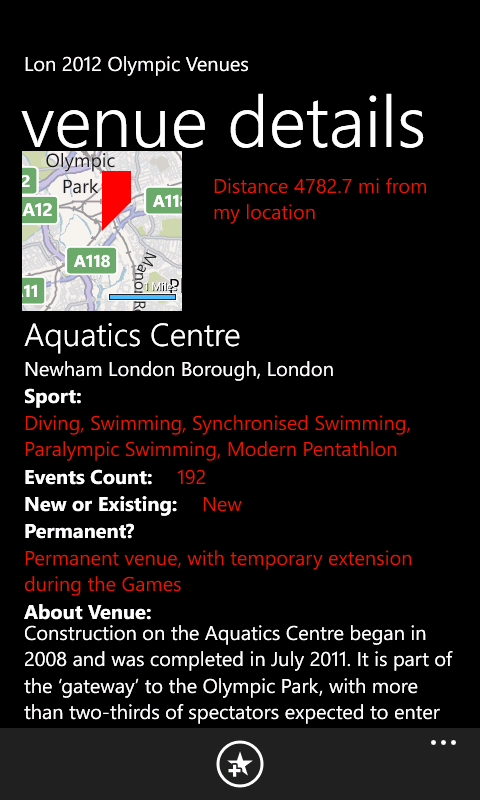
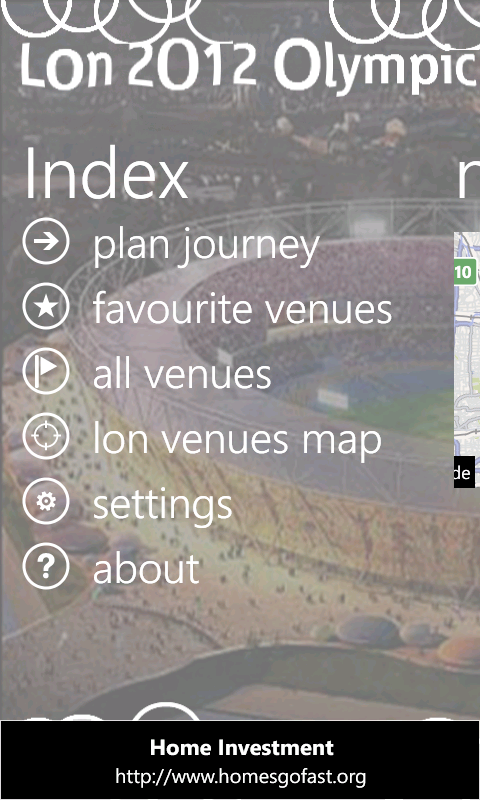
  1. Lon 2012 Olympic Venues
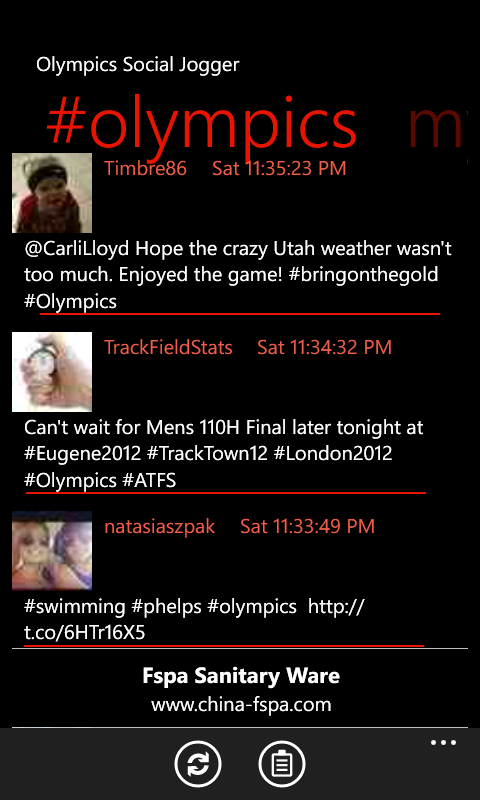
  2. Olympics Social Jogger

Lon 2012 Olympic Venues is a handy app to help you familiarise yourself with London 2012 olympic venues. The app presents the venue details available on the offical website http://www.london2012.com/venues ‘as is’ for dissemination purposes only and not commercially.

With this app:

  1. you can save favorite venues
  2. view their locations on a map
  3. view sports available there
  4. view location details
  5. view background info about venue
  6. get latest news via live RSS feed
  7. get latest blog gossip via live RSS feed
  8. get latest news flash on live tile

Additionally you can view distances in miles from your current location. You can also plan your journey using Bing street-by-street integration

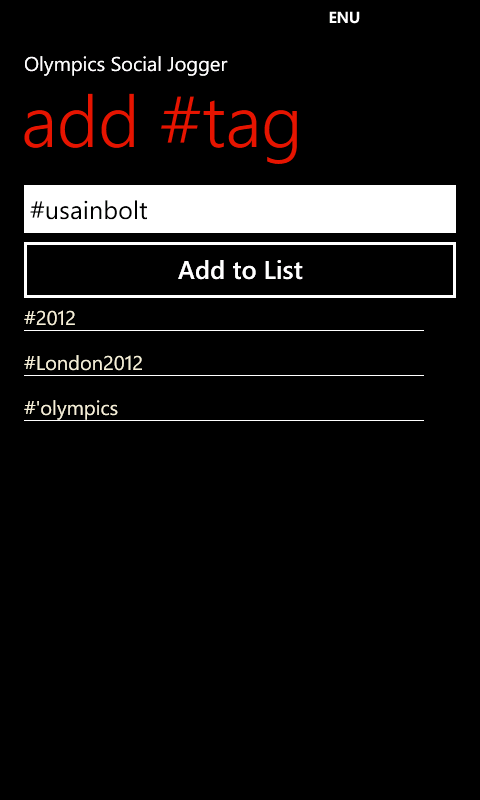
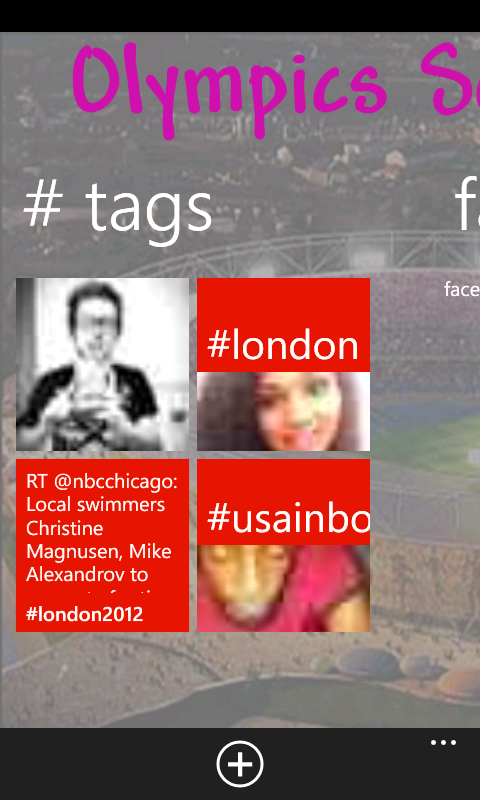
Olympics Social Jogger is a social hub for all your social buzz for the London 2012 Olympics events. The app lets you specify twitter handles or hash tags to follow and you won’t miss even a single update.


Teched North America 2012 Windows Phone app

If you liked our TechEd 2011 app last year, we now got another one TechEdNA 2012. Get it from market place or use this link

Attendees will find this app useful as follows:

  • Browse all Sessions available
  • Browse all Speakers and Tracks available
  • Browse filtered sessions by Session Type such as Breakout, Hands-on-labs
  • Browse filtered sessions by Levels such as Intermediate, Advanced, etc
  • Browse filtered sessions by Speakers and Tracks such as Architecture, etc
  • Manage favorite sessions lists on the app
  • View details of each session including schedules, speakers, tracks, level, tags
  • Browsing session now defaults to ‘timeslots’ view to filter ‘now showing’, ‘coming up’, and the day to day sessions
  • Favorite sessions now appear with a ‘favorite’ icon for easier identification on the browsing lists
  • view Bing Map of the conference
  • View Conference Agenda
  • Browse TechEd News
The app uses:
* phone’s internet connection
* phone’s web browser
* location services
to access the Tech.Ed 2012 Conference Session OData feeds and website resources.