Sitecore Content Hub DevOps: New Import/Export engine with breaking changes is now default

Context and background

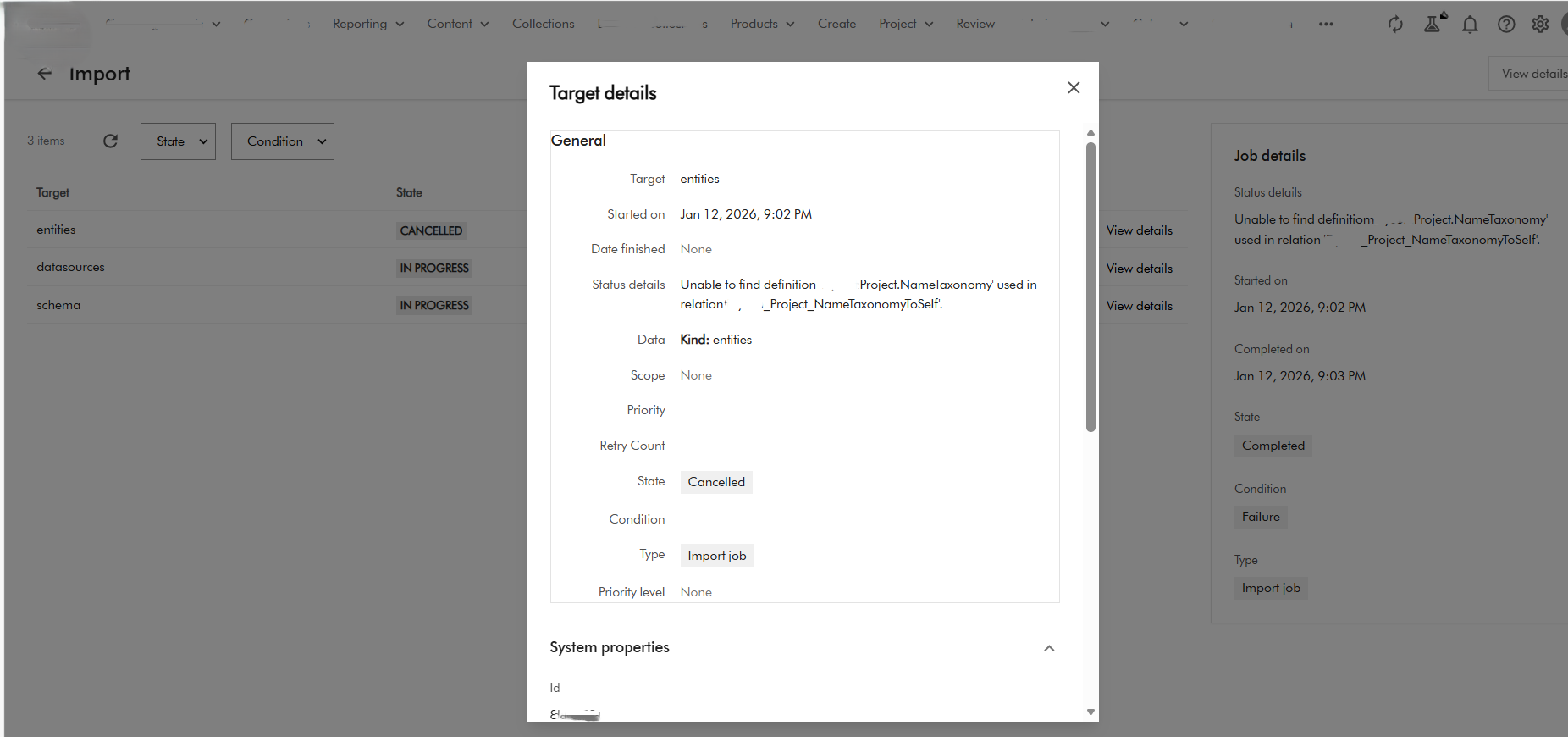
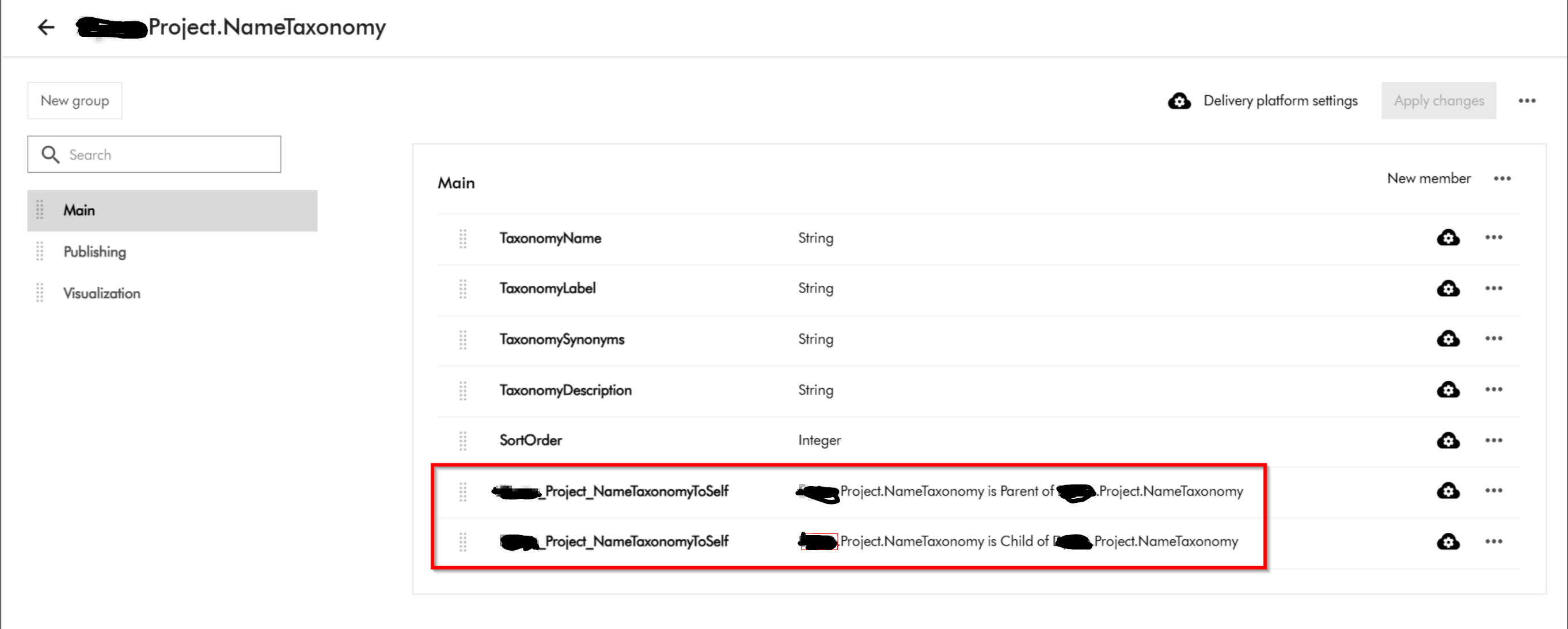
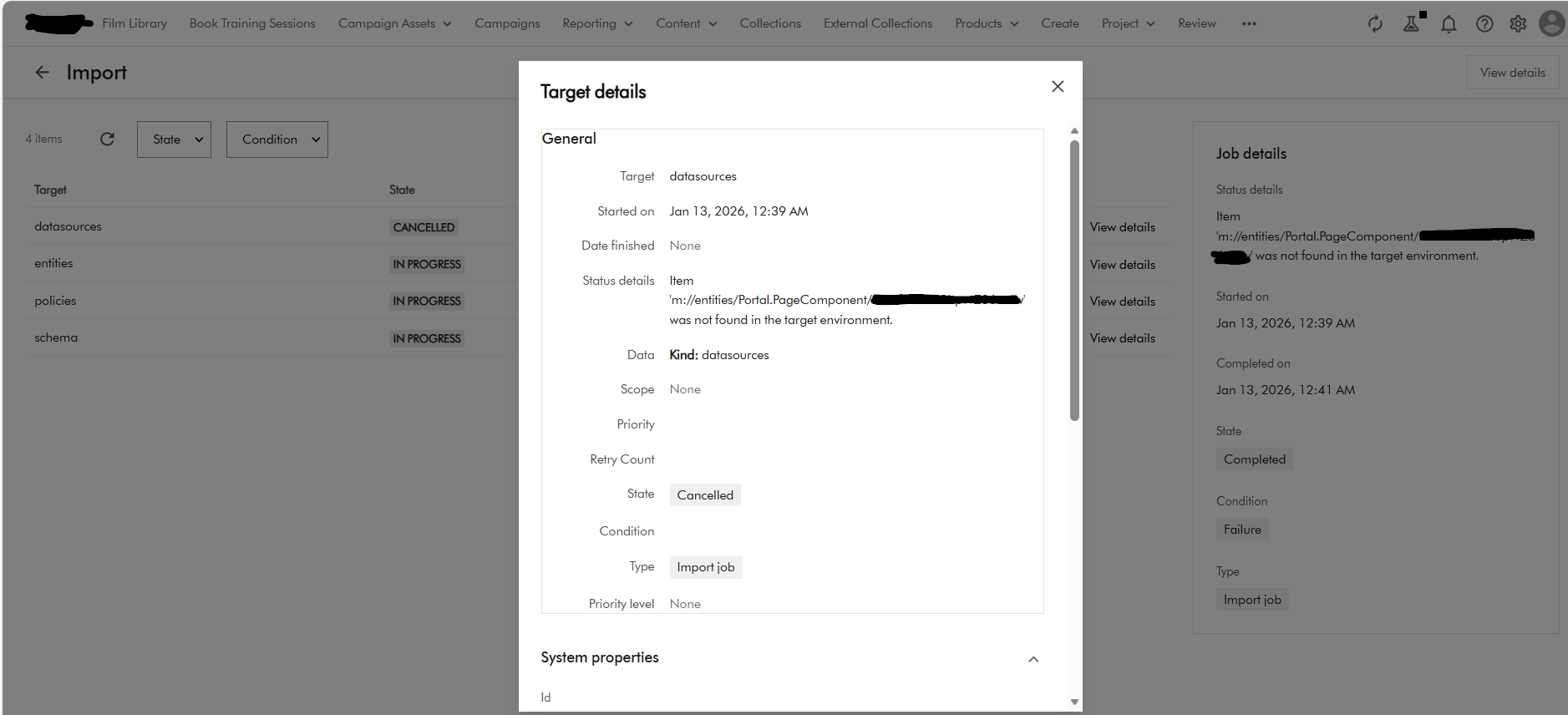
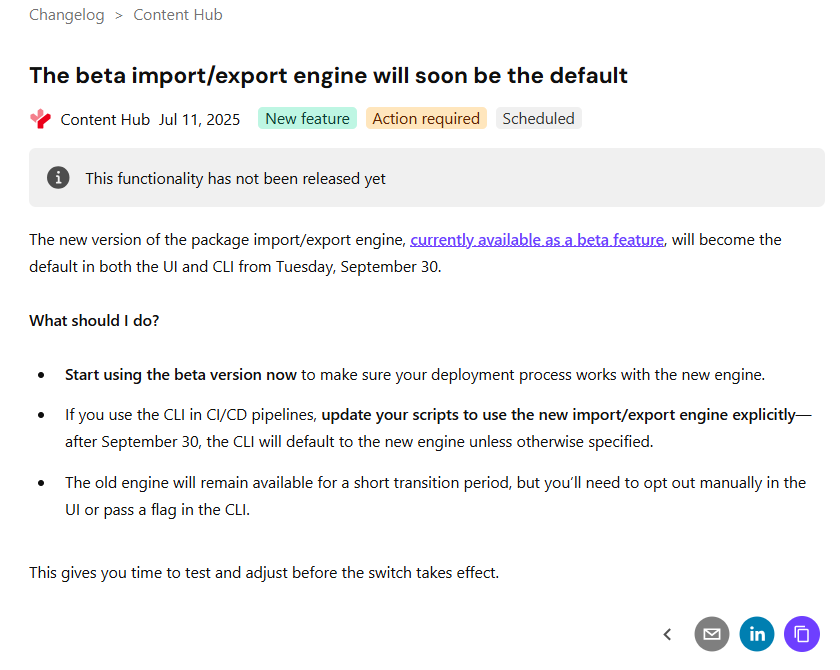
If you already using DevOps for deployments with your Content Hub environments, then you probably already aware of the breaking change that Sitecore introduced a few months ago. You can read the full notification on the Sitecore Support page The new version of the package import/export engine become the default in both the UI and CLI from Tuesday, September 30 according to the notification. Because of the breaking changes introduced, this means existing CICD pipelines won’t work. In fact, there is a high risk of breaking your environments if you try use existing CICD pipelines without refactoring.

In this blog post, I will look into details what breaking changes were introduced and how to re-align your existing CICD pipelines to work with the new import/export engine.

So what has changed in the new Import/Export engine?

Below is a screenshot from the official Sitecore docs summarizing the change. You can also access the change log here.

There is no further details available from the docs on specifics of the breaking change. However, it is very straightforward to figure out that Sitecore fundamentally changed the package architecture in the new import/export engine.

Resources are grouped by type

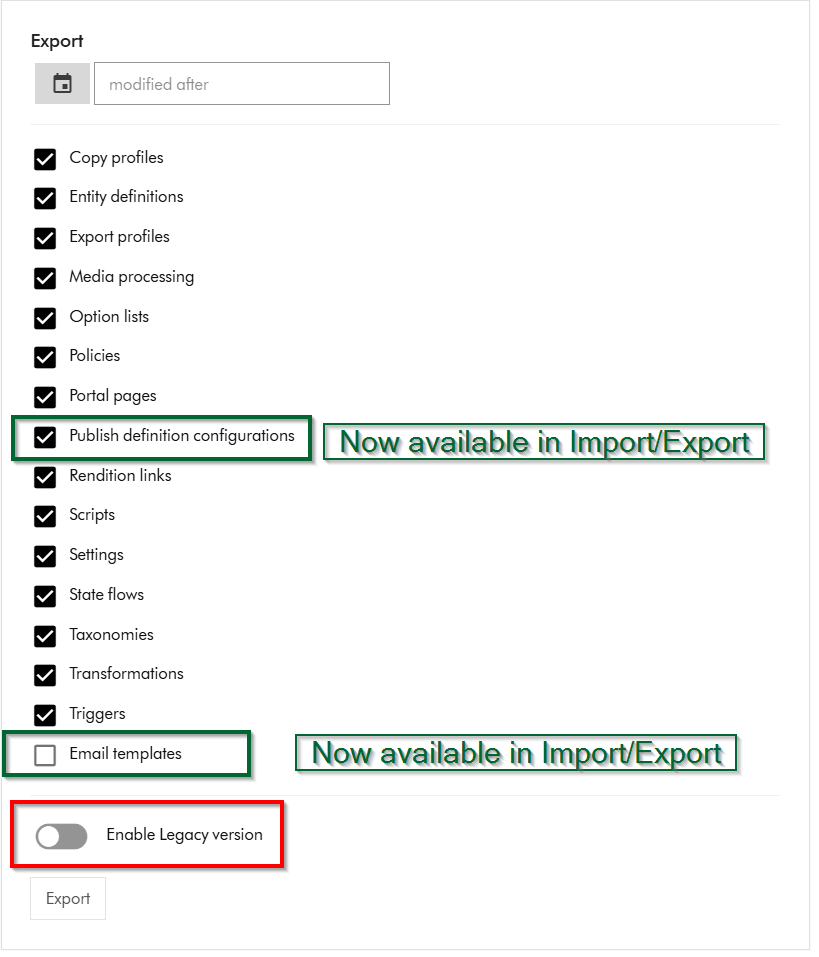
Within Sitecore Content Hub Import/Export UI, you have an option to Export components using both the previous/legacy engine and the new engine. As shown below, you can notice a toggle for Enable Legacy version, which when switched on will allow you to export a package with previous/legacy engine.

Also we can note that Publish definition configurations and Email templates are now available for Import/Export with the new engine. Email templates are unchecked by default.

If you did a quick comparison between the export package from the old/legacy engine vs the new engine, it comes clear that Sitecore has updated the packaging structure to organise content by resource type rather than by export category

This change makes navigation more straightforward and ensures greater consistency throughout the package.

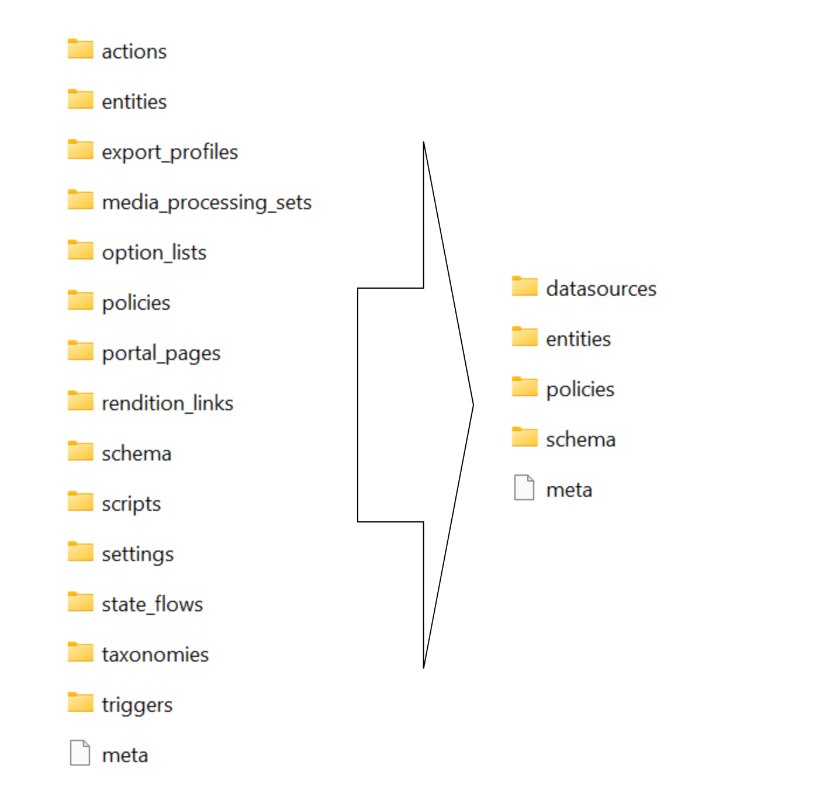
Summary of the changes between legacy and new export packages

Below is a graphic showing how the package structure was changed. On the left hand-side, we have the legacy/old package and on the right hand side is the new one.

Full comparison of package contents between old and new

Below is a more detailed comparison, showing how the packages differ.

ComponentLegacy package sub foldersNew package sub folders
Copy profilescopy_profilesentities
Email templatesn/aentities
Entity definitionsentities
schema
option_lists
datasources
entities
schema
Export profilesexport_profilesentities
Media processingmedia_processing_setsentities
Option listsoption_listsdatasources
Policiespoliciesdatasources
entities
policies
schema
Portal pagesentities
portal_pages
datasources
entities
policies
schema
Publish definition configurationsn/aentities
Rendition linksrendition_linksentities
Settingssettingsentities
State flowsstate_flowsdatasources
entities
policies
schema
Taxonomiestaxonomiesdatasources
entities
schema
Triggersactions
triggers
entities
Scriptsactions
scripts
entities

Resources are grouped by type

Instead of separate folders like portal_pages, media_processing_sets, or option_lists, the new export engine places files according to their resource type. ​

For example:​

  • All entities are stored in the entities/ folder.​
  • All datasources (such as option lists) are found in datasources/ folder​
  • Policies and schema files have their own dedicated folders.​

Each resource is saved as an individual JSON file named with its unique identifier.

Related components are now separated

When a resource includes related items—such as a portal page referencing multiple components—each component is now saved in its own JSON file. ​

These files are no longer embedded or nested under the parent resource. ​

Updating your CICD pipelines

It is very straight forward to update you existing CICD pipelines once we have analysed and understood the new package architecture. You can revisit my previous blog post where I covered this topic in detail You need to simply map your previous logic to work with the new package architecture. You will also need to re-baseline your Content Hub environments within your source control so that you are using the new package architecture.

Next steps

In this blog post, I have looked at the new Content Hub Import/Export engine. I dived into how you can analyse the packages produced from the legacy/old engine and compared it with the new engine. I hope you find this valuable and the analysis provides a view of what has changed in the new package architecture.

Please let me know if you have any comments above and would like me to provide further or additional details.

Step-by-step guide to integrating with Sitecore Stream Brand Management APIs

I previously blogged about Sitecore Stream Brand Management and looked at a high level architecture on how the Brand Kit works under the hood. Today, I continue this conversation and look at a more detailed step-by-step guide on how you can start integrating with the Stream Brand Management APIs.

As a quick recap, Sitecore have evolved the Stream Brand Management to provide a set of REST APIs to manage life-cycle of the brand kit as well as getting a list of all brand kits. You can now use REST APIs to create a new brand kit, including sections and subsections, and create or update the content of individual subsections. You can also upload brand documents and initiate the brand ingestion process.

  • Brand Management REST API (brand kits, sections/subsections)
  • Document Management REST API (upload/retrieve brand documents).

These new capabilities opens opportunities such as allowing you to ingest brand documents directly from your existing DAM. You could also integrate them with your AI agents so that you can enforce you brand rules

Step 1 – Register and get Brand Kit keys

Brand Management REST APIs use OAuth 2.0 to authorize all REST API requests. Follow these steps below:

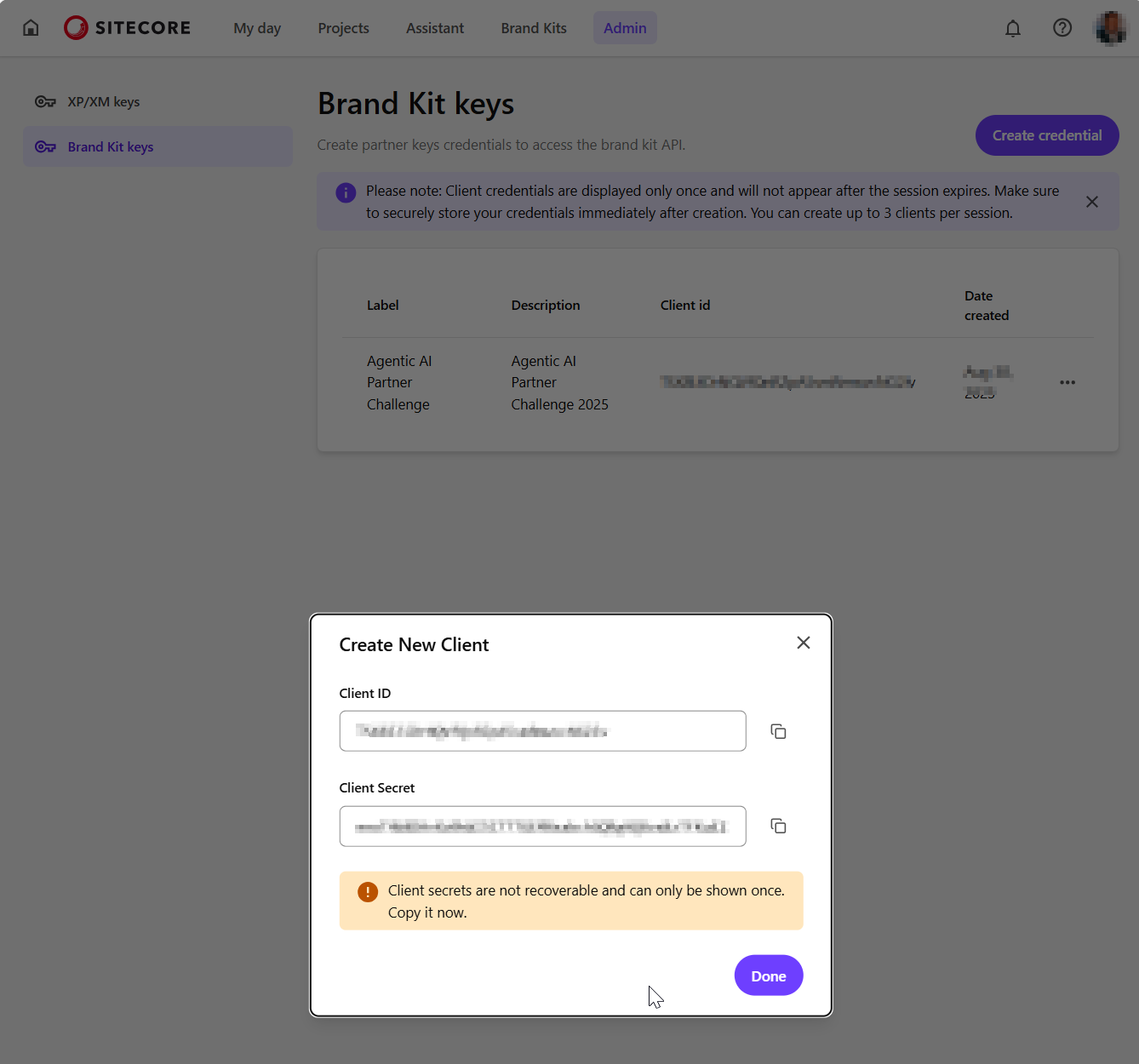
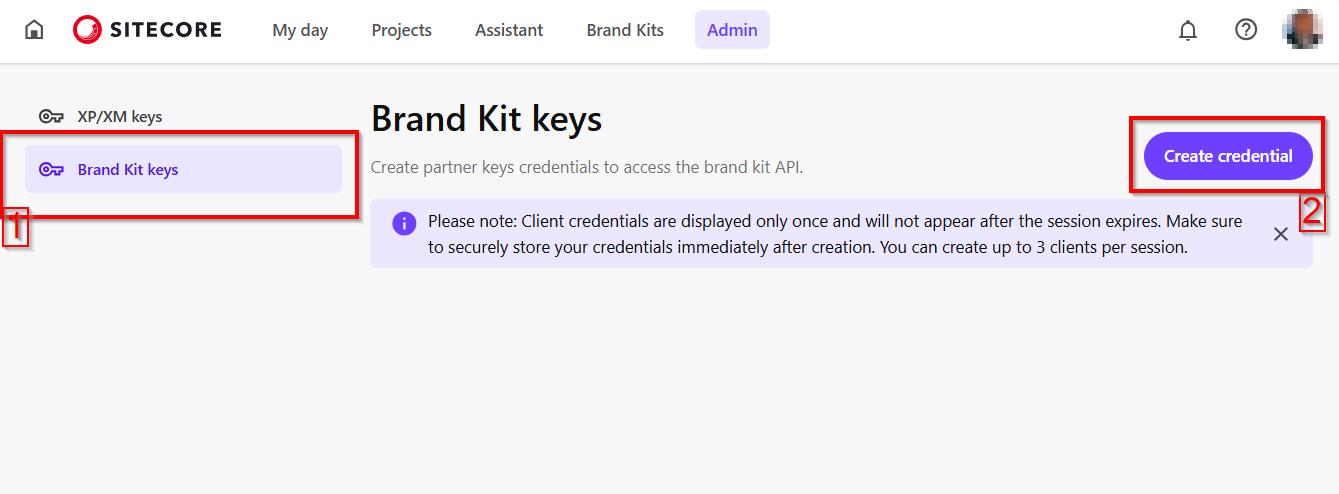
a) From your Sitecore Stream portal navigate to the the Admin page and then navigate to Brand Kit Keys section, as shown below.

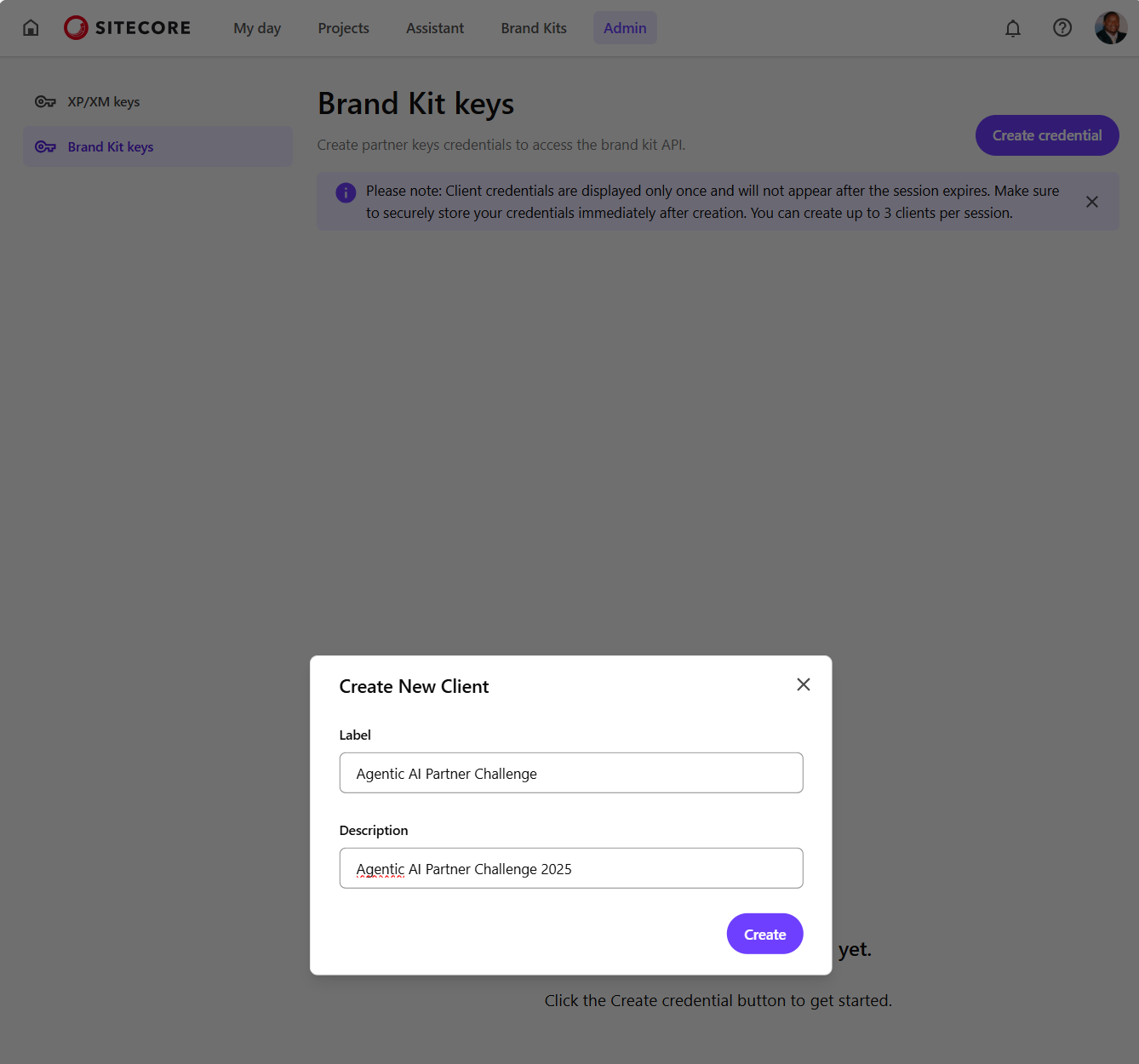
b) Then click on Create credential button which opens the Create New Client dialog similar to one shown below. Populate with the required client name and a description, then click on Create

c) Your new client will be created as shown below. Ensure you copy the Client ID and Client Secret and keep them in a secure location. You will not be able to view the Client Secret after you close the dialog.

Step 2 – Requesting an access token

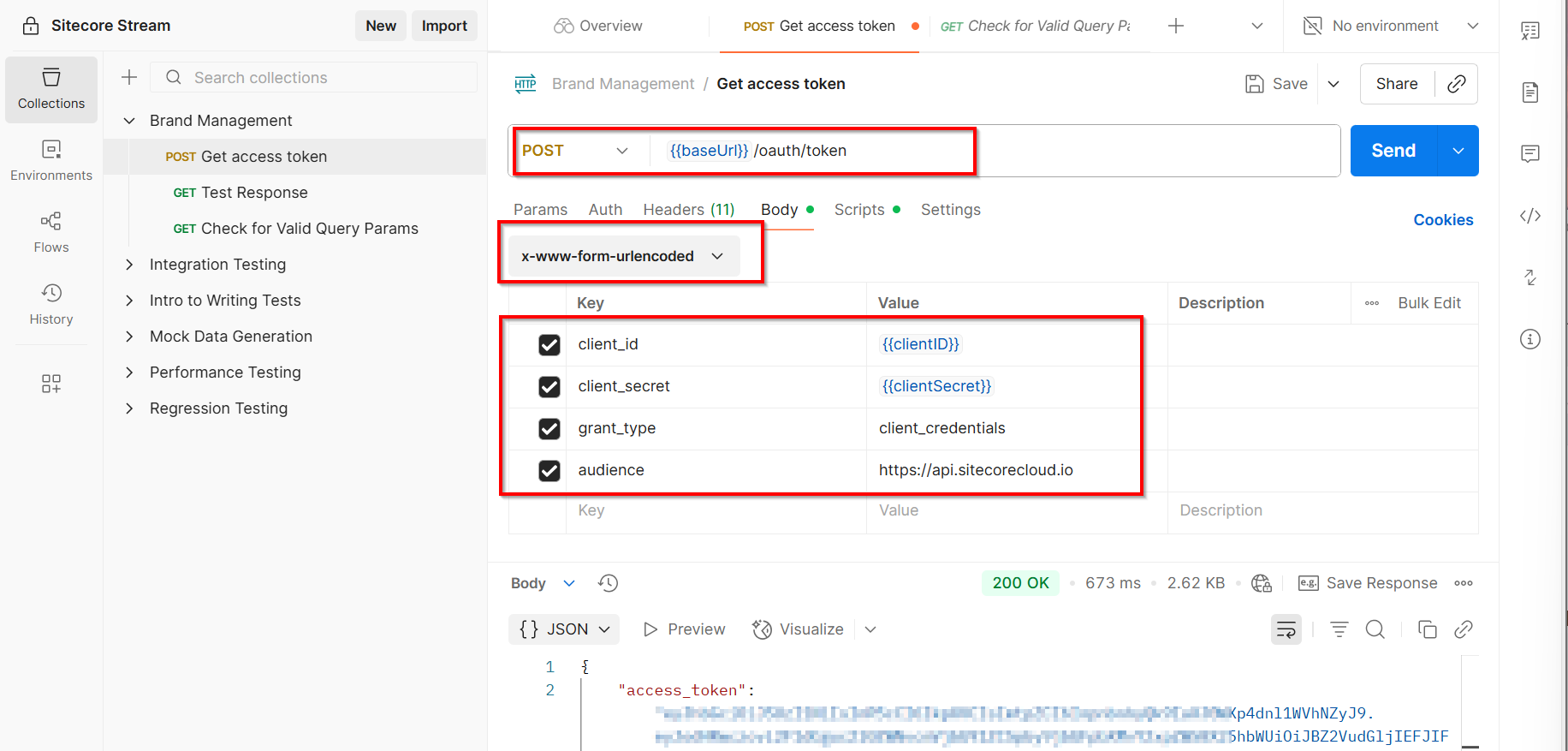
You can use your preferred tool to a request the access token. In the sample below, I am leveraging Postman to send a POST request to the https://auth.sitecorecloud.io/oauth/token endpoint.

  • client_id This is the Client ID from previous step
  • client_secret This is the Client Secret from previous step
  • grant_type This defaults to client_credentials
  • audience This defaults https://api.sitecorecloud.io

If successful, you will get the response that contains the access_token as shown below

  {
    "access_token": "{YOUR_ACCESS_TOKEN}",
    "scope": "ai.org.brd:w ai.org.brd:r ai.org.docs:w ai.org.docs:r ai.org:adminai.org.brd:w ai.org.docs:w ai.org:admin",
    "expires_in": 86400,
    "token_type": "Bearer"
  }

Step 3 – Query Brand Kit APIs

You can start making REST APIs securely by using the access token in the request header.

Get list of all brand kits

Below is a sample request that I used to get a list of available brand kits for my organisation. I am leveraging Postman to send a GET request to the https://ai-brands-api-euw.sitecorecloud.io/api/brands/v1/organizations/{{organizationId}}/brandkits endpoint.

You can get your organisationId from your Sitecore Cloud portal

https://portal.sitecorecloud.io/?organization=org_xyz

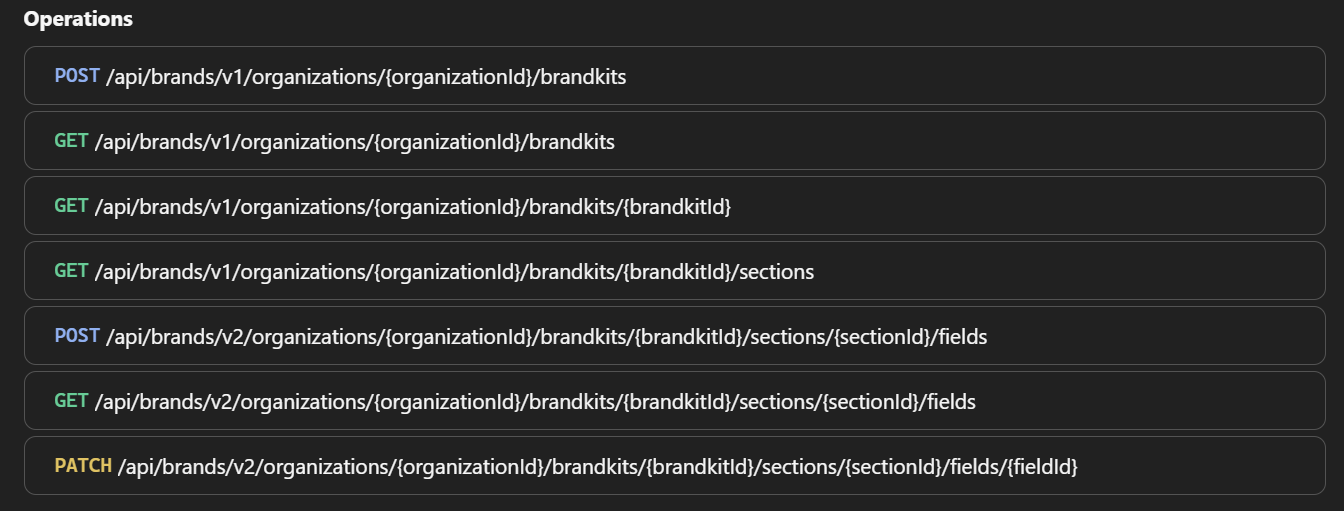
Full list of Brand Kit REST APIs

Sitecore API Catalog lists all the REST APIs plus sample code on how to integrate with them. Below is a snapshot of the list of operations at the time of writing this post:

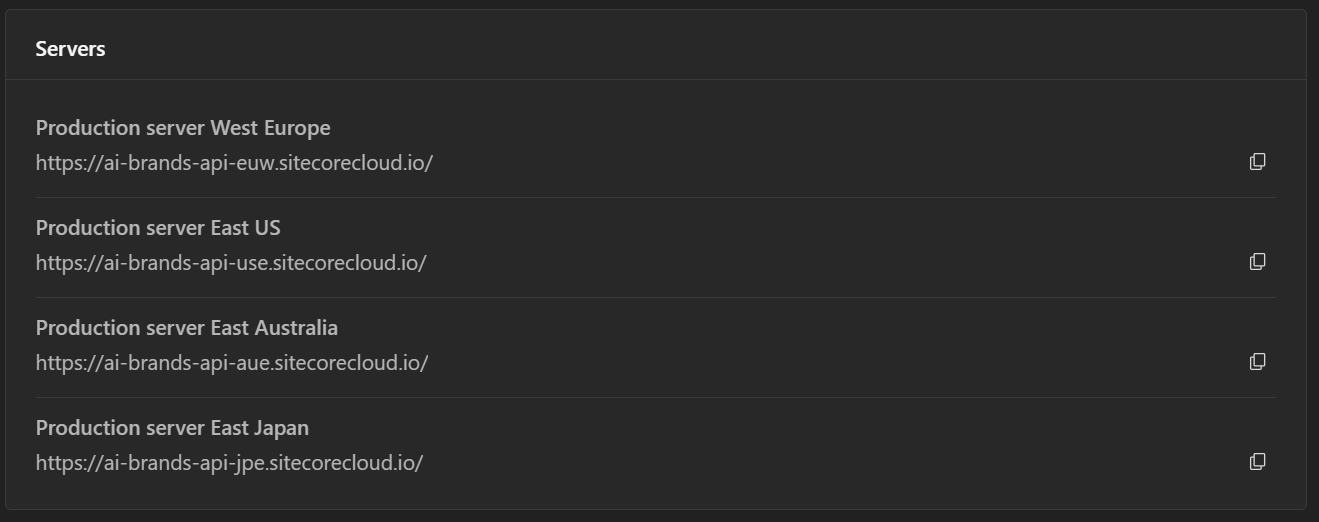
Ensure you are using the correct Brand Management server. Visit Sitecore API catalog for list of all the servers. Below is a snapshot of the list at the time of writing this post:

Next steps

Have you started integrating Sitecore Stream Brand Management APIs yet? I hope this step-by-step guide helps you start exploring the REST APIs so you can integrate them with your systems.

Stay tuned for future posts, feel free to leave us comments and feedback as well.

Content Hub DevOps: Resolving unable to delete entity because it’s being used in one or more policies errors

Context and background

Content Hub permissions and security model is underpinned by the user group policies model, whereby Content Hub users can perform actions based on their access rights. The official docs provides clear definition of the anatomy and architecture of the user group policies. For example, a user group policy consists of one or more rules, with each rule determining the conditions under which group members have permissions to do something.

While all the technical details of group policies are nicely abstracted away from our business users, there are use cases when you will need to in fact grapple with technical details of the policies. Such as when you can’t delete your taxonomies or entities, simply because you have used them in one or more rules in your policies.

In this blog post, I will outline this pain point and recommend a solution.

Unable to delete entity ‘…’ because it’s being used

Yes that is right. If you have used a taxonomy value or some other entity as part of your user group policy definition – then it makes sense you can not delete it. That is expected logic, we have a clear dependency within the system. In which case, we need to break or remove this dependency first.

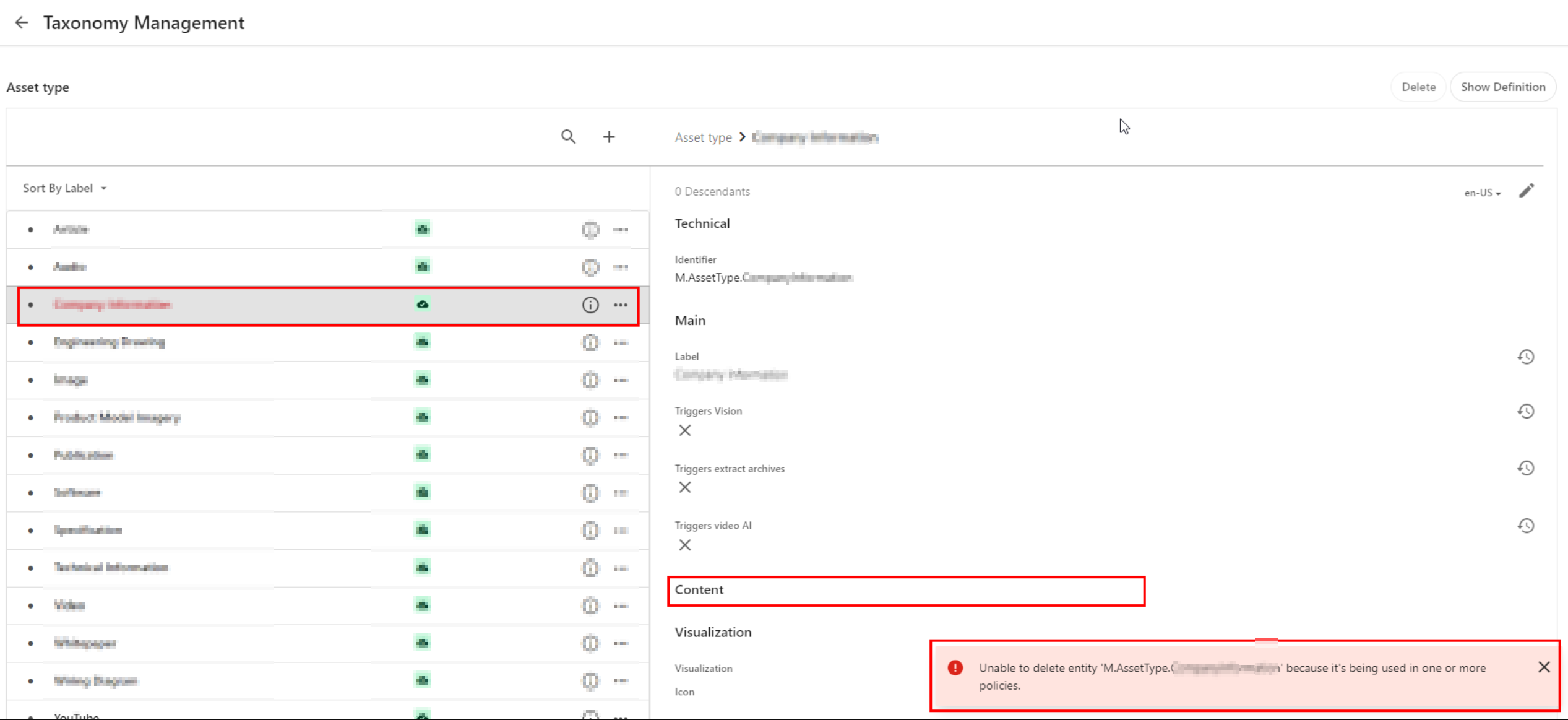
Below is a sample screenshot of this error message. In this example, the highlighted taxonomy value can not be deleted yet, until the dependency has been removed.

User group policy serialization as JSON

If you haven’t set up DevOps as part of your Content Hub development workflow, then we need to cover some basics around user group policies serialization. You can leverage Content Hub Import/Export feature to export all polices into a ZIP package, as detailed below:

  1. Using the Manage page, navigate to Import/Export.
  2. On the Import/Export page, in the Export section, select only the Policies check box and click Export. This will generate a ZIP package with all policies.
  3. Click View downloads at the right bottom of the screen.
  4. On the Downloads page, click the Download Order icon when the status of the package is ready for download. This will download the ZIP package with all policies.
  5. Unzip the downloaded package. This will have JSON files of all policies

A look at M.Builtin.Readers.json for example

Below is a snippet from the M.Builtin.Readers.json, which a serialized version of the M.Builtin.Readers user group (one of the out-of-the-box user groups)

Remember a group policy consists of one or more rules, with each rule having one or more conditions under which group members have permissions to do something.

I have highlighted one of the conditions within the first rule in this user group policy. This condition shows the dependency on one of the taxonomies, M.Final.LifeCycle.Status

On line 20, the reference (“href”) indicates which taxonomy child value is being used, which is M.Final.LifeCycle.Status.Approved

The full content of this file are available from my GitHub Gist for your reference.

How to safely delete or remove taxonomy references from user group policy JSON file

The serialized user group policy JSON file is a plain text file. So any a text editor of choice can be used to edit this file, and delete all references to the taxonomy with a dependency. And then save the changes in updated JSON file. That is it.

Due care has to be taken to ensure that the rest of the JSON file is not modified.

Once all references are deleted and verified, you can create a new ZIP package with the changed files, to be imported back into Content Hub.

It is recommended your certified Content Hub developers should make these changes (and validate them, say, using a text file comparison tool such as Beyond Compare). For example, you need to compare the original ZIP package with the newly created one to make sure that their structure is the same.

Finally, the newly created ZIP package can be imported using the Import/Export functionality as detailed in official docs.

DevOps: Automating removing taxonomy or entities references from user group policies

I have previously blogged about enabling DevOps as part of your Content Hub development workflow.

The current pain point becomes a bread-and-butter problem to solve assuming you already embraced Content Hub DevOps.

With some business logic implemented as part of your CI/CD pipelines, all references to taxonomy values or entities can be safely and reliably deleted from user group polices. This can be done with automation scripts and other tooling that comes with DevOps, truly bringing you ROI in your DevOps infrastructure.

Sample/suggested CI/CD pseudo code

  1. Define a CI/CD “user group policies clean-up” step to be invoked whenever we are deleting “entities” from your Content Hub instance.
  2. Using a Regex, scan and systematically delete such entities from your user group policies JSON files (depending on how you’ve setup your DevOps, all policies should be serialized to policies folder)
  3. Ensure your “user group policies clean-up” step runs ahead of any deletion of the entities (or taxonomy values). Remember you can’t delete an entity if it is being referenced in your user group policy.
  4. Work with your DevOps engineers to validate the steps and test any changes in non-production environment(s), before applying to production environment.

Remember to also look at my related blog post on DevOps automation for your Action Scripts.

Next steps

In this blog post, I have discussed a common pain point when you are Unable to delete entity because it’s being used in one or more policies. I explained why this is the case, and looked into technical details of user group policy architecture. I provided a solution, which can be automated with a robust DevOps culture adoption for Content Hub.

I hope my approach helps you address similar scenarios in your use-cases. Please let me know if you have any comments above and would like me to provide further or additional details.
Content Hub DevOps: Managing your action script code lifecycle in CI/CD pipelines

Context and background

When working with automated CI/CD pipelines with you Sitecore Content Hub, you need to be aware of the development lifecycle for your Action Scripts. This is to ensure your source code repo for your scripts doesn’t get ‘bloated with orphaned‘ script code files. In this blog post, I will cover how to manage the development lifecycle of your Action Scripts to mitigate against this problem.

What happens when you serialize action scripts into source control

I have previously blogged on Content Hub DevOps, especially on leveraging Content Hub CLI to extract a baseline of your Content Hub components. For example ch-cli system export --type Scripts --wait --order-id command allows you to export Actions, Scripts and Triggers package. When you unzip or extract the files within this package, you will notice there is a scripts folder. This will have two types of files: .json files and .csx files (assuming your actions scripts are written in C#.NET)

Script .json file type

For each action script packaged from your Sitecore Content Hub instance, it will have two files. One of them is the script .json file.
Below is a sample action script json file:

This file contains all the relevant meta-data about the action script. In particular, you will notice that it is referencing a second file using the ScriptToActiveScriptContent relations property. Using our sample above, this json file is referencing this code file “ZOGG4GbbQpyGlTYM7r1GfA

Script .csx code file

The code file based on C#.NET, is similar to the sample shown below.

What happens when you modify the code in your scripts

Each time you make changes to your Action Script source code and successfully build it, Content Hub will generate a new code file version behind the scenes. This will be automatically linked to its corresponding script .json file.

To visualise this, you will notice that when you serialise your Action Script again from your Content Hub instance, a new code file will be generated.

If you now compare the previous code file with the new one, it will become obvious which changes Content Hub has made to the .json file. Below is a sample comparison.

What should you do with the ‘old’ code file

We have now established what is going on whenever the source code in your action script is changed and successfully rebuilt. Each time, a new file will be generated. The old file will remain in your source code repository, unused and effectively ‘orphaned’.

My recommendation is to design your DevOps process that will always clean-up or delete all files from your scripts folder in your source code, before pulling the latest serialised files from your Content Hub instance.

You can do this in an automated way leveraging the Content Hub CLI commands. Alternatively, you can do it old school way leveraging PowerShell commands to delete all files from scripts folder before serializing new ones again. Whichever mechanism you leverage, ensure old and used code files do not bloat your source code repo.

Next steps

In this blog post, I have discussed what happens when you make code changes to your action scripts. I explained why you will have ‘old’ or ‘orphaned’ code files within your script folder that will bloat your source code repo. I also covered steps you can take to mitigate this problem.

I hope my approach helps you address similar scenarios in your use-cases. Please let me know if you have any comments above and would like me to provide further or additional details.
Content Hub tips & tricks: Overriding Created by or Modify by ‘ScriptUser’ in your scripts

Background

If you currently leveraging Action scripts as part of your Content Hub solution, you probably noticed that any updates done to your entities are tagged as Created by or Modified by ‘Scriptuser’. You may as well not be aware that actually this is how the Content Hub platform works by design. At present, all scripts operate under the Scriptuser account

But how do I override the ‘Scriptuser’ account?

Frustratingly, there isn’t much documentation around this ‘Scriptuser’ on the official docs. You are not alone in this. That is why I have put together this blog post to help provide a solution to this problem.

It is not all doom and gloom. In fact, if you look around in Sitecore docs, the IMClient provides a capability to impersonate a user, using the the ImpersonateAsync method.

Below is a definition from Sitecore docs:

ImpersonateAsync(string)

Creates a new IMClient that acts on behalf of the user with the specified username. The current logger will be copied to the new client.

So we will need a function to get an impersonated MClient

Looks like we have a solution then. All we need to do now is define function within our Action Script, that will create an instance of an impersonated MClient. This impersonated client will in effect allow us to override the Scriptuser with the current user triggering our Action Script. Which is the solution to our current problem.

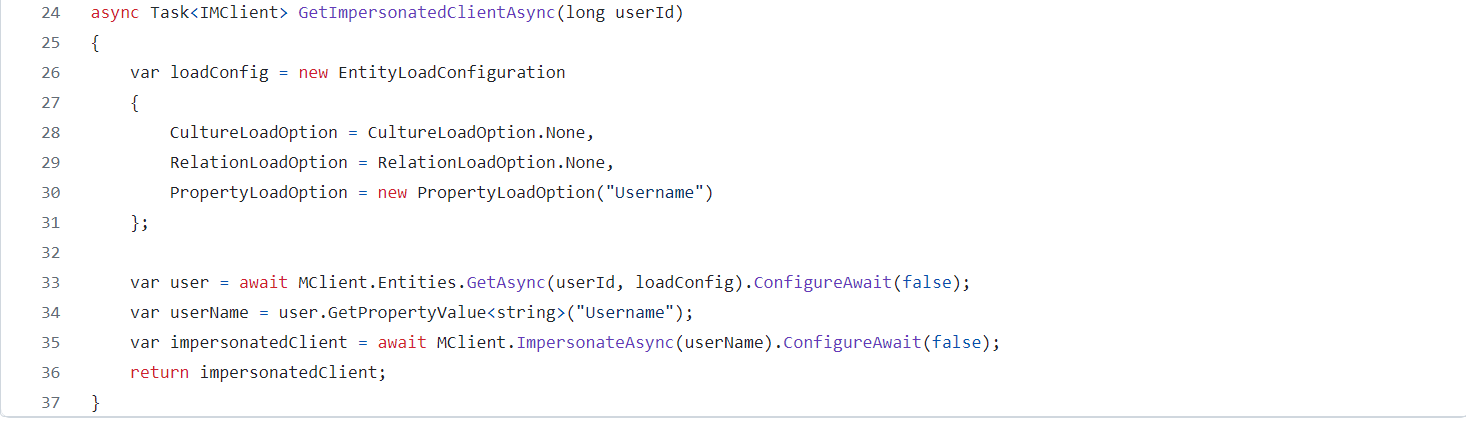
Good news, I have already defined such a function for you. I have named this function GetImpersonatedClientAsync, a shown below.

You should be familiar on how to load an entity property, by leveraging the PropertyLoadOption in your EntityLoadConfiguration, as shown above. That is how I am able to retrieve the Username property from the current user entity (currently authenticated user within Content Hub). This will be the user that has triggered our Action Script.

It is need as a parameter when calling the MClient.ImpersonateAsync as shown on line 35 above.

I have left the details of how triggering of an Action script happens, since I have covered this topic in my previous blog posts, such as this one.

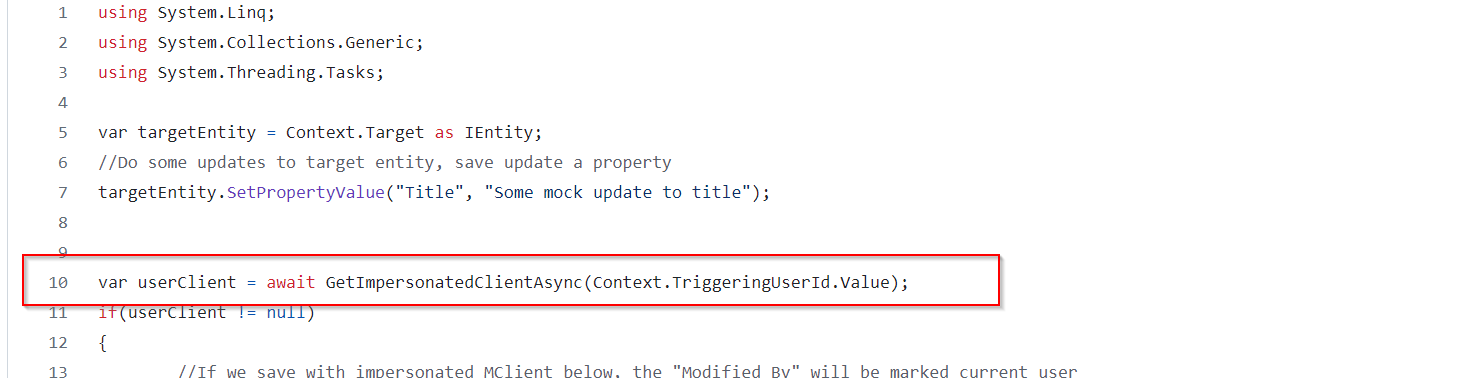
However, I would like to call out that the UserId of the authenticated user is always available within the Action Script via accessing the Context object. Below is a snippet of how I have done this on line 10.

Saving changes with Impersonated MClient

We now need to use the impersonated MClient in all instances where we are saving changes in our Action Script. Below is a code snippet on how to achieve this. You can see on line 15, I am using the impersonated userClient. You can easily compare this with line 20, which is a fallback option that uses default MClient.

You can view the full source code of the above script from my public GitHub Gist.

Next steps

In this blog post, we have looked at a how to override the Scriptuser within an action script. I have walked you through a sample action script and also shared sample source code for your reference. I hope you find this useful for your similar use cases.

Stay tuned and leave please us any feedback or comments.

Content Hub tips & tricks: Getting entity created by, modified by and other audit data in your scripts

Background

I have previously blogged about creating Action Scripts to help aggregate your Content Hub data for sharing with external or third party integrations. In this blog post, I wanted to demonstrate how to access your entities audit data such as when the entity was created and who created it. Also when it was last modified and who made the modification.

IEntity is all you need

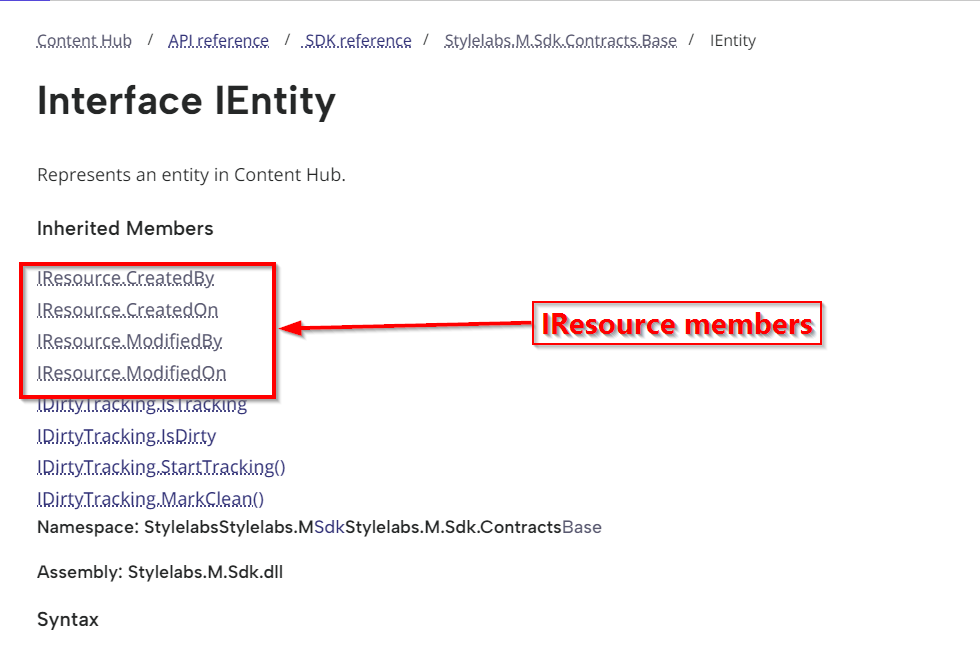
IEntity represents an entity within Content Hub.

Luckily enough, IEntity already inherits the IResource type which defines the audit fields that we need, as highlighted above.

Sample Action script code

Below is a snippet of an action script, to demonstrate how to access these audit fields.

And below is the sample output from the above script.

Script explanation

  • Line 14 through 27 demonstrates how to get the entity object within your action script. The Context object provides you with the triggering context properties. In this case we are can try obtain the entity from Context.Target as shown on Line 14. The rest of the code checks if we succeeded to get the entity object, in which case we can try load it using a custom function GetEntity as shown in Line 20. I will cover details about this in a minute.
  • Line 29 demonstrates how to obtain the entity definition name
  • Line 32 through 35 demonstrates how to obtain the entity auditing metadata.

How to load entity using custom fuction

Below is the code snippet how to load an entity using an entity Id, by leveraging the MClient.Entities.GetAsync method. Notice you will need to specify the load configuration, where additionally we can specify which properties and relations we need to load for the entity.

For example, I am loading the “AssetTitle” property as well as the “AssetTypeToAsset” relation for my M.Asset entity type.

You can view the full source code of the above script from my public GitHub Gist.

Sample Trigger for our script

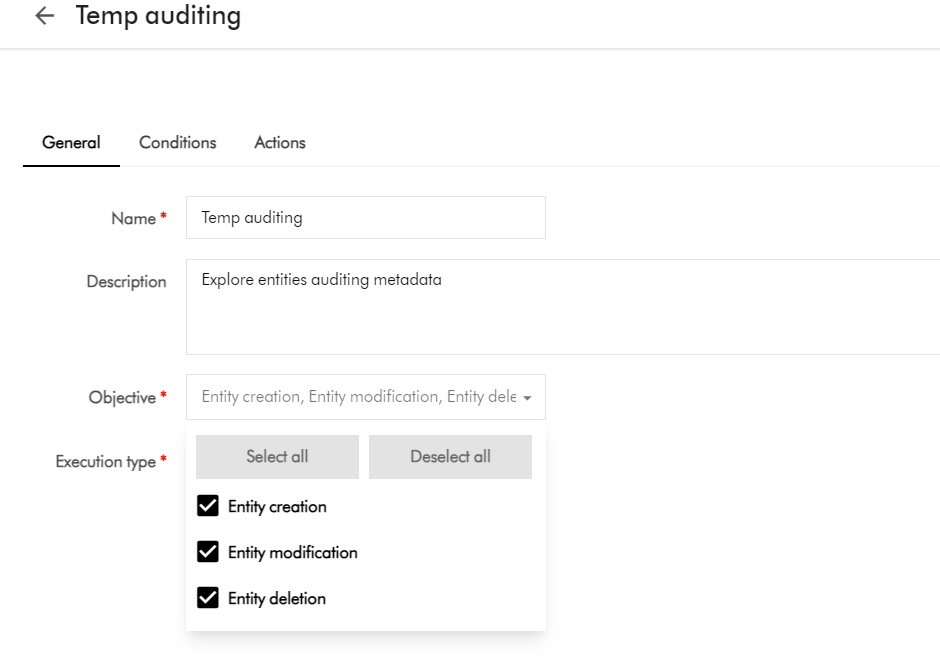
Below is a sample trigger, indicating the triggering events we are interested in. As you can see, our trigger will fire whenever an entity has been created, modified or deleted within Content Hub.

I haven’t shown the triggering conditions, and how to link this to an Action. This information is available within Content Hub documentation, if you would like to explore further.

Next steps

In this blog post, we have looked at a how to access an entity’s auditing metadata within an action script. I walked you through a sample action script and a sample output, and also shared sample source code for your reference. I hope you find this useful for your similar use cases.

Stay tuned and leave please us any feedback or comments.

Streamlining Content Hub DevOps: Deploying Environment Variables and API Settings to QA and PROD

Context and background

I recently worked on an exciting Content Hub project which required automation of deployments from DEV environments to QA/TEST and PROD. One of the challenges I faced was how to handle environment specific variables and settings. One particular use case is the API call Action type, which has references to some API call endpoint and using an Api Key. Typically, such an API call will point to a non-production endpoint in your QA/TEST Content Hub and a production facing endpoint for the PROD Content Hub

Sounds familiar, should be easy right?

I thought so. I thought I put this question to my favourite search engine to see what is out there. The truth is Content Hub DevOps is nothing new really. There is plenty of documentation on how to go about it, including this blog post from the community From the Sitecore official docs, you can also find details about how to leverage Content Hub CLI to enable your DevOps workflows.

However, I couldn’t come across an end-to-end guide that solves my current problem. Nicky’s blog post “How to: Environment Variables in Content Hub Deployments” was pretty good actually and I have to say I found the approach quite compelling and detailed. However, I didn’t adopt Nicky’s approach as I would like to use automated end-to-end DevOps pipelines. Unfortunately, Nicky’s approach doesn’t.

My approach

Below is a high level process I have used.

  • Leveraging Content Hub CLI to extract a baseline of your Content Hub components. For example ch-cli system export --type Scripts --wait --order-id command allows you to export Actions, Scripts and Triggers package, which you can extract all yours Actions, Scripts and Triggers as JSON files. These can then be source controlled, allowing you to track future updates on a file-by-file basis. For a full list of components that you can export, you can pass --help param as shown below.
  • Without DevOps, you will typically package and deploy your Actions, Scripts and Triggers, say from DEV Content Hub into QA Content Hub instance. You will then have to manually update any of your API call Actions with the QA specific endpoint URL.
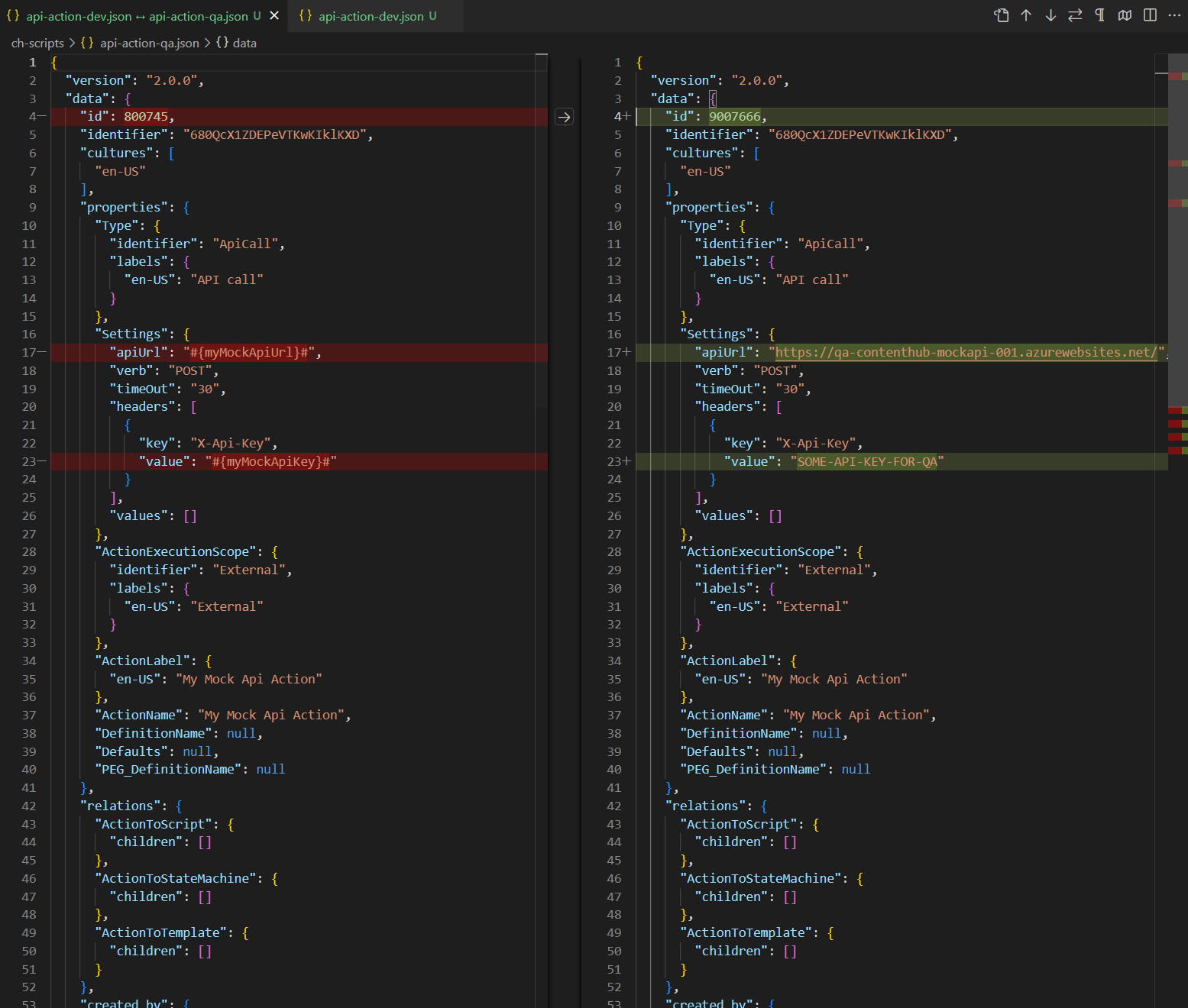
  • With Content Hub CLI, I am able to source control and compare my Content Hub DEV and QA files as shown below. Left-hand side is my DEV mock API action, right-hand side is my QA. Please keep note the identifier is the same (680QcX1ZDEPeVTKwKIklKXD) to ensure the same file can be deployed across to Content Hub QA and PROD
  • This is quite powerful, since I can take this to another level and define Environment specific variables for my mock API action, as shown below. I have identified I will need #{myMockApiUrl}# and {myMockApiKey} variables.
    • Notice I am leveraging the ReplaceTokens Azure pipelines task. Left-hand side is my DEV mock API action, this time I have parameterised the variables. Right-hand side is my QA to help illustrate the differences. During the QA deployment, my CI/CD pipelines will transform the source controlled file on the left-hand side into QA file on the right.
  • This is it, I have solved my problem. I have identified which component(s) have environment specific variables and parameters. I can now leverage DevOps CI/CD pipelines to package all my components, generate a deploy package specific for Content Hub QA environment.
  • Deploying a package using Content Hub CLI uses this command: ch-cli system import --source "path to your deploy package.zip" --job-id --wait
  • Wearing my DevOps hat, I am able to write a complete end-to-end CI/CD pipelines to automate the deployments.

Using Azure DevOps CI/CD pipelines

It is very straight forward to define and implement an end-to-end Azure DevOps CI/CD pipelines once we have defined our process and development workflows.

Azure variables template definition

One capability you can leverage is the Azure variables template definitions to allow you to define Content Hub QA and PROD variables, such as below. Please notice #{myMockApiUrl}# and {myMockApiKey} variables in this template file. They now have Content Hub QA specific values. We will need a similar file to hold Content Hub PROD variables.

Referencing Azure variables template file in main pipeline

The Azure variable template file for QA (qa-variable-template.yml, in my case) can then be linked to the main Azure CI/CD pipeline yaml file, such as shown below:

Replacing tokens in main pipelines

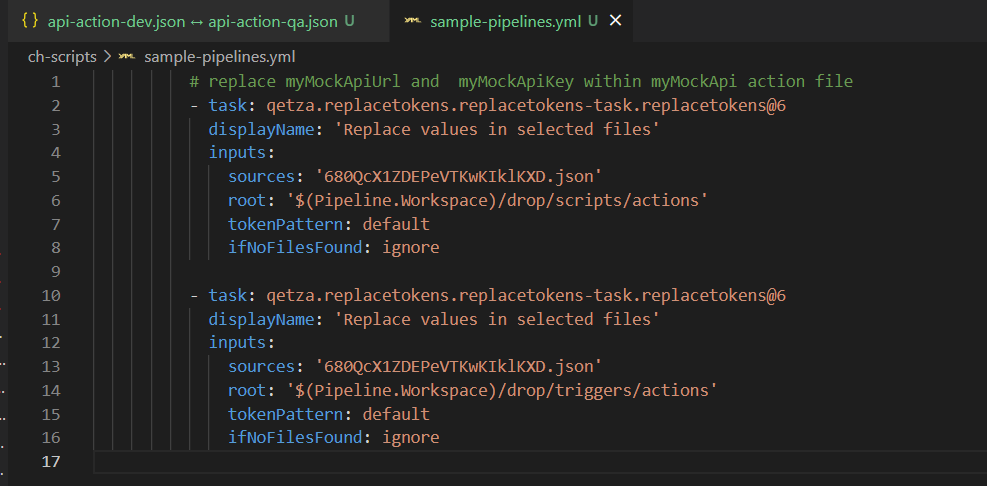
Replacing tokens sample is shown below. Please notice the API call Action Identifier 680QcX1ZDEPeVTKwKIklKXD that was referenced in my previous screenshots above

Next steps

In this blog post, I have introduced the problem and use-case when you need to manage and deploy Content Hub environment specific variables. I have used an API call Action type to illustrate this use case. I have also covered how to leverage Content Hub CLI to serialise Content Hub components and demonstrated an example of using Actions, Scripts and Triggers components. I finished with my own approach and how I did an implementation of an end-to-end automated DevOps process. I hope my approach helps you address similar scenarios in your use-cases. Please let me know if you have any comments above and would like me to provide further or additional details.

Creating and publishing a Content Hub custom connector – Func app settings and debugging

Introduction

In my previous blog post, I covered how to set-up your Func app within Visual Studio. In this post, I would like to walk you through how to configure your Func app to allow you to run and debug it in your local development environement.

Func app local.settings.json file

Within your Visual Studio project, create local.settings.json file at the root of the project. A sample json file is shown below. This will be used to configure all the configuration settings to allow you to run and debug the Func app locally.

The local.settings.json file stores app settings and settings used by local development tools. Settings in the local.settings.json file are used only when you’re running your project locally.
Because the local.settings.json may contain secrets, such as connection strings, you should never store it in a remote repository.

DevOps best practices

Microsoft Azure portal func app application settings

Similarly, you will need to configure all the configuration setting on your Microsoft Azure portal for your test or production Func app instances.

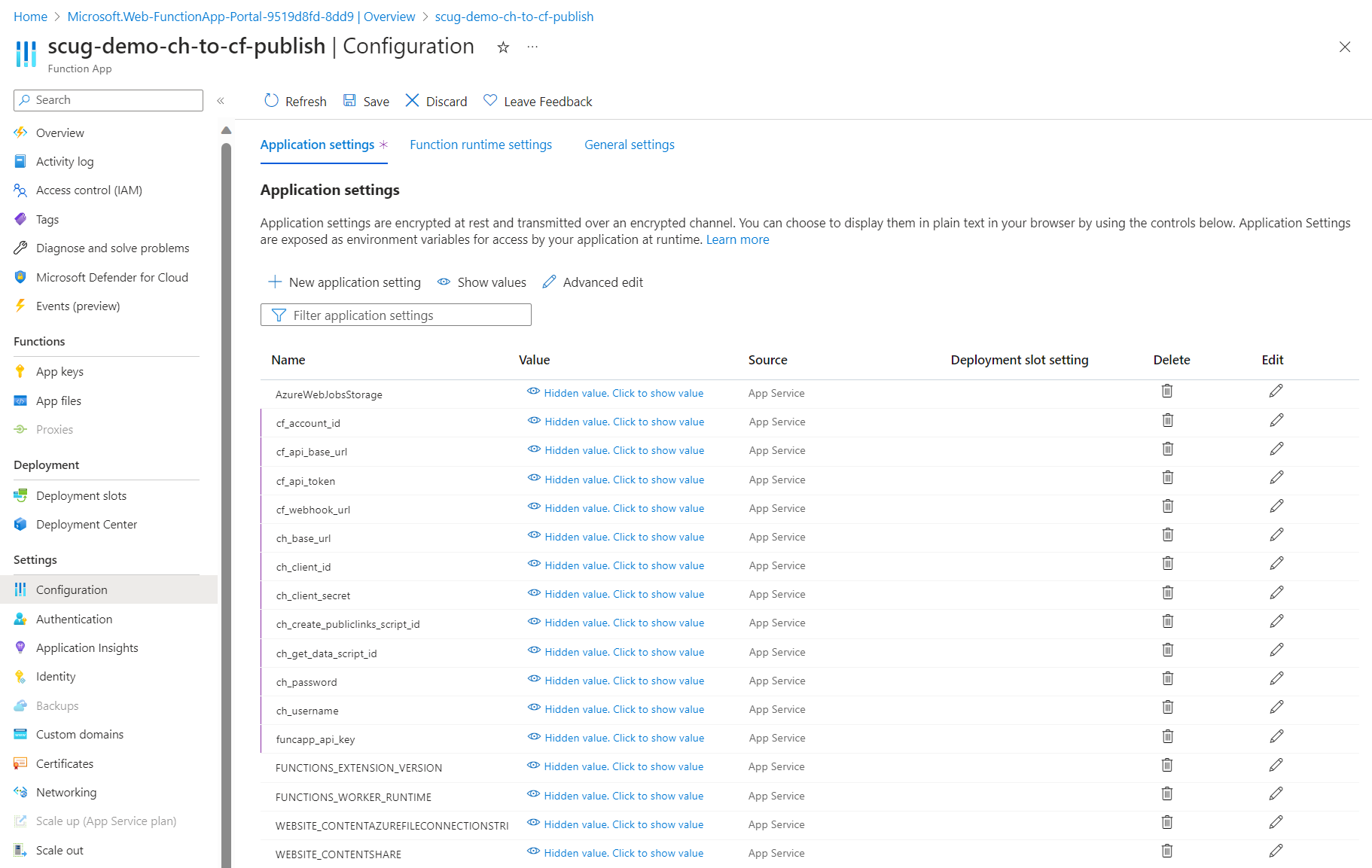
Clicking on Configuration menu, then Application settings tab will launch the page similar to the one shown below.
Depending on your needs, these application settings can be managed manually or very easily automated using DevOps pipelines.

List of required application settings

Below is a complete list of the Func app application settings

  • cf_account_id your Cloudflare account identifier
  • cf_api_base_url your Cloudflare API base URL
  • cf_api_token your Cloudflare API token
  • cf_webhook_url your Cloudflare webhook URL
  • ch_base_url your Content Hub instance base URL
  • ch_client_id your Content Hub instance client identifier
  • ch_client_secret your Content Hub instance client secret
  • ch_create_publiclinks_script_id your Content Hub action scrip identifier for creating public links
  • ch_get_data_script_id your Content Hub action scrip identifier for getting data
  • ch_password your Content Hub integration user password
  • ch_username your Content Hub integration user username
  • funcapp_api_key your custom Func app API key configured within your Content Hub integration

Next steps

In this blog post, we have explored at how to configure your Function app application settings to allow you to run and debug it in your local development environment. We also looked at configuring them on your published Func app on your Microsoft Azure portal.

Feel free to watch the rest of my YouTube playlist where I am demonstrating the end-to-end custom connector in action. Stay tuned.

Creating and publishing a Content Hub custom connector – Visual Studio project set-up guide

Background

I recently shared a video playlist on how I built a Content Hub custom connector that allows you to publish video assets into your existing video streaming platforms

On this blog post, I wanted to share details on how to setup your Visual Studio project and solution as well us how to deploy or publish the connector to your Microsoft Azure cloud.

Create a function app project

Using latest Visual Studio IDE, create a new Azure Functions project, using C# template as shown below

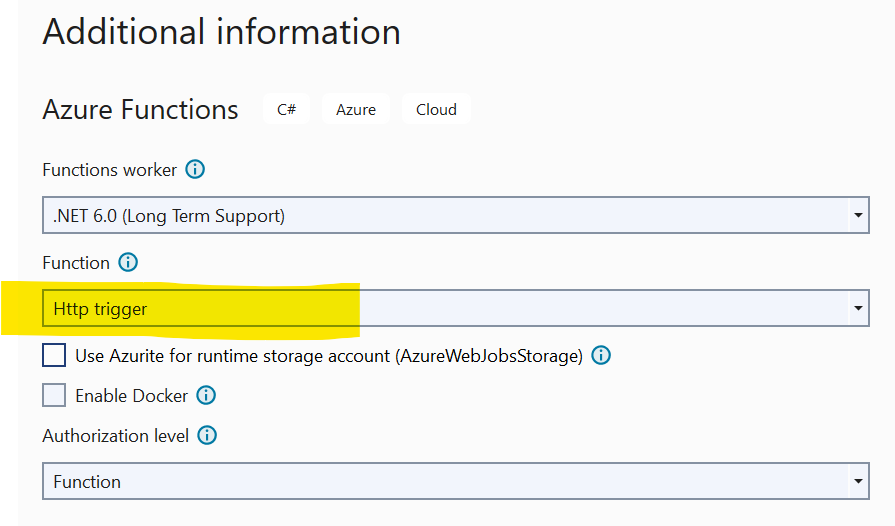
Choose a meaningful name for your project and progress through the next step. Ensure you select Http triggered function as show below.

Finalise the create project wizard to get your project created.

Add Content Hub web SDK reference

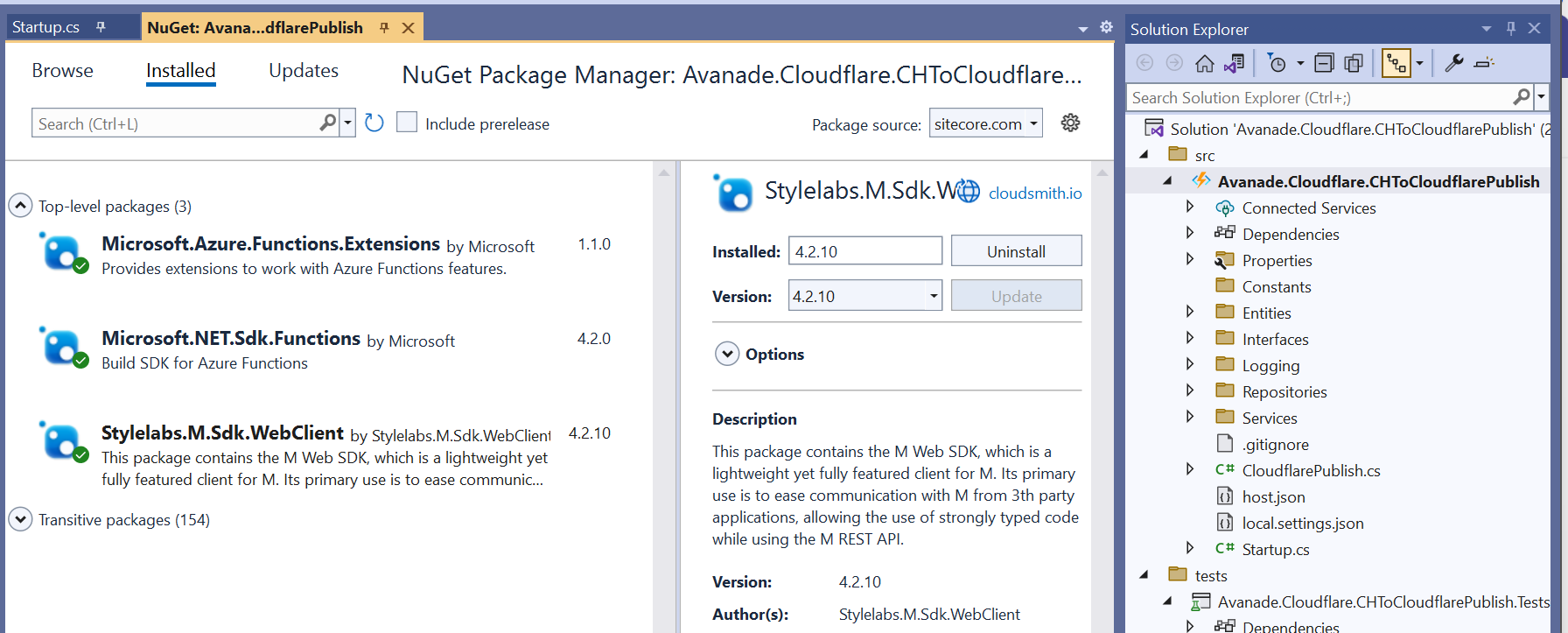
As shown below, add a reference to Stylelabs.M.Sdk.WebClient NuGet Package to your project.

In addition, ensure you have added the Microsoft NuGet Packages below to enable dependency injection to your Func app.

Enabling FunctionStartup in your Func app

To enable dependency injection in your project, add a Startup class similar to the one shown below. The Startup class needs to inherit the FunctionStartup, which allows us to configure and register our interfaces.

Creating Function App on Microsoft Azure portal

As explained in the video playlist, you will need to publish your Func app into your Microsoft Azure subscription.

You will need to create a Function App app in your Microsoft Azure subscription using the create template as shown below. Ensure you select relevant Subscription, Resource Group and .NET Runtime stack.

Progress through the create wizard screens to stand up your Function app in the portal.

Getting publish profile from the Microsoft Azure portal

On your newly created Function app, navigate to the Deployment Center as shown below

Clicking on the the Manage publish profile link should present a pop up window, from which you can download the publish profile. Keep note on the location where you have downloaded this publish profile file.

Importing publish profile into your Visual Studio project

Right-click on your project within VS, which should pop-up the menu shown below.

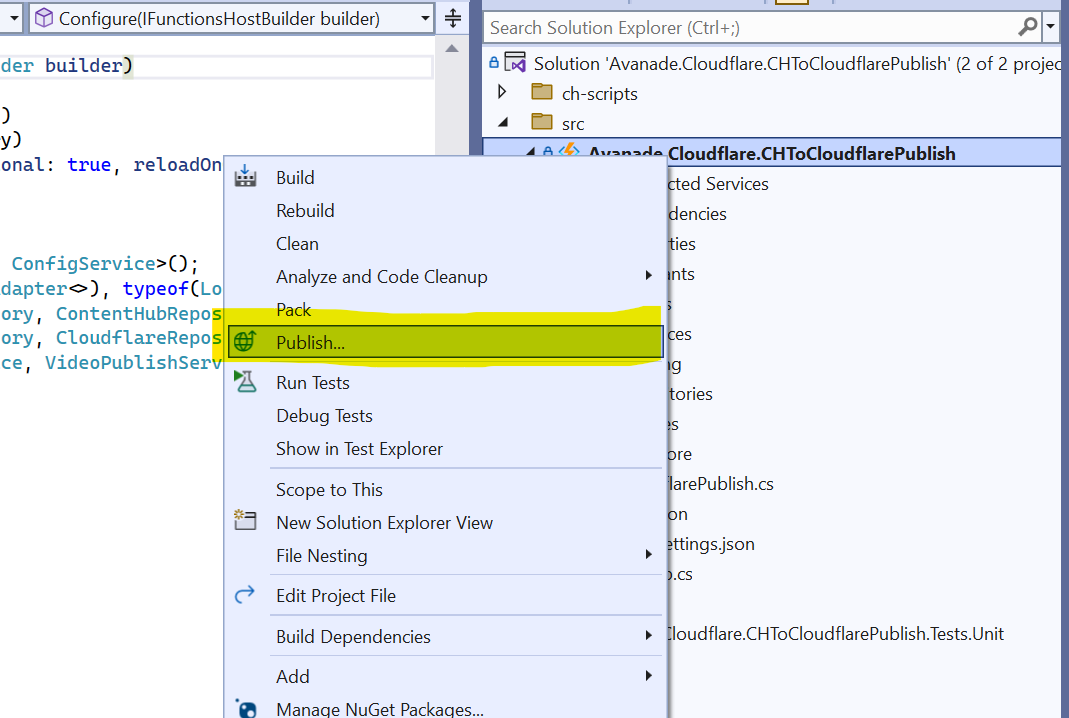
Click on the Publish… menu to launch the Publish window similar to the one shown below.

Using the Import Profile option will allow you to browse and select the publish profile file that you previously downloaded from Microsoft Azure portal. This will then successfully setup the publish profile to your Microsoft Azure subscription.

Publishing the custom connector from VS into Microsoft Azure portal

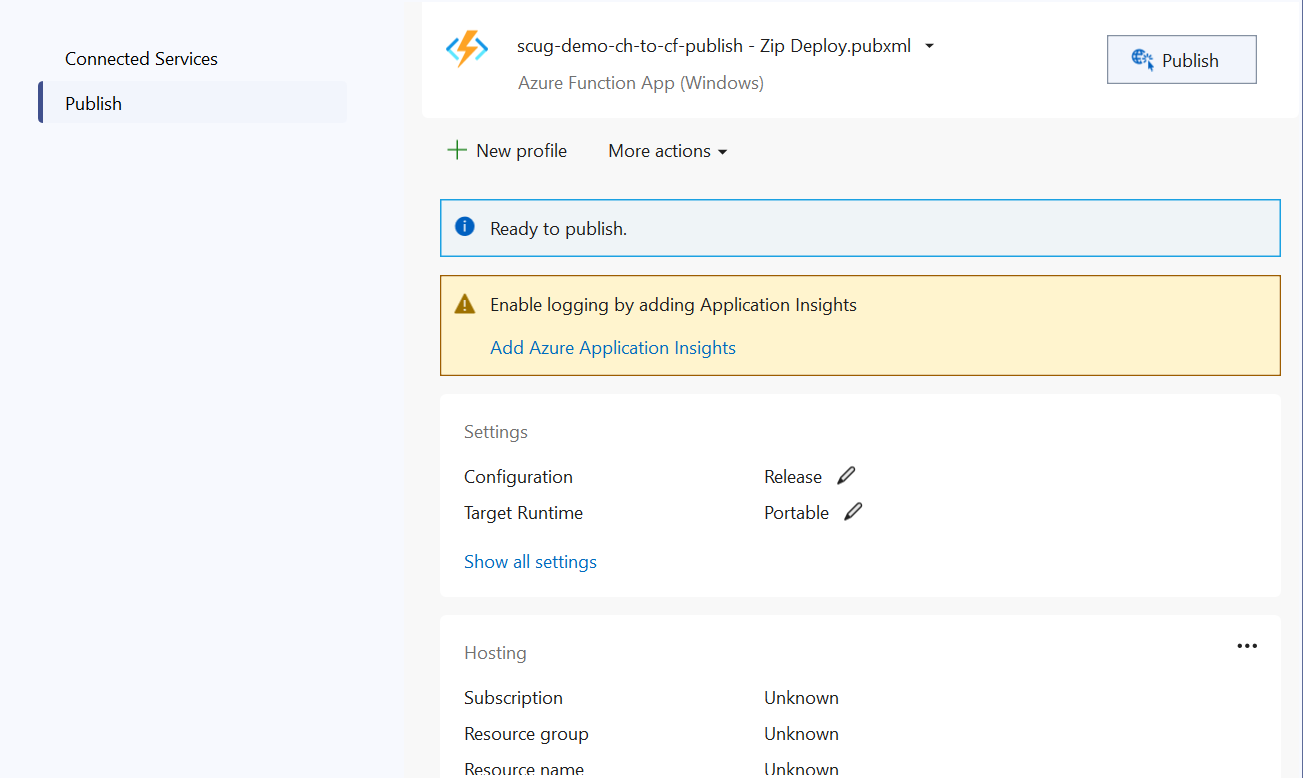
On the Publish window, you will notice your publish profile is selected, similar to one below.

Clicking on Publish button will deploy the Function app to your Microsoft Azure subscription.

Next steps

In this blog post, we have explored at how to set-up a Function app in your local developer environment, add required NuGet Packages as well us publishing it to your Microsoft Azure subscription

Feel free to watch the rest of my YouTube playlist where I am demonstrating the end-to-end custom connector in action. Stay tuned.

Sitecore Zero-downtime deployments – Part 4

Sitecore PaaS/AKS blue-green deployments

With modern and mature DevOps, we all want smooth, sleek and painless automated deployments with zero-downtime. Sitecore deployments are no exception. Have you embraced zero-downtime deployments? This is not a new topic. If you look around Sitecore community, you see an odd question popping here and there regarding this topic.

The journey towards achieving zero-downtime deployments for any application in fact starts with your code base. So, in this series of blog posts, we will refresh ourselves on concepts like “Code Freeze” and the CI/CD process before deep diving into implementing Sitecore zero-downtime deployments.

Sitecore XP PaaS Blue-Green architecture

Sitecore XP PaaS reference architecture

The infographic above shows a typical Azure PaaS architecture for Sitecore XP scaled topology. In summary we have:

  • our Sitecore XP application roles such as CM, CD, ID among others
  • these role have access to Sitecore databases (master, web, core among others)
  • access to rest of the services such as Azure Key Vault, Azure Redis cache, App Insights, Azure Search among others

You will notice in this architecture, we have Blue-Web and Green-Web databases, which are corresponding to the BLUE-GREEN deployment slots for the CD App Service. We need separate web databases to enable us achieve content-safe deployments

The CM App Service also has BLUE-GREEN deployment slots specifically for code deployment, but with a shared master database. There is no compelling reason to have BLUE-GREEN master databases purely on basis of complexity introduced by such architecture (although it is not impossible to implement if you prefer this approach).

The rest of our XP scaled topology resources are shared

The Azure DevOps organisation typically will have access to run the CI/CD pipelines, is also included in the architecture.

How to manage settings

App Service Settings section can be leveraged to manage your Sitecore configuration settings including Sitecore connections Strings

Sitecore XP PaaS CI/CD process summary

Sitecore XP PaaS CI/CD process

Required steps:

  1. Tigger CD process
  2. Make copy of your web-db – this is for content safe deployment. Both CM and BLUE CD pointing to original web-db at this point. BLUE CD still in production with our live users accessing it
  3. Now deploy your new version to both CM instance and GREEN CD Staging slot instance – pointing them to use copy of web-db. Perform content deployment as usual, publish, rebuild the Sitecore indexes and perform any tests. This will not affect your BLUE CD at this stage.
  4. Once happy with deployment, then Swap CD production and staging slots. The GREEN CD with our new version is now production and our live users accessing it now. Zero down time achieved! Our previous version is still running in BLUE CD. If we have issues, we swap again to roll back.

Some notes:

 This example doesn’t have BLUE-GREEN for the CM instance, as I want to keep it simple – This though means your content editors will have to wait for deployment to finish to use the CM. If you really need CM zero down time, then you need to deploy CM BLUE-GREEN deployment slots as well. Alternatively, you can keep the deployment time to CM to a minimum and avoid BLUE-GREEN

You can be more also be creative with your Sitecore templates changes such that your changes are always backward compatible between successive releases  (e.g. don’t delete fields immediately, mark them as obsolete) This means you can safely rollback your changes without breaking the application

Sitecore XP AKS Blue-Green architecture

Sitecore using Containers makes use of Azure Kubernetes Service. This infographics shows a very simplified AKS blue-green strategy allows us to achieve zero downtime deployments.

Kubernetes Blue-Green strategy

How does it work?

  1. You will define a blue deployment for v1 and apply it to your desired state of your cluster.
  2. When version 2 comes along, you define a green deployment, apply it to your cluster, test and validate it without affecting blue deployment
  3. You then gradually replace V1 with V2
  4. Version 1 can be deleted if no longer needed.

Below we have a typical Sitcore XP Azure Kubernetes Service architecture for Sitecore XP scaled topology – the AKS cluster containing various pods running our containers.

Sitecore XP AKS Blue-Green reference architecture

You can see the scaled out Sitecore XP application roles running as individual Pods within this AKS cluster backed by a Windows Node Pool.

We also have access to Sitecore databases as well as other services such as Azure Key Vault, Azure Redis cache, App Insights among others.

I am showing our Azure DevOps organisations which will typically have access to run the CI/CD pipelines

Similar to the Azure PaaS architecture, AKS zero downtime deployments will make use of BLUE-GREEN deployment strategy for CD or CM instance

AKS Zero downtime deployments process

How do we do that? we don’t need to provision a separate cluster for GREEN environment. Instead, we define an additional GREEN deployment with its corresponding service and then label it accordingly, alongside our BLUE deployment.

For content-safe deployments, we will also be pointing to a copy of web database (Green) as shown.

Once we have tested and are happy with our new GREEN deployment, we switch traffic or routing to point to GREEN. We do this by updating our Ingress controller specification

Sitecore AKS Blue-Green (Green deployment)

In the above infographic, you can see now our end-users can access V2 in the GREEN deployment

BLUE deployment is on stand-by in case of roll back. And can be deleted if no longer required.

Note as previously discussed in PaaS deployments, you can implement BLUE-GREEN for the CM if required

Sitecore XP AKS CI/CD process

Sitecore XP AKS CI/CD process

Steps summary

  1. Trigger release pipeline process
  2. Make copy of your web-db – this is for content safe deployment. Both CM and BLUE CD pointing to web-db at this point. BLUE CD still in production with live users accessing it
  3. Apply your green deployment desired state onto the cluster. This creates the green pods with new version of docker images, and our Sitecore deployment including content deployment. This will use the copy of web-db we created earlier.  Publish and Rebuild indexes as usual and test and verify the deployment
  4. Once happy with deployment, Update traffic routing in Ingress Controller and live users can now access our new Sitecore version. In event of roll-back, update traffic routing in Ingress controller. If BLUE deployment no longer needed, clean it up to save on resources

Next steps

An this is a wrap. This post concludes this series of blog posts where we looked into implementing Sitecore Zero Downtime deployments. I hope you found this useful and can start your own journey towards achieving Zero Downtime deployments with your Sitecore workloads. If you have any comments or queries, please leave me a comment at the end of this post.