
Context
As you may be aware, the Marketer MCP now has a capability to integrate with Microsoft Copilot studio. You can now connect your Microsoft Copilot Studio agents to the Sitecore Marketer MCP for seamless access to Sitecore’s marketing features.
The Marketer MCP is the Model Context Protocol (MCP) for marketing in Sitecore. It connects AI agents to Sitecore tools through the Agent API, providing secure access across the entire digital experience lifecycle.
In this blog post, I will walk you through a step-by-step guide, complete with screenshots.
Pre-requisites
Before you begin, make sure you have:
- A valid Sitecore account with required permissions
- A valid Microsoft Copilot studio account with access permissions to Create agents and Create Custom Connectors
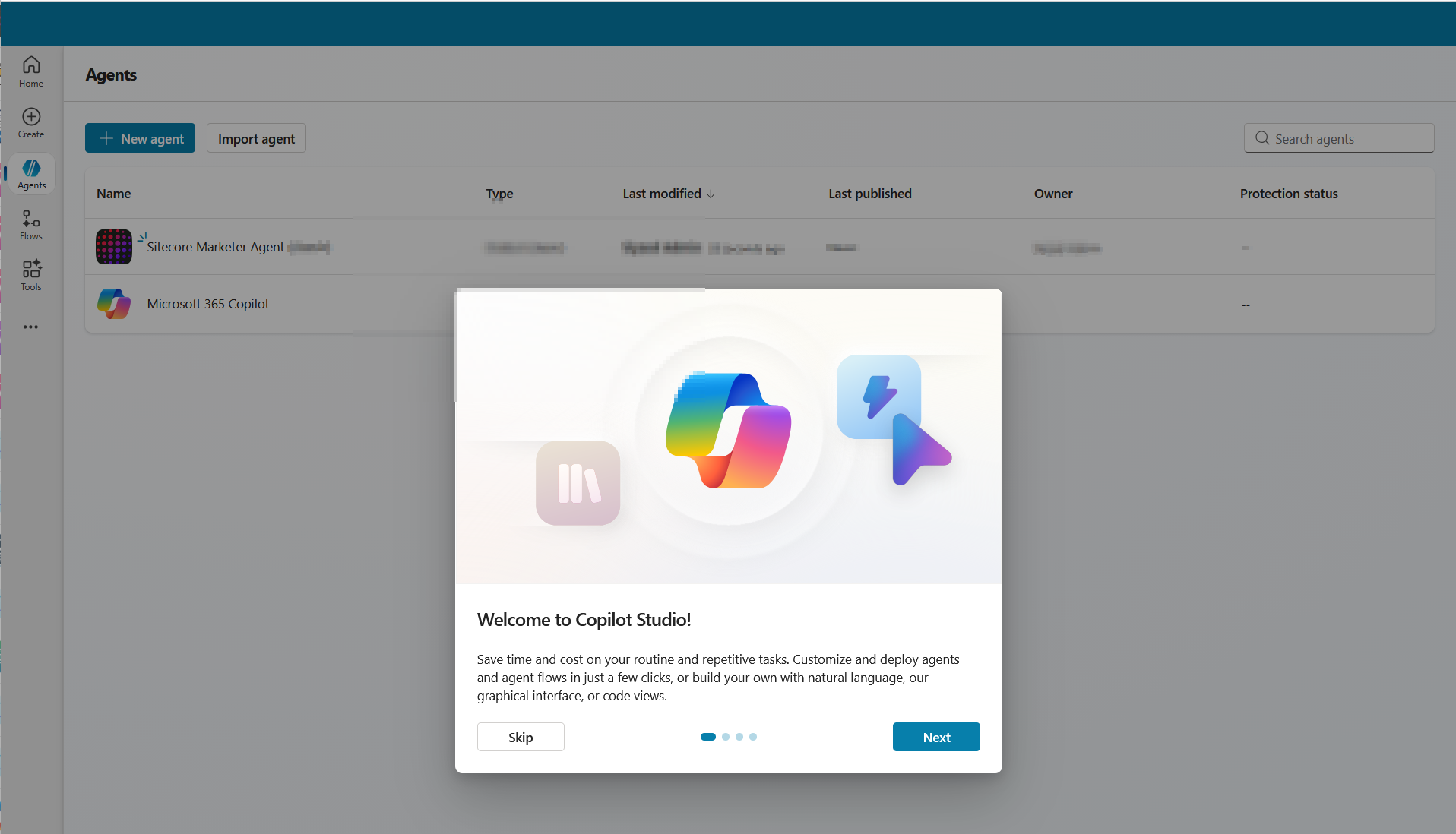
Step 1 – Create a new agent in Copilot Studio
- Open Copilot Studio and either create a new agent or open an existing one.
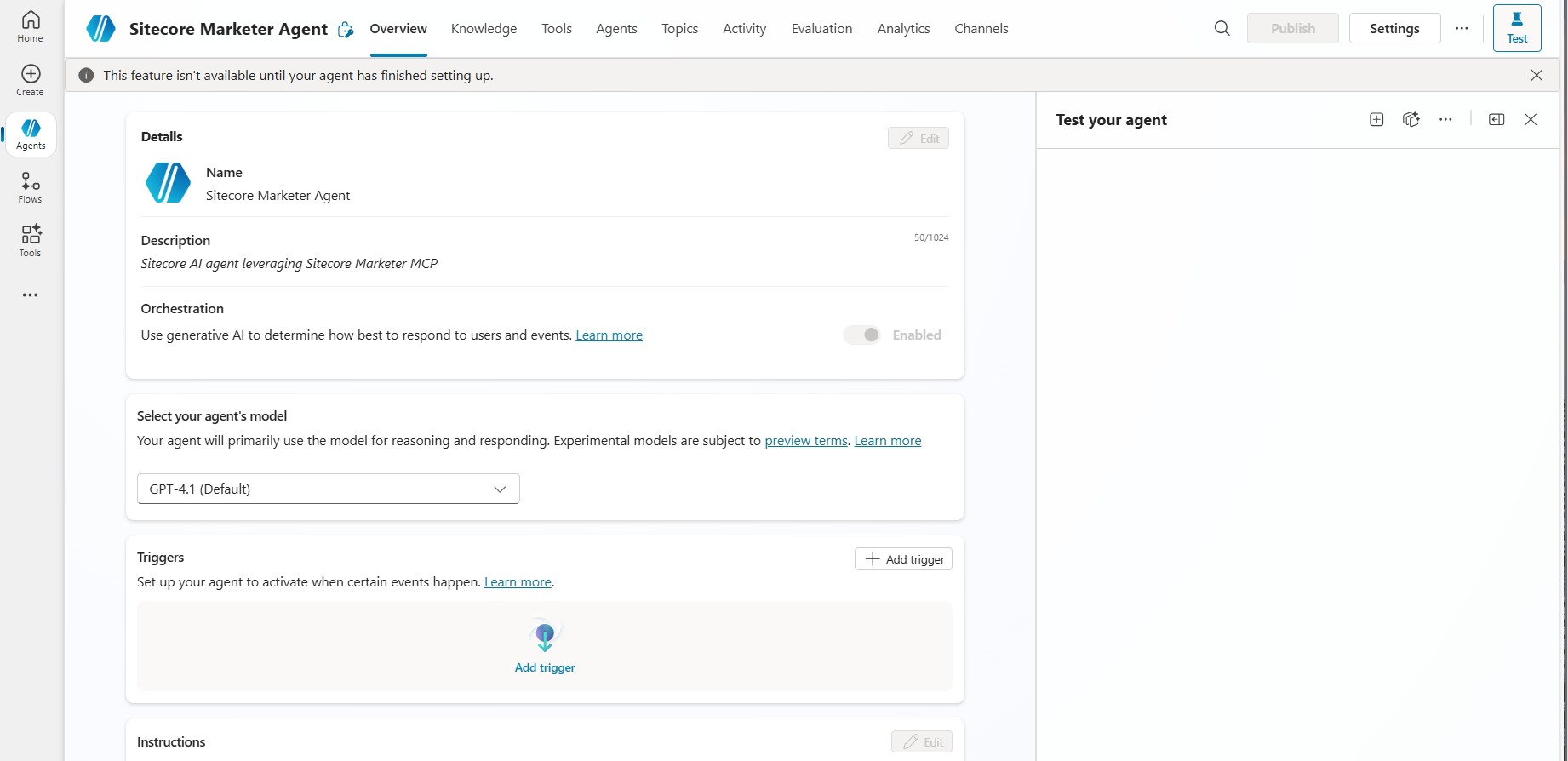
- As shown in the screenshot below, specify the following minimal details for your agent:
- Name: The name of your agent
- Description: Description of your agent
- Icon: You can choose an icon for your agent (optional)
Step 2 – Add a tool to the agent
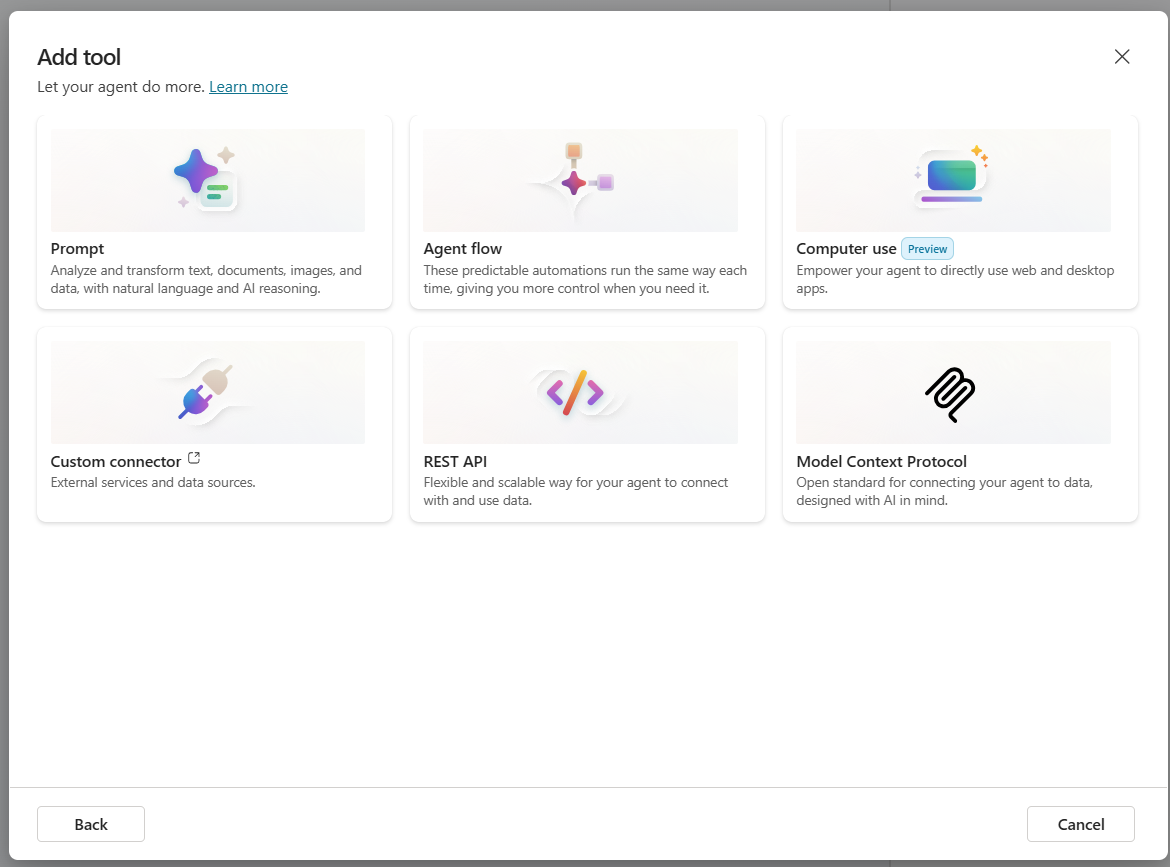
- Go to the Tools tab for your agent then click Add a tool.
- Select New tool then choose Model Context Protocol. The MCP onboarding wizard opens
- Enter the following details, as show in screenshot below
- Server name – for example, Marketer MCP.
- Server description – a short description of what the Marketer MCP does.
- Server URL – the Marketer MCP server endpoint:
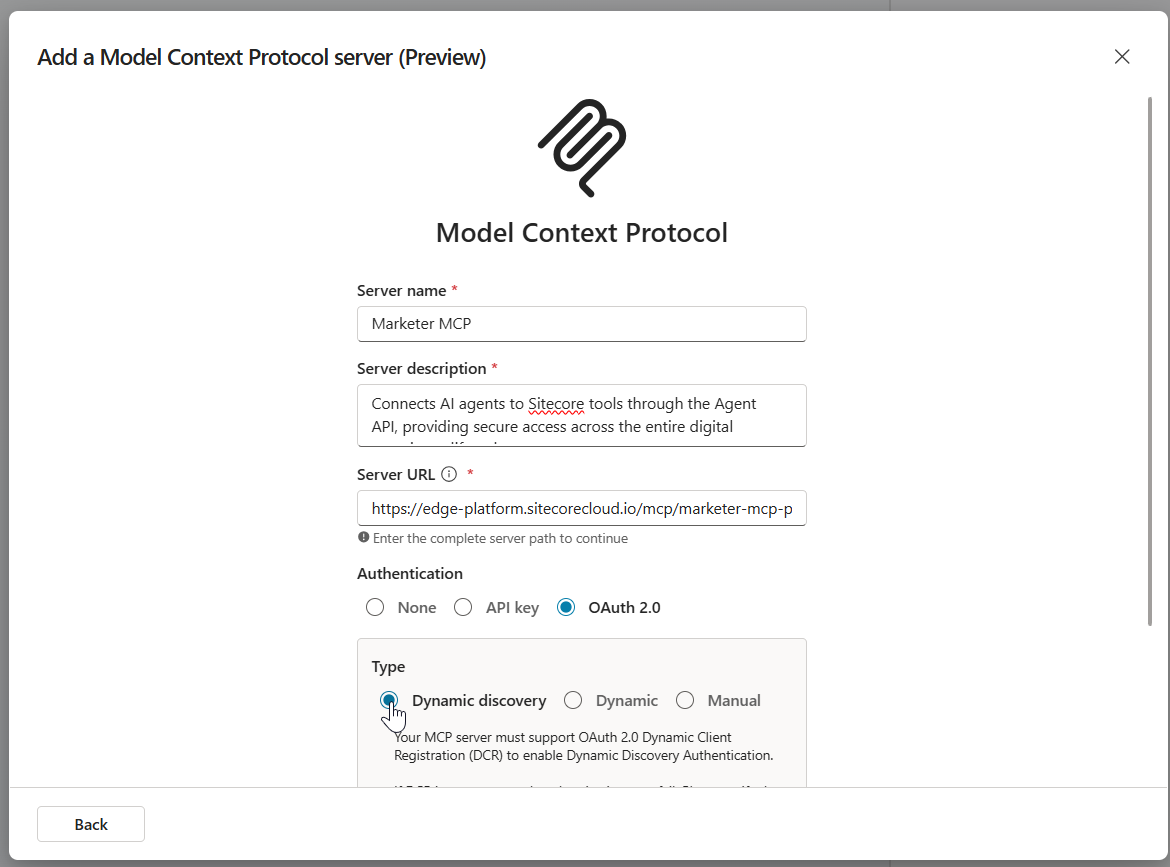
- Under Authentication, select OAuth 2.0 and Dynamic discovery type. Then click Create.
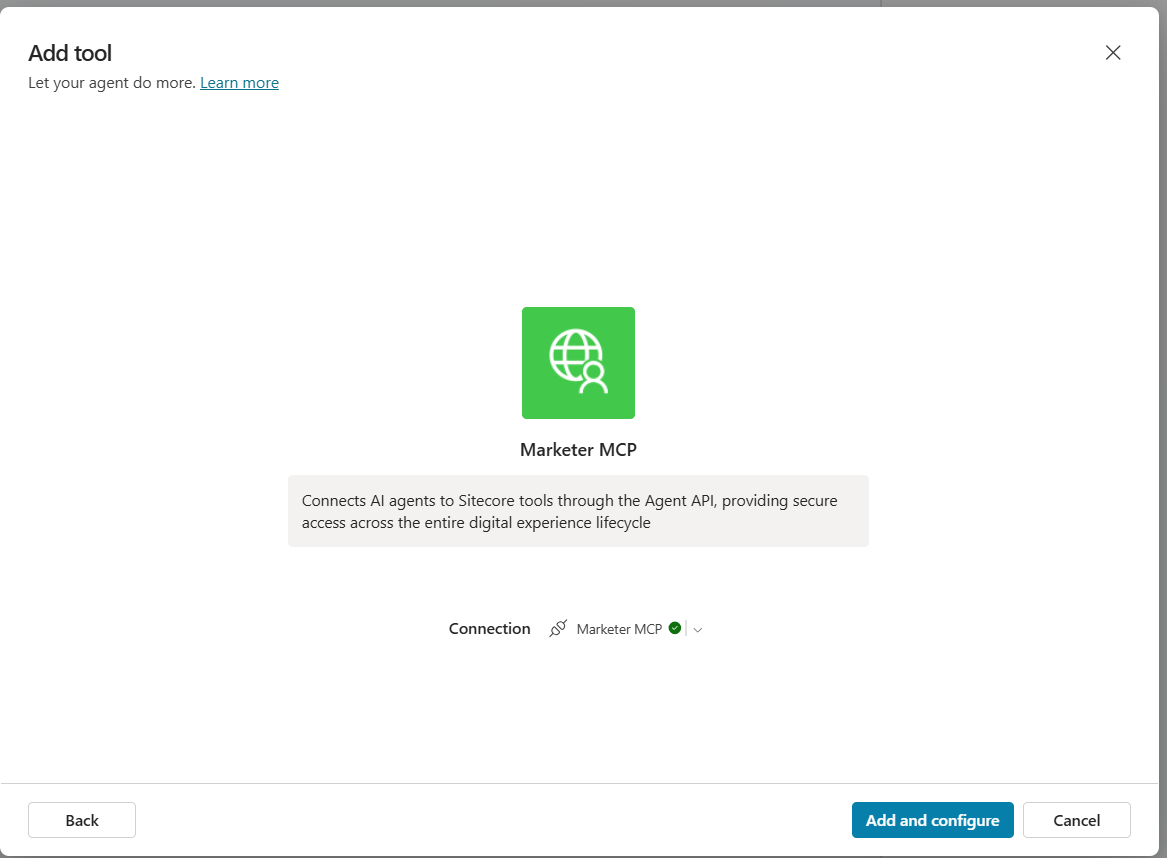
- The Add tool dialog will be displayed as shown below.
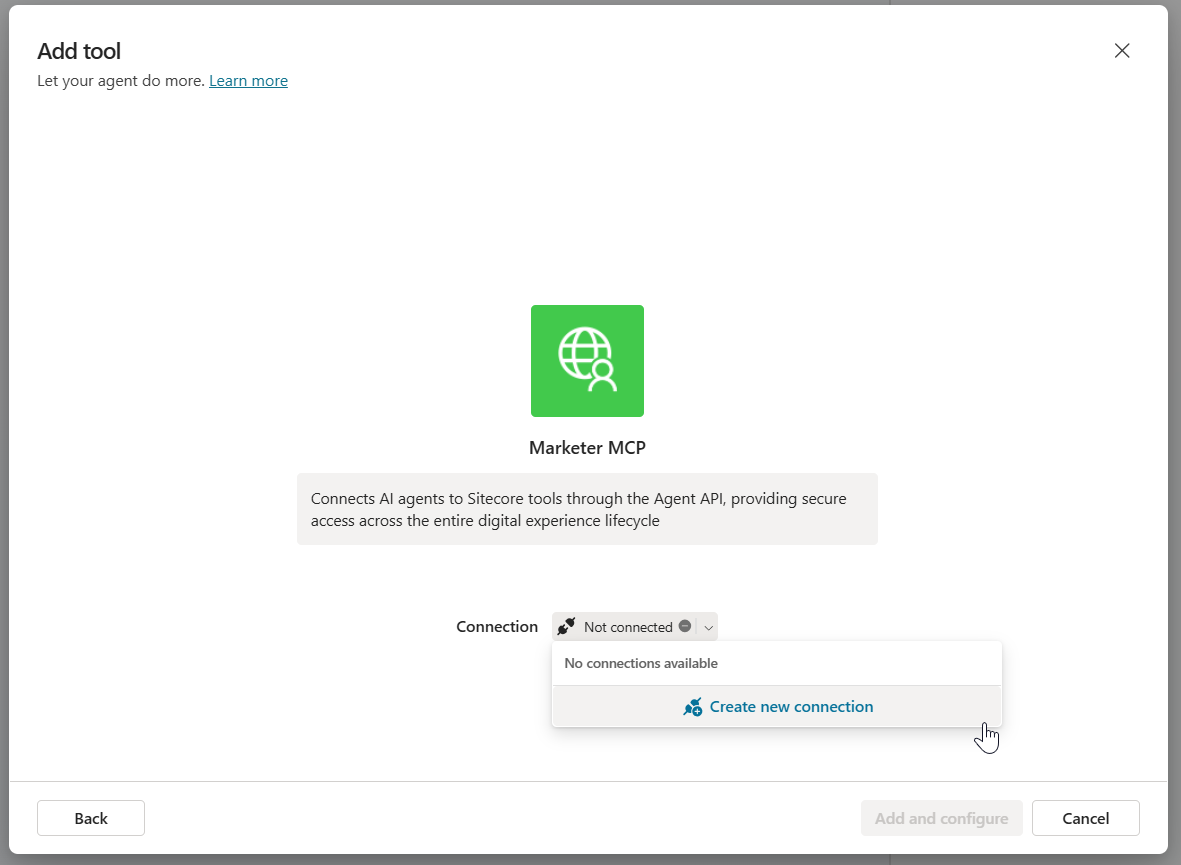
- In the Add tool dialog, in Connection, click Not connected > Create new connection. Then click Create.
- A pop-up dialog appears as per the screenshot below, with the message Resource parameter is required. This is expected. Follow the workaround below.

- Copy the entire URL shown in the dialog. Append the following resource parameter to the end of the URL:
- &resource=https%3A%2F%2Fedge-platform.sitecorecloud.io%2Fmcp%2Fmarketer-mcp-prod
- Open a new browser window, paste the updated URL into the address bar and press Enter.
- In the Marketer MCP authorization request dialog (see screenshot below), click Allow Access.
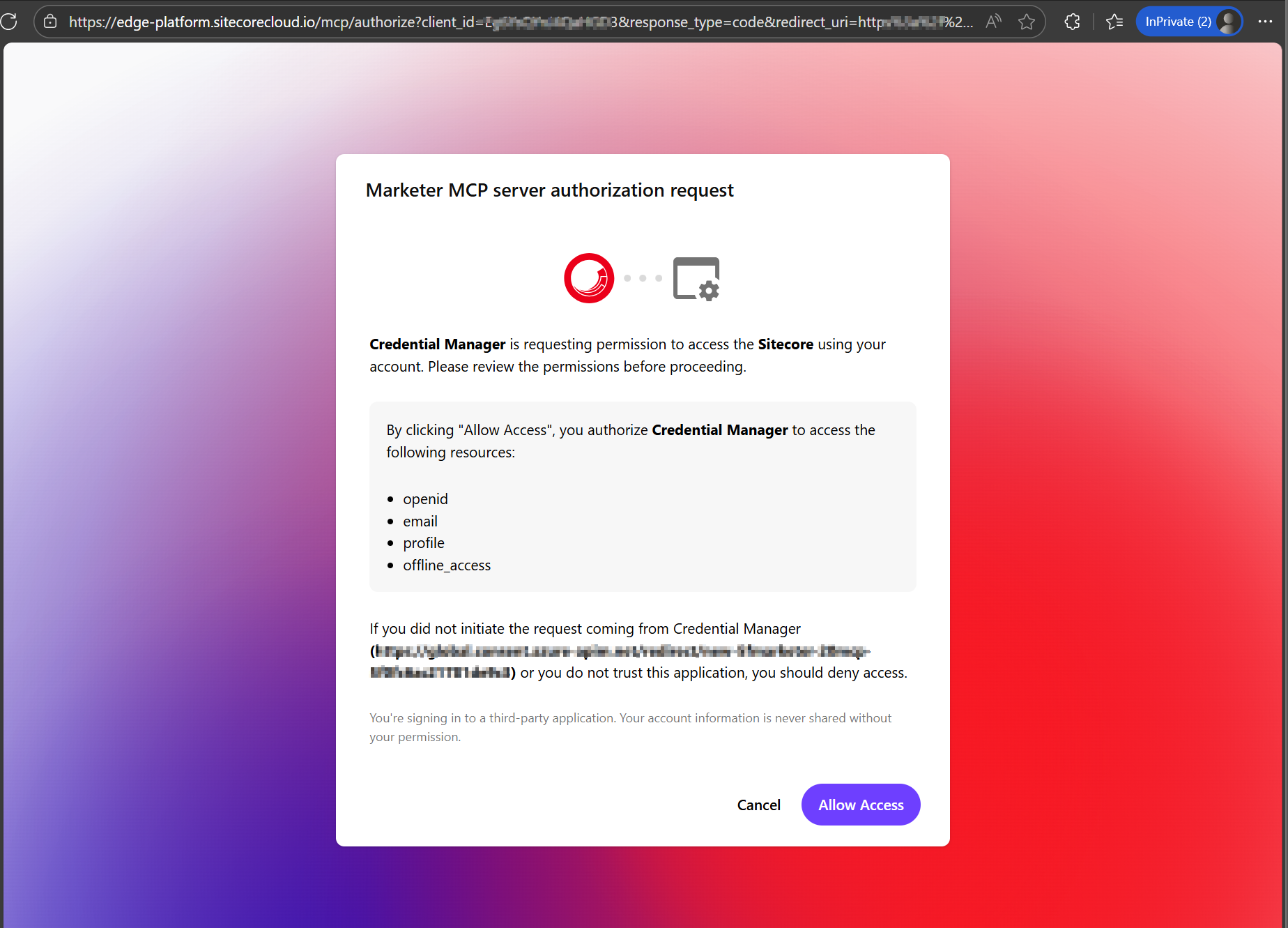
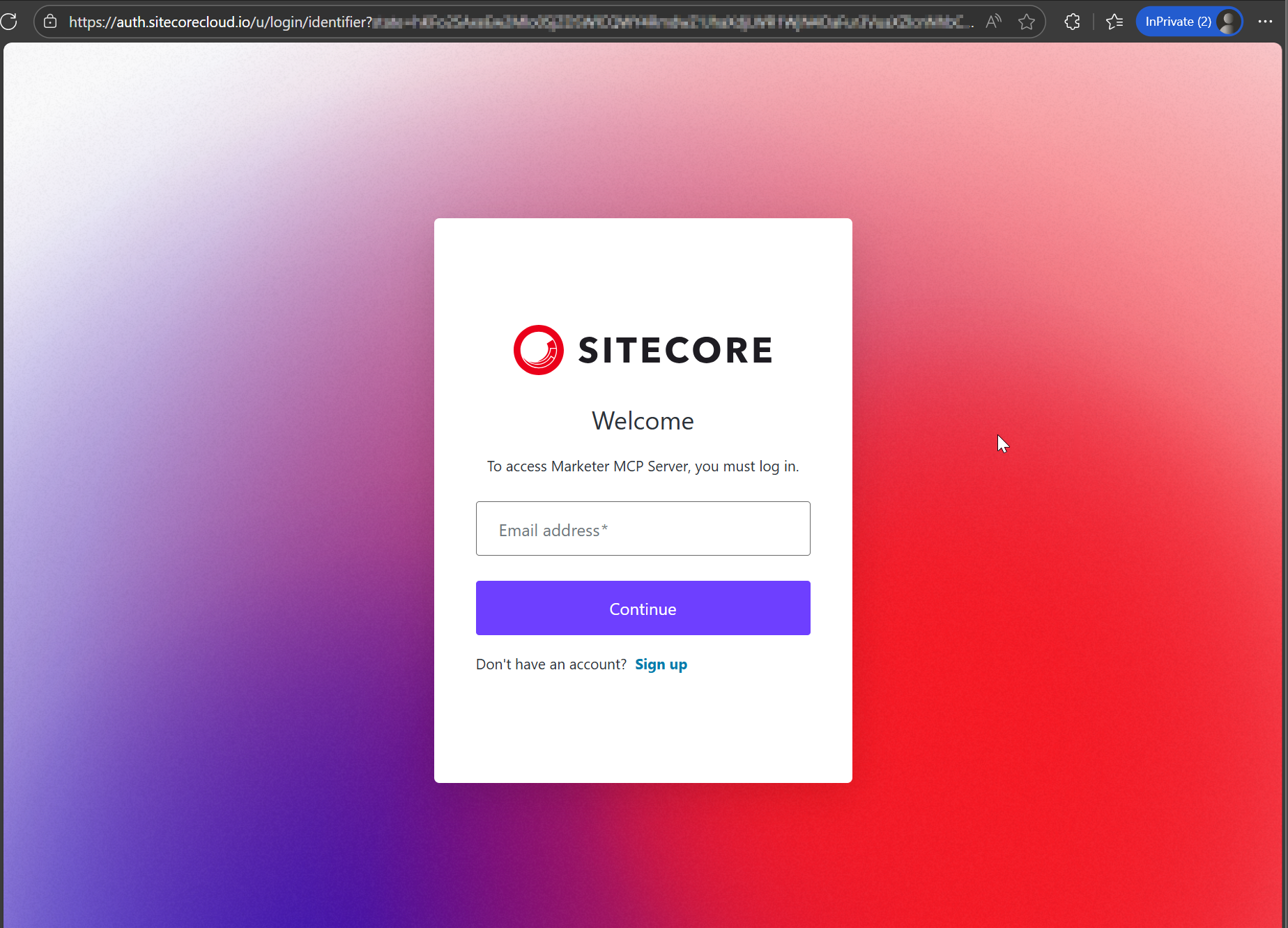
- This will prompt you to login to your Sitecore Cloud Portal
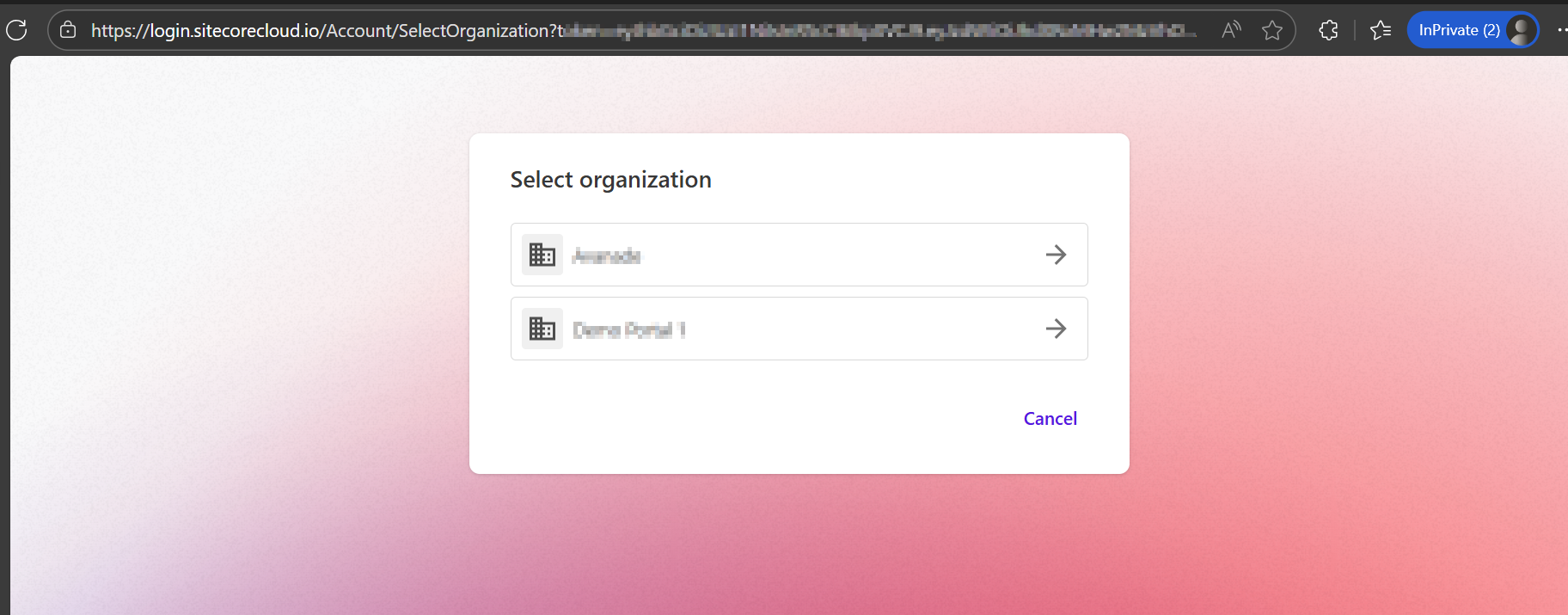
- Then select the organization and tenant you want to use when interacting with the MCP server (as per screenshot below)
- Return to the Add tool dialog in Copilot Studio. When it shows that you’re connected to the MCP server, click Add and configure.
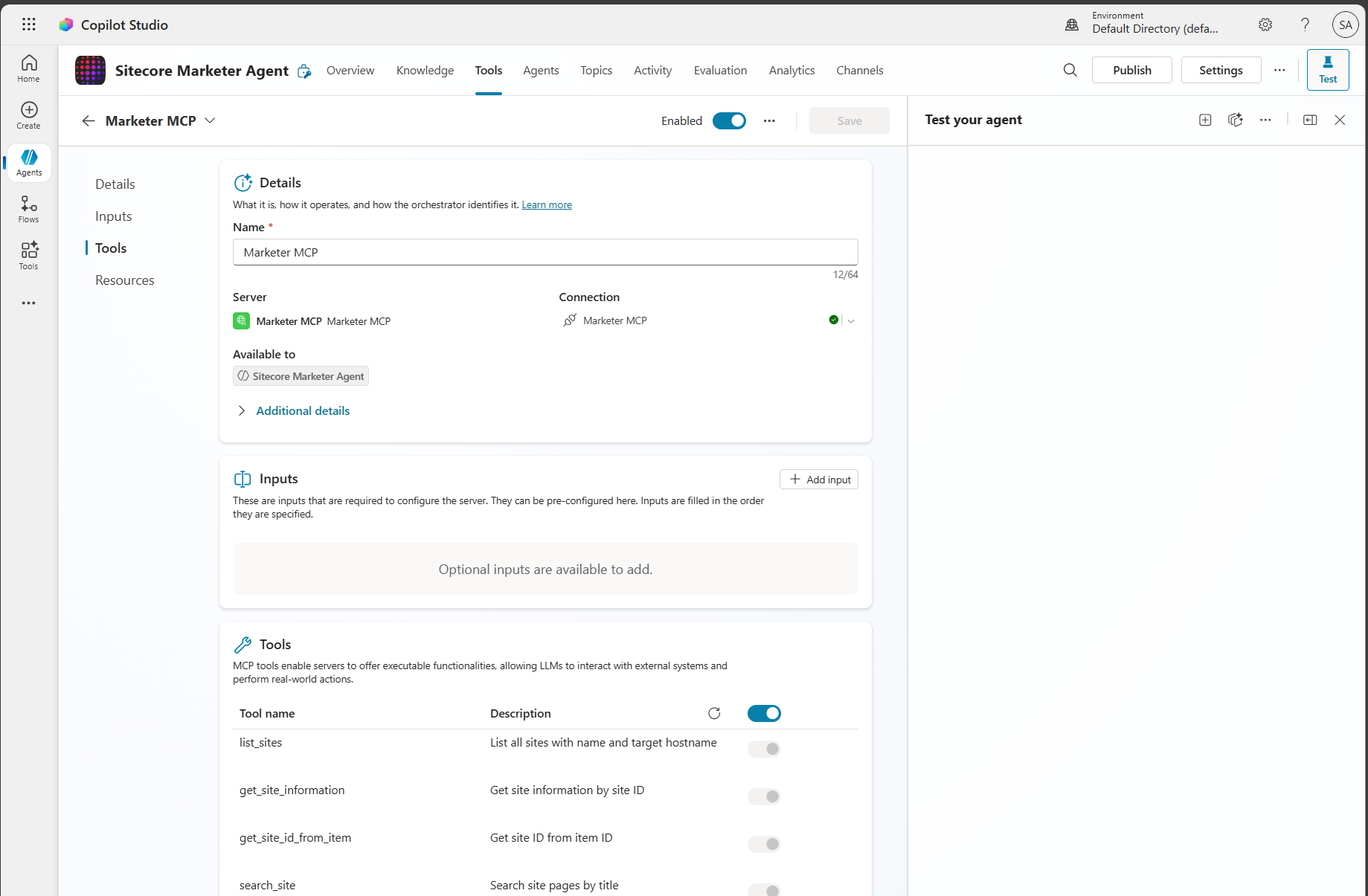
You should now see the Marketer MCP details and its tools enabled and ready to use. You can begin entering prompts to interact with Sitecore through the MCP.
Step 3 – Get prompting
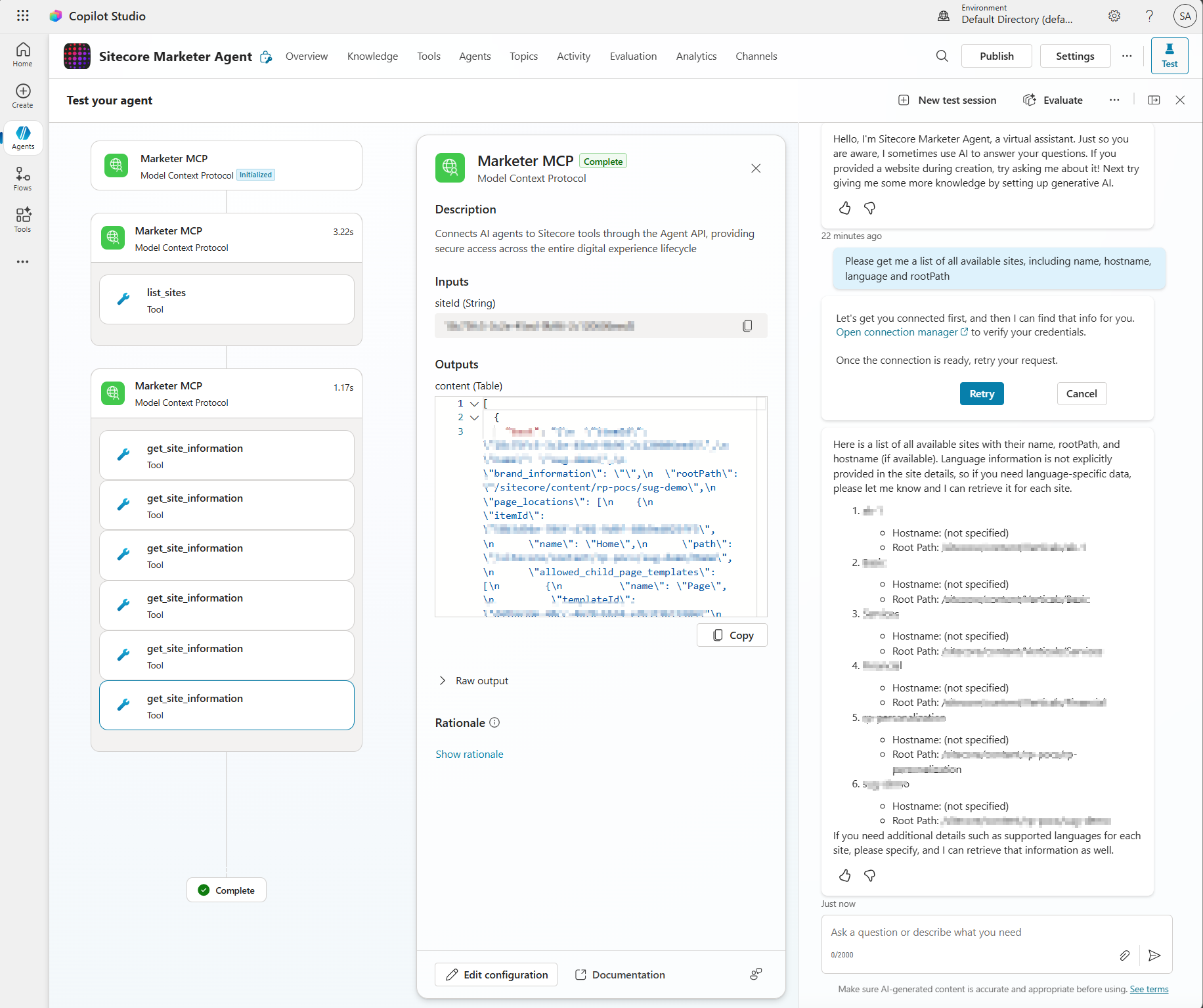
From your Copilot prompt text area, you can now use natural language to prompt and perform actions in SitecoreAI. The first time you write a prompt, you may see a connection warning message shown below.
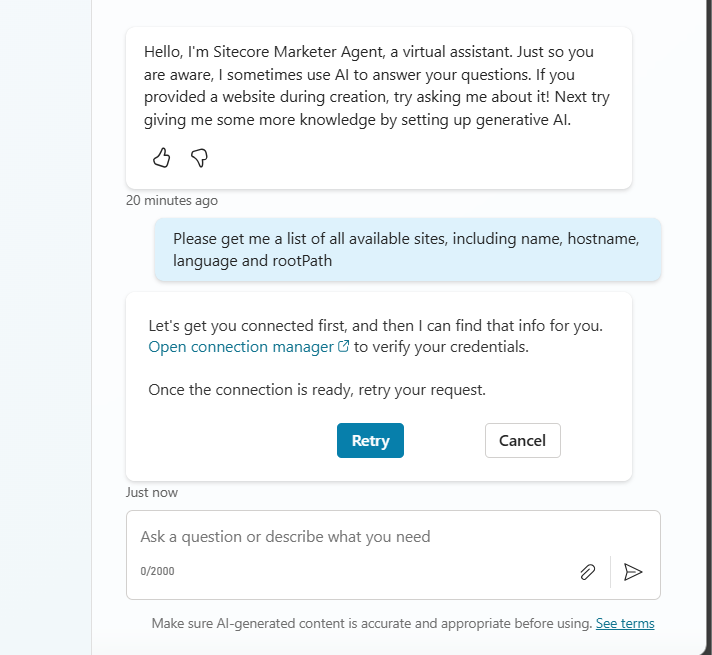
Simply follow the Open connection manager link to get connected. The link will open the dialog shown below
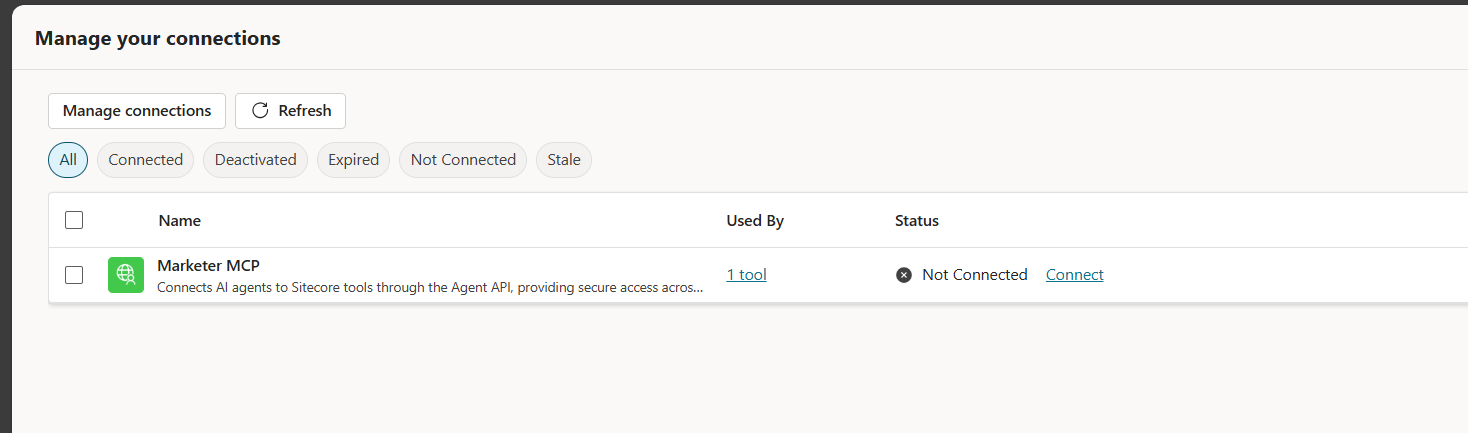
Click on Connect link. You will now get a response from your Sitecore AI as shown below.
Troubleshooting
You may come across some issues when establishing the connectivity into Marketer MCP from Copilot Studio. Below are the issues I encountered and how I resolved them.
Issue 1: Timeout error
I got this error when Creating the connection:
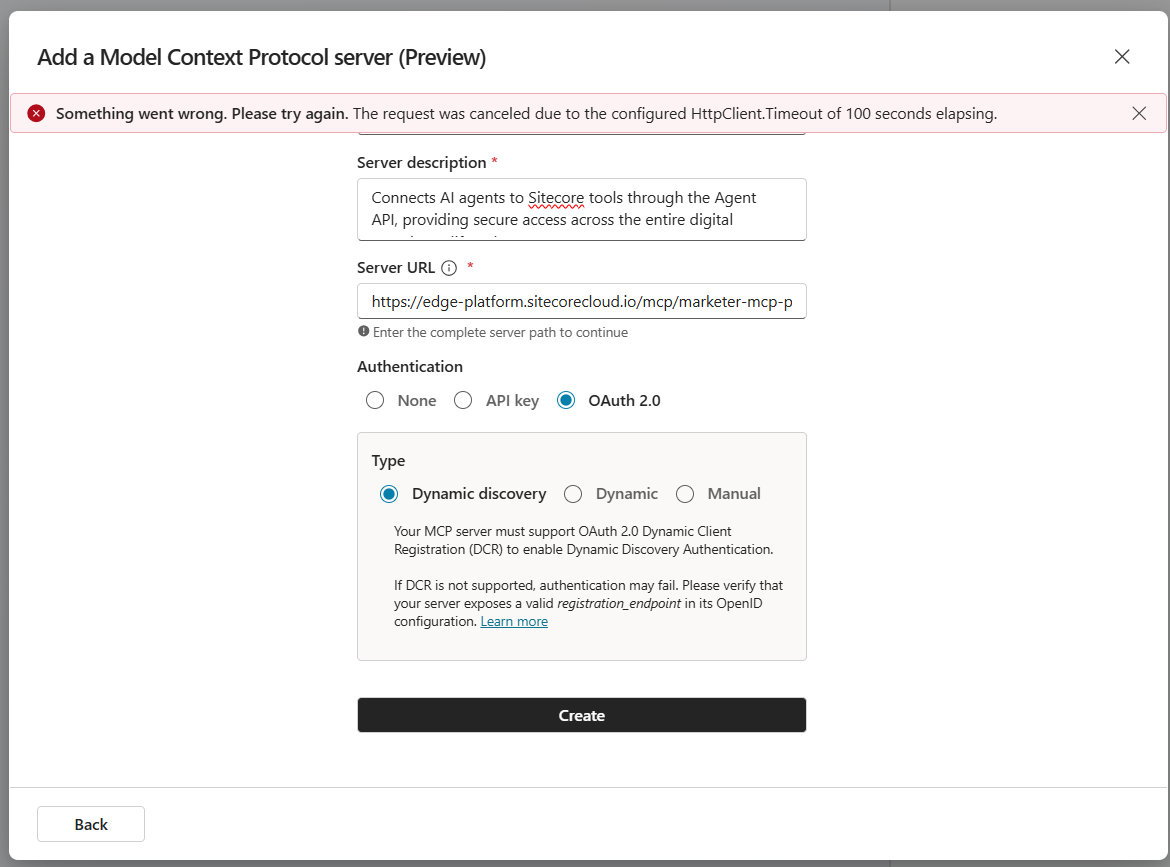
Issue 1 Resolution:
I simply repeated that step for the second time and issue was resolved
Issue 2: Environment Access permission error
The error below may occur when your Copilot Studio account doesn’t have access permissions to create a custom connection
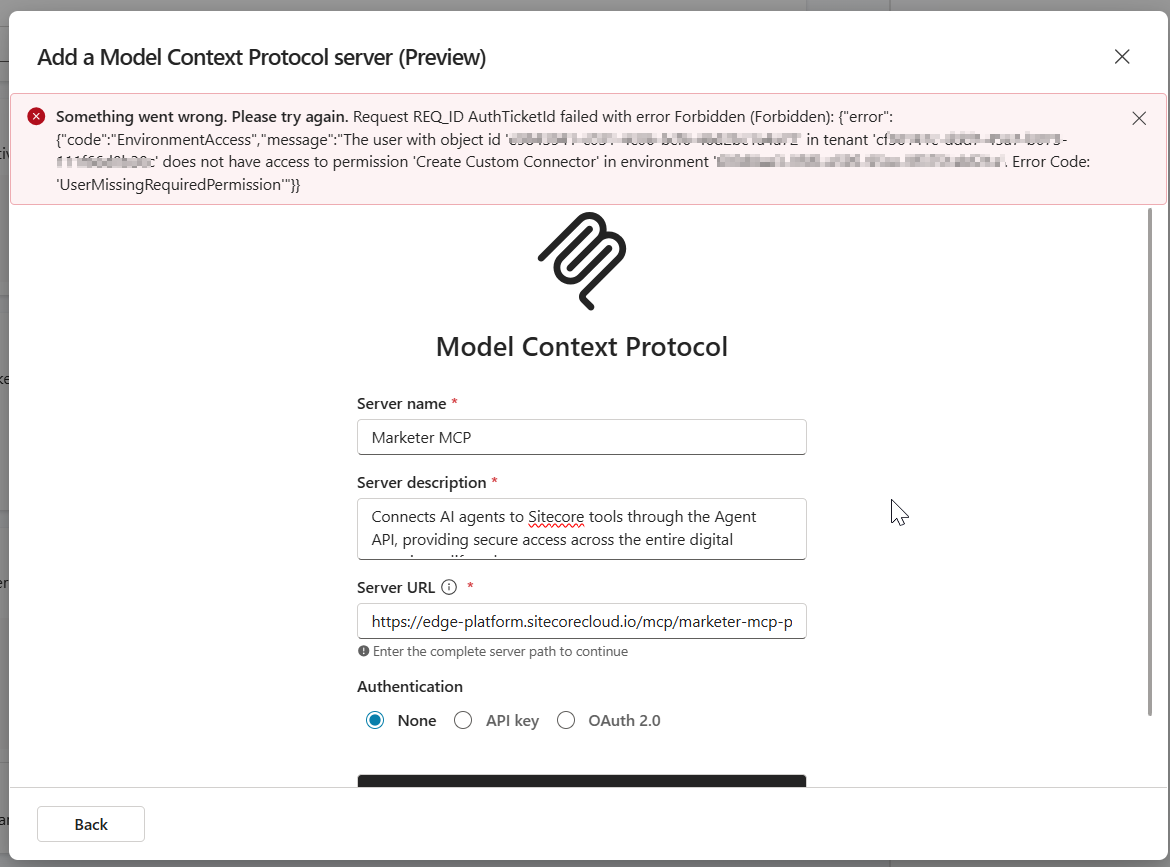
Issue 2 Resolution:
Work with your ITS teams to provision the correct level of needed access in Copilot Studio
Next steps
In this blog post, we looked at a step-by-step guide on how to set the Marketer MCP integration with Microsoft Copilot Studio. We looked at potential connectivity issues that you may encounter and how to resolve them to get it working.
The Marketer MCP provides tools to create content, manage campaigns, run marketing automation, and handle content management. This is an evolving tool and remember to check latest updates from Sitecore.
The Marketer MCP is only reliable for the supported use cases listed here. Responses outside this scope have not been validated by Sitecore and might be inaccurate.
SitecoreAI docs
Stay tuned for future posts, feel free to leave us comments and feedback as well.
