
Background
One of the great values you get with your investments in Sitecore Content Hub platform is the collaboration capabilities with your external partners and users in your content supply chains. Siecore Content Hub provides out-of-the box the Asset Collections capability, which enables you to group your assets. Which seamlessly allows collaboration on that asset collection through comments, for example.
However, there is a catch.
When you create an asset collection and want a fine grained control on whether these assets should be downloadable, this doesn’t always seem to work as expected.
For example, you have a collection named “External” with only “Asset test 1” and “Asset test 2” included. And you need these two assets to be downloadable. However, when this collection is shared, there are scenarios when other additional assets will seem to appear within External collection, instead of just “Asset test 1” and “Asset test 2” as expected.
In this blog post, I will be sharing some top tips and tricks on how you can be in control of this process, ensuring you only share assets that need to be shared, securely.
How do I create an asset collection
The existing official docs provide step-by-step guidance on how to create asset collections. I will repeat the main steps below, for the sake of to keeping the flow in this blog post.
To create an asset collection:
- On the menu bar, click Collections.
- In the top-right corner of the Collections page, click + Collection.
- In the Collection dialog, populate the details of the collection you are creating
- Click Save.
How do I add assets to my asset collection
Again, the existing official docs provide robust step-by-step guide on how to add asset to a collection. Please note that it is best practice to add existing assets to your collection – which are at the correct stage of your content lifecycle. Avoid uploading new assets directly at this stage.
How do I share my asset collection
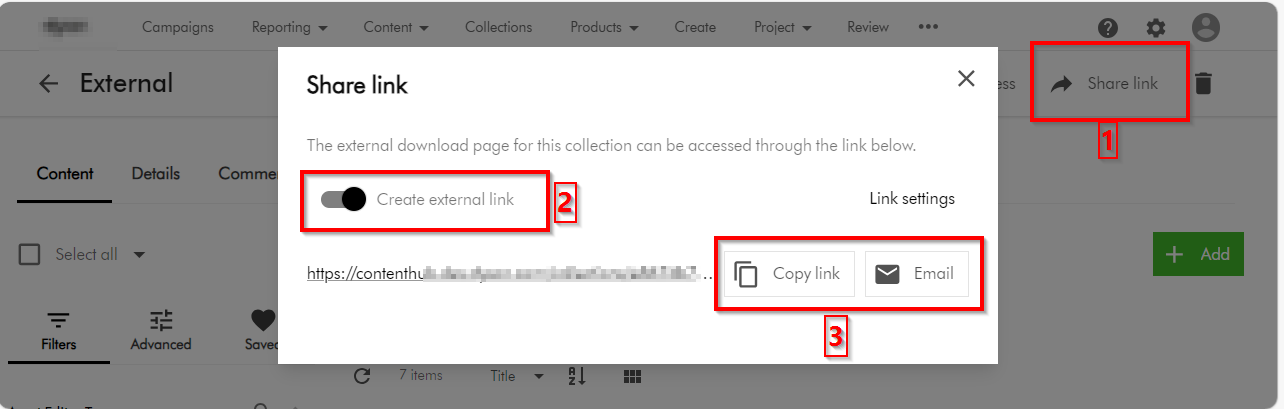
You can share the collection by following the following three main steps:
- On the collection details page, click Share link
 .
. - In the Share link dialog, turn on the Create external link switch. This will then generate for you a link
- To share the link via email, use the Click Email
 button, which should prompt for emailing details. You can alternatively use the Copy link button to copy the URL and share it as well
Tips and tricks on securing you asset collections
Now that we have covered the basics on how to create an asset collection and share it, I will focus on top tips and tricks of ensuring we are sharing the collection using best practices and for the correct external collaborators.
Top tip 1 – Leverage user groups to manage external collaborators
User groups underpins the permissions model within Content Hub. Members of a user group are granted permissions and privileges according to the user group policies assigned to that group. By managing permissions and privileges using groups, you can streamline how they are assigned.
- Read-only external collaborators – Define a separate user group for your external collaborators who need a read-only access. These are not expected to make any contributions, but may be to give them a status update of your assets.
- Contributor external collaborators – Define a separate user group for your external collaborators who you would like to give you comments and feedback on shared assets.
- Download external collaborators – Define a separate user group for your external collaborators who you would like download your shared assets. The use case is when you would like them them to use download the shared assets for allowed activities such are offline brands channels.
- Add external collaborators to a user group – Always add external collaborators as users in your Content Hub instance, then assign them one of the above user groupings. Sitecore Content Hub allows users belonging to an external domains to be added using Users Manager (and they can sign in with their username and passwords) Depending on your security policies and governance, it is possible to also leverage Single sign on with External domains. If you need guidance, reach out to your Security and Identity team or Sitecore Technical support.
Top tip 2 – Leverage user group policies to lock down UX and pages
You need to make a decision which pages your external collaborators can view. For example, should they access your Asset details page, which will potentially give them access to additional meta data?
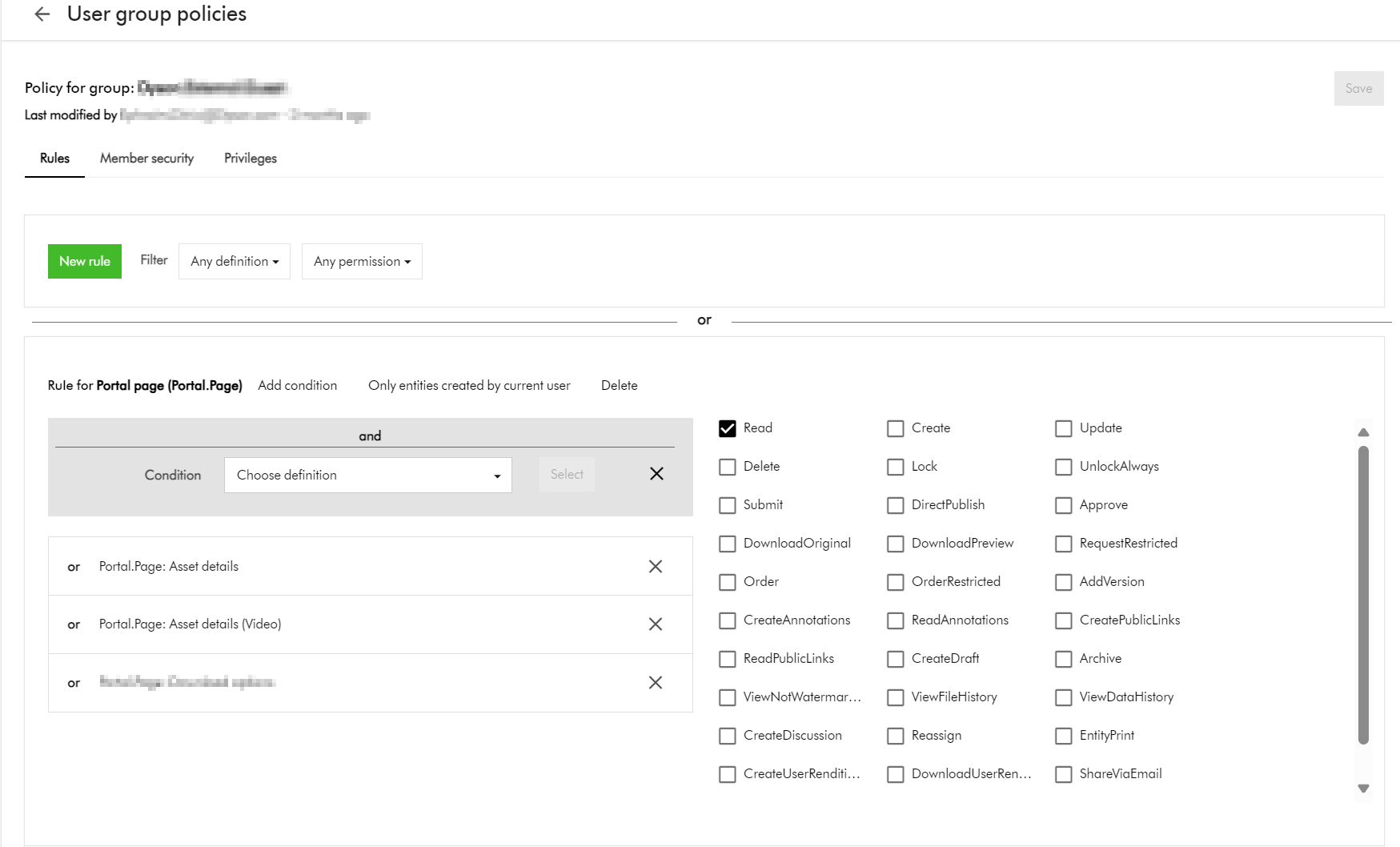
If you have followed Top tip 1 above, all you need to do is define user group policies for each relevant user groups.
Below is an example of how you can give access to allow viewing Asset details page(s) such as Asset details or Video asset details page as shown below.
Top tip 3 – Additional policies – downloadable assets based on a taxonomy value
You recall the scenario I described at the start of the blog. You have a collection named “External” with only “Asset test 1” and “Asset test 2” included. How will you go about ensuring only these two assets are downloadable?
- Define taxonomy, use this to tag and identify external assets:
- This option requires you to define some form of Taxonomy, say, ExternalAsset which entities Yes or No. For all externally shareable assets, you will need to tag them with value of Yes. You can then leverage this Taxonomy within your User Group policies definitions to narrow down which assets can be downloadable. As an example, this policy below shows how I can narrow which asset is downloadable based on M.AssetType value of Video
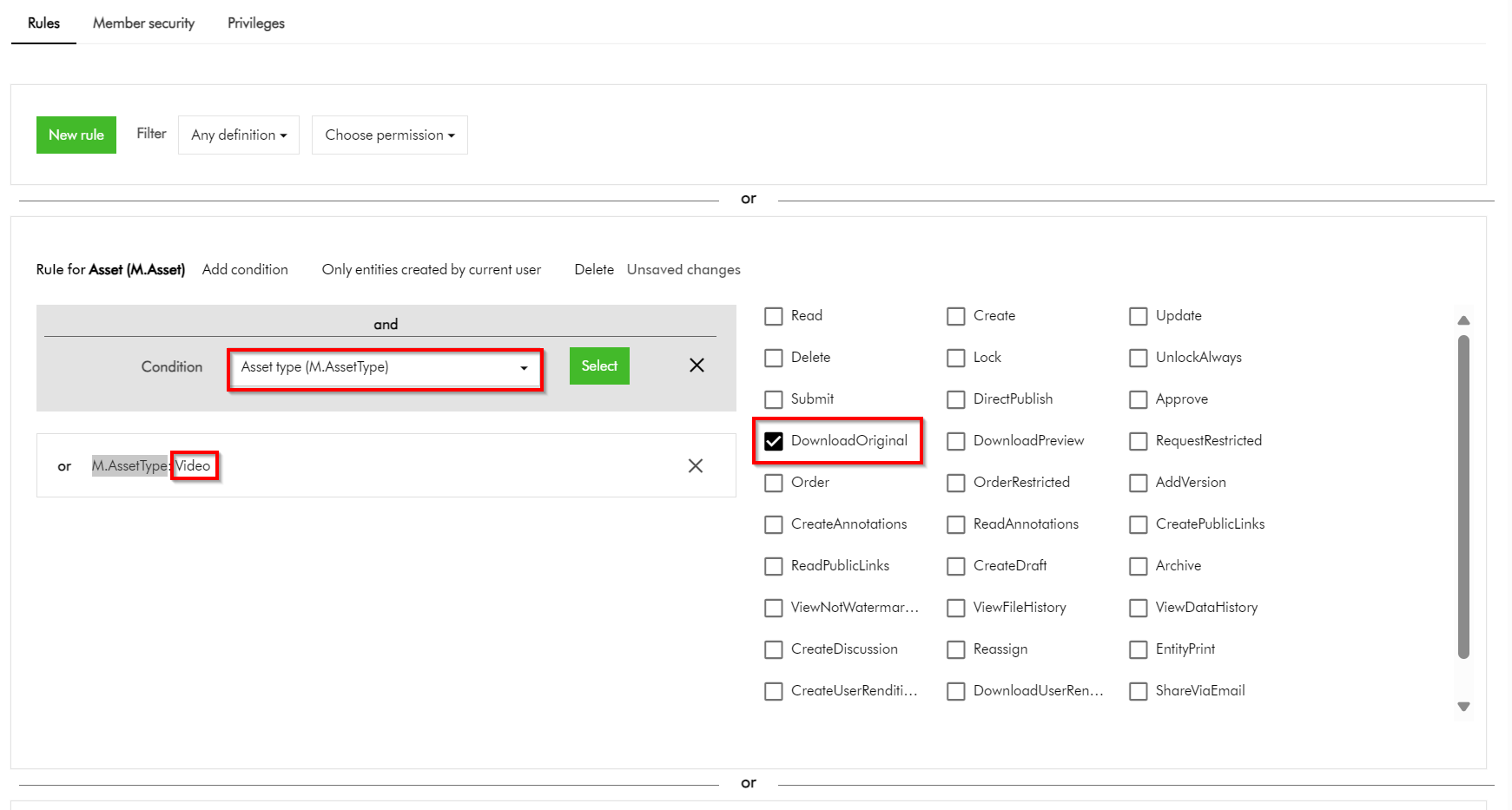
- This clearly works. However, with this option you will need to ensure all assets are tagged accordingly before sharing them externally. This could add more work to your content workflows.
Top tip 4 – Additional policies – downloadable assets based on current asset collection
You could be asking, why can’t I apply the additional policy for downloadable assets based on the current asset collection? Good question.
If you try this approach, your User group policy will look like this instead.
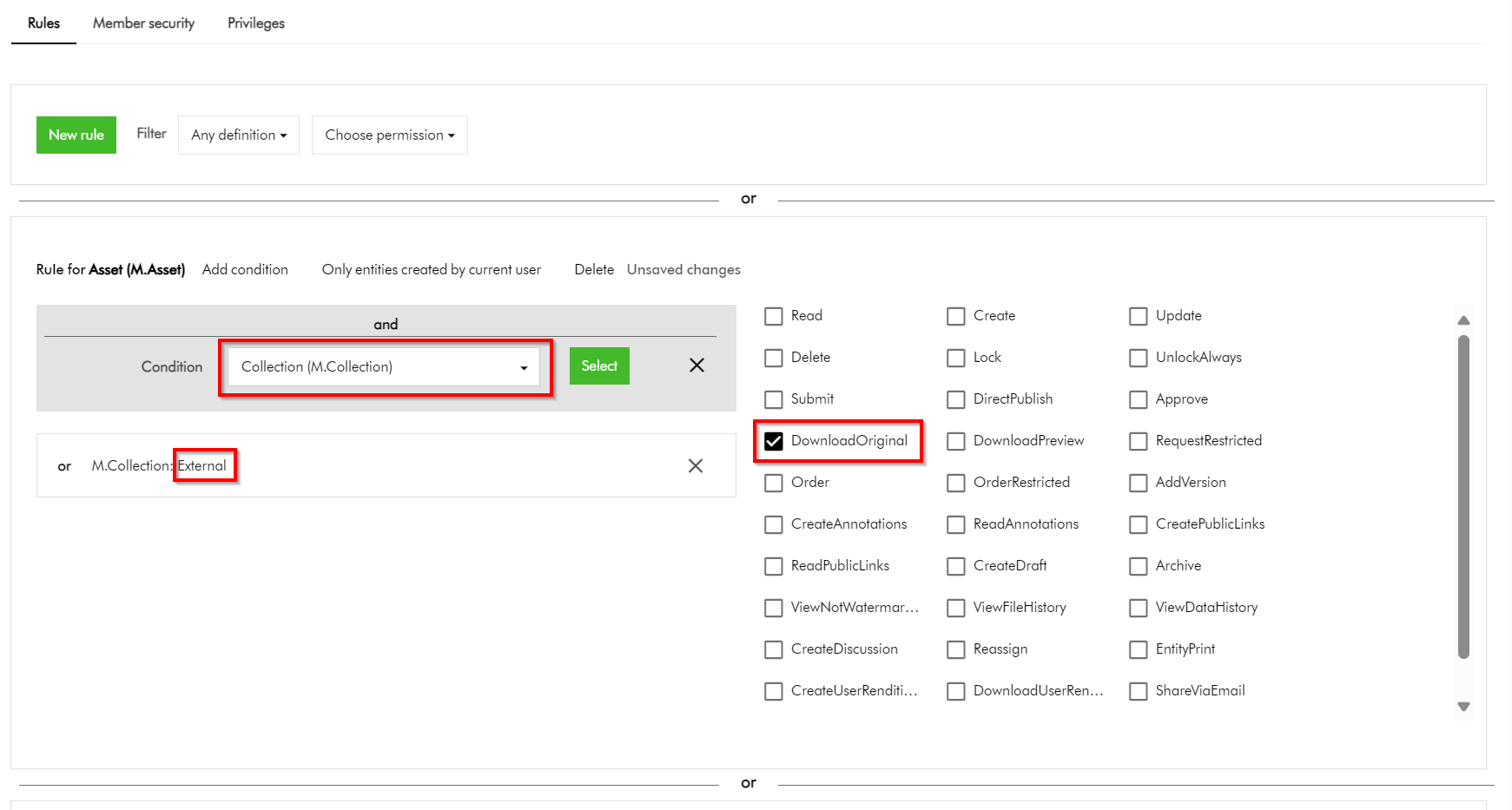
This is perfectly fine. You could have thought this will work, right?
This option does not work. It seems you can not define a policy on M.Asset (model for your assets) based on M.Collection (model for your asset collections) by default.
While grappling with this issue, I reached out to Sitecore Technical support for guidance. Good news is we have a technical solution for this specific problem. Stay tuned on my next blog post when I will cover how you can make a group policy definition policy on M.Asset based on M.Collection such as in the screenshot above work.
Next steps
In this blog post, we have looked at Content Hub asset collections a great feature for collaboration capabilities with your external users during your digital assets lifecycle. We have looked at some of the top tips you can leverage to secure your collections when sharing them with your external collaborators. I hope you find this useful for your similar use cases.
On the follow up blog post, I will look into details how to resolve the specific problem identified above. Please give us any feedback or comments.

2 thoughts on “Content Hub tips & tricks: How to securely share your DAM assets with external users by leveraging collections – part 1”