What are relations
In Content Hub data modeling, relations are used to define how entities are linked together. One of the entity in this relationship will be a parent and the other will be a child. The relation can either
- be between two different types, say M.AssetType and M.Asset
- be of the same type, say between M.Asset entities. This type of relation is known as self-referencing
In Content Hub, it is recommended to name relations using the notation ParentEntityToChildEntity. For example AssetTypeToAsset, is a relation where M.AssetType is Parent of M.Asset. Conversely, M.Asset is Child of M.AssetType
In this blog post, I will dive more into self-referencing relations, how to define them, how to create entities and link them up as well as display them within Content Hub.
Defining self-referencing relation
We typically use self-referencing relation where you want to define some form of parent-child hierarchy within your entities of the same type. Let say we have a use-case where have a ‘master’ asset and we need to link related or supporting files, so that we can easily find all related or supporting files to master asset.
To define this, you will follow the following steps:
- From the dashboard, click on Schema and search and find M.Asset. Select to open the M.Asset definition management page.
- Click on ‘New member‘ button to launch ‘New member‘ popup below. Select Create a new relation to a non-taxonomy definition option
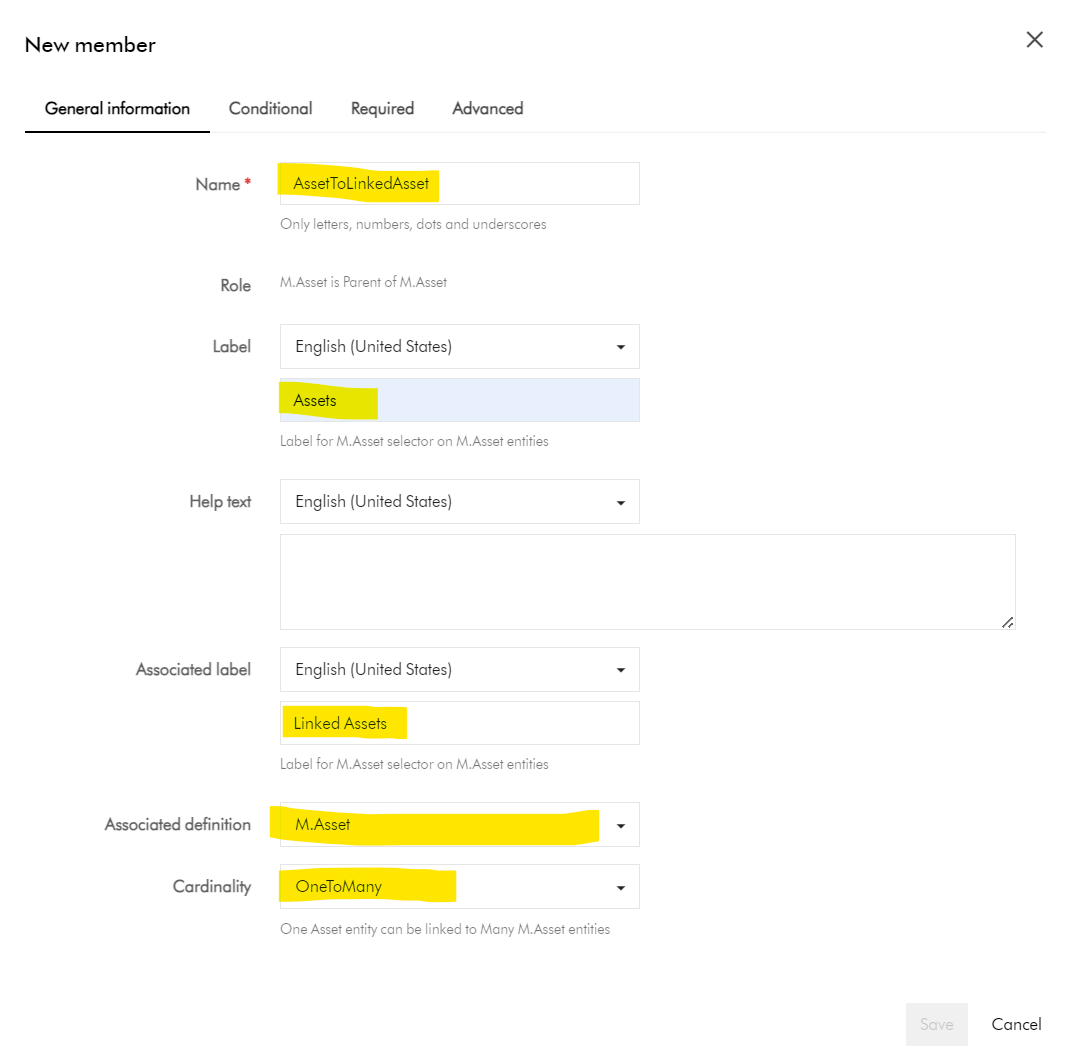
- This opens a window to capture the relation definition, conditions for the relation, whether it is mandatory among other configurations. This is similar to one below
- We will use the above dialog to define self-reference relation. As you can see, I have alread named my relation AssetToLinkedAsset, which mean M.Asset is Parent M.Asset, using the OneToMany cardinality. I will explain more about what is cardinality later in this blog.
- We will ignore defining any Conditional, Required and Advanced settings for now, we are going to use the default values, as shown below.
- Then click Save to create the relation. This will close the popup window and go back to the M.Asset definition management page.
- That is it, we have defined self-referencing relation. Ensure you click on Apply changes to commit changes on the M.Asset definition management page.
-
- If we refresh our M.Asset definition management page, you will notice we now have two relationships as shown below
- Content Hub will automatically generate two relations shown above, where M.Asset is Parent of M.Asset as well as M.Asset is Child of M.Asset. In fact, these fields are AssetToLinkedAsset:Parent and AssetToLinkedAsset:Child respectively within the M.Asset schema



What is relation cardinality
In Content Hub, we make use of cardinality to describes how parent and children are related. All values are from Parent => Child. Below are the supported cardinalities
- OneToOne One parent to one child.
- OneToMany One parent to many children
- ManyToMany Many parents to many children.
The choice depends on your use case. In my current use case, I would like my ‘master’ asset to have one or more linked or supporting files, hence I have used OneToMany
Next steps
In this blog post, I have looked at what are self-referencing relations in Content Hub. I walked through a sample use-case for them, how to define them, and steps to follow within Content Hub. In the next follow up post, I will walk you through how to create and populate self-referencing entities and link them up to create parent-child hierarchy and to display this within Content Hub.
Stay tuned and leave us any feedback or comments.