

Introduction
In my previous blog post, I covered how to set-up your Func app within Visual Studio. In this post, I would like to walk you through how to configure your Func app to allow you to run and debug it in your local development environement.
Func app local.settings.json file
Within your Visual Studio project, create local.settings.json file at the root of the project. A sample json file is shown below. This will be used to configure all the configuration settings to allow you to run and debug the Func app locally.

The local.settings.json file stores app settings and settings used by local development tools. Settings in the local.settings.json file are used only when you’re running your project locally.
Because the local.settings.json may contain secrets, such as connection strings, you should never store it in a remote repository.
DevOps best practices
Microsoft Azure portal func app application settings
Similarly, you will need to configure all the configuration setting on your Microsoft Azure portal for your test or production Func app instances.
Clicking on Configuration menu, then Application settings tab will launch the page similar to the one shown below.
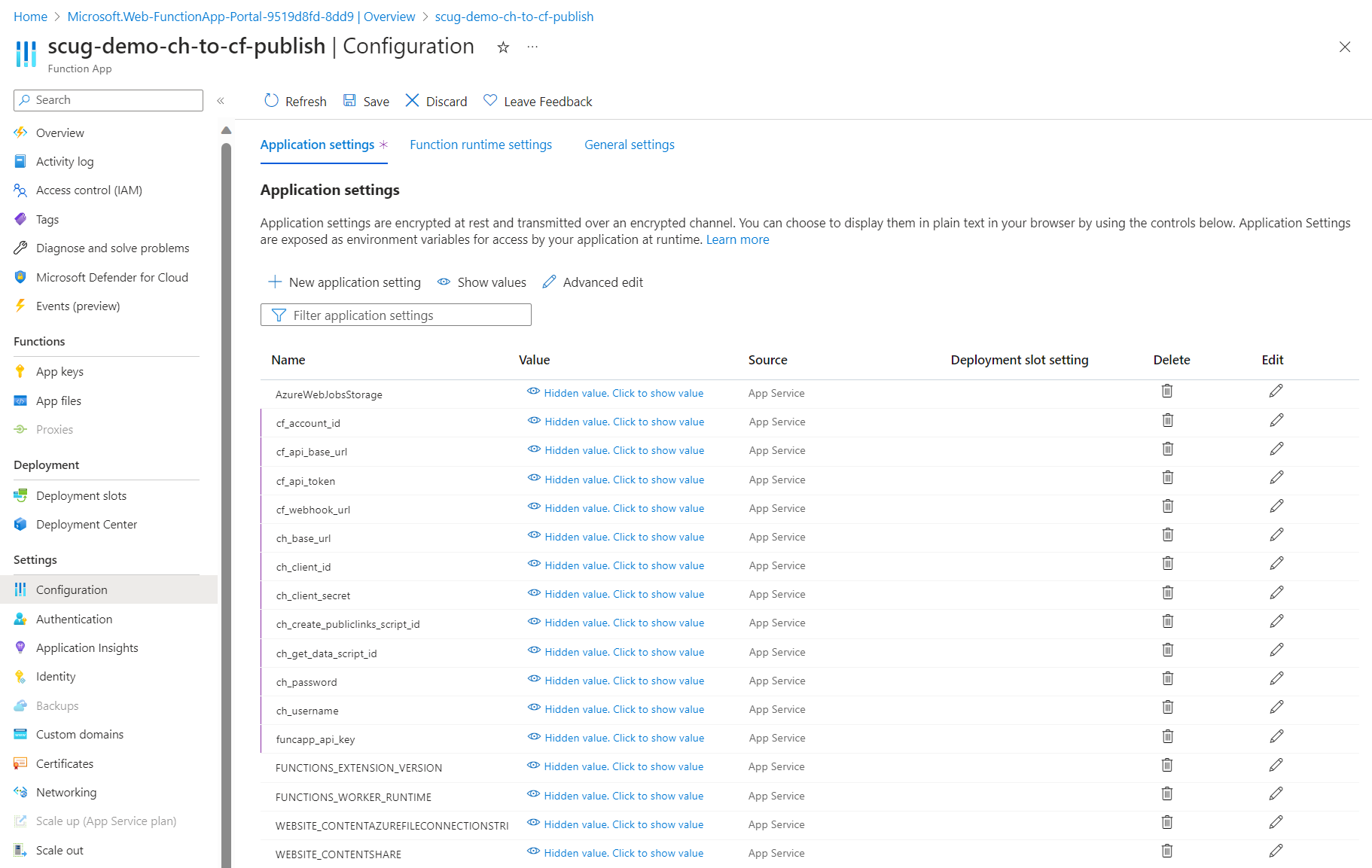
Depending on your needs, these application settings can be managed manually or very easily automated using DevOps pipelines.
List of required application settings
Below is a complete list of the Func app application settings
- cf_account_id your Cloudflare account identifier
- cf_api_base_url your Cloudflare API base URL
- cf_api_token your Cloudflare API token
- cf_webhook_url your Cloudflare webhook URL
- ch_base_url your Content Hub instance base URL
- ch_client_id your Content Hub instance client identifier
- ch_client_secret your Content Hub instance client secret
- ch_create_publiclinks_script_id your Content Hub action scrip identifier for creating public links
- ch_get_data_script_id your Content Hub action scrip identifier for getting data
- ch_password your Content Hub integration user password
- ch_username your Content Hub integration user username
- funcapp_api_key your custom Func app API key configured within your Content Hub integration
Next steps
In this blog post, we have explored at how to configure your Function app application settings to allow you to run and debug it in your local development environment. We also looked at configuring them on your published Func app on your Microsoft Azure portal.
Feel free to watch the rest of my YouTube playlist where I am demonstrating the end-to-end custom connector in action. Stay tuned.

One thought on “Creating and publishing a Content Hub custom connector – Func app settings and debugging”