

Use case and problem
Within Content Hub CMP, the content metadata can be stored in various places including the properties and related entities. For example, a Blog post content item can have multiple attachments, such as Imagery and Video assets linked from the DAM, as shown below.

Imagine you wanted to query all these metadata for your blog post, plus all the linked attachments. For the assets, you would like to also get video subtitles or even public links for them. Sounds complicated enough?
Well, this blog post will explore a Content Hub hidden gem to save your day. Please read on.
Web Scripts
Luckily for us, Content Hub supports creation of Action scripts that are designed to be executed using a Web API. This is a very powerful capability since we can leverage such a script to aggregate metadata from various Content Hub entities, whether this is stored within properties or relations. We can then execute this script using a single Web API, thereby avoiding unnecessary multiple trips to fetch such data.
How to create an Action Script
- To create a new script, navigate to Manage -> Scripts page
- Then click on +Script button
- This will pop-up a screen similar to this shown below. Enter Name, specify Action Script type and optionally enter Description. Click Save

- The Action script will be created and appears on the scripts list, similar to below:

How to add code/edit, build and publish your script
- Click on your script from the script list, which will open Script details page
- Click on the Edit button on top of the page to enable editor section, as shown below. Use the editor section to add the source code for your script

- Click on Build button to compile the source code for your script.

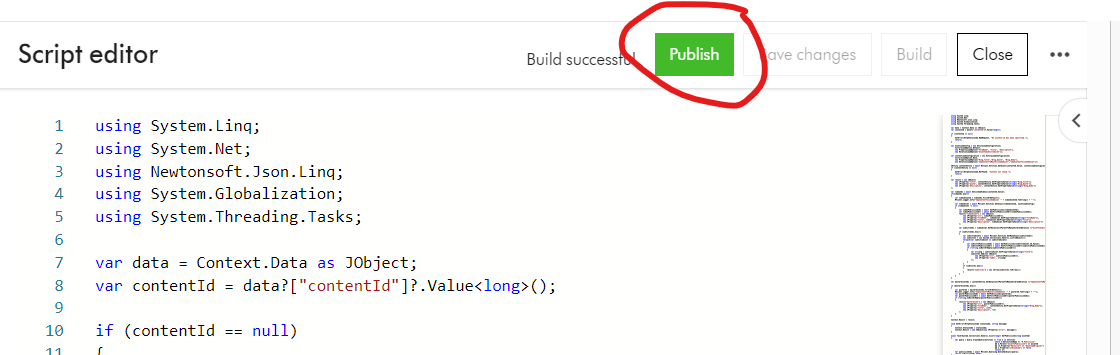
- Click on Publish button to publish the script and make code changes take effect.
- Finally, remember to Enable the script from the script list, to make it available for use
Executing your Action Script
To execute your Action script, simply send an HTTP POST request to the script endpoint, using a tool such as Postman or CURL. Below is a Postman sample. ch_base_url is your Content Hub instance base URL. SCRIPT_ID is the script identifier

In the sample request above, I have specified the request body with a parameter containing the CMP content identifier that I would like to aggregate all the metadata. I will cover more on the workings of this script in a follow up blog post.
Please note I presume you know how to specify the Authentication for the Web API calls to your Content Hub instance. This involves getting access tokens from your Content Hub instance.
Script output
If successful, you will get an output similar to the one below.

You can see within a single Web API call, we are able to get all the metadata related to a CMP Blog post content item:
- M.Content properties for the Blog post such as Title, Quote and Description
- M.Content relations such as CmpContentToMasterLinkedAsset and CmpContentToLinkedAsset
- M.Asset properties such as Filename, Title and Description
- M.Asset relations such as AssetToSubtitleAsset
- Video asset subtitle properties such as Filename, Title and Description
- M.Asset public links such as DownloadOriginal URLs
Next steps
In this blog post, I have introduced the first part on Content Hub Action Scripts for Web API use cases. We have walked through steps of creating a new script, editing and build the source code, publishing and enabling it for use. We have also looked at how to execute the Web script using a Postman tool.
In the second part, we will deep dive into the source code for the script that I used to produce the sample output above. Stay tuned and leave us any feedback or comments.
