

adapted from www.wallarm.comWhat is GraphQL
GraphQL is a kind of query language and server-side runtime technology used widely for application programming interfaces (APIs) that ensure that the client gets the required data. Nothing less or nothing more. Created by Facebook, GraphQL has a lot of aims and functions:
- A powerful data-fetching API
- API interface that’s easy to learn and work with
- An open-source query language making APIs fast and flexible
- An effective method to streamline security management for the API
- A way to give developers and business analysts the ability to develop APIs with desirable methods
- A query language that gets along with a given integrated development environment easily and effectively
- The facility to develop APIs that will function the way the client/end-user wanted or expected
GraphQL Playground
The easiest way to compose GraphQL queries to query your Sitecore Experience Edge is to make use of the GraphQL playground. I am presuming that you already have your Sitecore Experience Edge instance
connected to your Sitecore Content Hub instance or Sitecore XM Cloud instance.
To refresh your memory, you can visit this blog post where I have detailed steps to help you with the set up
In this blog post, I will be working with my Sitecore Content Hub instance to share a few tips and tricks. You will find these tips and tricks applicable to Sitecore XM Cloud as well.
Preview and Delivery APIs
Before you can access the GraphQL playground, you need to decide whether you are going to be using the Preview API or the Delivery APIs.
- Preview API: The Preview API is a GraphQL endpoint that exposes a preview of your content. Use the Preview API to access content that is not approved yet, including drafts. This can be useful when you want to test content in a staging environment before going to production. This is accessible using endpoint {ContentHubURL}/api/graphql/preview/v1 where ContentHubURL is your Sitecore Content Hub instance url.
- Delivery API: The Delivery API is a GraphQL endpoint that exposes approved and published content. Use this API for all production-related actions. This is accessible using endpoint
https://edge.sitecorecloud.io/api/graphql/v1
You will also need access to API Keys to use with your Preview or Delivery APIs. You can obtain your API keys as follows:
- Navigate to Manage -> API Keys to launch the API Keys management screen
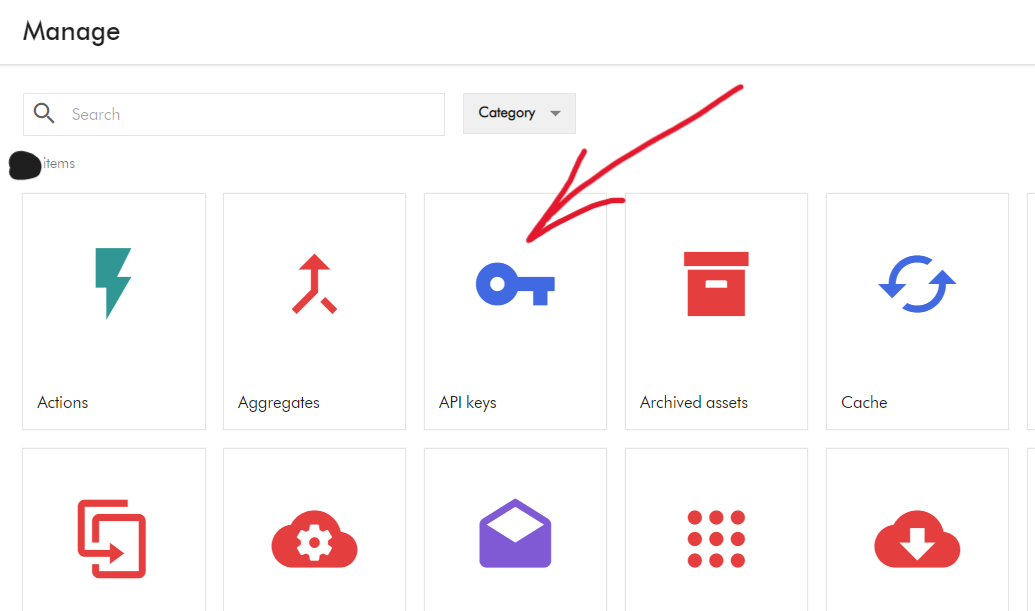
- On the API Keys screen, you need to provide the required name and scope of the API Keys, then click the call to action to generate the Preview or Delivery API keys. Please keep a note of them as you get only once chance to view and copy them. I recommend storing these keys securely on your Key Vault or similar tool.
Launching GraphQL Playground
To launch the GraphQL playground, open your browser and specify the following URL:
- Preview IDE:
{ContentHubURL}/api/graphql/preview/ideThis will launch the Preview API playground - Delivery IDE:
https://edge.sitecorecloud.io/api/graphql/ideThis will launch the Delivery API play ground
Below is a screenshot of Delivery API playground
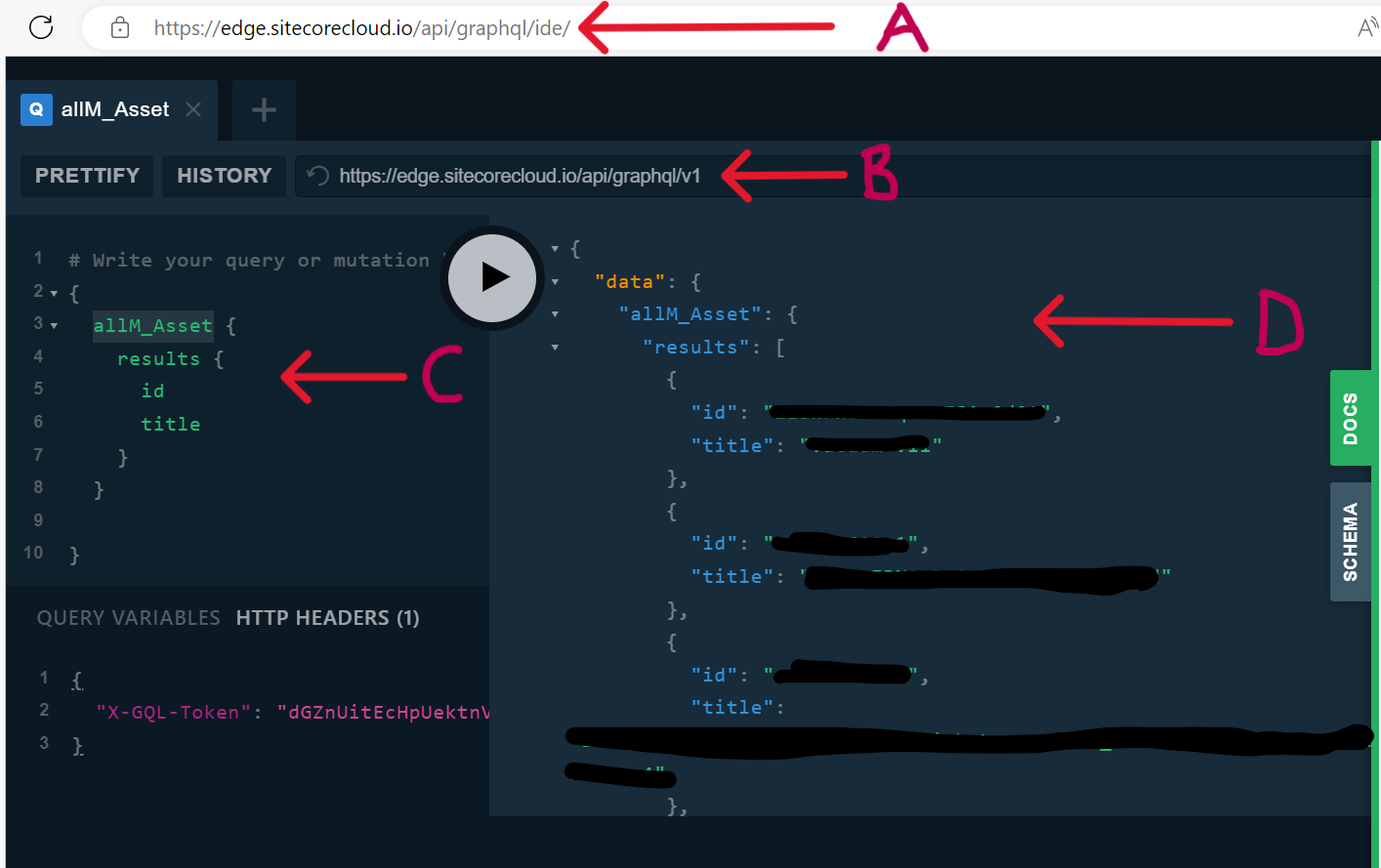
- A – This is the Delivery IDE URL
- B – This is the Delivery API endpoint
- C – This the GraphQL query section, where you will specify the queries. In my example, this the query to list all published assets, by using the predefined object
allM_Asset - D – This is the output of the GraphQL query, showing the results as JSON object. Notice only the id and title are returned, as specified in my query. This is one of the main advantages of using GraphQL, you get nothing less or nothing more than what you specify.
- HTTP Header – this is where we specify our API Key using the “X-GQL-Token” header. In this example, I have used the Delivery API key as I am querying my Delivery instance.
Troubleshooting tips and tricks
I am presuming you have so far been successful getting your GraphQL playground working. If you encounter any issues, try and troubleshoot as follows:
- Do you have your Delivery Platform setup correctly? ?Check that your Sitecore Content Hub has a license for Delivery platform, and this has been enabled. One way of verifying this is by having Manage -> Delivery Platform icon on your dashboard, as shown below. If you are missing it, contact Sitecore Support to have it enabled.

- Are you using correct Delivery API or Preview API Keys? Do not get the Delivery or Preview API keys mixed. To avoid any potential mix up, ensure you assign your API keys names to reflect Delivery or Preview scope when generating them. If you are not sure anymore, you can always discard and generate new ones (Please note in Production environments, deleting and generating new API keys may affect production services, plan this carefully
- Are you accessing the correct GraphQL Playground? Similarly to above, ensure your browser is pointing to Delivery IDE or Preview IDE accordingly. For example, if you haven’t published all your Assets, you may get discrepancy in the assets output within Delivery IDE and Preview IDE. Please note Preview IDE will show content that is not approved yet, including drafts.
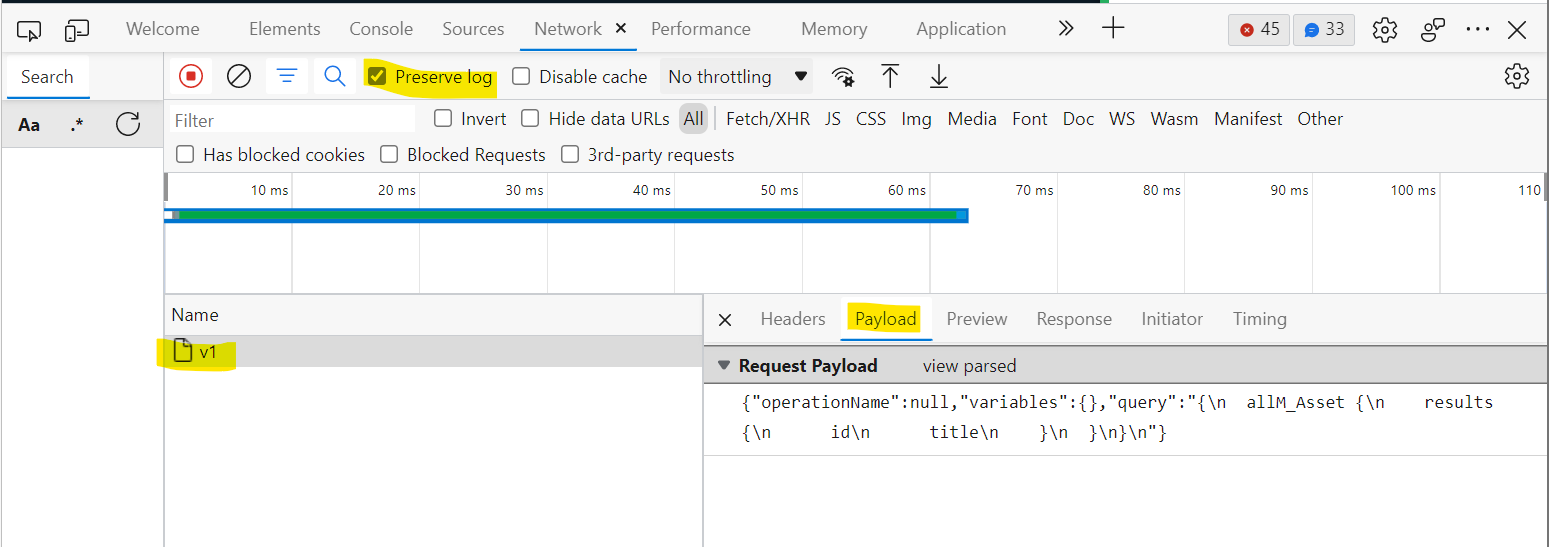
- Have you checked Browser Developer Tools? Your browser “Network” section captures detailed logs on requests and responses. An example screenshot below will help verify the response coming back from GraphQL server:
-
GraphQL tips and tricks
Using filters with your query
Suppose you want to control how many items to query, then you will need to filter the query results. Below is an example, where we are getting a single asset with id value of "some_asset_id"

Using parameters with query filters
Suppose you want to use a parameter with your filter the query. A use case is to be able to dynamically filter the list of assets based on some condition. Below is an example, where we are using a parameter for the id value of "some_asset_id"

- A – We make use of the Query Variables section to define parameters. In this case it is named
"assetId" - B – We define the parameter using the arguments to the query as shown here.
IDis the strong scalar type for the Asset Identifier field
Next steps
This completes this blog, where I have walked you through GraphQL and Sitecore Experience Edge. I hope you find this useful, and feel free to leave me any comments or thoughts. See you soon in my next blog post.

One thought on “Unlocking the Potential: Tips and Tricks for Working with GraphQL Queries and Sitecore Experience Edge”