

I recently got asked the following question via email:
Just wondering if you can help, I’m wanting to change which Collections appear on the homepage and I’m not sure how to do it, do you know, how?
In the spirit of Scott Hanselman’s advise below, I have put together this blog post to answer this question.
“Don’t reply to random emails with long emails. Each question is a gift. Write a blog post and send them the link. If you get repeats, you’ve got links to send. Do this for 20 years and you’ll be a mid-level tech blogger like me, with a blog full of random answers to gifts.”
@shanselman
Asset collections on your home page?
To personalise the asset collections on your home page, you need to locate this component, enable custom settings and adjust them accordingly.
This is how to go about it.
If you have asset collections defined in your Content Hub instance, your home page will appear like the hero image at the beginning of this blog. A collection is a group of assets, which can be shared with other users, allowing collaboration on that collection.
By default, you will see the latest (up to four (4) collections) on your home page. You can of course customize this list to meet your use cases.
Step-by-step guide on customizing asset collections list
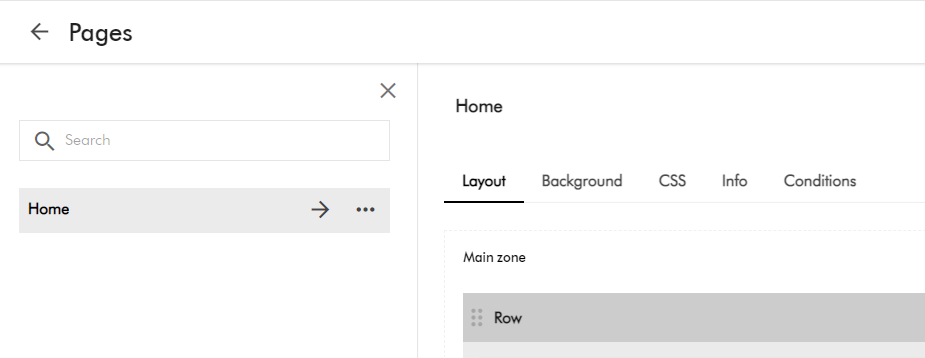
- Navigate to Pages using Manage -> Pages
- Select the Home page item. You will see page similar to below:
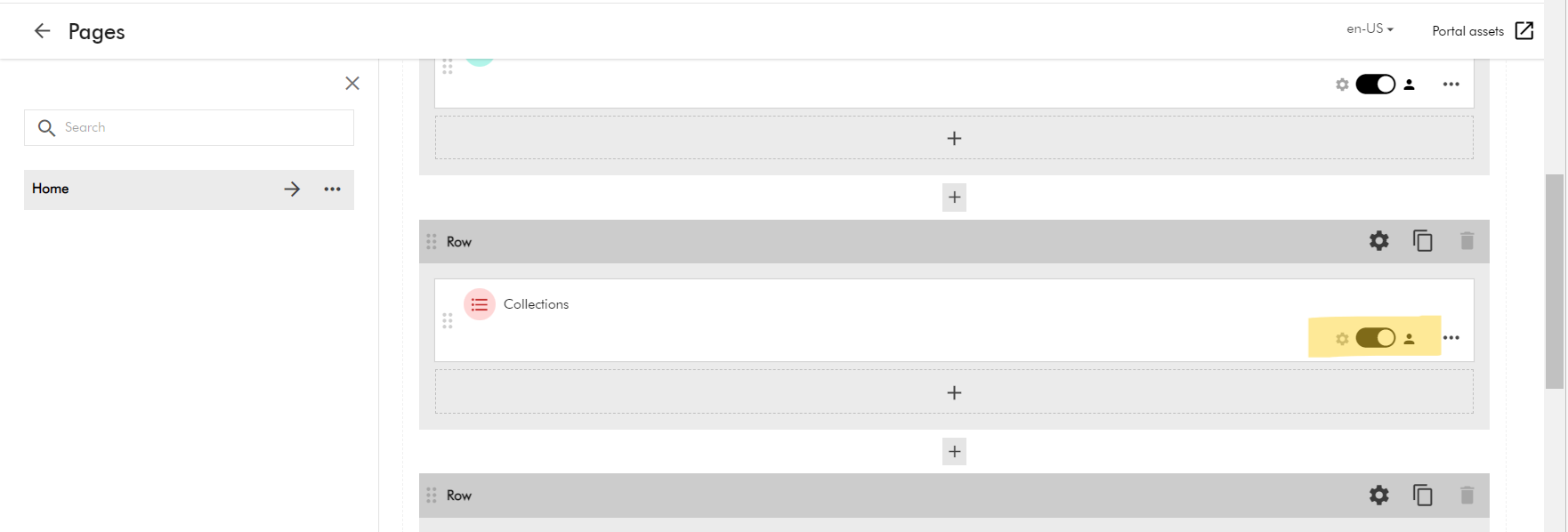
- Now scroll to the middle part of the home page. You will see the Row section with “Collections” component.
- Using the toggle button “Enable custom settings”. This will allow you to click on “Collections” component.
- This will the open the Entity list component.
Customizing Entity list component
Content Hub Entity list component is used to display an entity collection of a specific entity definition.

In our case, we are using this to display the asset collections (M.Collection)
Entity list component configuration settings are grouped into six tabs:
- Select
- Output
- Template
- Components
- Labels
- Advanced
On the Select tab, adjust the entity definition query to match your use cases. You can create the query on the Entity definitions column, such as the following.
- Take: this has the count of collections shown, e.g., 4
- Enable sorting: allows you to define sort criteria for your collection list
- Sorting property: This has the sorting property, e.g., date created (Descending or Ascending)
You can apply filters to this query. In this case, only items that match the query and the filters are displayed.
Note: Your changes should be applied on the fly as shown on the Results column on the right-hand side
Once you are happy with your changes, click on Save and Close button. Now navigate to your home page, you should see your changes applied.
Next steps
On this blog post, we have looked at how to personalise the asset collections list on your Content hub home page. I am keen to hear your feedback or comments. Please do use the comments section for that.
Stay tuned for future posts as well look and feel free to look around at my existing posts on Sitecore platform.

One thought on “How to customize asset collections list on Sitecore Content Hub home page”