
I recently was working on a cool project that required migration of hundreds of videos from a legacy video platform to Sitecore Content Hub as part of a digital modernization strategy. These video assets happened to have subtitles for multiple languages, which presented a significant challenge in itself.

If you are familiar with Sitecore Content Hub DAM, we have a capability to do a bulk import of DAM assets using the Excel import feature. There is also a fair number of blogs with guidance on how to go about this process. However, if you are looking for a quick guide on performing bulk import of video subtitles, there seems to be lack of documentation or step by step guidance.
I thought I document this process to fill this gap and share my story of overcoming this challenge.
First things first – recap on importing video subtitles via Portal page
I am assuming you already have a video asset imported into your Sitecore CH instance.
After selecting your video asset, the asset details page will look like this one below.

Clicking Upload files button will prompt with a dialog box shown below:
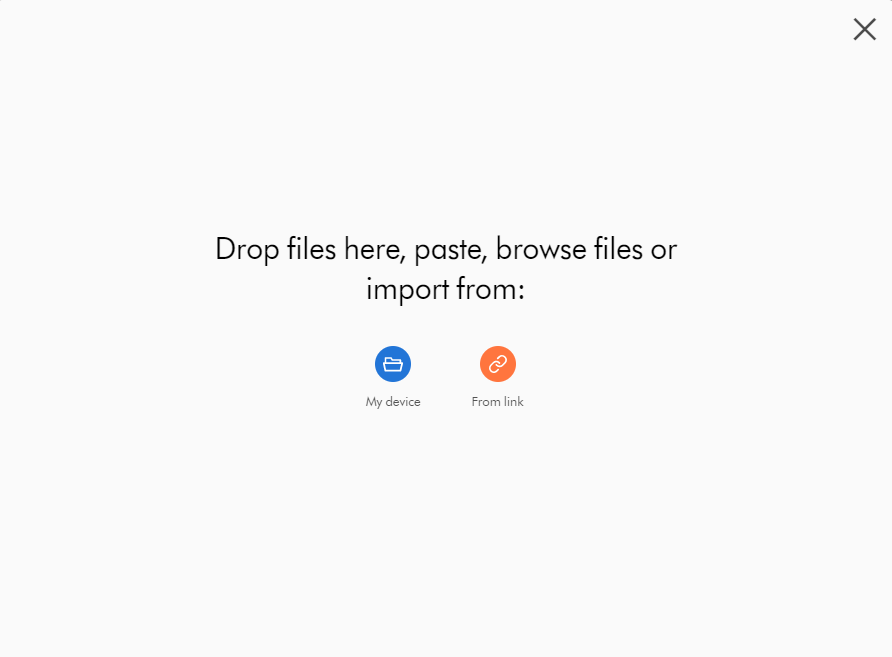
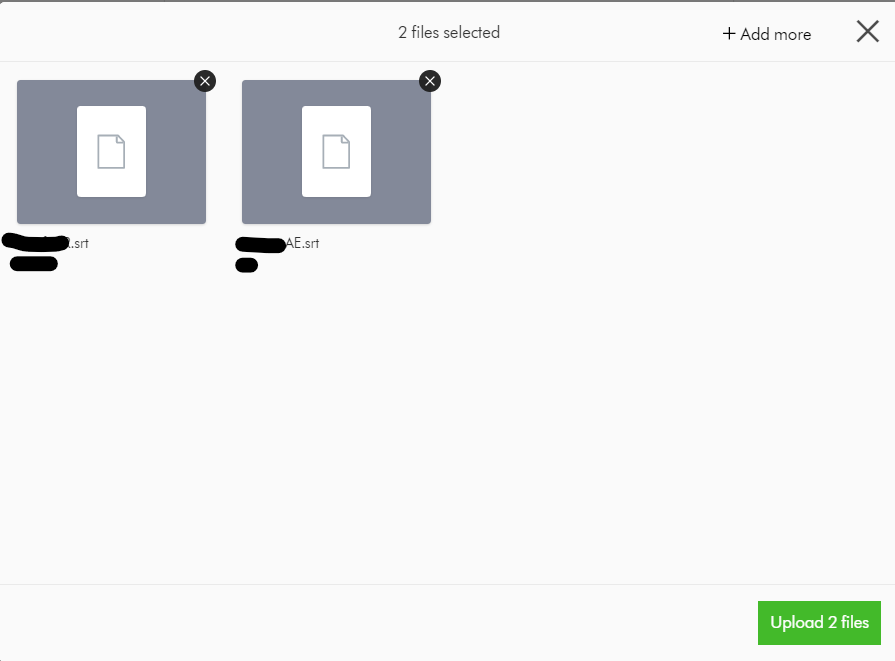
- Click My device, navigate to the location of the files, select them, and then click Open. Optionally, to add more files, click + Add more; otherwise click Upload files.
- Click From link, paste links to the files you want to upload, and then click Import.
Please note as of this writing, Sitecore CH supports only SRT and SUB subtitle formats.
After successful upload of the subtitle files, your Video subtitles section will look like this below.

At this stage, we haven’t specified the localised language for the subtitle file. To do this, click the file name or click Edit language and, in the Edit language dialog box, select the language from the drop-down list and then click Save.

Congratulations! You can now have the closed caption option (CC) show in the media player, which lets you select the uploaded subtitles to play along with your video.
Where are my subtitle files stored?
As you may have guessed it right, the subtitle files uploaded are actually M.Asset entities which as stored within the M.Content.Repository.Subtitle Content repository. You can view these files using your All-assets portal page, and filter the Subtitle Content repository.

How are the subtitle files linked to the video asset?
To view the subtitle and video asset relationship, head on to the Schema section by navigating to Manage -> Schema -> M.Asset
On the M.Asset schema page, search for subtitle. This will filter the schema for subtitles as show below.
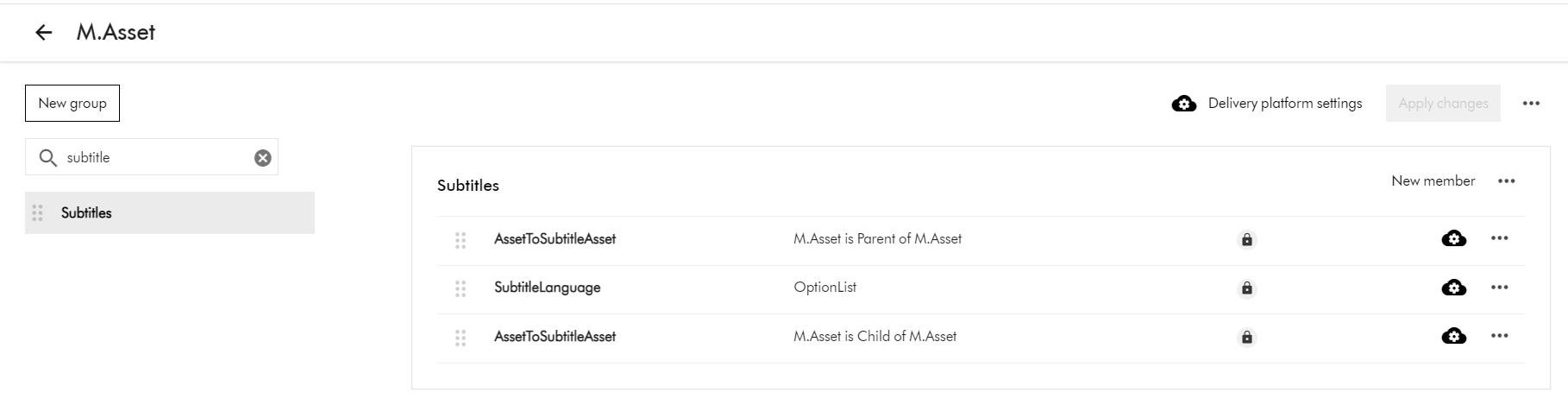
This means that:
- the video asset is the Parent of the Subtitle asset (AssetToSubtitleAsset:Parent)
- the subtitle asset is the Child of Video asset (AssetToSubtitleAsset:Child)
- the subtitle language is an OptionList
So, how do I bulk import Video Subtitles?
Now that we know subtitle are M.Asset entities, we will leverage the Excel Import template to achieve the bulk import.
When importing an Excel file, ensure that the name of each worksheet matches the name of the corresponding definition. For example, to import assets, a worksheet must be called M.Asset
You can hand-craft the Excel file if you already know the fields needed for your import. This guidance here also has preparation steps that you can undertake.
A safer option is to Export the sample video asset plus the subtitles, so you can figure out how the template should look like.
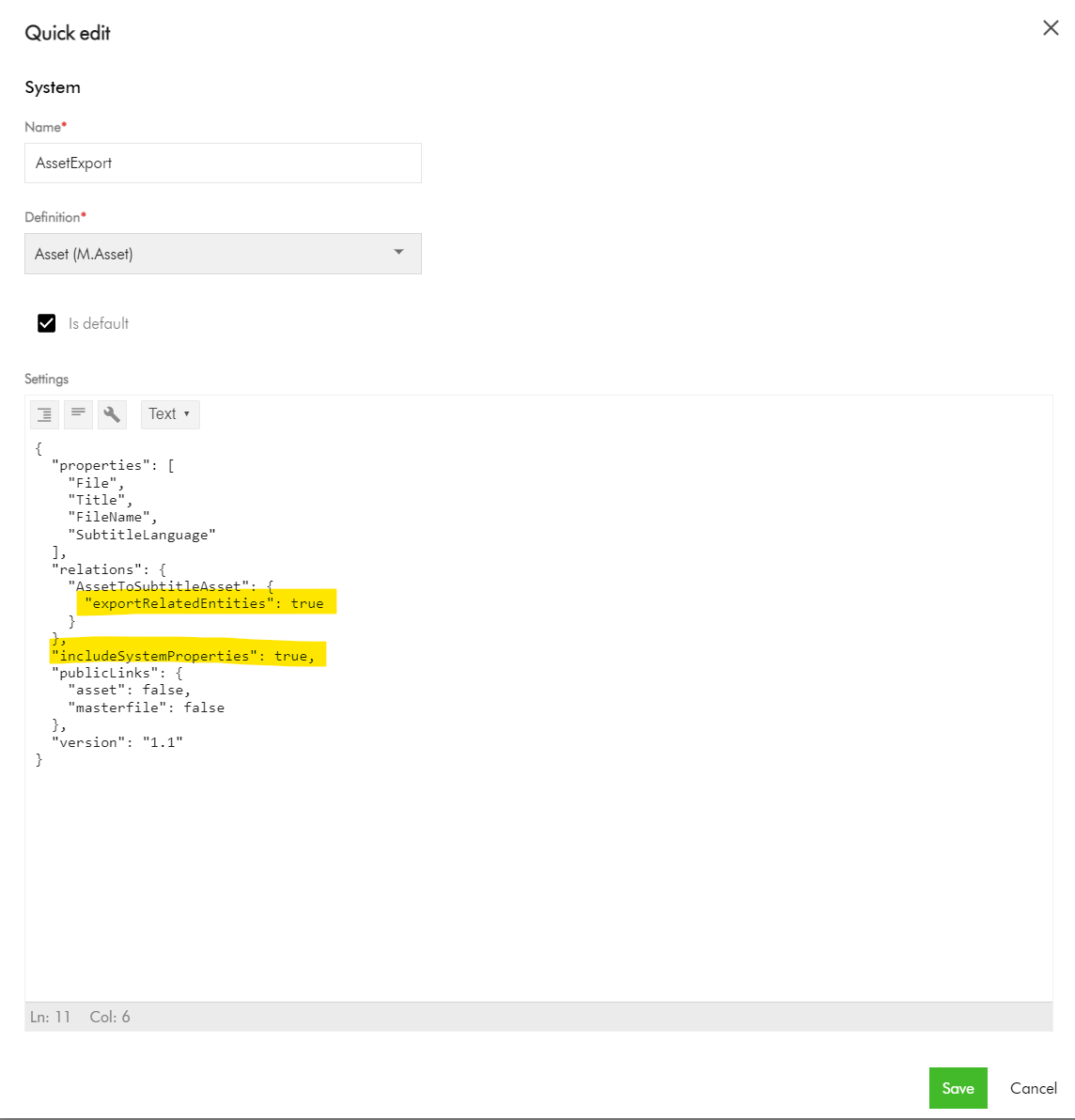
This will require creating an Export profile with minimal number of fields required for the bulk import. If you follow the steps on how to create an M.Asset export profile, you should end up with one similar to one below.
Manage -> Export Profiles -> Create new export profile
{
  "properties": [
    "File",
    "Title",
    "FileName",
    "SubtitleLanguage"
  ],
  "relations": {
    "AssetToSubtitleAsset": {
      "exportRelatedEntities": true
    }
  },
  "includeSystemProperties": true,
  "publicLinks": {
    "asset": false,
    "masterfile": false
  },
  "version": "1.1"
}
Pay attention to the Relations section, where we are enabling the export of the AssetToSubtitleAsset related entities. Also, ensure includeSystemProperties is enabled.
Export your sample video asset into Excel
- Navigate to your Assets portal page.
- Search and locate your video asset.
- Select the video asset (tick the checkbox of your selection component)
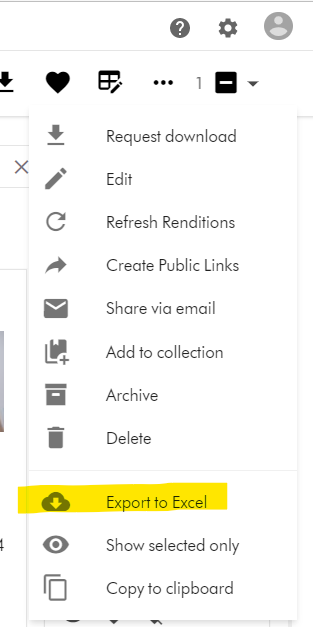
- On the right-hand side, access the Actions dropdown menu, and click on “Export to Excel”
- Your download should be ready and accessible from Profile -> Downloads link
M.Asset Video Subtitles Import template
Your M.Asset video subtitles import template will look similar to this one below.

You can view and download sample Excel file too.
As you can see:
- Row 1 – this has the M.Asset entity properties in your Sitecore CH instance
- Row 2 and 3 – these have the entries for the two subtitles that we configured.
- Row 4 – this is the entry for the video asset.
- Pay special attention to the AssetToSubtitleAsset:Parent which is how the subtitles are linked to the parent video asset using identifier id123456789 in this example
- Pay special attention to the AssetToSubtitleAsset:Child which is how the video asset is linked to all subtitles. This will have pipe delimited list of subtitles identifiers (e.g., id123456789-viralvideo-ar-AE|id123456789-viralvideo-fr-FR)
- Please note, you need to pre-generate unique values for the identifier column for your subtitles, in order to be link them with parent video as shown above. This will be key to successful bulk import of the subtiltes.
- Use the File column for the URL to the actual video asset and subtitle assets.
And finally, the bulk import from Excel
To bulk import, use the Asset Creation page.
- On the menu bar, click Create.
- On the Create page, in the top-right corner, click Add and then select Import Excel.
- Do one of the following:
- Drag the Excel file you want to upload into the dialog box.
- Click browse, then pick the Excel file you want to upload.
- Optionally, click Add more to add more files if needed.
- Click Upload files.
Next steps
On this blog post, we have look at how to bulk import video subtitles to your Sitecore Content Hub instance. I am keen to hear your feedback or comments. Please do use the comments section for that.
I have also blogged on How to bulk import CMP content items with multiple languages. Please check it out too.
Stay tuned for future posts as well look and feel free to look around at my existing posts on Sitecore platform.

2 thoughts on “How to bulk import Video Subtitles into Sitecore Content Hub”